Running your website
Church settings, tab by tab
Every tab of Church → Settings: Business, Contact, Email, Sermons, Events, Church app, Visits, Giving, Prayer and Privacy, with what each setting does.
On this page
Church → Settings is where you type your church's details once. The website, its emails and its pages all use them, so when your phone number changes you change it here and every page updates. Only administrators can change settings.
Each tab has its own Save changes button at the bottom, and it saves that tab only. Run setup again at the top right reopens the setup wizard.
Features marked (Pro) need a Pro or Agency licence.
Business
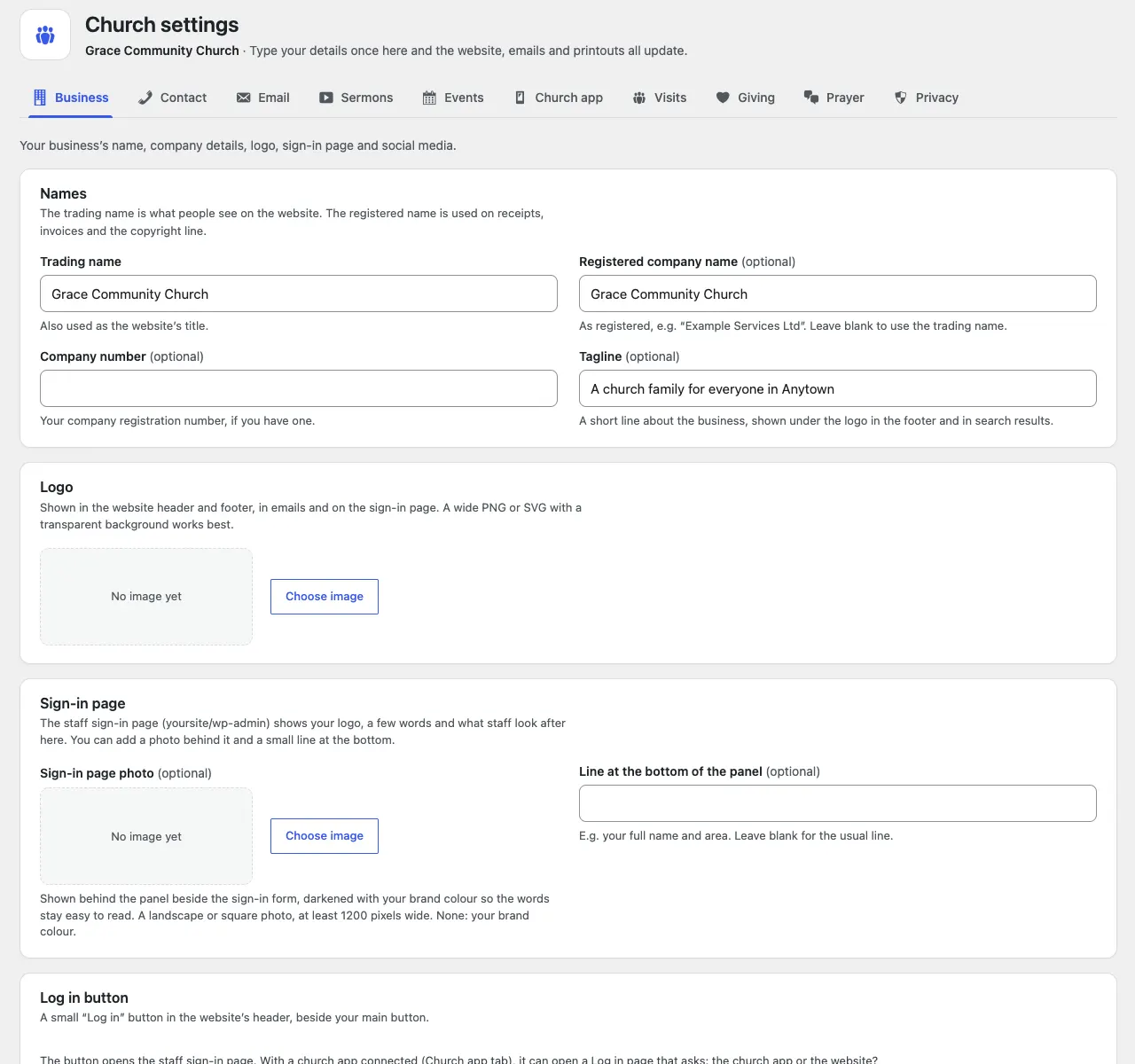
Your church's name, logo, sign-in page, charity details, which page is which, and social media.
- Names: Trading name (what people see, also the website's title), Registered company name (optional), Company number (optional) and Tagline (optional) (shown under the logo in the footer and in search results).
- Logo: click Choose image, pick a picture from the media library or upload one, then click Select. Change image swaps it later. A wide PNG or SVG with a transparent background works best. It shows in the header, footer, emails and the sign-in page.
- Sign-in page: a photo behind the panel and the line at the bottom. See The staff sign-in page.
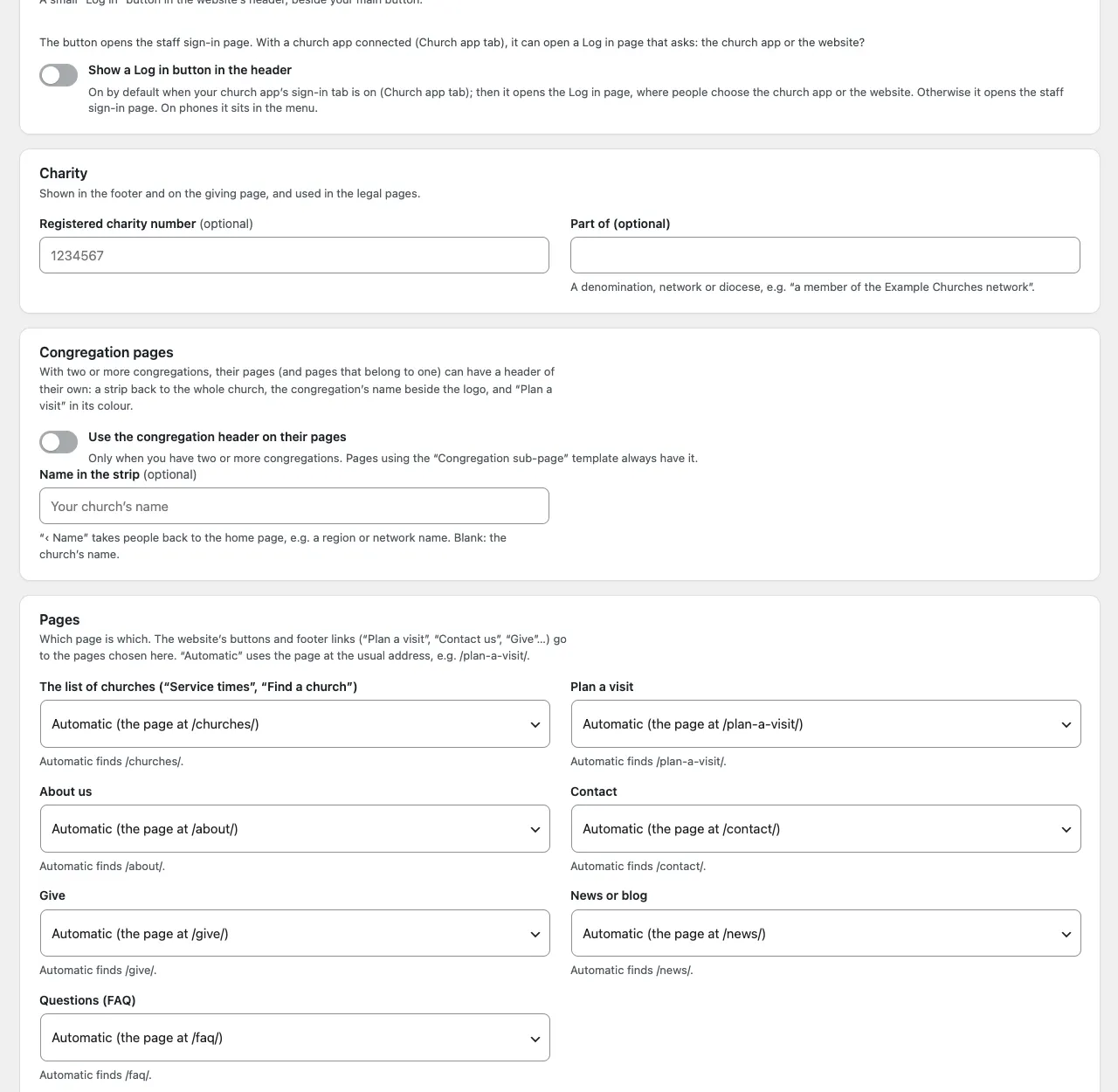
- Log in button: Show a Log in button in the header, and (with the church app, Pro) Create the Log in page.
- Charity: Registered charity number (optional) and Part of (a denomination, network or diocese).
- Congregation pages: Use the congregation header on their pages and Name in the strip (optional). See Churches.
- Pages: which page is the list of churches, Plan a visit, About us, Contact, Give, News or blog and Questions (FAQ). Automatic uses the page at the usual address. Change this only if you've made a different page for one of them.
- Search and sharing: Description of the website (optional) (about 155 characters, shown under your name in search results) and Share picture (optional) (shown when a link is shared on WhatsApp or Facebook; landscape, at least 1200 × 630 pixels).
- Social media: links to your Facebook, Instagram, TikTok, X (Twitter), YouTube and LinkedIn pages. Icons appear in the footer; leave a box blank to hide that icon.
Contact
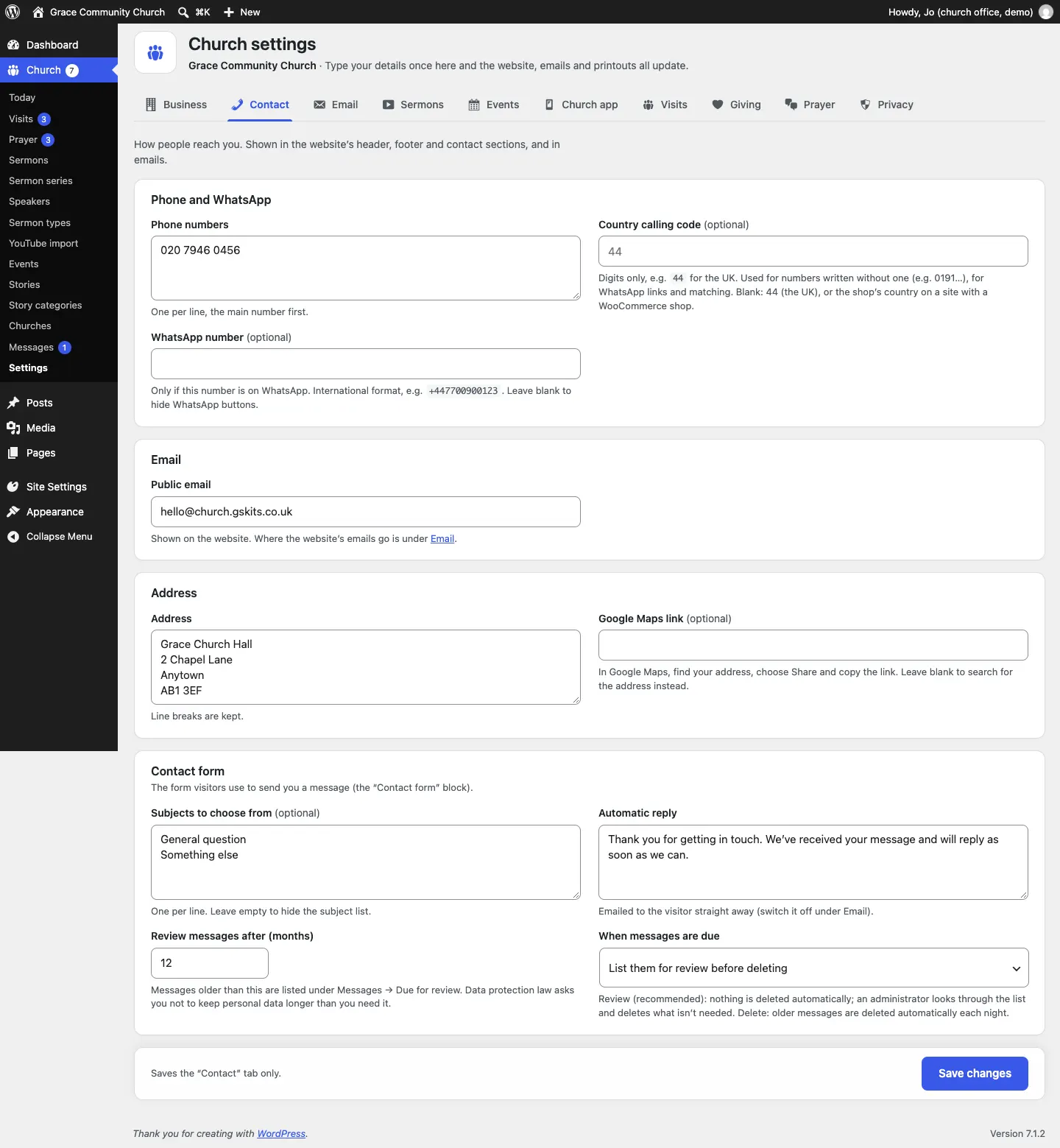
How people reach you: Phone numbers (one per line, main number first), Country calling code (optional), WhatsApp number (optional), Public email, Address and Google Maps link (optional). Also the Contact form: its subjects, automatic reply and when old messages are reviewed. See Messages.
Each church's own phone and email are in its Church details (Church → Churches).
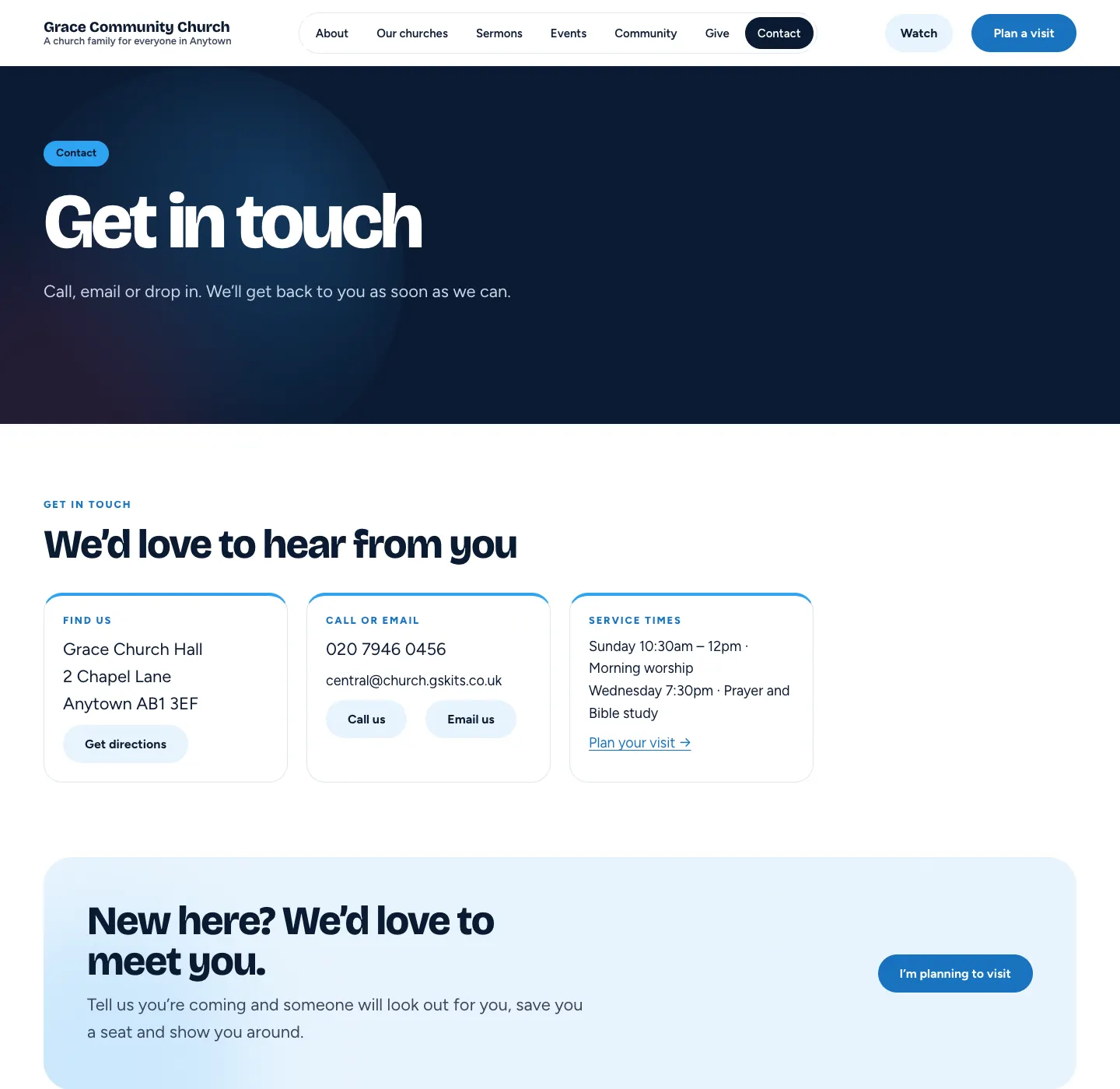
The Contact page shows these details, with Get directions, Call us and Email us buttons and the service times:
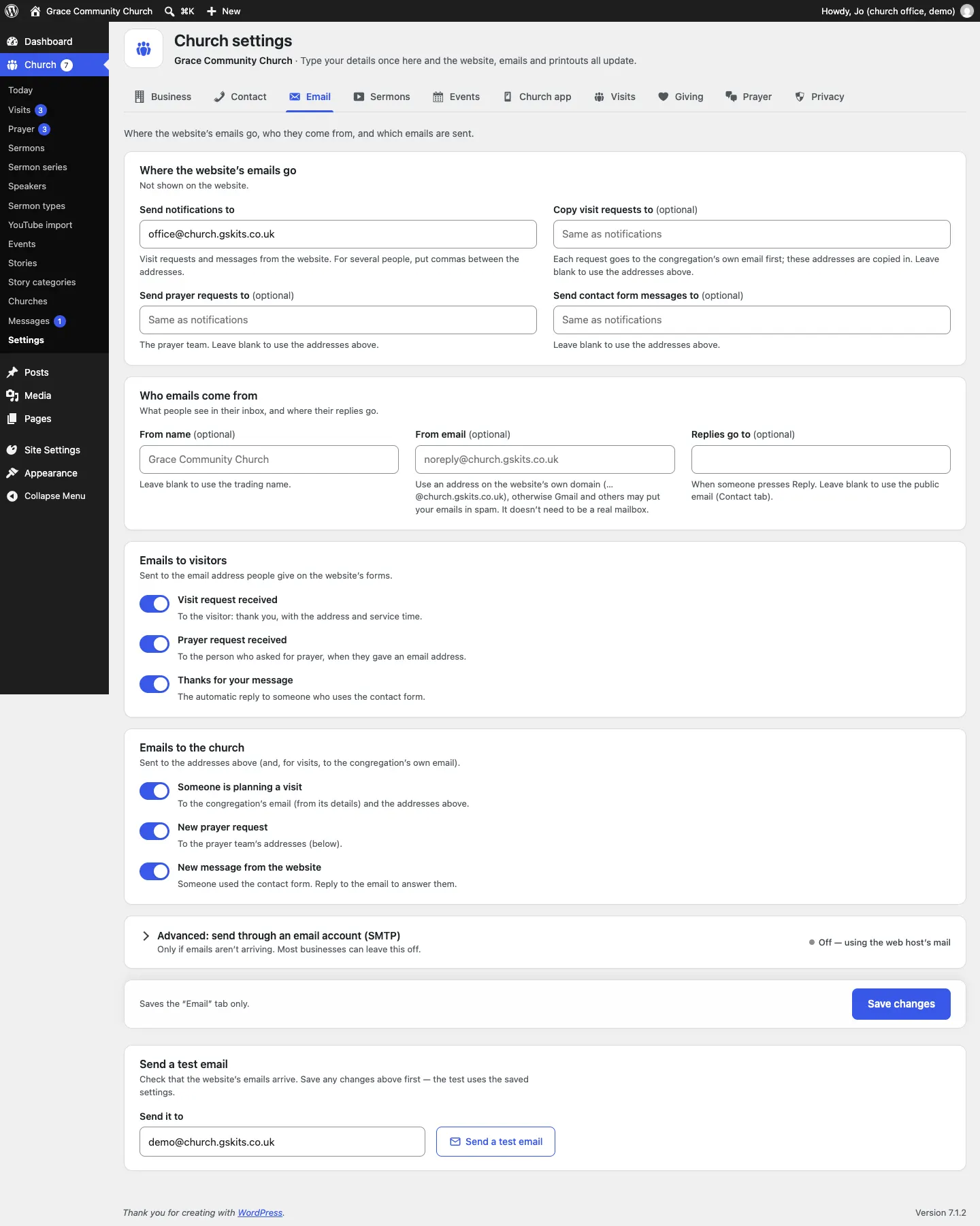
- Where the website's emails go: Send notifications to (visit requests and messages; put commas between several addresses), and three optional lists that use those addresses when left blank:
- Copy visit requests to (optional): each visit request goes to the congregation's own email first, and these addresses are copied in;
- Send prayer requests to (optional): the prayer team;
- Send contact form messages to (optional).
- Who emails come from: From name (optional), From email (optional) (use an address on your website's own domain so emails don't land in spam) and Replies go to (optional).
- Emails to visitors: switches for Visit request received, Prayer request received and Thanks for your message.
- Emails to the church: switches for Someone is planning a visit, New prayer request and New message from the website.
- Advanced: send through an email account (SMTP): only if emails aren't arriving.
- Send a test email: save first, then type an address in Send it to and click Send a test email.
- Email log (Pro): shows whether each email was sent and, if not, why.
More in Privacy and emails.
Sermons
Your YouTube channel and hourly checks, whether new sermons publish straight away, videos to skip, the sermons' address and name, and their types. Import now is at the bottom. See Sermons from YouTube.
Events
Also show events from: Nowhere else (only the events added here), A calendar feed (iCal: Google, Outlook, ChurchSuite…) (Pro) or The church app (MaSym) (Pro), and Show events up to (days ahead). See Events.
Church app (Pro)
Connecting your church app, matching congregations, which events show, the buttons on the website, the "Church app" tab on the sign-in page and Refresh now. See Your church app.
Visits
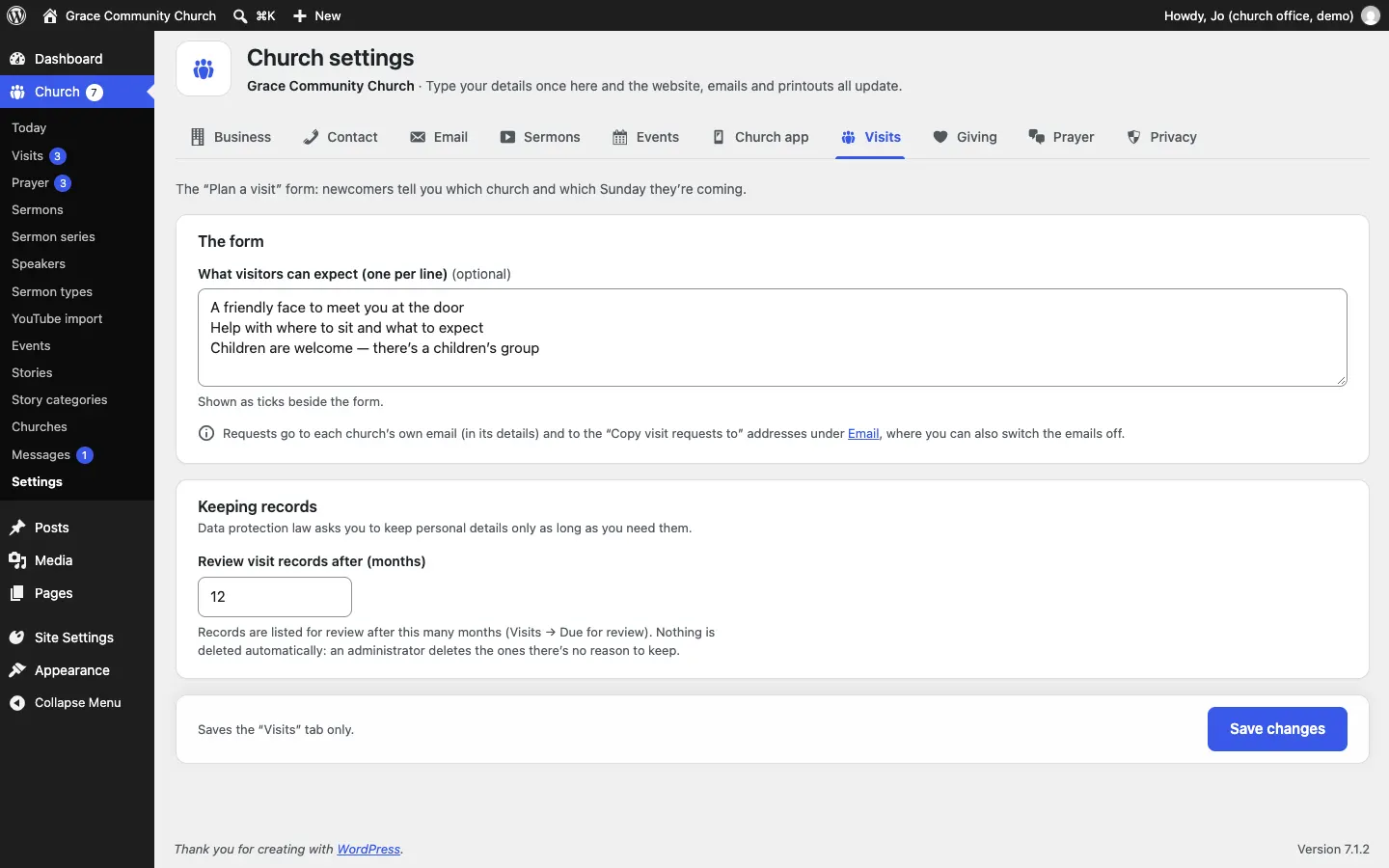
What visitors can expect (one per line) (optional) (the ticks beside the Plan a visit form) and Review visit records after (months). Visit requests go to each church's own email and to the Copy visit requests to addresses on the Email tab. See Plan a visit.
Giving
Your giving links, bank details, other ways to give and Gift Aid note. See Giving.
Prayer
Take prayer requests on the website and Review requests after (months). See Prayer requests.
Privacy
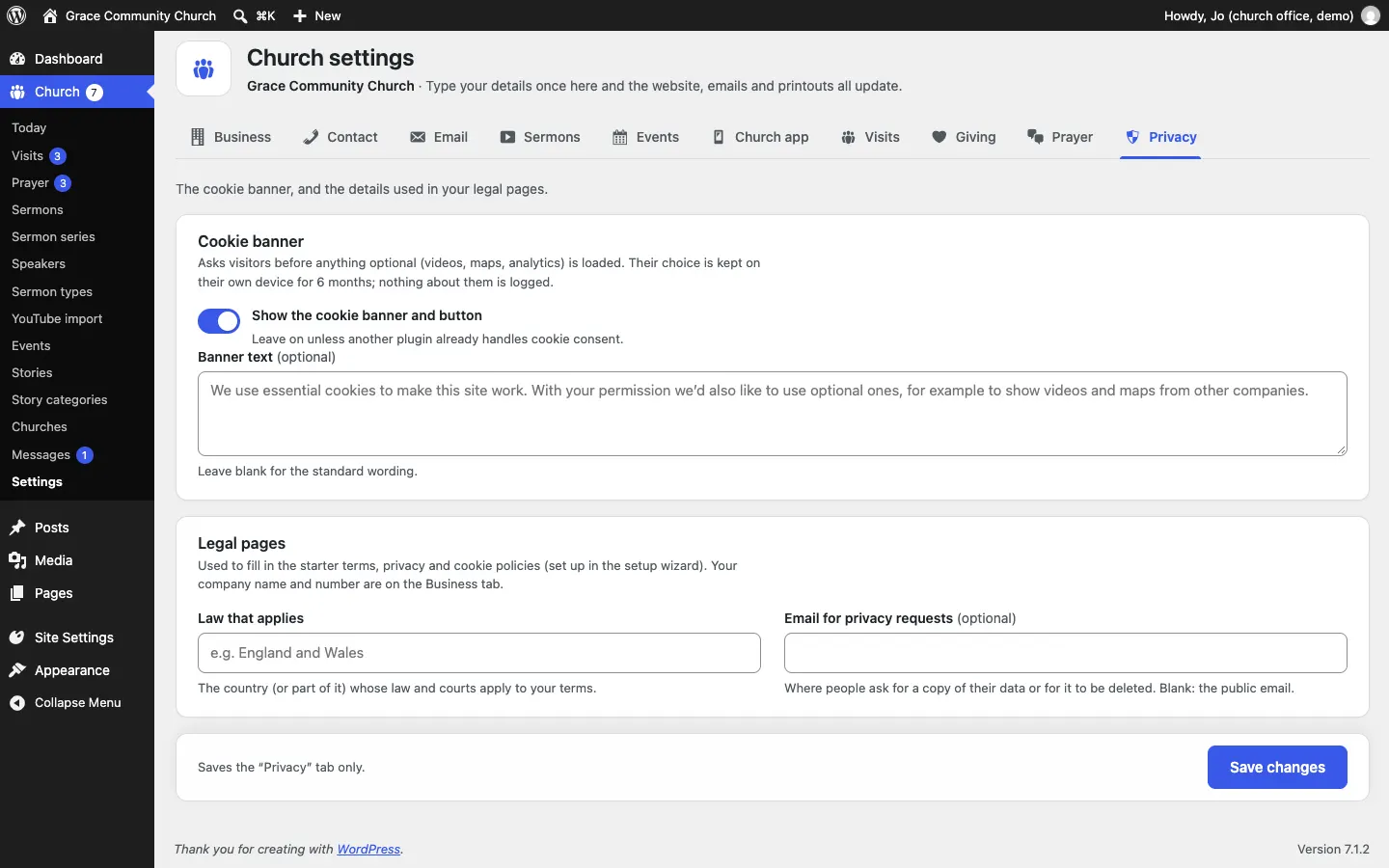
- Cookie banner: Show the cookie banner and button (leave on unless another plugin already handles cookie consent; a plugin is an add-on for WordPress) and Banner text (optional).
- Legal pages: Law that applies and Email for privacy requests (optional), used to fill in your starter terms, privacy and cookie pages.
Licence
Your licence key (it looks like GS-XXXX-XXXX-XXXX-XXXX), also under Settings → Gradespace licence. See Buying and your licence.
Design & colours
Not on this screen but close by: Site Settings → Design & colours chooses the website's design and palette. See Designs.