Running your website
Daily running and settings reference
The daily and weekly routine for a trade business website: the Today screen, the red numbers on the menu, reviewing old requests, personal data requests, and a reference to every tab under Trades → Settings.
On this page
Once the website is set up, running it takes a few minutes a day. This chapter is the routine, plus a reference to every setting.
Features marked (Pro) need a Pro or Agency licence.
Signing in
- Go to your website's address followed by /wp-admin (for example
yourbusiness.co.uk/wp-admin), or click Staff sign-in in the footer. - Sign in with your own username and password. Please don't share accounts: the website records who did what.
- You go straight to Trades → Today.
After 5 wrong passwords, sign-in pauses for 15 minutes. Forgotten your password? Click Lost your password?. See Staff and sign-in.
The Today screen
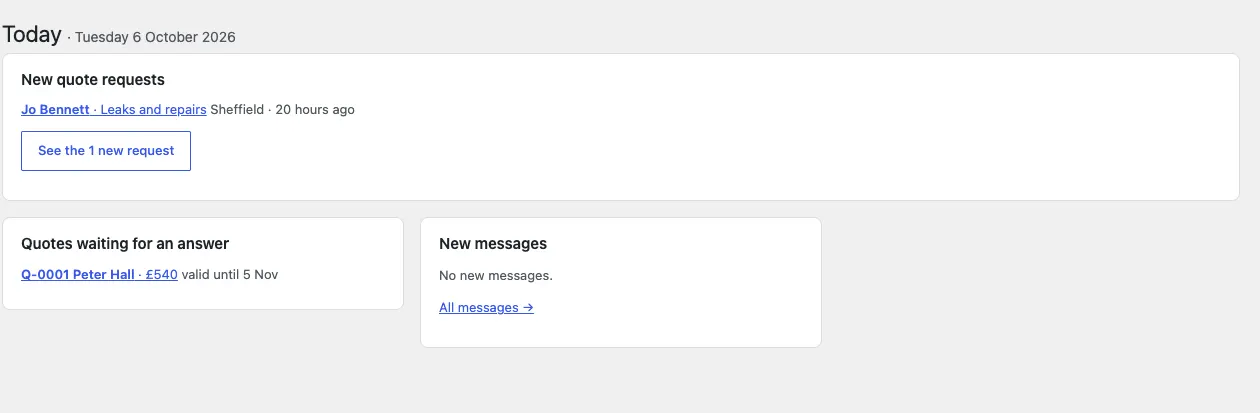
Trades → Today shows what needs you:
- New quote requests, newest first, with the job, town and how long ago. Click one to open it, or See the new requests.
- Quotes waiting for an answer (Pro), with the quote number, customer, total and valid-until date.
- New messages from the contact form, with All messages.
- A warning when an area page needs its own words, and (for administrators) when finished requests are due for review.
The red numbers on the menu
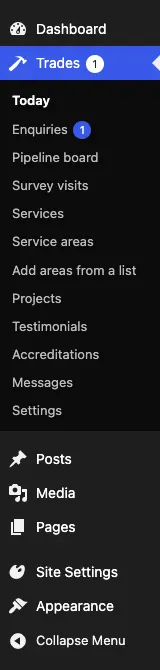
The number next to Trades and Enquiries in the left-hand menu is how many new quote requests are waiting. It goes down as requests move on from New.
Every day
- Open Trades → Today.
- Reply to every new quote request the same day if you can: ring them, or use Email it to the customer. See Quote requests and the pipeline.
- (Pro) Send a survey link or a quote to the requests that are ready. See Survey visits and Quotes.
- Check Trades → Survey visits for today's and tomorrow's visits (Pro).
- Answer new messages. See Messages.
- Move jobs along: Won when they say yes on the phone, Job done when the work is finished, Lost when they go elsewhere.
Every week
- Look at Trades → Pipeline board (Pro) or Trades → Enquiries, filtered by Contacted and Quoted: chase anyone who hasn't answered.
- Add a finished job to Trades → Projects with before and after photos.
- Add new testimonials under Trades → Testimonials (with permission).
- Check any yellow warnings about area pages that need their own words.
Every few months
- Check your Services prices are still right.
- Review old requests and messages (see below).
- Check updates under Dashboard → Updates. See Backups and updates.
Reviewing old requests
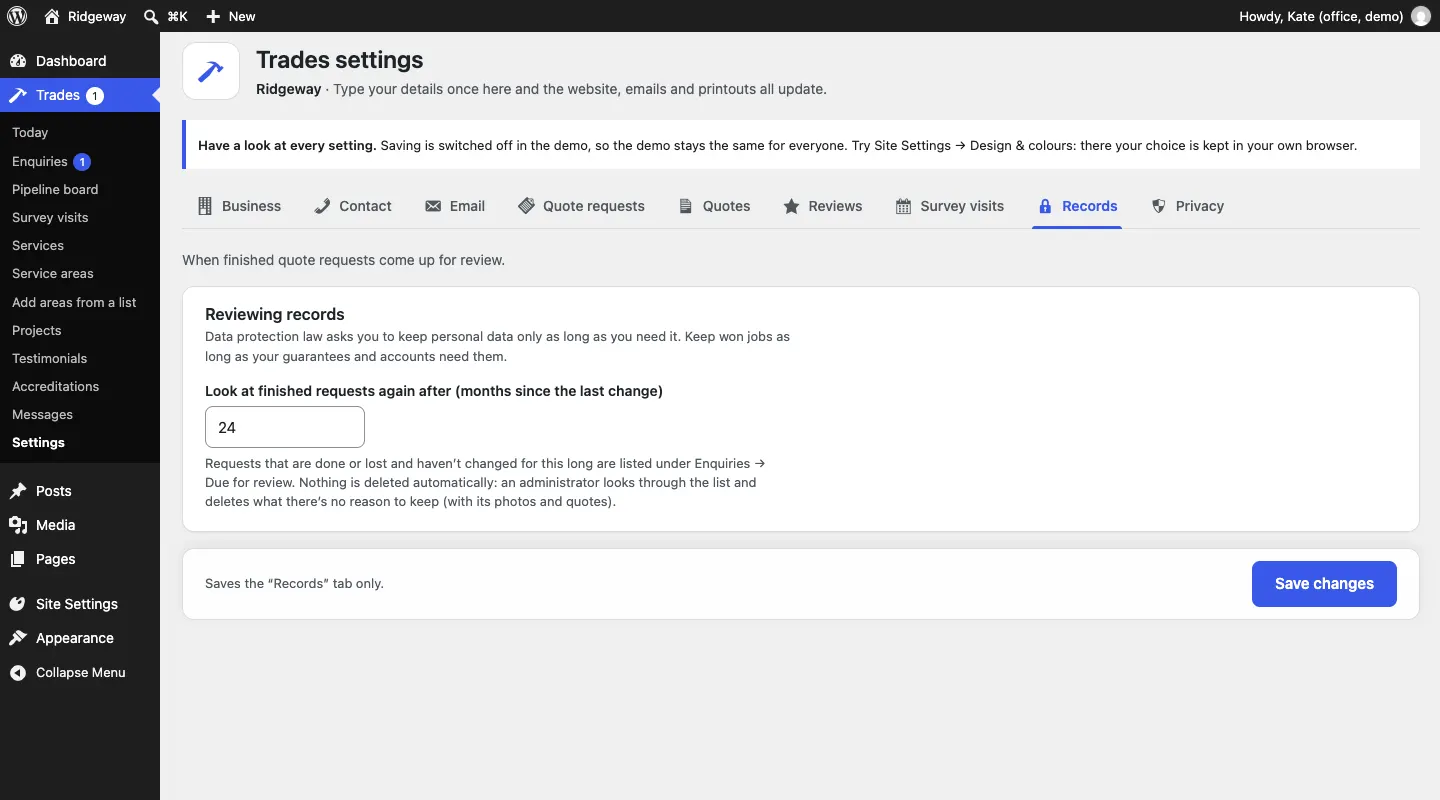
Data protection law asks you to keep personal data only as long as you need it.
- Set how long under Trades → Settings → Records: Look at finished requests again after (months since the last change).
- Requests that are Job done or Lost and haven't changed for that long are listed under Trades → Enquiries → Due for review (administrators only).
- Nothing is deleted automatically. An administrator ticks the requests there's no reason to keep and deletes them, typing DELETE to confirm. Their photos and quotes go too.
When someone asks for their data
If a customer asks for a copy of their data, or to be forgotten:
- Go to Tools → Export Personal Data or Tools → Erase Personal Data.
- Enter their email address and follow the steps.
Erasing deletes their quote requests with the photos, quotes and survey visits. See Privacy and emails.
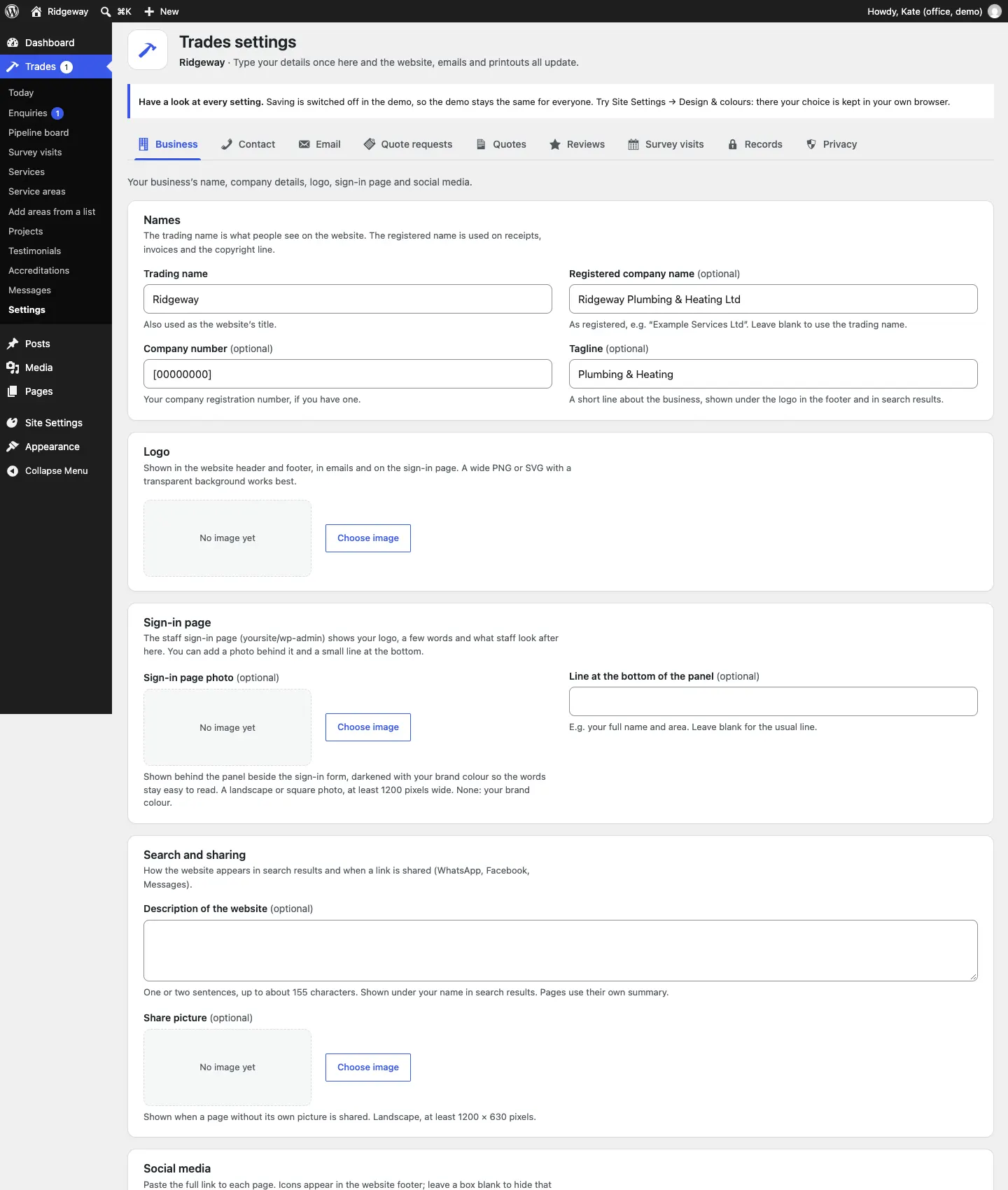
Settings reference: Trades → Settings
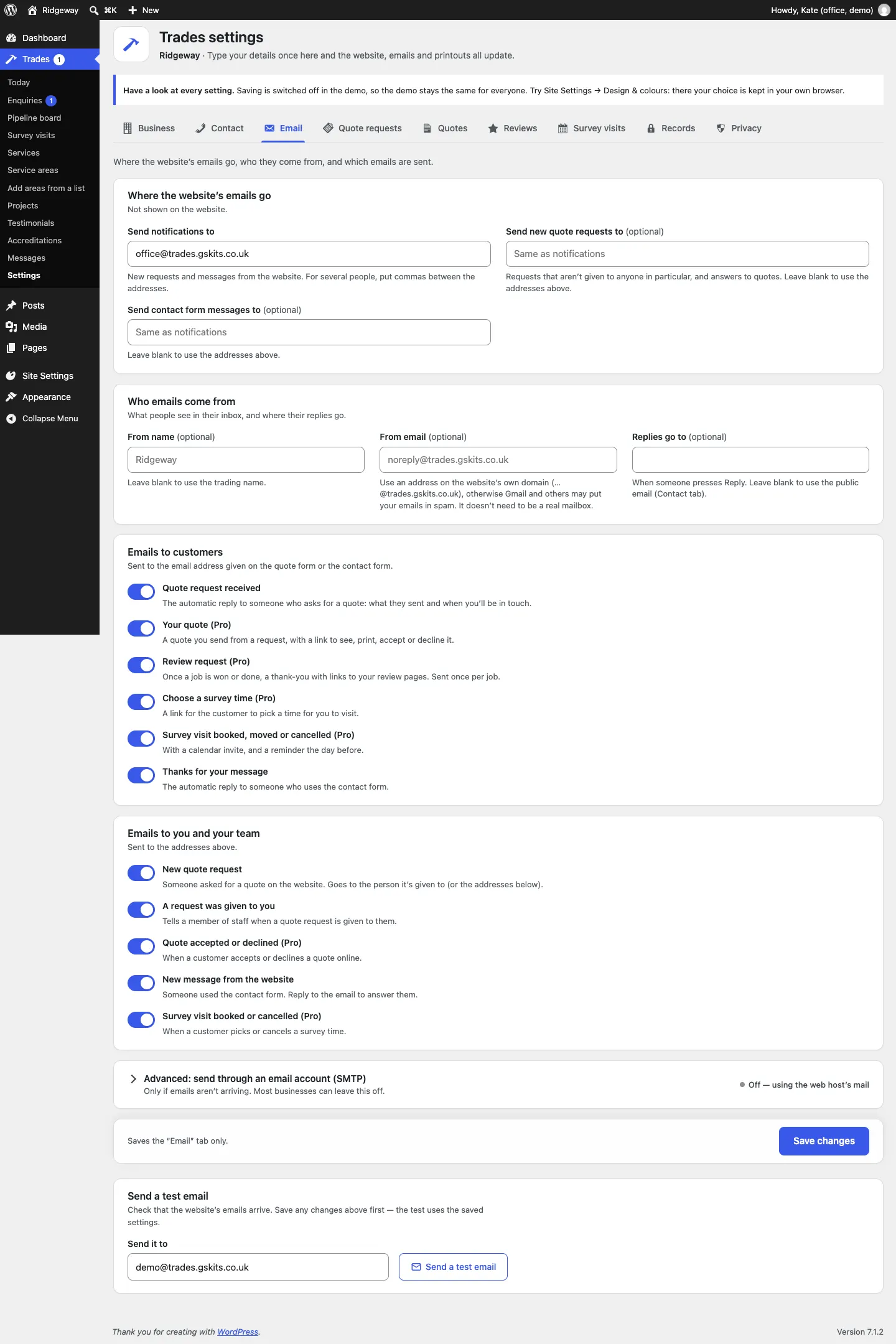
Each tab saves on its own: click Save changes at the bottom of the tab you changed.
| Tab | What's on it | Details |
|---|---|---|
| Business | Trading name, registered company name and number, tagline, logo, the sign-in page photo, the search and sharing description and picture, social media links | Your look |
| Contact | Phone numbers, WhatsApp number, public email, address, Google Maps link, contact form subjects, automatic reply, when messages are reviewed | Messages |
| Where the website's emails go (Send notifications to, and optionally Send new quote requests to and Send contact form messages to), who they come from, which emails are sent, sending through an email account, a test email | Privacy and emails | |
| Quote requests | The quote form on or off, the Get a quote page, the choices for when and budget, the reply email, photos, who gets new requests, the Call and WhatsApp button, your trade | Quote requests |
| Quotes (Pro) | VAT on or off, VAT rate and number, quote numbers, how long quotes are valid, terms | Quotes |
| Reviews | Your review pages, review request emails (Pro) | Reviews |
| Survey visits (Pro) | Customers picking a time, confirming straight away, visit length, travel time, start times, notice, weeks ahead, cancelling, weekly hours, days off | Survey visits |
| Records | When finished requests come up for review | Above |
| Privacy | The cookie banner, the law that applies to your terms, the email for privacy requests | Privacy and emails |
Administrators also see Run setup again at the top of the settings screen, to run the setup wizard again. See The Trades setup wizard.
Other places in the menu
| Menu | What it's for |
|---|---|
| Site Settings → Design & colours | The design, colour palette and sticky menu. See Designs, pages and menus. |
| Pages | The words on your pages. See Pages and content. |
| Posts | News or blog posts, if you want them. |
| Media | Your photos and logos. Customers' quote request photos are not here: they're kept privately with each request. |
| Settings → Gradespace licence | Your licence key (administrators). See Buying and your licence. |
Something not working? See Troubleshooting and support, or email support@thegradespace.com with what you were doing, what you expected and a screenshot.