Running your website
Reviews, testimonials and accreditations
How to link to your Google, Checkatrade and other review pages, send customers a thank-you asking for a review after a job (Pro), add testimonials to your website, and show the schemes you belong to with your registration number.
On this page
People choosing a tradesperson want to know you're trustworthy. The Trades kit helps in three ways:
- Review links: buttons to your pages on Google, Checkatrade, TrustATrader and other sites, and (Pro) a thank-you email after each job asking for a review.
- Testimonials: what customers said, shown on your website with stars, their town and the service.
- Accreditations: the schemes and trade bodies you belong to (Gas Safe, NICEIC, TrustMark and so on), with your number and a link to check it.
Features marked (Pro) need a Pro or Agency licence.
How to add your review pages
- Go to Trades → Settings → Reviews.
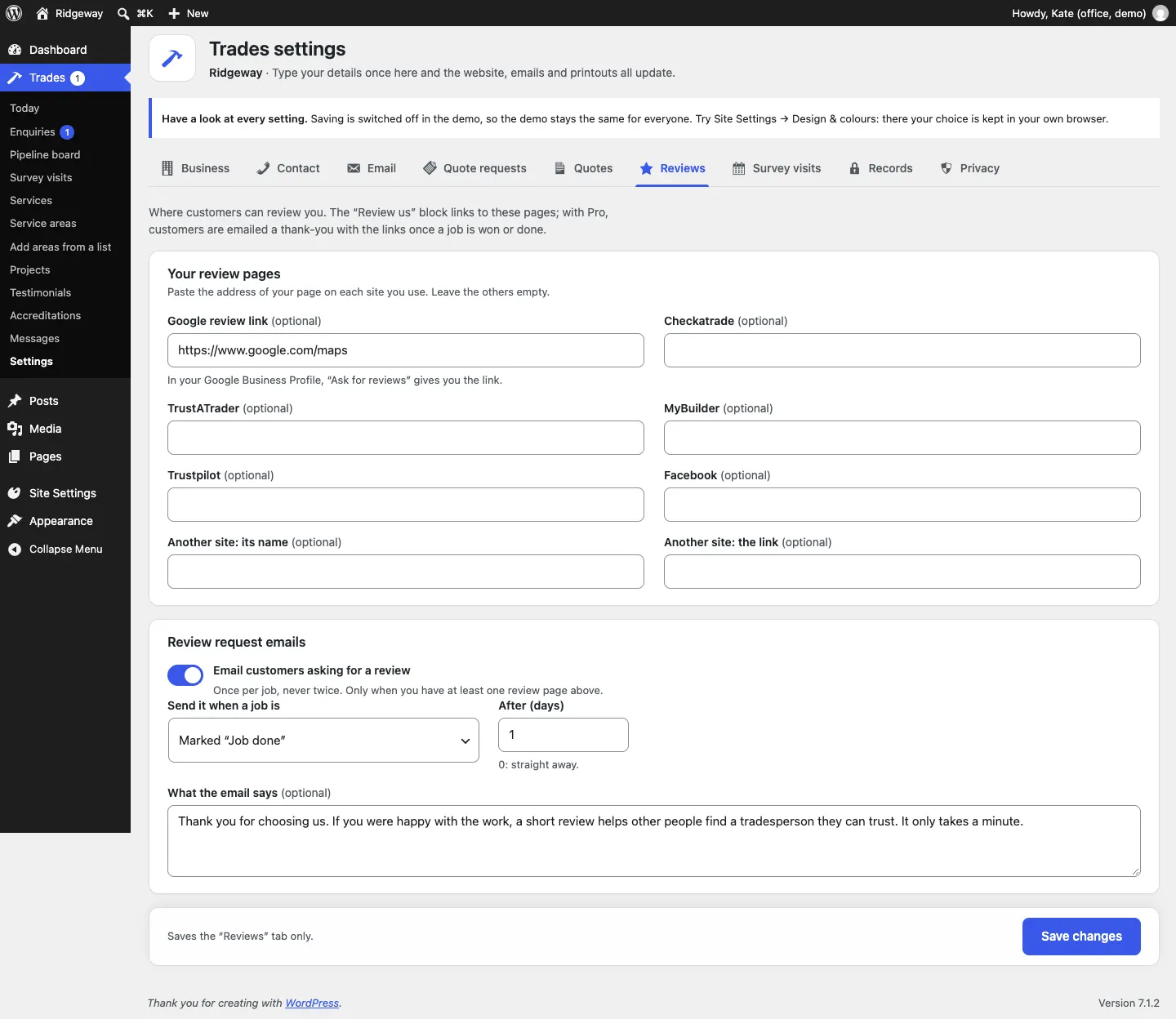
- Under Your review pages, paste the web address of your page on each site you use: Google review link, Checkatrade, TrustATrader, MyBuilder, Trustpilot, Facebook, or another site (Another site: its name and Another site: the link). Leave the others empty.
- Click Save changes.
The Review us block on the Reviews page shows a button for each site you've filled in.
How to send review requests after a job (Pro)
Once a job is won or done, the customer is emailed a thank-you with links to your review pages, after the number of days you choose. It goes once per job, never twice.
- Go to Trades → Settings → Reviews.
- Under Review request emails, switch on Email customers asking for a review. It only sends when you have at least one review page filled in.
- Under Send it when a job is, choose Won or Marked "Job done".
- Set After (days). 0 sends it straight away.
- Change What the email says if you want to.
- Click Save changes.
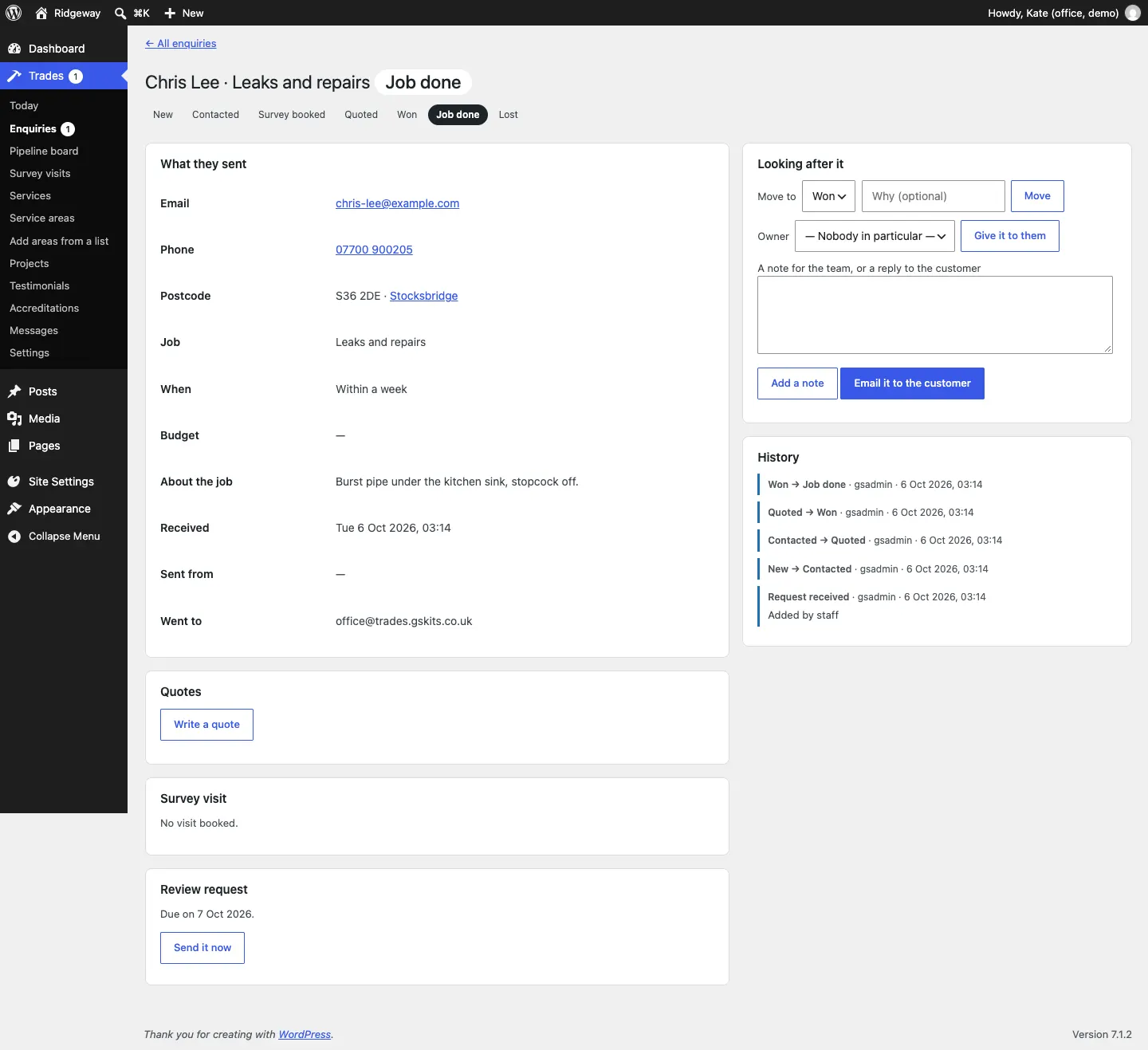
On the request, a Review request box shows when it's due. Click Send it now to send it straight away instead.
How to add a testimonial
When a customer says something nice (in a review, a text or a card), ask if you can use it on your website, then:
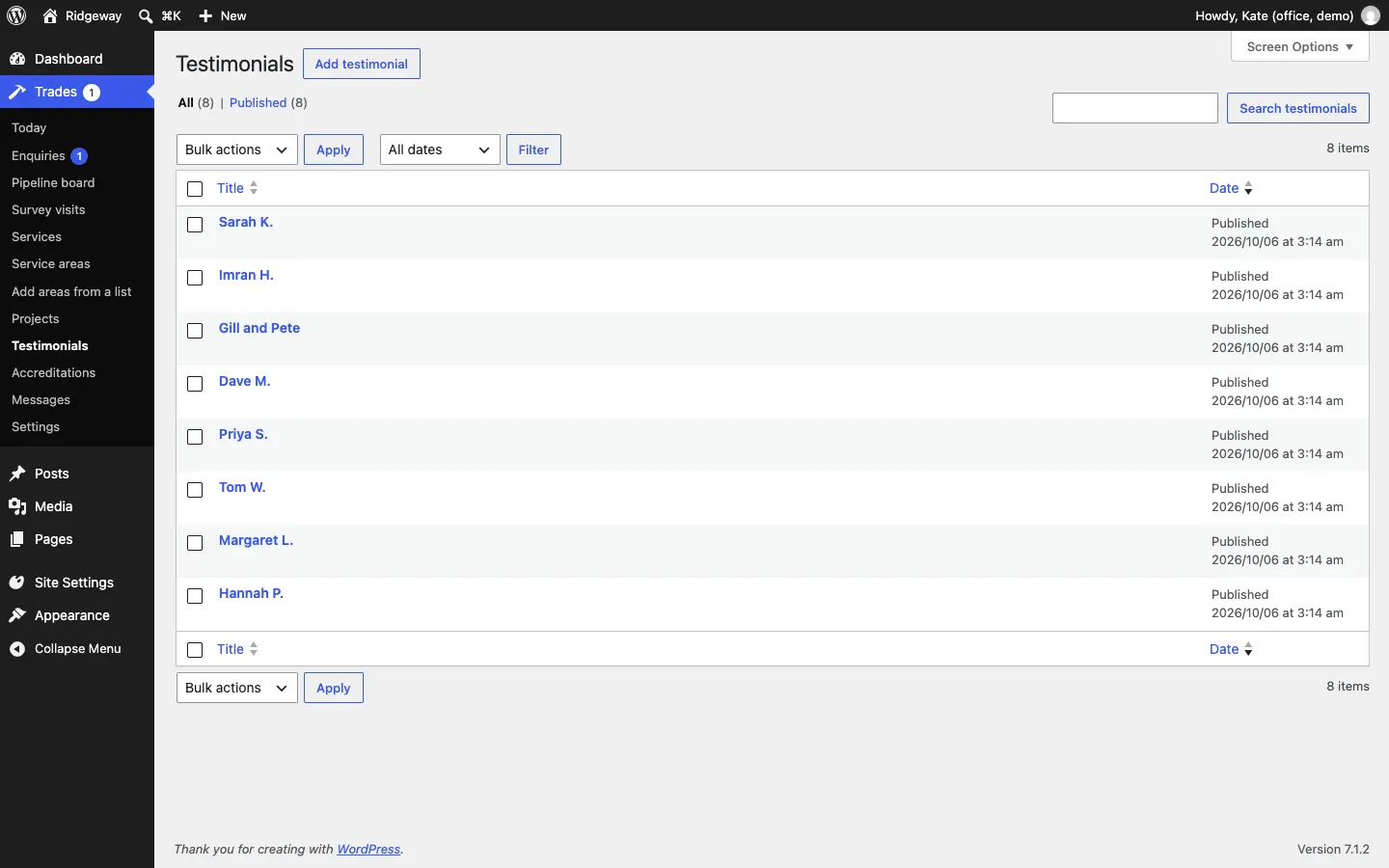
- Go to Trades → Testimonials and click Add testimonial.
- Type the customer's name as the title, for example "Sarah K." (first name and initial is plenty).
- Type what they said in the main box, in their words.
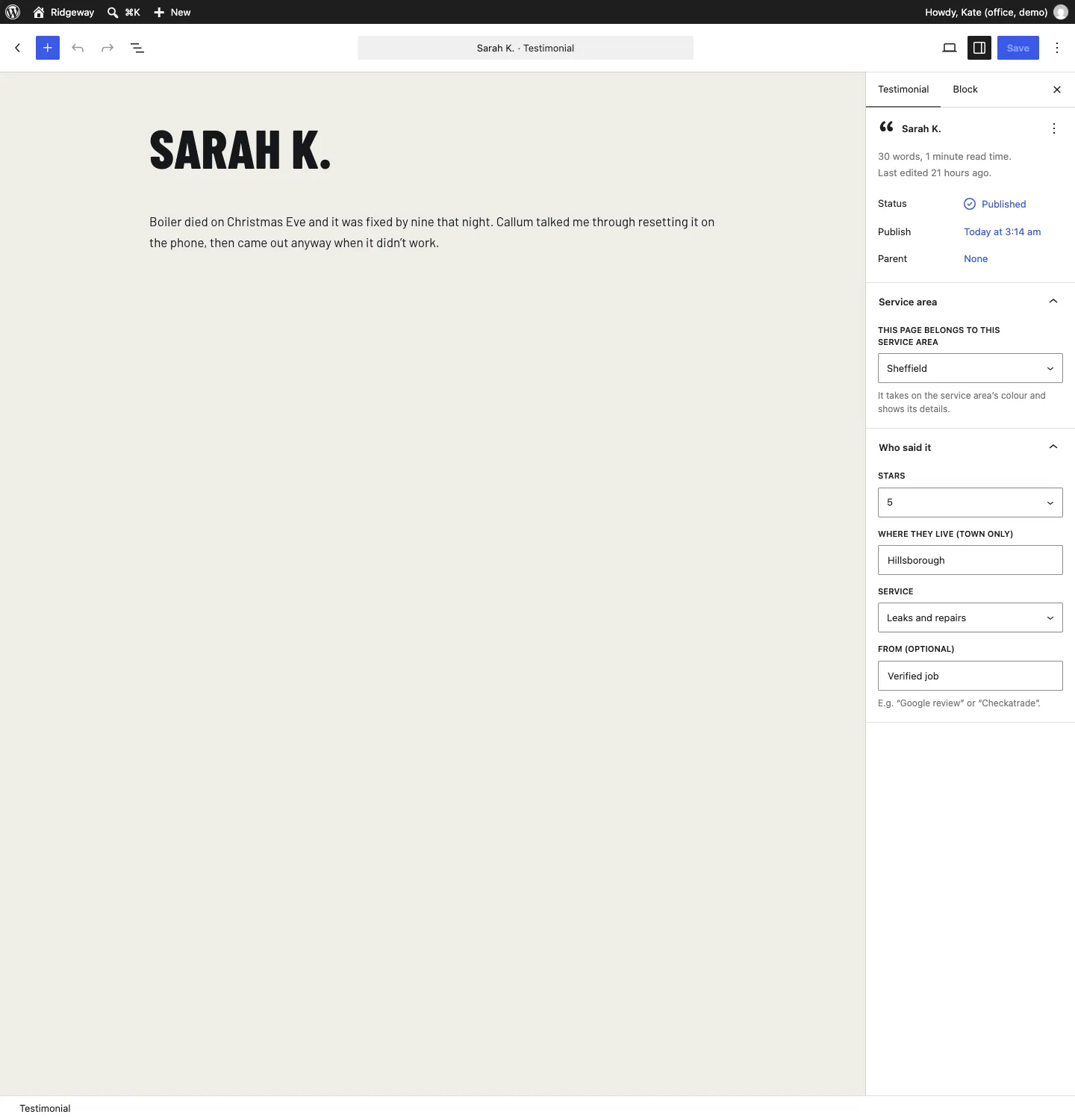
- In the sidebar, open Service area and choose their area under This page belongs to this service area, so it also shows on that area's page.
- Open Who said it and fill in Stars (5, 4, 3 or None), Where they live (town only), the Service and From (optional), for example "Google review" or "Checkatrade".
- Click Publish.
Where reviews show on the website
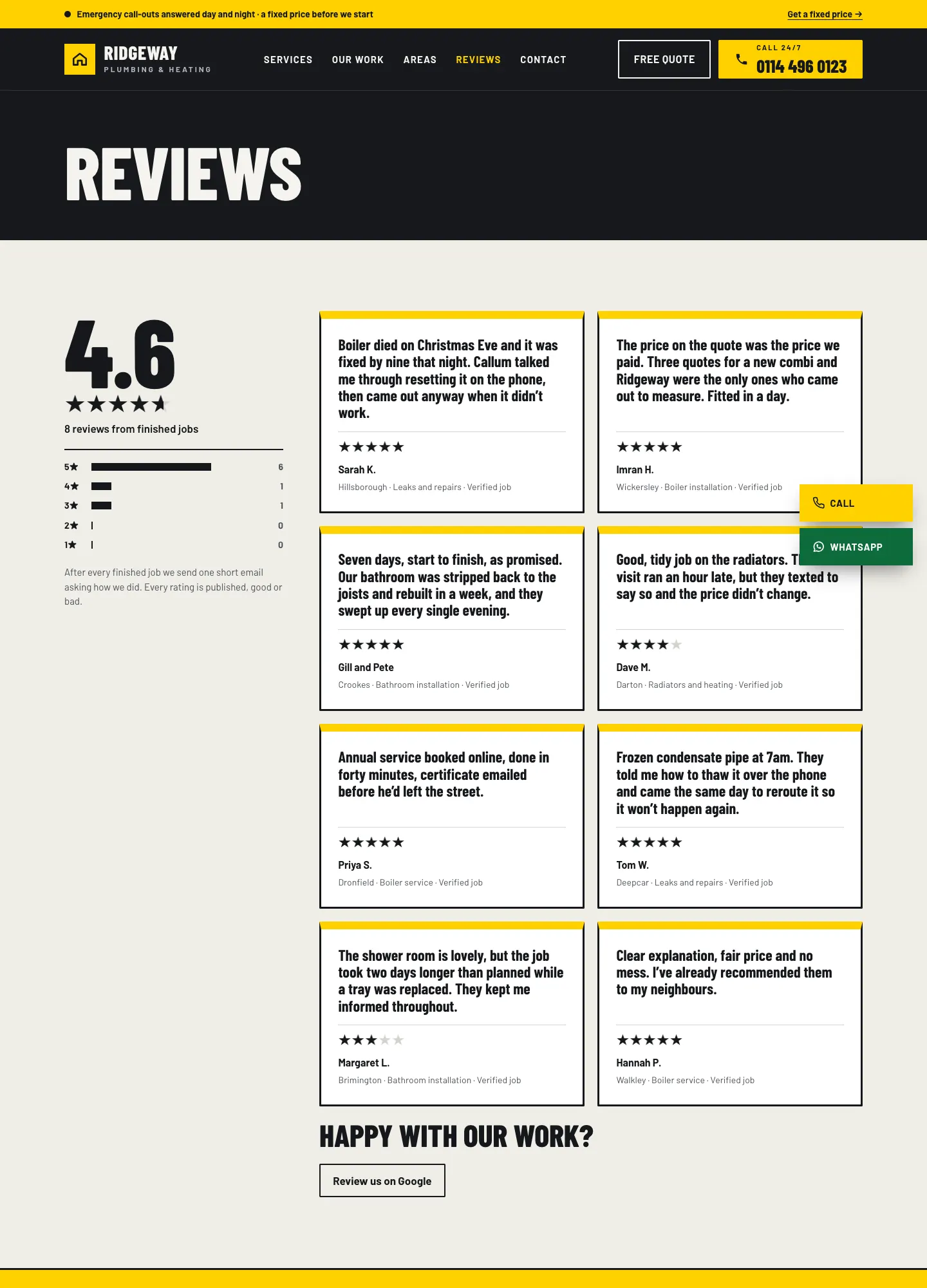
The Reviews page shows your score (the average of your testimonials' stars), a bar for each star rating, every testimonial and your Review us buttons. The home page and area pages show a few testimonials too.
How to add an accreditation
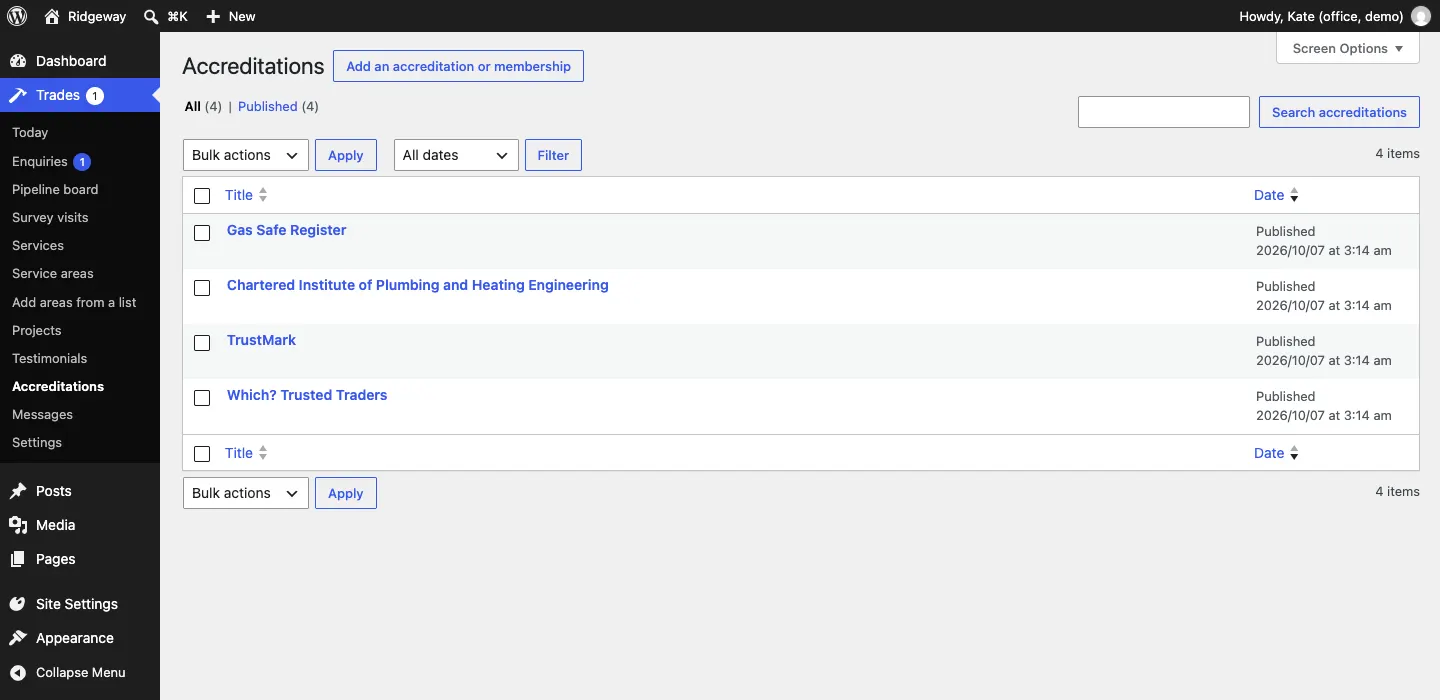
- Go to Trades → Accreditations and click Add an accreditation or membership.
- Type the scheme's name as the title, for example "Gas Safe Register".
- In The accreditation box, fill in:
- Logo (optional): click Choose a logo, then pick or upload the logo the scheme gave you to use, following its rules, and click Select. Without one, the name is shown as text.
- Your registration or membership number.
- Where people can check it: for example your entry on the scheme's own register.
- A line about it (optional): for example "Registered to work on gas boilers and cookers."
- Under Post Attributes, Order sets where it comes in the list (0 first).
- Click Publish (or Update).
![Editing the Gas Safe Register accreditation: The accreditation box with Logo (optional) and a Choose a logo button, the registration number [000000], Where people can check it set to the Gas Safe Register website, and A line about it, with a Publish box and an Order box on the right](/manuals/trades/img/accreditation-edit.webp?dpl=f94092f47d43695b912b3071a2e4554bce946228)
Your accreditations show in the badge strip on the home page, with a Check it link to each register, and in the footer.
![The home page's Checked & insured strip with Gas Safe Register No. [000000] and a Check it link, the Chartered Institute of Plumbing and Heating Engineering, TrustMark and Which? Trusted Traders](/manuals/trades/img/home-badges.webp)