Running your website
Survey visits (Pro)
How to let a customer pick a free time for you to visit and look at the job, how to book a time you agreed on the phone, how to cancel a visit, and how to set your survey hours, visit length and travel time.
On this page
A survey visit is when you go to the customer's home to measure up and look at the job before you quote. From a quote request, you email the customer a link and they pick one of your free times. They get a calendar invite and a reminder the day before, and can cancel from the same link. Two customers can never get the same time, and the travel time you set is kept free after each visit.
Features marked (Pro) need a Pro or Agency licence. Everything in this chapter is Pro.
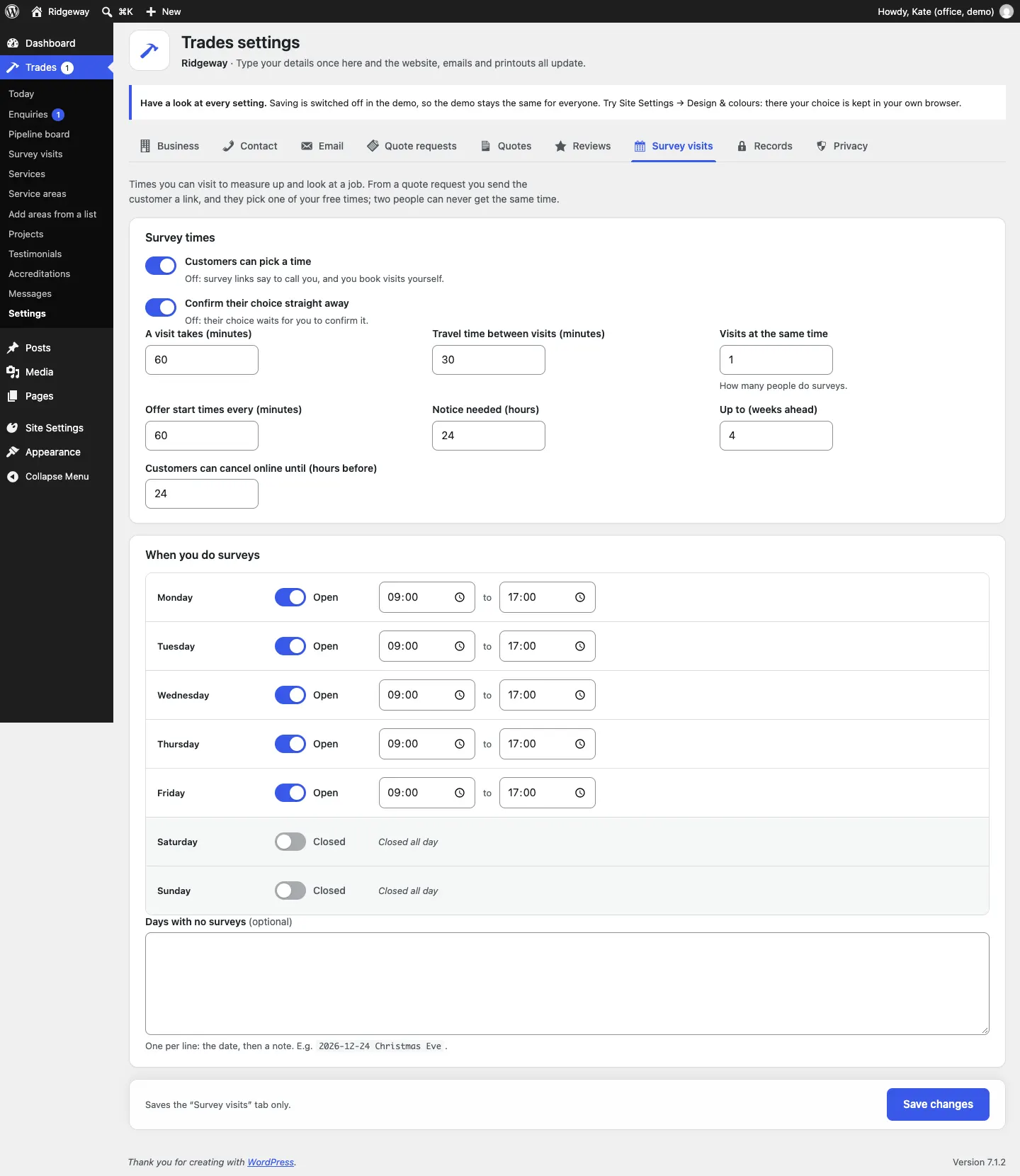
How to set your survey times
- Go to Trades → Settings → Survey visits.
- Customers can pick a time: on to let customers choose from the link. Off: the link tells them to call you, and you book visits yourself.
- Confirm their choice straight away: on, and a customer's choice is booked at once. Off, and it waits for you to confirm it.
- Fill in the numbers:
- A visit takes (minutes), for example 60.
- Travel time between visits (minutes), for example 30. This time is kept free after each visit.
- Visits at the same time: how many people do surveys. 1 if it's just you.
- Offer start times every (minutes): 60 offers 9:00, 10:00, 11:00 and so on.
- Notice needed (hours): how soon the first time can be, for example 24.
- Up to (weeks ahead): how far ahead customers can book.
- Customers can cancel online until (hours before): after this they have to call you.
- Under When you do surveys, switch each day Open or Closed and set the opening and closing times.
- Under Days with no surveys (optional), add holidays, one per line: the date, then a note. For example
2026-12-24 Christmas Eve. - Click Save changes.
How to send the customer a link to choose a time
- Open the request under Trades → Enquiries.
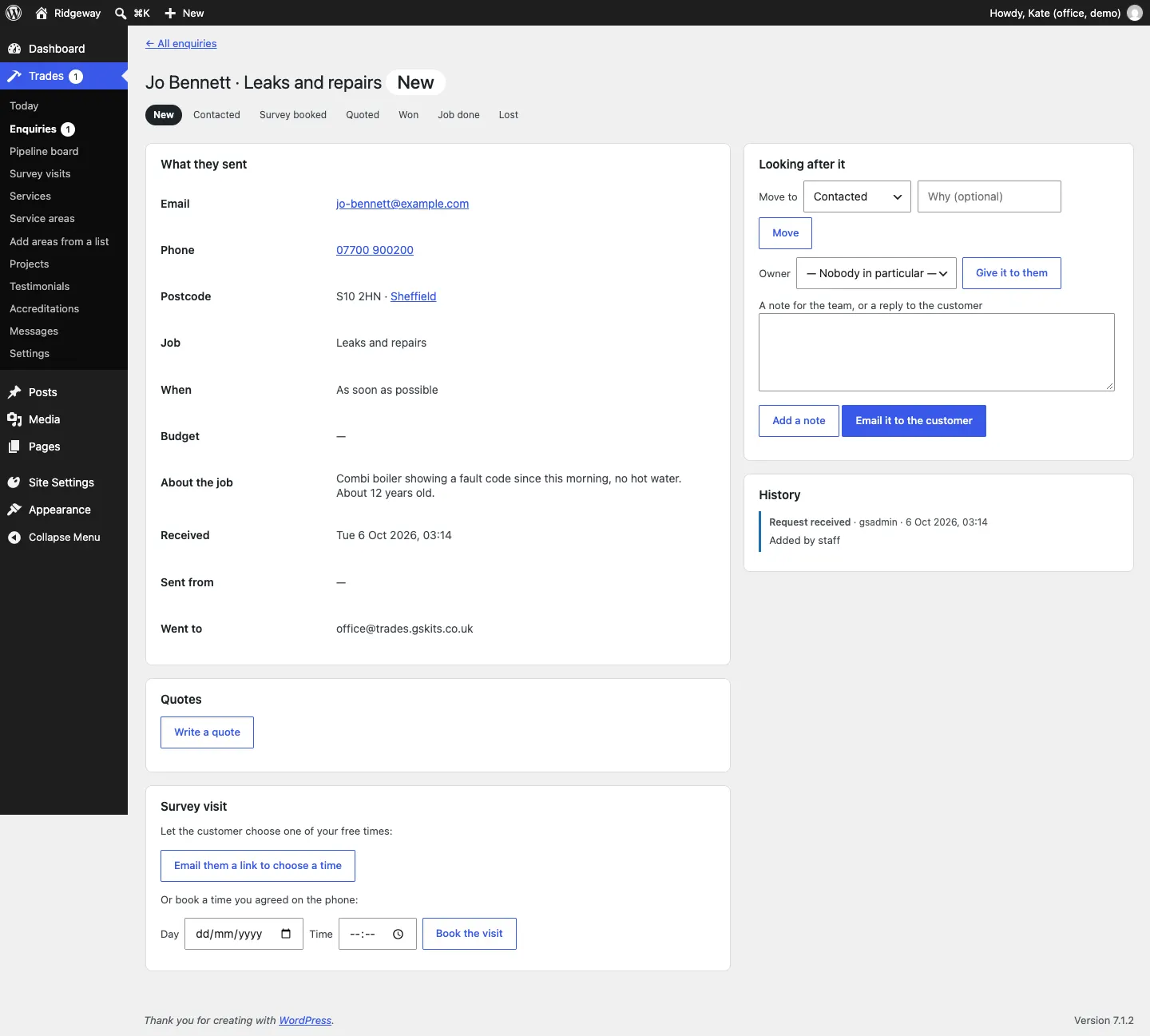
- In the Survey visit box, click Email them a link to choose a time.
- The customer gets an email titled "Choose a time for us to visit", with a Choose a time button.
The note "Sent the link to choose a survey time" is added to the History. If the customer didn't leave an email address, the screen tells you to call them and book a time yourself.
What the customer does
- They open the link and see Choose a time for us to visit.
- Under 1. Choose a day, they pick a day. Each day shows how many free times it has.
- Under 2. Choose a time, they pick a time and click Book this time.
- They get an email "Your survey visit is booked" with a calendar invite. If you've switched off Confirm their choice straight away, they see "Your visit is waiting for us to confirm it" instead, and you confirm it (see below).
- The day before, they get a reminder: "Your survey visit is tomorrow".
- To cancel, they open the same link and click Cancel this visit, up to the number of hours before that you set.
When a visit is booked, the request moves to Survey booked and you're emailed.
How to book a time you agreed on the phone
- Open the request.
- In the Survey visit box, under Or book a time you agreed on the phone, enter the Day and Time.
- Click Book the visit. The customer is emailed the booking with a calendar invite.
The website won't let you book a time that clashes with another visit (with the travel time around it).
How to confirm or cancel a visit
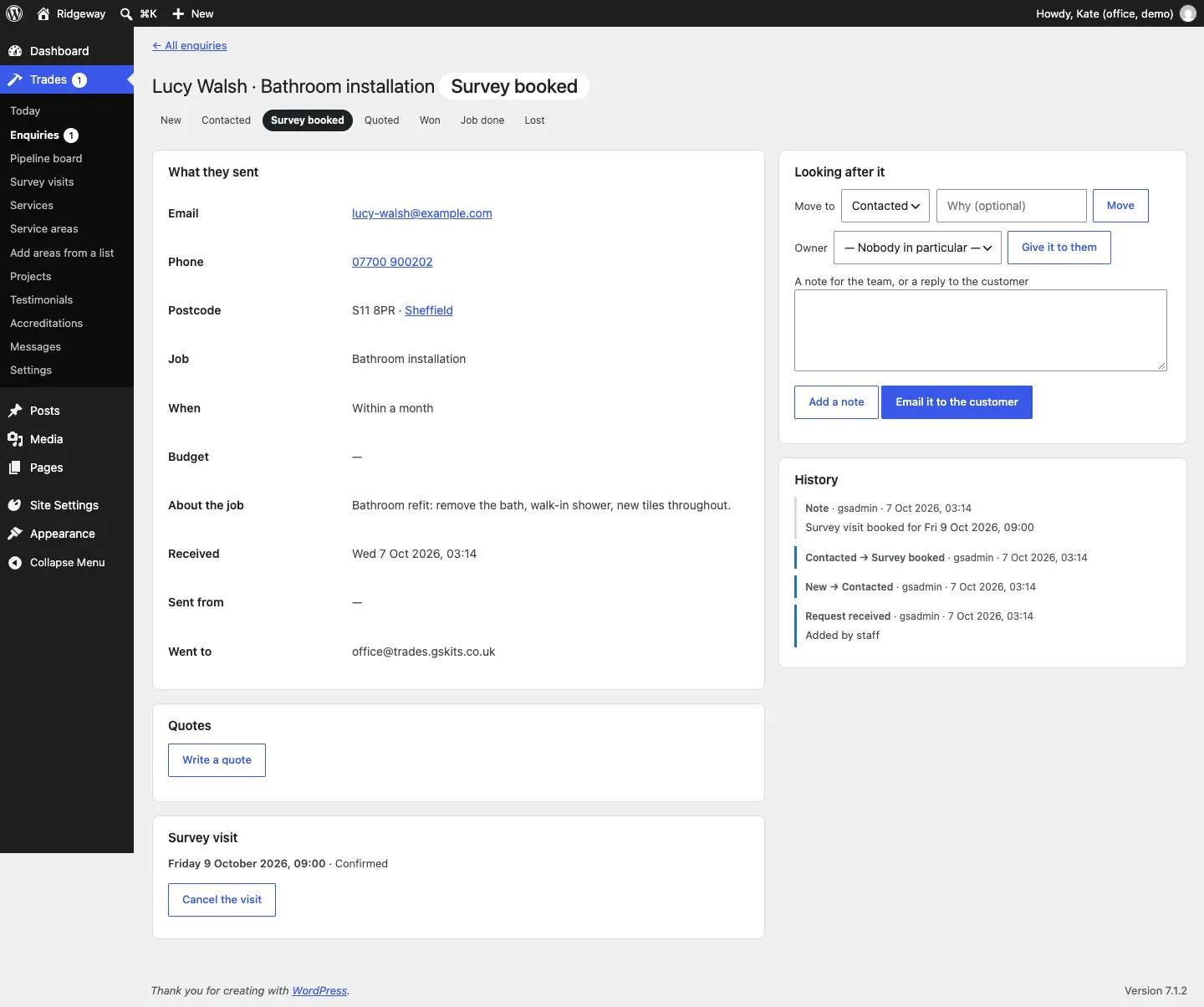
Open the request. The Survey visit box shows the booked day and time.
- If the visit is waiting for you, click Confirm it.
- To cancel, click Cancel the visit and confirm. The customer is emailed and can choose another time with their link.
How to see every visit
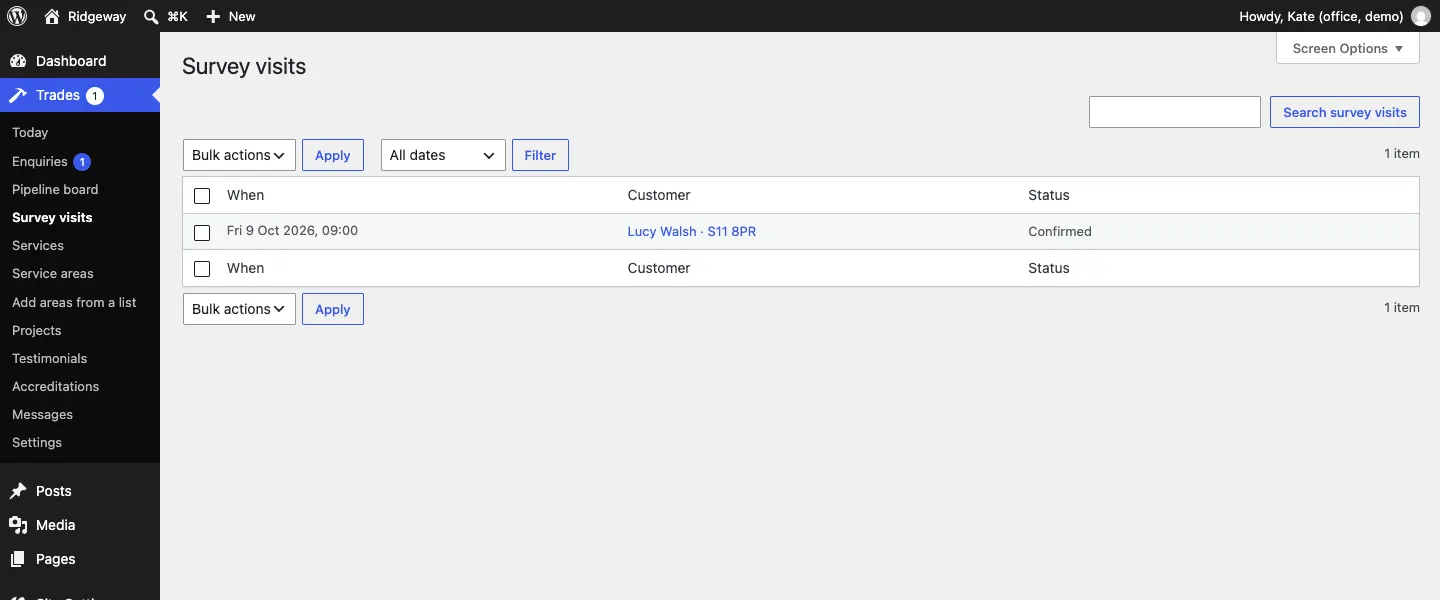
Go to Trades → Survey visits. Every visit is listed with When, Customer (with the postcode) and Status written in full, for example Confirmed. Click the customer to open their request.