User manual
Gradespace Trades: user manual
What the Trades kit does for a plumber, electrician, builder or other trade business, what Starter and Pro include, and every chapter of this manual in reading order.
On this page
Gradespace Trades turns a WordPress website into the front office of a trade business. Customers find your services and the towns you cover, see your past work and reviews, and send you a quote request with photos of the job. You and your team pick each request up in one place, follow it from New to Won, and (with Pro) send a written quote the customer accepts online and let them book a survey visit.
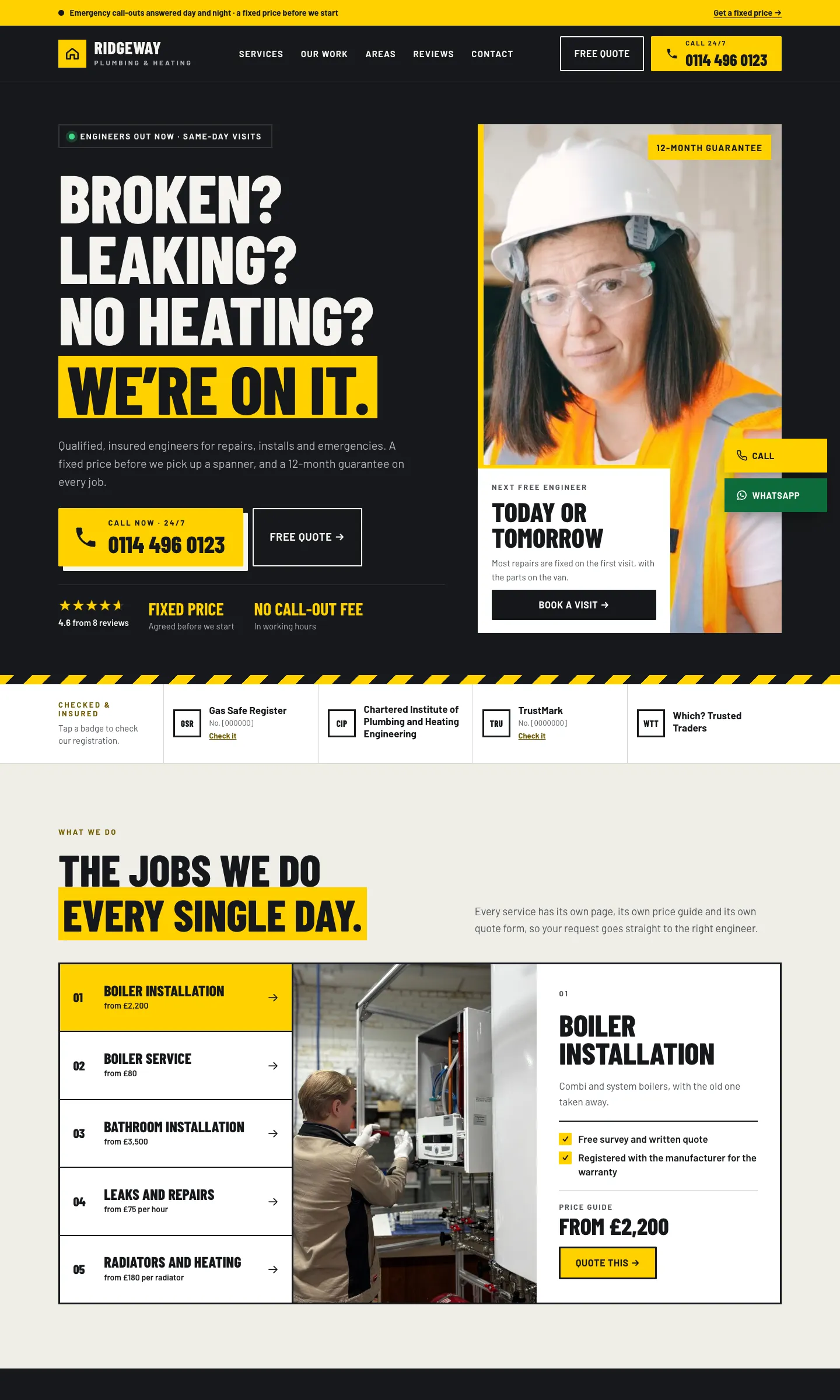
This manual is for owners and staff. You don't need any technical knowledge. The pictures come from the public demo at trades.gskits.co.uk, which shows a made-up business called Ridgeway Plumbing & Heating in Sheffield.
What the kit is made of
The kit comes in three parts, installed in this order. A plugin is an add-on for WordPress; a theme is the design.
- Gradespace Core (free plugin): the back office. Settings in plain words, the Today screen, staff access, branded emails, the setup wizard, your licence and updates.
- The Gradespace Trades plugin: services, service areas, quote requests, the pipeline, projects, testimonials, accreditations, quotes and survey visits.
- The Gradespace Trades theme: the look. Three designs (Workshop, Local Pro and Blueprint), each with seven colour palettes.
One licence covers the Trades plugin and its theme.
What you get with Starter and Pro
Features marked (Pro) in this manual need a Pro or Agency licence. Without a licence key the kit runs in Starter mode: everything in the Starter column works, but there are no updates.
| Feature | Starter | Pro / Agency |
|---|---|---|
| Services with a "from" price guide and what's included | Yes | Yes |
| A page for each town you cover, with a check for pages without their own words | Yes | Yes |
| Quote request form with photos (kept private) | Yes | Yes |
| The enquiry pipeline: stages, owner, notes, emails to the customer, history | Yes | Yes |
| Project gallery with before and after photos | Yes | Yes |
| Testimonials, accreditations, "Review us" links | Yes | Yes |
| Call and WhatsApp bar on phones | Yes | Yes |
| Messages from the contact form | Yes | Yes |
| Quotes customers accept or decline online | No | Yes |
| Review request emails after a job | No | Yes |
| Survey visit booking (the customer picks a free time) | No | Yes |
| Pipeline board and spreadsheet (CSV) download | No | Yes |
| Area routing: each area's requests go to its own person | No | Yes |
| Websites covered | 1 | 1 (Pro), 5 (Agency) |
Chapters in reading order
Getting started (shared with all Gradespace kits)
- About the shared chapters
- Buying and your licence
- Before you install
- Installing
- The setup wizard in general
Trades: setting up
- Quick start: from buying to your first quote request
- The Trades setup wizard
- Designs, pages and menus
Trades: your website's content
- Services and prices
- Service areas
- Projects: before and after
- Reviews, testimonials and accreditations
Trades: handling work
Looking after the website (shared)
- Your look: design, colours, logo and menus
- Pages and content
- Staff and sign-in
- Privacy and emails
- Backups and updates
- Troubleshooting and support
Trades: every day
Every chapter of this manual
Buying and installing
- Buying and your licenceSharedThe Starter, Pro and Agency tiers, buying a kit, the licence key email, your licences page on thegradespace.com, and moving or upgrading a licence.
- Before you installSharedWhat your website and hosting need for a Gradespace kit, how to check them, and why to take a backup and use a test copy first.
- Installing your kitSharedInstalling Gradespace Core, then your kit's plugin, then your kit's theme from their .zip files, adding your licence key, and how updates arrive.
Setting up
- The setup wizardSharedHow the setup wizard works in every kit: each step, the starter pages and menu, sample photos, legal pages, and how to run it again.
- The setup wizardThe step-by-step screen that gets a new trades website ready: your trade and services, the areas you cover, quote requests, accreditations, and the starter pages, sample projects, testimonials and photos.
- Your look: design, colours, logo, menus and footerSharedChoosing a design and colour palette in Site Settings → Design & colours, previewing it, keeping the menu at the top when scrolling, adding your logo, and changing the menu and the footer.
- Designs, pages and menusThe three Trades designs (Workshop, Local Pro and Blueprint) and their seven colour palettes, the pages and menu the kit makes for you, and how each page looks on a computer and a phone.
- Pages, posts and picturesSharedEditing pages in the WordPress block editor, starting a page from your kit's ready-made layouts and sections, writing blog posts, and adding and replacing pictures in the media library.
Running your website
- Quote requests and the pipelineHow customers ask for a quote with photos, and how your team picks each request up, moves it through the stages from New to Won or Lost, gives it to someone, adds notes and emails the customer. Also the pipeline board and spreadsheet download (Pro).
- Quotes (Pro)How to write a quote from a quote request, email it to the customer as a page they can print and accept or decline online, change a quote after it's sent, and set your VAT, quote numbers and terms.
- Survey visits (Pro)How to let a customer pick a free time for you to visit and look at the job, how to book a time you agreed on the phone, how to cancel a visit, and how to set your survey hours, visit length and travel time.
- Services and pricesHow to add and edit the services you offer, with a 'from' price guide, a short note, what's included and how long the job usually takes, and how to choose which services appear on the quote form.
- Service areasHow to add a page for each town you cover, write its own words so search engines show it, add many towns at once from a list, set the postcodes for each area, and (Pro) send each area's quote requests to its own person.
- Projects: before and afterHow to add your finished jobs to the Our work gallery with before and after photos, the service and the area, so they show on the Our work page, the home page and that area's page.
- Reviews, testimonials and accreditationsHow to link to your Google, Checkatrade and other review pages, send customers a thank-you asking for a review after a job (Pro), add testimonials to your website, and show the schemes you belong to with your registration number.
- Messages from the contact formWhere messages sent from your Contact page arrive, how to answer them, how to set the subjects and the automatic reply, and how old messages come up for review.
- Daily running and settings referenceThe daily and weekly routine for a trade business website: the Today screen, the red numbers on the menu, reviewing old requests, personal data requests, and a reference to every tab under Trades → Settings.
Looking after your website
- Staff accounts and signing inSharedGiving each member of staff their own account, the staff roles each kit comes with, choosing what each role can do (Pro), and the staff sign-in page.
- Privacy, cookies and emailsSharedThe cookie banner and cookie settings, your starter terms, privacy and cookie policies, requests for people's data, the website's branded emails, test emails and the email log (Pro).
- Backups and updatesSharedWhat to back up and how often, and how to install updates to Gradespace Core, your kit's plugin and its theme safely.
- Troubleshooting and supportSharedFixes for the problems people meet most often: licence messages, installing, the setup wizard, pages not found, emails, signing in, the design and the cookie banner, and how to get help.
Bought this kit? The whole manual is also a PDF (version 1.0.1) to download or print, on My licences.