Running your website
Quote requests and the pipeline
How customers ask for a quote with photos, and how your team picks each request up, moves it through the stages from New to Won or Lost, gives it to someone, adds notes and emails the customer. Also the pipeline board and spreadsheet download (Pro).
On this page
A quote request is a customer asking you to price a job. They fill in the Get a quote form on your website: what they need, where, when, a rough budget, a description and a few photos. The request lands under Trades → Enquiries, the right person is emailed, and from then on everything about that job (stages, notes, emails, quotes, survey visits) is kept on one screen.
Features marked (Pro) need a Pro or Agency licence.
What the customer sees
The Get a quote page is made by the setup wizard. Every "Get a quote" and "Free quote" button on the website goes there.
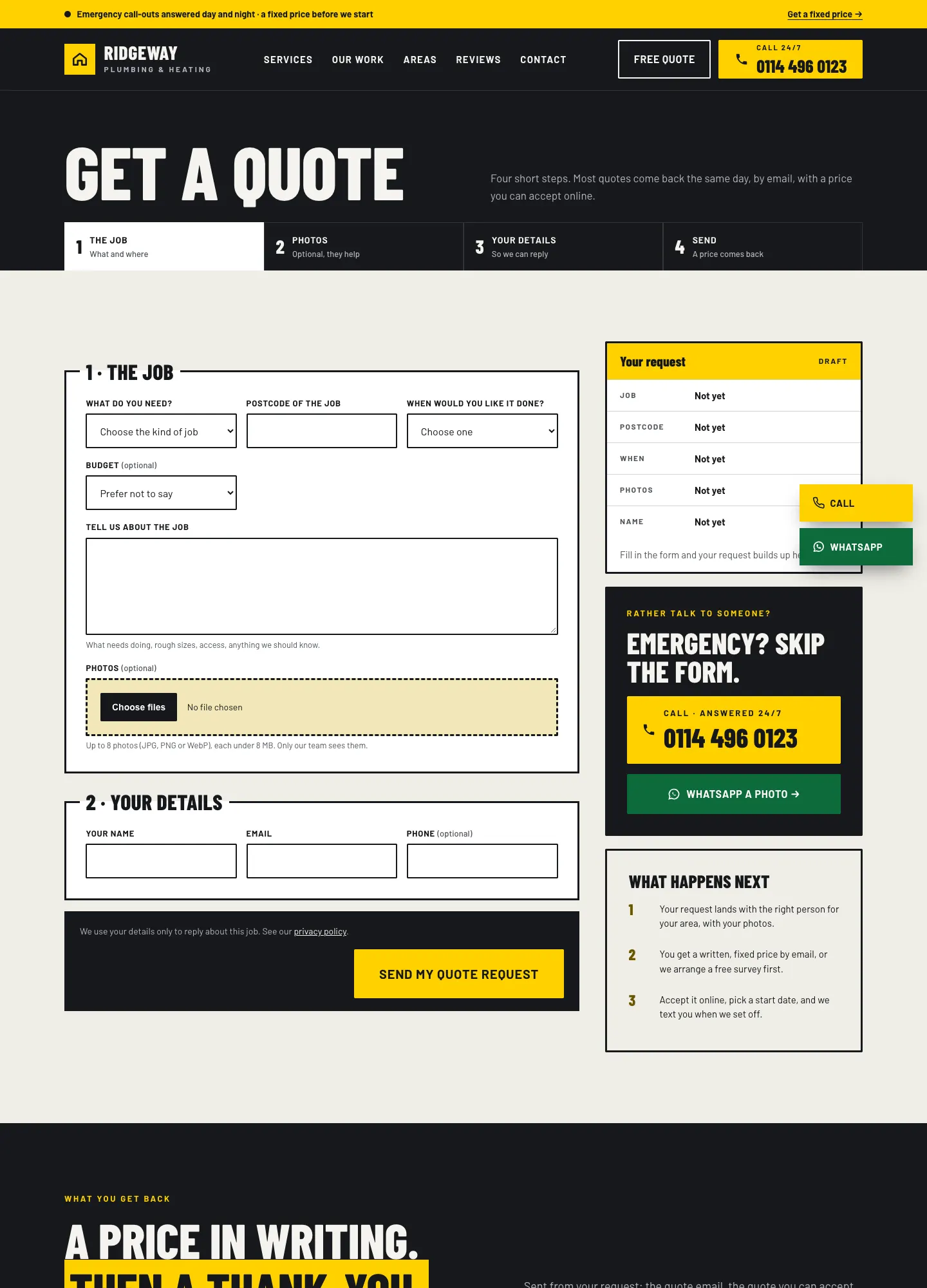
The customer:
- Chooses What do you need? from your services (or Something else).
- Types the Postcode of the job. The postcode tells you which of your areas it's in.
- Chooses When would you like it done? and, if you ask, a Budget.
- Describes the job under Tell us about the job.
- Adds Photos (optional). Phone photos are fine.
- Gives their name, email and (optionally) phone, then clicks Send my quote request.
On a computer, the Your request box on the right fills in as they type, so they can check it before sending.
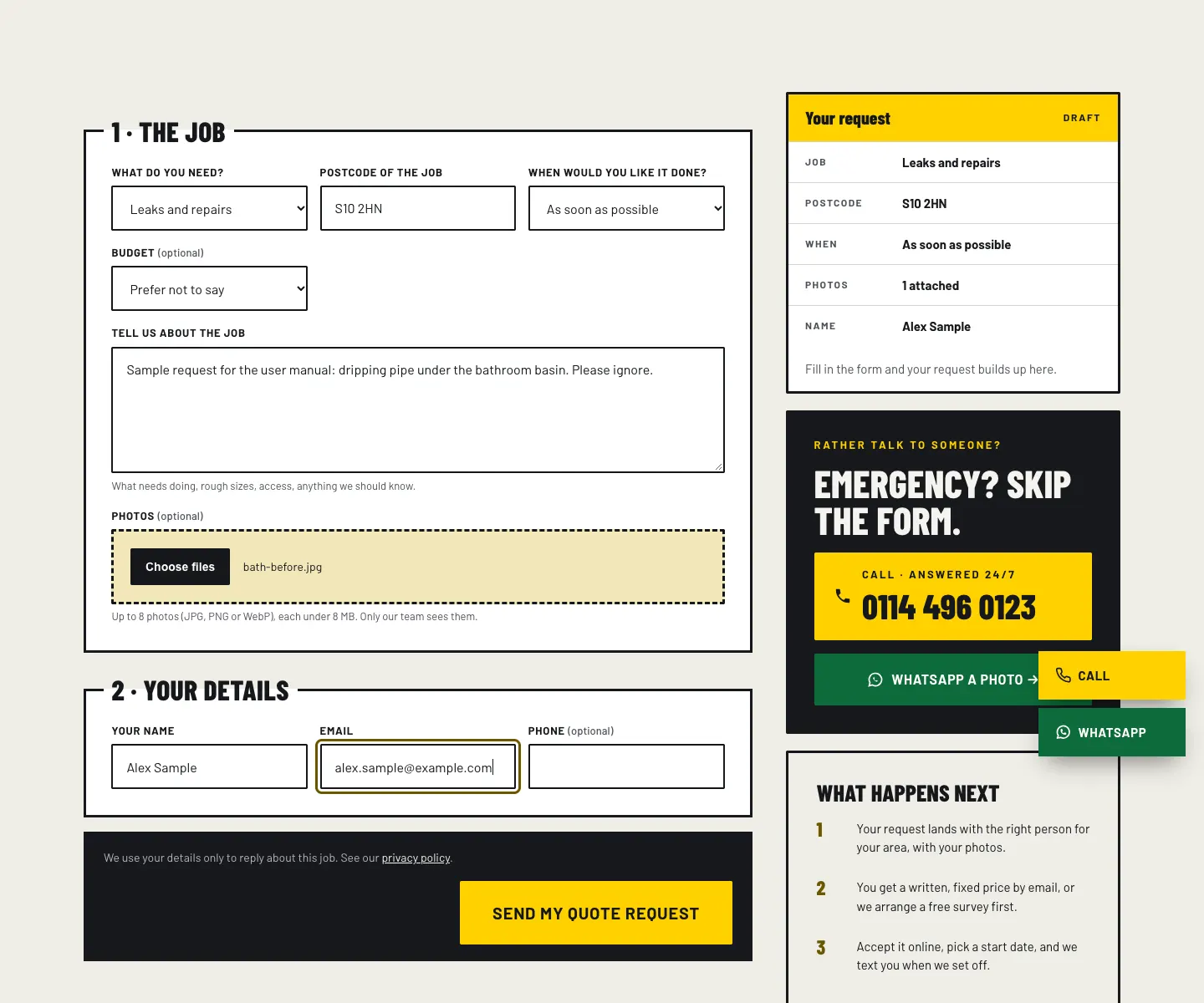

Straight away they get an email copy of what they sent and when you'll be in touch. The form also appears near the bottom of the home page and of each area page.
How to set up the quote form
- Go to Trades → Settings → Quote requests.
- Take quote requests online: leave it on. Off: the form tells people to call or email you instead (useful when you're fully booked).
- Your "Get a quote" page: the page the "Get a quote" buttons go to. Leave it on the starter page unless you've made your own. It needs the Quote request form block.
- When they'd like it done (choices): one choice per line, for example "As soon as possible" or "Within a month".
- Budget ranges (choices): one per line. Leave it empty to take the budget question off the form.
- What the reply email says: the words in the automatic reply.
- Under Photos, switch Let people add photos on or off, and set Up to (photos) and Each up to (MB). Phone photos are usually 2 to 5 MB.
- Under Search engines, choose Your trade (for example Plumber or heating engineer or Electrician). This tells search engines what kind of business you are.
- Click Save changes.
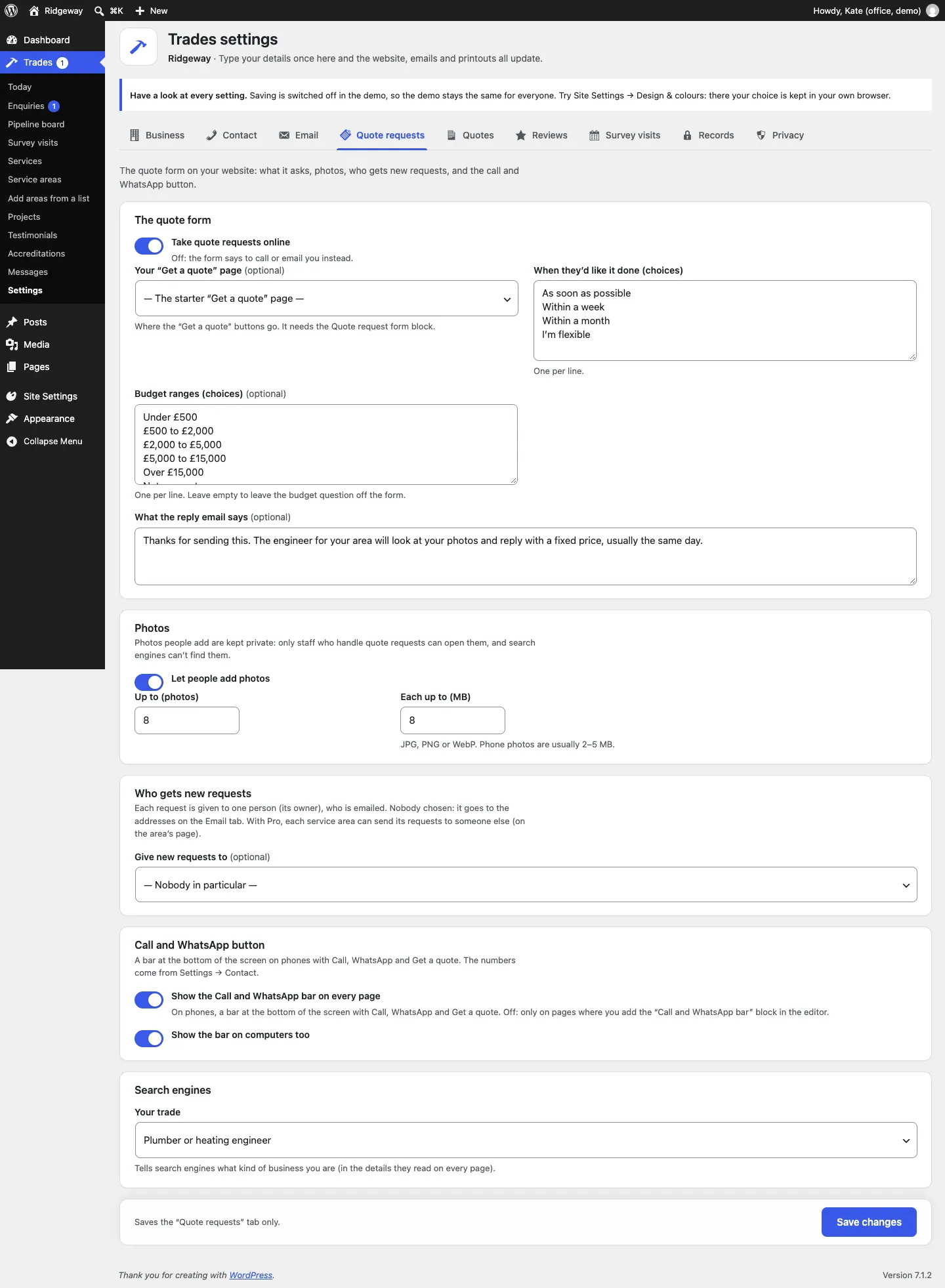
The services listed under What do you need? are the ones with Offer it on the quote form ticked. See Services and prices.
Who gets new requests
Each request has one owner: the person looking after it. The owner is emailed when a request is given to them.
- Go to Trades → Settings → Quote requests.
- Under Who gets new requests, choose a person in Give new requests to. Choose Nobody in particular to send new requests to the addresses on the Email tab instead.
- Click Save changes.
Area routing (Pro): each service area can send its requests to its own person. Open the area under Trades → Service areas, open Quote requests from this area in the sidebar and choose Give them to. See Service areas.
Staff with the Office role see every request. Staff with the Estimator role see only the requests given to them. See Staff and sign-in.
How to find a request
- Go to Trades → Enquiries. The red number on the menu is how many new requests are waiting.
- Click a stage along the top (New, Contacted, Survey booked, Quoted, Won, Job done, Lost) to see only those.
- Or use the boxes: Every stage, Anyone's (the owner; Nobody's yet shows requests nobody owns), Every area, and a search box for a name, email or postcode. Click Filter.
- Click the date in the Received column to open a request.
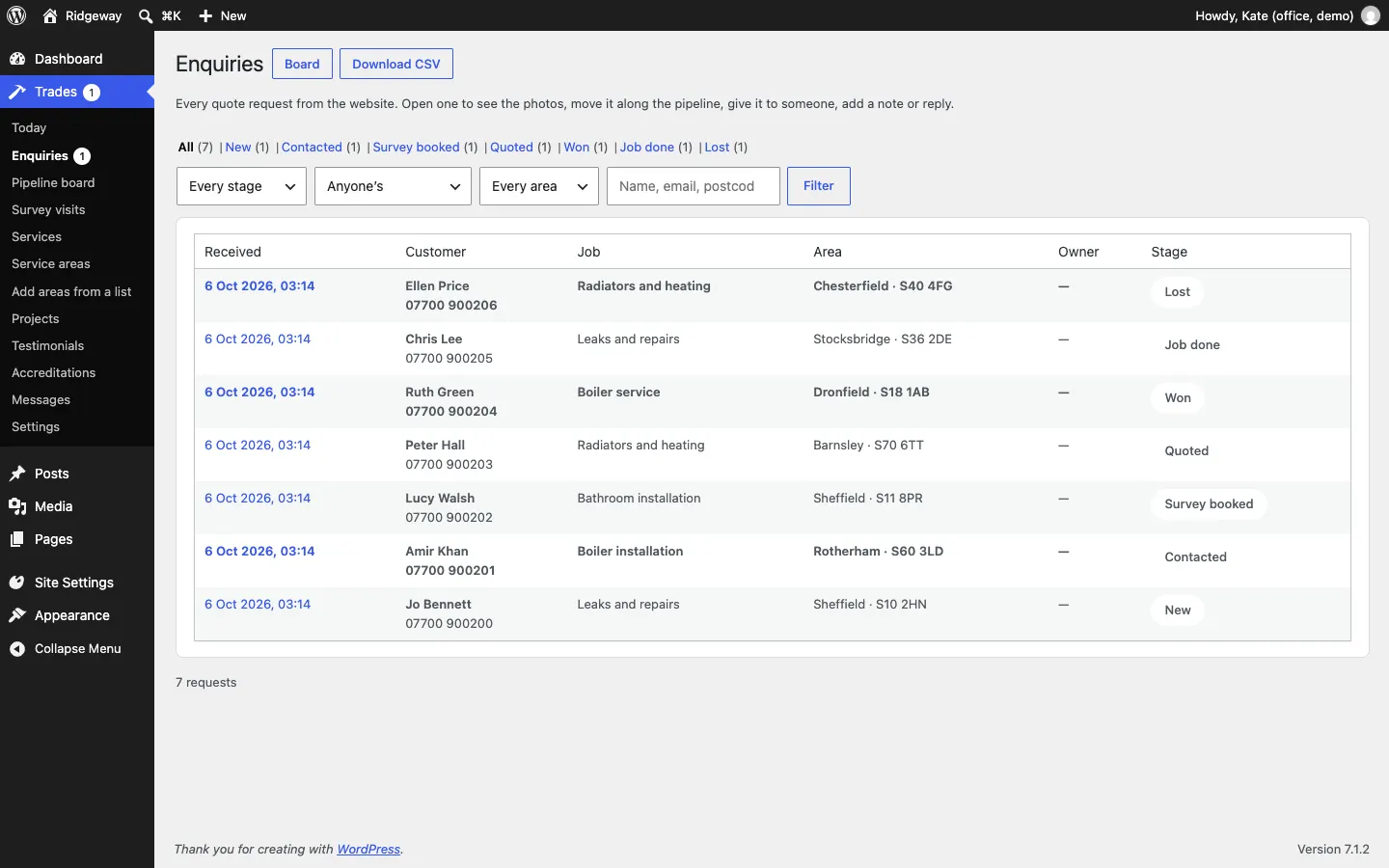
New requests also show on Trades → Today. See Daily running.
How to work on a request
Open the request. The screen has four parts.
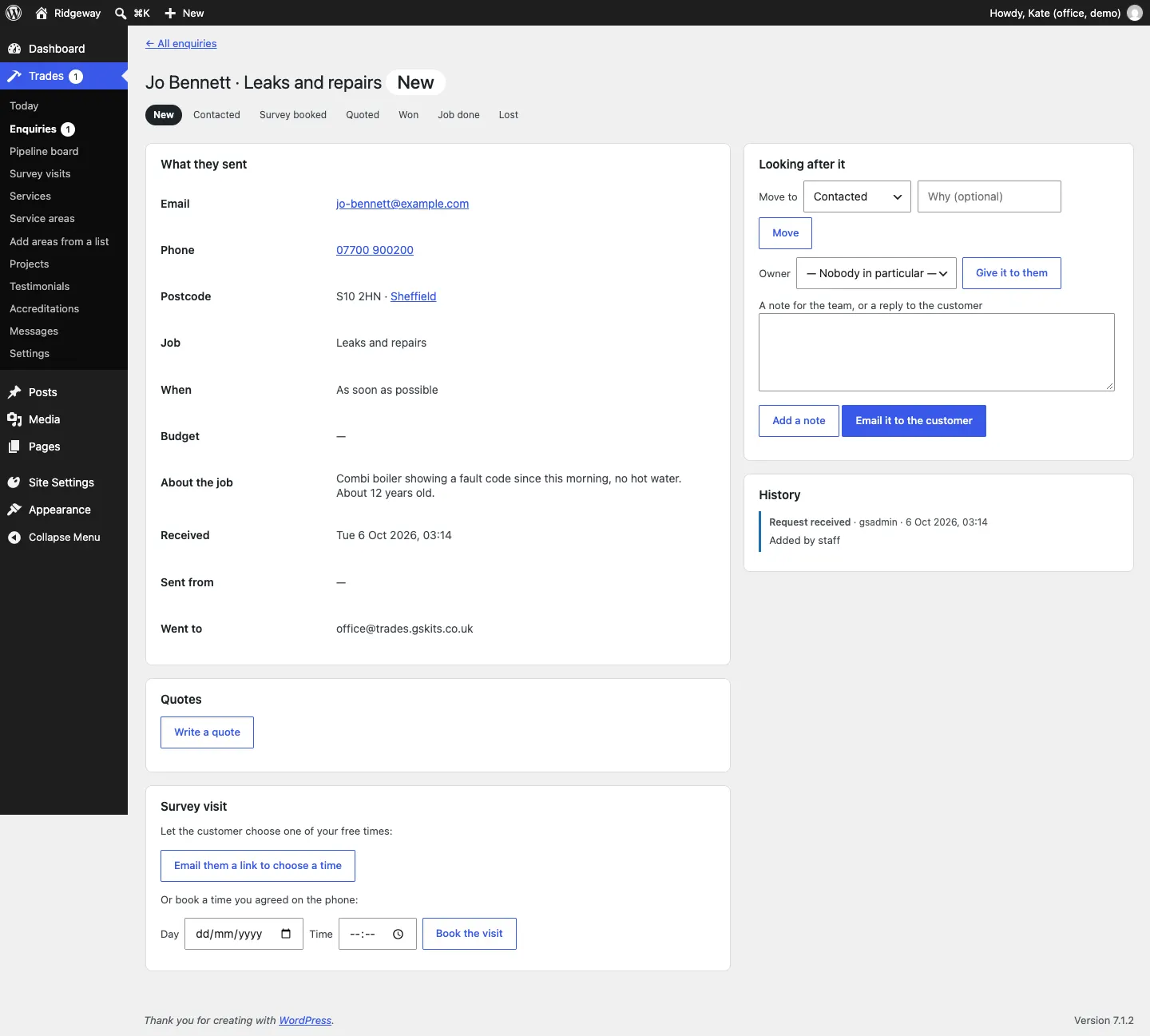
- The stage bar at the top shows where the job is.
- What they sent: email, phone, postcode and area, the job, when, budget, the description, when it was received, the page it was sent from, who it went to, and any photos (click one to see it full size).
- Looking after it: move the stage, choose the owner, and write a note or a reply.
- History: every change, note and email, with who did it and when.
Below that are the Quotes box (Pro), the Survey visit box (Pro) and, once a job is won or done, the Review request box (Pro).
How to reply to the customer
- Type your message in A note for the team, or a reply to the customer.
- Click Email it to the customer. They get it as an email from your business, and their reply comes back to your inbox.
- A New request moves to Contacted by itself.
The email is saved under History.
How to add a note for the team
- Type the note in the same box.
- Click Add a note. Notes are never sent to the customer.
How to give a request to someone
- Under Owner, choose the person.
- Click Give it to them. They're emailed that it's theirs.
How to move a request to the next stage
- Under Move to, choose the stage. The list only offers moves that make sense.
- If you want, type Why (optional), for example "Went with another firm".
- Click Move.
The stages
New → Contacted → Survey booked → Quoted → Won or Lost, then Job done once the work is finished.
| Stage | Means | Moves there by itself when |
|---|---|---|
| New | Just arrived, nobody has replied | A customer sends the form |
| Contacted | You've been in touch | You click Email it to the customer on a new request |
| Survey booked | A visit to look at the job is booked | A survey visit is booked (Pro) |
| Quoted | You've sent a price | You email a quote (Pro) |
| Won | The customer said yes | The customer accepts the quote online (Pro) |
| Job done | The work is finished | Only you move it here |
| Lost | The customer said no or went quiet | The customer declines the quote online (Pro) |
A request can't skip to a stage that doesn't make sense (for example, it can't be Job done before it's Won). A lost request can be reopened as Contacted.
The pipeline board (Pro)
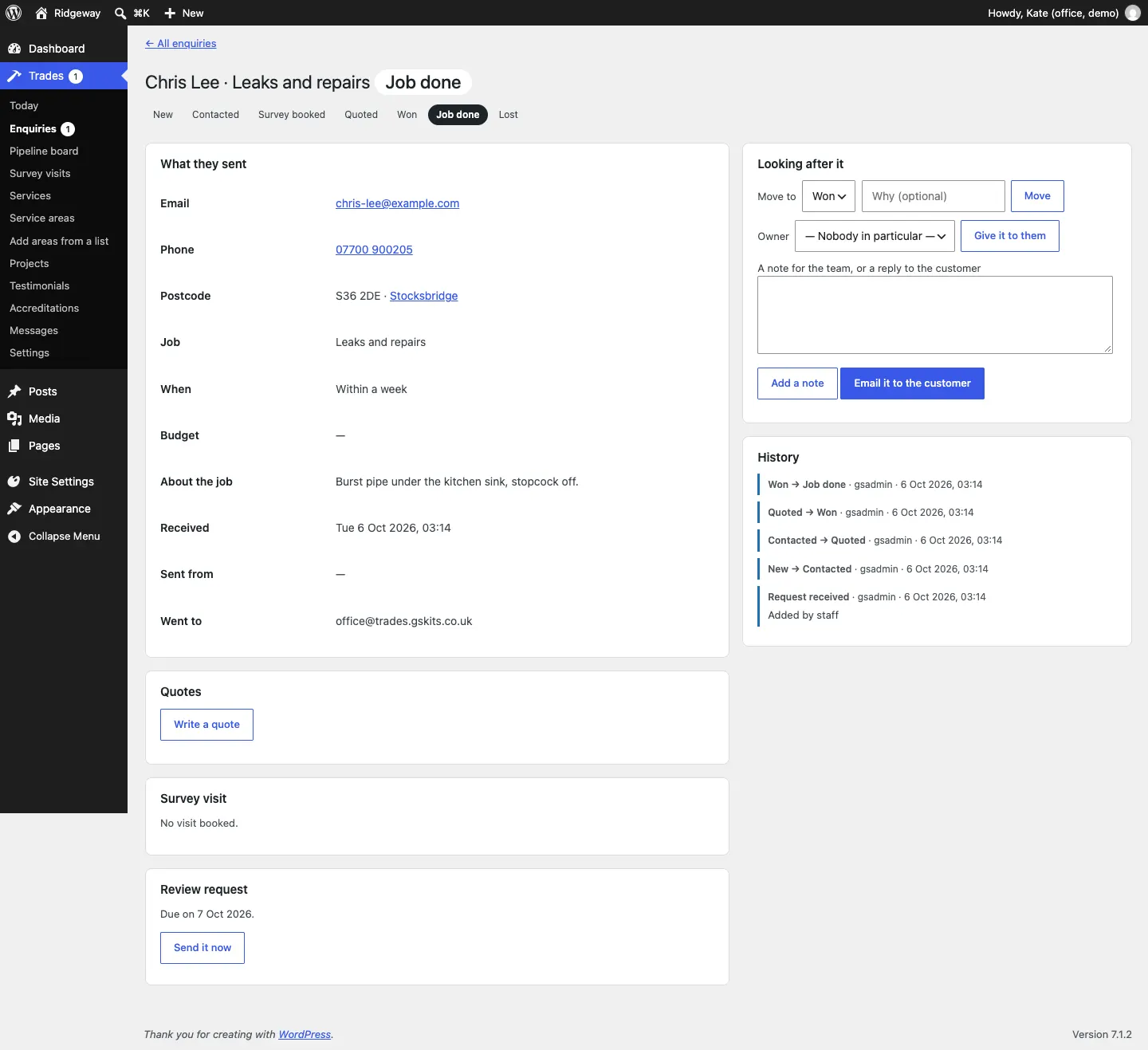
The board shows every job as a card in its stage, with the value of the quote.
- Go to Trades → Pipeline board (or click Board on the Enquiries list).
- Use Anyone's, Every area and the search box, then Filter, to narrow it down.
- To move a job, drag its card to another column. Or choose the stage in the card's box and click Move.
- Click a name to open the request.
Finished jobs from the last 90 days are shown.
How to download the requests as a spreadsheet (Pro)
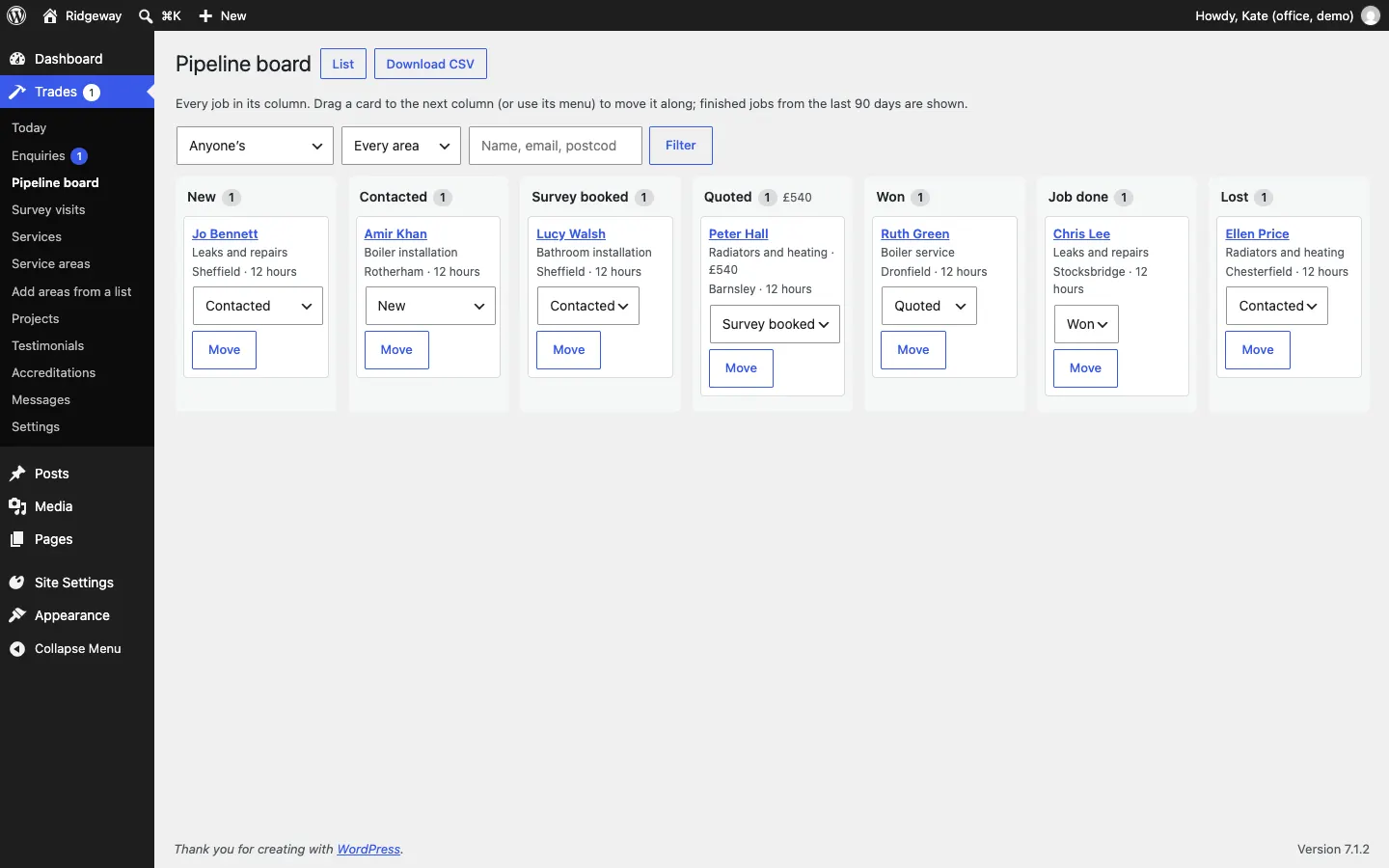
- Go to Trades → Enquiries or Trades → Pipeline board.
- Click Download CSV. The file opens in Excel, Numbers or Google Sheets.
When requests are finished
Requests that are Job done or Lost and haven't changed for a while come up for review, so you don't keep personal details longer than you need. See Daily running.