Running your website
Quotes (Pro)
How to write a quote from a quote request, email it to the customer as a page they can print and accept or decline online, change a quote after it's sent, and set your VAT, quote numbers and terms.
On this page
A quote is your written price for a job. You write it from the quote request, line by line, and email it. The customer gets a link to a page with your logo and details, every line, the VAT and the total, and your terms. They can print it or save it as a PDF, and press Accept this quote or Decline. When they answer, you're emailed and the request moves to Won or Lost by itself.
Features marked (Pro) need a Pro or Agency licence. Everything in this chapter is Pro.
How to set up your quotes
Do this once, before your first quote.
- Go to Trades → Settings → Quotes.
- Add VAT to quotes: on if you're VAT registered. This is the starting point for new quotes; you can switch it off on any one quote.
- VAT rate (%): usually 20.
- VAT number (optional): printed on your quotes and in the footer.
- Quote numbers start with: for example Q-, giving Q-0001, Q-0002 and so on.
- Valid for (days): how long a quote can be accepted, for example 30.
- Terms printed on every quote (optional): for example "Prices include materials and labour as listed. Anything not listed is not included. Payment is due on completion unless agreed otherwise."
- Click Save changes.
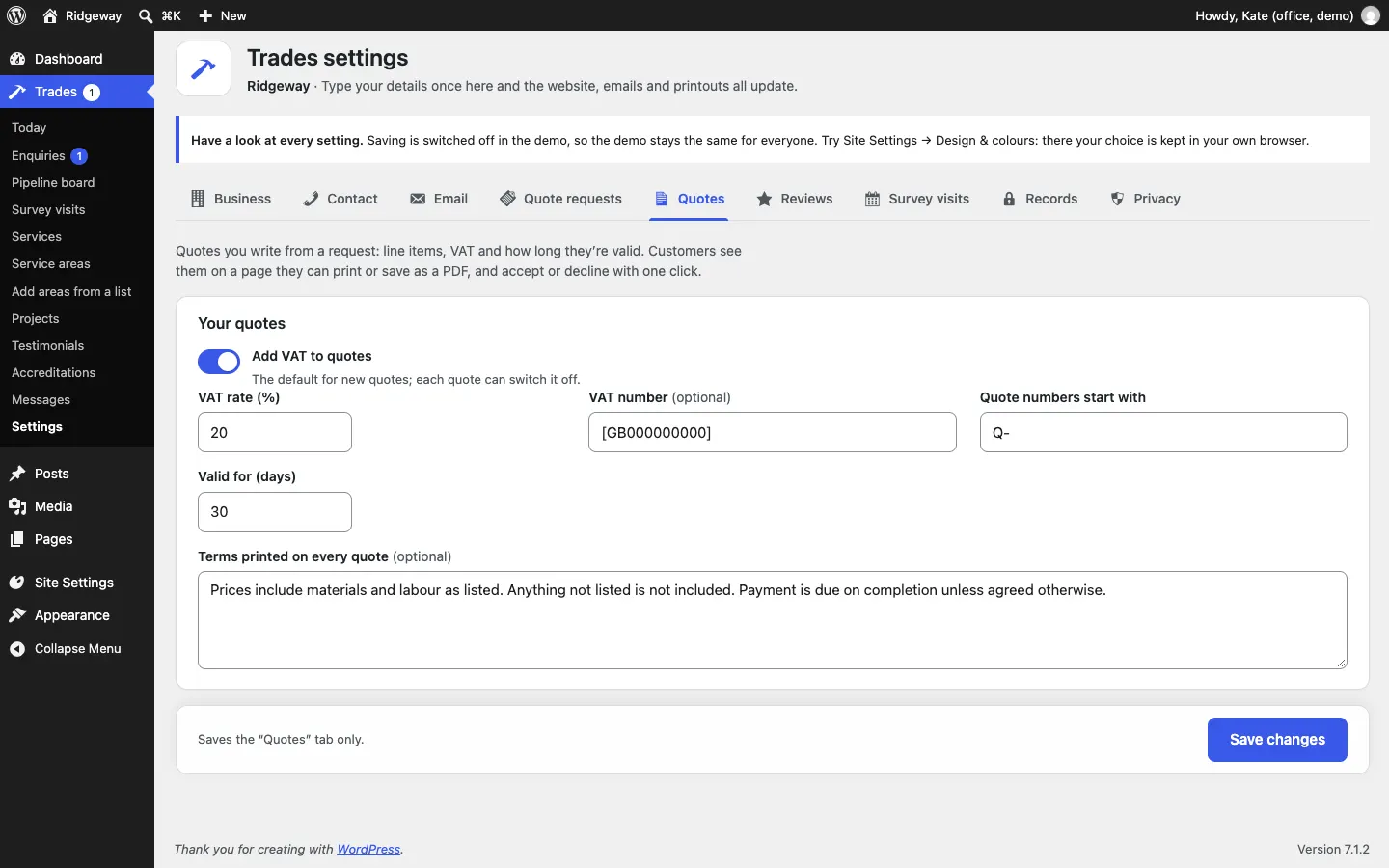
Your logo, business name and address on the quote come from Trades → Settings → Business and Contact.
How to write a quote
- Open the request under Trades → Enquiries.
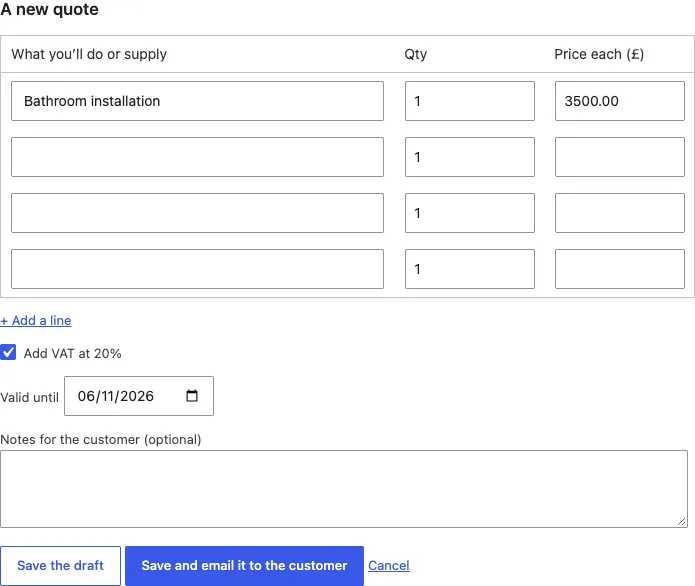
- In the Quotes box, click Write a quote.
- For each thing you'll do or supply, fill in a line: What you'll do or supply, Qty and Price each (£). The first line starts with the job the customer chose. Click + Add a line for more lines.
- Tick or untick Add VAT at 20% for this quote.
- Check the Valid until date.
- Add Notes for the customer (optional), for example what's not included or when you could start.
- Click Save the draft to come back to it later, or Save and email it to the customer to send it now. Cancel closes it without saving.
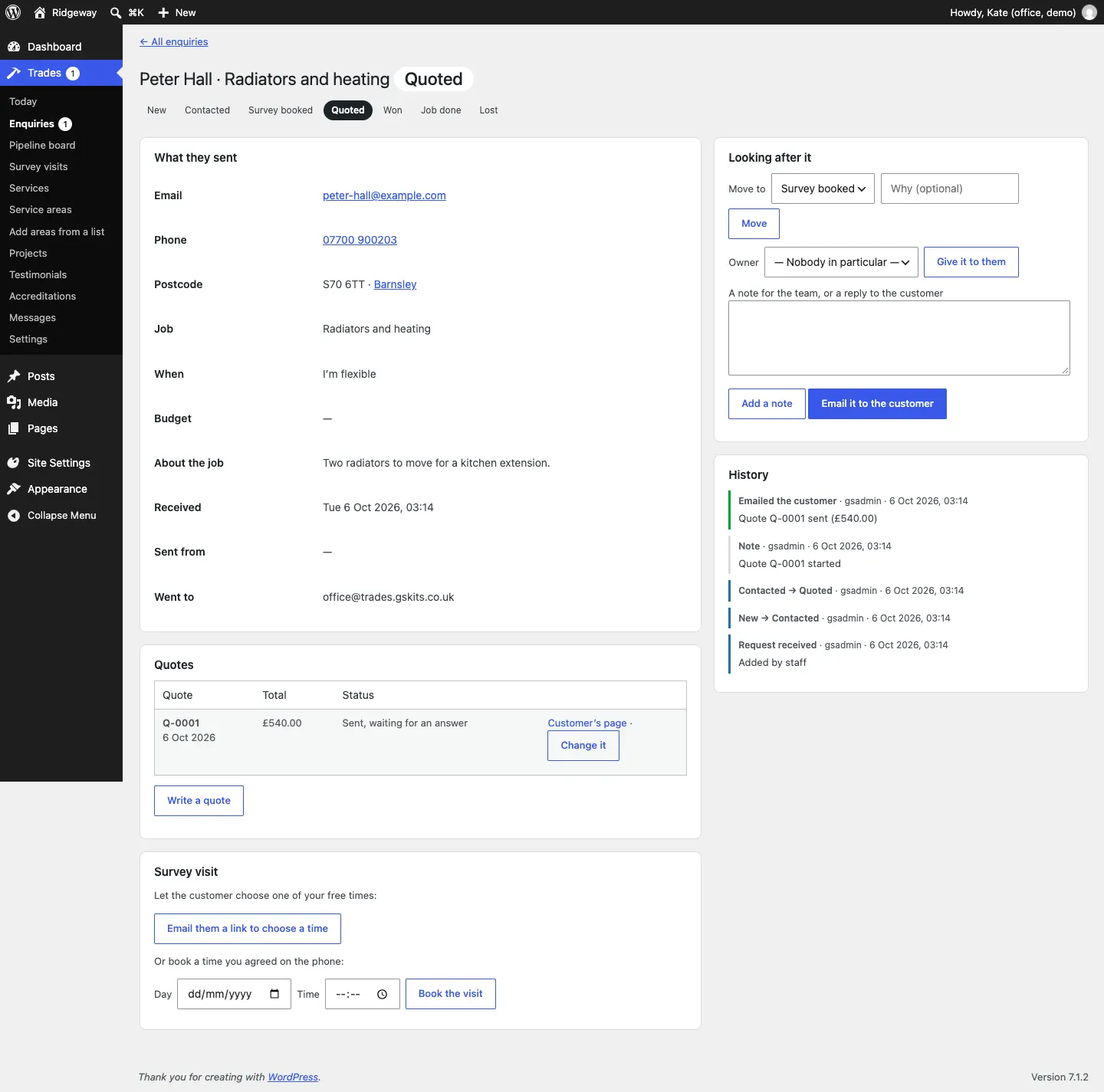
When you send it, the request moves to Quoted, the quote is listed in the Quotes box as Sent, waiting for an answer, and it shows on Trades → Today under Quotes waiting for an answer.
What the customer sees
The customer's email has a button to open the quote. Click Customer's page in the Quotes box to see exactly what they see.
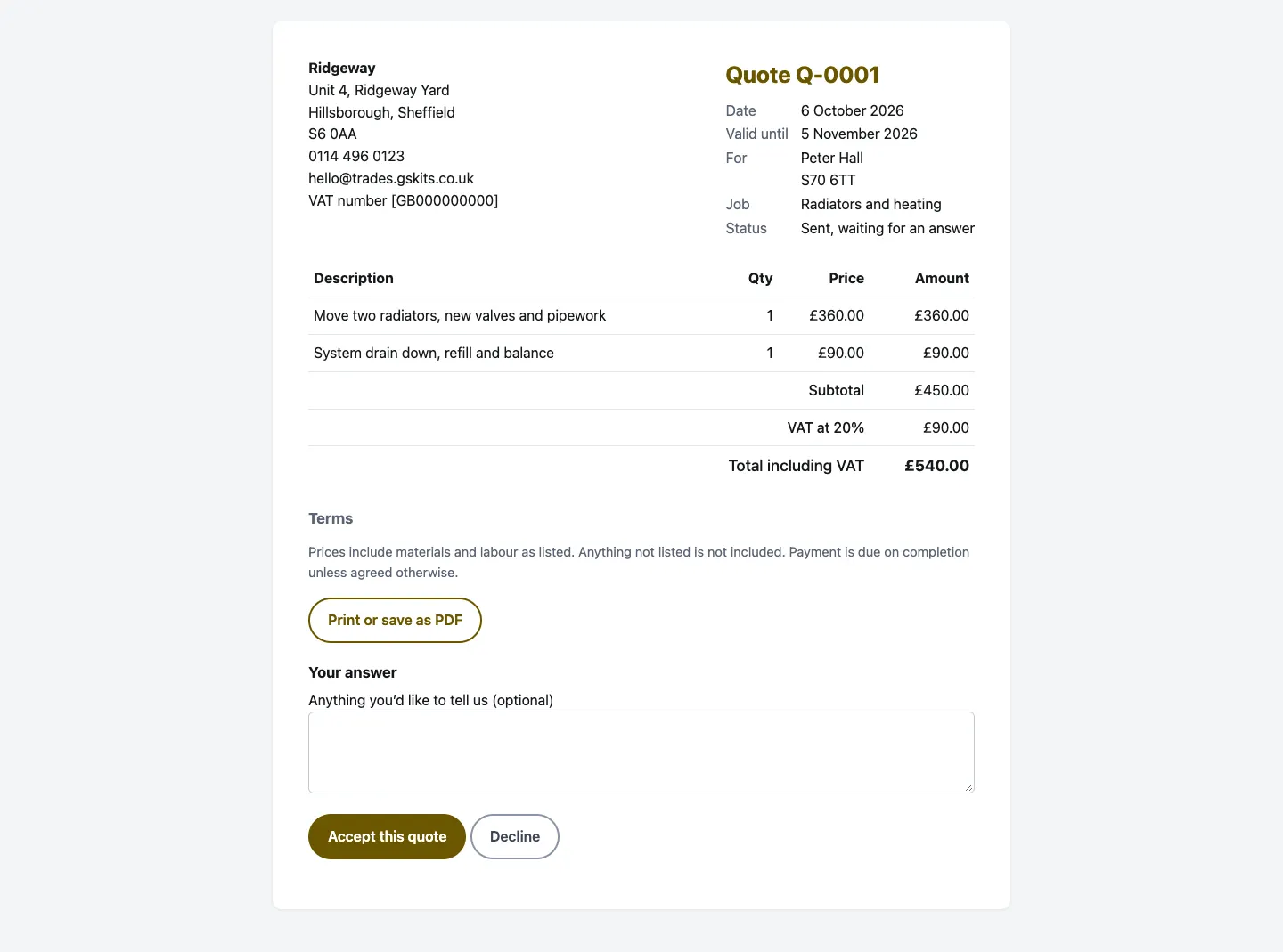
- The customer can click Print or save as PDF, and write a message in Anything you'd like to tell us (optional).
- Accept this quote moves the request to Won. Decline moves it to Lost. You're emailed either way.
- Each quote can be answered once. Opening the link never answers it by itself (so email virus checkers can't accept it by accident): the customer has to press the button.
- After the Valid until date, the quote can no longer be accepted online. Send a new one if they still want the work.
How to change a quote after it's sent
A sent quote can't change, so the customer never sees a price move under them.
- Open the request and find the quote in the Quotes box.
- Click Change it. The old quote is withdrawn and a new draft starts with the same lines.
- Make your changes and click Save and email it to the customer. The new quote has a new number.
Getting paid
The Trades kit doesn't take payments online. Put how and when you want paying in your Terms printed on every quote, and take payment the way you do now (bank transfer, card machine and so on). Once the work is done, move the request to Job done. See Quote requests and the pipeline.