Running your website
Service areas
How to add a page for each town you cover, write its own words so search engines show it, add many towns at once from a list, set the postcodes for each area, and (Pro) send each area's quote requests to its own person.
On this page
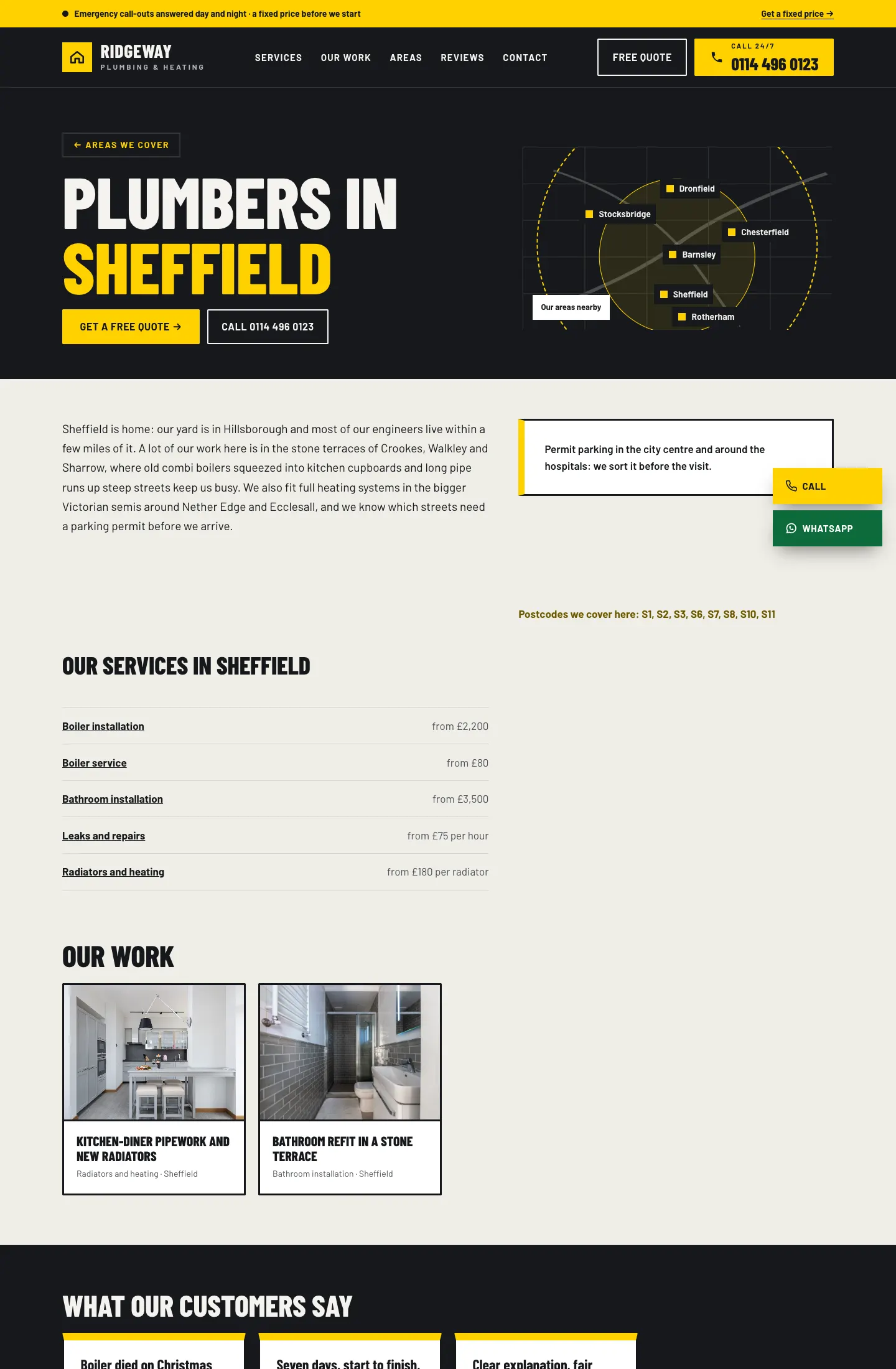
A service area is a town or district you work in. Each one gets its own page ("Plumbers in Sheffield") with a few words about your work there, the postcodes you cover, your services and prices, projects and testimonials from that town, and the quote form. These pages help local customers find you when they search for your trade and their town.
Features marked (Pro) need a Pro or Agency licence.
How to see your areas
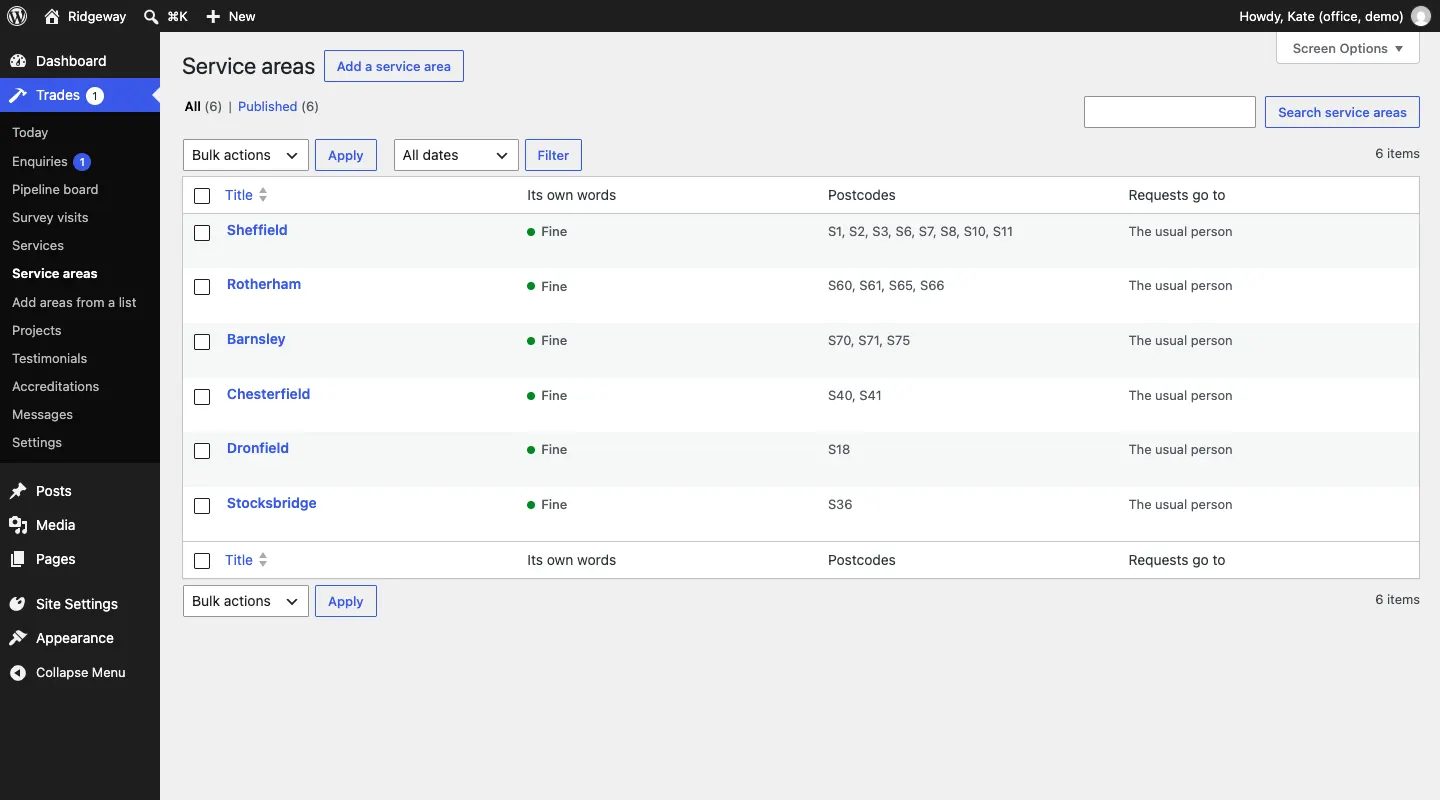
Go to Trades → Service areas. The list shows each area with:
- Its own words: Fine, or a warning if the page needs its own words.
- Postcodes: the postcode districts it covers.
- Requests go to: who gets that area's quote requests (The usual person means the person set under Trades → Settings → Quote requests).
How to add an area and write its own words
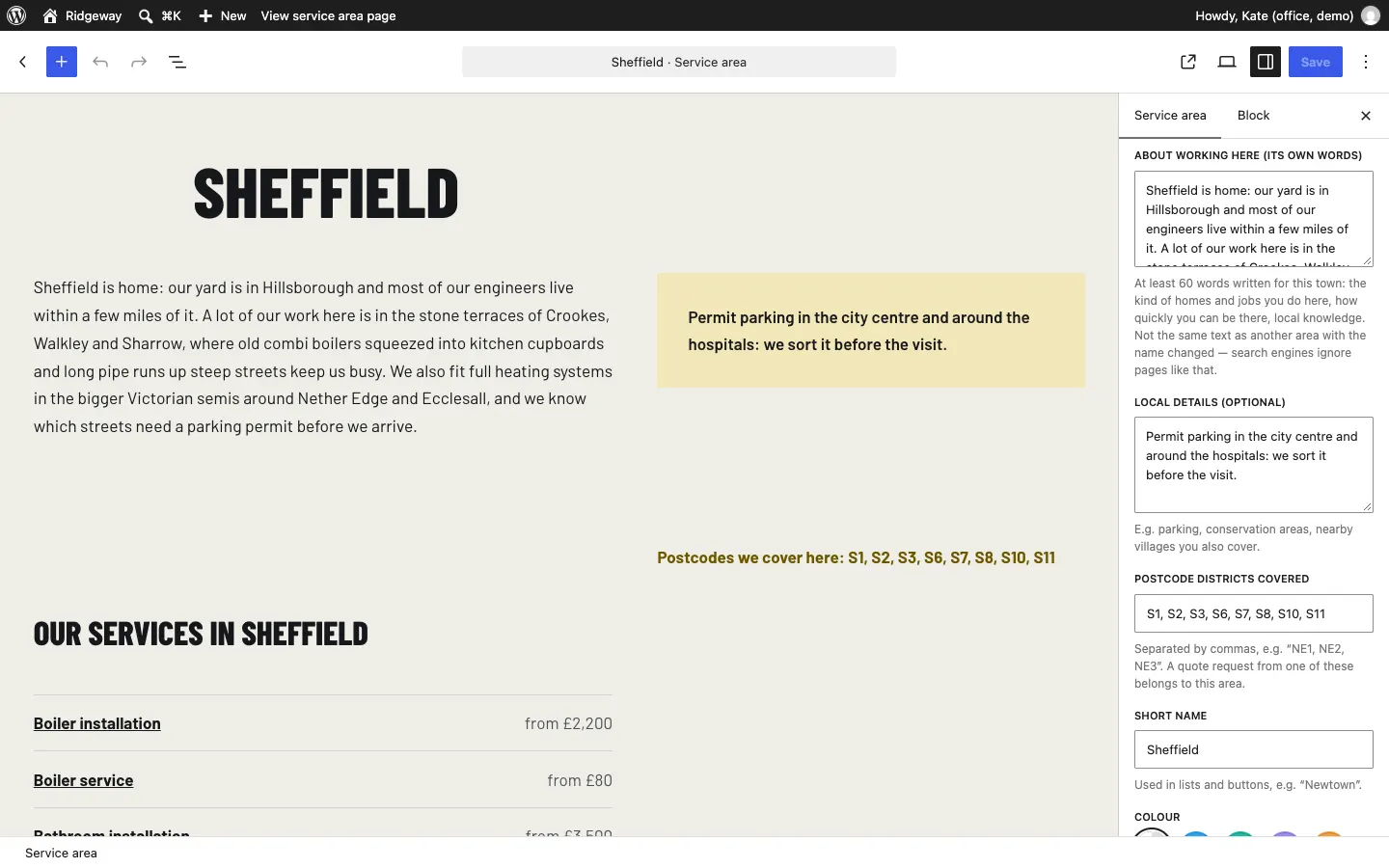
- Go to Trades → Service areas and click Add a service area, or click an area's name to edit it.
- Type the town's name at the top, for example "Sheffield".
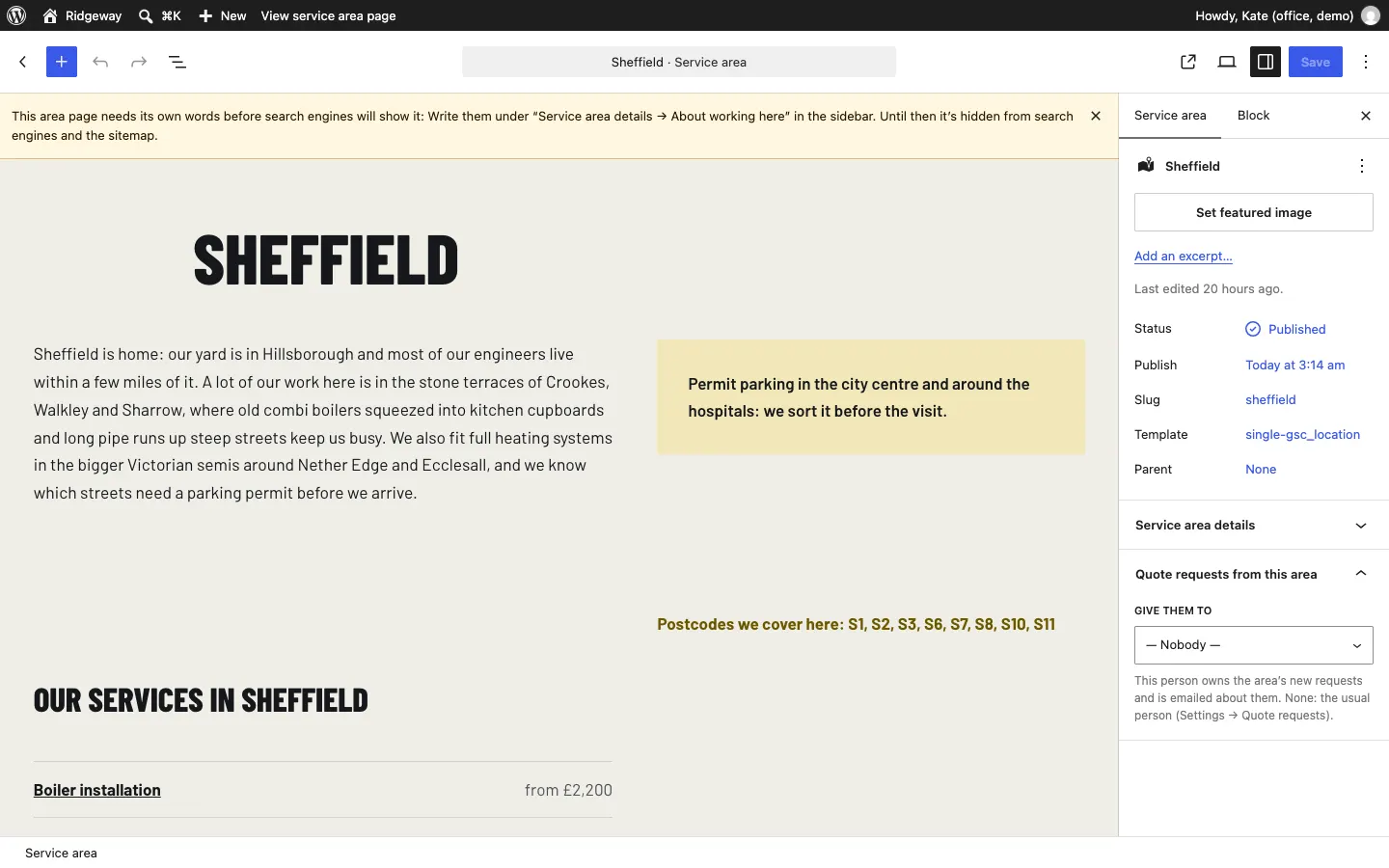
- In the sidebar, under the Service area tab, open Service area details and fill in:
- About working here (its own words): at least 60 words written for this town. The kinds of homes and jobs you do here, how quickly you can be there, local knowledge. Not the same text as another area with the name changed.
- Local details (optional): for example parking, conservation areas or nearby villages you also cover. This shows in a highlighted box.
- Postcode districts covered: separated by commas, for example "S1, S2, S3". A quote request from one of these postcodes belongs to this area.
- Short name: used in lists and buttons.
- Colour: the colour of the area's pin on the areas map.
- Click Save (or Publish for a new area).
The yellow notice at the top of the editor tells you if the page still needs its own words.
How to add many towns at once
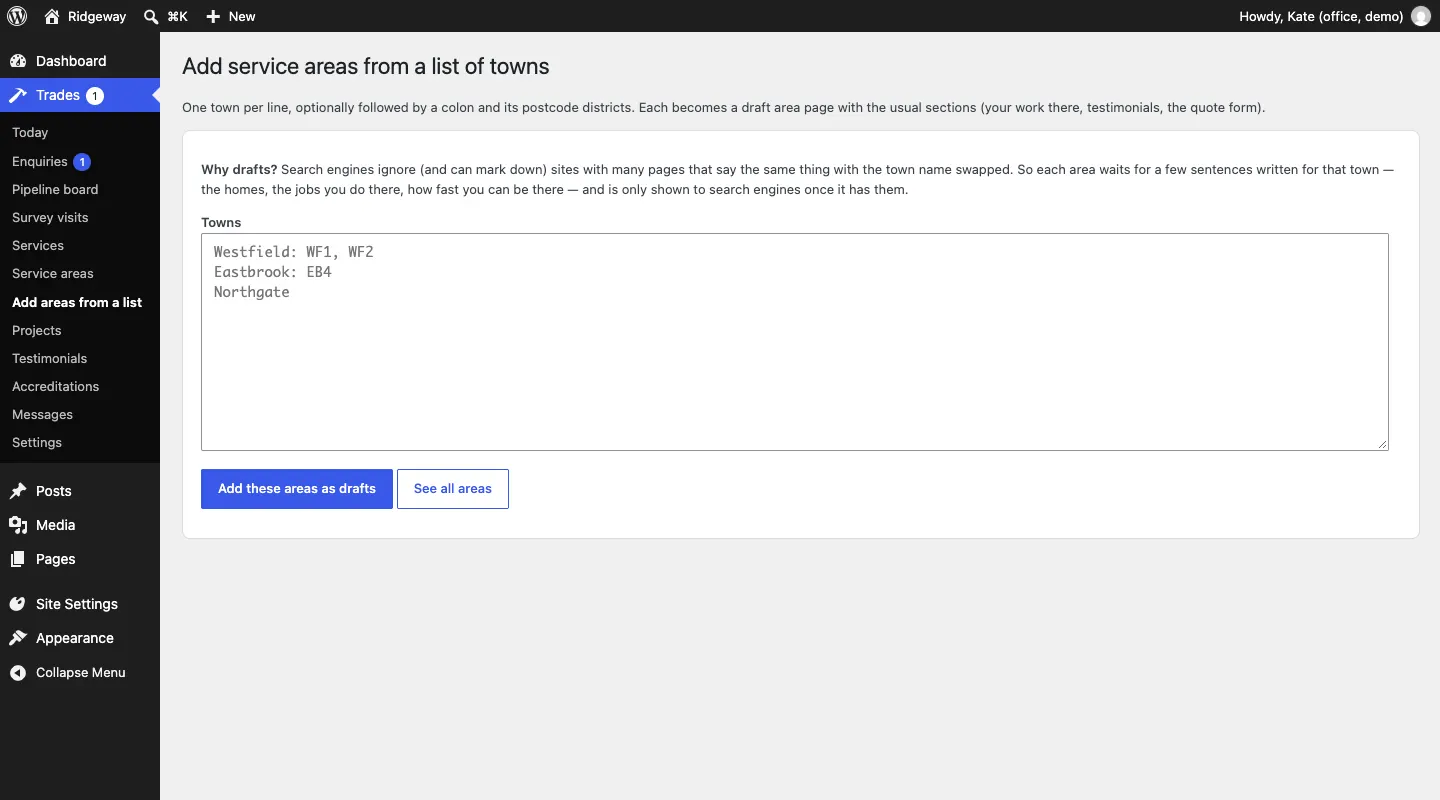
- Go to Trades → Add areas from a list.
- Under Towns, type one town per line. You can add a colon and its postcode districts, for example
Rotherham: S60, S61. - Click Add these areas as drafts.
- Each town becomes a draft area page with the usual sections. Open each one, write its own words (see above) and publish it.
How to send an area's requests to one person (Pro)
If different people cover different towns, each area can have its own person. They own that area's new requests and are emailed about them.
- Open the area under Trades → Service areas.
- In the sidebar, open Quote requests from this area.
- Under Give them to, choose the person. Leave it on Nobody to use the usual person from Trades → Settings → Quote requests.
- Click Save.
Staff with the Estimator role see only the requests given to them, so an estimator for Barnsley sees only Barnsley's requests. See Quote requests and the pipeline.
The Areas we cover page
The Areas we cover page lists every published area and has a Check your postcode box, so a customer can see straight away whether you cover them.
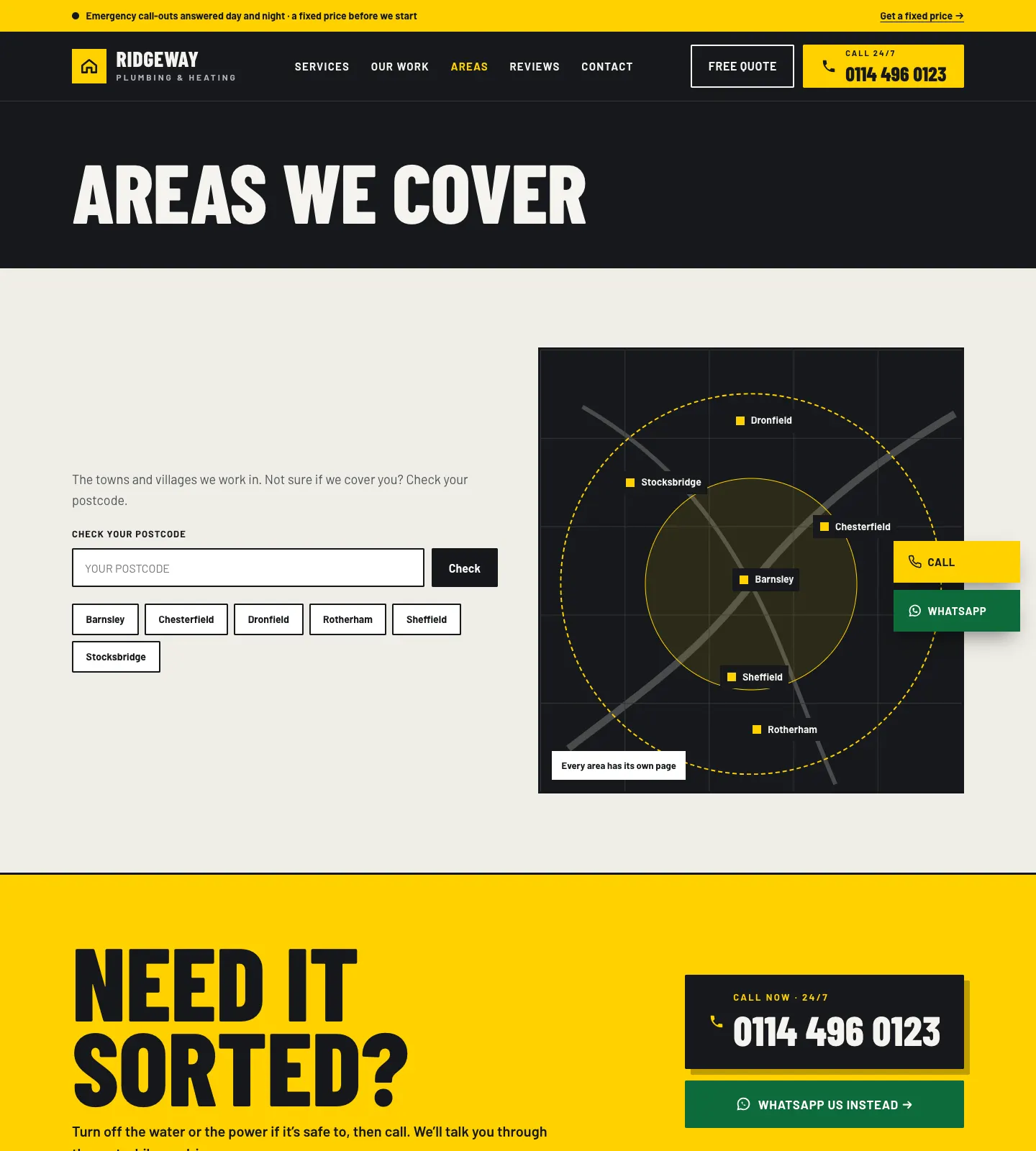
New published areas are added to this page, the footer and the home page by themselves.