Looking after your website · shared chapter
Troubleshooting and support
Fixes for the problems people meet most often: licence messages, installing, the setup wizard, pages not found, emails, signing in, the design and the cookie banner, and how to get help.
On this page
Most problems have a quick fix. Find yours below. If it isn't here, or the fix doesn't work, email us: see Getting help at the end.
Licence problems
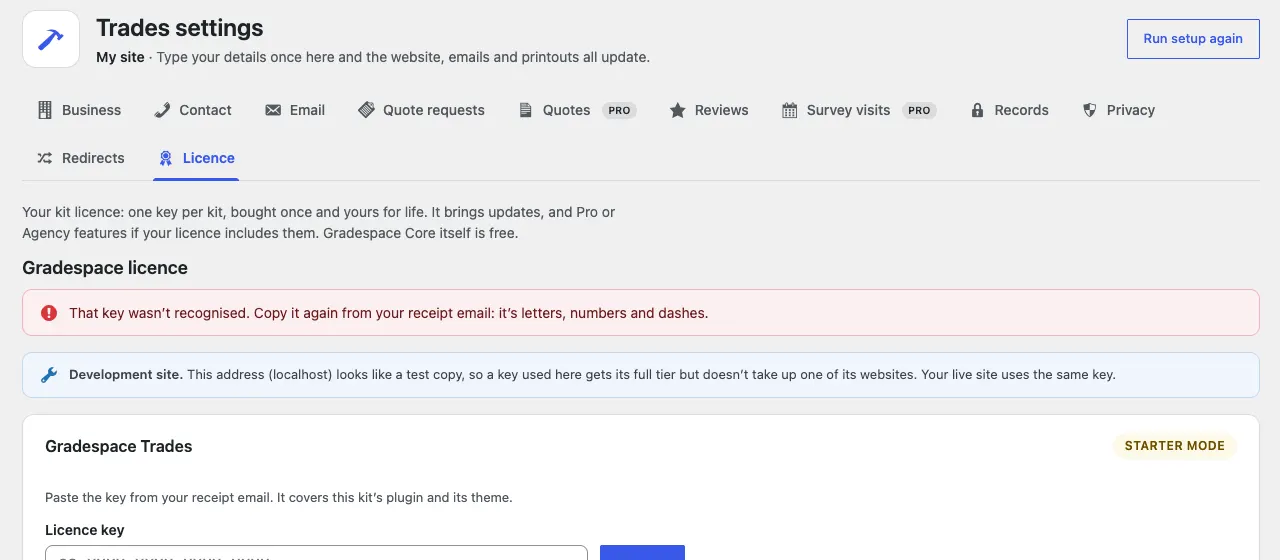
Your kit's licence is on Settings → Gradespace licence (also Trades → Settings → Licence). When something isn't right, a message appears at the top of that screen.
| The message says | What to do |
|---|---|
| That key wasn't recognised. Copy it again from your receipt email: it's letters, numbers and dashes. | Copy the whole key again, with no spaces before or after it, and paste it. If you've lost the email, find the key on your licences page. |
| That key is for a different kit. Use the key you received for … | Each kit has its own key. Use the key for the kit installed on this website. |
| This key is already in use on all the websites it covers. | Your licence is still active on another website. Click Deactivate on this website there, or click Remove site on your licences page, then click Activate again. Or upgrade to Agency for five websites. |
| This key has been cancelled (for example after a refund). | If you think that's a mistake, email us and we'll sort it out. |
| We couldn't reach the licence server just now, so nothing has changed. | Try again in a few minutes. Your website keeps working in the meantime. |
| … is running in Starter mode without a licence key. | Paste your key and click Activate. See Installing your kit. |
A Pro feature still shows "This is part of Pro"
- Check the Tier on your licence card. If it says Starter, the feature needs an upgrade: see Buying and your licence.
- If you've just upgraded, click Recheck on the licence card.
- Staff who aren't administrators are told to ask the administrator. Only an administrator can add or change the key.
I'm moving to a new website
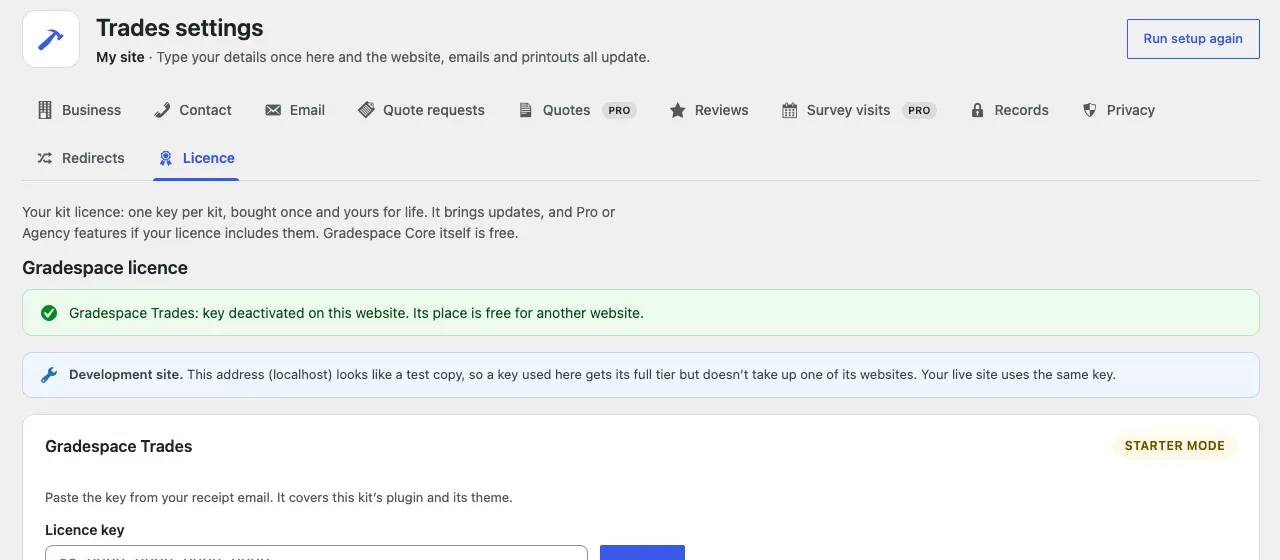
Free the key on the old website first (Deactivate on this website), then activate it on the new one. The old website then says "key deactivated on this website. Its place is free for another website." See Buying and your licence.
Installing
The kit's plugin won't activate
Gradespace Core must be installed and active first. Go to Plugins → Installed Plugins, find Gradespace Core and click Activate, then activate your kit's plugin.
"The uploaded file exceeds the upload_max_filesize directive in php.ini."
Your host limits the size of uploads, and the theme file is bigger than the limit (theme files are about 4 to 10 MB, because they include sample photos). Ask your host to raise the upload limit to at least 16 MB, then try again. You can see the current limit in Tools → Site Health → Info → Server (Upload max filesize).
"The package could not be installed" or "No valid plugins were found"
- You may have uploaded the theme on the Plugins screen, or the plugin on the Themes screen. The file with theme in its name goes in Appearance → Themes → Add Theme → Upload Theme; the other two go in Plugins → Add Plugin → Upload Plugin.
- Your computer may have unzipped the file. Upload the original .zip file. On a Mac, Safari can unzip downloads by itself: download again, or switch off "Open safe files after downloading" in Safari's settings.
I installed a newer version over the old one
If you upload a .zip of a plugin or theme that's already installed, WordPress asks whether to replace it. Click Replace current with uploaded. Your settings and content are kept.
The setup wizard stopped while adding the starter content
The Starter content step adds its parts one at a time and the sample photos a few at a time, so it stays inside your host's time limit. If the box under the switches turns red and says "This didn't finish (the server may have stopped it). What's already added stays.", or you see "There has been a critical error on this website" after clicking Save and continue:
- Go back to your WordPress admin.
- Open the wizard again (Continue setup, or Trades → Settings → Run setup again) and go to Starter content.
- Click Save and continue again. The wizard carries on where it stopped. Nothing is added twice: pages, photos and samples you already have are left alone.
Without JavaScript (or if the page was closed), the step adds as much as it can each time and says, for example, "Sample photos: 17 of 47 added so far. Press “Save and continue” again to add the rest (nothing is added twice)." Press Save and continue until it moves on.
If it keeps stopping, ask your host to raise the PHP time limit (shown in Tools → Site Health → Info → Server) to at least 60 seconds, or switch off Sample photos in the Starter content step.
A page says "Page not found"
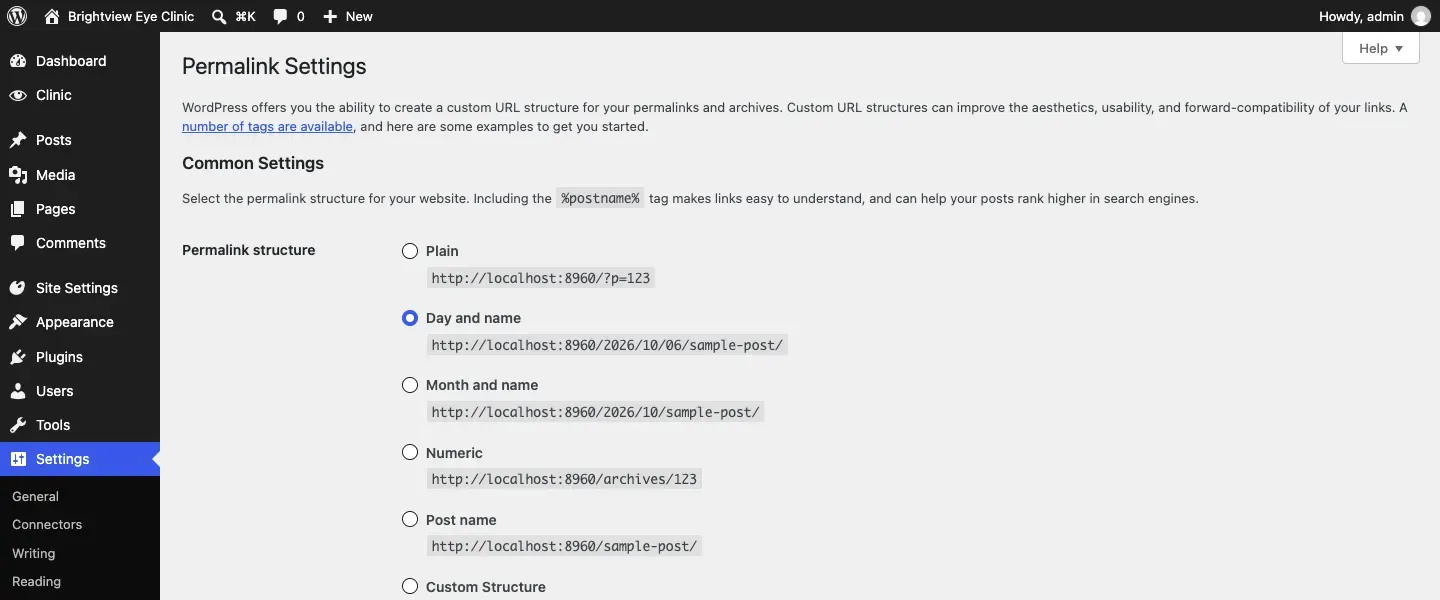
If a page you can see in Pages shows "Page not found" on the website (or every page except the home page does), WordPress needs to refresh its list of web addresses:
- Go to Settings → Permalinks.
- Don't change anything. Just click Save Changes at the bottom.
- Try the page again.
If it still doesn't work:
- Check the page is Published, not a draft, in Pages.
- If visitors come from an old address (for example a page on your previous website), send them to the new page with Trades → Settings → Redirects. Put one redirect per line: the old address, a space, then the new address, for example
/about-us/ /about/.
Emails aren't arriving
- Send a test email: Trades → Settings → Email → Send a test email. See Privacy, cookies and emails.
- Check the spam or junk folder.
- On Settings → Email, set From email to an address on your website's own domain (for example noreply@yourbusiness.co.uk). Emails "from" a Gmail or Hotmail address sent by a website often go to spam.
- Check the Email log (Pro) at the bottom of the same screen. Not sent means the website couldn't send it; Sent means it left the website, so look at the recipient's spam folder.
- Check the email's own switch is on, under the list of emails on the same screen.
- If emails still don't arrive, your host's mail may be blocked. Open Advanced: send through an email account (SMTP) and enter the details of a real mailbox (your host or email provider gives you these).
When emails fail, your Today screen shows "Some emails couldn't be sent — check Settings → Email." People may not have received their confirmations, so give them a call if in doubt.
I can't sign in
- "Incorrect username or password." Check the username (it may not be your name) and type the password again. Then click Lost your password? to reset it.
- "Too many failed sign-in attempts. Please try again in … minutes." Sign-in is locked for 15 minutes after 5 wrong tries from the same place. Wait, then try again, or reset your password.
- "Access to this site has been blocked from your address." An administrator has blocked your internet address in the security log. Ask an administrator to unblock it.
- No reset email? Check the spam folder, and see Emails aren't arriving.
- You're a customer, not staff? Customers sign in to My account on the website, not on the staff sign-in page.
See Staff accounts and signing in.
My design or colour change doesn't show
- Visitors see the new look as pages refresh. Cached pages update within the hour. If your host or a plugin caches pages, clear its cache.
- If someone changed styles in Appearance → Editor → Styles, those changes sit on top of your choice. On Site Settings → Design & colours, tick Also clear style changes made in Appearance → Editor → Styles, then Save.
- Preview on the site only shows the choice to you. Click Save to show it to visitors.
My address, hours or phone number is wrong on a page
These fill themselves in from your kit's Settings. Change them in Settings → Contact or Settings → Opening hours, not on the page, and every page updates by itself.
I added a page but it isn't in the menu
New pages aren't added to the menu by themselves. Add them in Appearance → Editor → Navigation → Main menu. See Your look.
The cookie banner doesn't show
- You've probably already chosen. The choice is kept on your device for 6 months. Open the website in a private window to see the banner as a new visitor.
- The banner doesn't show on My account, the basket, the checkout or a booking's manage page. That's on purpose.
- Check Show the cookie banner and button is on in Trades → Settings → Privacy.
- If the GSCookie plugin is active, it shows its own banner instead.
Getting help
This manual, from your website
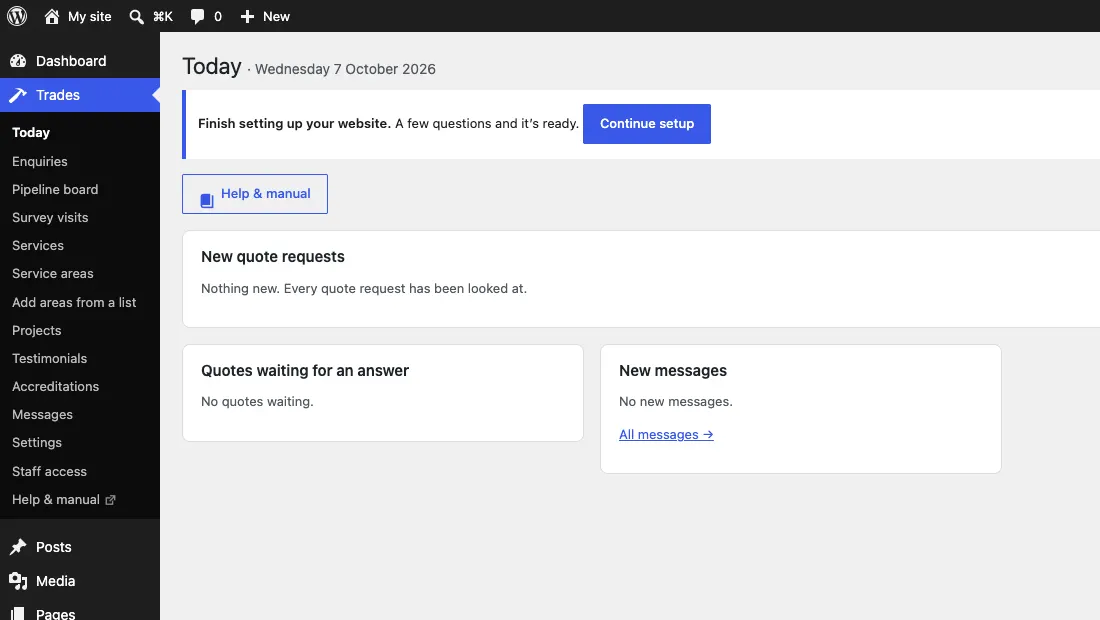
Your kit's menu in WordPress ends with Help & manual, and Trades → Today has a Help & manual button. Both open this manual for your kit, thegradespace.com/docs/trades, in a new tab, with a search box. The whole manual is also a PDF to download from your licences page (see Buying and your licence).
Asking us
Email support@thegradespace.com. To help us help you quickly, include:
- Your website's address and which kit you use.
- What you were doing, step by step.
- What you expected to happen, and what happened instead, with any message word for word.
- A screenshot of the screen.
- The versions, from Plugins → Installed Plugins: Gradespace Core, your kit's plugin, and from Appearance → Themes, your kit's theme.
More help
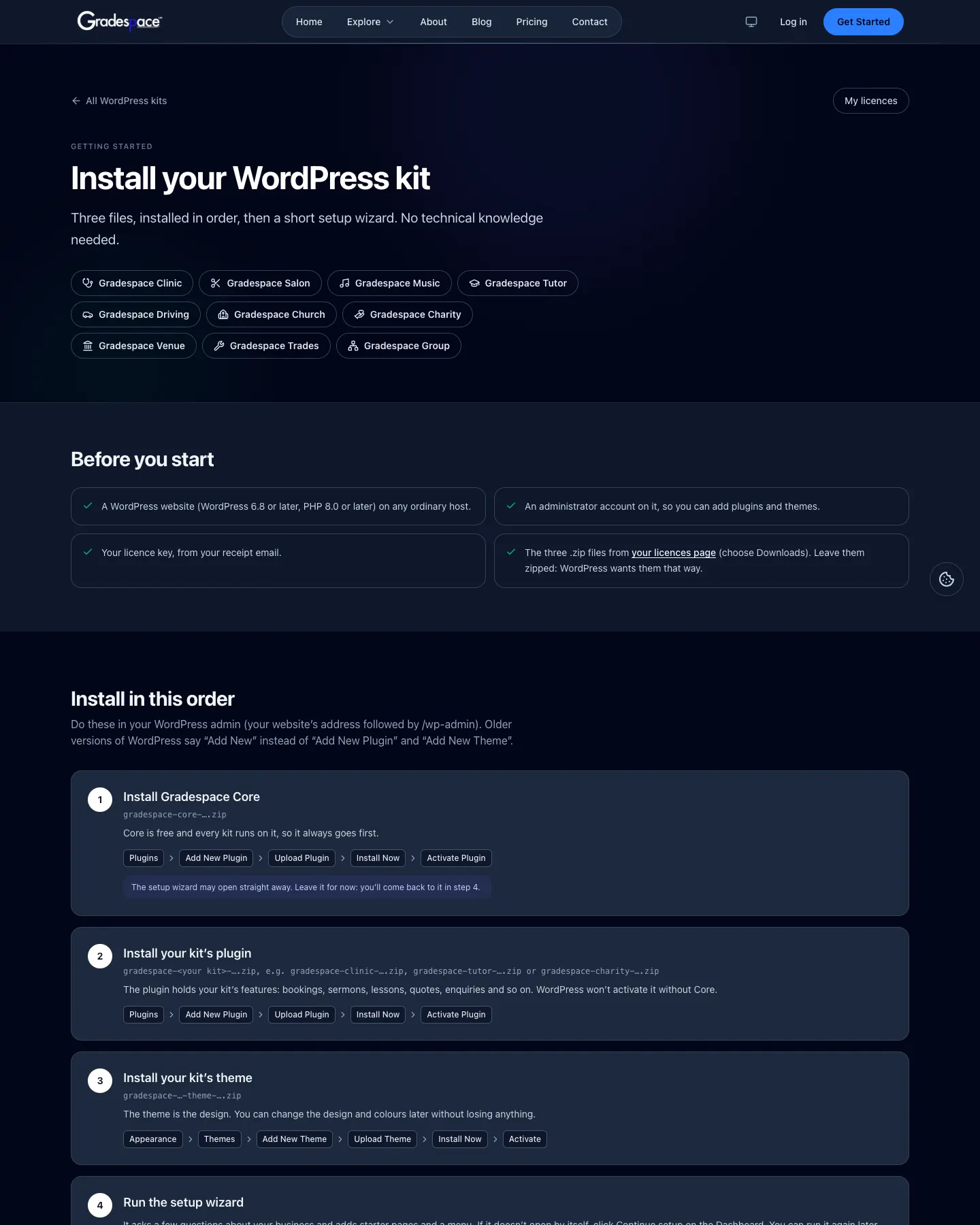
- Getting started: a step-by-step install guide with pictures, at thegradespace.com/wordpress-kits/getting-started.
- Staff guides: each kit has a short staff guide to download and print as a PDF, linked from the same page.
- Try the demo: each kit's page on thegradespace.com has a live demo and a Look around the admin button, so you can see how a screen should look.
- Done-for-you help: if you'd rather we set things up, ask for a quote for installation or a complete setup from your kit's page.