Setting up
Designs, pages and menus
The three Trades designs (Workshop, Local Pro and Blueprint) and their seven colour palettes, the pages and menu the kit makes for you, and how each page looks on a computer and a phone.
On this page
The Trades theme gives your website one of three designs. Each one is built to turn visitors into phone calls and quote requests: your phone number sits in the header, there are "Get a quote" buttons on every page, and phones get a Call and WhatsApp bar along the bottom. You can change the design at any time without losing any of your services, areas, requests or projects, because those live in the Trades plugin (a plugin is an add-on for WordPress), not in the design.
For the general steps (logo, menus, the sticky menu, the footer) see Your look.
The three designs
| Design | What it looks like | Good for |
|---|---|---|
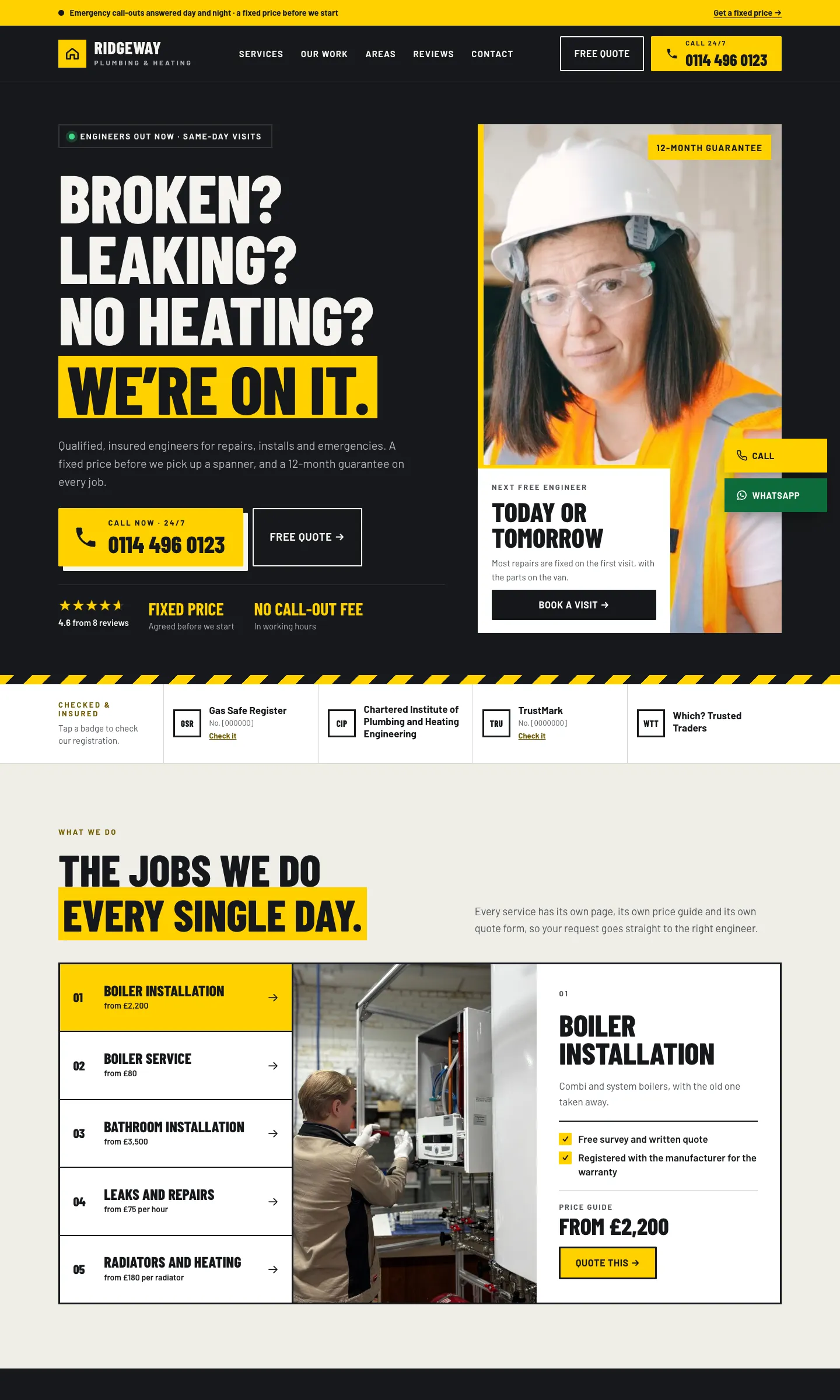
| Workshop | Bold and high contrast: charcoal bands, condensed capitals, hazard stripes and oversized call buttons | Plumbers, roofers, drainage and emergency trades |
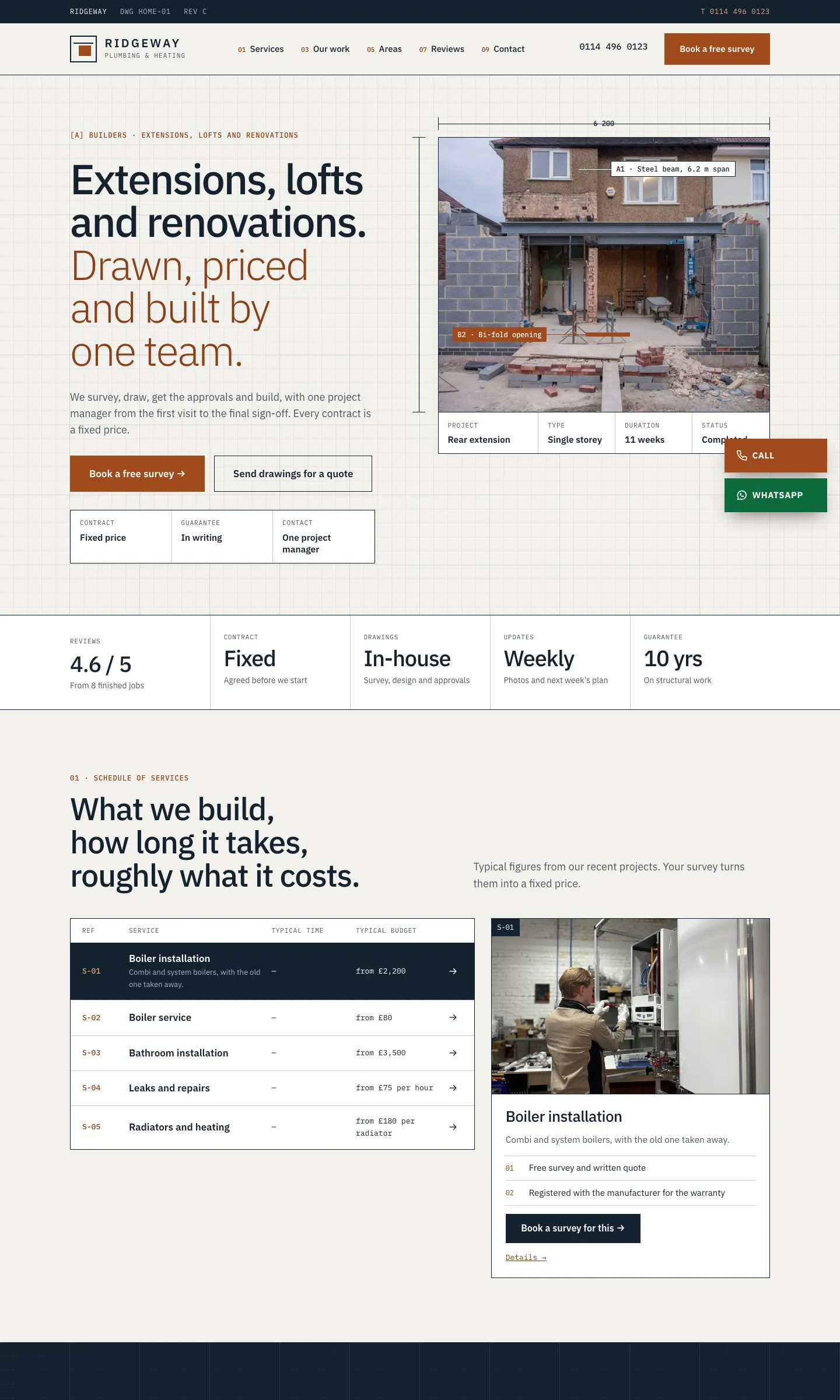
| Blueprint | Technical: a drafting-paper grid, hairlines, dimension lines and monospace labels | Builders, extensions, lofts, kitchens and surveyors |
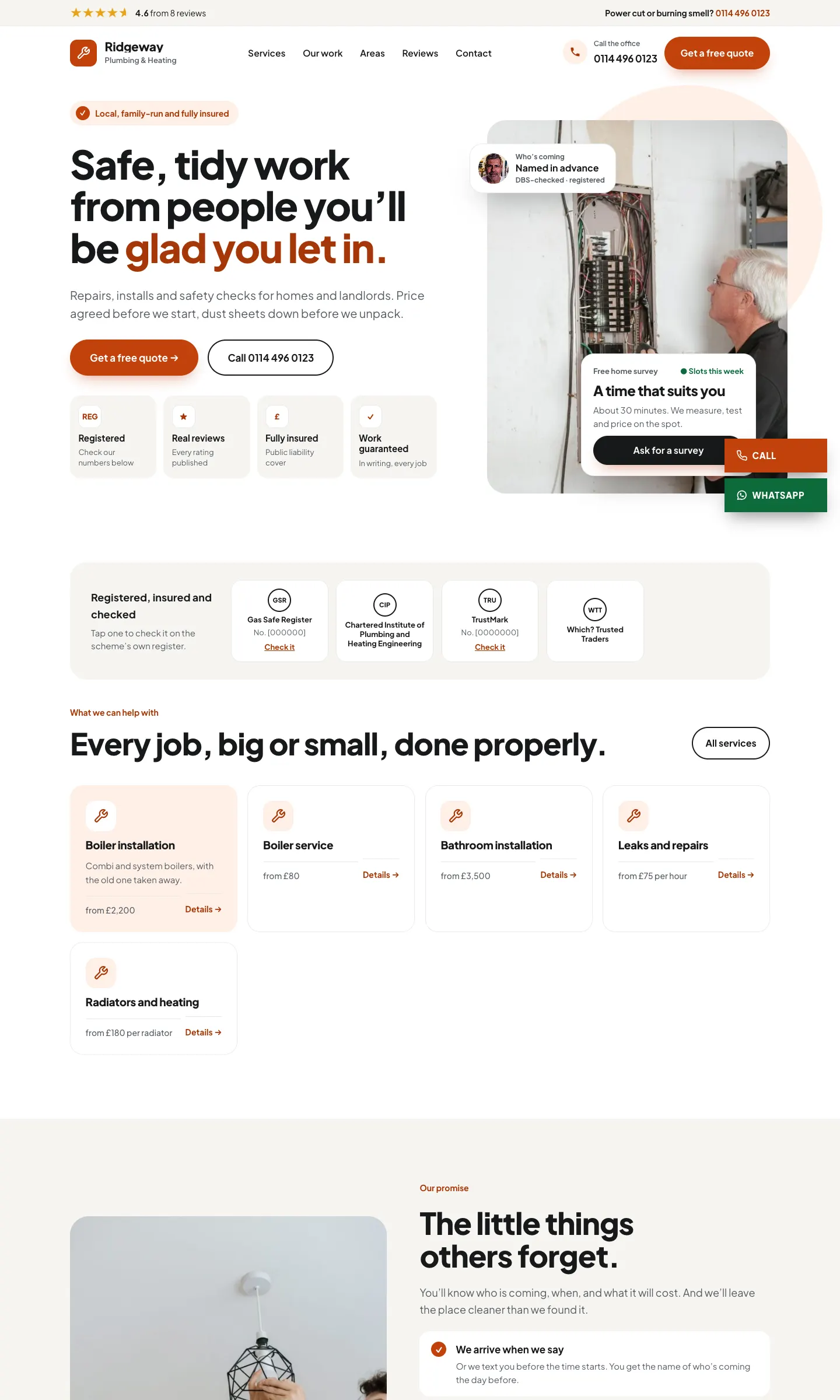
| Local Pro | Friendly and light: white space, rounded cards, pill buttons and trust badges up front | Electricians, decorators, cleaners and handymen |
Workshop

Local Pro

Blueprint

How to change the design and colours
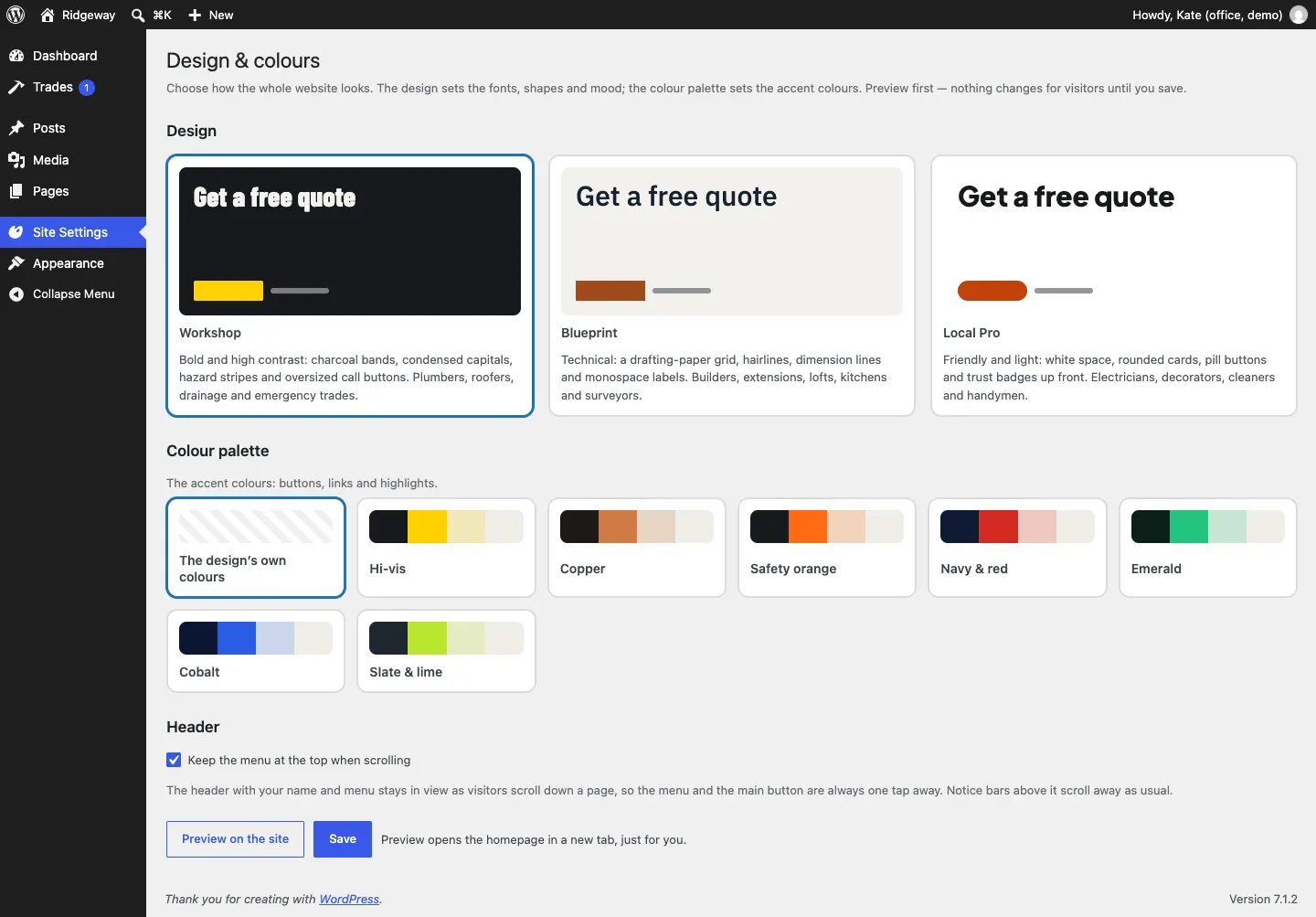
- Go to Site Settings → Design & colours.
- Under Design, click Workshop, Blueprint or Local Pro.
- Under Colour palette, click a palette, or keep The design's own colours. The palettes are Hi-vis, Copper, Safety orange, Navy & red, Emerald, Cobalt and Slate & lime. On the dark Workshop design the background stays dark and the palette colours the buttons, links and highlights.
- Under Header, tick Keep the menu at the top when scrolling if you want the menu to stay in view.
- Click Preview on the site. The home page opens in a new tab, just for you: visitors still see the old look.
- Happy? Click Save.
The pages the kit makes
The setup wizard adds these pages and links them up for you. You can edit the words on any of them under Pages.
| Page | What's on it |
|---|---|
| Home | Your headline, call and quote buttons, accreditations, services with prices, your work, reviews and the areas you cover |
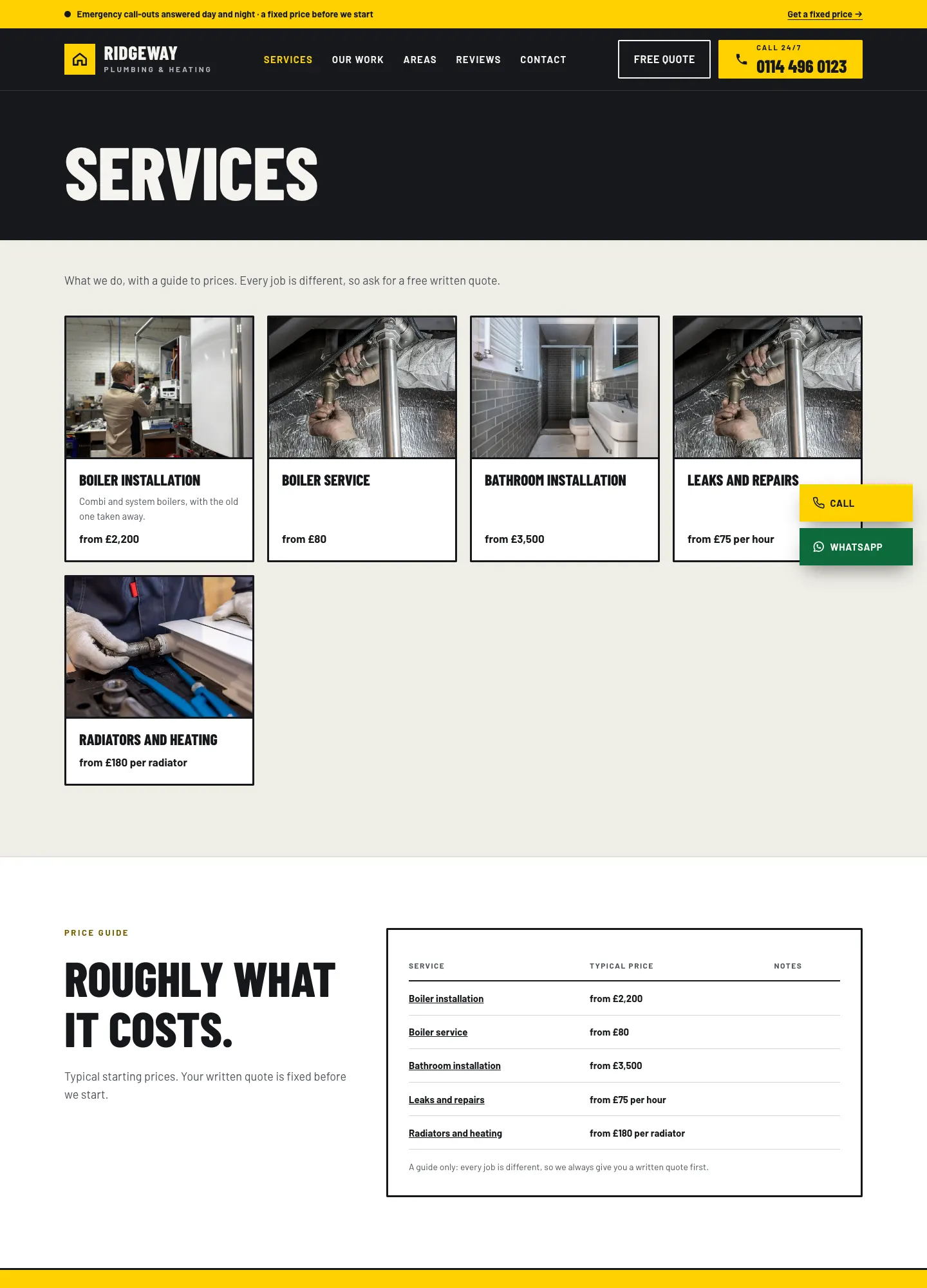
| Services | Every service with its "from" price and a link to its own page |
| Our work | Your projects, with buttons to show one service at a time |
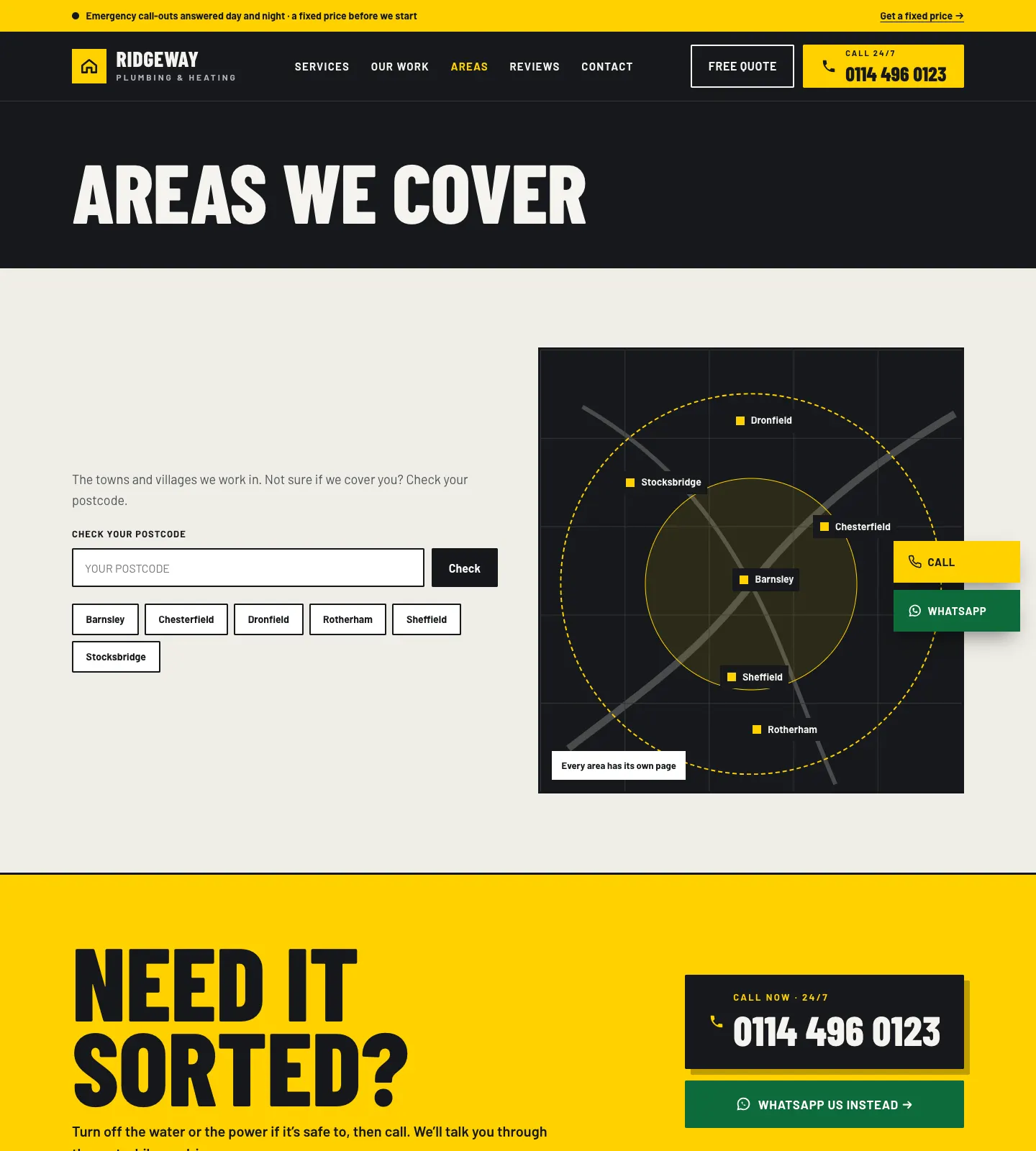
| Areas we cover | Every town you cover, a postcode check and a link to each town's page |
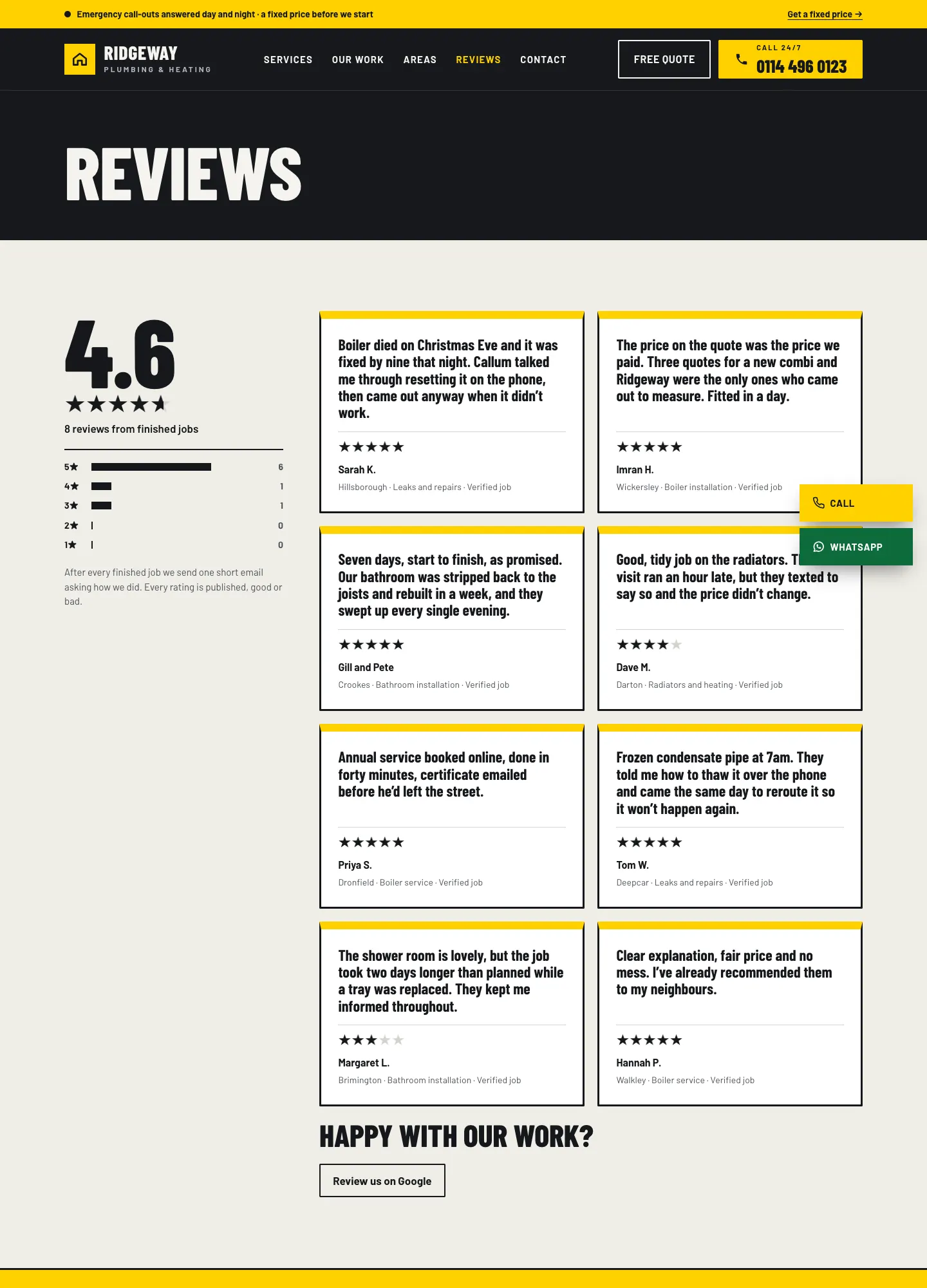
| Reviews | Your score, your testimonials and "Review us" links |
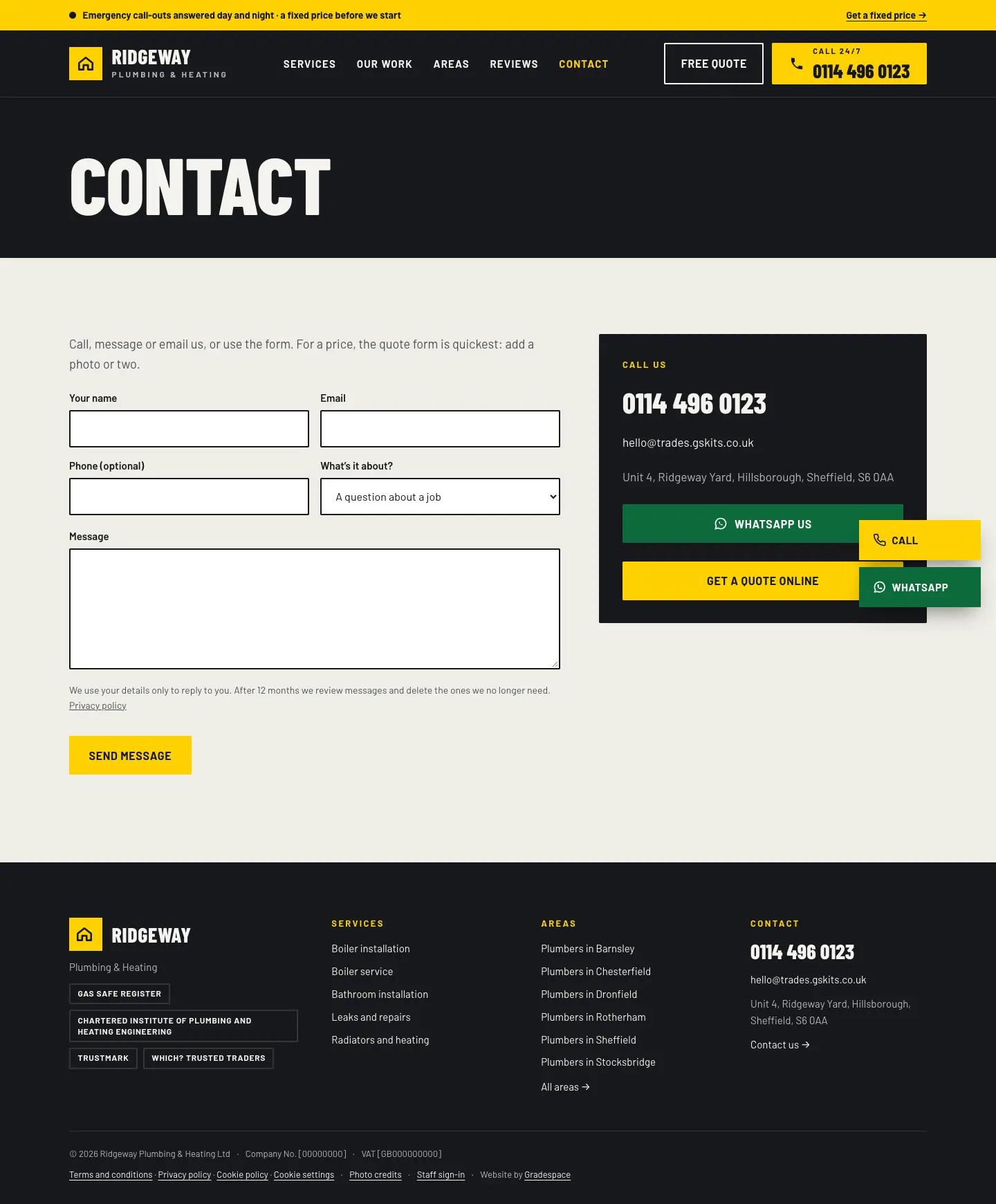
| Contact | Phone, email, address and the contact form |
| Get a quote | The quote request form with photos |
| Privacy policy, Terms and conditions, Cookie policy, Photo credits | Starter legal pages filled in from your settings |
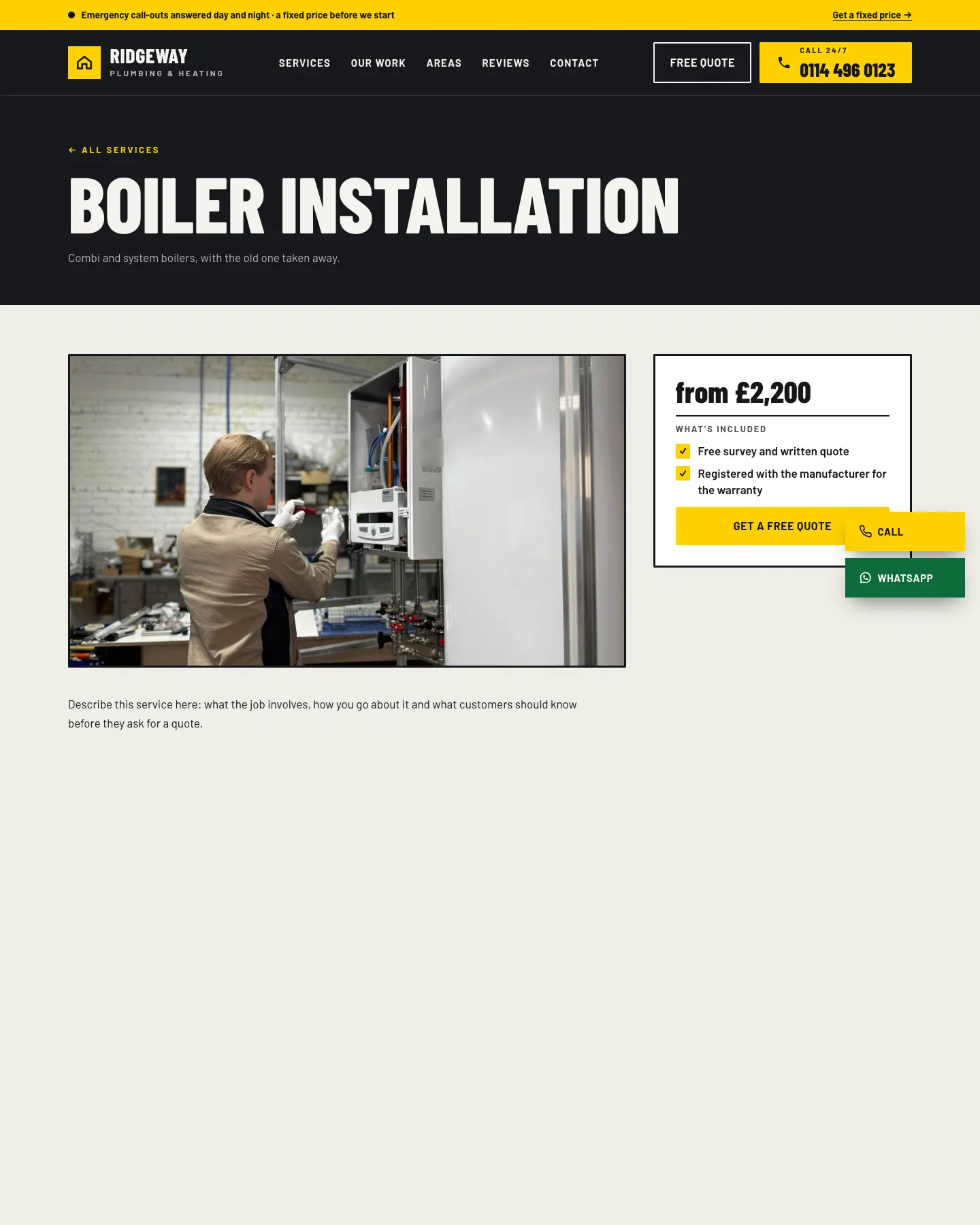
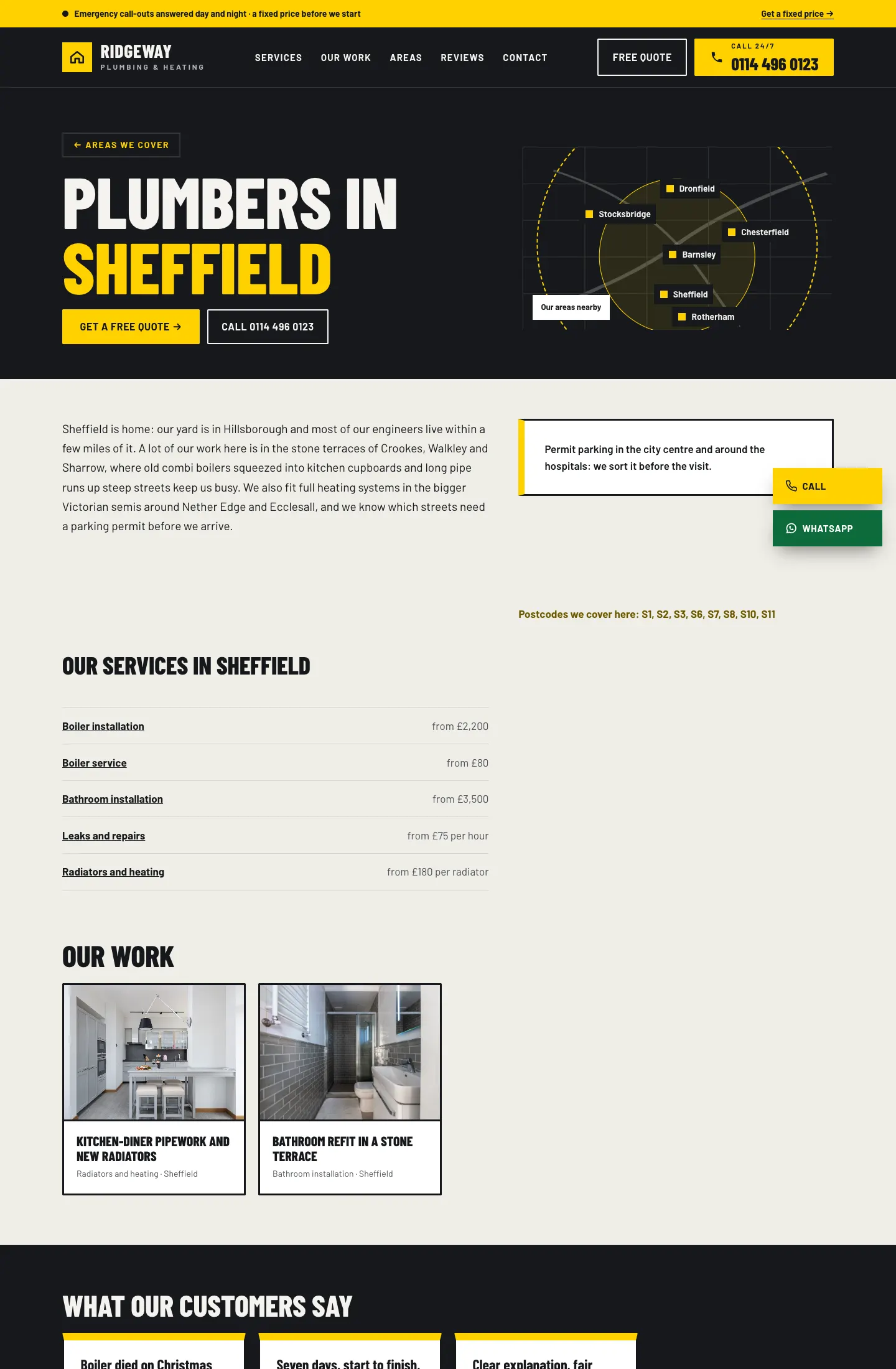
Each service, area and project also gets its own page automatically.
Services
Areas we cover
Our work
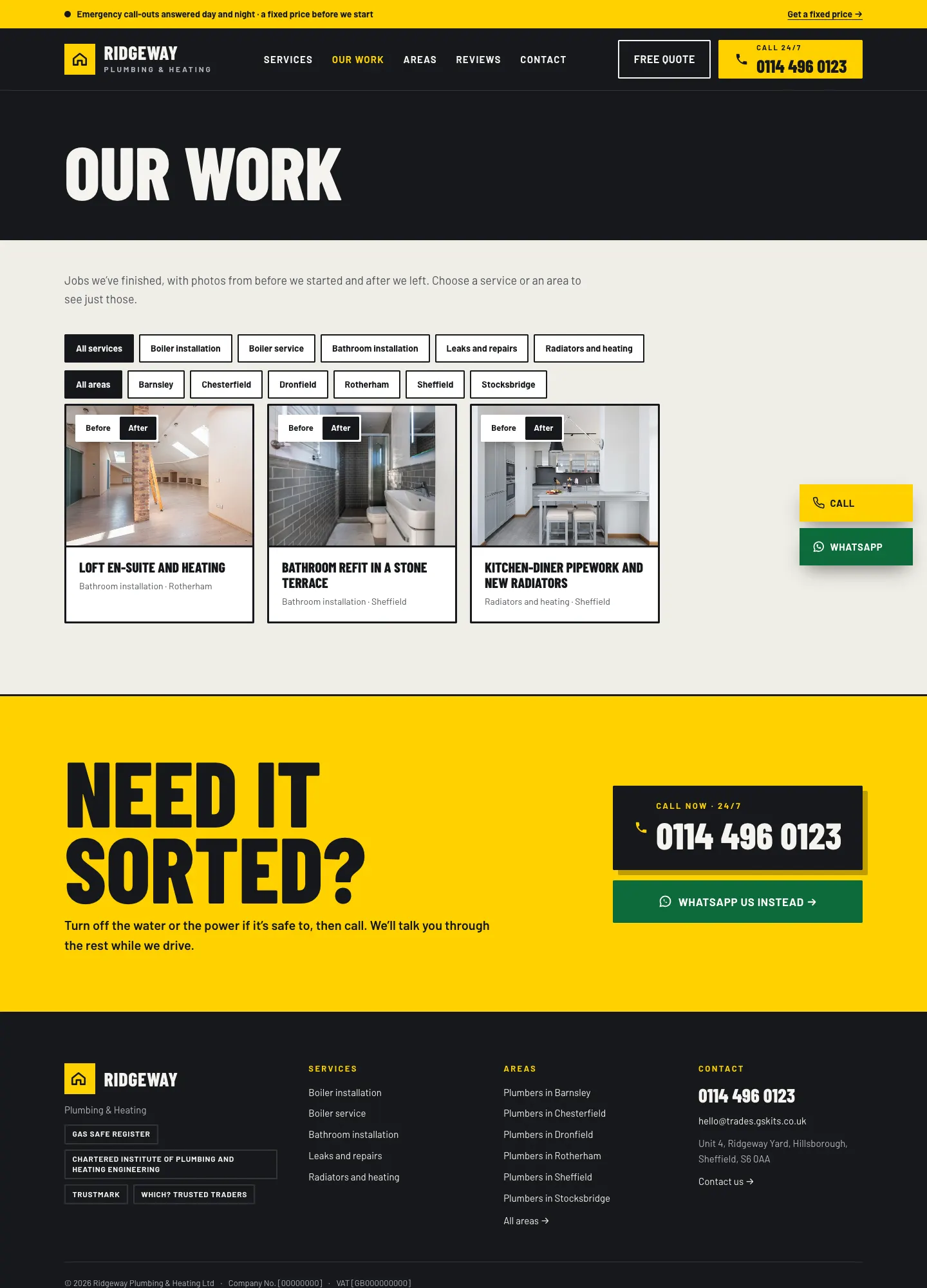
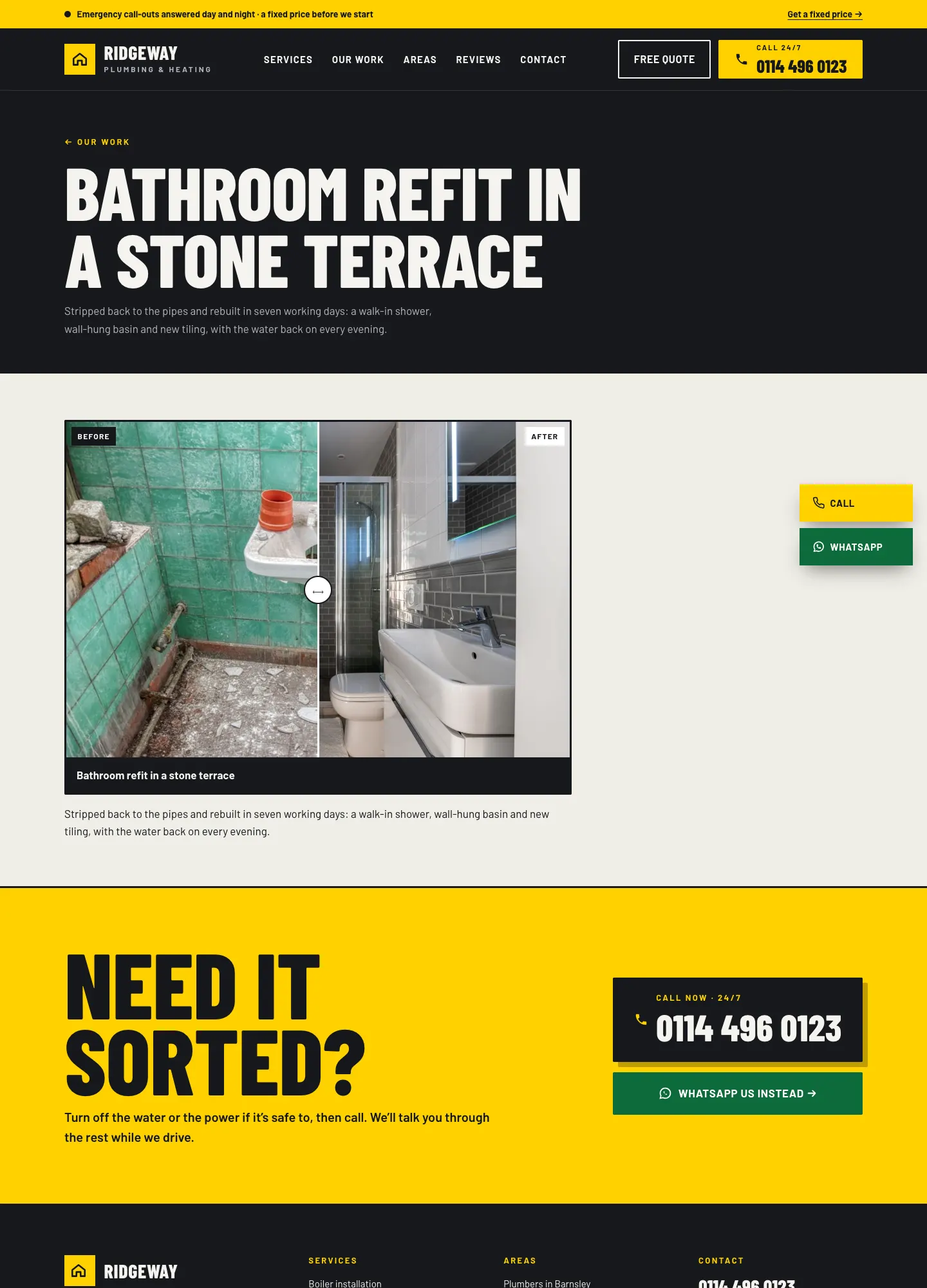
Reviews and Contact
Get a quote
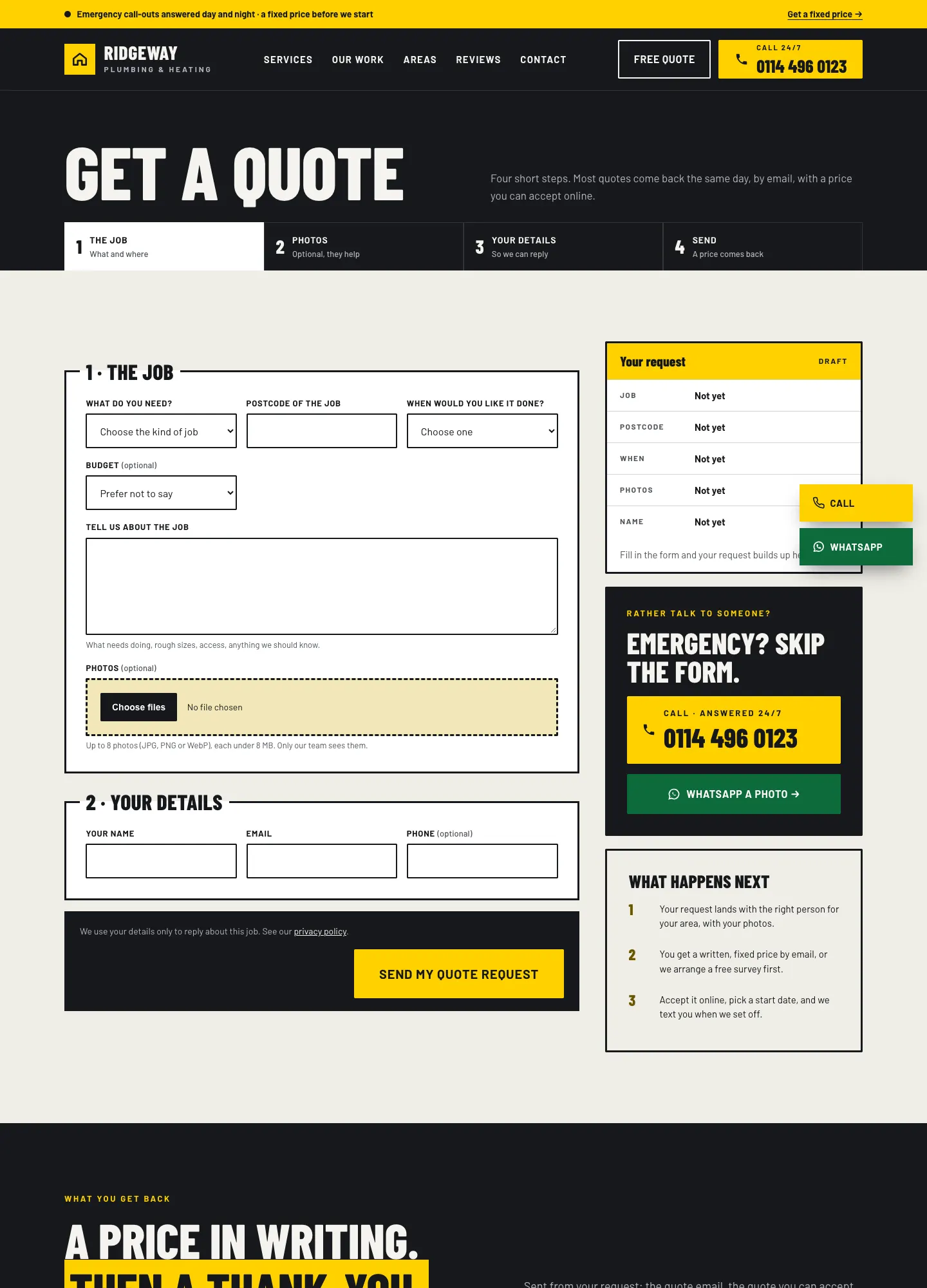
The menu
The header menu has Services, Our work, Areas, Reviews and Contact, plus a Get a quote button and your phone number. On phones and tablets the menu folds into a menu button.
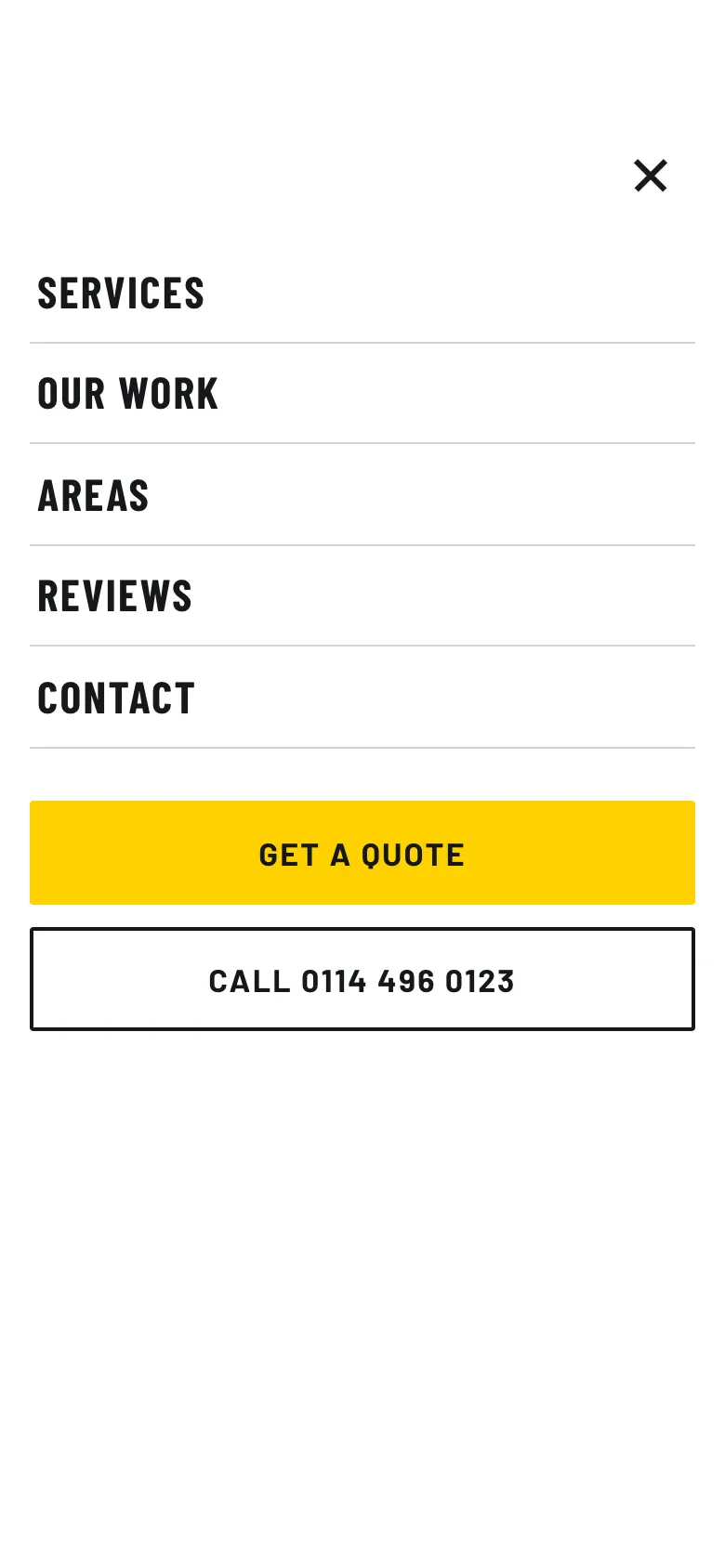
To change the menu, see Your look.
The footer
The footer lists your services, your areas ("Plumbers in Barnsley" and so on), your phone number, email and address, then your company details and the legal links, Cookie settings and Staff sign-in.
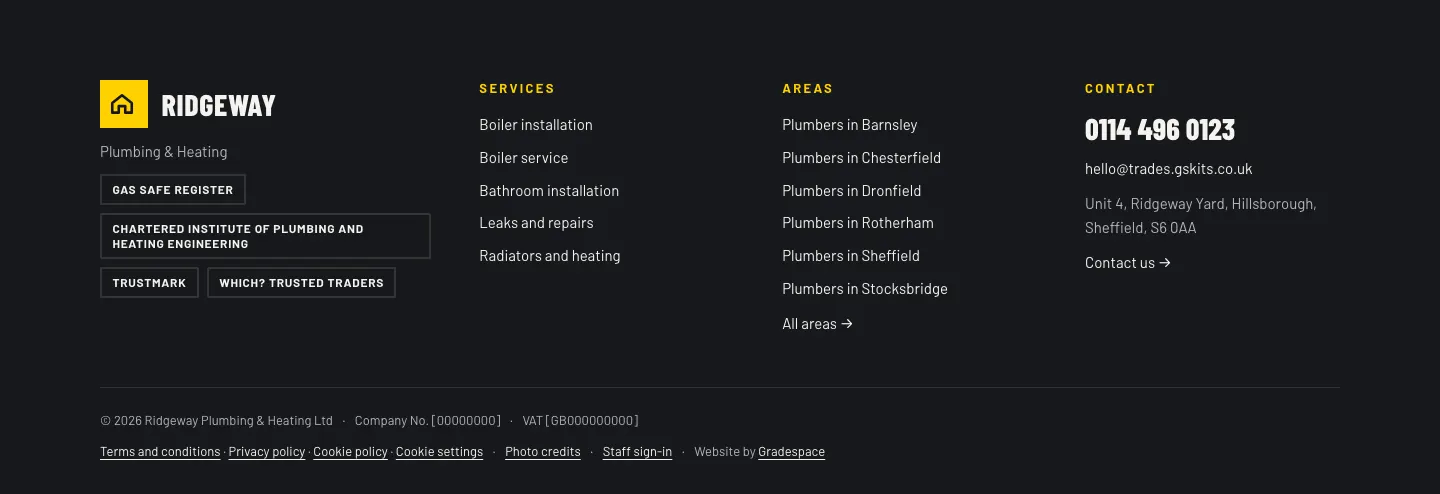
The company name, company number and VAT number come from Trades → Settings → Business and Trades → Settings → Quotes. Replace the sample numbers in square brackets with your own.
The Call and WhatsApp bar
On phones, a bar along the bottom of every page has Call, WhatsApp and Get a quote. On computers the demo shows Call and WhatsApp buttons at the side of the screen.
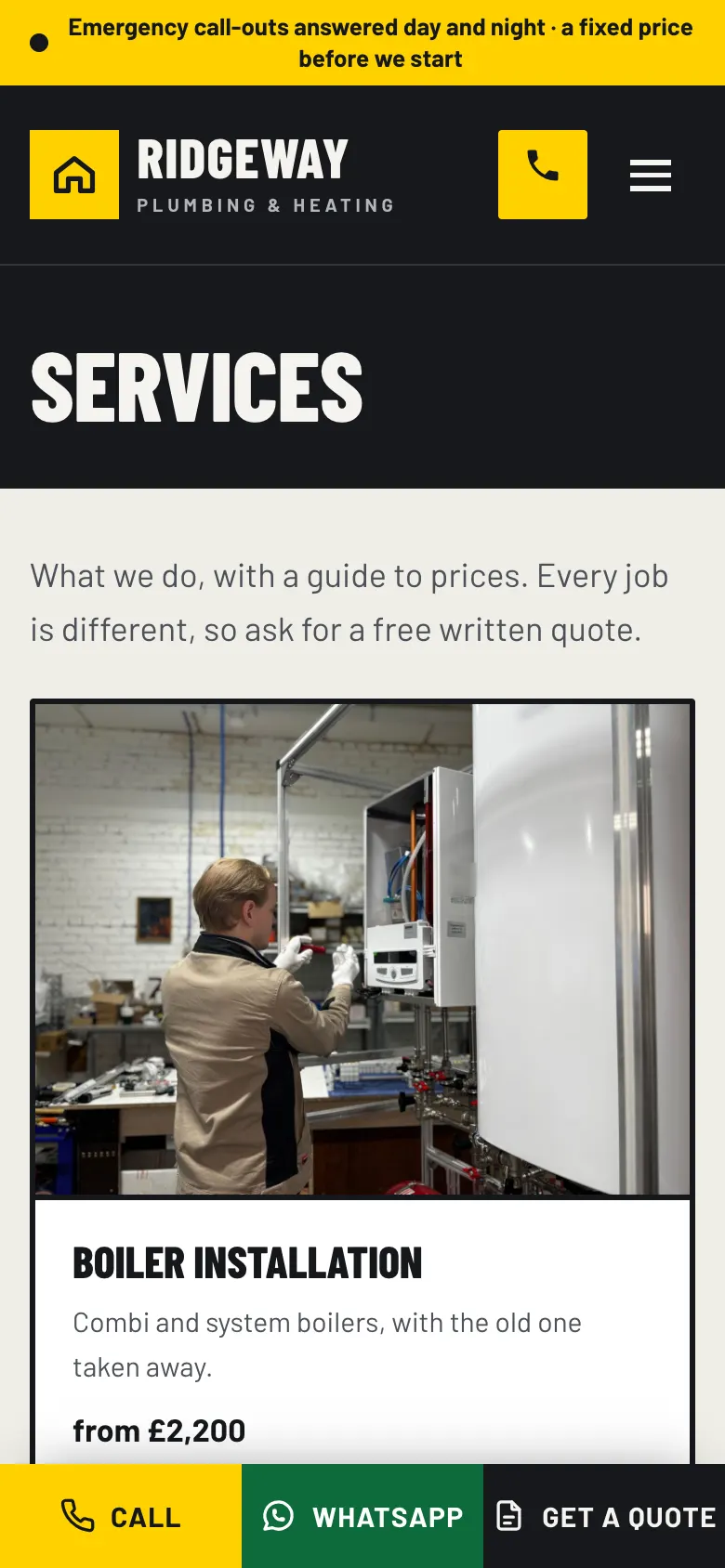
- Go to Trades → Settings → Quote requests.
- Under Call and WhatsApp button, switch Show the Call and WhatsApp bar on every page on or off. Off: it only shows on pages where you add the "Call and WhatsApp bar" block.
- Switch Show the bar on computers too on if you want it on computers as well.
- The numbers come from Trades → Settings → Contact. Leave WhatsApp number empty to hide the WhatsApp buttons.
- Click Save changes.