Running your website
Messages from the contact form
Where messages sent from your Contact page arrive, how to answer them, how to set the subjects and the automatic reply, and how old messages come up for review.
On this page
Not everyone wants a quote. Some people have a question, want to check you cover their village, or are a supplier. They use the contact form on your Contact page. Each message is emailed to you and kept under Trades → Messages, so nothing gets lost in one person's inbox.
Quote requests are different: they go to Trades → Enquiries. See Quote requests and the pipeline.
What the customer sees
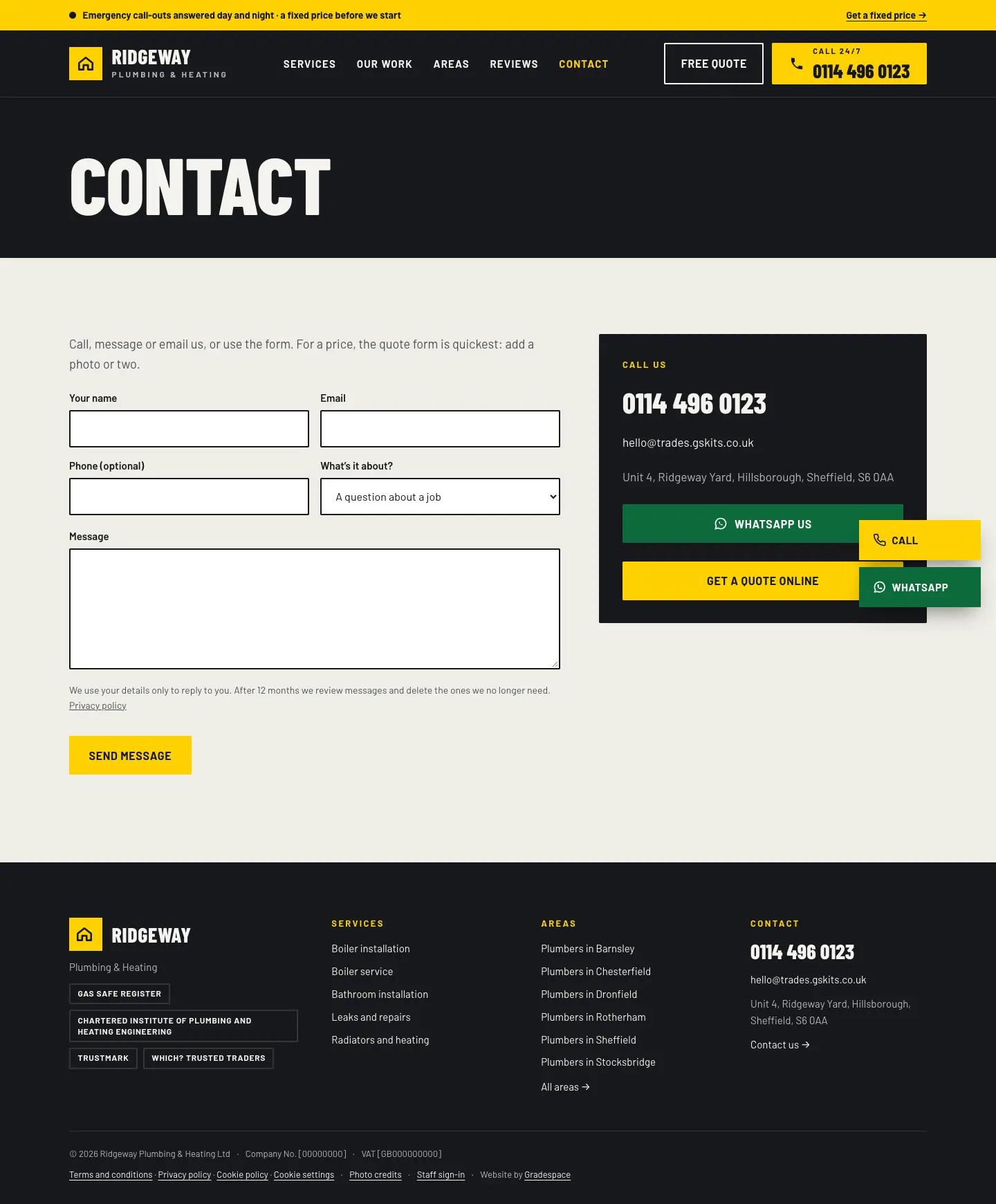
The Contact page has your phone number, email, address and the contact form. After sending, they get an automatic reply.
How to read and answer messages
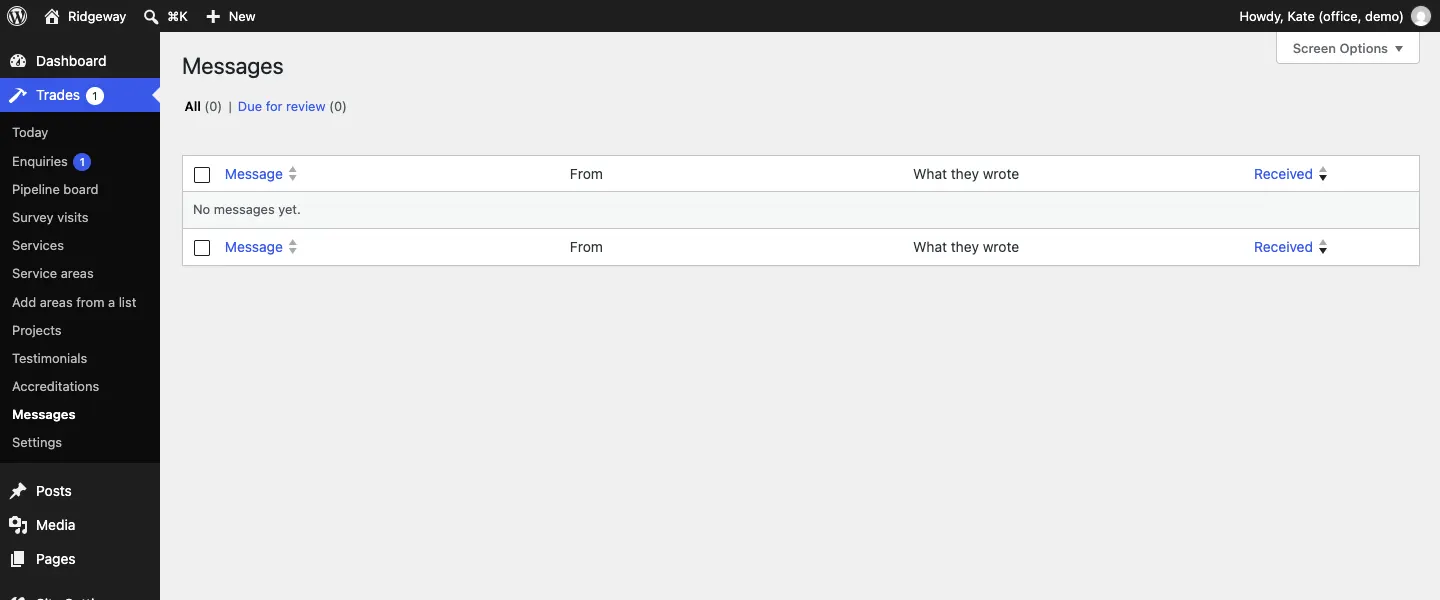
- New messages show on Trades → Today under New messages, and the email lands in the inbox set under Trades → Settings → Email.
- Go to Trades → Messages to see them all, with who they're From, What they wrote and when they were Received.
- To answer, reply to the email. It goes straight to the person who wrote.
How to set up the contact form
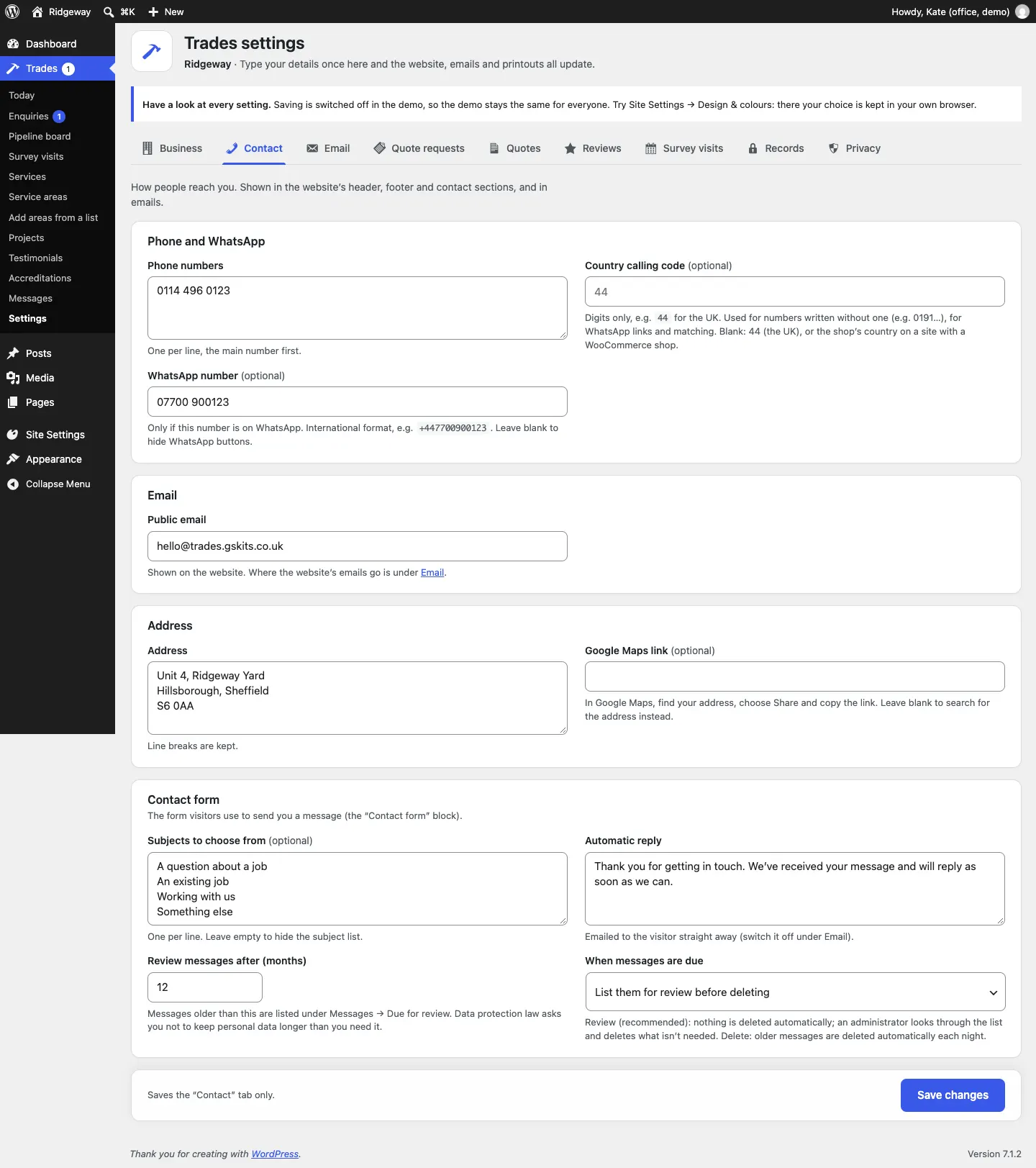
- Go to Trades → Settings → Contact.
- Under Contact form, add Subjects to choose from (optional), one per line (for example "A question about a job", "Supplier"). Leave it empty to hide the subject list.
- Change the Automatic reply if you want to. You can switch it off under Trades → Settings → Email (Thanks for your message).
- Set Review messages after (months) and choose When messages are due:
- List them for review before deleting (recommended): nothing is deleted automatically; an administrator looks through Messages → Due for review and deletes what isn't needed.
- Delete them automatically: older messages are deleted each night.
- Click Save changes.
For more on emails and data protection, see Privacy and emails.