Running your website
Appointments and the calendar
The staff side of bookings: the Today screen, the Appointments list and the Calendar, and how to confirm, add, move, check in, complete and cancel appointments.
On this page
Every appointment, whether booked online, by phone or as a walk-in, lives in the same place. Your team works with it from three screens:
- Clinic → Today: today's appointments and the requests waiting for you;
- Clinic → Appointments: a list you can filter and search;
- Clinic → Calendar: day, week and month views, and the quickest way to add an appointment.
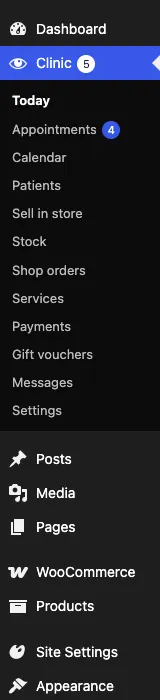
The number in the red circle next to Appointments in the left-hand menu is how many online requests are waiting to be confirmed.
Appointment statuses
| Status | Meaning | Button that sets it |
|---|---|---|
| Waiting to confirm | Booked online, not yet checked by you | – |
| Confirmed | You've accepted it; the patient was emailed | Confirm |
| Arrived | The patient is in the clinic | Arrived |
| Seen | The appointment is finished; the patient's last visit is updated | Seen |
| Didn't come | The patient didn't turn up | Didn't come |
| Cancelled | Cancelled by you or the patient; the time is free again | Cancel |
| Waiting for deposit | Booked online and the patient is paying a deposit (Pro) | – |
Features marked (Pro) need a Pro or Agency licence.
The Today screen
Go to Clinic → Today. Under Appointments today you see each appointment in time order, with the patient's name (and New patient if it's their first visit), the service, the status and the buttons for the next step.
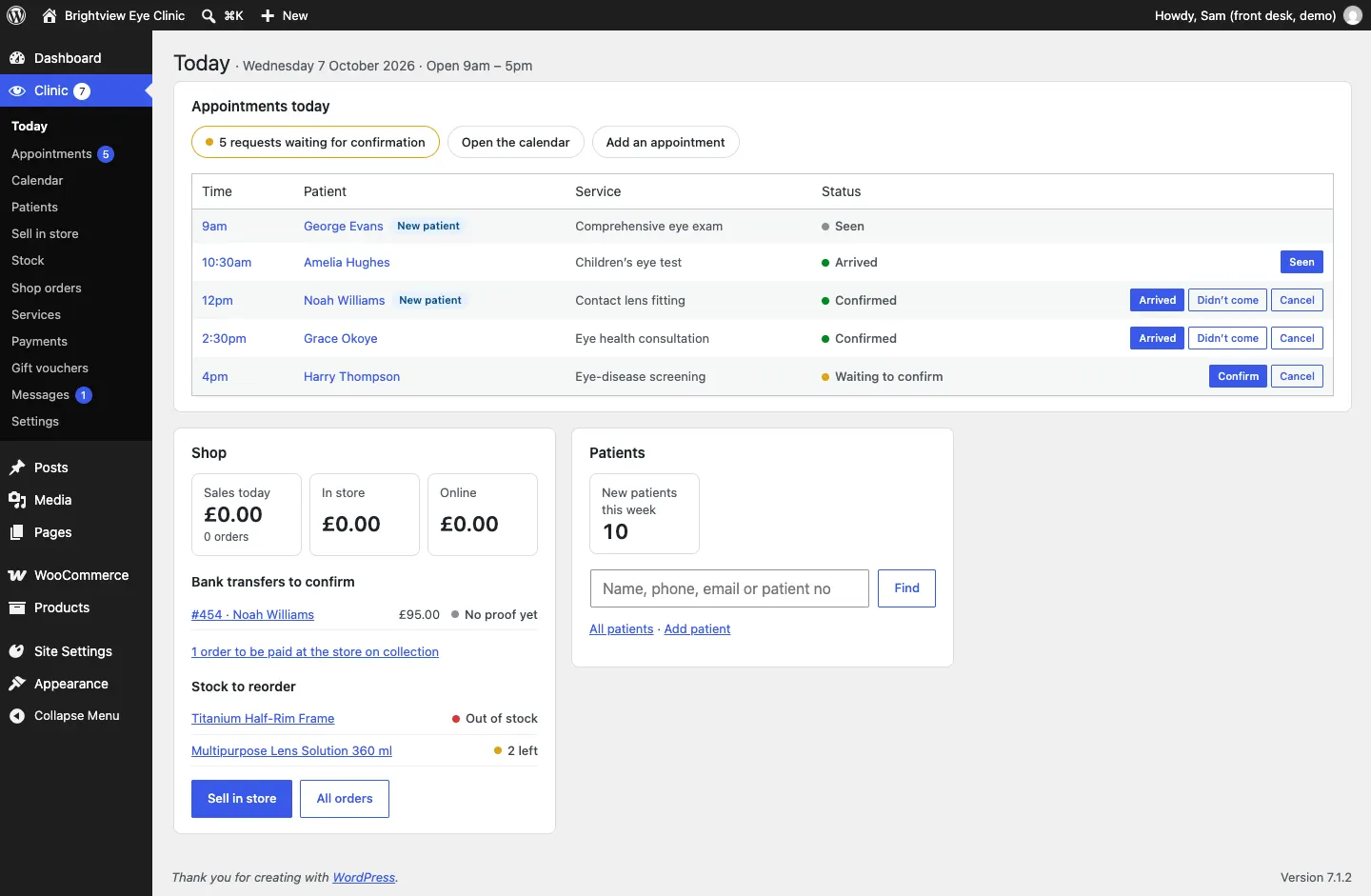
The buttons at the top take you to [number] requests waiting for confirmation, Open the calendar and Add an appointment. For the rest of the Today screen, see Running the clinic day to day.
How to confirm an online booking
- Click [number] requests waiting for confirmation on the Today screen, or go to Clinic → Appointments and click Waiting to confirm.
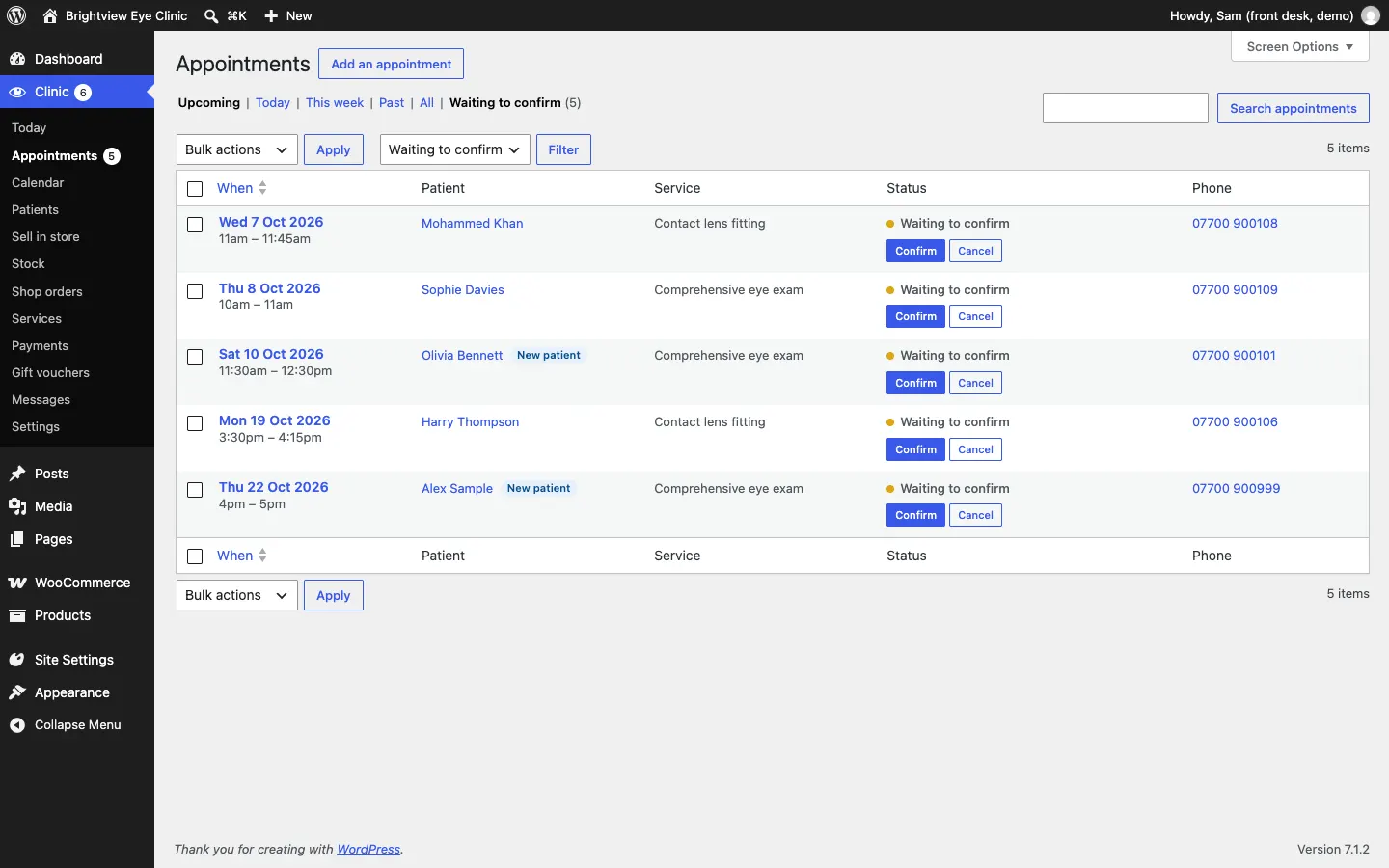
- Call or message the patient first if you need to check anything. Their phone number is in the list.
- Click Confirm. The patient is emailed automatically (if they gave an email address).
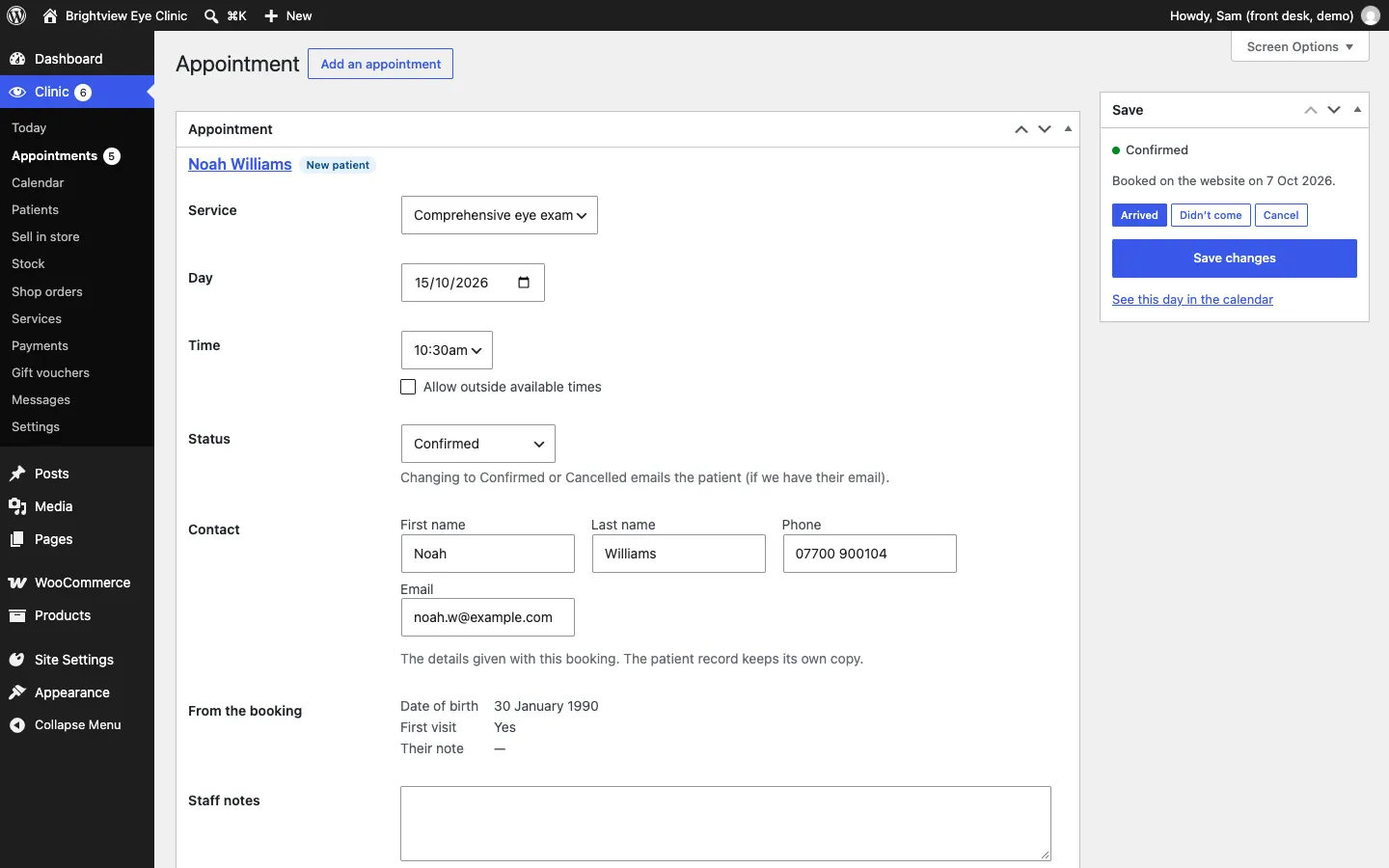
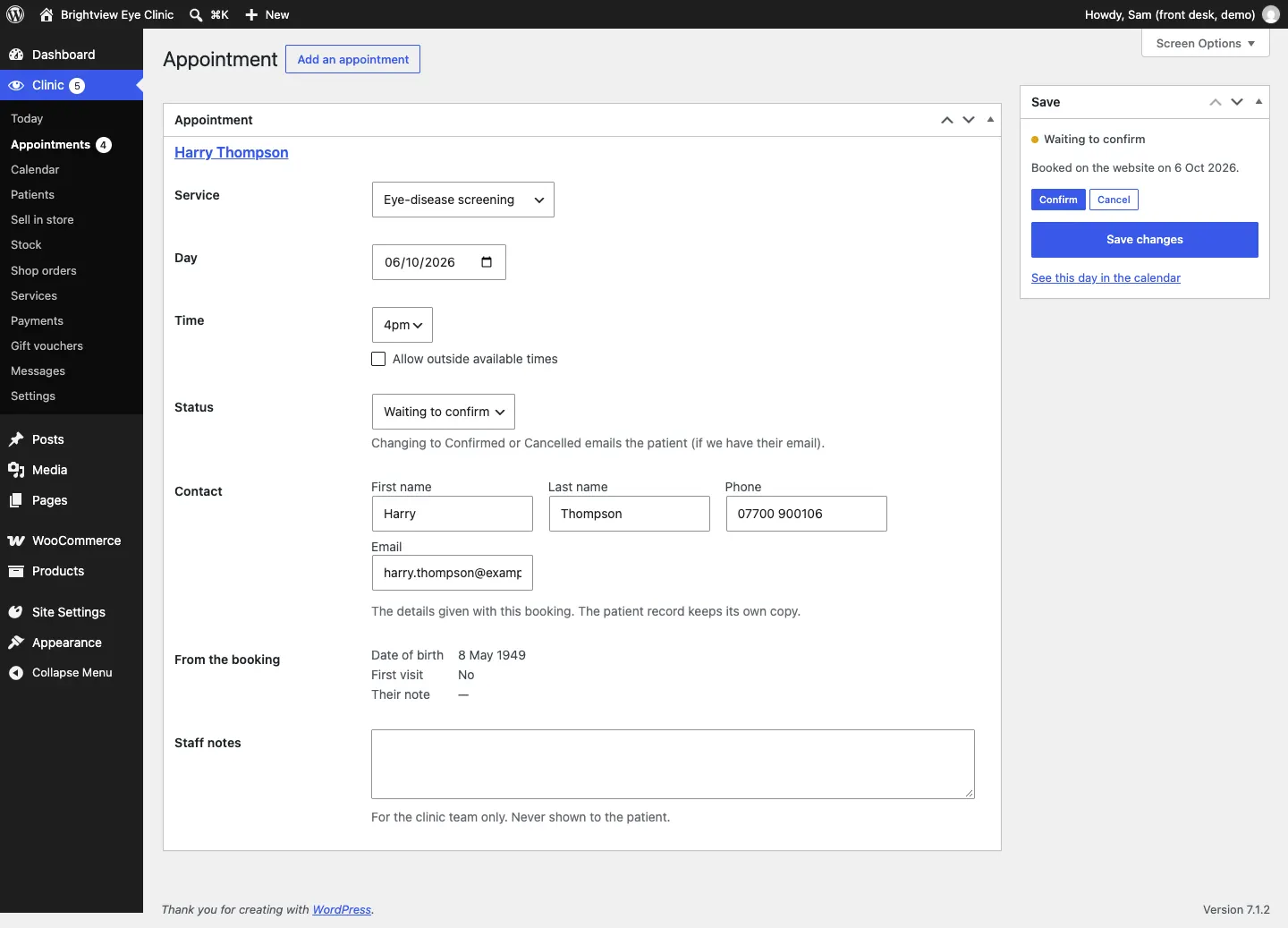
You can also open the appointment first by clicking its date or Open. The Save box on the right shows how it was booked, for example "Booked on the website on 6 Oct 2026", and the Confirm and Cancel buttons.
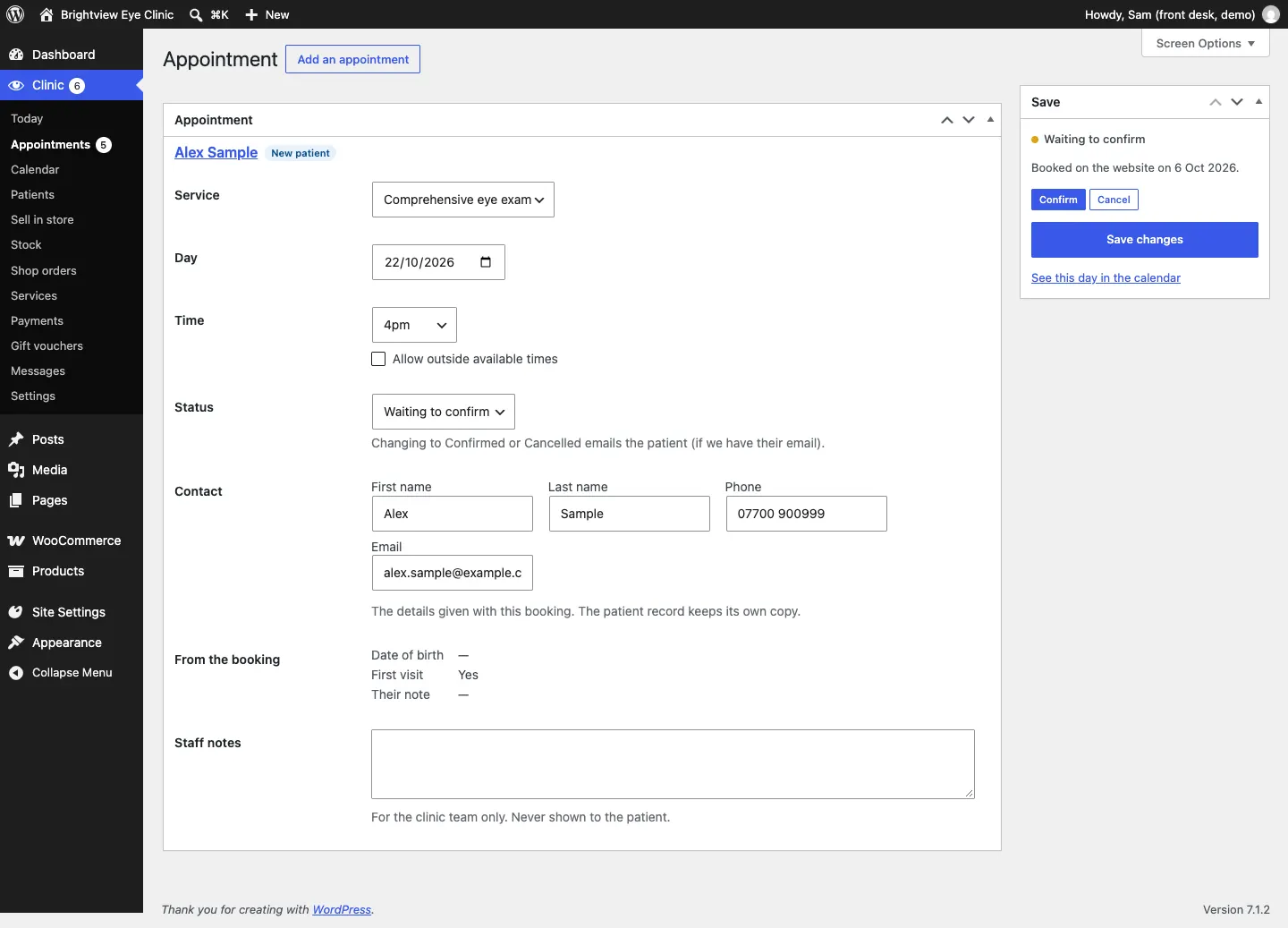
After you confirm, the status changes to Confirmed and the buttons change to Arrived, Didn't come and Cancel.
How to add an appointment (phone or walk-in)
- Go to Clinic → Calendar, or click Add an appointment on the Today screen.
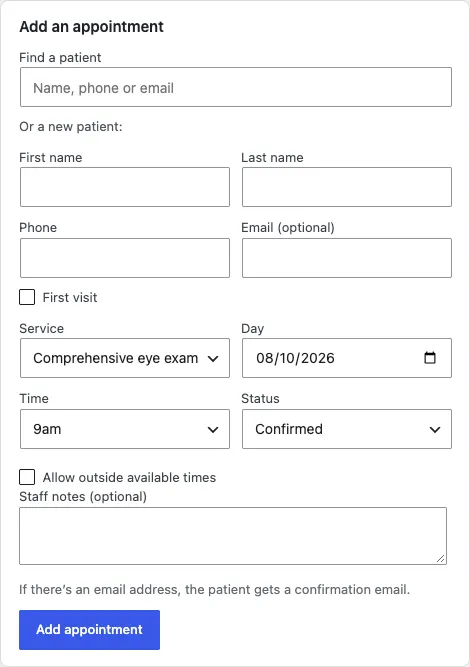
- Find the Add an appointment panel. Under Find a patient, type the patient's name, phone or email and pick them from the list. For someone new, fill in Or a new patient: First name, Last name, Phone and Email (optional), and tick First visit.
- Choose the Service and the Day.
- Choose a Time. Only free times are listed. If the day is full you see "No free times on this day".
- Leave Status as Confirmed (or choose Waiting to confirm).
- Add Staff notes (optional) if you like. Patients never see them.
- Click Add appointment.
If there's an email address, the patient gets a confirmation email. Appointments you add yourself don't email the clinic and never ask for a deposit.
How to move an appointment to another time
- Open the appointment: click its time in the calendar, or its date or Open in Clinic → Appointments.
- Change the Day and choose a new Time. You can also change the Service.
- Click Save changes.
The patient is emailed the new time (if we have their email).
On the day: arrived, seen, didn't come
From the Today screen, the calendar or the list:
- Click Arrived when the patient comes in.
- Click Seen when they leave. The status becomes Seen and the patient's Last visit is updated.
- If they don't come, click Didn't come. The status becomes Didn't come.
How to cancel an appointment
- Click Cancel next to the appointment (or in the Save box when it's open).
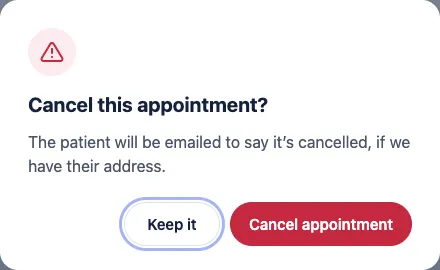
- A box asks Cancel this appointment? and explains "The patient will be emailed to say it's cancelled, if we have their address."
- Click Cancel appointment (or Keep it to go back).
The time becomes free again for other patients.
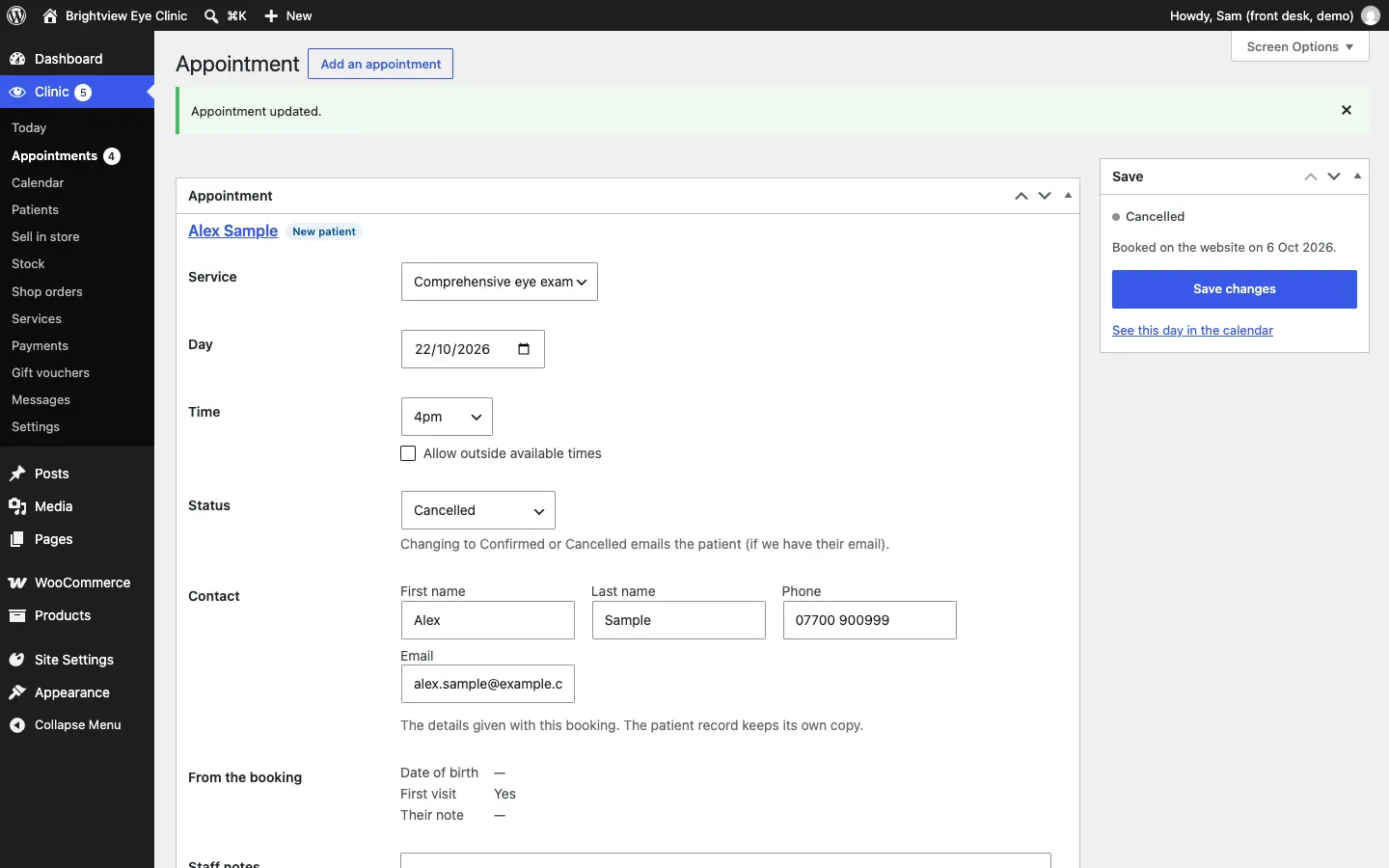
If the patient had paid a deposit, see Payments and deposits for refunding or keeping it.
The Appointments list
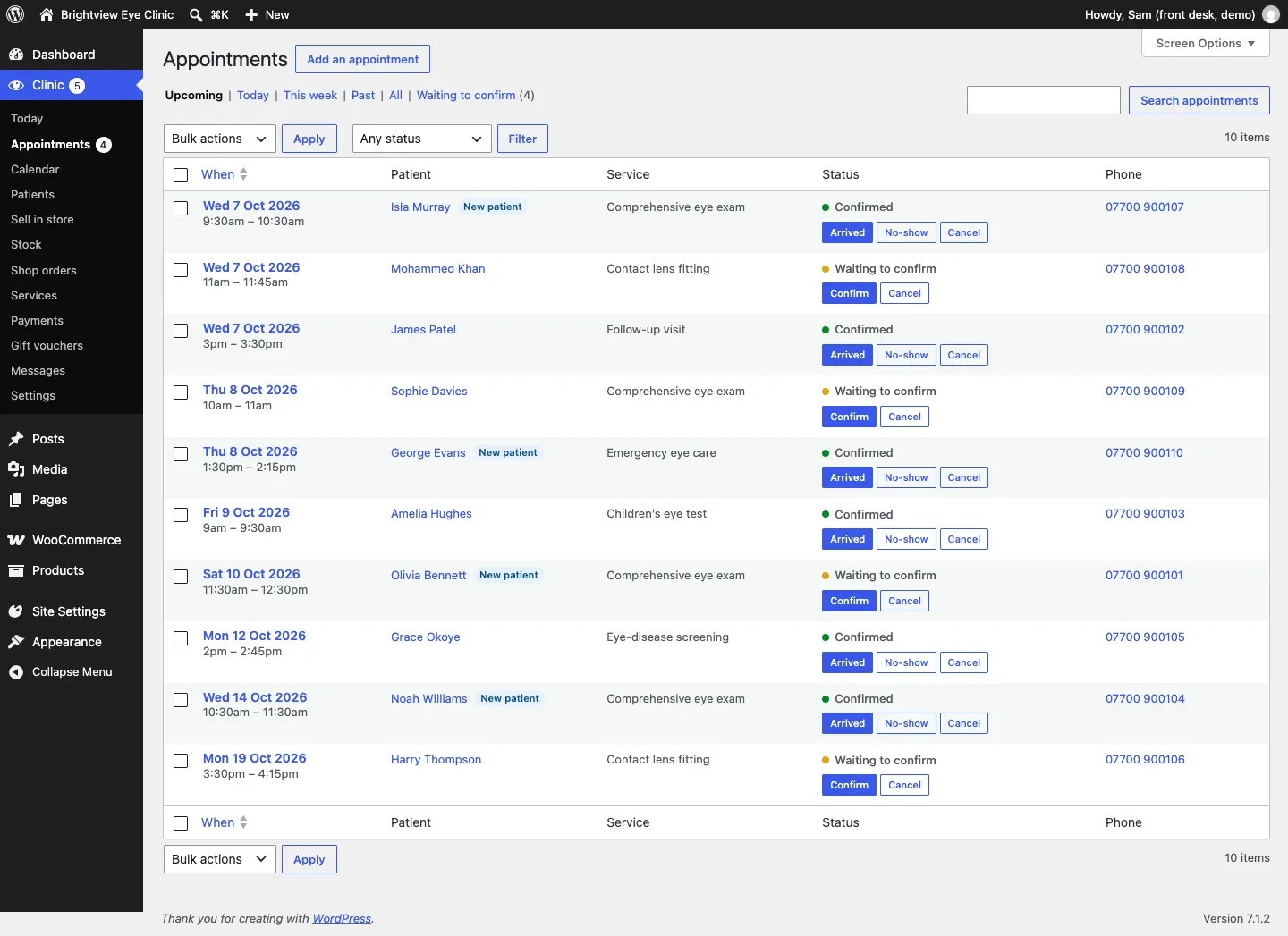
Go to Clinic → Appointments. Across the top:
- Upcoming, Today, This week, Past, All, and Waiting to confirm with the number waiting;
- a Status menu to show one status only;
- Search appointments to find one by name.
Each row shows When, Patient, Service, Status with its buttons, and Phone.
The Calendar
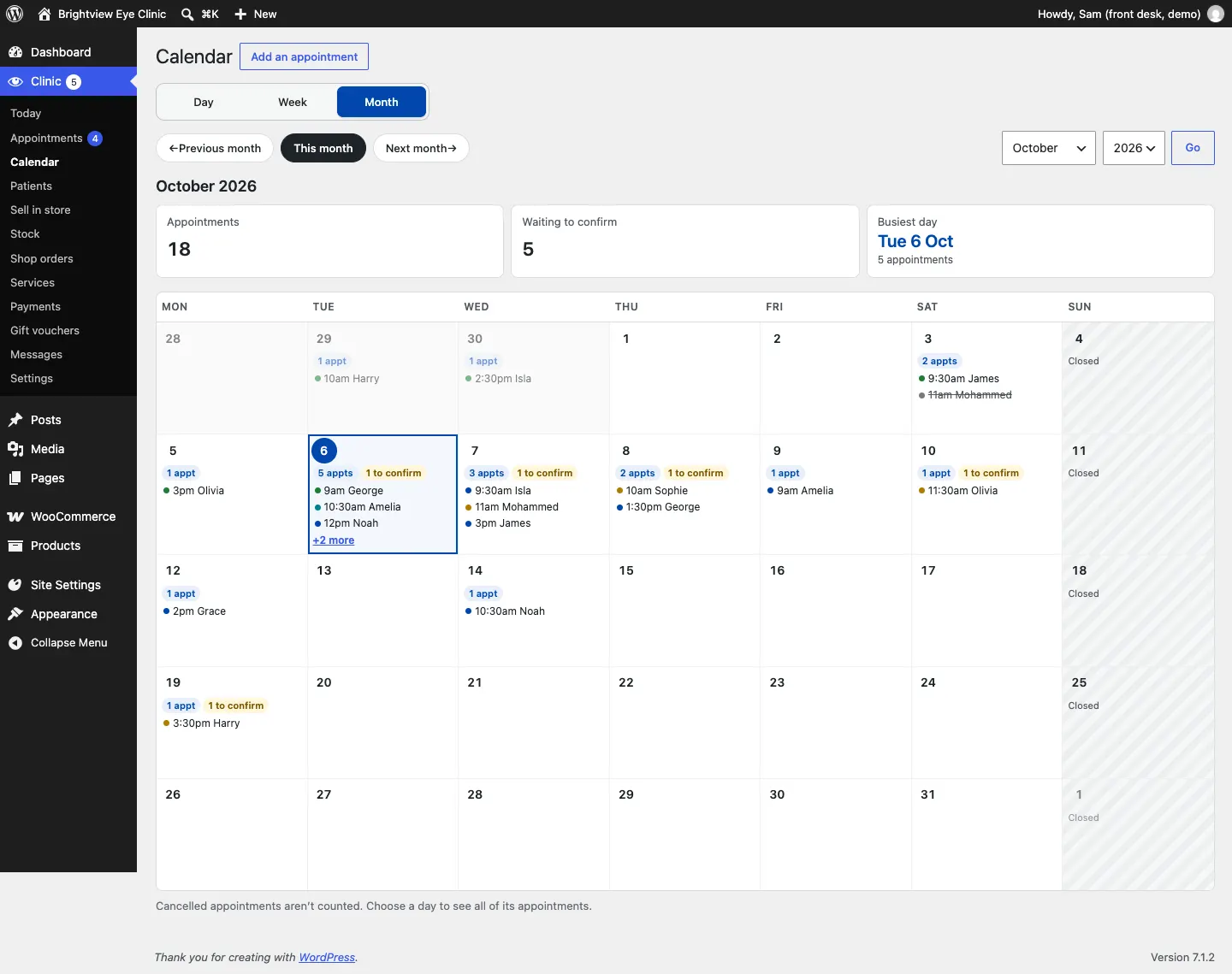
Go to Clinic → Calendar and choose Day, Week or Month at the top. Use Previous and Next to move, Today (or This week, This month) to come back, or pick a date and click Go.
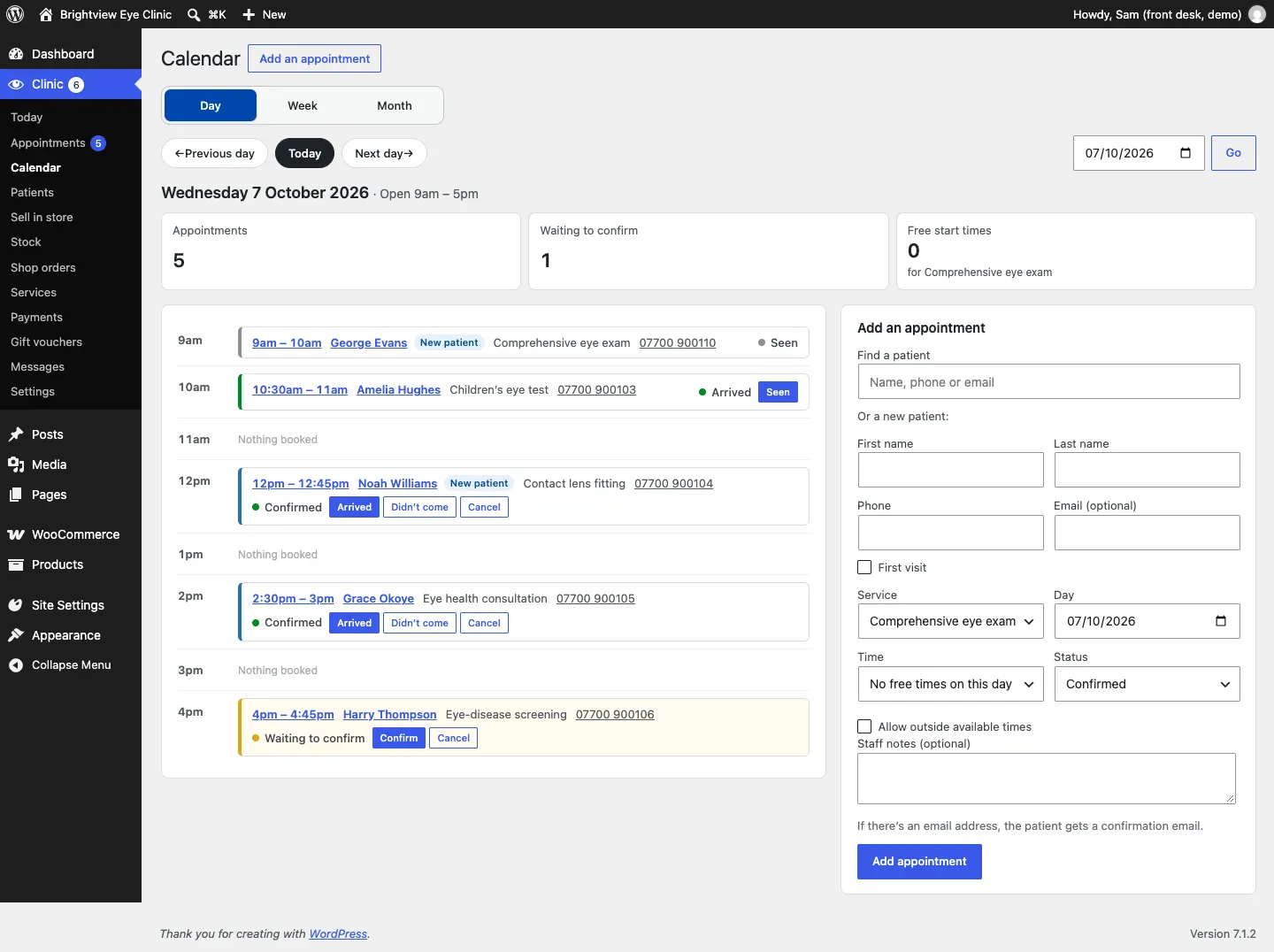
Day
Each hour of the day, with the appointments in it, their status and buttons, and "Nothing booked" for empty hours. The cards at the top count the day's Appointments, how many are Waiting to confirm, and the Free start times left for a service. The Add an appointment panel is underneath.
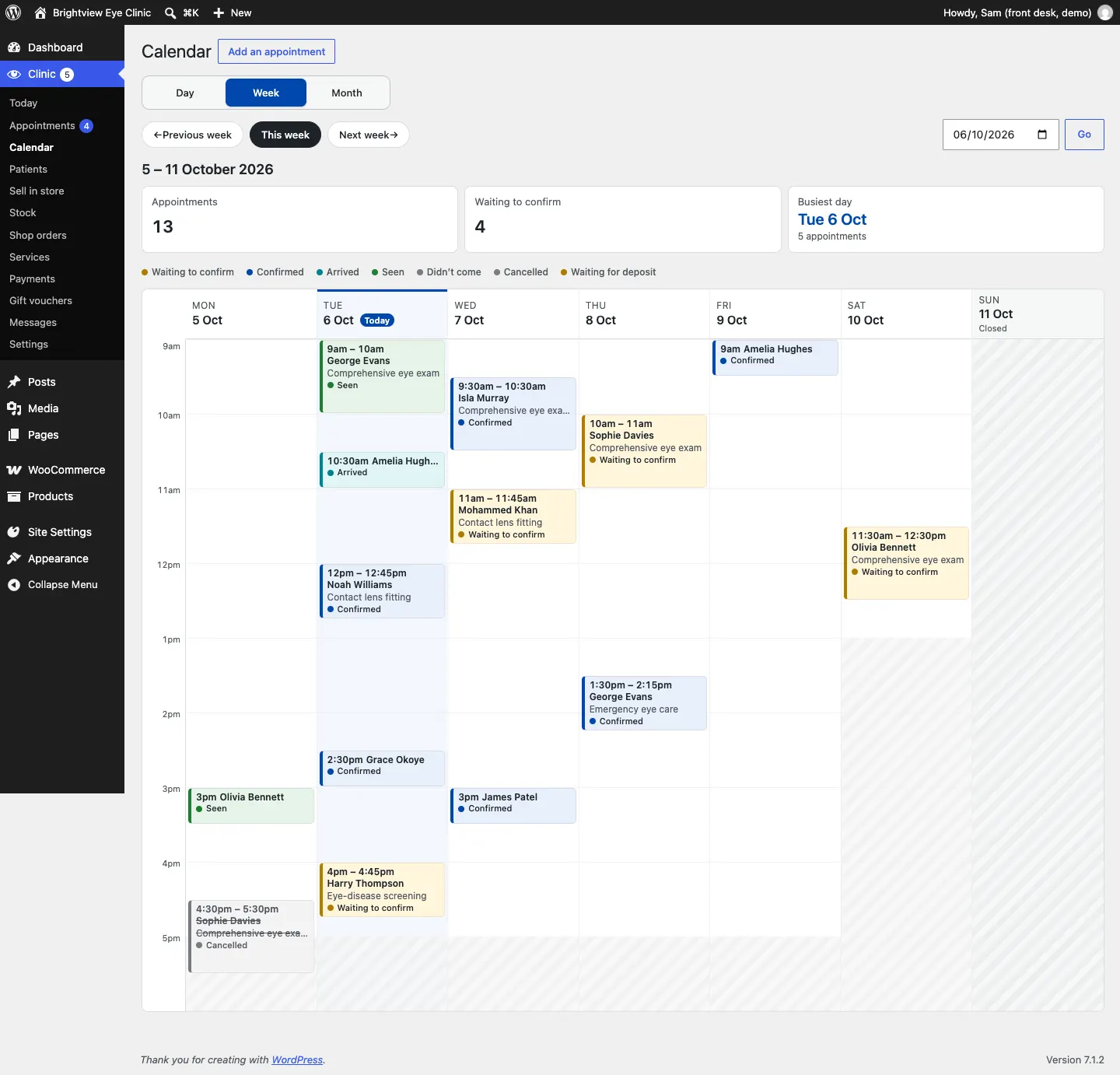
Week
Each appointment at its time, coloured and labelled by status, with a colour key above. Closed days are shaded. The cards show the week's appointments, requests waiting and the busiest day.
Month
Each day shows how many appointments there are, how many are waiting to confirm and the first few times. Click a day to open it in the Day view. Cancelled appointments aren't counted.
Emails the patient gets
| When | |
|---|---|
| They book online | Booking received |
| You confirm, add or move it | Booking confirmed |
| You or they cancel | Booking cancelled |
| About 8am the day before | Reminder the day before |
You can switch each one on or off in Clinic → Settings → Email. See Clinic settings.