Running your website
Patients and prescriptions
Find, add and update patient records, add and print spectacle and contact lens prescriptions, link a patient's website account, and handle privacy requests and old records.
On this page
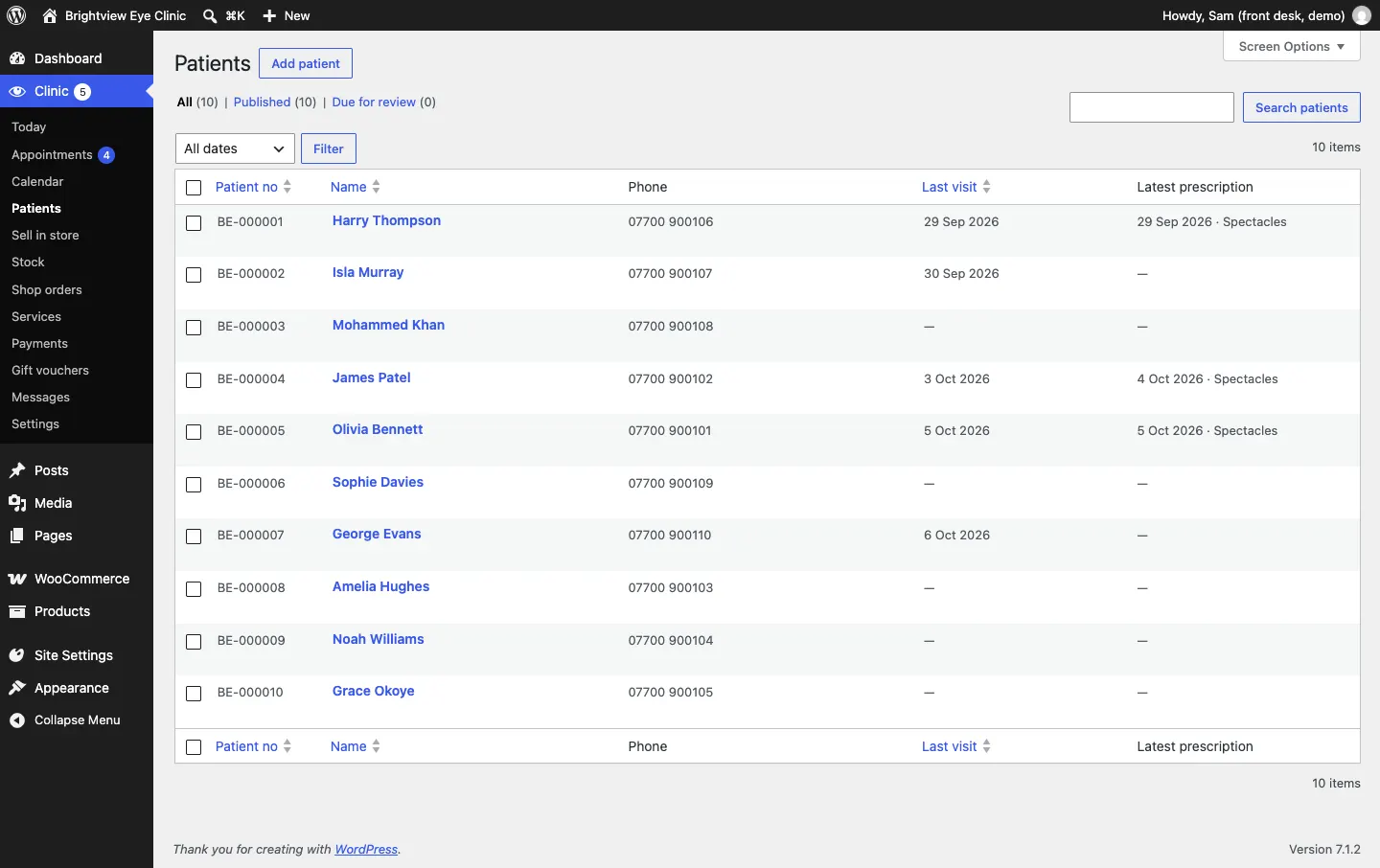
Every patient has one record with a patient number (for example BE-000001). A record is made automatically the first time someone books online or you add them to the calendar, or you can add one yourself. The record holds the patient's contact details, their prescriptions, and their appointments and purchases at a glance.
Records are for front-desk information only. Don't put clinical notes in them. Your clinical notes stay in the clinic's own records system.
How to find a patient
- Go to Clinic → Patients, or use the Find a patient box on the Today screen.
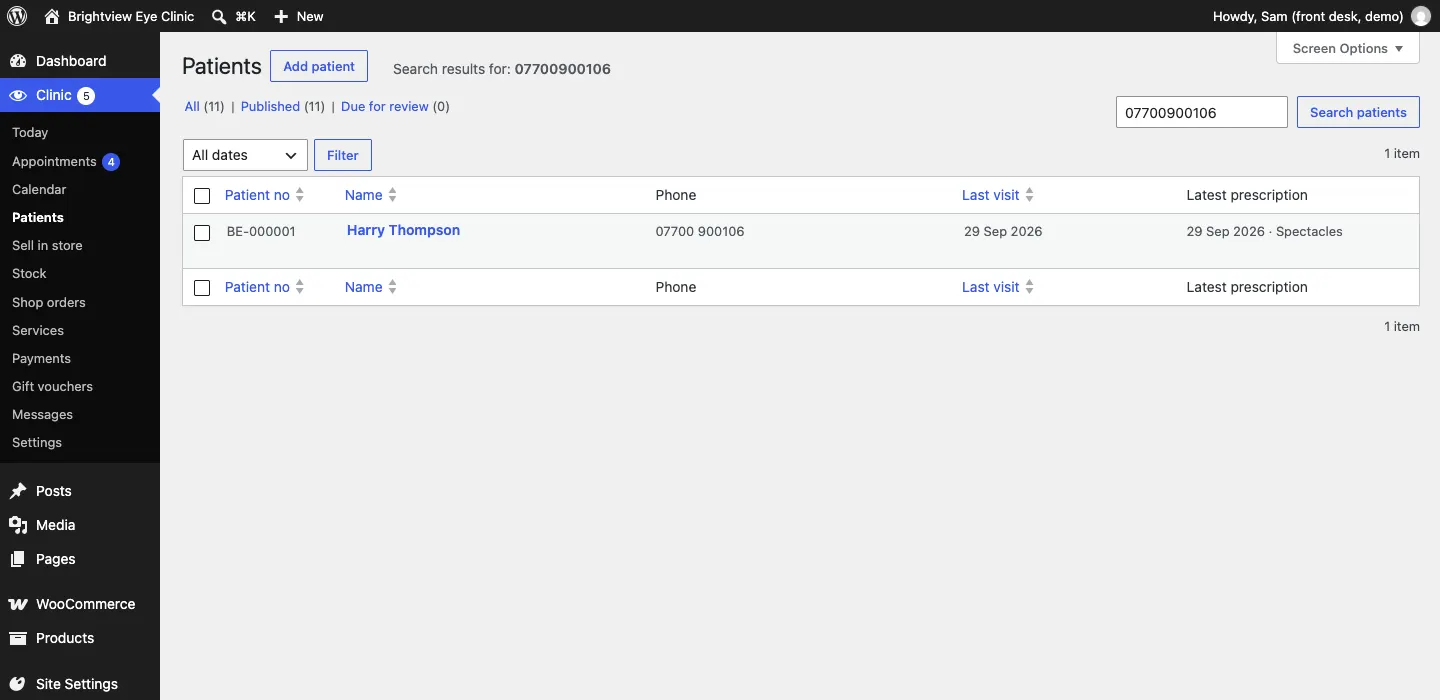
- Type a name, phone number, email or patient number and click Search patients (or Find on Today). Phone numbers match in any format, with or without spaces.
- Click the patient's name or Open record.
How to add a patient
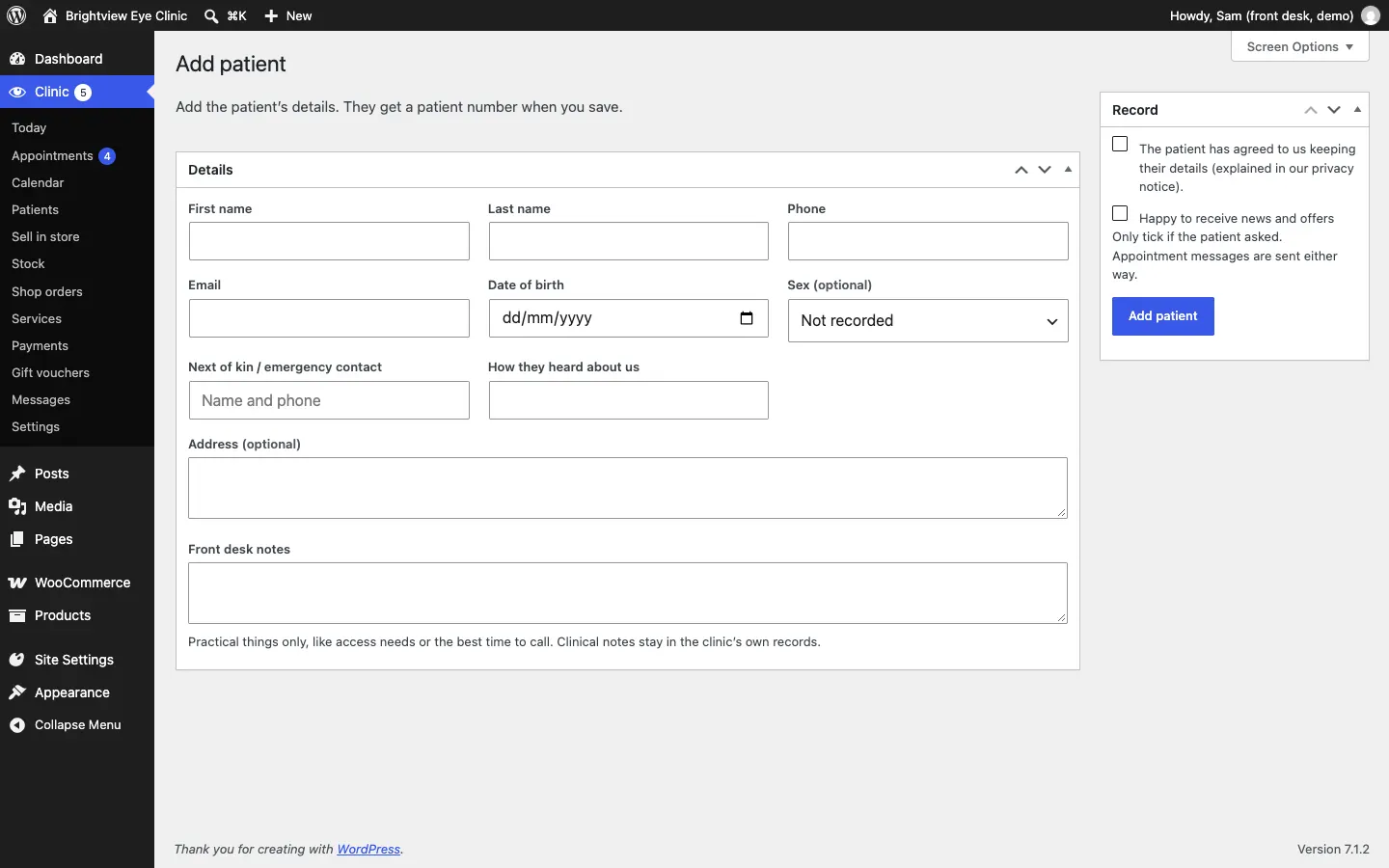
- Go to Clinic → Patients and click Add patient (it's also in the Clinic menu).
- Fill in Details: First name, Last name, Phone, Email, Date of birth, and if you like Sex (optional), Next of kin / emergency contact, How they heard about us, Address (optional) and Front desk notes.
- In the Record box, tick The patient has agreed to us keeping their details (explained in our privacy notice).
- Tick Happy to receive news and offers only if the patient asked. Appointment messages are sent either way.
- Click Add patient. The patient gets their number when you save.
What's on a patient record
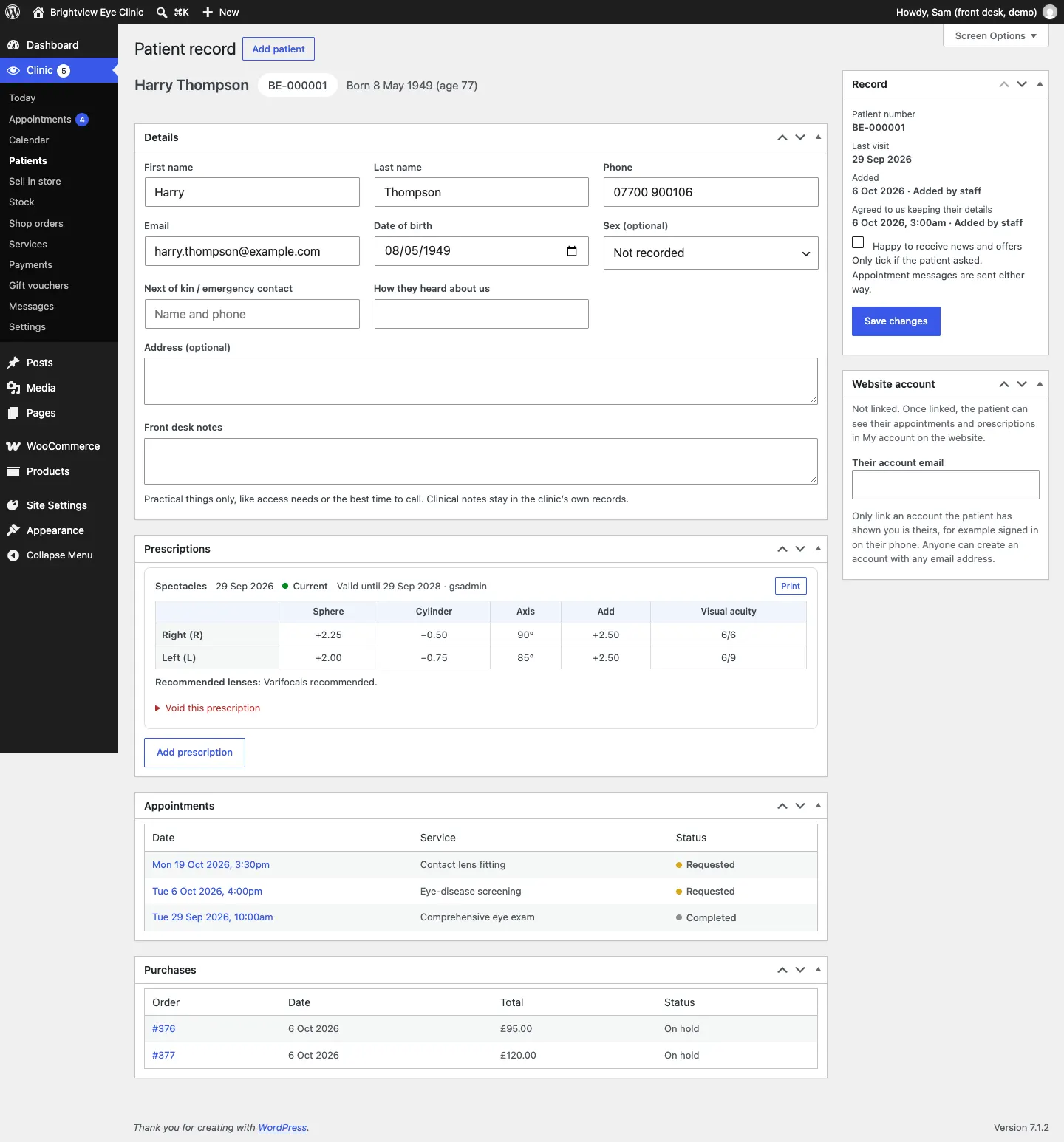
- Details: change anything and click Save changes in the Record box.
- Record (on the right): patient number, Last visit, when and how they were Added, and when they Agreed to us keeping their details.
- Website account: see Linking a patient's website account.
- Prescriptions: each one with its type, date, whether it's Current, when it's valid until and who added it.
- Appointments: every appointment, newest first. Click a date to open it.
- Purchases: shop orders and till sales (with the shop).
The name at the top shows the patient number and age. New patient next to a name on other screens means it's their first visit.
How to add a prescription
Only staff whose role includes prescriptions can do this (the Optometrist role, and administrators).
- Open the patient's record.
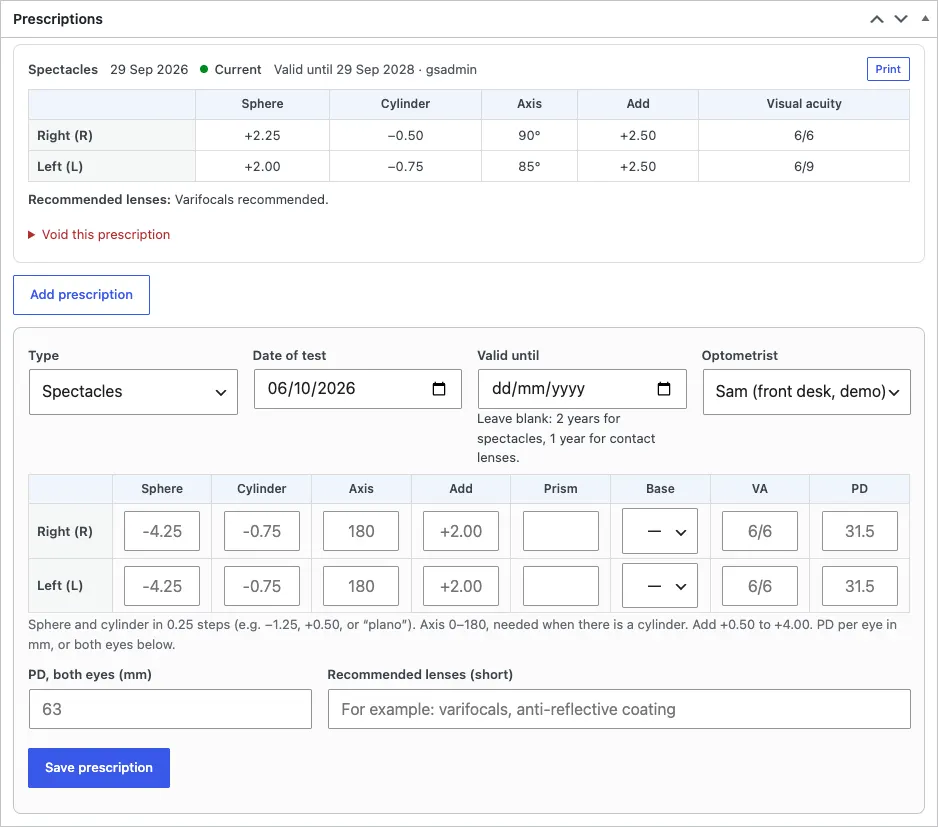
- In Prescriptions, click Add prescription.
- Choose the Type: Spectacles or Contact lenses.
- Check the Date of test. Leave Valid until blank to use 2 years for spectacles or 1 year for contact lenses.
- Choose the Optometrist.
- For Right (R) and Left (L) fill in Sphere, Cylinder, Axis, Add, and if needed Prism, Base, VA and PD. Sphere and cylinder go in 0.25 steps (for example −1.25, +0.50 or "plano"); axis is 0 to 180 and is needed when there's a cylinder; add is +0.50 to +4.00.
- Fill in PD, both eyes (mm) if you measured it for both eyes together, and Recommended lenses (short), for example "varifocals, anti-reflective coating".
- Click Save prescription.
How to print a prescription
Click Print at the top right of the prescription. A printable page opens with your clinic's details and the registration line from Clinic → Settings → Business → Prescriptions.
How to correct a wrong prescription
Prescriptions are never deleted, so there's always a true history.
- Under the wrong prescription, click Void this prescription.
- Say why it's being voided.
- Confirm. It's marked Voided. Then add the correct one with Add prescription.
Linking a patient's website account
If a patient has made an account on your website (My account), you can link it to their record. They then see their appointments and prescriptions when they sign in. See The patient's My account page.
- Ask the patient to show you they're signed in to their account, for example on their phone.
- Open their record. In Website account, type Their account email.
- Click Save changes.
The record then says "Website account linked. The patient can now see their appointments and prescriptions in My account." To undo it, tick Unlink this account and save.
If no account uses that email, you see: "No website account uses that email address. Ask the patient to create an account first (My account on the website), then try again."
Possible duplicates
When someone books or orders online with a phone number or email you already have, but other details differ, the website makes a new record and marks it Possible duplicate of [name] — check and merge. Check whether it's the same person. If it is, copy anything useful into the older record and erase the new one. The original record isn't changed.
Privacy and patient records
- Every time someone opens, changes, prints or downloads a record, the website notes who and when in the Access log. Administrators can see it.
- Administrators see a Data-protection requests box on each record with:
- Download record (JSON), a copy of everything held about the patient, for when they ask for their data;
- Erase record permanently, only when the patient asks, or when the record is past the time you keep records for. A box asks Erase this patient's record for good?; type the patient's number (for example BE-000001) and click Erase record. Their details and prescriptions are deleted and their appointments are anonymised. This can't be undone.
- WordPress's own Tools → Export Personal Data and Tools → Erase Personal Data also include patient records.
Records due for review
Data protection law asks you to keep personal data only as long as you need it. Set how long in Clinic → Settings → Records (for example 10 years after the last visit).
- Go to Clinic → Patients and click Due for review. It lists records not used for longer than that time.
- Nothing is deleted automatically. An administrator ticks the records there's no reason to keep.
- Choose Delete selected in Bulk actions, then confirm by typing DELETE.
Each record is checked again first: a patient seen since you opened the list is kept.
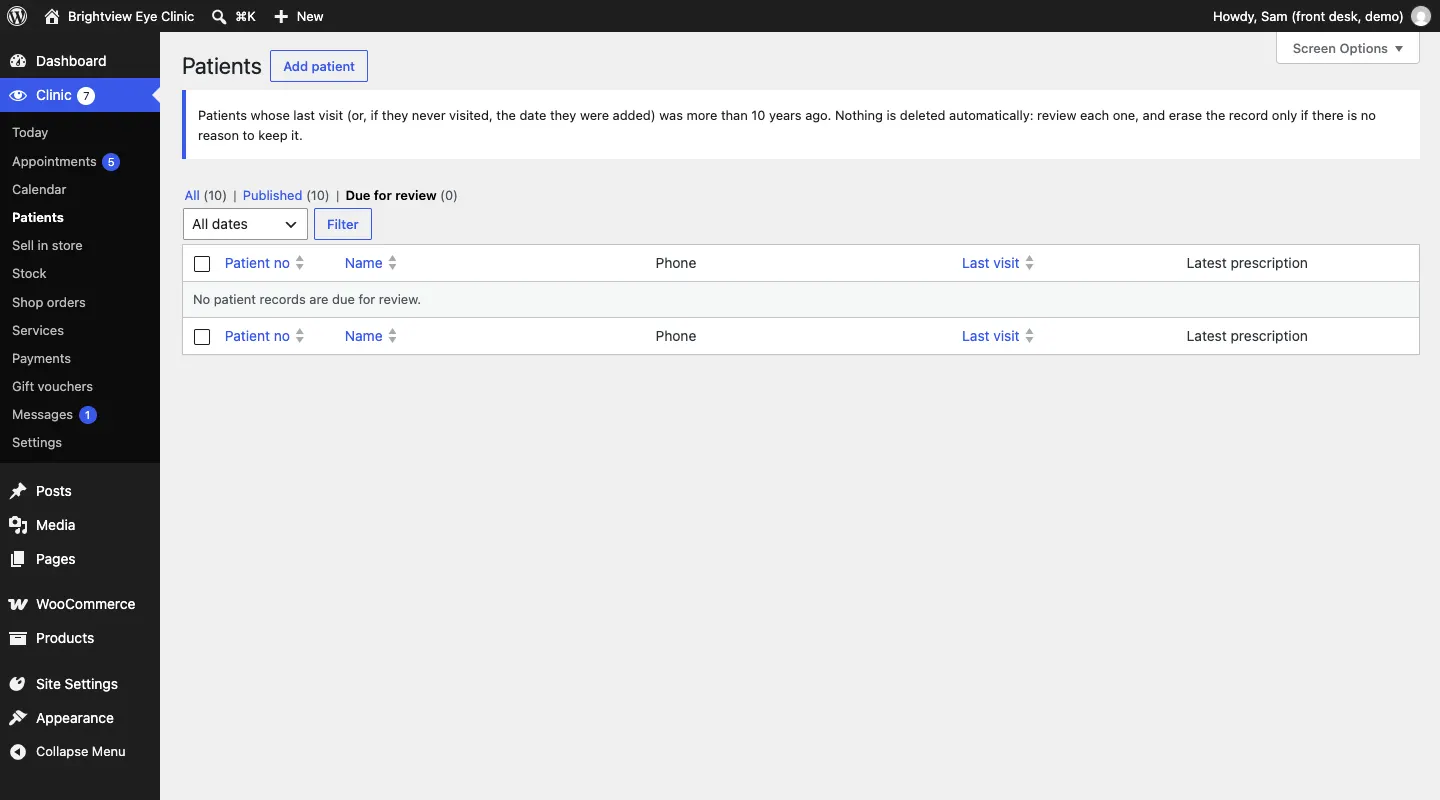
The Today screen reminds administrators when records are due for review.