Running your website
Running the clinic day to day
The daily and weekly routine for your team: signing in, the Today screen, the red badges, and a quick reference to where every setting lives.
On this page
Most days your team only needs one screen: Clinic → Today. This chapter is a routine you can pin up at the front desk.
Signing in
- Go to your website's address followed by /wp-admin (for example yourclinic.com/wp-admin), or click Staff sign-in at the very bottom of any page.
- Type your Username or Email Address and Password and click Log In.
- You go straight to Clinic → Today.
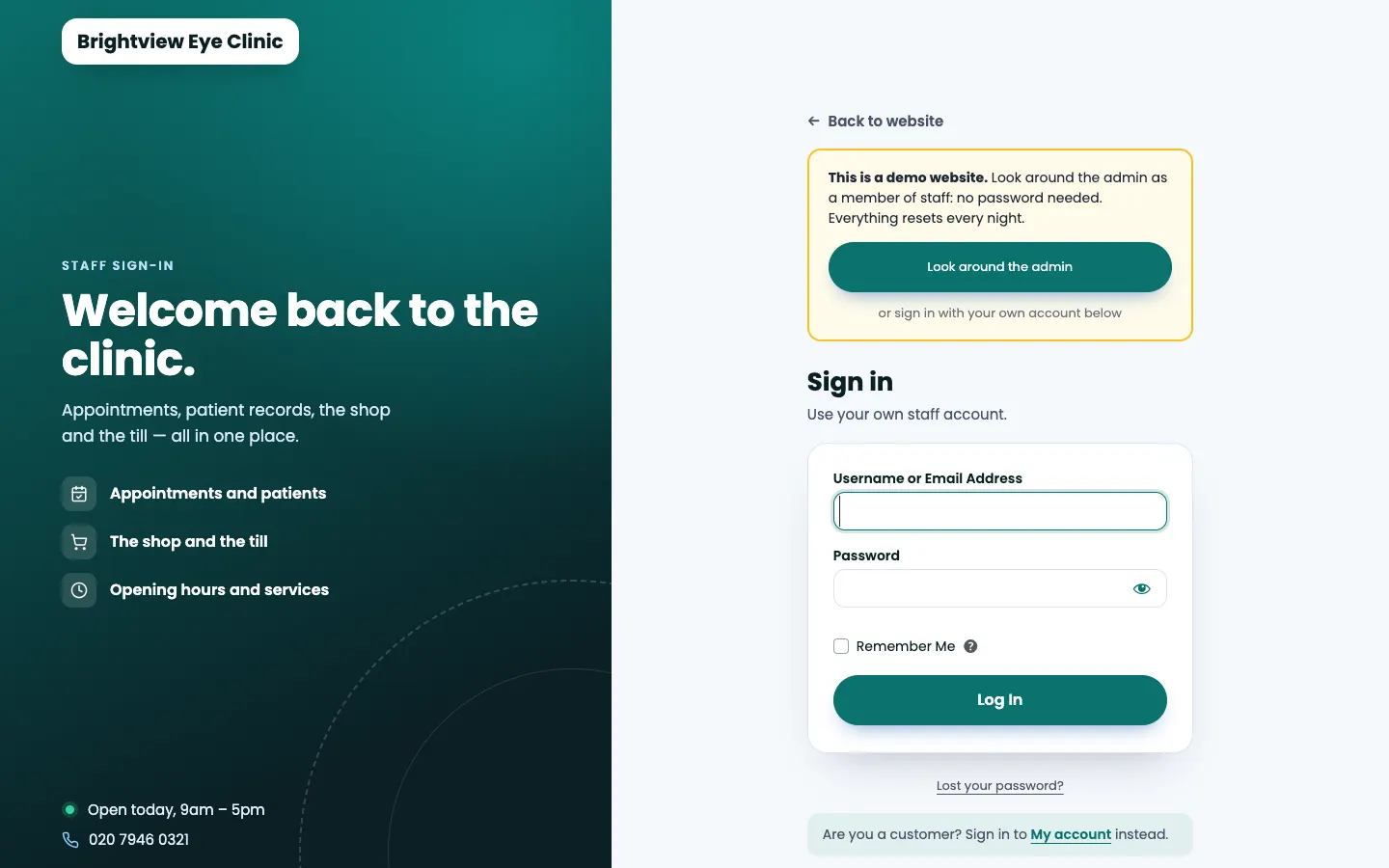
- Everyone has their own account. Please don't share accounts: the website records who did what.
- Forgotten your password? Click Lost your password?
- After 5 wrong passwords, sign-in pauses for 15 minutes. Wait, then try again, or ask your administrator.
- Customers sign in somewhere else, on My account on the website.
Every morning: the Today screen
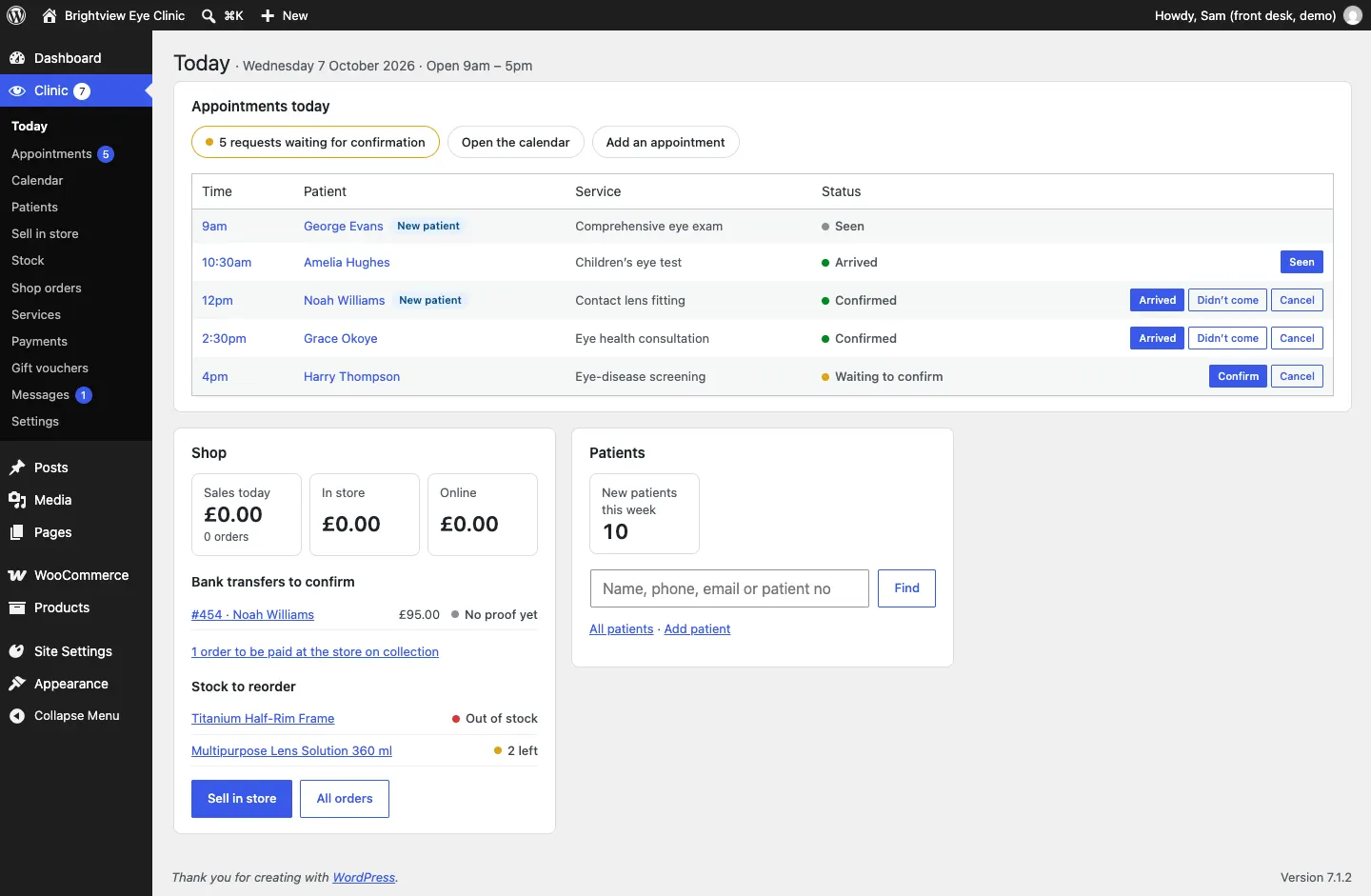
Work through it from the top:
- Appointments today. Check the day in time order. Click [number] requests waiting for confirmation and confirm or cancel each request. See Appointments and the calendar.
- Shop (with the shop):
- Sales today, split into In store and Online;
- Bank transfers to confirm: open each, check your bank and click Payment received — confirm or Not received. See The online shop;
- [number] order to be paid at the store on collection;
- Stock to reorder (Pro): products that are low or out of stock;
- Sell in store (Pro) and All orders buttons.
- Patients. New patients this week, and Find a patient to search by name, phone, email or patient number.
Administrators also see a reminder here when patient records are due for review.
During the day
| When | What to do | Where |
|---|---|---|
| A patient arrives | Click Arrived | Today or Calendar |
| They leave | Click Seen | Today or Calendar |
| They don't come | Click Didn't come | Today or Calendar |
| Someone phones to book | Add an appointment | Calendar |
| Someone wants another time | Open it, change Day and Time, Save changes | Appointments |
| A sale at the counter (Pro) | Add items, choose payment, Complete sale | Sell in store |
| A delivery comes in (Pro) | Receive | Stock |
| A customer collects a pay-at-the-store order | Take payment, set the order to Completed | Shop orders |
The red badges
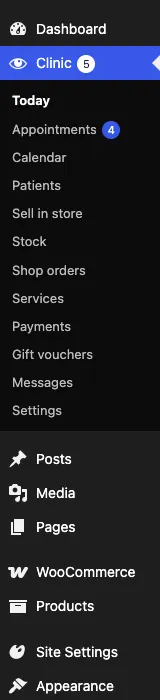
The numbers in red circles in the left-hand menu show what's waiting:
- next to Clinic: everything waiting in total;
- next to Appointments: online requests to confirm;
- next to Messages: new contact form messages.
Hover over the badge next to Clinic to see what it's counting, for example "1 new message, 4 appointment requests to confirm, 1 bank transfer to confirm".
Every week
- Look at next week in Clinic → Calendar → Week and check nothing is waiting to confirm.
- Read and answer anything in Clinic → Messages.
- Tick Low and out of stock only in Clinic → Stock and reorder (Pro).
- Check Clinic → Payments for deposits To decide (Pro).
Every year
- Add next year's bank holidays and days closed in Clinic → Settings → Opening hours, including Easter.
- An administrator checks Clinic → Patients → Due for review and Clinic → Messages → Due for review.
Good habits
- Confirm online bookings the same day.
- Never type card numbers, passwords or clinical notes into the website.
- Only link a patient's website account once you're sure it's really them.
- If an email doesn't seem to arrive, look at Clinic → Settings → Email → Email log (Pro, administrators).
- If something looks wrong, take a screenshot and send it to whoever looks after your website, or to support@thegradespace.com.
Where everything is: quick reference
| I want to change… | Go to |
|---|---|
| Opening hours, bank holidays, days closed | Clinic → Settings → Opening hours |
| Phone numbers, WhatsApp, email, address | Clinic → Settings → Contact |
| Clinic name, logo, social media, prescription registration line | Clinic → Settings → Business |
| Where booking emails go, which emails patients get | Clinic → Settings → Email |
| Start times, gap between patients, how far ahead people can book | Clinic → Settings → Bookings |
| Services, how long they take, prices | Clinic → Services |
| Deposits on a service (Pro) | Clinic → Services → the service → Deposit |
| How long patient records are kept | Clinic → Settings → Records |
| Cookie banner and legal page details | Clinic → Settings → Privacy |
| Bank details, pay-at-the-store hold time, Stripe, vouchers | Clinic → Settings → Payments (administrators) |
| Licence key | Clinic → Settings → Licence or Settings → Gradespace licence |
| Staff and what they can do | Clinic → Staff access (administrators) |
| Design, colours, sticky header | Site Settings → Design & colours |
| Page text and pictures | Pages (see Pages and content) |
| Blog posts | Posts → Add Post |