Running your website
The patient's My account page
What patients see when they sign in to My account on your website: appointments, prescriptions, orders and proof of payment, and how you link their account to their record.
On this page
Patients and shop customers have their own sign-in on your website, called My account. It's separate from the staff sign-in. There they can see their appointments, their prescriptions (once you've linked their record), their orders, and upload proof of a bank transfer.
My account comes with the WooCommerce shop plugin. Without the shop, patients use the link in their emails to see or cancel an appointment.
Signing in or creating an account
Patients click My account in the footer, the person icon in the header, or Sign in to your account at the top of the page (depending on your design).
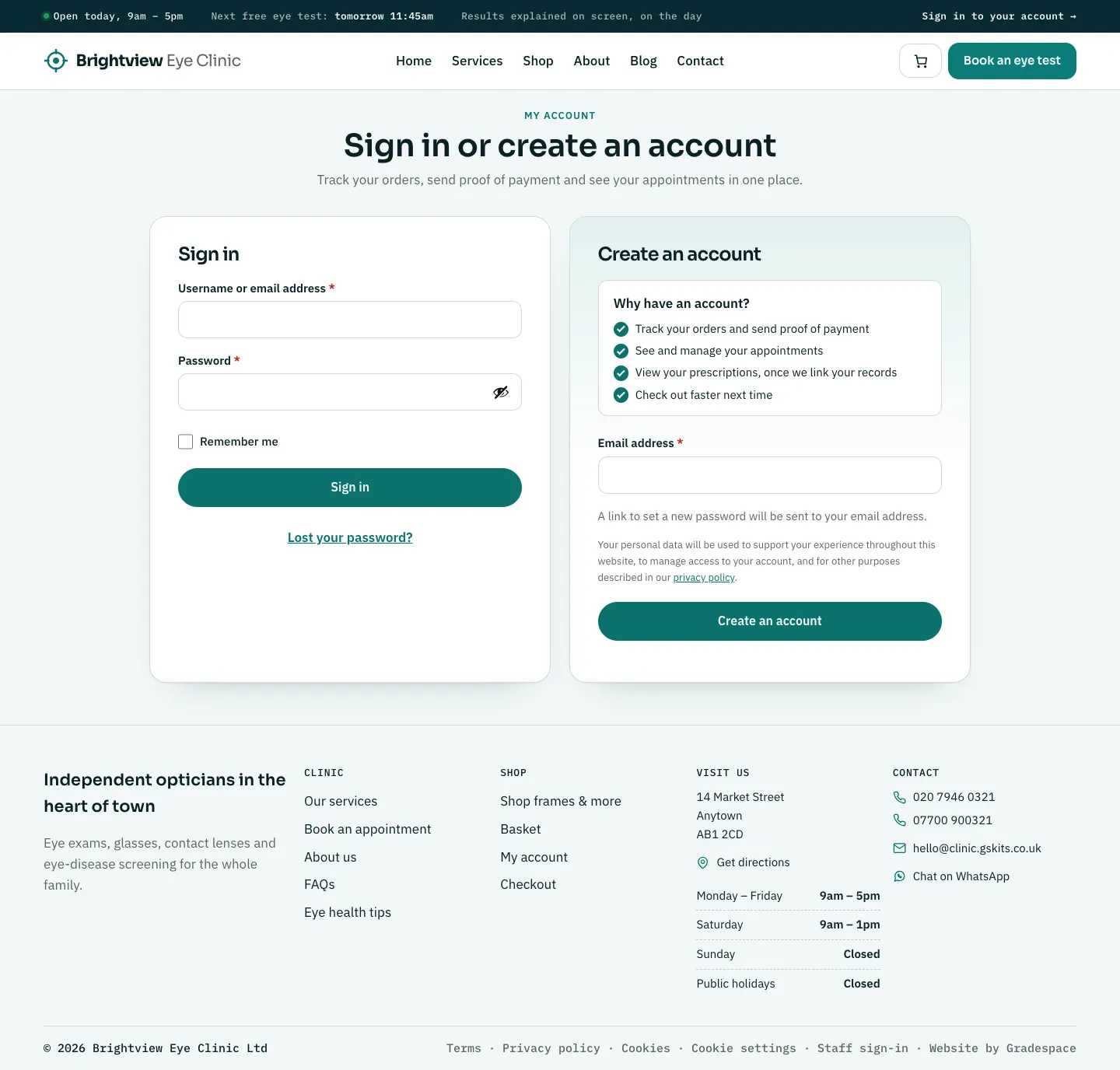
- Sign in with their username or email and password.
- Create an account needs only an email address. A link to set a password is emailed to them.
- Lost your password? emails a link to choose a new one.
The page explains Why have an account?: track orders and send proof of payment, see and manage appointments, view prescriptions once the clinic links their records, and check out faster.
What a signed-in patient sees
- A greeting (Good morning, Good afternoon or Good evening) and shortcuts: Book an eye test and Visit the shop.
- Appointments: upcoming and past, with their status (Waiting to confirm, Confirmed, Arrived, Seen, Missed or Cancelled) and Manage or cancel. All appointments shows the full list.
- Prescriptions: each one marked Current or Expired, with the values for the right and left eye and a Print button. Before you link their record they see "Ask us at your next visit to link your eye-test records to this account. For your privacy, only the clinic can do this."
- Orders: each with View details. For a bank-transfer order they see your bank details and the payment reference, and can click Upload proof of payment.
- Addresses and account details, as in any WooCommerce shop.
We couldn't show a signed-in patient on the public demo, because the demo doesn't offer a patient sign-in.
How to link a patient's account to their record
Patients can't link it themselves, for privacy. A member of staff does it:
- Ask the patient to show you they're signed in to their account, for example on their phone.
- Open their record in Clinic → Patients.
- In Website account, type Their account email and click Save changes.
See Patients and prescriptions for the details and how to unlink.