Running your website
The online shop
Sell frames, lenses and contact lenses on your website with WooCommerce: adding products and their optical details, how customers pay by bank transfer or at the store, and checking and completing Shop orders.
On this page
The Clinic kit can add an optical shop to your website. It uses WooCommerce, the free shop plugin for WordPress (a plugin is an add-on for WordPress). Bookings and patient records work without it; install it only if you want to sell online or use the till.
With the shop, customers can:
- pay by bank transfer and upload a screenshot or receipt as proof;
- reserve items online and pay at the store when they collect;
- give their prescription for glasses or contact lenses when they buy.
When you tick Shop settings in the setup wizard, the kit switches on bank transfer and pay at the store (cheque and cash on delivery off), collection from the clinic, stock tracking, guest checkout, and order emails in your colours with your logo. It can also add sample products for you to replace.
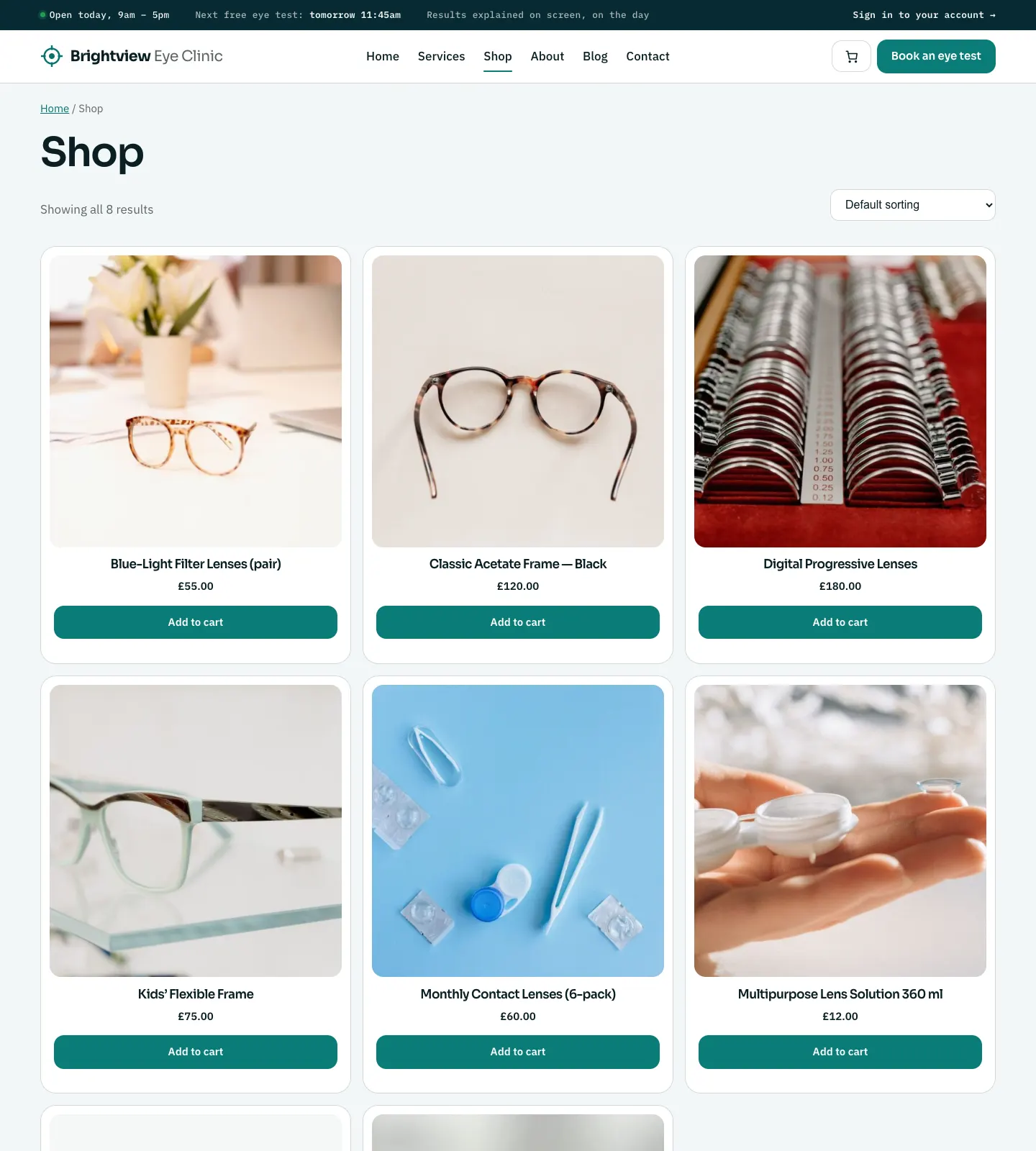
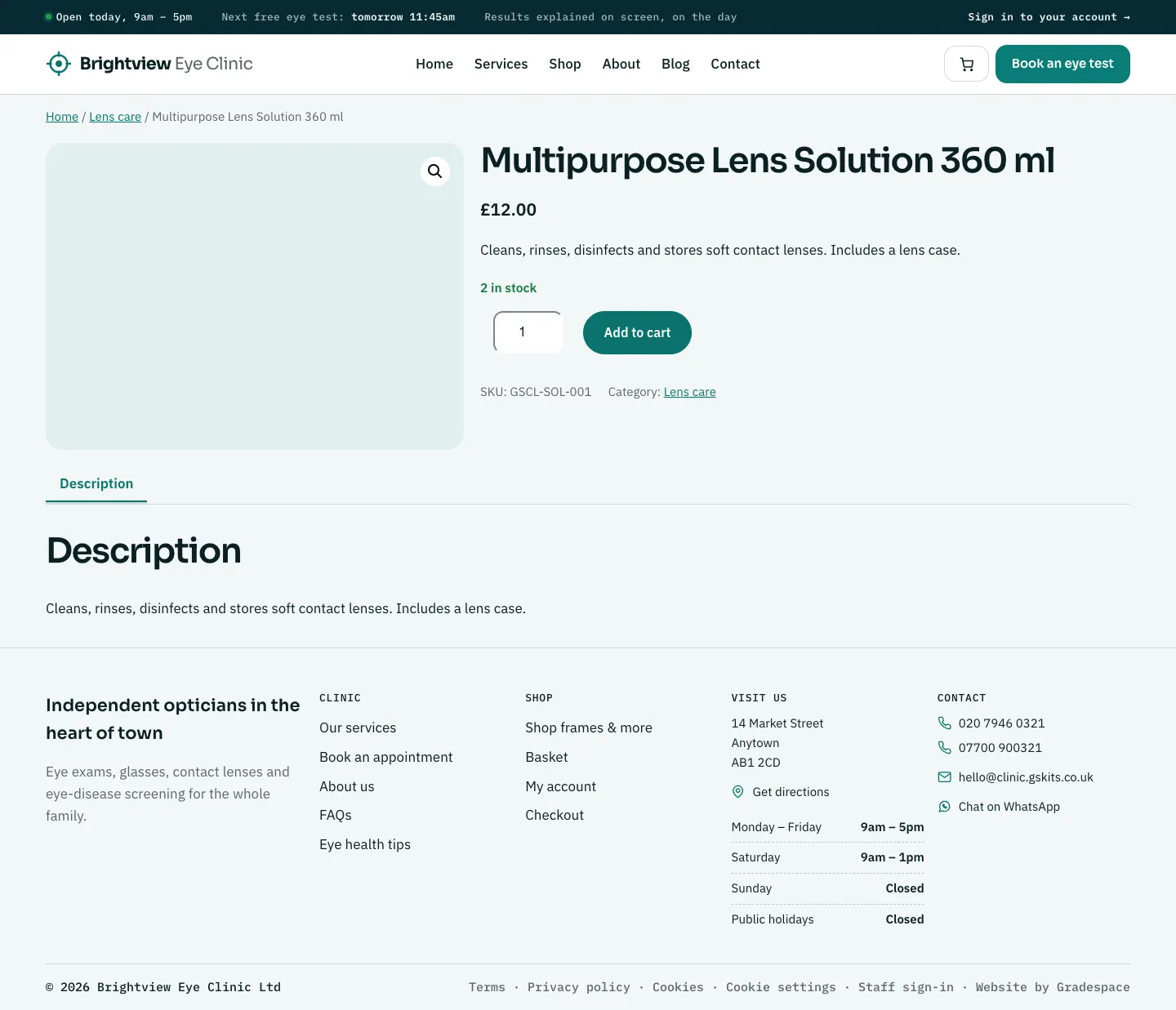
The shop on your website
How to add a product
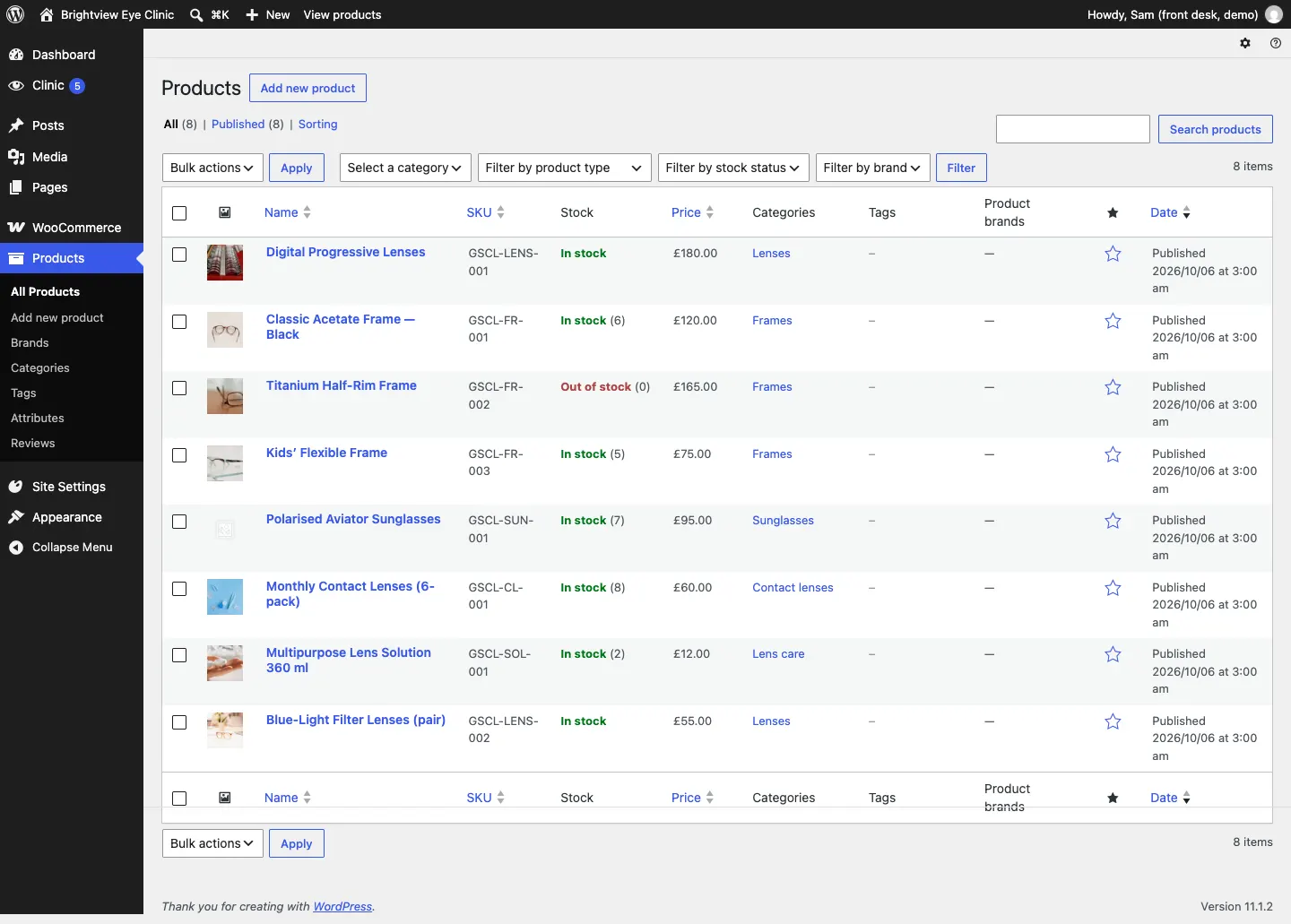
The quickest way is Clinic → Stock → New product (Pro). See Sell in store and Stock. Without Pro, or for sizes, colours and longer descriptions, use WooCommerce's product editor:
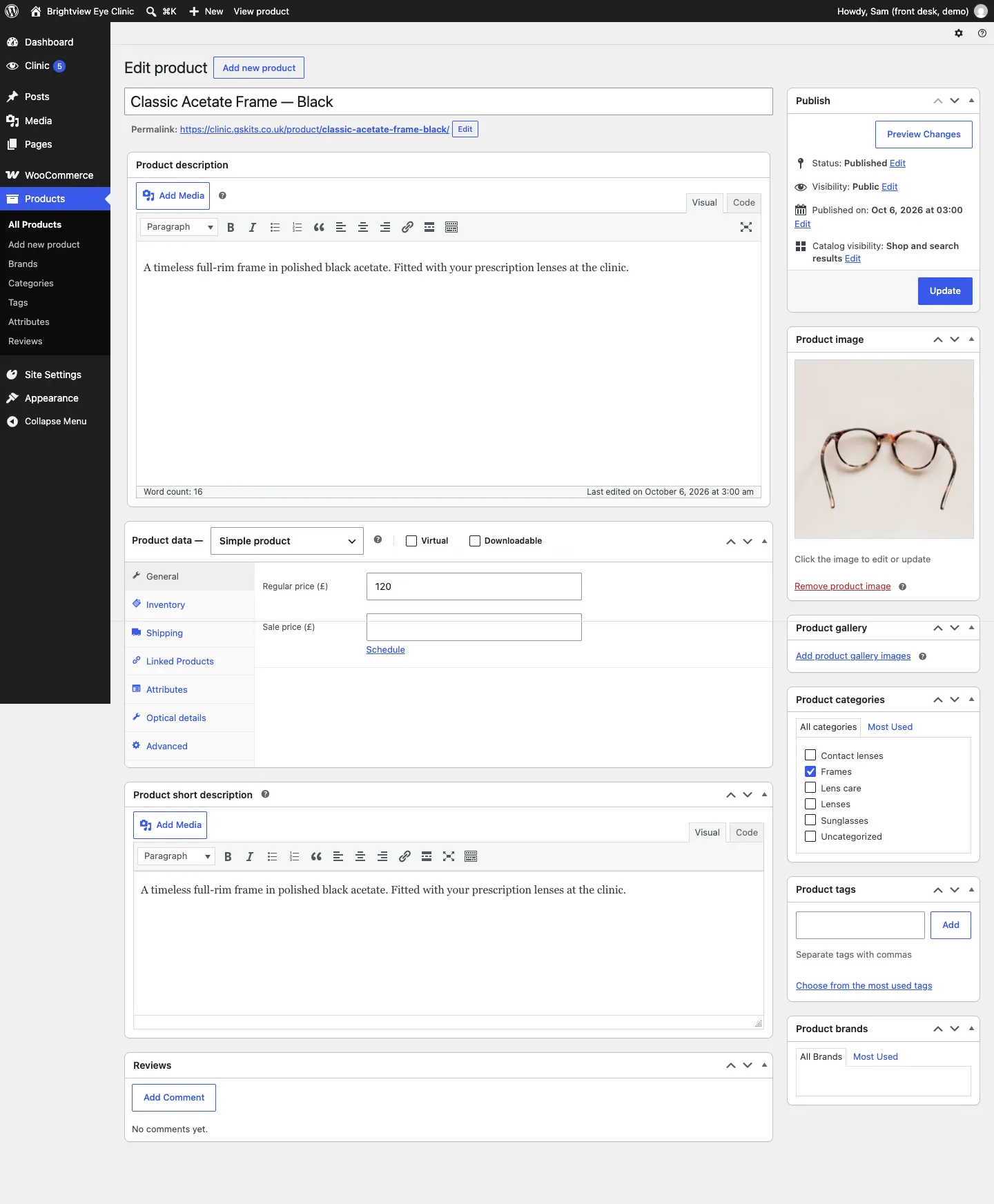
- Go to Products → Add new product.
- Type the product name and a description.
- In Product data, on the General tab, type the Regular price (£).
- On the Inventory tab, type the product code (shown as SKU) and the stock quantity.
- On the Optical details tab, fill in what applies (see below).
- On the right, choose a Product categories entry (for example Frames) and set a Product image.
- Click Publish.
Optical details
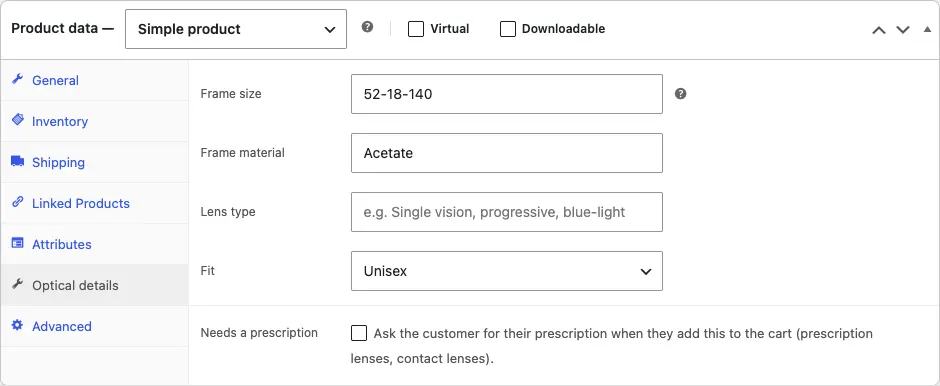
The Optical details tab is added by the Clinic kit:
- Frame size: lens width – bridge – arm length, in millimetres (printed inside the arm);
- Frame material, for example acetate, titanium, TR90;
- Lens type, for example single vision, progressive, blue-light;
- Fit: Unisex, Women, Men or Children;
- Needs a prescription: tick it for prescription lenses and contact lenses. Customers are then asked for their prescription when they add the item to their basket.
Prescriptions with an order
For items that need a prescription, the customer chooses one of:
- Upload it now (a photo or PDF of their prescription);
- I'll bring my prescription to the clinic;
- Use the prescription from my eye test at your clinic.
You see which on the order. An uploaded prescription has an Open uploaded prescription link. Only staff who can see orders can open it.
How customers pay
Bank transfer
- At checkout the customer chooses Bank transfer and sees your bank details and the order number to use as the payment reference. Your bank details come from Clinic → Settings → Payments.
- They pay from their bank, then click Upload proof of payment on their order page (or from the order email) and upload a screenshot or receipt.
- You get an email, "Proof of payment received for order #…", and the order waits in Clinic → Shop orders.
Pay at the store
The customer chooses Pay at the store. Their order is reserved and the stock is held. They see: "Your order is reserved for you. Please collect it from our clinic and pay there by cash, card (POS) or transfer. We'll hold it for [number] days." The number of days is set in Clinic → Settings → Payments → Hold orders for (days).
How to check and confirm a bank transfer
- Go to Clinic → Shop orders. It opens on the orders On hold, waiting for payment.
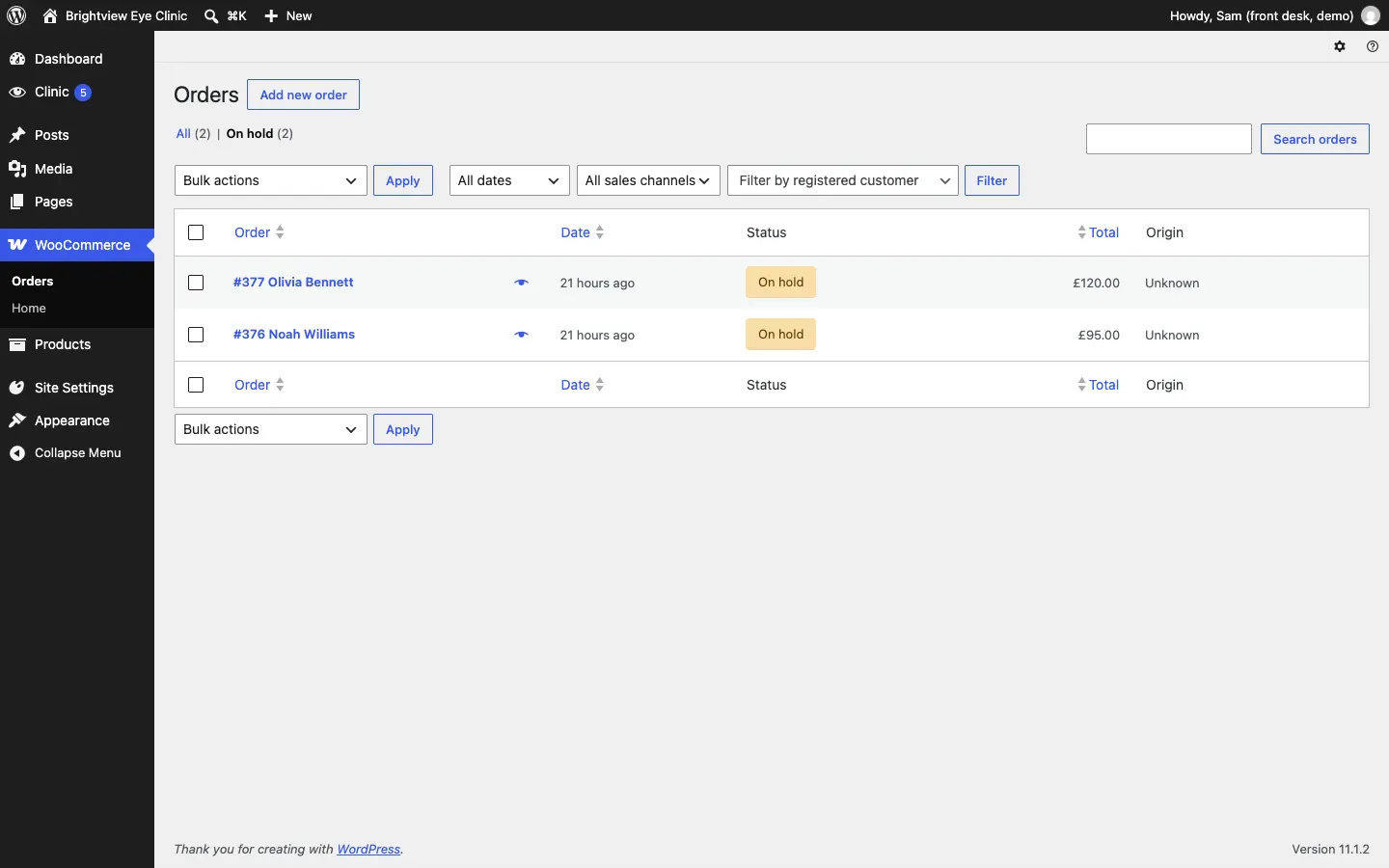
- Click the order number to open it.
- In the Bank transfer box, click Open proof of payment if the customer has uploaded one. The box says "Check your bank account for £… before confirming."
- Check your bank account.
- If the money is there, click Payment received — confirm. The customer is emailed and the order moves on.
- If it hasn't arrived, click Not received. The customer is emailed and asked to check their transfer.
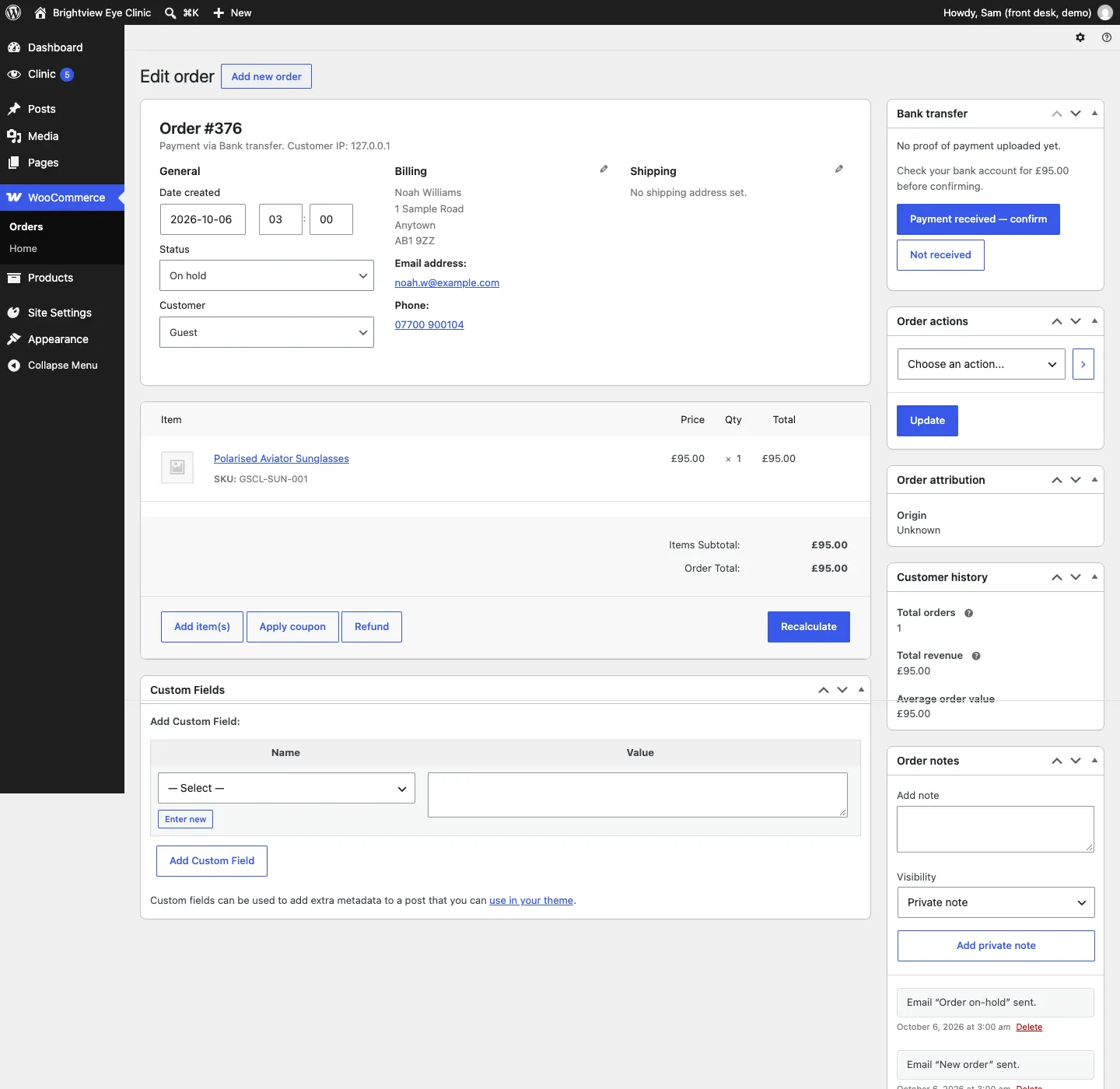
Each step is noted on the order, for example "Bank transfer received — confirmed by [name]".
How to complete a pay-at-the-store order
- When the customer comes in, open the order from Clinic → Shop orders (or from [number] order to be paid at the store on collection on the Today screen).
- Take the payment in the clinic.
- Change Status to Completed and click Update.
Customer accounts
Customers can check out as guests, or sign in to My account to see their orders and upload proof of payment. See The patient's My account page.