Running your website
Payments and deposits (Pro)
Set up Gradespace Payments with Stripe or your shop checkout, ask for a deposit or the full price when patients book online, and use Clinic → Payments to see, refund and decide on payments.
On this page
Features marked (Pro) need a Pro or Agency licence. Deposits and online gift voucher sales are both Pro.
A deposit means patients pay part of the price (or all of it) when they book online. It cuts no-shows. The website never sees card details: patients pay on Stripe's secure page (Stripe is an online card payment service) or through your WooCommerce shop checkout.
Deposits are off unless you switch them on. Services without a deposit book exactly as before, and bookings your staff add never ask for one.
Step 1: connect a way to take payments (administrators)
- Go to Clinic → Settings → Payments. Only administrators see this tab, because it holds your payment keys.
- Under How you take payments, choose Take payments through: Stripe directly (simplest), or your WooCommerce checkout to use the payment methods your shop already has.
- Choose your Currency (for Stripe; through WooCommerce, the shop's currency is used).
- For Stripe, follow the steps on the Stripe card: copy your Publishable key and Secret key from your Stripe dashboard (Developers → API keys), add the webhook address shown on the card in Stripe (Developers → Webhooks → Add endpoint), and paste the Webhook signing secret.
- Click Save changes, then Check the connection. You should see "Connected: Stripe accepted the secret key." While you use test keys the status says Test mode: no real money moves.
The same tab also holds your Bank transfer details and Pay at the store hold time for the shop (see Clinic settings) and the Deposits rules below.
Step 2: switch deposits on
- Go to Clinic → Settings → Bookings.
- Under Deposits, tick Take deposits for some services.
- Click Save changes.
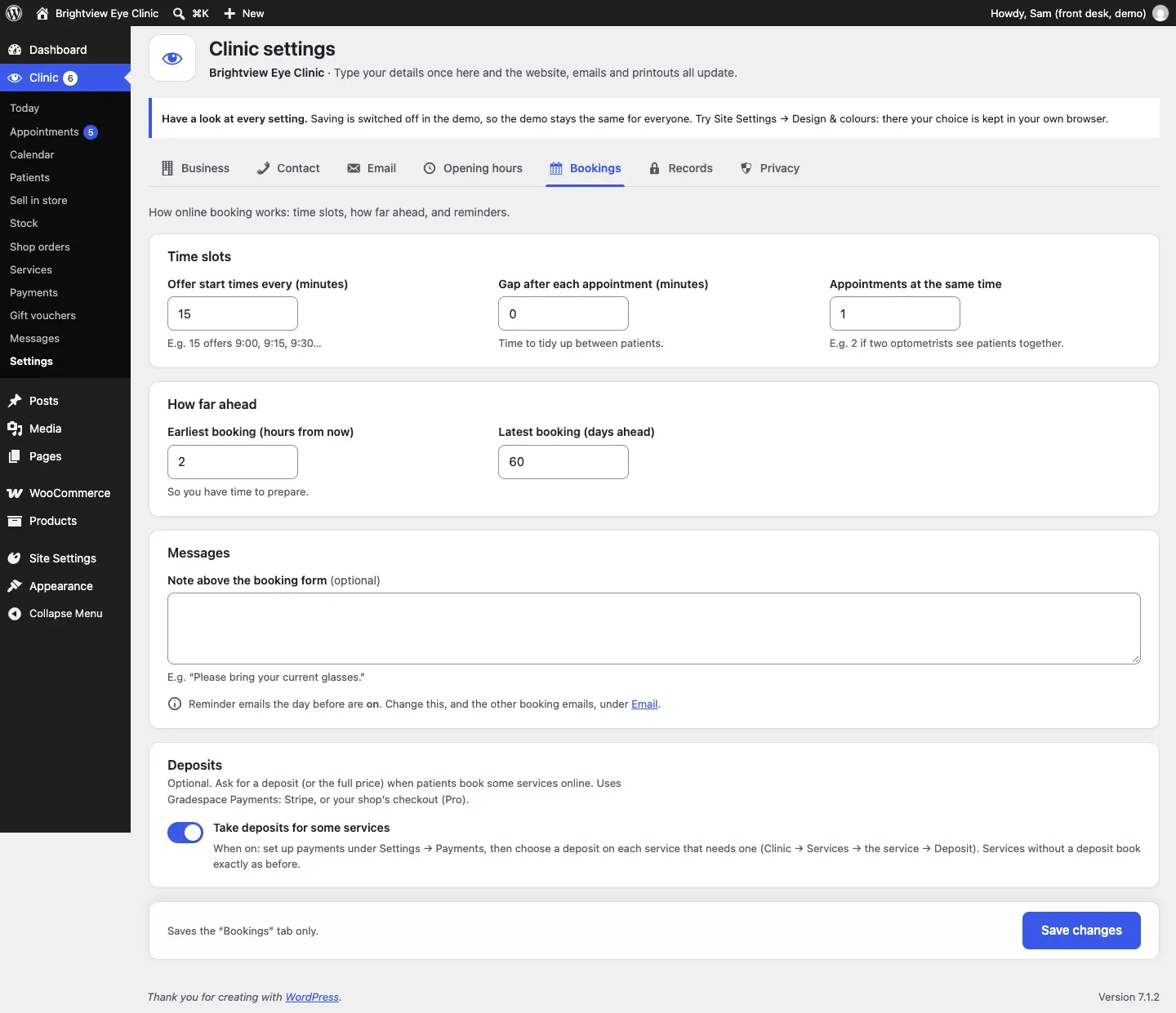
Step 3: choose a deposit on each service
- Go to Clinic → Services and open a service.
- In its Deposit panel, under When people book online, choose A fixed deposit, A percentage of the price or The full price (prepay), and fill in the amount or percentage.
- Optionally set Minutes to pay: how long the time is held while the patient pays.
- Click Update.
See Services.
Deposit rules
In Clinic → Settings → Payments, the Deposits card sets:
- Minutes to pay: the standard time a booking is held while the patient pays; then it's freed for others;
- When a customer cancels in time: Refund the deposit automatically, Keep the deposit, or Let staff decide;
- Hours for a bank transfer: through the shop checkout only, how long a booking waits when the patient chooses to pay by bank transfer.
When staff cancel a booking that has a deposit, the staff member decides whether to refund or keep it.
What happens when a patient books with a deposit
- The patient chooses a time and sees Nearly there: pay the deposit to keep this time, then pays on the secure payment page.
- Until they pay, the appointment shows as Waiting for deposit in the calendar and the Appointments list.
- Once paid, it becomes a normal request, Waiting to confirm, with the usual emails. The patient also gets a Payment received email.
- If they don't pay in time, the time is freed and nothing is taken.
If a patient pays in the clinic instead, open the appointment and choose Paid in person instead. You see "Marked as paid in person. The booking has gone through as usual."
Clinic → Payments
Go to Clinic → Payments to see every deposit and gift voucher sale.
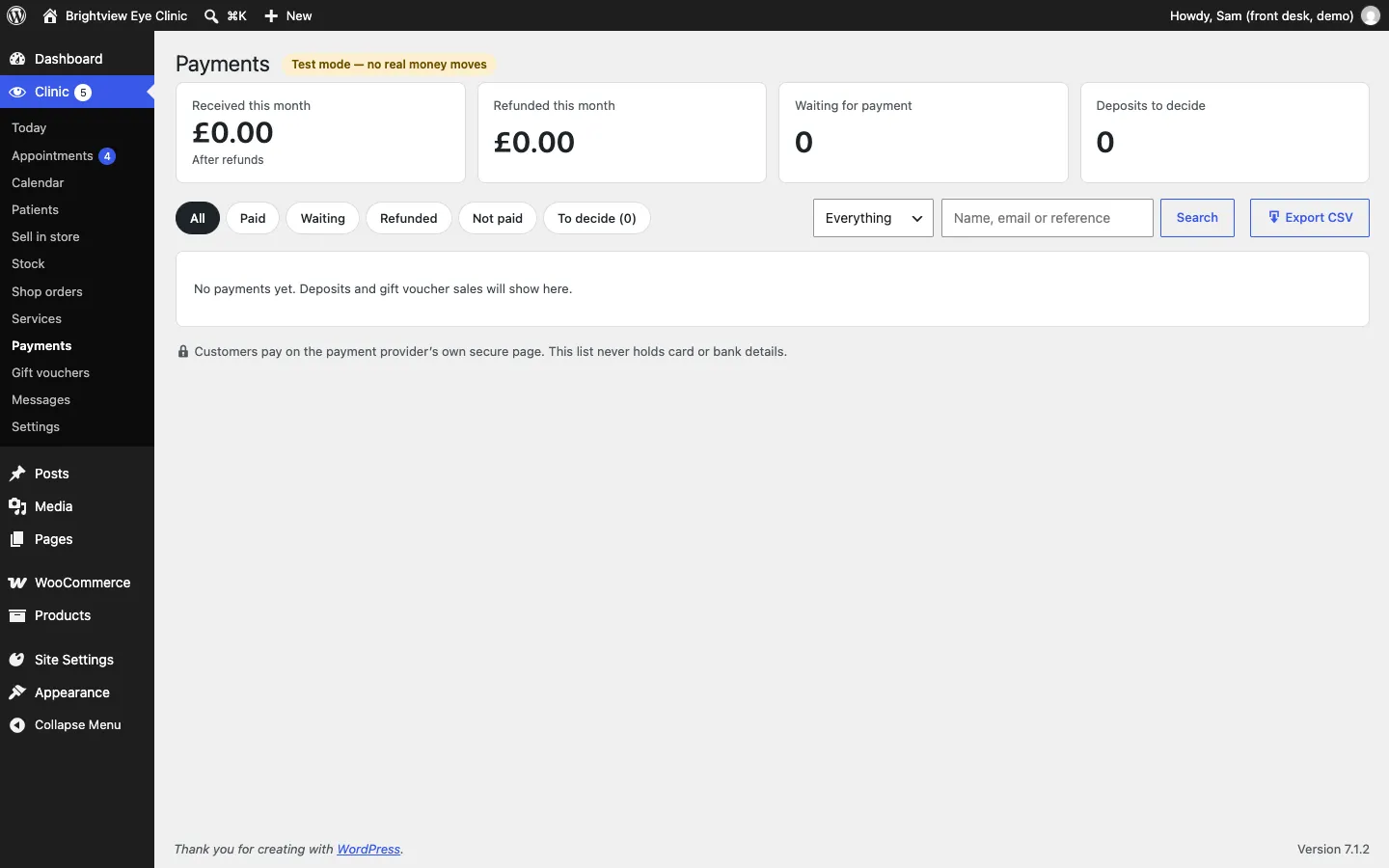
- The cards show Received this month (after refunds), Refunded this month, Waiting for payment and Deposits to decide.
- Filter by All, Paid, Waiting, Refunded, Not paid or To decide, and by What for: Everything, Bookings or Gift vouchers.
- Search payments finds a payment by name or email. Export CSV saves the list as a spreadsheet.
How to decide on a deposit after a cancellation
When a booking with a deposit is cancelled and the rule is Let staff decide (or staff cancelled it), it appears under To decide as "Booking cancelled: refund or keep?".
- Click To decide.
- For each one, choose to refund the deposit or Keep the deposit.
How to refund a payment
- Find the payment and open its actions.
- Type the amount to refund (all or part of it) and click Refund.
- Confirm. With Stripe the money goes straight back and the customer is emailed ("Refund made. The customer has been emailed."). If the payment method can't send money back by itself, the refund is recorded and you hand the money back yourself.
Only staff with Give refunds and issue vouchers in Clinic → Staff access can refund.