Setting up
Designs, pages and menus
The six Clinic designs and their colour palettes, how to preview and choose one, and the pages and menu the kit makes for you.
On this page
The Clinic theme gives your website its look. It has six designs, and each design has seven colour palettes. The design sets the fonts, shapes and mood; the palette sets the accent colours for buttons, links and highlights. Your words, services, opening hours and bookings stay exactly the same whichever design you pick, so you can change the look at any time without losing anything.
The six designs
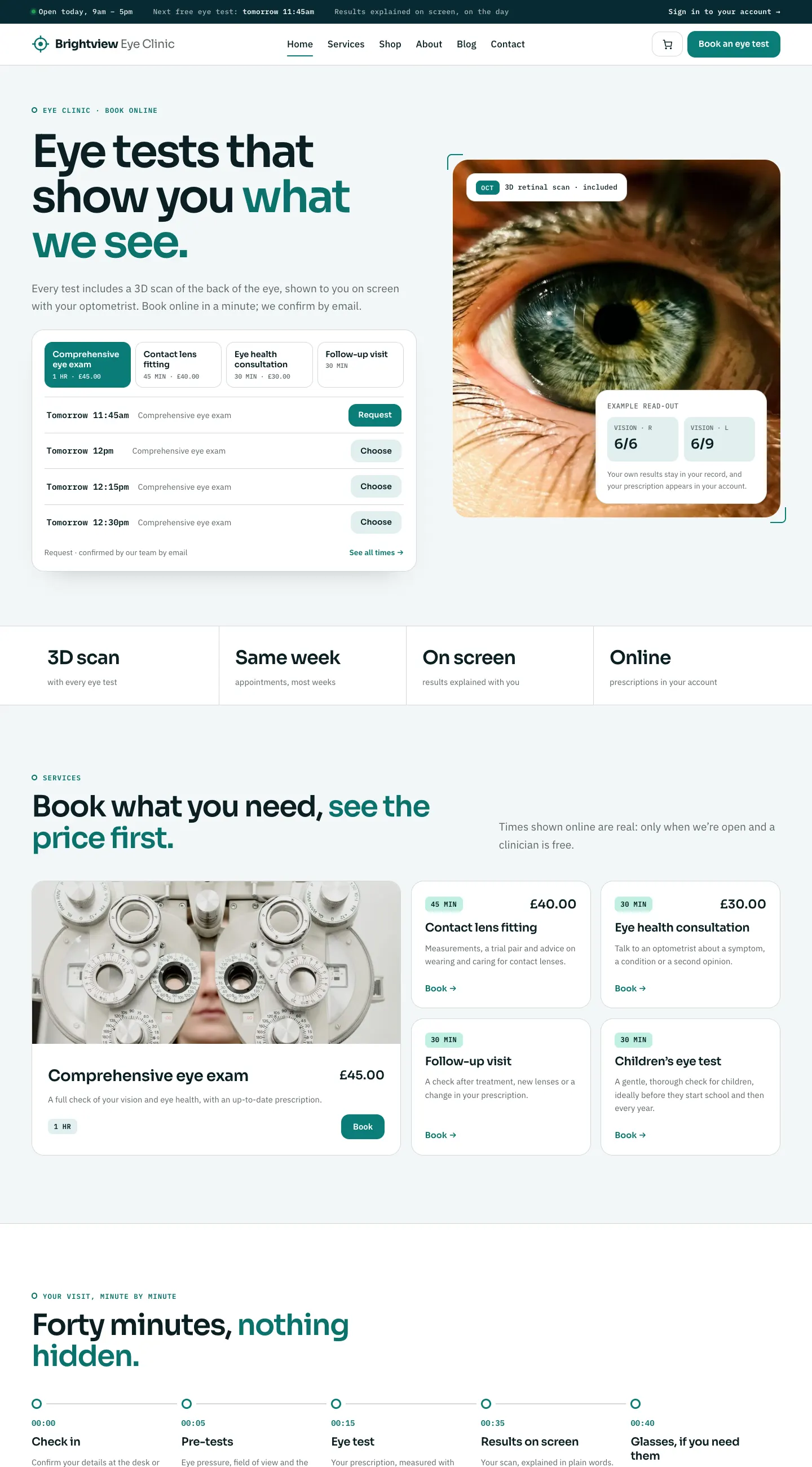
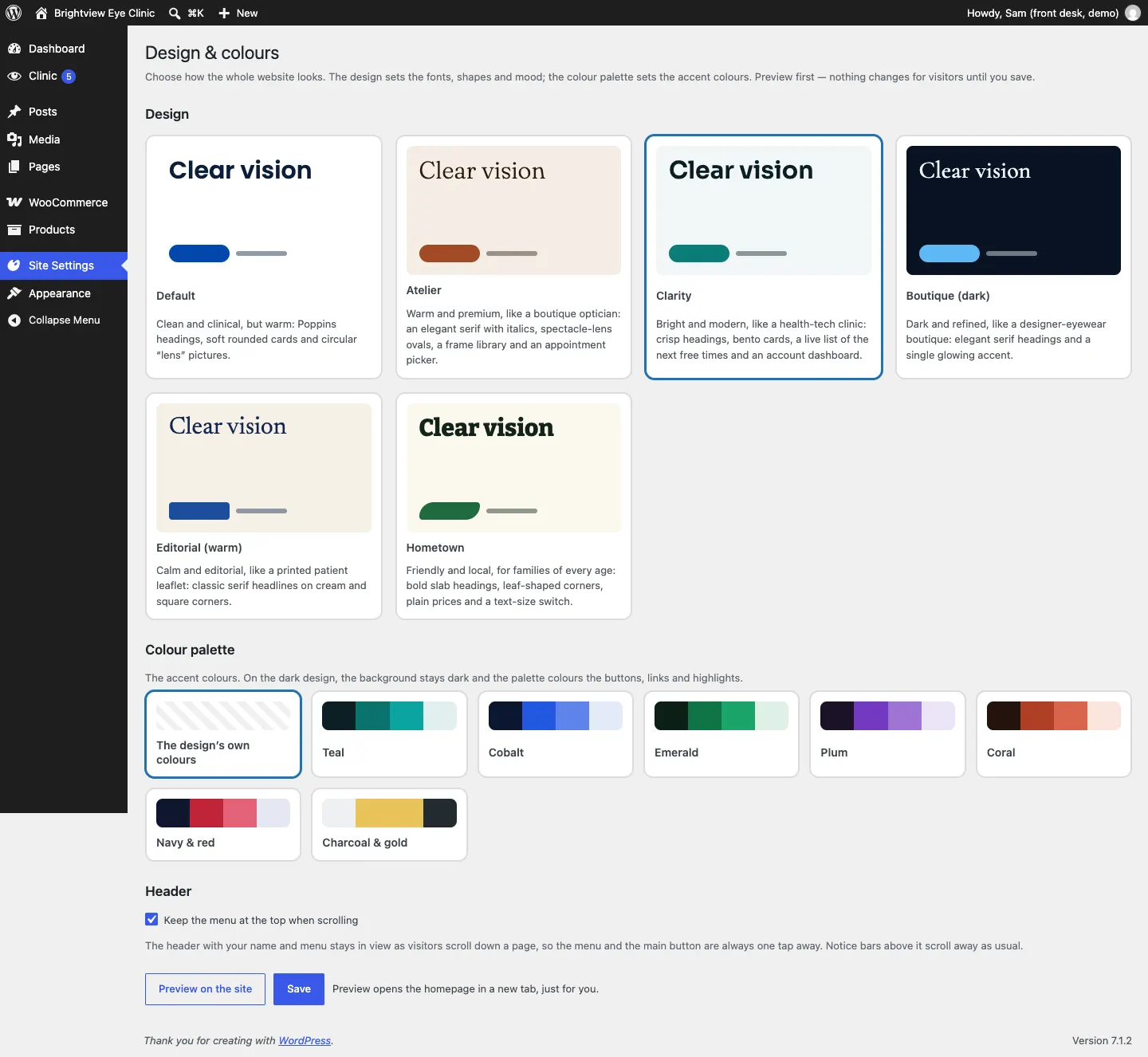
New websites start on Clarity. The pictures below show the same demo clinic in each design.
Clarity
Bright and modern, like a health-tech clinic: crisp headings, bento-style cards, a live list of the next free appointment times and an account dashboard.
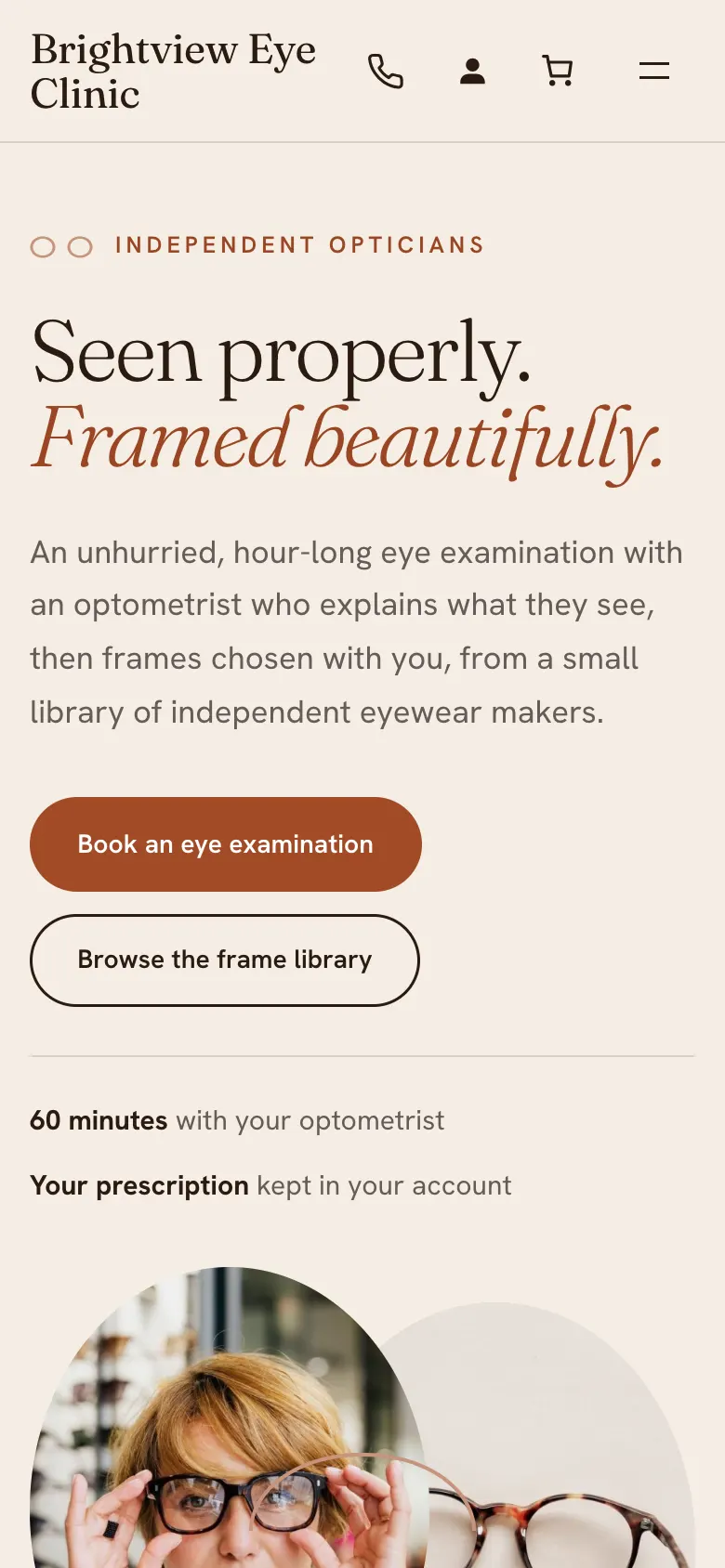
On a phone the header folds into a menu and the free times stack one under another.

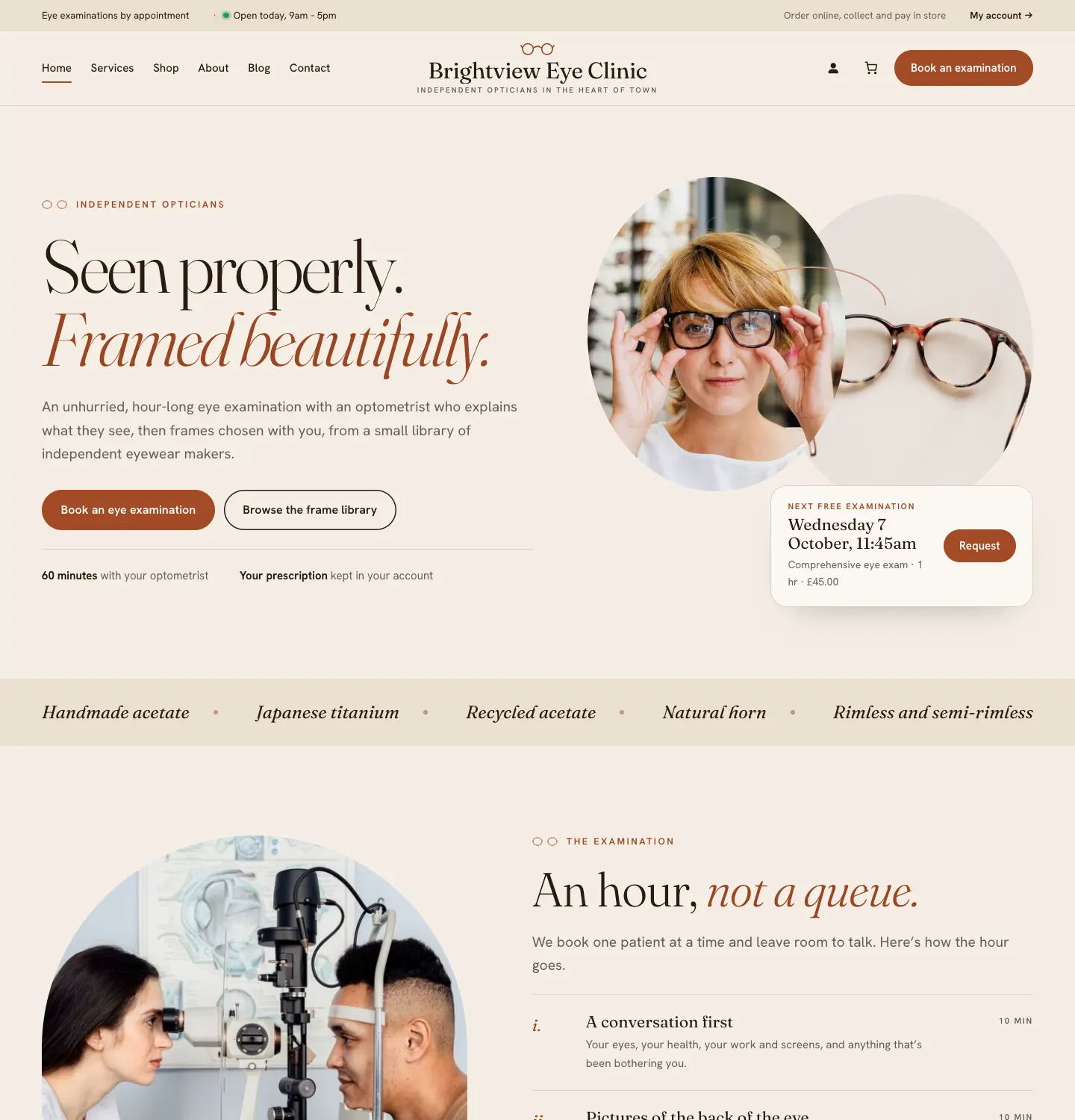
Atelier
Warm and premium, like a boutique optician: an elegant serif font with italics, spectacle-lens ovals, a frame library and an appointment picker.
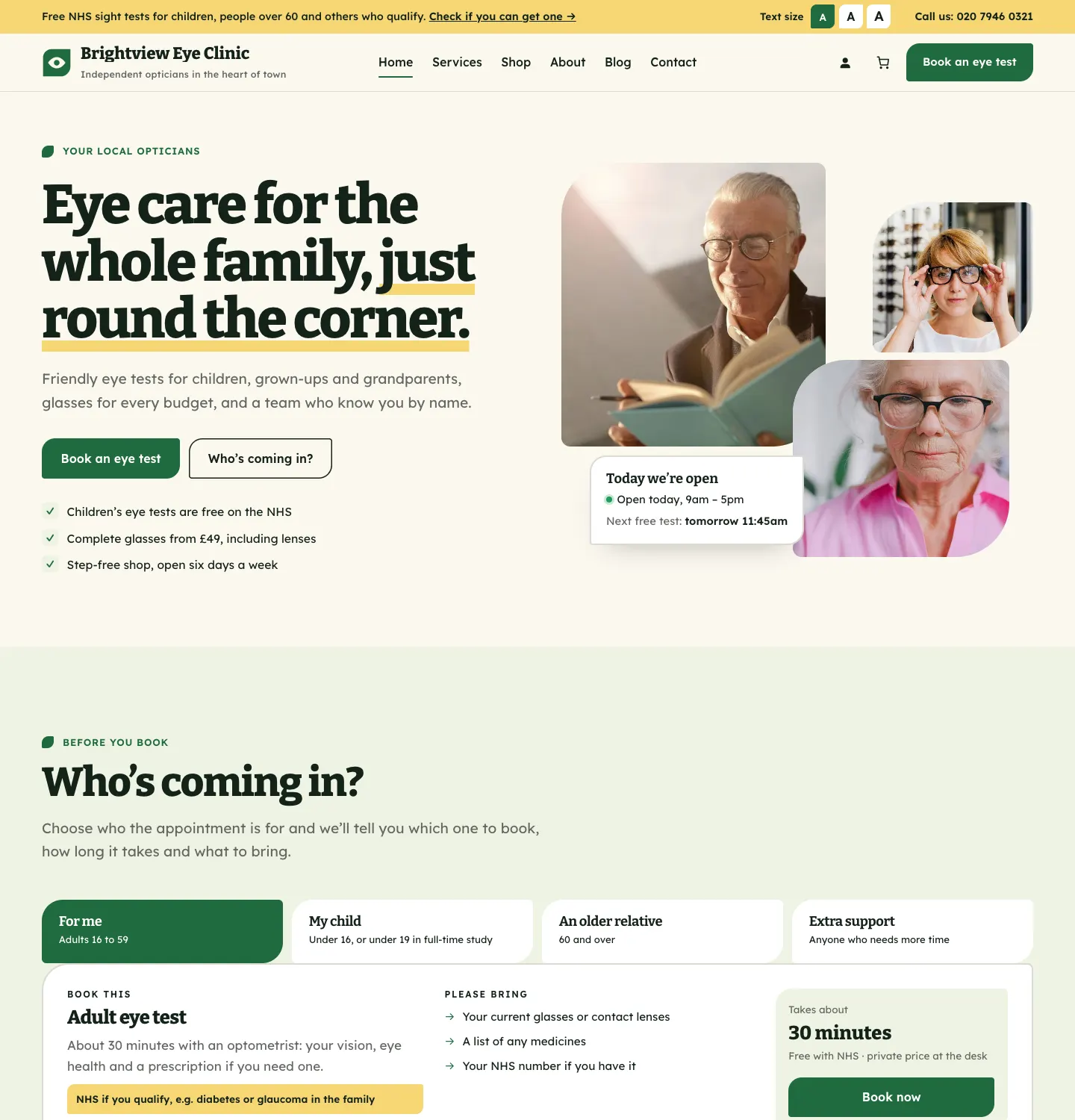
Hometown
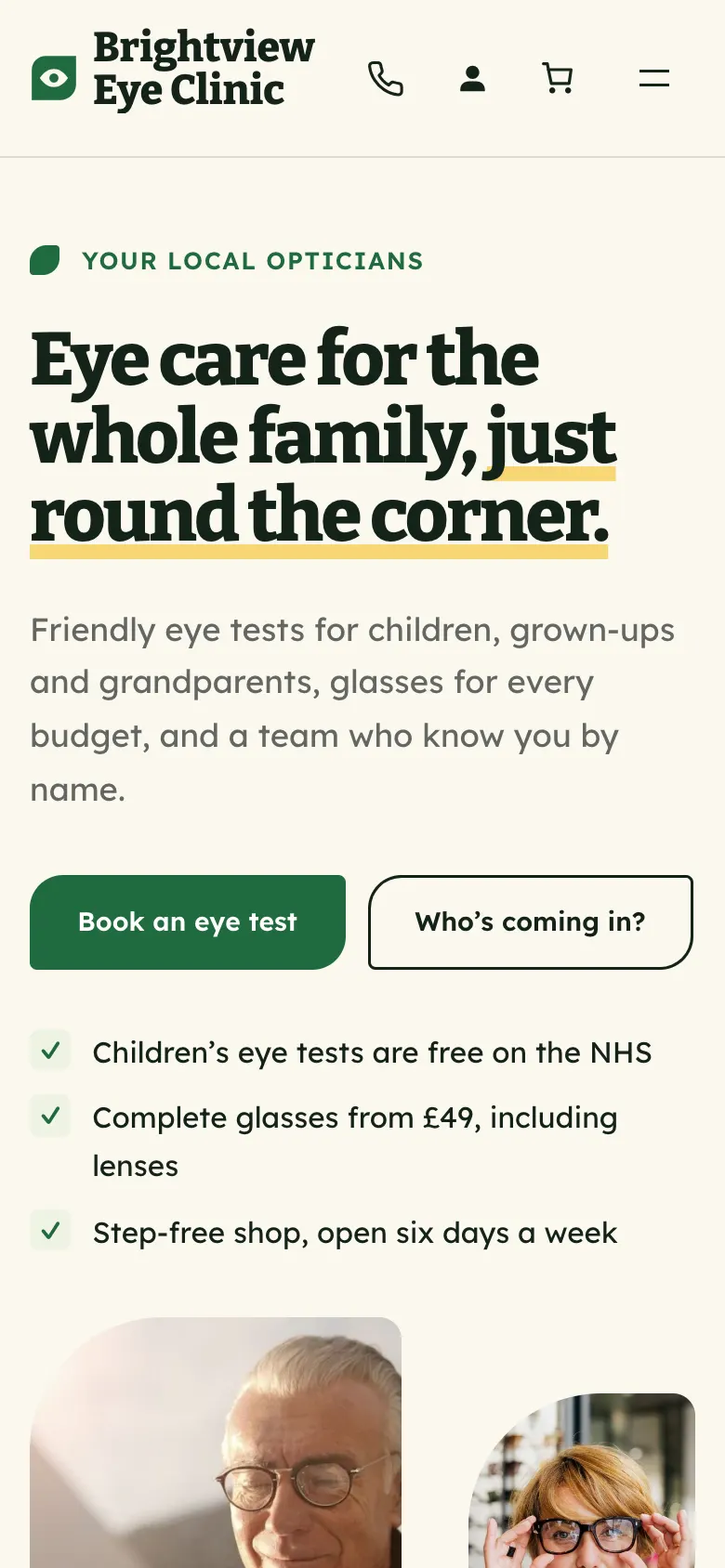
Friendly and local, for families of every age: bold slab headings, leaf-shaped corners, plain prices and a text-size switch so visitors can make the words bigger.
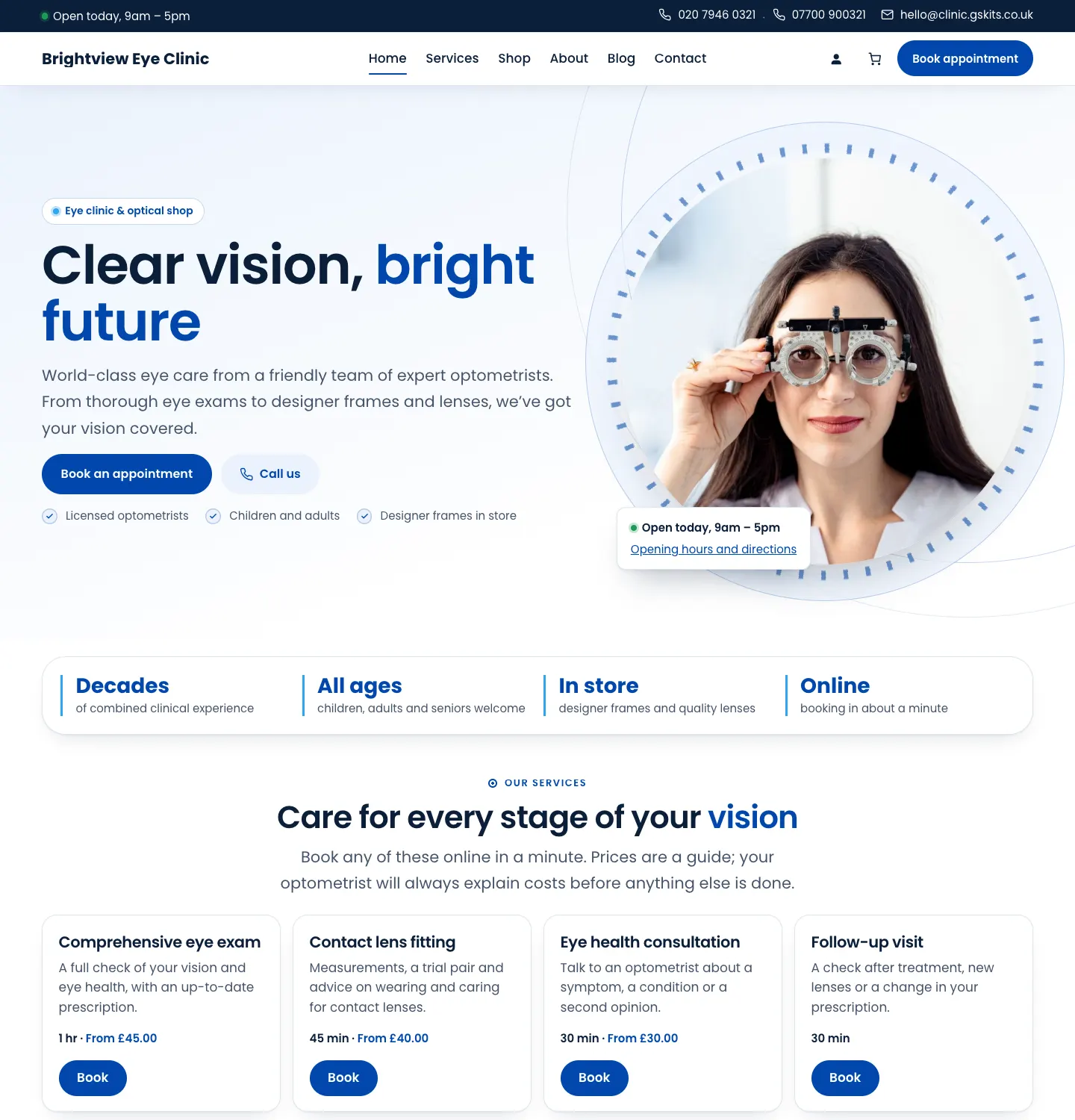
Default
Clean and clinical, but warm: rounded headings, soft rounded cards and circular "lens" pictures.
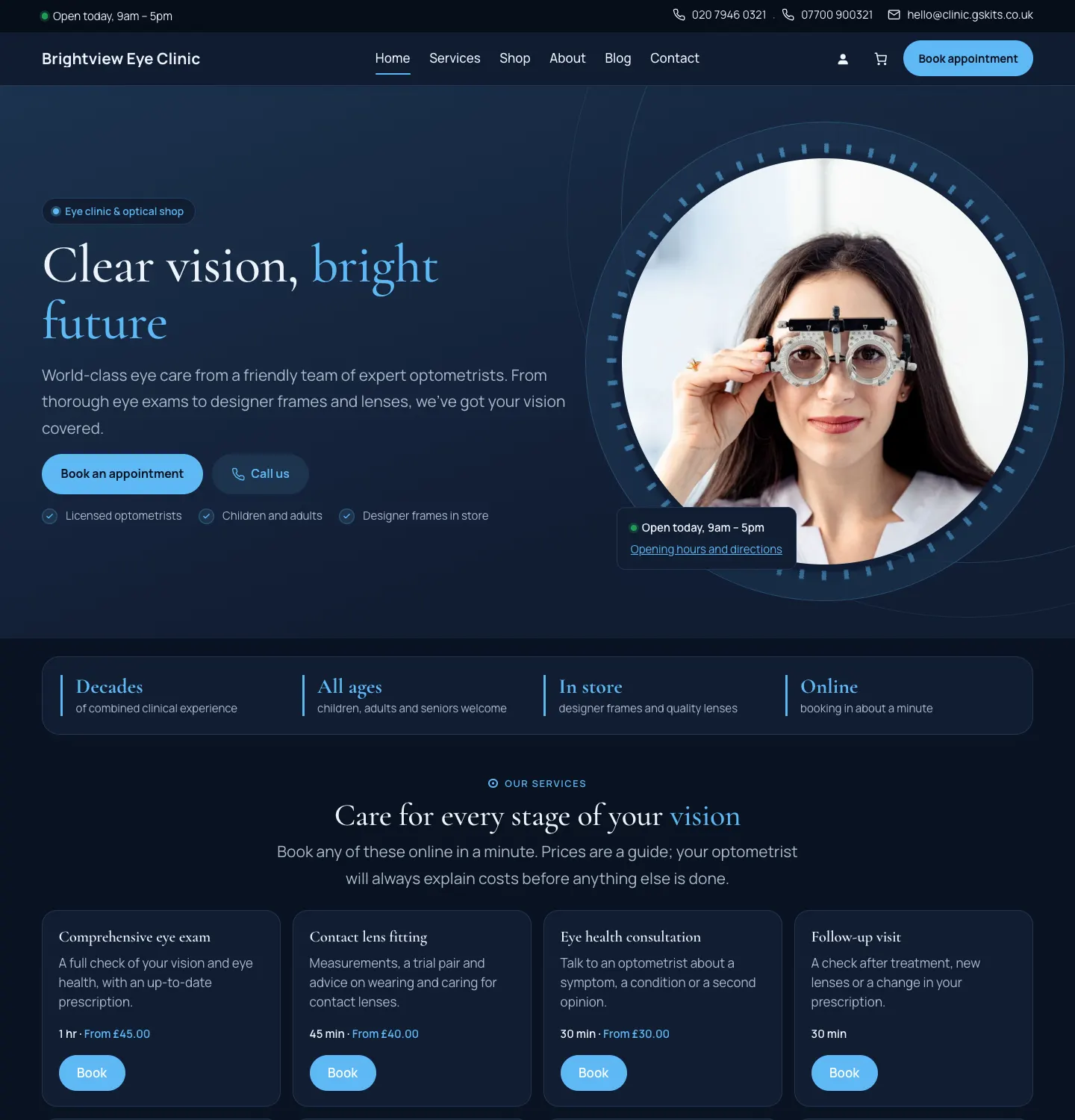
Boutique (dark)
Dark and refined, like a designer-eyewear boutique: elegant serif headings and a single glowing accent colour.
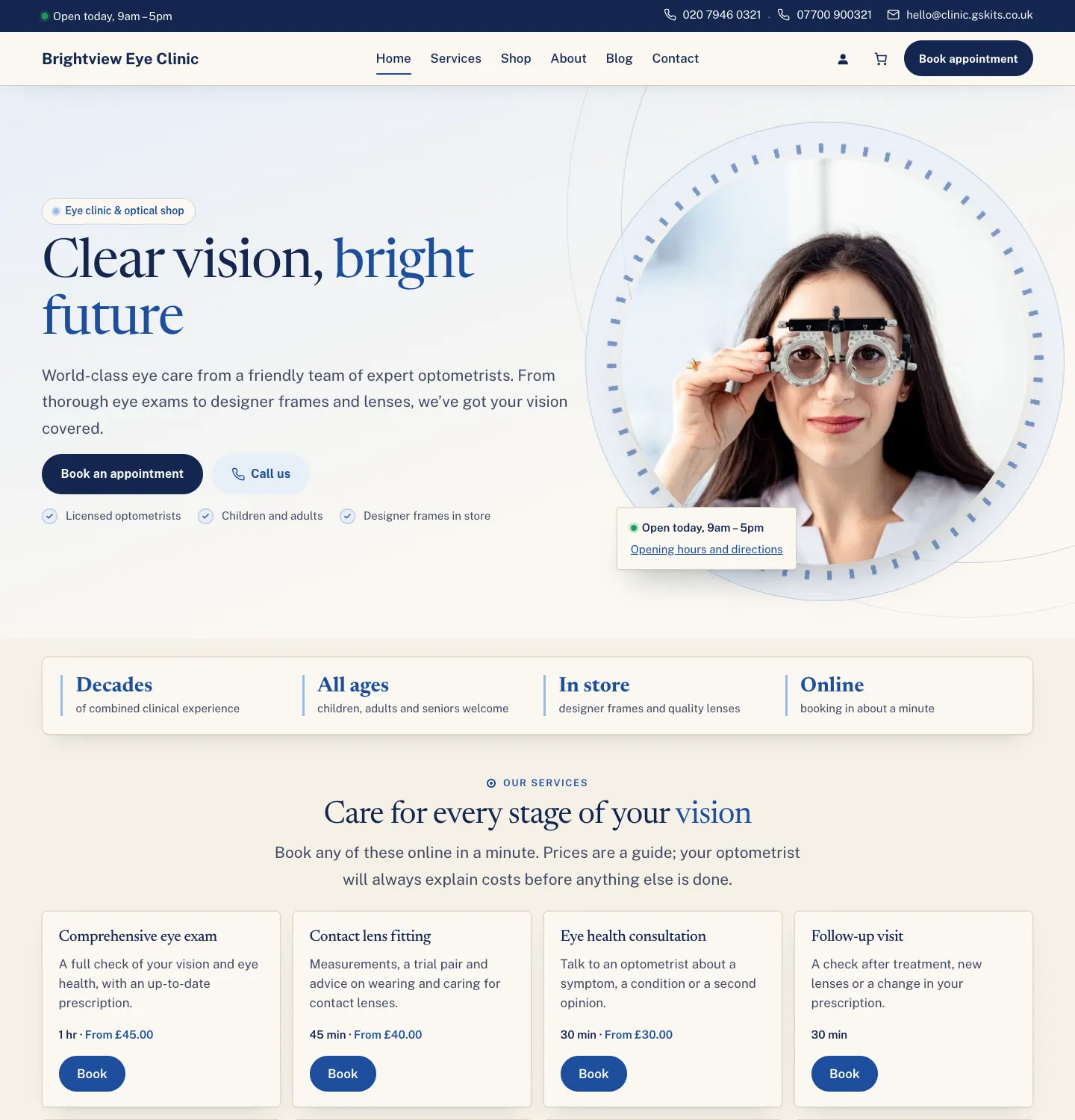
Editorial (warm)
Calm and editorial, like a printed patient leaflet: classic serif headlines on cream and square corners.
The colour palettes
Every design offers The design's own colours plus seven palettes: Teal, Cobalt, Emerald, Plum, Coral, Navy & red and Charcoal & gold. On the dark design the background stays dark and the palette colours the buttons, links and highlights.
How to choose a design and palette
- Go to Site Settings → Design & colours.
- Under Design, click the design you want. Each card shows a sample heading, "Clear vision", in that design's font and colours.
- Under Colour palette, click a palette, or keep The design's own colours.
- Under Header, leave Keep the menu at the top when scrolling ticked if you want the menu and the main button always in view. Untick it to let the header scroll away.
- Click Preview on the site. Your home page opens in a new tab with your choice, just for you. Visitors still see the old look.
- When you're happy, click Save.
For your logo, menus and footer, see Your look.
The pages the kit makes
When you tick Starter pages and menu in the setup wizard, the kit adds these pages (it leaves alone any page you already have):
| Page | What's on it |
|---|---|
| Home | Your headline, services with prices, next free times (in Clarity and Atelier), opening hours and how to find you |
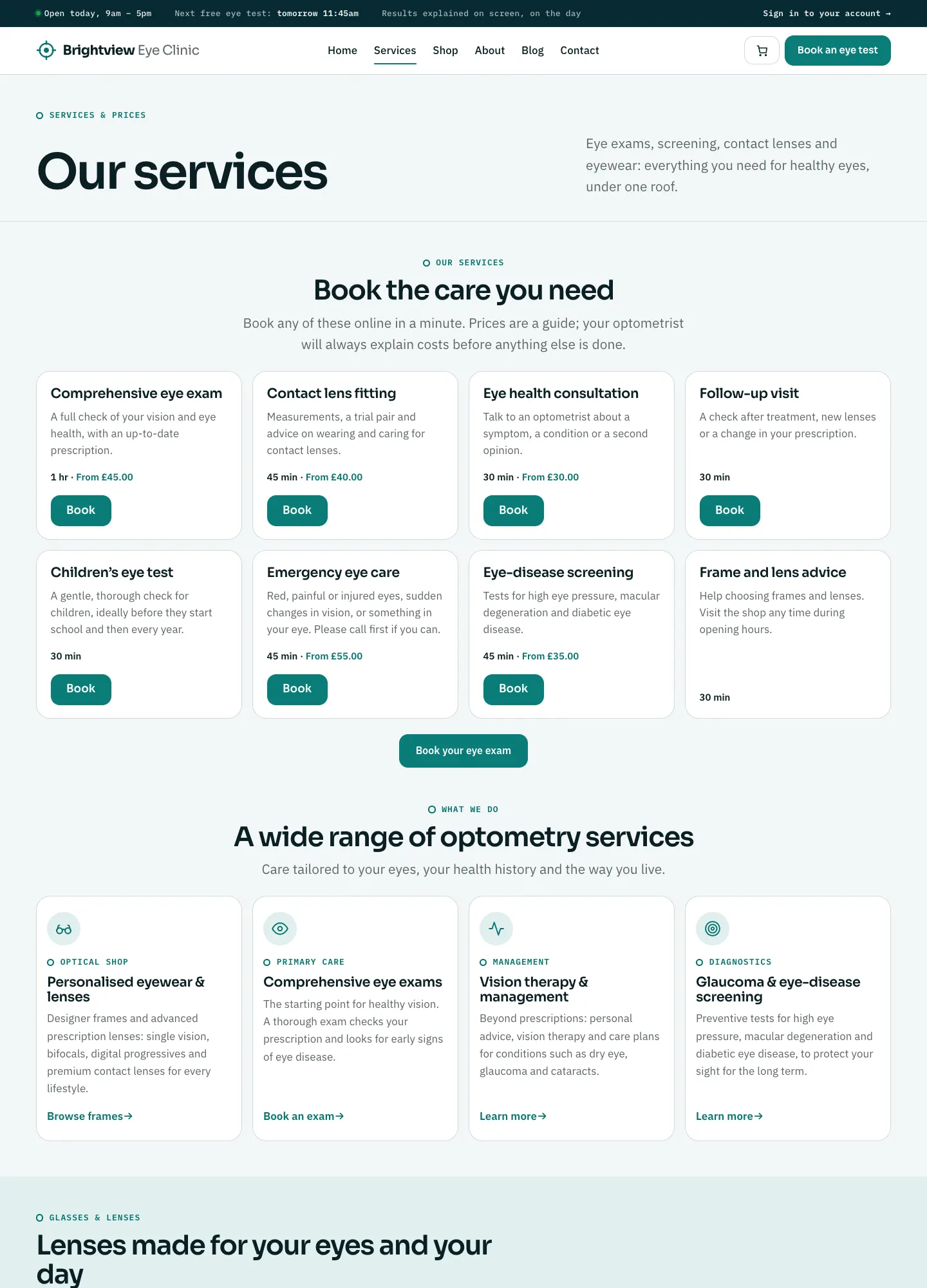
| Services | Every service with its description, how long it takes and its price |
| About us | Your story and team (sample text to replace) |
| Book an appointment | The booking form (see Online booking) |
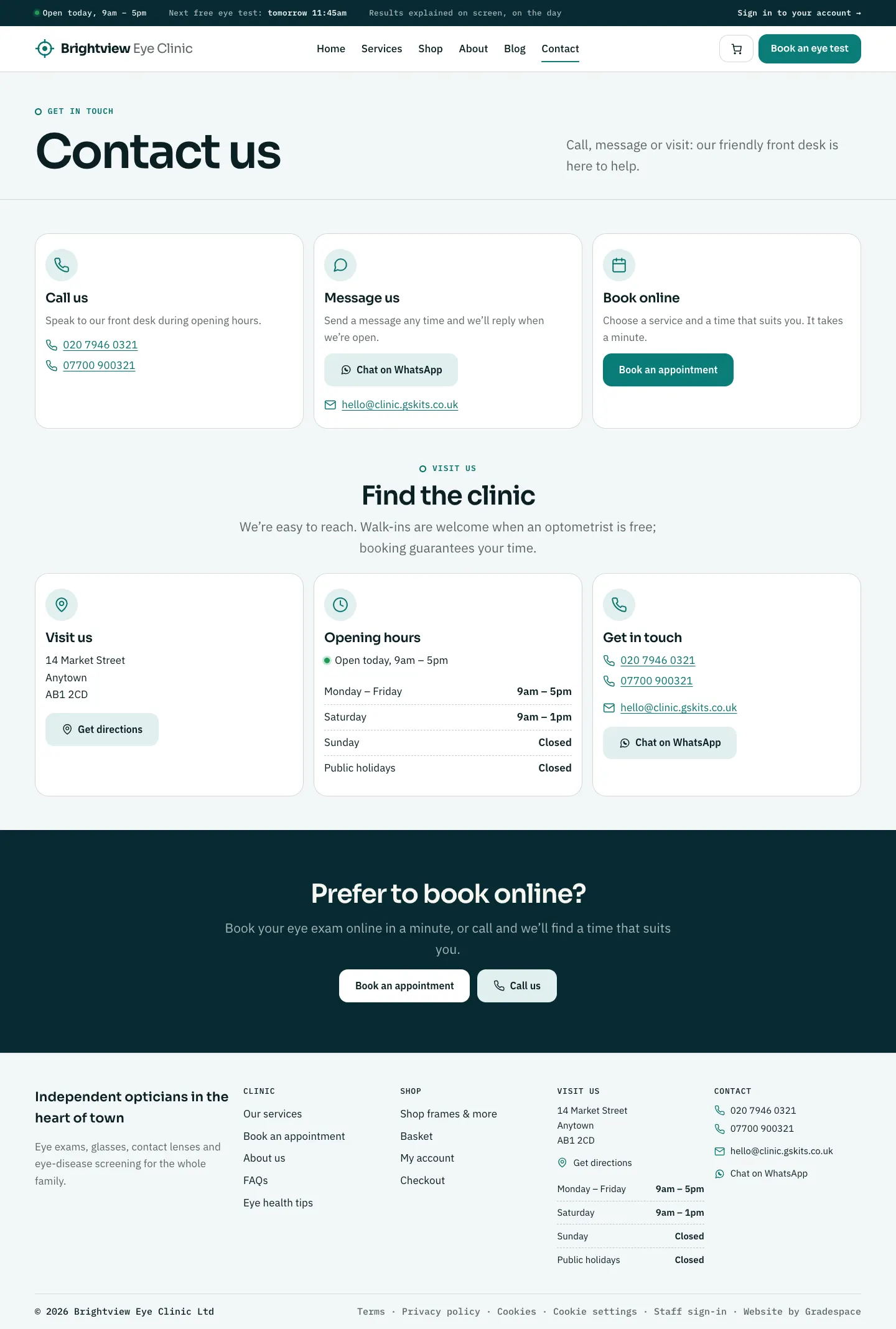
| Contact | Phone, WhatsApp, email, address, map link, opening hours and the contact form |
| FAQ | Common questions and answers to edit |
| Eye health tips | Your blog page |
The legal pages (Terms, Privacy policy and Cookies) are filled in from Clinic → Settings → Privacy and the Business tab. With the shop switched on you also get Shop, Basket, Checkout and My account.
The main menu
The wizard also makes the Main menu: Home, Services, Shop, About, Blog, Contact, and a Book an appointment button. On a phone there's also a Call us button inside the opened menu.
The footer repeats the main links, your contact details and opening hours, and has Staff sign-in at the very bottom.
Your opening hours, phone numbers and address appear on every page by themselves. Change them once in Clinic → Settings and the whole website, every email and every receipt updates. To change page text and pictures, see Pages and content.