Running your website
Gift vouchers (Pro)
Sell gift vouchers on your website, issue them at the desk, take them when someone pays, and check balances in Clinic → Gift vouchers.
On this page
Features marked (Pro) need a Pro or Agency licence.
Gift vouchers let people buy an amount, or a named treatment, for someone else. Each voucher has its own code and is emailed to the person it's for, ready to print or forward. You take it in the clinic, or the patient can use it towards a deposit when booking online. The website keeps every balance for you.
To sell vouchers online you need payments set up (see Payments and deposits). You can issue vouchers at the desk without that, and vouchers you already have can still be checked and taken.
How to set up vouchers (administrators)
- Go to Clinic → Settings → Payments and find the Gift vouchers card.
- Fill in:
- Amounts to offer, separated by commas, for example 25, 50, 100;
- Smallest amount and Largest amount, for when people type their own;
- Valid for (months) (0 = no expiry date);
- Remind before expiry (days): an email when money is left on a voucher (0 = no reminder);
- Vouchers towards deposits: tick to let people give a voucher code when they book online, to pay the deposit or part of it;
- Small print, for example "Not exchangeable for cash."
- Click Save changes.
How to sell vouchers on your website
Add the Buy a gift voucher block to a page, for example a new "Gift vouchers" page, and a Gift voucher balance block so people can check what's left. See Pages and content for adding blocks. The buy block lets you choose:
- Amounts to offer (empty uses the amounts from Settings → Payments);
- Let people type their own amount;
- Offer vouchers for a named treatment or service;
- the Button text (empty: "Buy for £…").
The demo website doesn't have a voucher page, so there's no picture of it here.
When someone buys a voucher, the person it's for gets the Gift voucher email with the code, the buyer gets a Gift voucher receipt, and the clinic gets a Gift voucher sold email. The sale appears in Clinic → Payments.
The Gift vouchers screen
Go to Clinic → Gift vouchers.
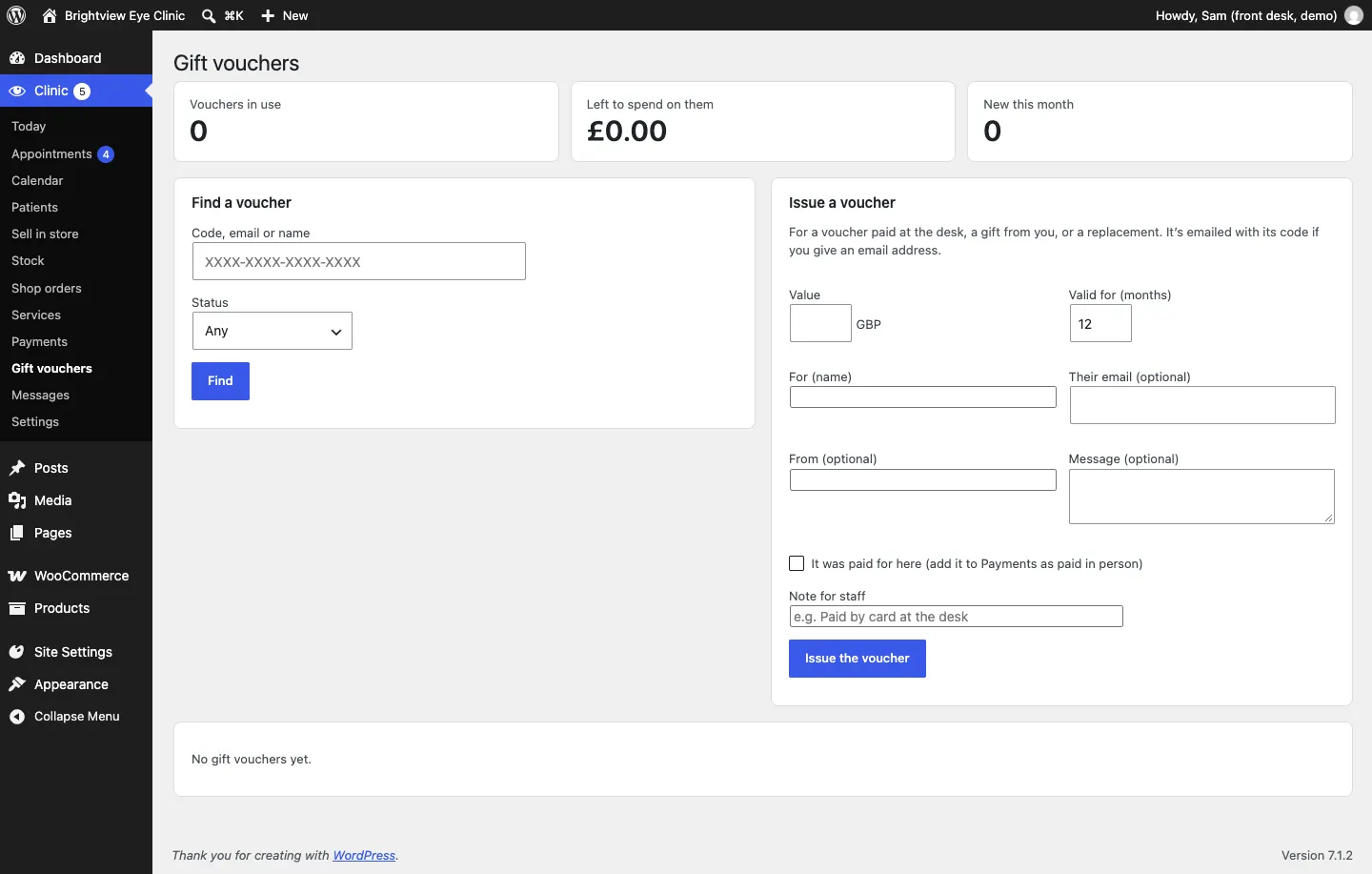
- The cards show Vouchers in use, Left to spend on them and New this month.
- Find a voucher searches by code, email or name. Filter by Status: Waiting for payment, Active, Used up, Expired or Cancelled.
How to issue a voucher at the desk
Use this for a voucher paid for in the clinic, a gift from you, or a replacement.
- Go to Clinic → Gift vouchers.
- Under Issue a voucher, type the Value and how long it's Valid for (months).
- Fill in For (name) and, to email it with its code, Their email (optional). Add From (optional) and a Message (optional) if you like.
- If the customer paid for it now, tick It was paid for here (add it to Payments as paid in person).
- Add a Note for staff if needed.
- Click Issue the voucher. You see "Gift voucher issued."
Only staff with Give refunds and issue vouchers in Clinic → Staff access can issue vouchers.
How to take a voucher when someone pays
- Go to Clinic → Gift vouchers and search for the code.
- Open the voucher. Under Take it at the till, type the Amount to take off (up to what's left).
- Click Take it off the voucher. You see "Taken off the voucher." and the amount Left.
- Take any rest of the bill as usual, for example in Sell in store.
The voucher's History shows every use. If you took off too much, use Put back to return the amount to the voucher.
Other things you can do with a voucher
- Email it again to the person it's for.
- Cancel voucher, for example if it was issued by mistake.
- See its Details: who it's for, who it's from, when it Expires and what's Left to spend.