Running your website
Services
Add and change the services patients can book: name, description, how long each takes, price, online booking, what to bring and the order they're listed in.
On this page
Services are the things patients can book, such as a comprehensive eye exam or a contact lens fitting. Each service has a length, which the website uses to work out free times, and an optional "from" price. Your services appear on the Services page, on the home page, on the booking form and in emails. You manage them in one place: Clinic → Services.
Features marked (Pro) need a Pro or Agency licence.
The Services list
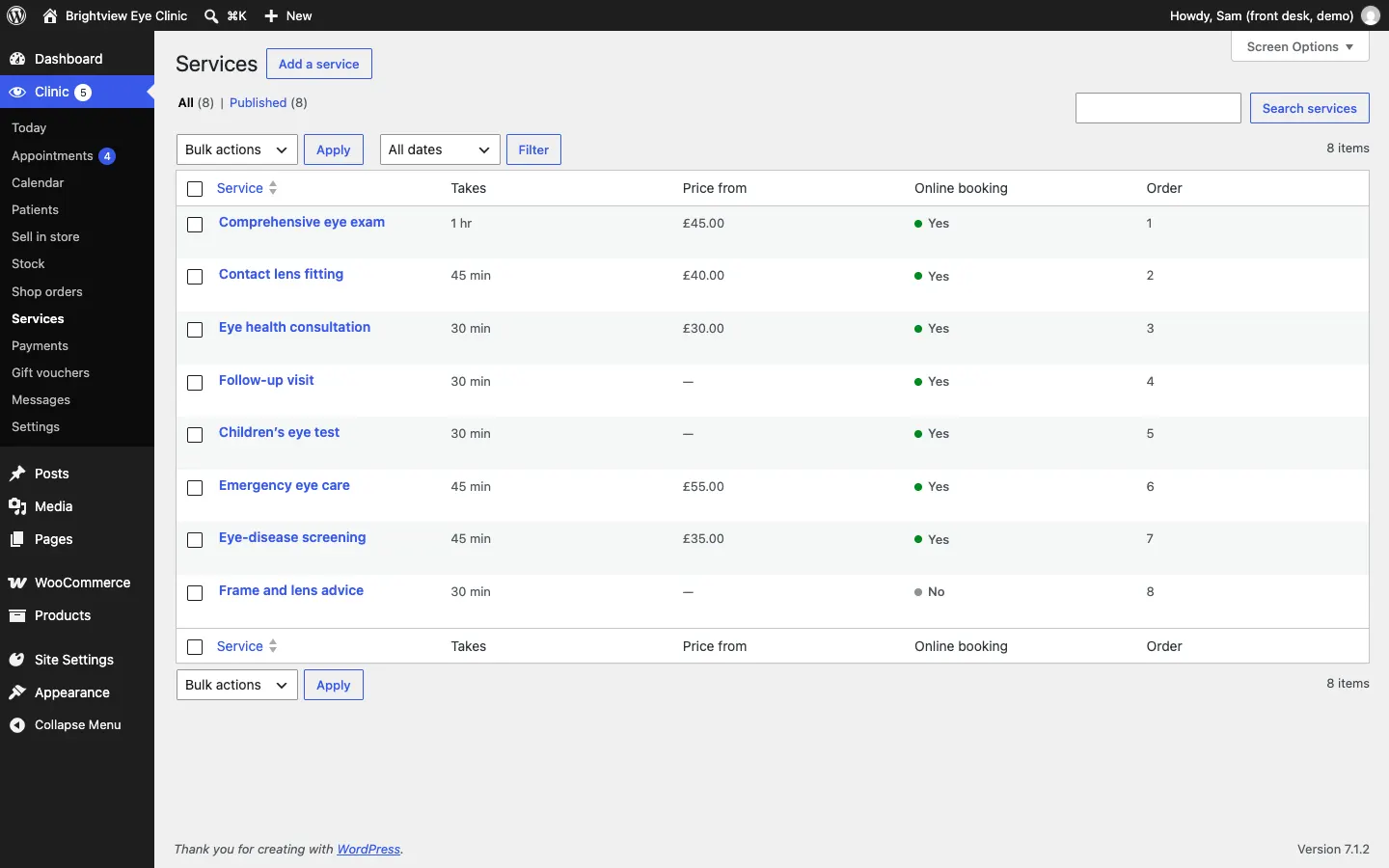
Go to Clinic → Services. You see every service with:
- Takes: how long it lasts;
- Price from: shown as "From £…" on the website, or a dash if there's no price;
- Online booking: Yes if patients can book it online, No if it's shown on the website but booked by phone;
- Order: the order services are listed in (lower numbers first).
How to add a service
- Go to Clinic → Services and click Add a service.
- Type the service name at the top, for example "Comprehensive eye exam".
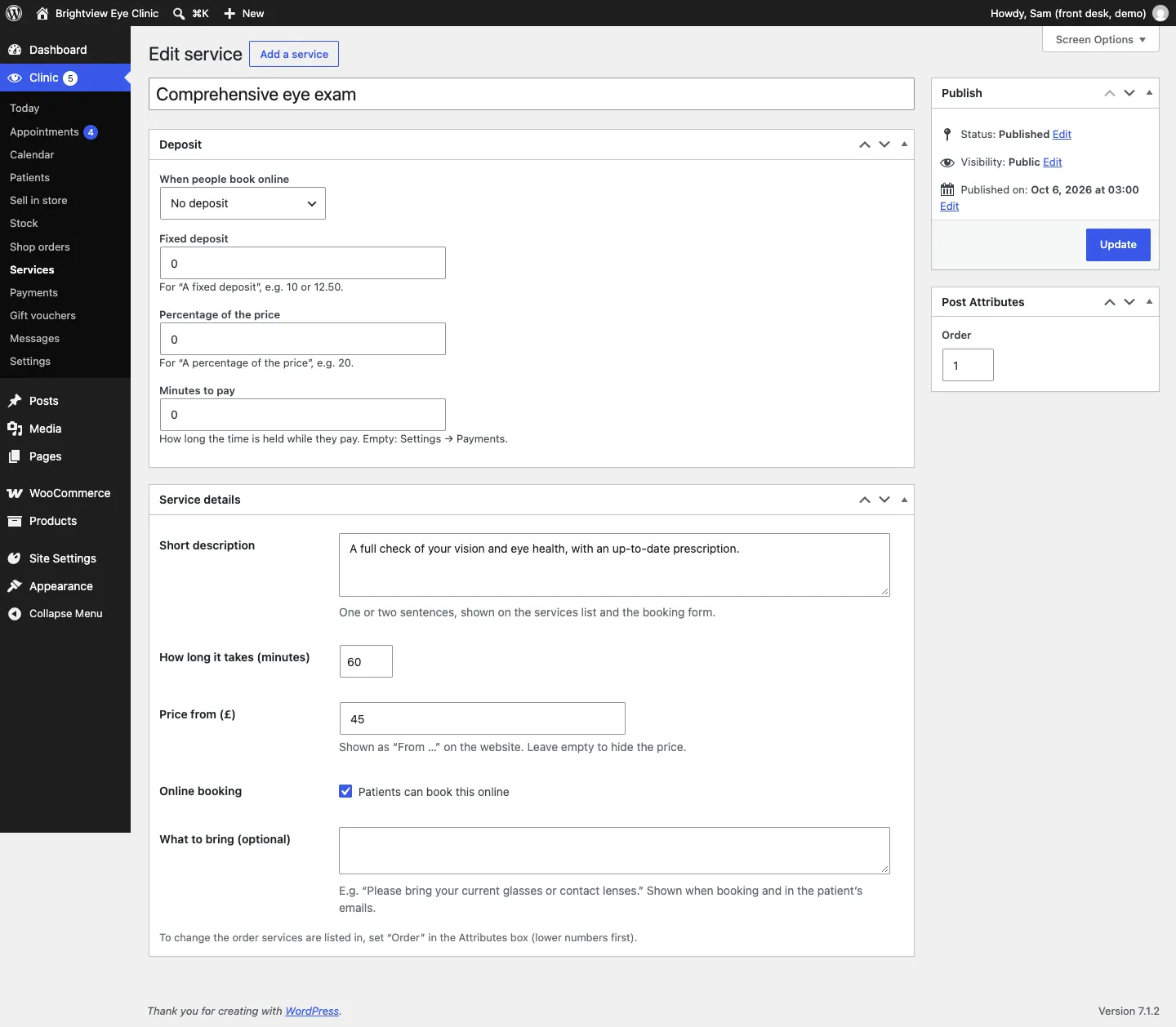
- In Service details, fill in:
- Short description: one or two sentences, shown on the services list and the booking form;
- How long it takes (minutes), for example 60;
- Price from (£): leave it empty to hide the price;
- Online booking: tick Patients can book this online;
- What to bring (optional), for example "Please bring your current glasses or contact lenses." This shows when booking and in the patient's emails.
- To set where it appears in the list, type a number in Order in the Post Attributes box (lower numbers first).
- Click Publish.
How to change or hide a service
- Go to Clinic → Services and click the service name.
- Change what you need and click Update.
To keep a service on the website but stop people booking it online, untick Patients can book this online. It stays on your Services page but no longer appears on the booking form, so patients call you instead. Staff can still book it from the calendar. To remove it completely, hover over it in the list and click Trash.
Deposits for a service (Pro)
Each service has a Deposit panel. It only takes effect when deposits are switched on in Clinic → Settings → Bookings and payments are set up. See Payments and deposits.
In When people book online, choose:
- No deposit (the standard);
- A fixed deposit, then type the amount in Fixed deposit, for example 10 or 12.50;
- A percentage of the price, then type it in Percentage of the price, for example 20;
- The full price (prepay).
Minutes to pay is how long the time is held while the patient pays. Leave it empty to use the setting in Settings → Payments.
Where services appear
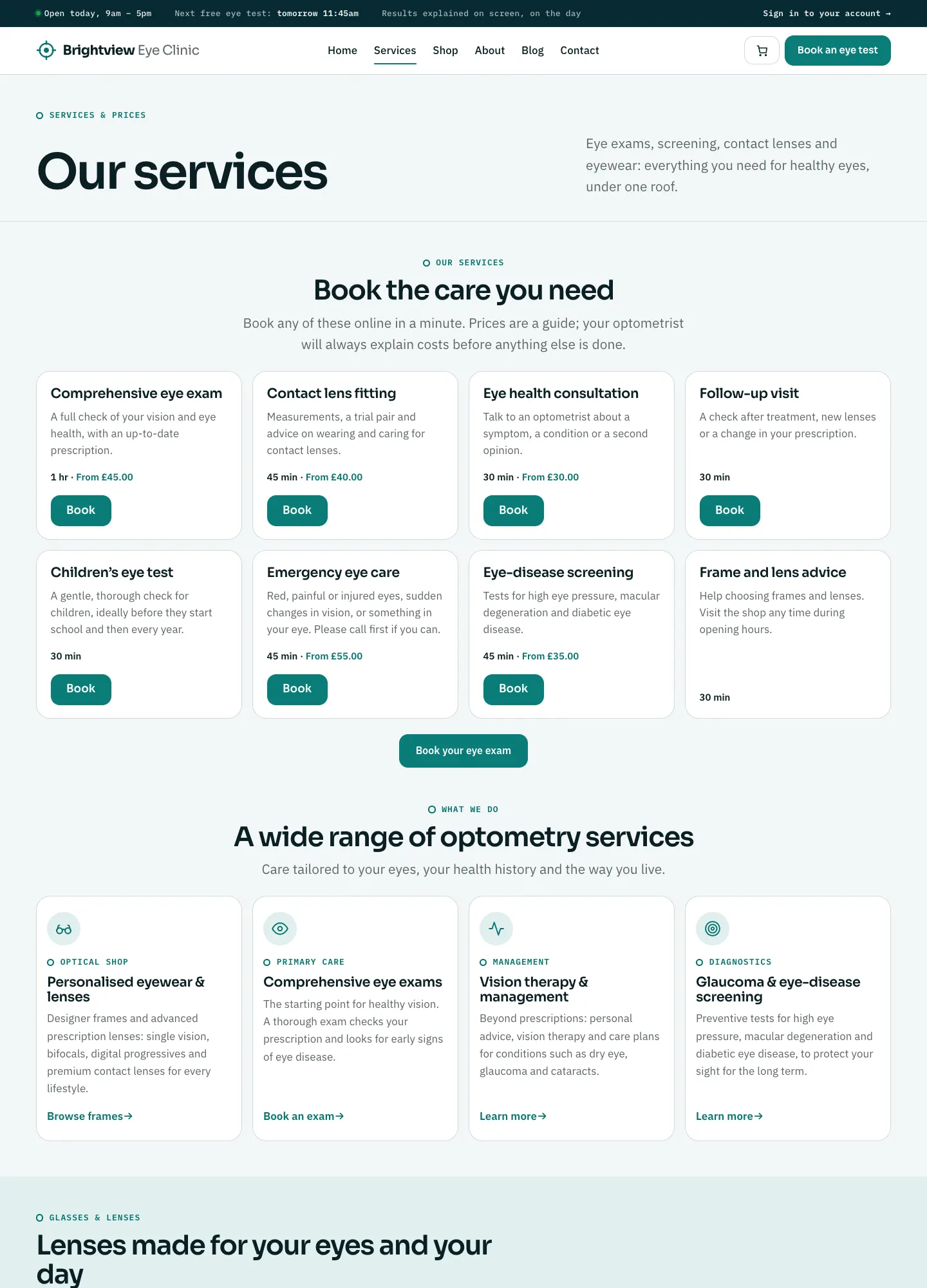
- The Services page and the services section on the home page.
- Step 1 of the booking form, Choose a service. Only services ticked for online booking appear there.
- The Today screen, calendar and appointment emails.