Running your website
Areas covered and the postcode check
How to set up the towns and postcode districts you pick up from, how learners check their postcode, and what happens when nobody covers it.
On this page
Every lesson starts with a pickup, so your website needs to know where you teach. You list your areas (towns or parts of town) and the postcode districts in each. When a learner types their pickup postcode, the website finds the area it belongs to and offers only the instructors who cover that area, in the gearbox the learner wants. Postcodes nobody covers get a friendly "we'll check" form instead of a dead end.
Features marked (Pro) need a Pro or Agency licence.
How areas and postcodes work
- Each area has a list of postcode districts, such as "NG2, NG12". A sector such as "NG2 5" works too, if you only cover part of a district.
- A learner's pickup postcode belongs to the area with the closest match. So if one area has "NG2" and another has "NG2 5", a pickup at NG2 5DQ belongs to the second.
- Each instructor ticks the Areas they cover on their profile (see Instructors). Online booking only offers an instructor to learners whose pickup is in one of those areas.
- Each area can show its nearest test centre, for example "Colwick test centre".
How to add or change an area
-
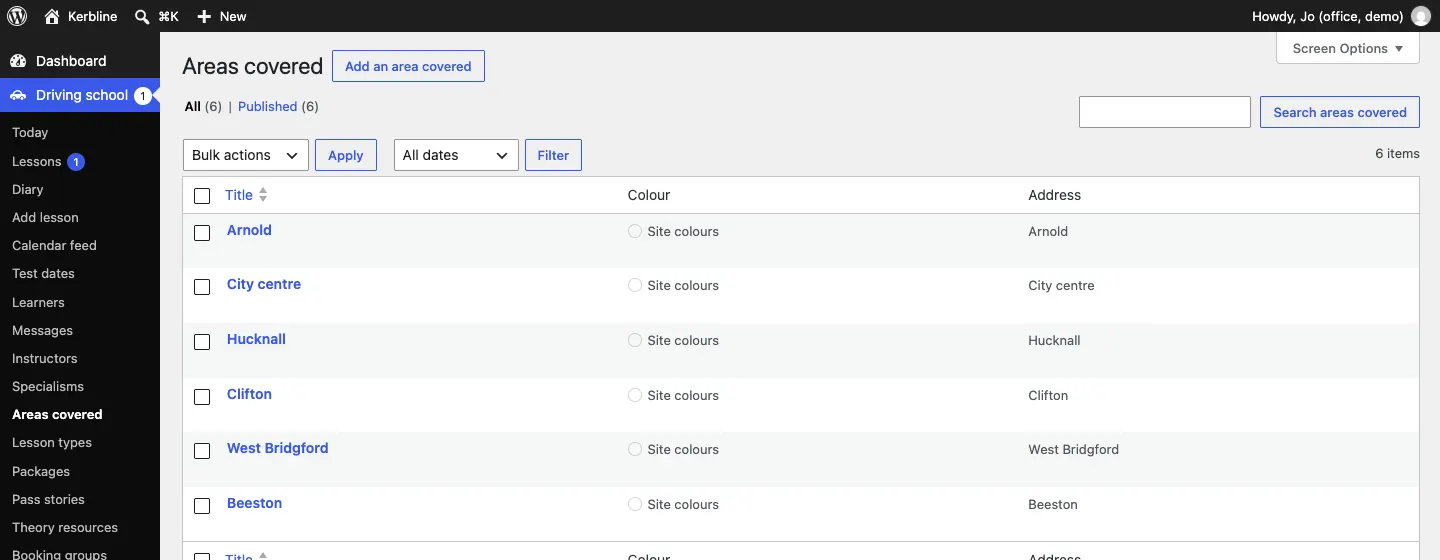
Go to Driving school → Areas covered. You see every area, with its name.
-
Click an area's name to change it, or click Add an area covered at the top for a new one.
-
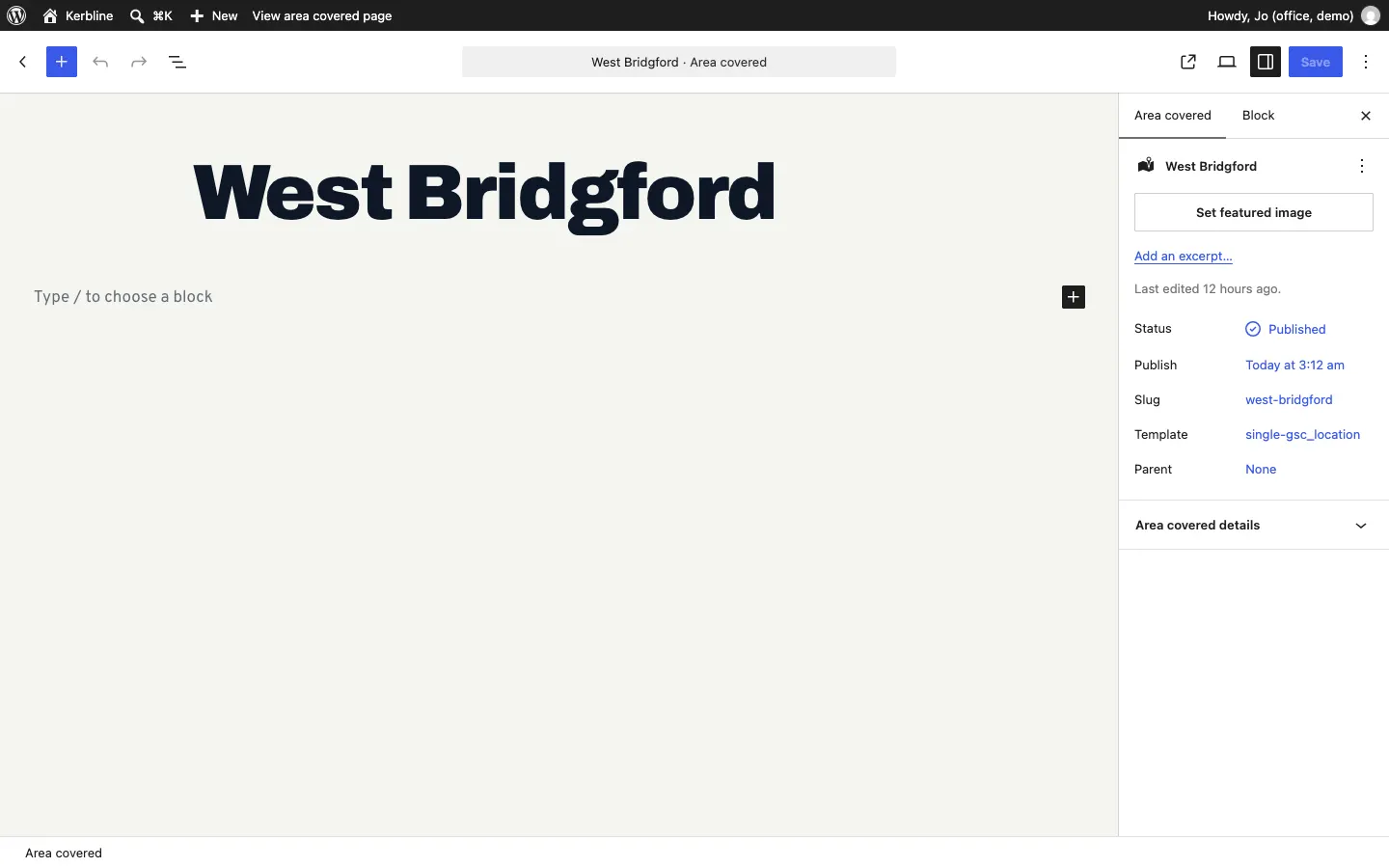
Type the area's name as the title, for example "West Bridgford". Underneath, you can write a few words about lessons there; they show on the area's own page.
-
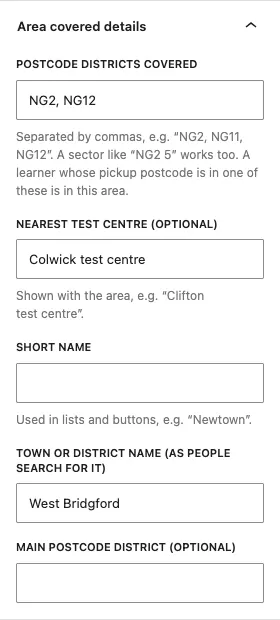
In the right-hand panel, open Area covered details.
-
Fill in:
- Postcode districts covered: separated by commas, for example "NG2, NG12".
- Nearest test centre (optional): shown with the area, for example "Colwick test centre".
- Town or district name (as people search for it): usually the same as the title.
-
Click Save.
What learners see
The Areas we cover page
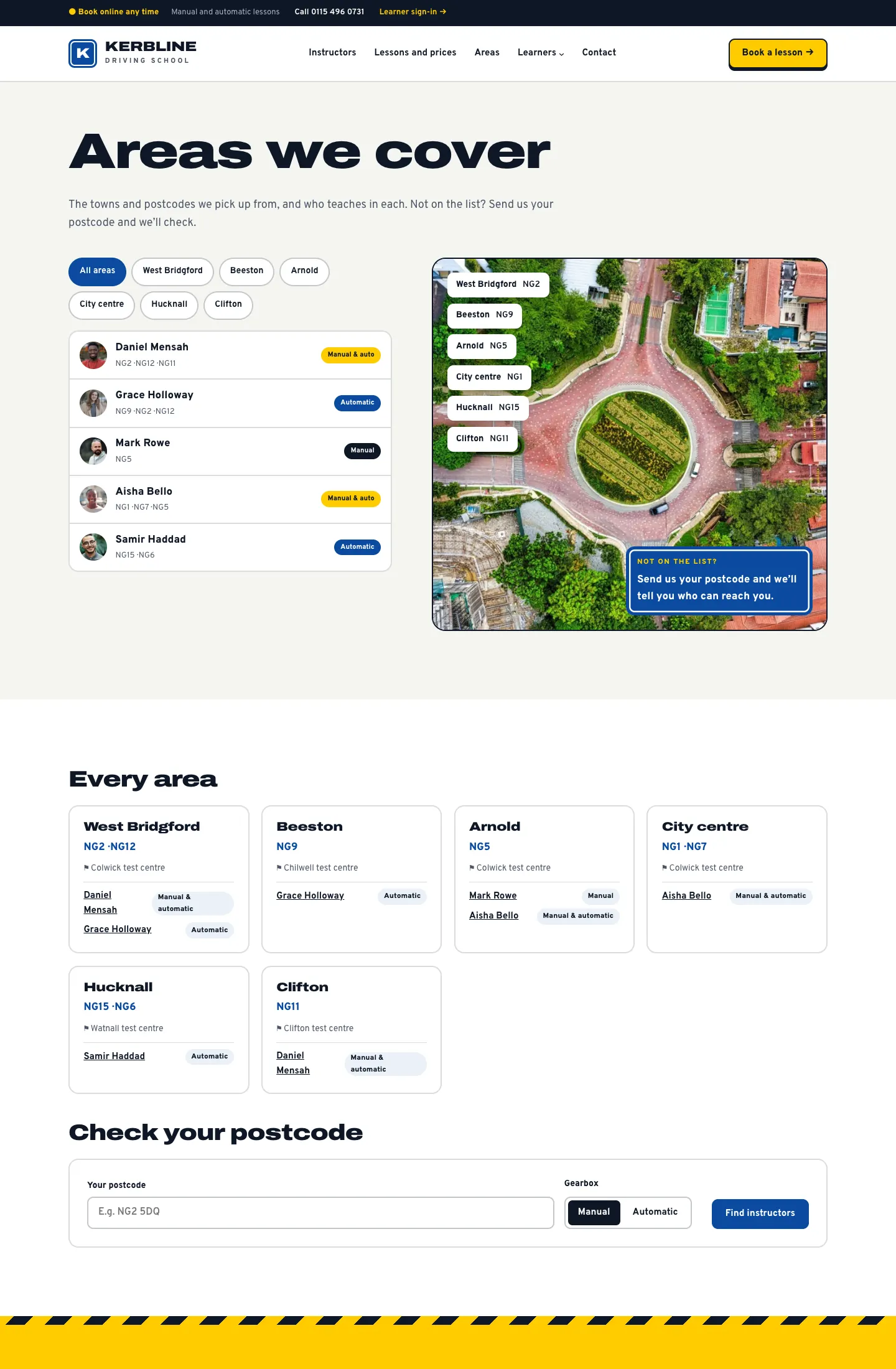
The Areas we cover page lists every area with its postcode districts, its test centre and the instructors who teach there, with their gearbox. Buttons along the top filter the list by area, and a Not on the list? box leads to the Ask us form.
Each area's own page
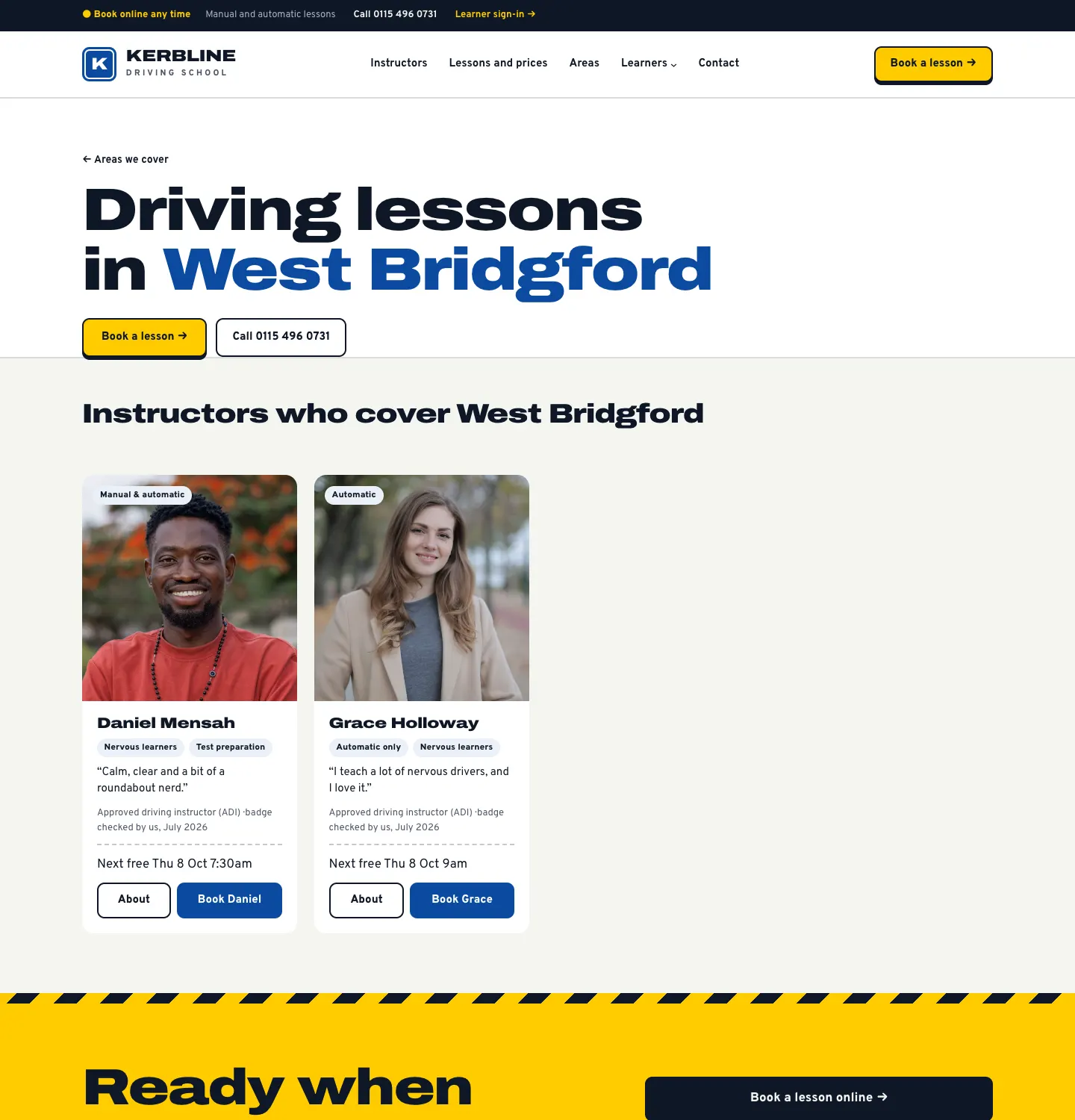
Each area has its own page, for example "Driving lessons in West Bridgford", with Book a lesson and the instructors who cover it. These pages help people searching for "driving lessons in" your town.
The postcode check
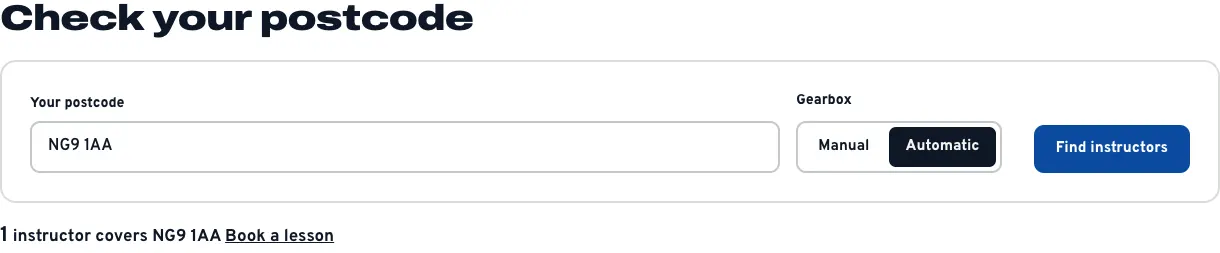
At the bottom of the Areas we cover page (and at the top of the home page in the Signal design) is Check your postcode:
- The learner types Your postcode and chooses Manual or Automatic.
- They click Find instructors.
- The website says how many instructors cover that postcode in that gearbox, for example "1 instructor covers NG9 1AA", with a Book a lesson link that carries the postcode and gearbox straight into the booking form.
The booking form does the same check at its first step. See Online booking.
When nobody covers a postcode
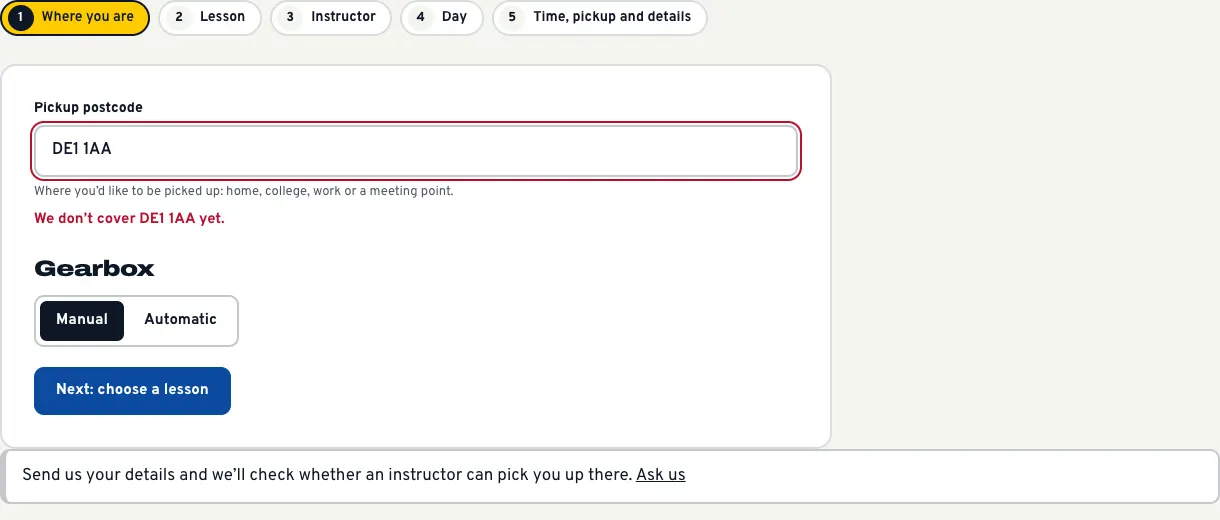
If no area matches the postcode, the booking form says, for example, "We don't cover DE1 1AA yet", and offers the Ask us button.
The Ask us page asks for the pickup postcode, when suits, the gearbox and the learner's details (with a parent or guardian if they're under 18). It also answers common questions such as "Do you pick up from college or work?".
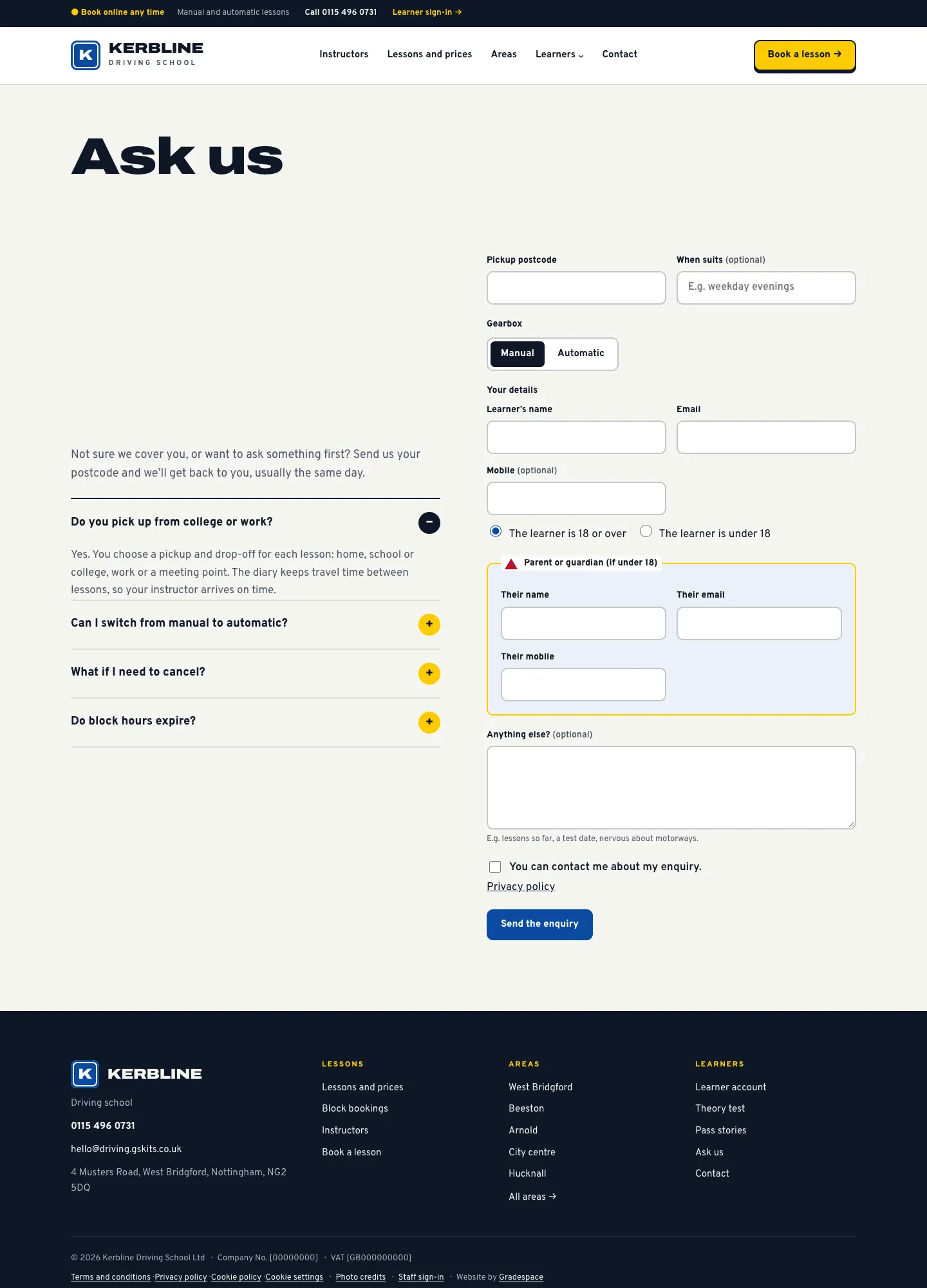
The enquiry arrives under Driving school → Messages and by email ("New enquiry"), and the learner gets a "thanks" email. See Messages, enquiries and theory resources.
Travel time between areas (Pro)
When one instructor has lessons in two different areas, the diary keeps time free between them for the drive, and online booking only offers times the instructor can get there for. You set the travel time under Driving school → Settings → Lessons → Travel between areas:
- Travel time between two different areas (minutes): used for every pair of areas (15 by default; 0 for none).
- Travel time for particular pairs of areas: one per line, for areas further apart, for example
Clifton to West Bridgford: 20. It works both ways.
Travel time shows in the diary as a striped block. See Settings and Lessons and the diary.