Running your website
Learners and parents
The learner record: what it keeps (and never keeps), parents and guardians for under-18s, staff notes, lessons and notes, progress scores, the review list and requests to see or delete data.
On this page
A learner record is made the first time someone books or buys hours, matched by their email and name. You can also add one yourself. It keeps the essentials only: date of birth, contact details, gearbox, whether they hold a provisional licence (yes or no), their theory pass, their practical test, the pickups they've used, block hours (Pro), progress (Pro), your notes and, for under-18s, a parent or guardian.
Features marked (Pro) need a Pro or Agency licence.
The learners list
Go to Driving school → Learners.
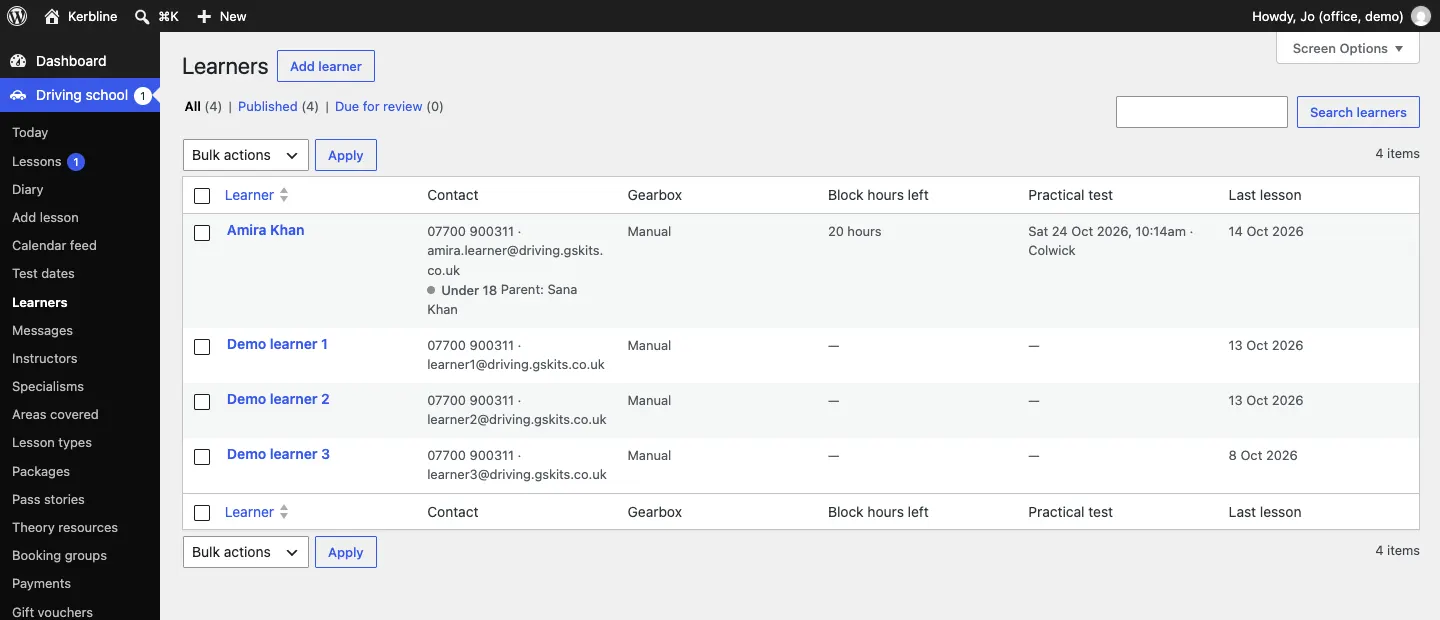
The columns are Learner, Contact (with an Under 18 label and the parent's name), Gearbox, Block hours left (Pro), Practical test and Last lesson. Click a learner's name to open their record.
How to add or edit a learner
- Click Add learner, or a learner's name.
- Type their full name as the title.
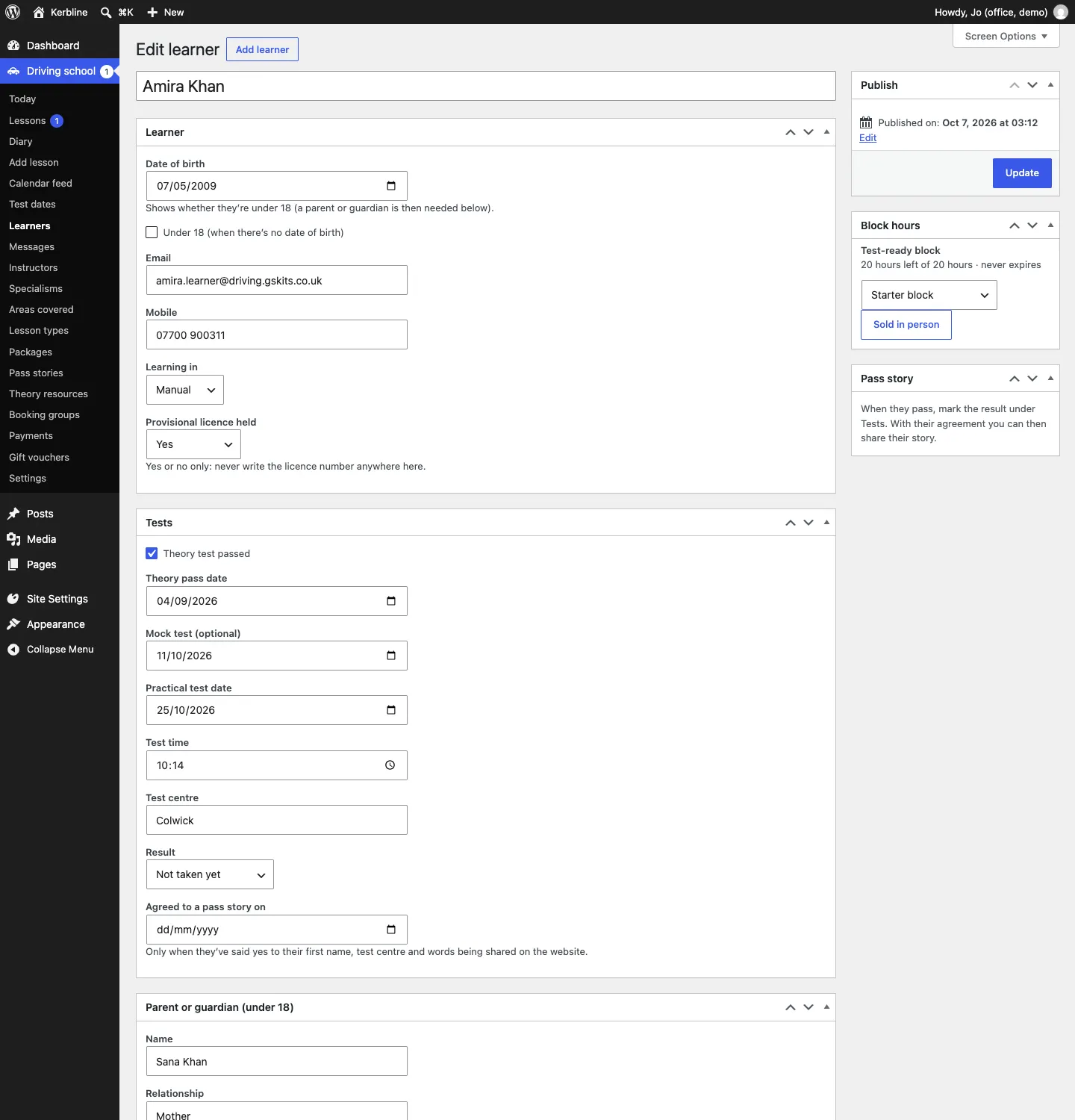
- Fill in the Learner box:
- Date of birth: shows whether they're under 18 (a parent or guardian is then needed below). If you don't know it, tick Under 18 (when there's no date of birth).
- Email and Mobile.
- Learning in: Manual or Automatic.
- Provisional licence held: Not asked yet, Yes or Not yet. Yes or no only.
- Fill in the other boxes as needed (below), and click Update (or Publish for a new learner).
Tests
The Tests box holds Theory test passed, the Theory pass date, a Mock test (optional) date, the Practical test date, Test time and Test centre, the Result (Not taken yet, Passed or Not passed this time) and Agreed to a pass story on.
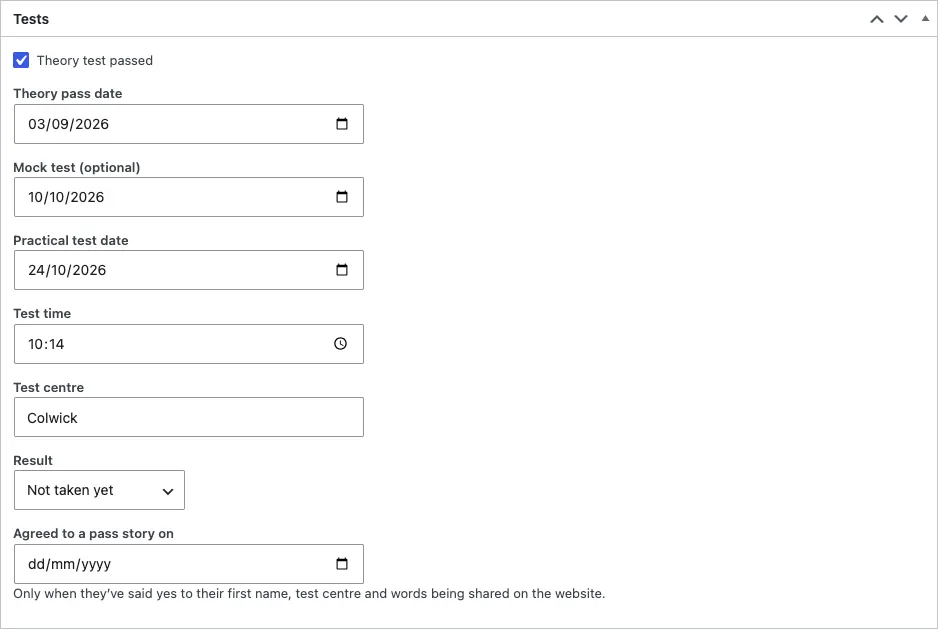
When you (or the learner) add or change the test date, they and the parent of an under-18 get one email ("Test date noted"). Instructors see the test in the diary. See Test dates and pass stories.
Parent or guardian (under 18)
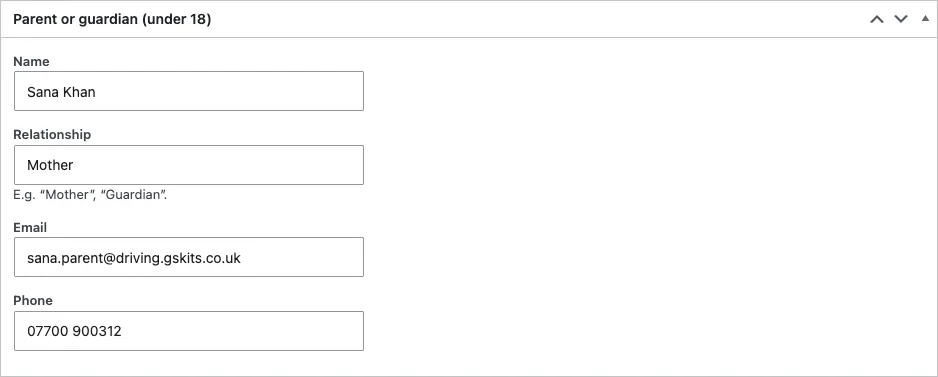
For learners under 18, fill in the parent or guardian's Name, Relationship (for example "Mother" or "Guardian"), Email and Phone. They get a copy of every email: confirmations, reminders, changes, cancellations, receipts and test dates. They never see the instructor's lesson notes.
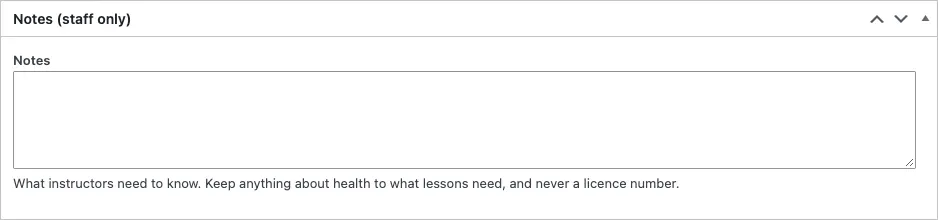
Notes (staff only)
Notes is for what instructors need to know. Keep anything about health to what lessons need, and never write a licence number.
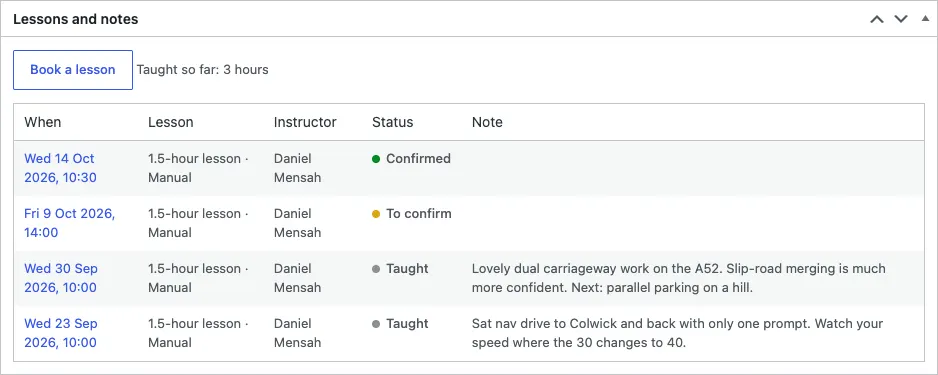
Lessons and notes
Lessons and notes lists every lesson with the instructor, status and the note after it, and how many hours have been taught so far. Book a lesson opens Add lesson with this learner chosen.
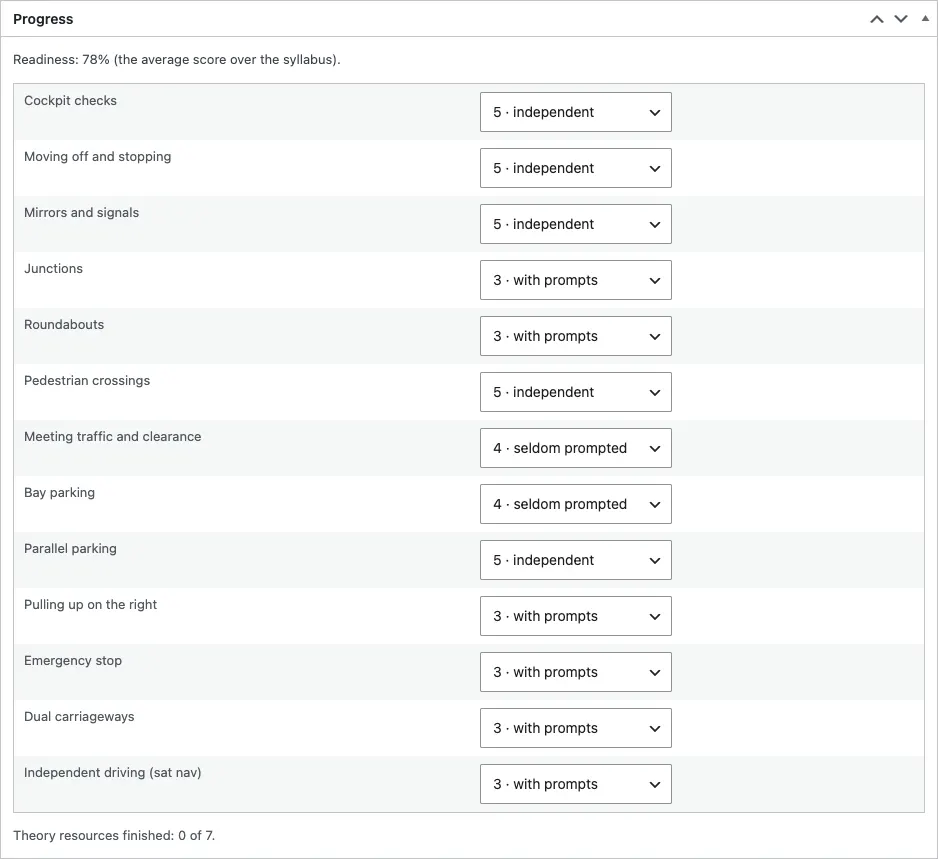
Progress (Pro)
Progress shows the learner's readiness (the average score over your syllabus) and each skill's score from 1 · introduced to 5 · independent. Instructors normally score after each lesson (see Lessons and the diary), but you can change a score here too. Underneath, it shows how many theory guides the learner has finished.
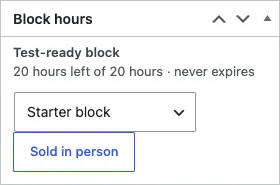
Block hours (Pro)
The Block hours box shows the learner's package and the hours left, for example "Test-ready block, 20 hours left of 20 hours · never expires". To add a package bought at the desk, choose it from the list and click Sold in person. See Block bookings and courses.
Learners under 18
- The website works out who is under 18 from the date of birth.
- Learners must be at least 17 on the day of the lesson (you can change this under Settings → Lessons).
- Under-18s need a parent or guardian's name, email and phone when they book. The parent can also pay for block hours (Pro) and gets the receipt.
- The Under 18 label shows on the learner in every list, so instructors know.
Due for review
Data protection law asks you to keep personal data only as long as you need it.
- Go to Driving school → Learners → Due for review. It lists learners whose last lesson (or, if they never had one, the day they were added) was more than 24 months ago. Change the period under Settings → Records.
- Look through each one.
- Delete the record only if there's no reason to keep it. Their lessons stay in the diary without their details.
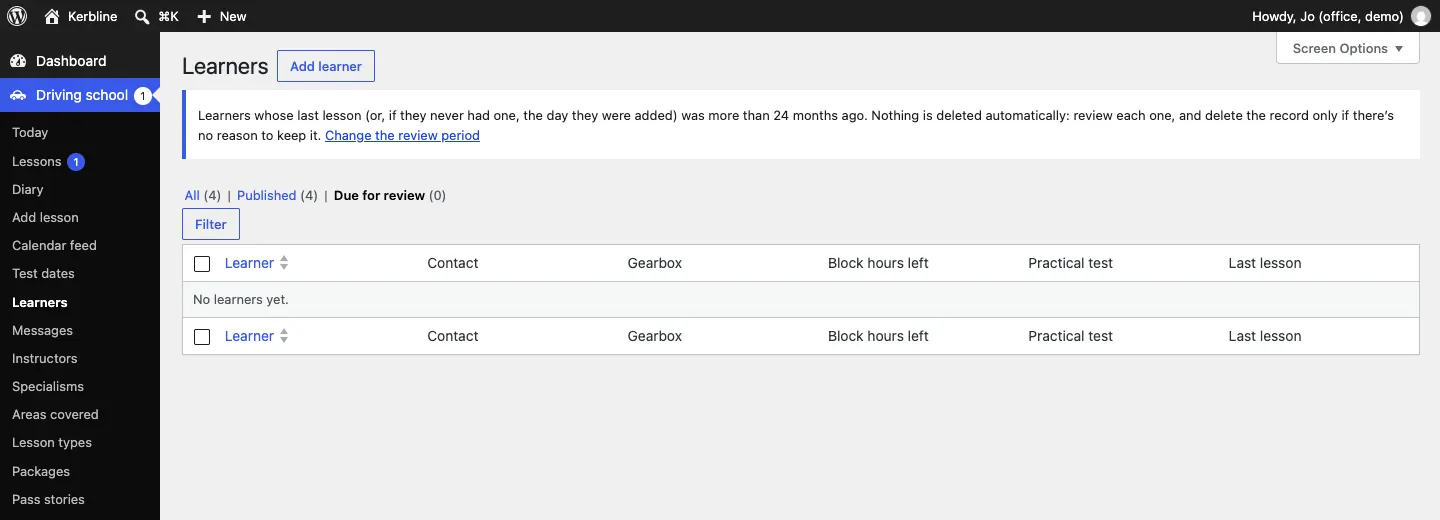
Nothing is ever deleted automatically.
Requests to see or delete data
A learner can ask for a copy of their data, or to close their account, from their learner account (Pro), or by contacting you. These requests arrive under Tools → Export Personal Data and Tools → Erase Personal Data. Check who is asking before you act. See Privacy and emails.