Running your website
Online booking: the learner's side
The five booking steps a learner goes through on your website, the pickup and drop-off, learners under 18, booking several lessons at once, and how learners move, change the pickup or cancel.
On this page
This chapter walks through Book a lesson as a learner sees it, so you can explain it on the phone and know what to expect in the office. The form has five short steps. It only ever offers real free times: when the instructor teaches, isn't away, has nothing else booked (with the gap you set), and (Pro) can drive there in time from their lesson before and on to the next one.
Features marked (Pro) need a Pro or Agency licence.
Step 1: Where you are
- The learner clicks Book a lesson (in the header, on any instructor or on any price).
- They type their Pickup postcode: where they'd like to be picked up, such as home, college, work or a meeting point.
- They choose Manual or Automatic, and click Next: choose a lesson.
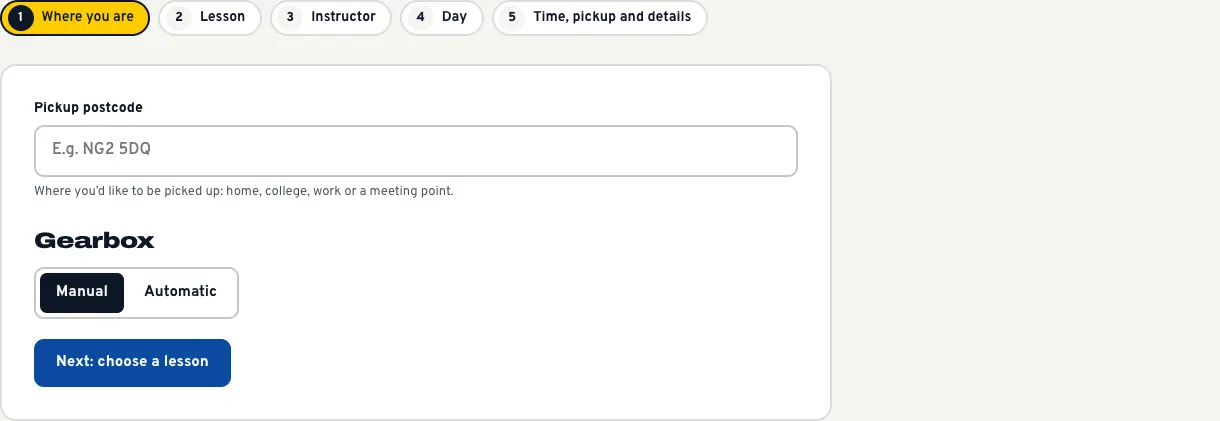
If none of your areas covers the postcode, the form says so and offers Ask us instead. See Areas covered and the postcode check.
Step 2: Lesson
The learner chooses a lesson length: the First lesson (if they're new), or 1, 1.5 or 2 hours, with the price for their gearbox. Under the lessons, a link offers block bookings (Pro).
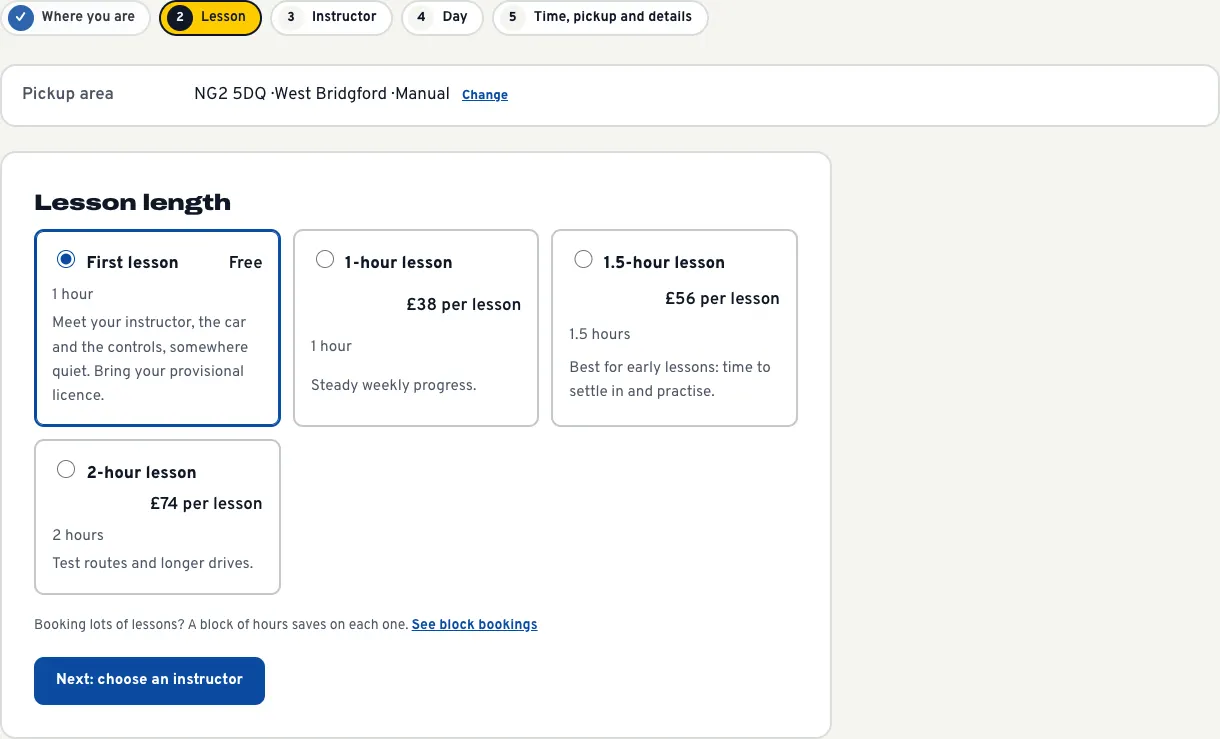
Every step they've done shows at the top with a Change link, so they can go back without starting again.
Step 3: Instructor
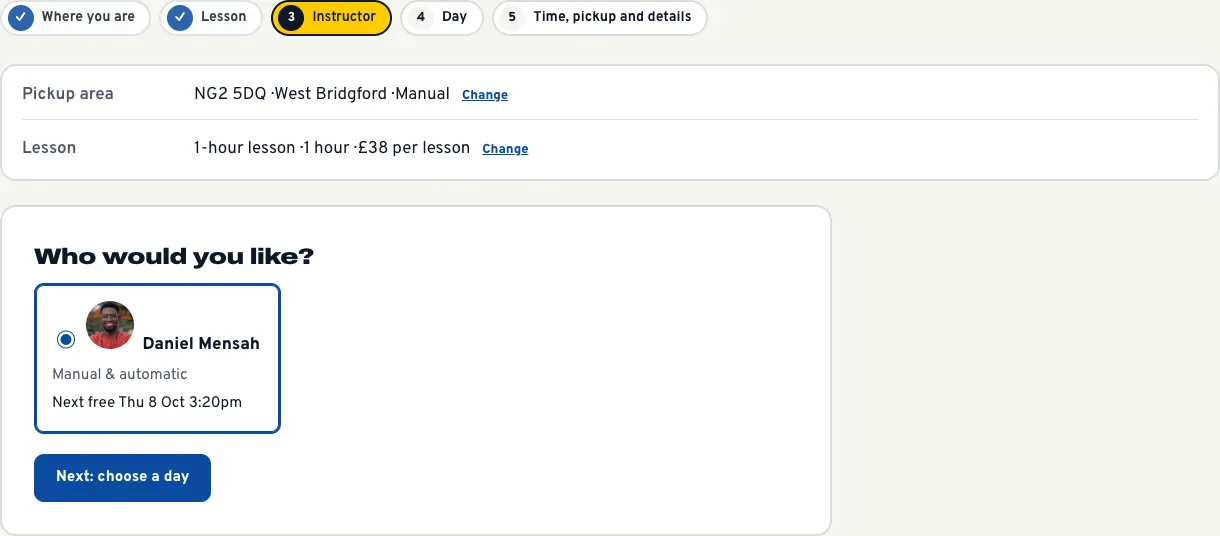
The form shows each instructor who covers their area in that gearbox, with their next free time. When more than one instructor covers it, Any instructor (the most free times) comes first; when only one does, that instructor is already chosen.
Step 4: Day
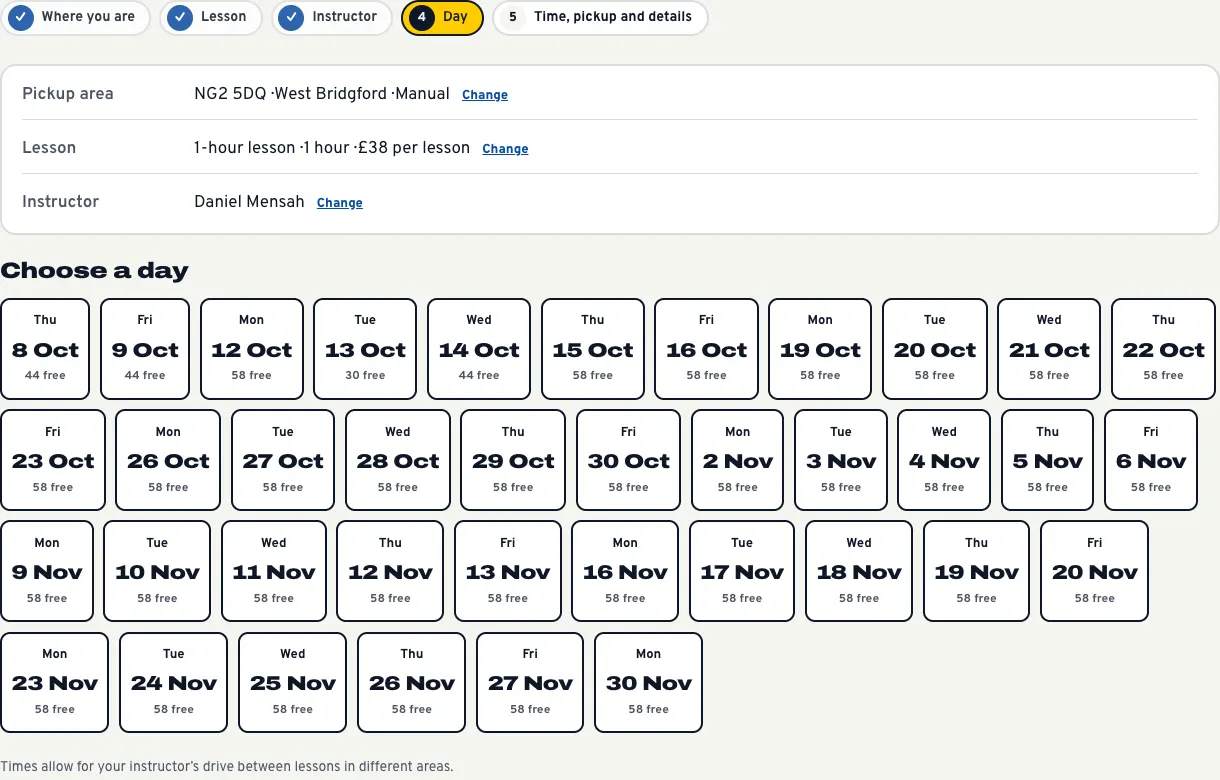
The learner picks a day. Each day shows how many start times are free. Days with nothing free, days the school is closed and days beyond Book up to (weeks ahead) don't appear.
Step 5: Time, pickup and details
This last step has everything else on one page, with a Your lesson summary beside it.
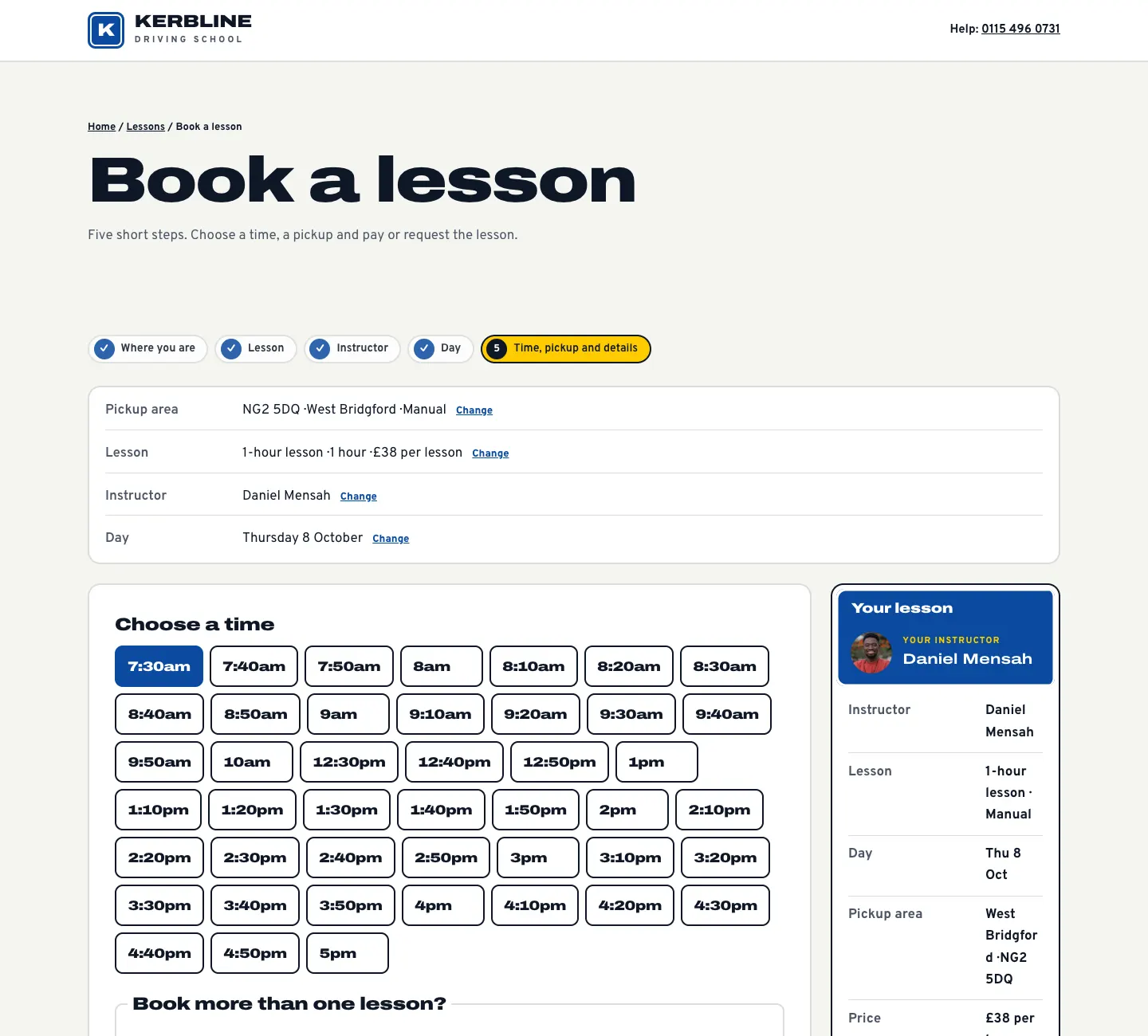
- Choose a time. Start times are offered every 10 minutes by default, so a lesson can start as soon as the instructor arrives.
- Book more than one lesson? (if switched on): Just this lesson, Several lessons (every week at the same time, for a number of weeks) or Weekly until a date. See below.
- Pickup and drop-off. They choose Home, School or college, Work or Meeting point, then type the Pickup address. The postcode is the one from step 1 (to pick up somewhere else, they change the area at the top). They choose Drop me back at the same address or Drop me somewhere else.
- Note for your instructor (optional), for example "Side entrance. Please text when outside." The form asks them not to write their licence number.
- Your details: Learner's full name, Date of birth, Email and Mobile.
- Parent or guardian (if the learner is under 18): name, email, mobile and relationship.
- Theory test: Passed or Not yet, and the theory pass date if they know it.
- They tick I hold a valid provisional driving licence and will bring it to the first lesson. The website only notes that they have one, never the number.
- They read your note and cancellation policy, tick I agree to the lesson terms and you can contact me about my lessons., and click Request the lesson (or Book the lesson if you confirm bookings straight away).
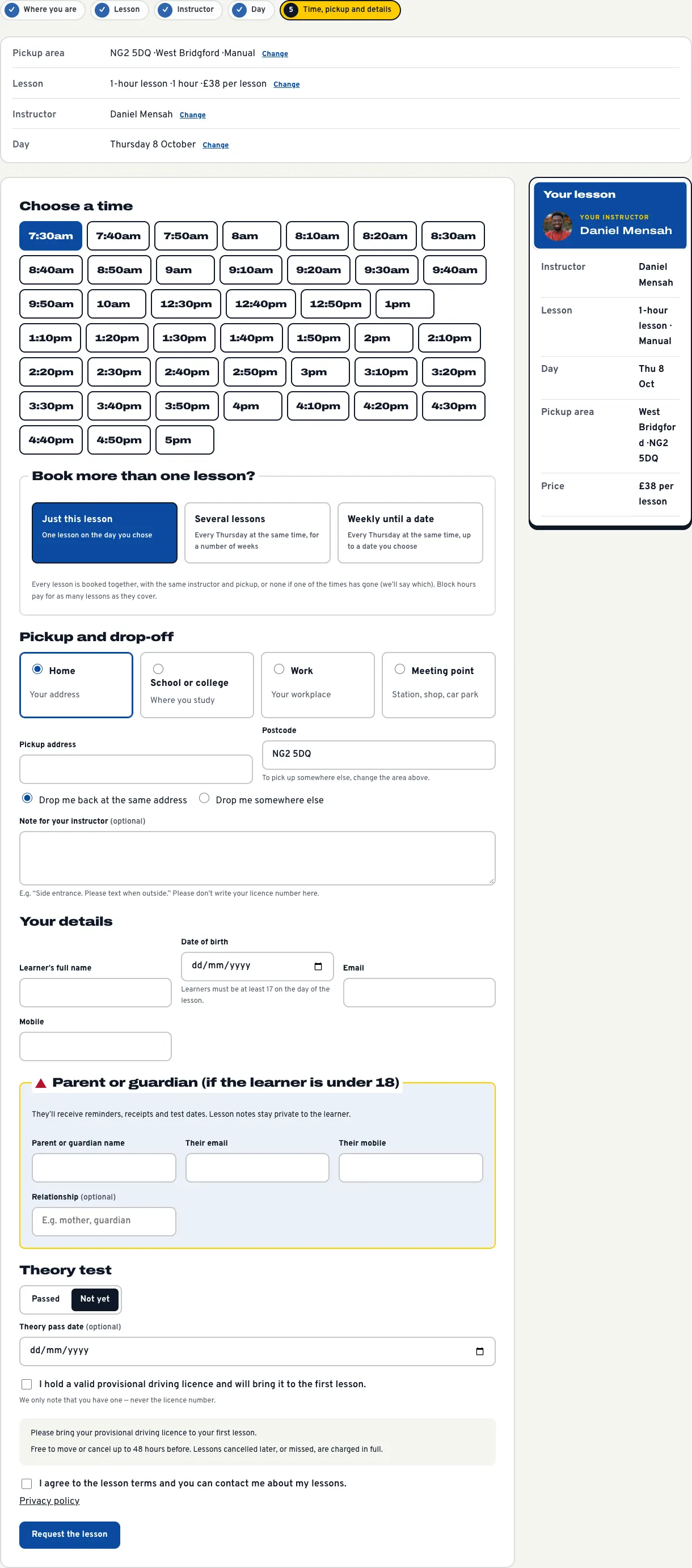
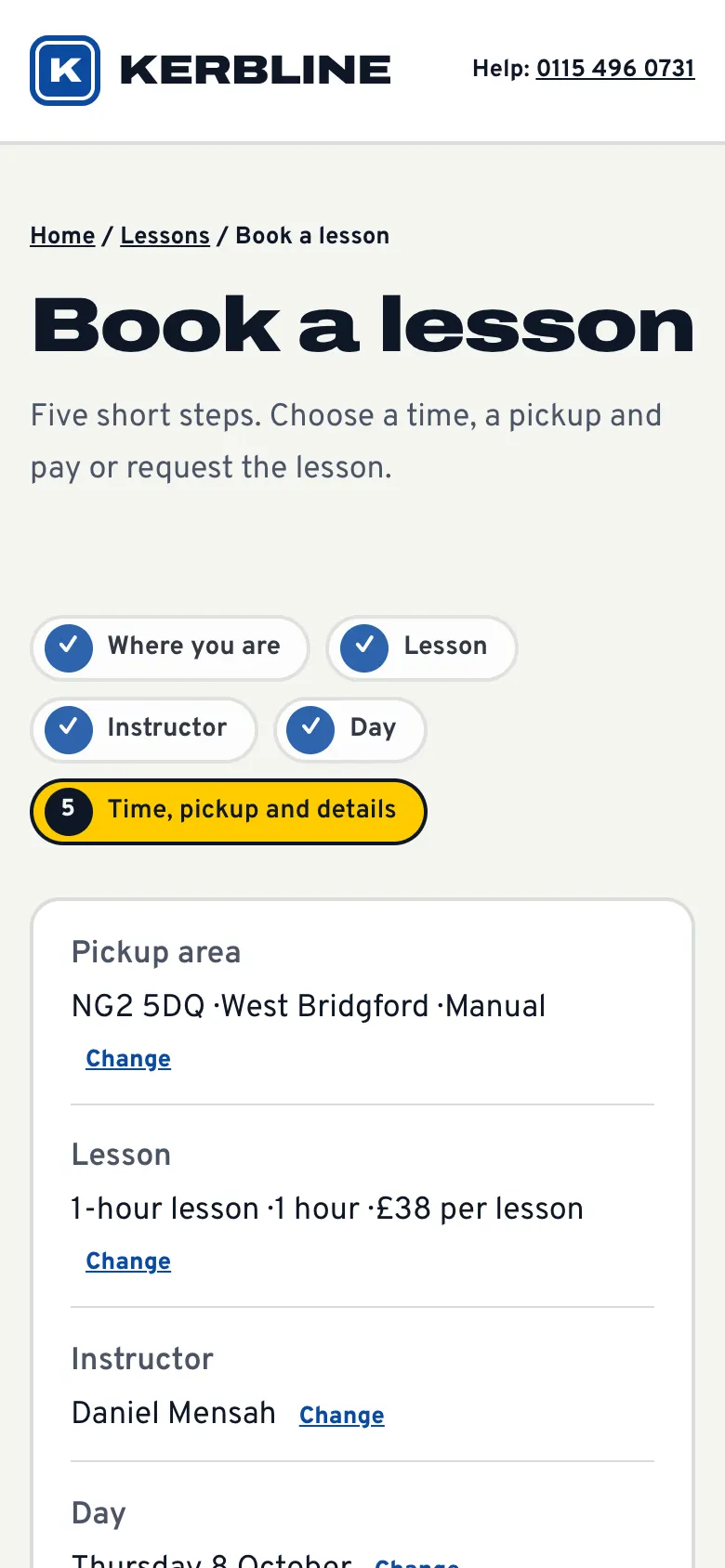
On a phone the steps stack one under the other, and the summary moves below the form.
Learners under 18
The form works out the learner's age from their date of birth:
- Learners must be at least 17 on the day of the lesson. You can change the age under Settings → Lessons → Learners under 18 (for example 16 for learners who get the higher rate of the mobility part of Personal Independence Payment; book those by phone).
- If they're under 18, the parent or guardian's name, email and phone are needed. The parent gets a copy of every email: confirmations, reminders, changes, cancellations, receipts and test dates.
- The instructor's lesson notes are never emailed to anyone, and the parent doesn't see them.
After they book
What happens next depends on Settings → Lessons → Confirm online bookings straight away:
- Off (the default): the booking is a request. The time is held, the learner is told you'll confirm by email, and it waits for you under Lessons → To confirm. When you click Confirm, they get the confirmation.
- On: the lesson is confirmed at once.
The confirmation email has the pickup, the instructor and the car, a calendar invite and a link to see, move, change the pickup or cancel. The day before each confirmed lesson, from about 8am, the learner (and the parent of an under-18) gets a reminder with the pickup. Each lesson is reminded once.
(Pro) The first time someone books, they also get an email with a link to set a password for their learner account. See The learner account.
Booking several lessons at once
If Learners can book several lessons at once is on (it is by default), the last step offers:
- Just this lesson: one lesson on the day they chose.
- Several lessons: the same time every week (for example every Thursday) for a number of weeks.
- Weekly until a date: the same time every week, up to a date they choose.
Every lesson is booked together, with the same instructor and pickup, or none at all if one of the times has gone (the form says which). Any instructor keeps the same instructor for the whole set: the first who is free every week. The most lessons in one go is 12 by default (The most lessons in one go under Settings → Lessons).
Block hours (Pro) pay for as many lessons as they cover. A signed-in learner can also choose to pay for every lesson with their block hours, which first checks there are enough.
The learner gets one email (with a copy to the parent of an under-18) and one calendar file with every lesson. Sets show in the office under Driving school → Booking groups. See Lessons and the diary.
How learners move, change the pickup or cancel
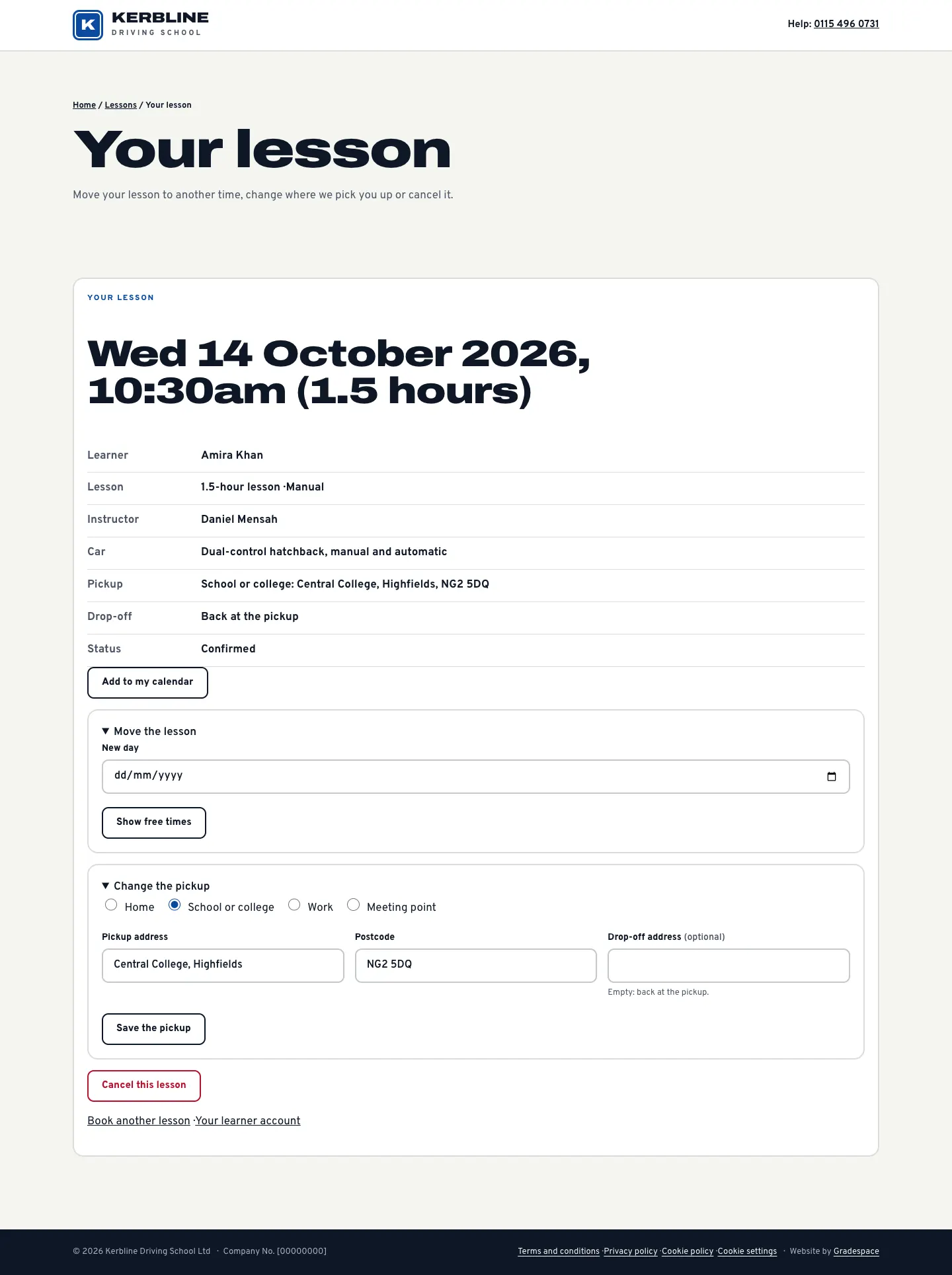
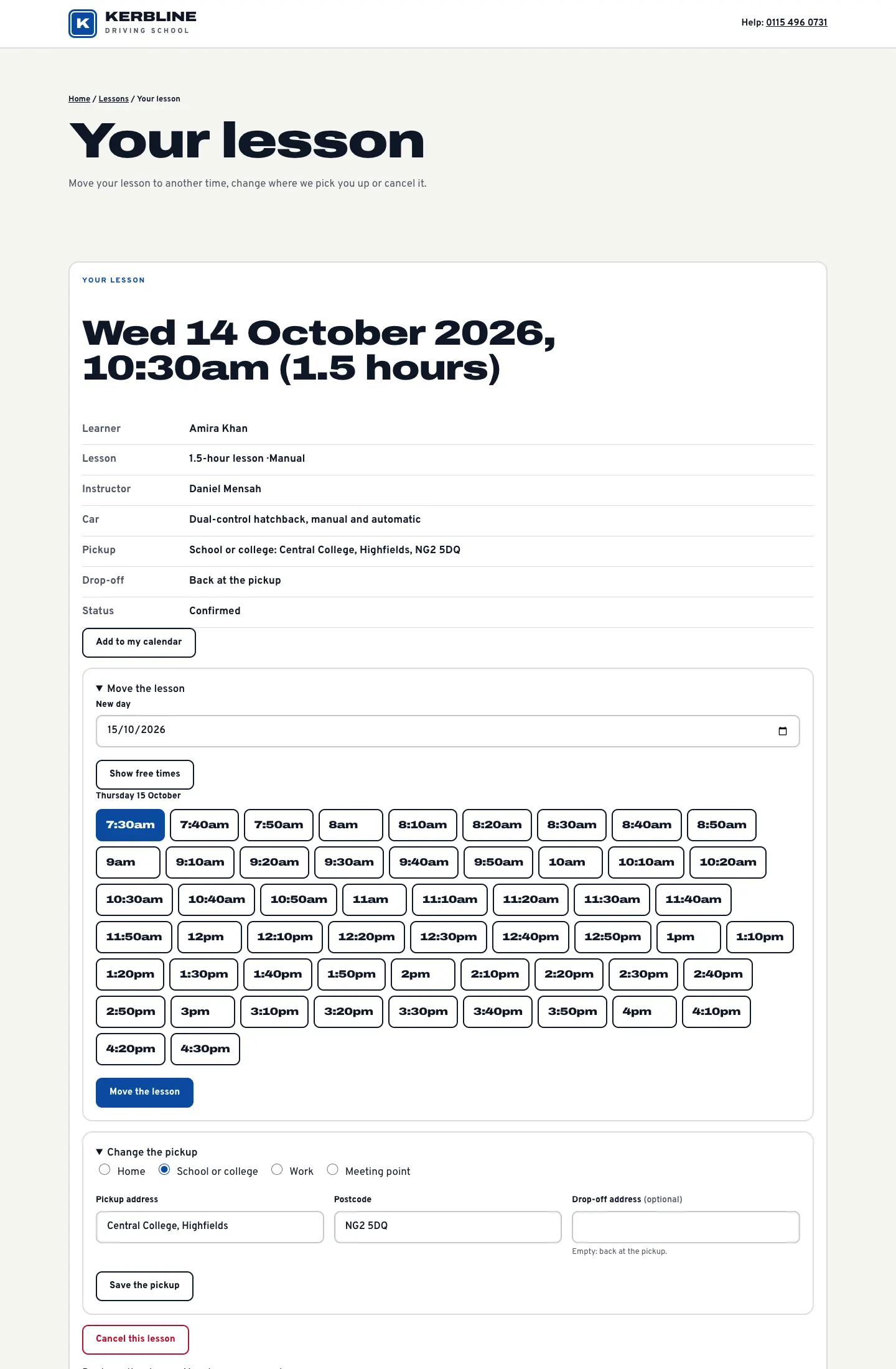
Every email has a link to the lesson's own page, headed Your lesson: "Move your lesson to another time, change where we pick you up or cancel it." (Pro) the learner account has a Move, change pickup or cancel link on each lesson.
-
Add to my calendar downloads the lesson for their calendar.
-
Move the lesson: they choose a New day, click Show free times and pick a new time with the same instructor.
-
Change the pickup: they choose Home, School or college, Work or Meeting point, change the Pickup address, Postcode and Drop-off address, and click Save the pickup. A new pickup must be in an area their instructor covers (and, Pro, reachable in time).
-
Cancel this lesson frees the time and emails you ("Cancelled by the learner").
Learners can do this until the cut-off under Settings → Lessons → Learners can move or cancel online until (hours before): 48 hours by default. After that, the link asks them to call you.