Running your website
Instructors
How to add instructors and their public pages, the areas and gearbox they teach, their hours and days off, the badge check, their own sign-in and diary, and calendar feeds.
On this page
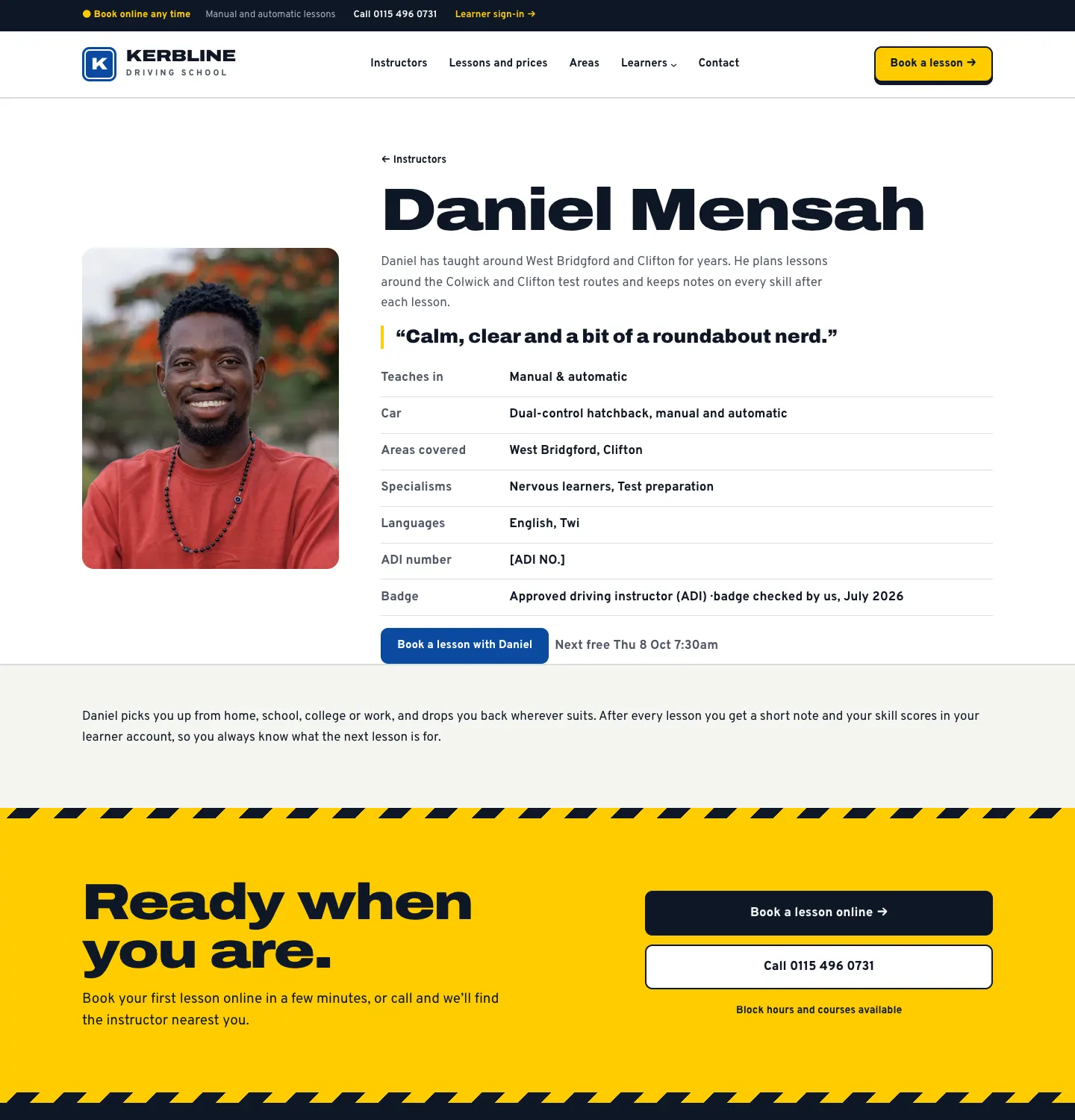
Each instructor has a profile that does two jobs. On the website it is their public page: their photo and words, gearbox, car, languages, specialisms, the areas they cover and a Book button. Behind the scenes it decides who learners are offered online: an instructor only appears to learners whose pickup is in one of their areas, in a gearbox they teach, at times inside their hours.
Instructors can sign in to see their own diary, keep their profile and hours up to date and write a note after each lesson. The office keeps control of the name, the badge check and the booking switch.
Features marked (Pro) need a Pro or Agency licence.
How many instructors you can offer
- Starter offers the first three instructors (by their Order number) for online booking. You can still add more profiles.
- (Pro) offers as many as you like, and adds the Office role for staff who run the diary without being administrators.
How to see your instructors
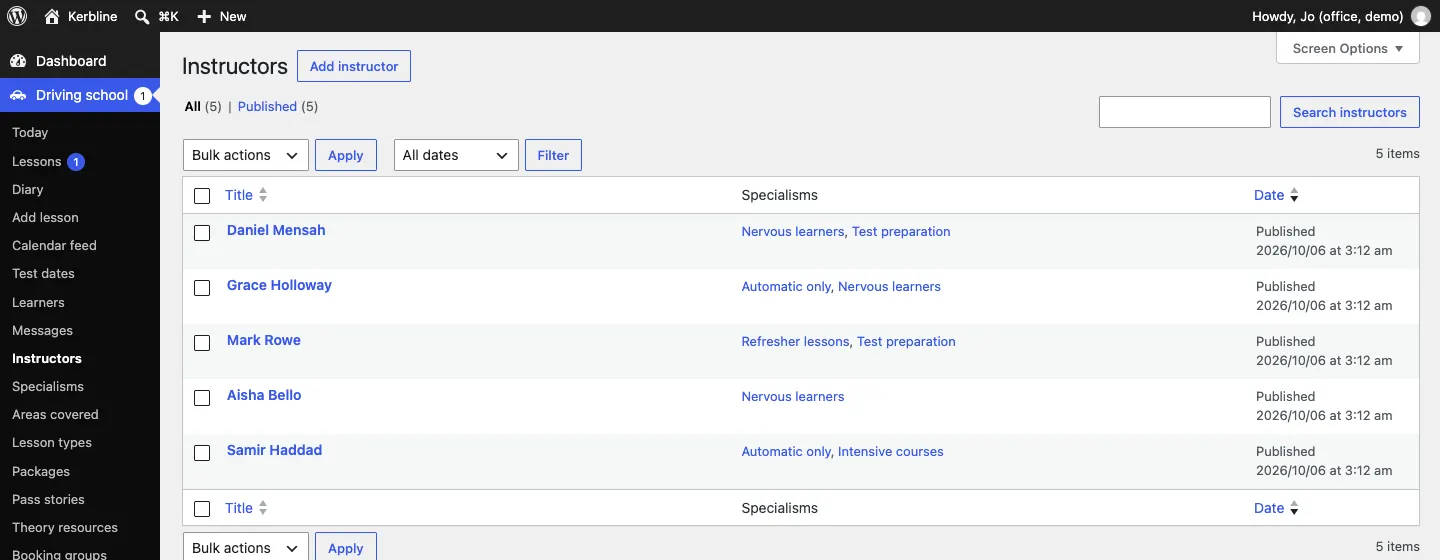
Go to Driving school → Instructors. The list shows each instructor with their specialisms.
How to add or edit an instructor
-
Click an instructor's name, or Add instructor at the top.
-
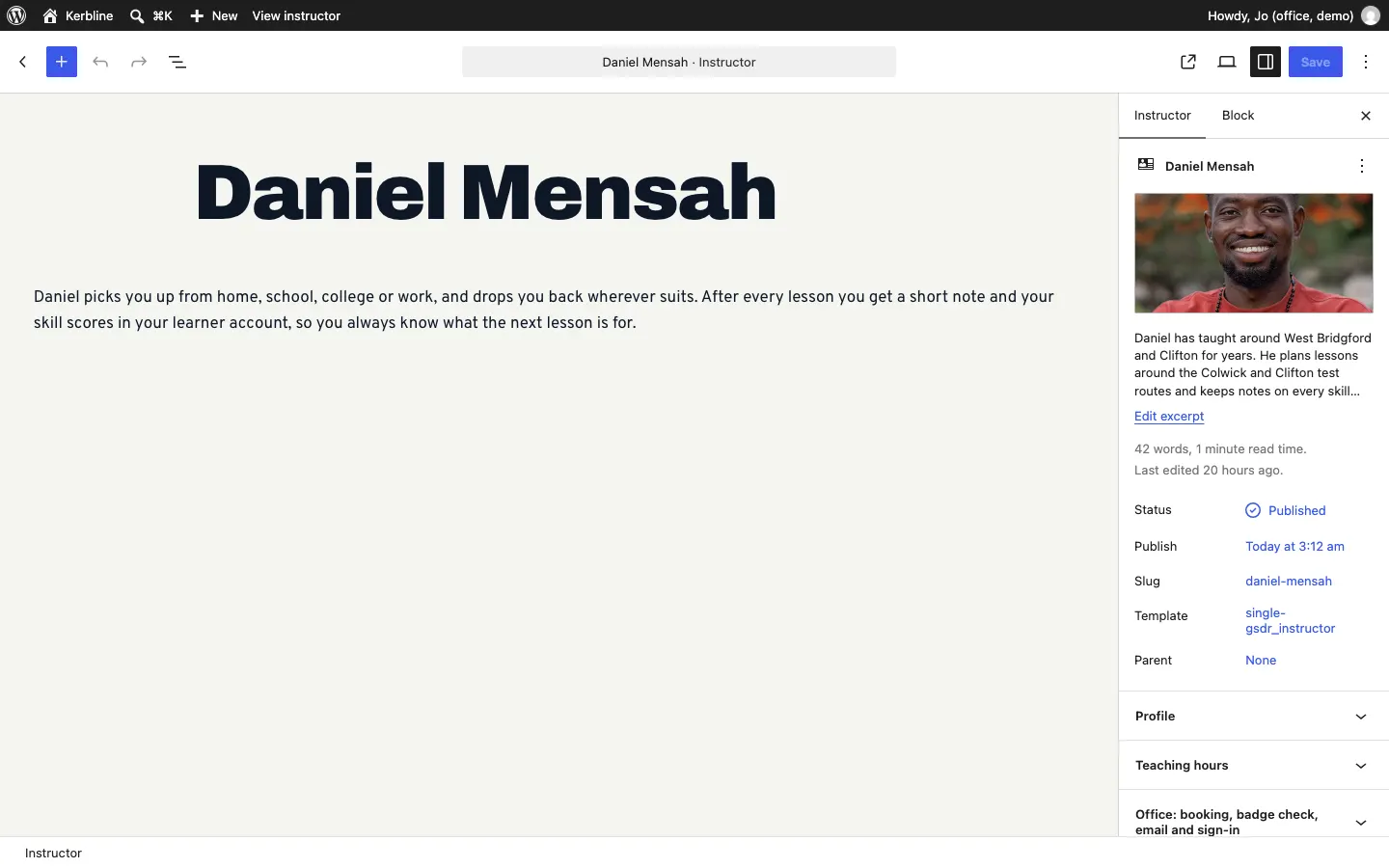
Type their full name as the title.
-
Write a few words about them in the main area. These appear on their public page.
-
Add their photo and a short summary (the excerpt) in the right-hand panel. The summary shows at the top of their page.
-
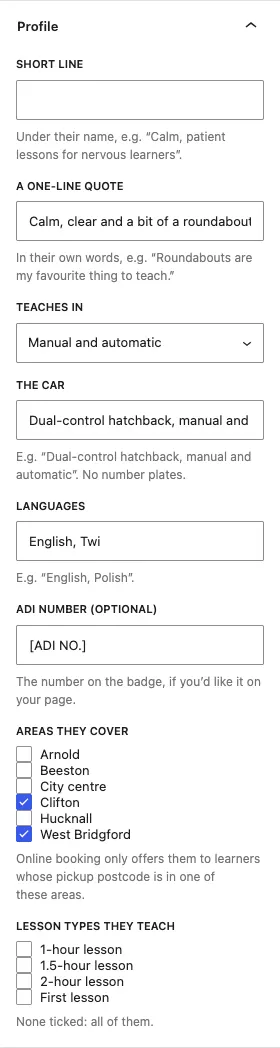
Open the Profile panel on the right and fill in:
- Short line: under their name, for example "Calm, patient lessons for nervous learners".
- A one-line quote: in their own words, for example "Roundabouts are my favourite thing to teach."
- Teaches in: manual, automatic, or manual and automatic.
- The car: for example "Dual-control hatchback, manual and automatic". No number plates.
- Languages: for example "English, Polish".
- ADI number (optional): the number on their badge, if they'd like it on their page.
- Areas they cover: tick each area. Online booking only offers them to learners whose pickup postcode is in one of these areas.
- Lesson types they teach: tick the ones they teach. None ticked means all of them.
-
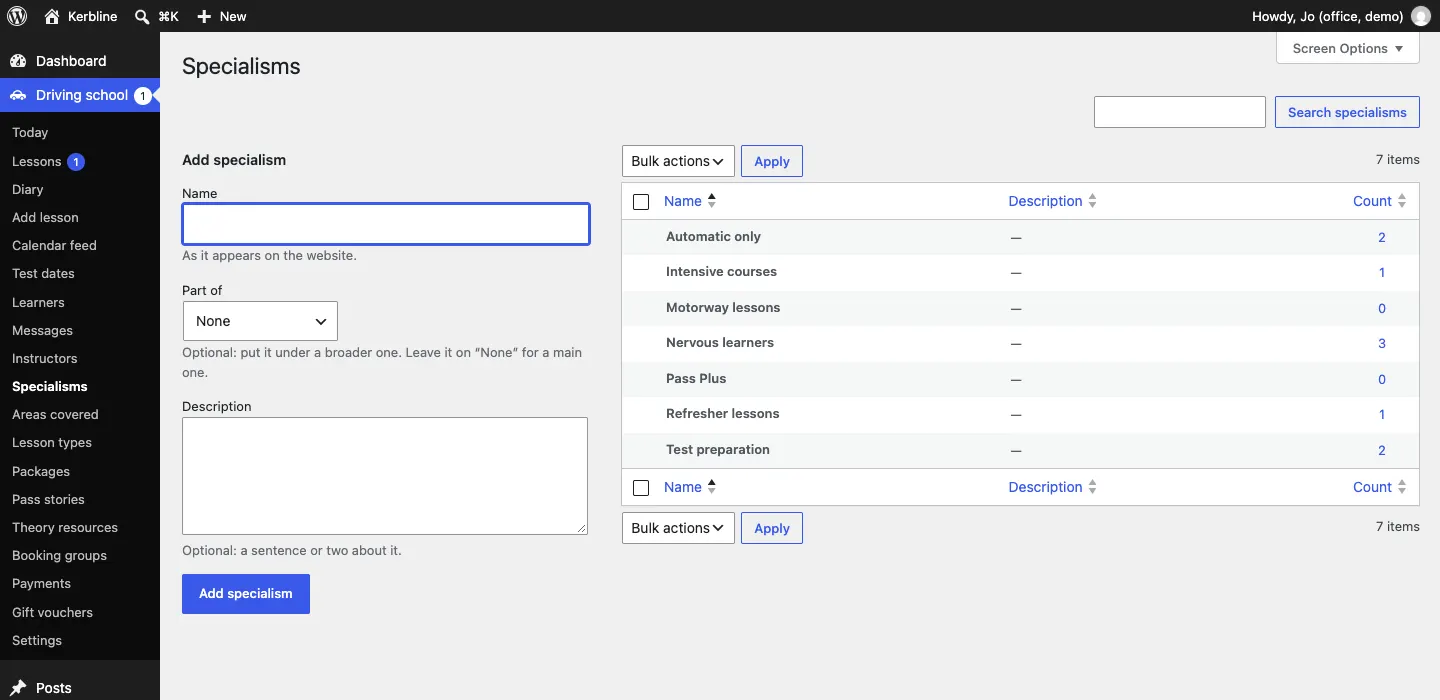
Open Specialisms and tick what fits, such as Nervous learners, Intensive courses or Pass Plus. They show as tags on the instructor's card.
-
Click Save.
How to set teaching hours and days off
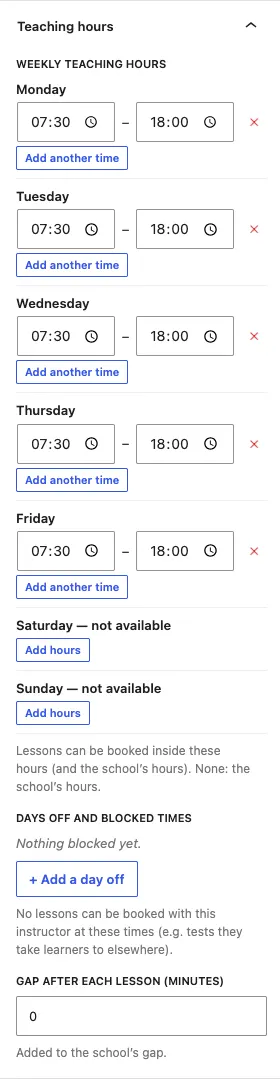
Learners can only book inside the school's opening hours and the instructor's own teaching hours.
- On the instructor's profile, open the Teaching hours panel.
- Under Weekly teaching hours, set the times for each day. Click Add another time for a split day (for example a morning and an evening), click the red cross to remove a time, or Add hours for a day they don't usually teach. No hours at all means the school's hours.
- Under Days off and blocked times, click + Add a day off for holidays, or for times such as a test they're taking a learner to elsewhere. Nothing can be booked with them then.
- Gap after each lesson (minutes) adds their own break on top of the school's gap.
- Click Save.
Instructors who sign in can change these themselves under Driving school → My hours (see below).
How to record the badge check (the Office panel)
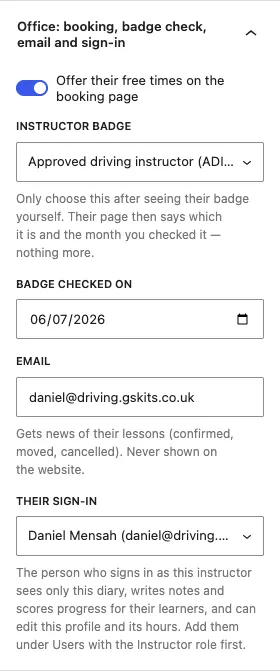
Only the office fills in the Office: booking, badge check, email and sign-in panel.
- Open the panel on the instructor's profile.
- Offer their free times on the booking page: switch off to keep someone off online booking (for example while they're new or away for a long time).
- Instructor badge: choose Approved driving instructor (ADI) or Trainee driving instructor (PDI) only after seeing their badge yourself.
- Badge checked on: the date you saw it.
- Email: gets news of their lessons (confirmed, moved, cancelled). It's never shown on the website.
- Their sign-in: see the next section.
- Click Save.
Their page then says, for example, "Approved driving instructor (ADI) · badge checked by us, July 2026", and nothing more. The website doesn't check anything itself.
How to give an instructor their own sign-in
- Go to Users → Add New and create a user for them with the Instructor role. See Staff and sign-in.
- Open their instructor profile, then the Office panel, and choose them under Their sign-in.
- Click Save.
When they sign in they see only:
- My diary: their own lessons for the next four weeks, with the pickups and the travel time between areas (Pro);
- Diary and Lessons, showing only their own lessons, with their learners' contact details;
- My hours: their weekly teaching hours, Days away and blocked times (one per line, for example
2027-02-15 to 2027-02-19 Holidayor2026-11-03 09:00-12:00 Test at Colwick) and My gap after each lesson (minutes), saved with Save my hours; - Test dates for their learners;
- their own profile, which they can edit (but not their name, web address or the Office panel).
On each lesson they can mark Taught or Didn't turn up, and write the Note for the learner and, (Pro), score progress. The office confirms, moves and cancels lessons. See Lessons and the diary.
Calendar feed (Pro)
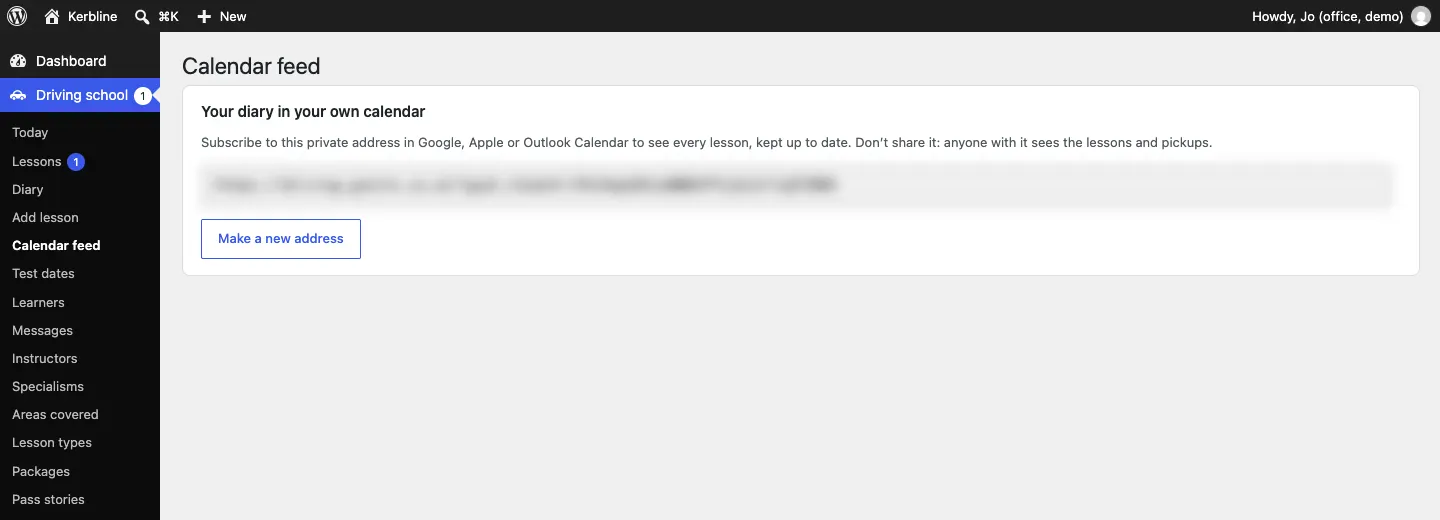
Each instructor, and the office, has a private web address to subscribe to in Google, Apple or Outlook Calendar. Every lesson then appears in their own calendar and stays up to date.
- Go to Driving school → Calendar feed (instructors see it under My diary).
- Copy the address under Your calendar address.
- In your calendar app, choose to add a calendar "from a web address" (or "subscribe") and paste it.
What learners see
The Instructors page lists every instructor with their gearbox, postcode districts, specialisms, quote, next free time and a Book button. Learners can filter by area and gearbox and click Show instructors.
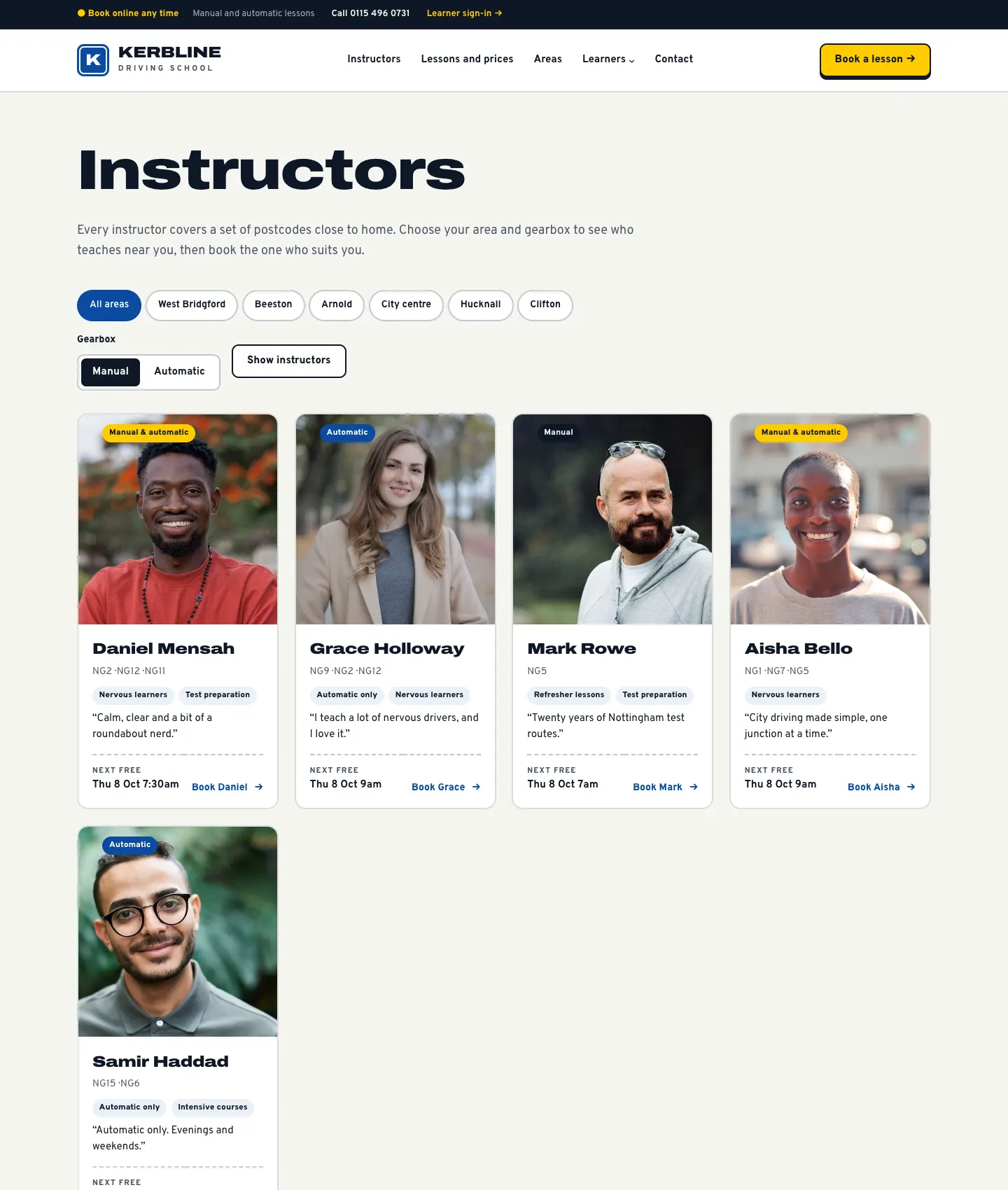
Each instructor's own page shows their words, Teaches in, Car, Areas covered, Specialisms, Languages, ADI number, the Badge line and Book a lesson with them, with their next free time.