Running your website
Settings
Every tab under Driving school → Settings explained: Business, Contact, Email, Lessons, Opening hours, Learners, Records, Privacy and Payments.
On this page
Driving school → Settings holds everything you type once: your school's details, how online booking works, your hours, your syllabus and which emails go out. Each tab saves on its own with Save changes at the bottom.
Features marked (Pro) need a Pro or Agency licence.
Business and Contact
Your trading name, registered company name and number, tagline, logo, the staff sign-in page, search and sharing, social media links, and your phone, email and address. They fill in the header, footer, emails and legal pages. See Your look and Staff and sign-in.
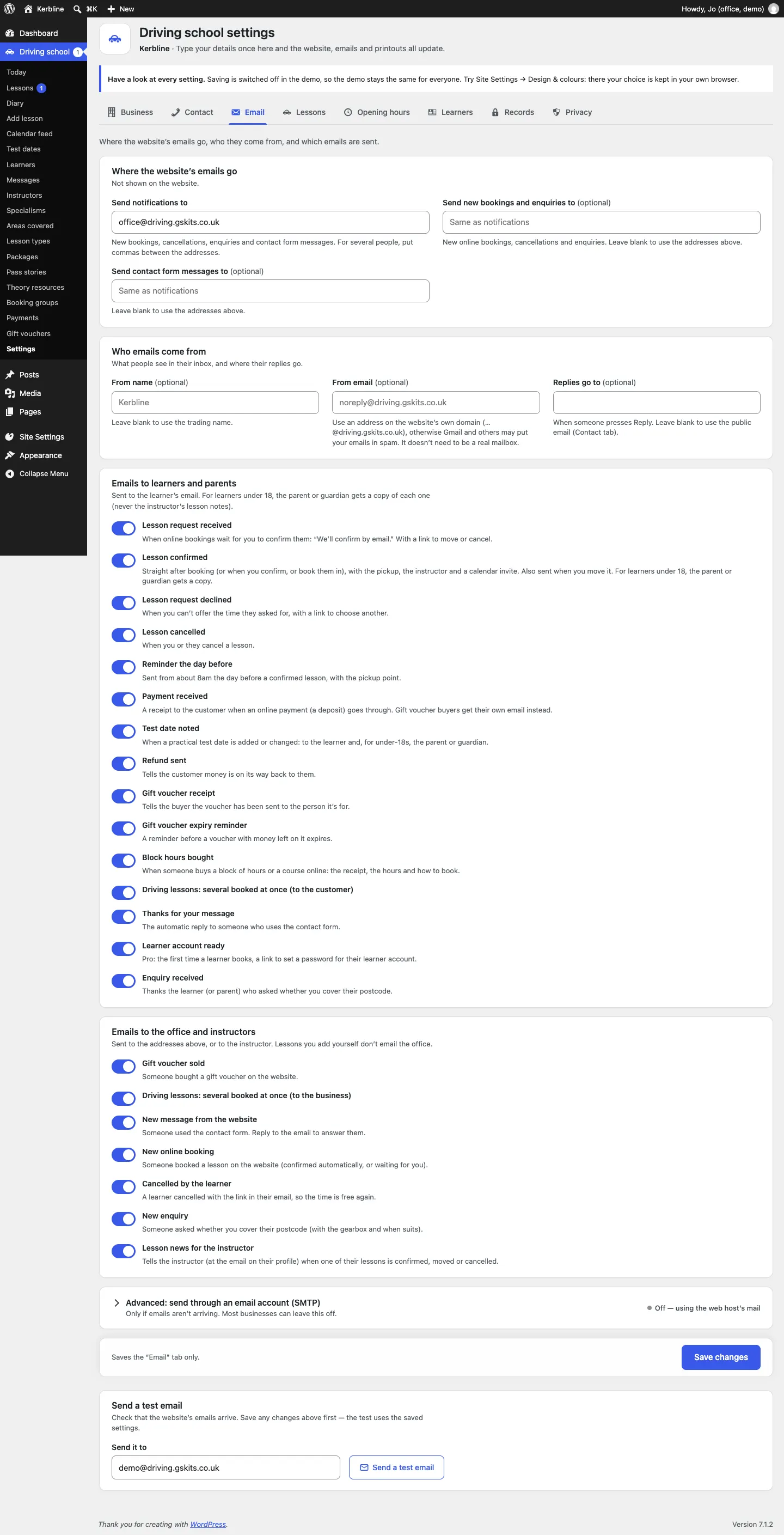
- Where the website's emails go: Send notifications to (new bookings, cancellations, enquiries and contact messages; commas between several addresses). To send some of them elsewhere, fill in Send new bookings and enquiries to (optional) or Send contact form messages to (optional); leave them blank to use the addresses above.
- Who emails come from: From name, From email (use an address on your website's own domain) and Replies go to.
- Emails to learners and parents: switch each on or off: Lesson request received, Lesson confirmed, Lesson request declined, Lesson cancelled, Reminder the day before, Payment received, Test date noted, Refund sent, Gift voucher receipt, Gift voucher expiry reminder, Block hours bought, Driving lessons: several booked at once, Thanks for your message, Learner account ready (Pro) and Enquiry received. For learners under 18, the parent or guardian gets a copy of each one, never the instructor's lesson notes.
- Emails to the office and instructors: Gift voucher sold, Driving lessons: several booked at once, New message from the website, New online booking, Cancelled by the learner, New enquiry and Lesson news for the instructor (to the email on their profile). Lessons you add yourself don't email the office.
- Advanced: send through an email account (SMTP): only if emails aren't arriving.
- Send a test email: check that emails arrive (save first).
More in Privacy and emails.
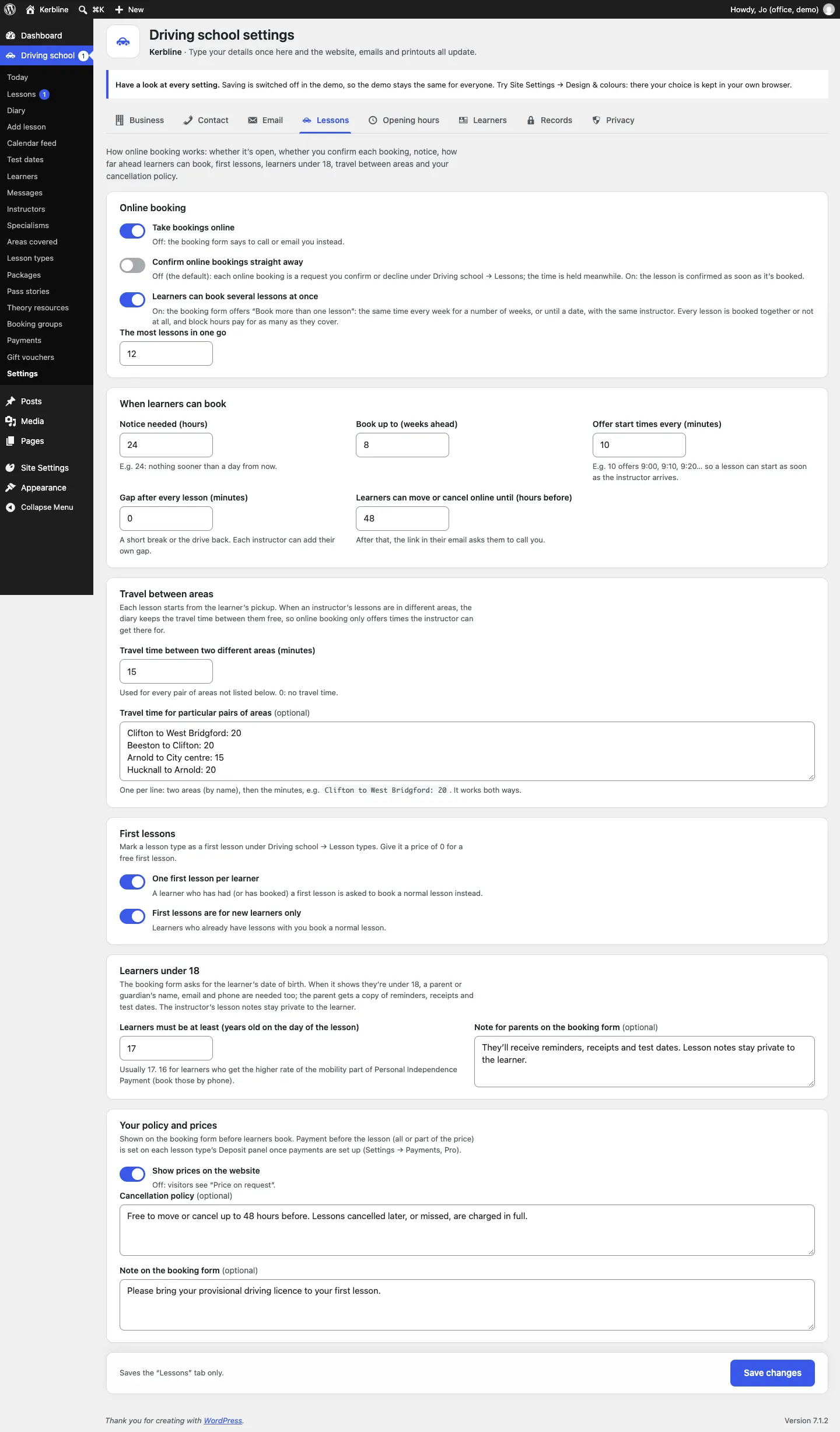
Lessons
Online booking
- Take bookings online: off, and the booking form says to call or email you instead.
- Confirm online bookings straight away: off (the default), each online booking is a request you confirm or decline; on, it's confirmed as soon as it's booked.
- Learners can book several lessons at once (on) and The most lessons in one go (12).
When learners can book
- Notice needed (hours): 24 means nothing sooner than a day from now.
- Book up to (weeks ahead): 8 by default.
- Offer start times every (minutes): 10 offers 9:00, 9:10, 9:20 and so on.
- Gap after every lesson (minutes): a short break or the drive back. Each instructor can add their own.
- Learners can move or cancel online until (hours before): 48 by default. After that, the link asks them to call you.
Travel between areas (Pro)
- Travel time between two different areas (minutes): used for every pair of areas (0 for none).
- Travel time for particular pairs of areas (optional): one per line, for example
Clifton to West Bridgford: 20. It works both ways.
First lessons
- One first lesson per learner and First lessons are for new learners only. Mark a lesson type as a first lesson under Driving school → Lesson types.
Learners under 18
- Learners must be at least (years old on the day of the lesson): usually 17.
- Note for parents on the booking form (optional).
Your policy and prices
- Show prices on the website: off, and visitors see "Price on request".
- Cancellation policy (optional) and Note on the booking form (optional): shown on the booking form before learners book.
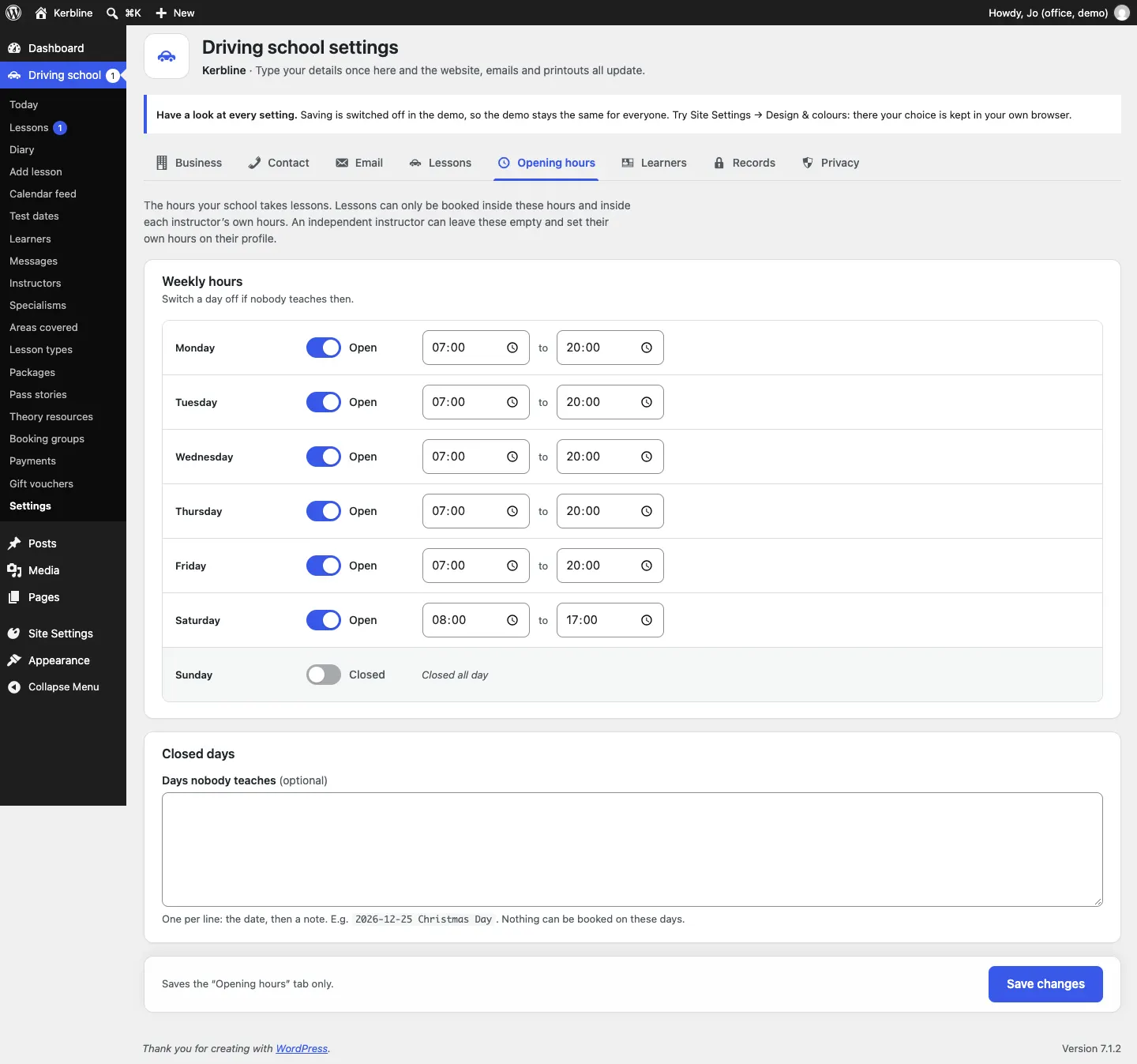
Opening hours
The hours your school takes lessons. Lessons can only be booked inside these hours and each instructor's own hours. An independent instructor can leave these empty and set their own hours on their profile.
- Weekly hours: switch a day off if nobody teaches then.
- Closed days: Days nobody teaches (optional), one per line: the date, then a note, for example
2026-12-25 Christmas Day.
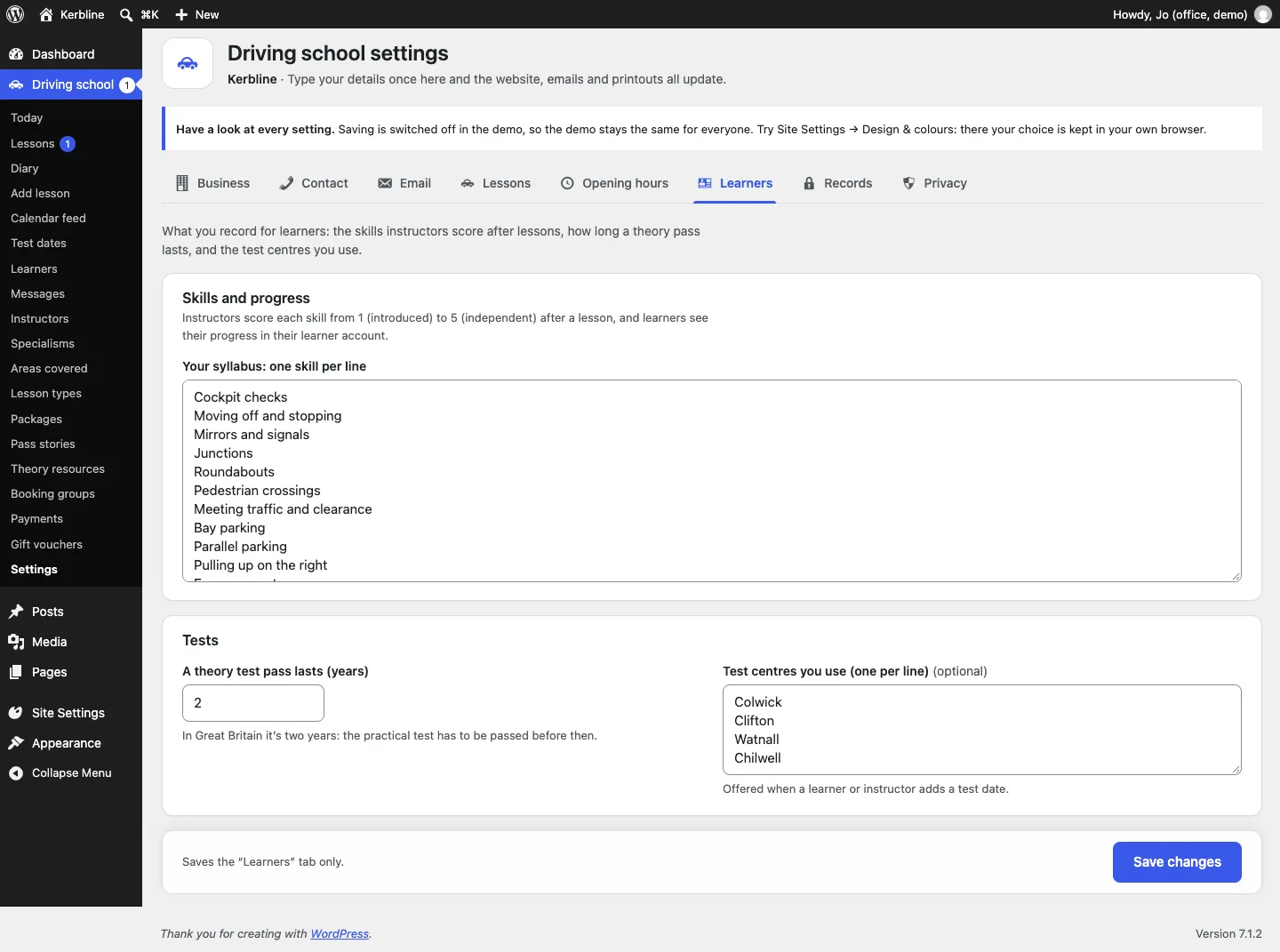
Learners
- Skills and progress (Pro): Your syllabus: one skill per line. Instructors score each skill from 1 (introduced) to 5 (independent) after a lesson, and learners see their progress in their learner account.
- Tests: A theory test pass lasts (years) (two in Great Britain) and Test centres you use (one per line), offered when a learner or instructor adds a test date.
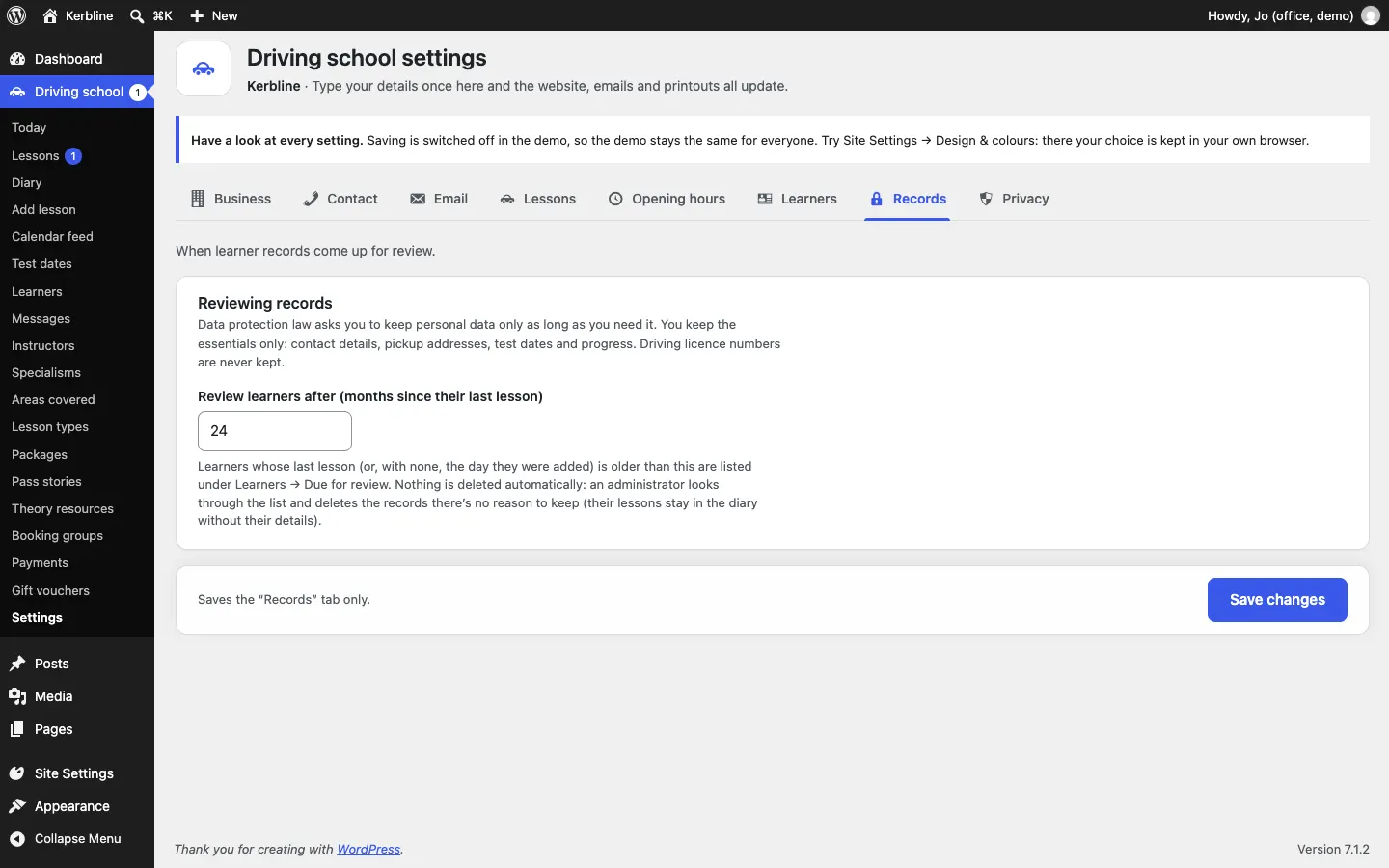
Records
Review learners after (months since their last lesson): 24 by default. Learners older than this are listed under Learners → Due for review. Nothing is deleted automatically. See Learners and parents.
Privacy
The cookie banner and privacy settings. See Privacy and emails.
Payments
Only administrators see this tab. It connects Stripe or WooCommerce. See Payments and gift vouchers.
Run setup again and your licence
- Run setup again at the top of Settings opens the setup wizard. See The Driving setup wizard.
- Your licence key goes under Settings → Gradespace licence. See Installing.