Running your website
Daily running
The office's daily and weekly routine with the Today screen and the red badges, what instructors do after each lesson, and a quick reference of where everything is.
On this page
Once the website is set up, running it takes a few minutes a day. This chapter is the routine for the office and for instructors, and a quick reference of where everything lives.
Features marked (Pro) need a Pro or Agency licence.
Signing in
- Go to your website's address followed by /wp-admin (for example yourschool.co.uk/wp-admin), or click Staff sign-in at the very bottom of any page.
- Sign in with your own username and password. Please don't share accounts: the website records who did what, and each person should only see what their job needs. Some learners are 17, so this matters.
- Forgotten your password? Click Lost your password? on the sign-in page. After 5 wrong passwords, sign-in pauses for 15 minutes.
See Staff and sign-in.
Your daily start: the Today screen
After signing in you go straight to Driving school → Today. It shows the date and your opening hours, and four boxes:
- Today's lessons, by instructor, in time order, with each pickup. Today in the diary → opens the day view.
- Lesson requests to confirm, with Confirm and Decline links.
- Driving tests coming up in the next two weeks, with All test dates →.
- New enquiries and messages, including "do you cover my postcode?", with All messages →.
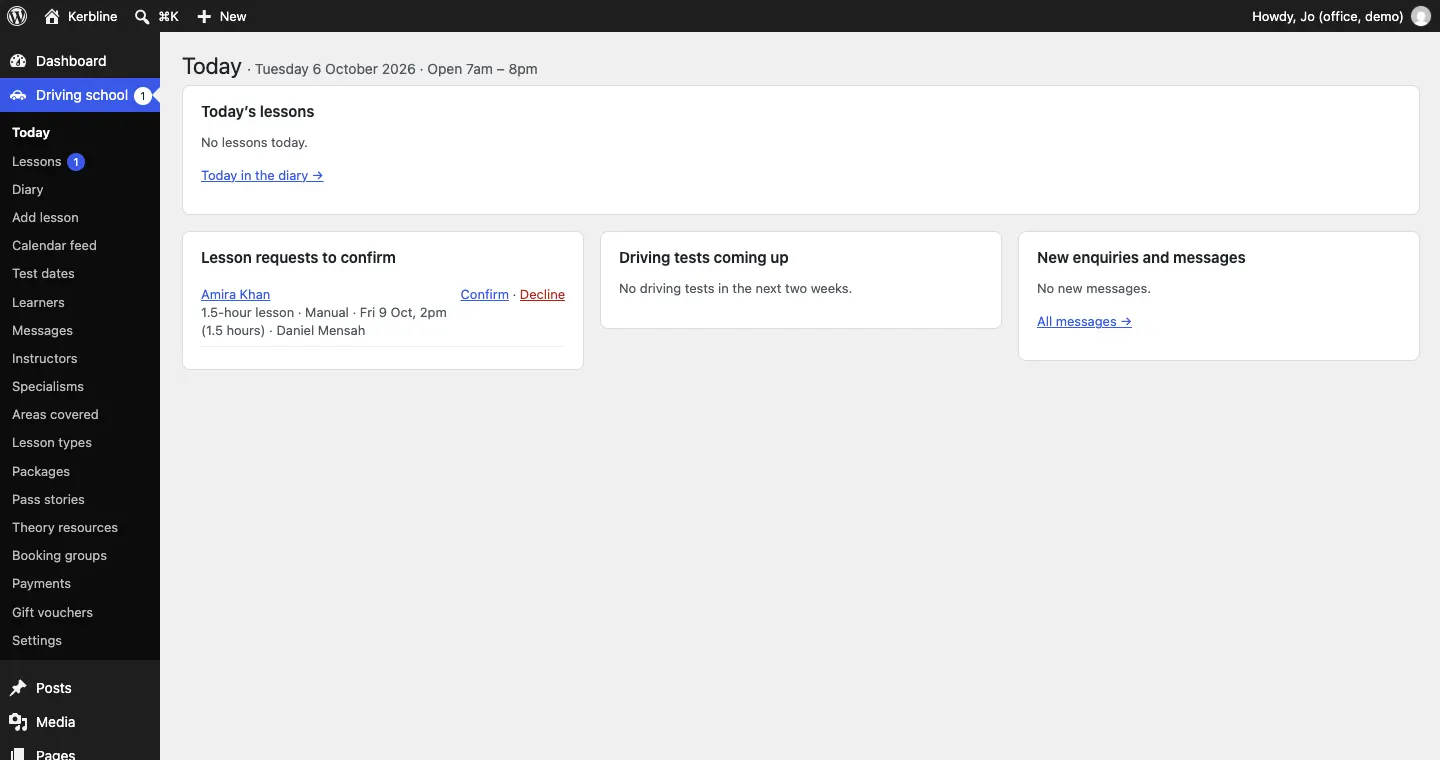
The red badges
The numbers in small circles on the left-hand menu show how many things are waiting. The number next to Driving school and Lessons is the lesson requests to confirm.

The office: every day
- Open Today.
- Confirm or decline each request. Online bookings hold the time until you do, so do this first. See Lessons and the diary.
- Answer enquiries and messages. See Messages, enquiries and theory resources.
- Book phone and walk-in lessons with Add lesson.
- Check yesterday's lessons in the Diary or Lessons → Past: each should be marked Taught or Didn't turn up. Chase any instructor who hasn't written their note.
- If you take payments, check Payments for anything Waiting or To decide.
Reminders the day before go out by themselves from about 8am.
Instructors: after each lesson
- Open the lesson from My diary, Diary or Lessons.
- Write the Note for the learner: what went well and what's next.
- (Pro) Score the skills you worked on.
- Click Save the note and progress, then Taught (or Didn't turn up).
- Keep My hours up to date with holidays and blocked times, so online booking never offers a time you can't teach.
See Instructors.
Every week
- Look at Test dates: who has a test coming up, whose theory pass runs out before the test, and record results with Passed or Not passed.
- When someone passes and agrees, make a pass story. See Test dates and pass stories.
- (Pro) Look at learners' Block hours left in the Learners list and suggest a top-up to anyone running low.
- Check the Diary for the coming week, and add any Closed days under Settings → Opening hours.
Every few months
- Go through Learners → Due for review and delete the records there's no reason to keep. See Learners and parents.
- Check Messages → Due for review.
- Update your prices under Lesson types and Packages, and your instructors' profiles.
- Check for updates and backups. See Backups and updates.
Where everything is
| To... | Go to |
|---|---|
| See what's waiting today | Driving school → Today |
| Confirm a booking | Driving school → Lessons → To confirm |
| Book a lesson by phone | Driving school → Add lesson |
| See the week | Driving school → Diary → Week |
| Move or cancel a lesson | Open it from Lessons or the Diary, then Move or change or the Status box |
| Add a learner's test date | Driving school → Learners, their record, Tests |
| Record a test result | Driving school → Test dates |
| Sell block hours in person (Pro) | Driving school → Learners, their record, Block hours → Sold in person |
| Add an instructor | Driving school → Instructors → Add instructor |
| Change an instructor's areas or hours | Their profile, Profile and Teaching hours panels |
| Add an area or postcode | Driving school → Areas covered |
| Change prices | Driving school → Lesson types and Packages (Pro) |
| Publish a pass story | Driving school → Pass stories, or Make a pass story on the learner's record |
| Add a theory guide | Driving school → Theory resources |
| Issue a gift voucher | Driving school → Gift vouchers |
| Subscribe to the diary in your calendar (Pro) | Driving school → Calendar feed |
| Change how booking works | Driving school → Settings → Lessons |
| Change opening hours or closed days | Driving school → Settings → Opening hours |
| Switch an email on or off | Driving school → Settings → Email |
| Change the design or colours | Site Settings → Design & colours |
For every setting, see Settings. If something isn't working, see Troubleshooting and support.