Setting up
Designs, pages and menus
The three Driving designs (Signal, Glide and Neighbour) and their colour palettes, the pages and menu the kit makes, and how each looks on a computer and a phone.
On this page
The Gradespace Driving theme gives your website its look. It has three designs, each with seven colour palettes plus its own colours. The design only changes how things look: your instructors, areas, lessons, learners and bookings stay exactly as they are when you switch. So you can try a design for a week and change your mind.
This chapter shows each design, the pages the setup wizard makes and the menu. For the logo, the footer and editing the menu, see Your look.
The three designs
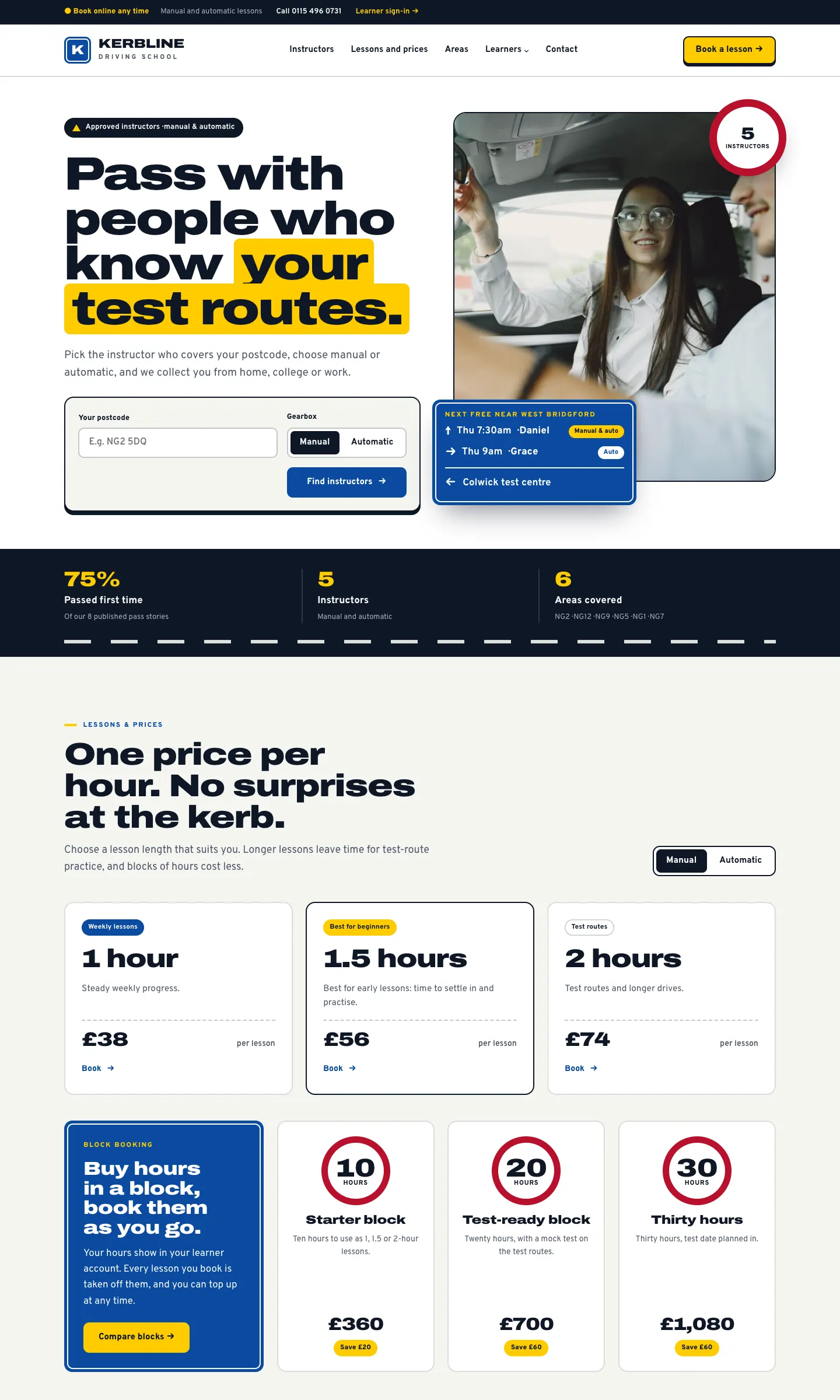
Signal
Bold road-sign style: wide heavy type, sign-blue panels, roundels, warning triangles and hazard stripes. Made for a driving school with several instructors. The home page leads with a postcode and gearbox finder, the next free lessons nearby, your prices, a map of areas, the instructors and pass stories.

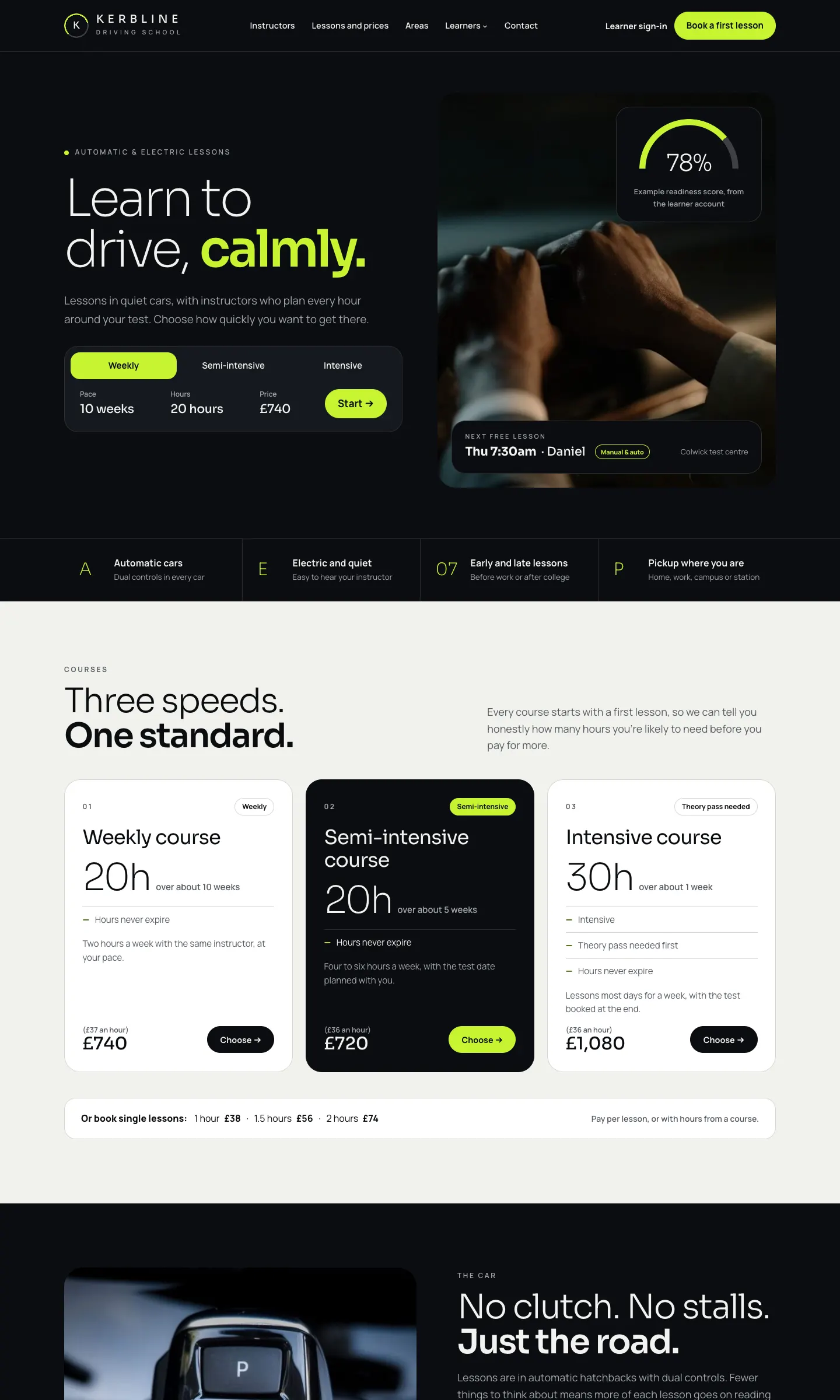
Glide
Premium and calm: dark graphite, light type, glass cards, a readiness dial and one bright accent colour. Made for automatic and electric schools that sell courses. The home page has a course switcher (Weekly, Semi-intensive, Intensive) and the car as a spec sheet.

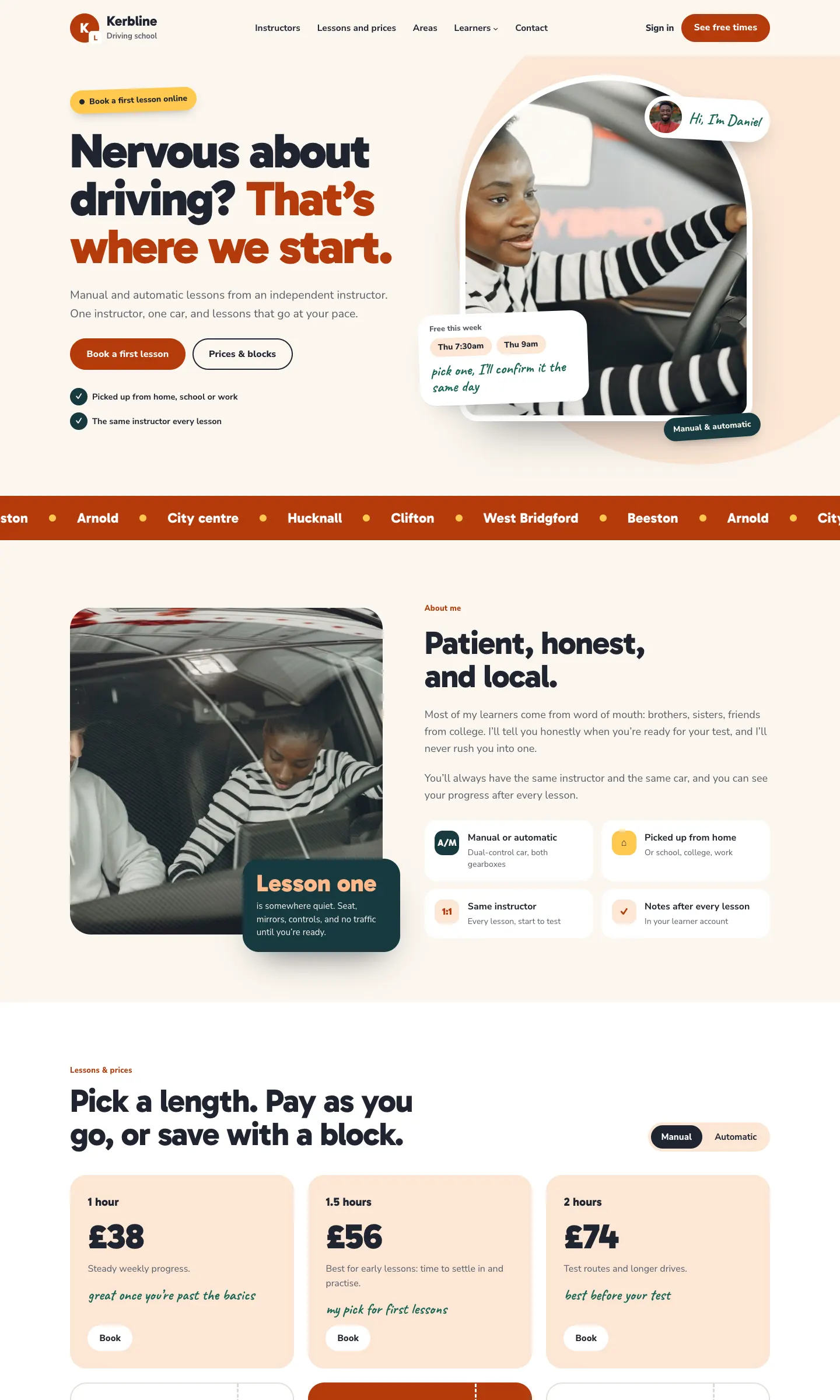
Neighbour
Friendly and local: warm colours, round shapes, stickers, handwritten notes and a week from the diary. Made for an independent instructor. The home page introduces you in the first person ("Hi, I'm Daniel"), shows free times this week and has a pass wall.

How to choose a design and palette
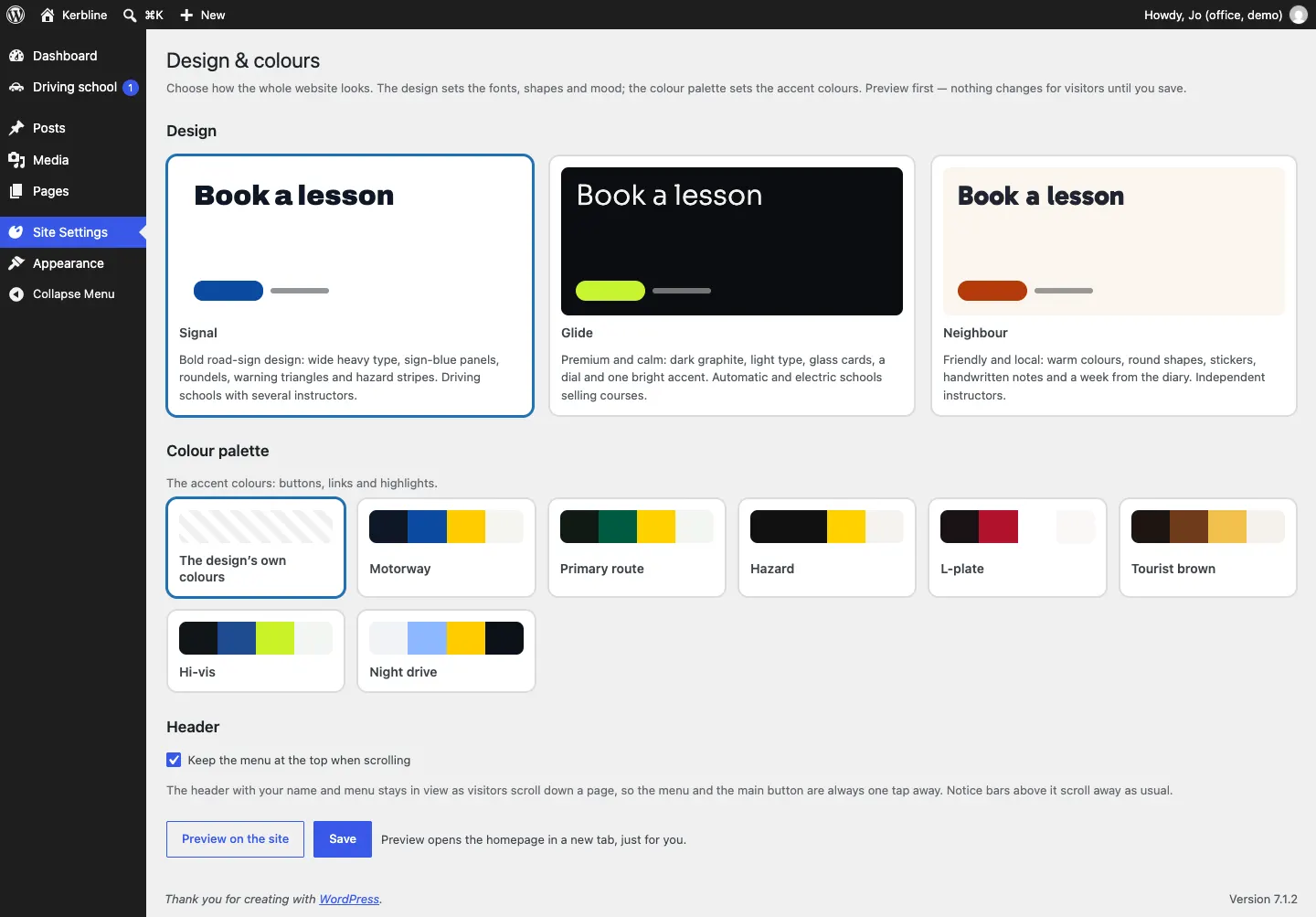
- Go to Site Settings → Design & colours.
- Under Design, click Signal, Glide or Neighbour.
- Under Colour palette, click The design's own colours or one of the seven palettes. For Signal they are Motorway, Primary route, Hazard, L-plate, Tourist brown, Hi-vis and Night drive. Glide and Neighbour have their own seven.
- Click Preview on the site. Your home page opens in a new tab with the new look, just for you. Visitors still see the old look.
- If you like it, go back and click Save.
On the dark Glide design the background stays dark, and the palette colours the buttons, links and highlights.
Keep the menu at the top when scrolling keeps your name, menu and main button in view as visitors scroll. It's on by default.
Where the figures on the home page come from
The numbers on the home page are counted from your own records, never made up:
- the pass rate appears once at least 10 practical test results from the last 12 months are recorded on your learners;
- the passed first time share appears once at least 5 pass stories are published;
- the numbers of instructors and areas are counted.
A figure without enough records behind it is left out. The pictures of a test countdown and skill scores on the home pages are marked as examples.
The phone number, email address and company details in the header and footer come from Driving school → Settings → Business and Contact. A line whose detail you haven't filled in is left out.
The pages the kit makes
The setup wizard adds these pages. You can edit the words on any of them (see Pages and content), but keep the kit's own blocks, such as the booking form, in place.
| Page | Web address on the demo | What it shows |
|---|---|---|
| Home | / | Depends on the design (see above) |
| Instructors | /instructors/ | Every instructor, with a filter by area and gearbox. See Instructors |
| Lessons and prices | /prices/ | Lesson lengths and prices, block bookings and the Buy hours form. See Lesson types and prices |
| Book a lesson | /book/ | The five booking steps. See Online booking |
| Areas we cover | /areas-covered/ | The areas, who teaches in each, and Check your postcode. See Areas covered |
| Theory test | /theory/ | Your theory guides and official links. See Messages, enquiries and theory resources |
| Pass stories | /pass-stories/ | Published pass stories and the pass board. See Test dates and pass stories |
| Learner account | /account/ | The learner's sign-in and account (Pro). See The learner account |
| Ask us | /enquire/ | The "do you cover my postcode?" form and common questions |
| Contact | /contact/ | Your contact details and form |
| Terms and conditions, Privacy policy, Cookie policy, Photo credits | /terms/ and so on | Legal pages. See Privacy and emails |
Each instructor, area, pass story and theory guide also gets its own page, for example /instructors/daniel-mensah/ and /areas/west-bridgford/.
The menu
The wizard makes a main menu with:
- Instructors
- Lessons and prices
- Areas
- Learners, which opens a small menu with Theory test, Pass stories and Learner account
- Contact
The header also has a Learner sign-in link (on Signal it sits in a thin strip above the header, with your phone number; on Neighbour it says Sign in) and the main button: Book a lesson on Signal, Book a first lesson on Glide and See free times on Neighbour.
The footer lists your lesson pages, every area, the learner pages, the legal pages and a small Staff sign-in link at the very bottom.
On phones and tablets the header folds into a menu button, and nothing scrolls sideways. To change the menu, see Your look.