Running your website
Lessons and the diary: the office's side
How the office confirms or declines online requests, books phone and in-person lessons, moves and cancels lessons, marks them taught, writes the lesson note, and uses the day, week and month diary.
On this page
Every lesson, whether a learner booked it online or you booked it by phone, lives under Driving school → Lessons and in the Diary. This chapter covers what the office does with them: confirm requests, book lessons yourself, move or cancel them, and mark them taught afterwards. Instructors see the same screens, but only their own lessons (see Instructors).
Features marked (Pro) need a Pro or Agency licence.
The lessons list
Go to Driving school → Lessons. The number in a circle next to Lessons in the menu is how many requests are waiting.
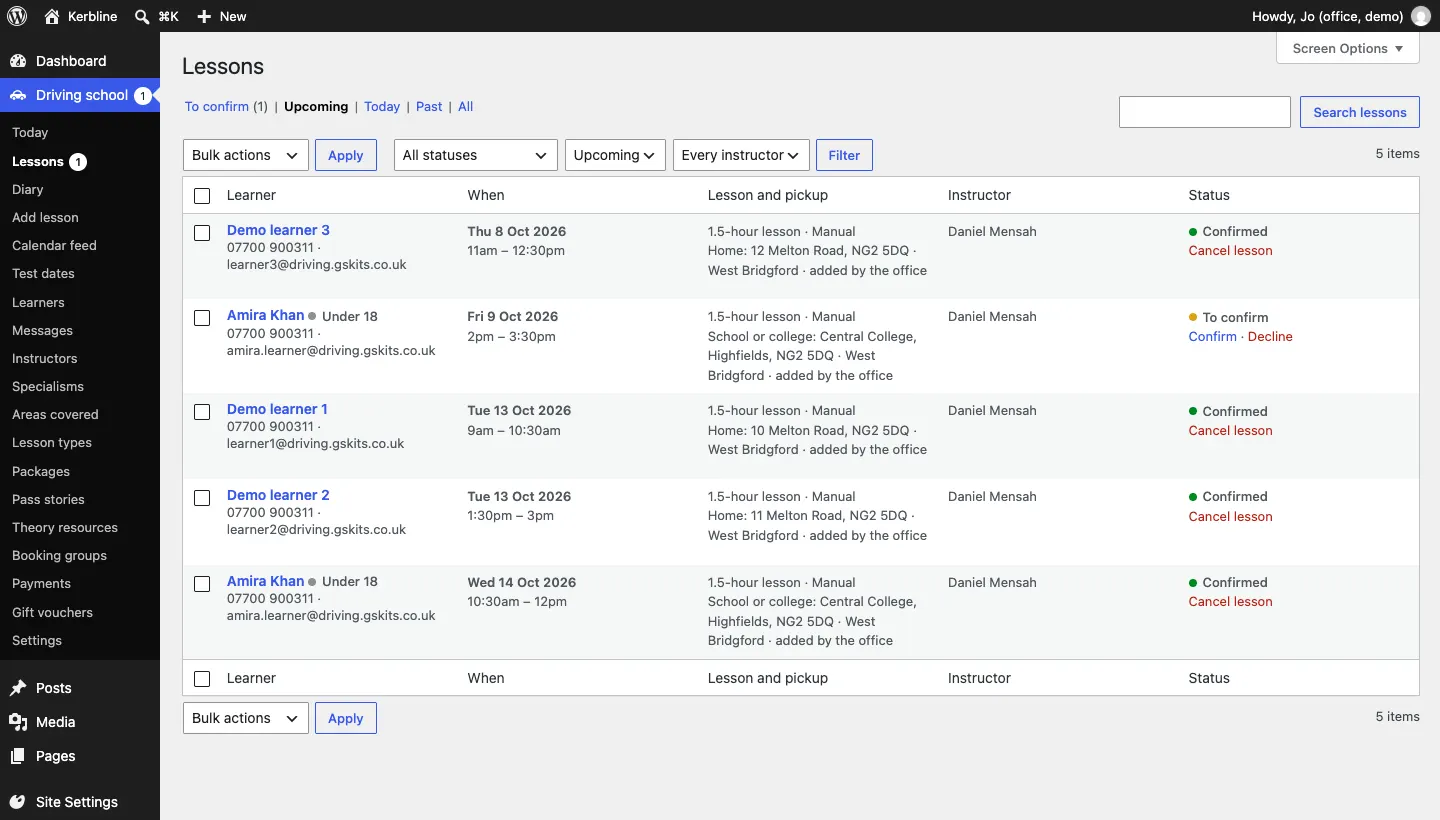
- Along the top: To confirm, Upcoming, Today, Past and All.
- The filters let you choose a status (To confirm, Confirmed, Taught, Didn't turn up, Declined, Cancelled, Waiting for payment), a period and an instructor.
- Each row shows the learner (with First lesson or Under 18 labels), their mobile and email, when, the lesson and pickup (with "booked online" or "added by the office"), the instructor and the status, with quick actions such as Confirm · Decline or Cancel lesson.
How to confirm or decline a request
Online bookings wait for you unless you've switched on Confirm online bookings straight away (see Settings). The time is held meanwhile.
-
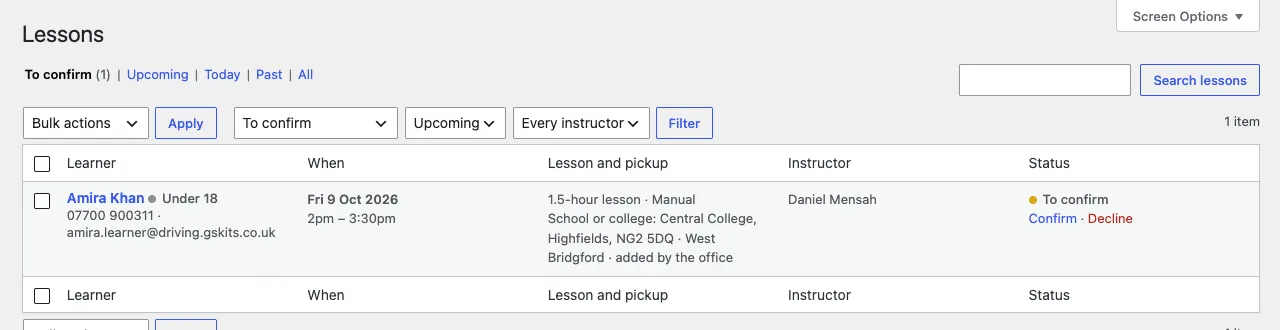
Go to Driving school → Lessons → To confirm (or use Lesson requests to confirm on the Today screen).
-
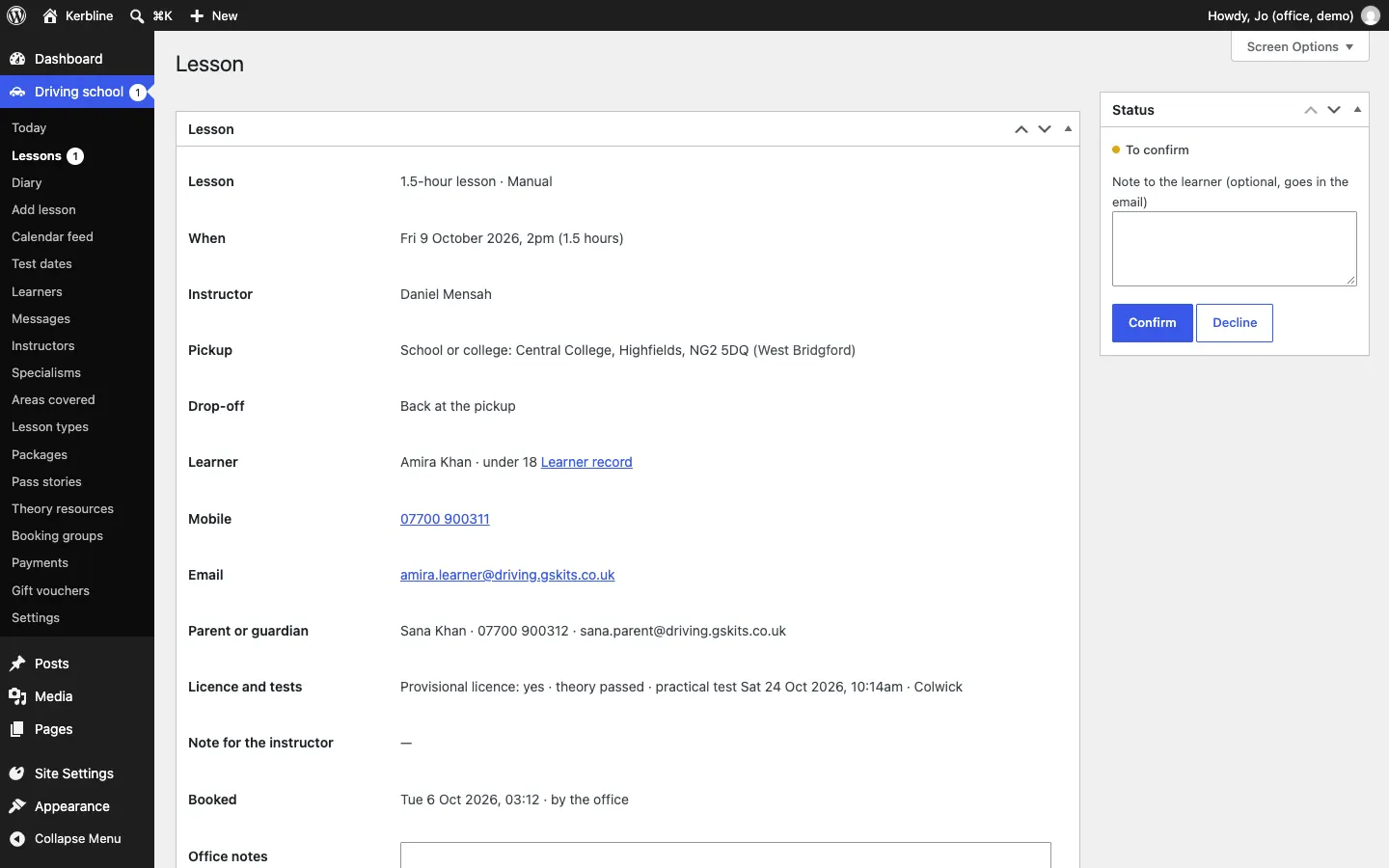
Click the learner's name to open the lesson and check the details: the pickup, the drop-off, the learner's age, the parent's contact, the licence and test line and the note for the instructor.
-
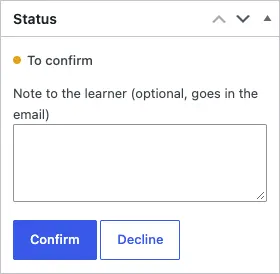
In the Status box, type a Note to the learner if you like (it goes in the email).
-
Click Confirm. The learner gets a confirmation with a calendar invite, and the instructor is told. Or click Decline: the learner is emailed to choose another time.
The lesson screen
The Lesson box has everything the instructor needs, plus:
- Learner record: a link to the learner's record.
- Office notes: only staff see these. Click Save under them. Never write a licence number here.
- Paid online and Block hours (Pro) lines when they apply.
How to change a lesson's status
The Status box offers only the changes that make sense for the lesson:
| The lesson is | You can |
|---|---|
| To confirm | Confirm or Decline |
| Confirmed, still to come | Cancel lesson |
| Confirmed, start time passed | Taught, Didn't turn up or Cancel |
| Waiting for payment | Paid in person (records it as paid and confirms it) or Cancel |
| Taught | Not taught after all |
| Didn't turn up | They came after all |
| Declined | Confirm after all |
| Cancelled | Reinstate |
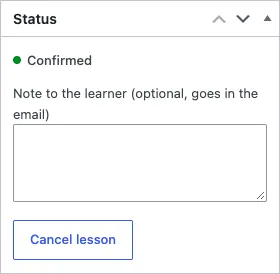
Before declining or cancelling, the website asks you to make sure, because it emails the learner (and their parent, if under 18) and the instructor.
How to move a lesson or change the instructor
- Open the lesson.
- In Move or change, choose the new Date, Time or Instructor.
- Leave If it's confirmed, email the learner and instructor the new time (with a calendar invite) ticked to tell them.
- Click Save the change.
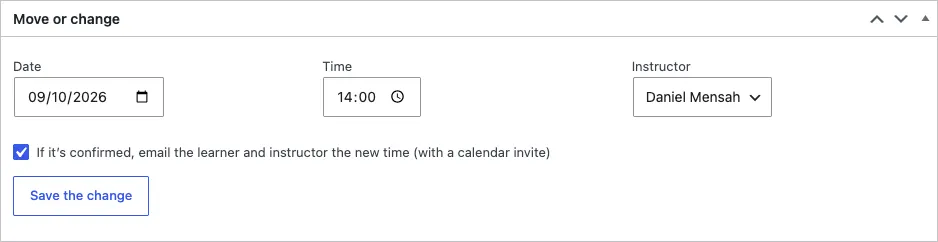
The website refuses a time when the instructor is busy.
After the lesson: the note and progress
After each lesson the instructor (or the office) opens it and fills in After the lesson: note and progress:
- Note for the learner: what went well and what's next. The learner sees it in their learner account (Pro). It's never emailed, and a parent or guardian doesn't see it.
- Progress (Pro): score each skill from 1 · introduced to 5 · independent, or leave it at — not started. The heading shows the learner's readiness, the average over your syllabus.
- Click Save the note and progress.
- In the Status box, click Taught (or Didn't turn up).
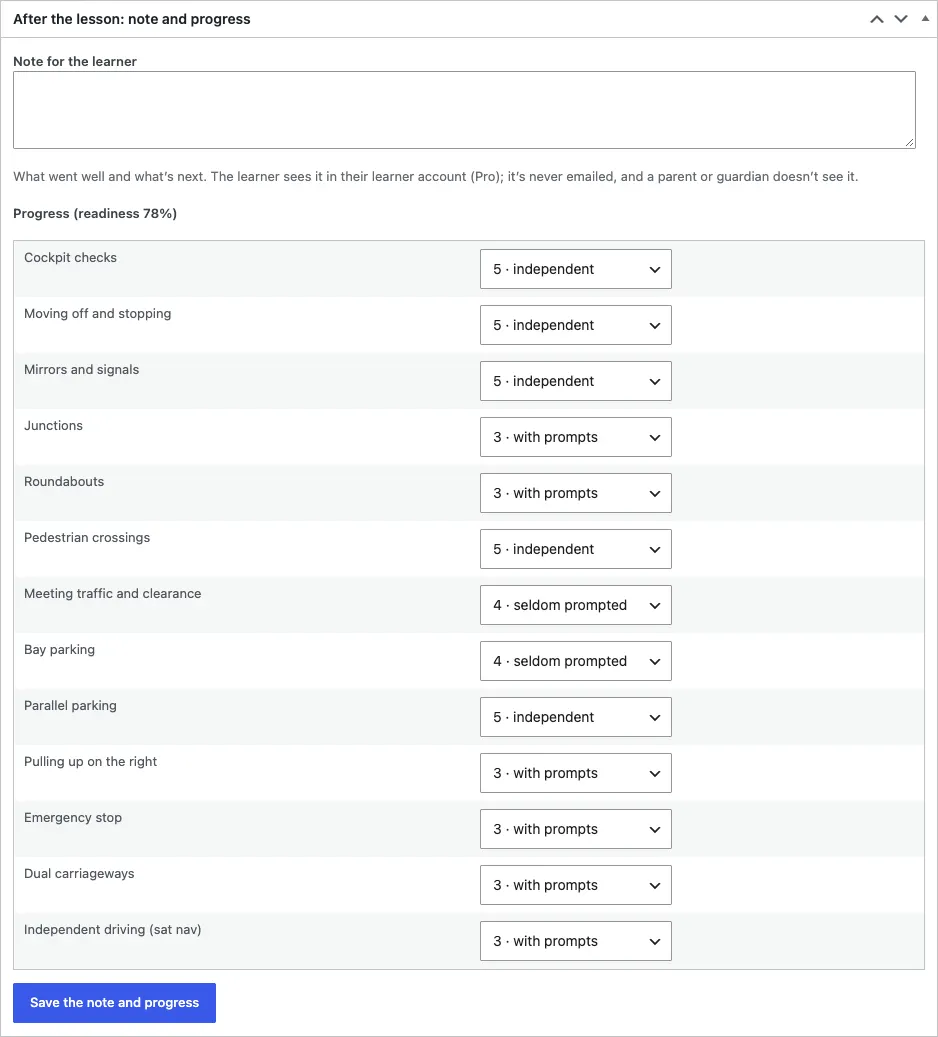
The skills are your own syllabus, under Settings → Learners. See Settings.
How to book a lesson by phone or in person
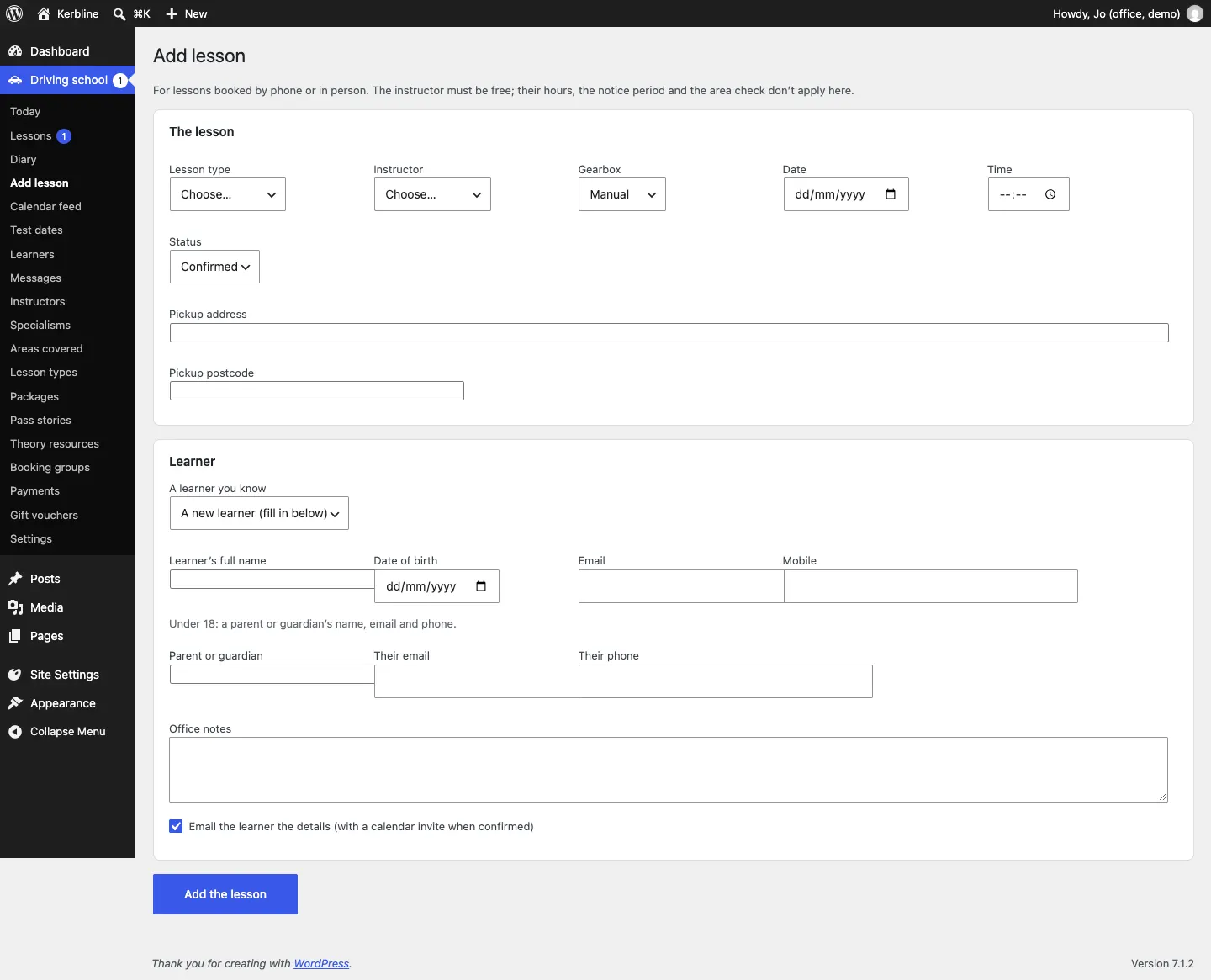
- Go to Driving school → Add lesson (or click Add lesson or + Add in the diary).
- Under The lesson, choose the Lesson type, Instructor, Gearbox, Date, Time and Status (Confirmed or To confirm), and type the Pickup address and Pickup postcode.
- Under Learner, choose A learner you know and pick them, or A new learner (fill in below) and type their Learner's full name, Date of birth, Email and Mobile. For under-18s, fill in the Parent or guardian, Their email and Their phone.
- Add Office notes if you like.
- Tick Email the learner the details (with a calendar invite when confirmed) to send the confirmation.
- Click Add the lesson.
The diary
Driving school → Diary shows your lessons as a calendar.
- Day has a column for each instructor.
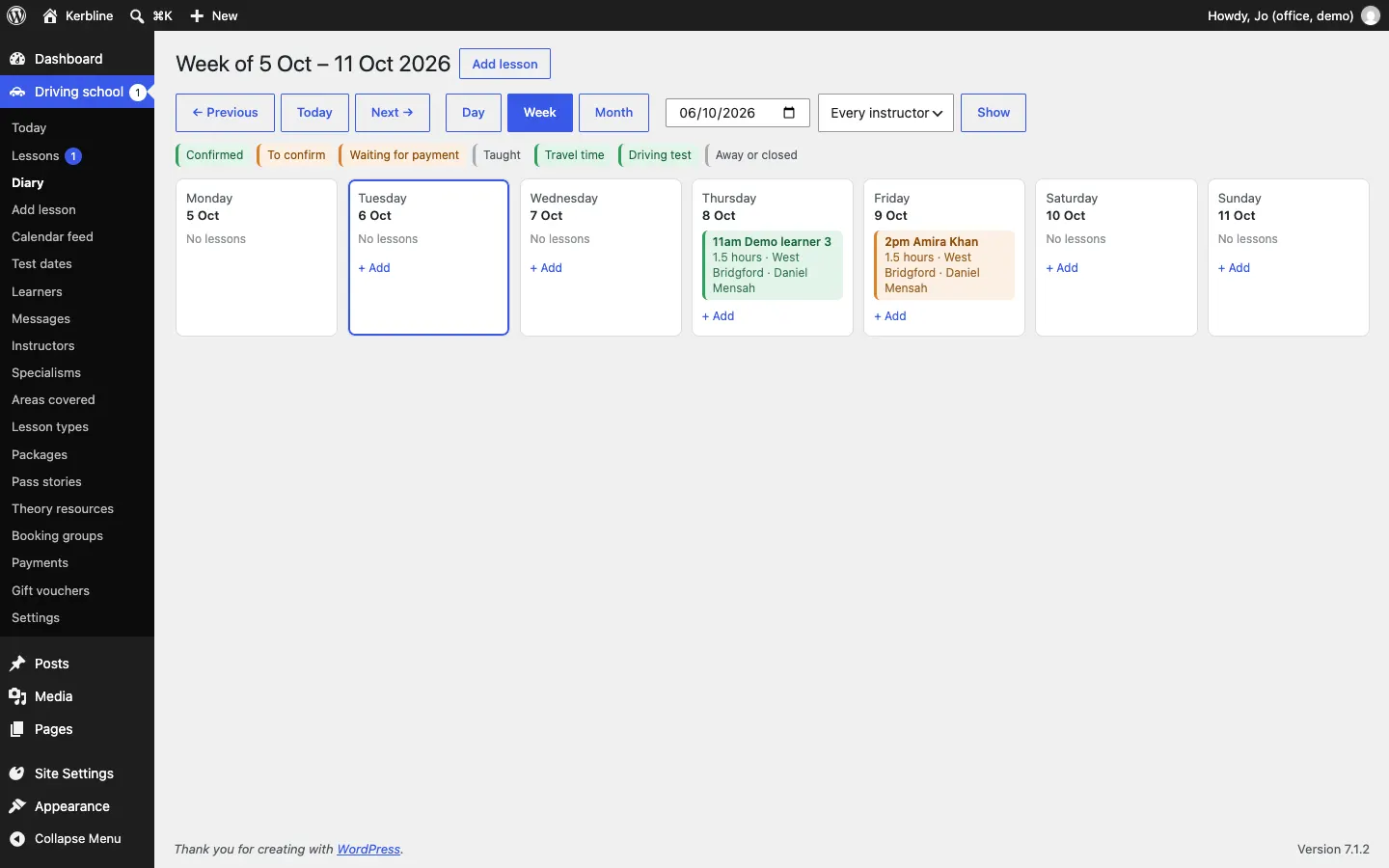
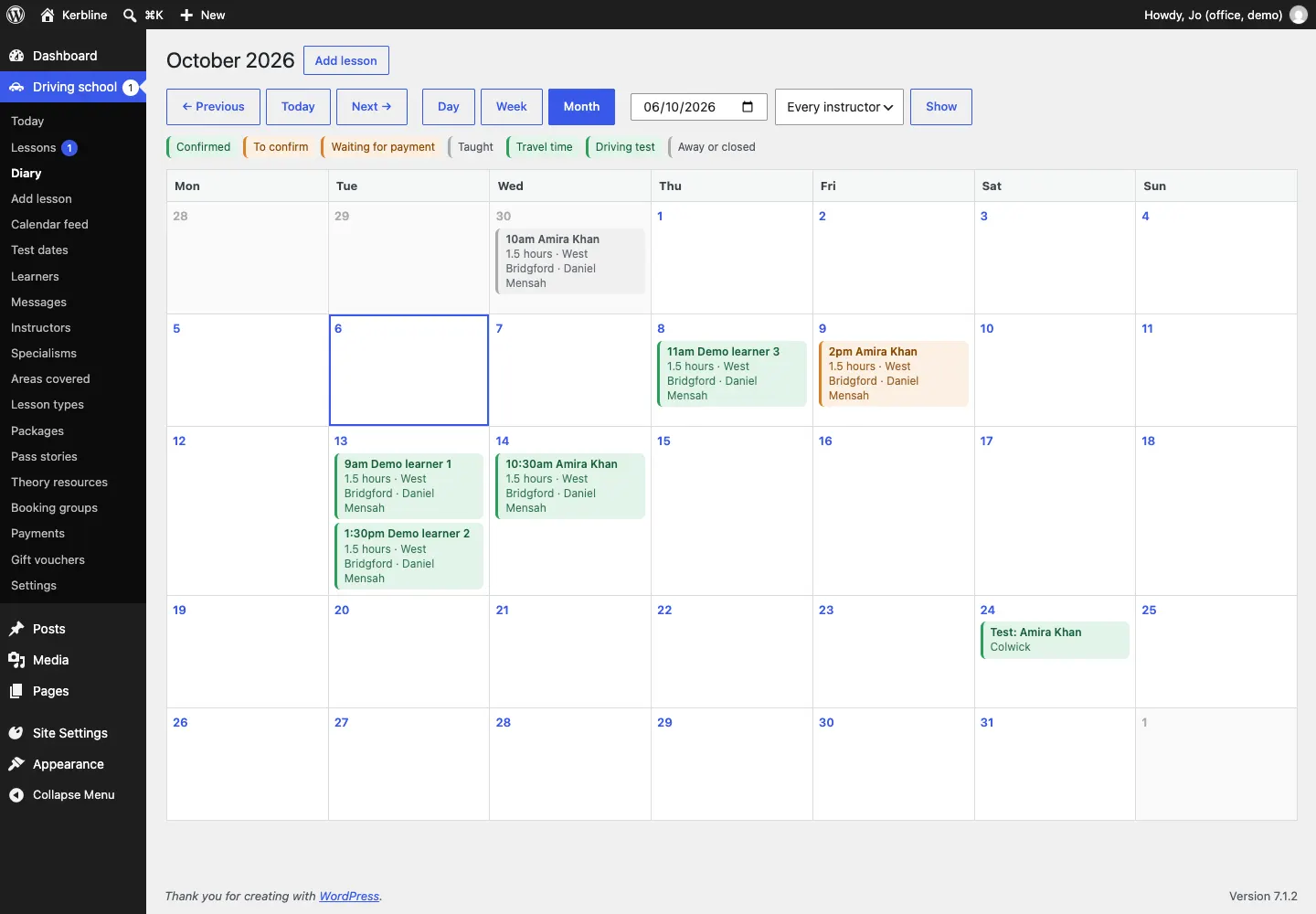
- Week and Month show every lesson by day.
- ← Previous, Today and Next → move through the dates, and Go to date jumps to one.
- Instructor shows one instructor or Every instructor; click Show.
- Click a lesson to open it, or + Add to book into a gap.
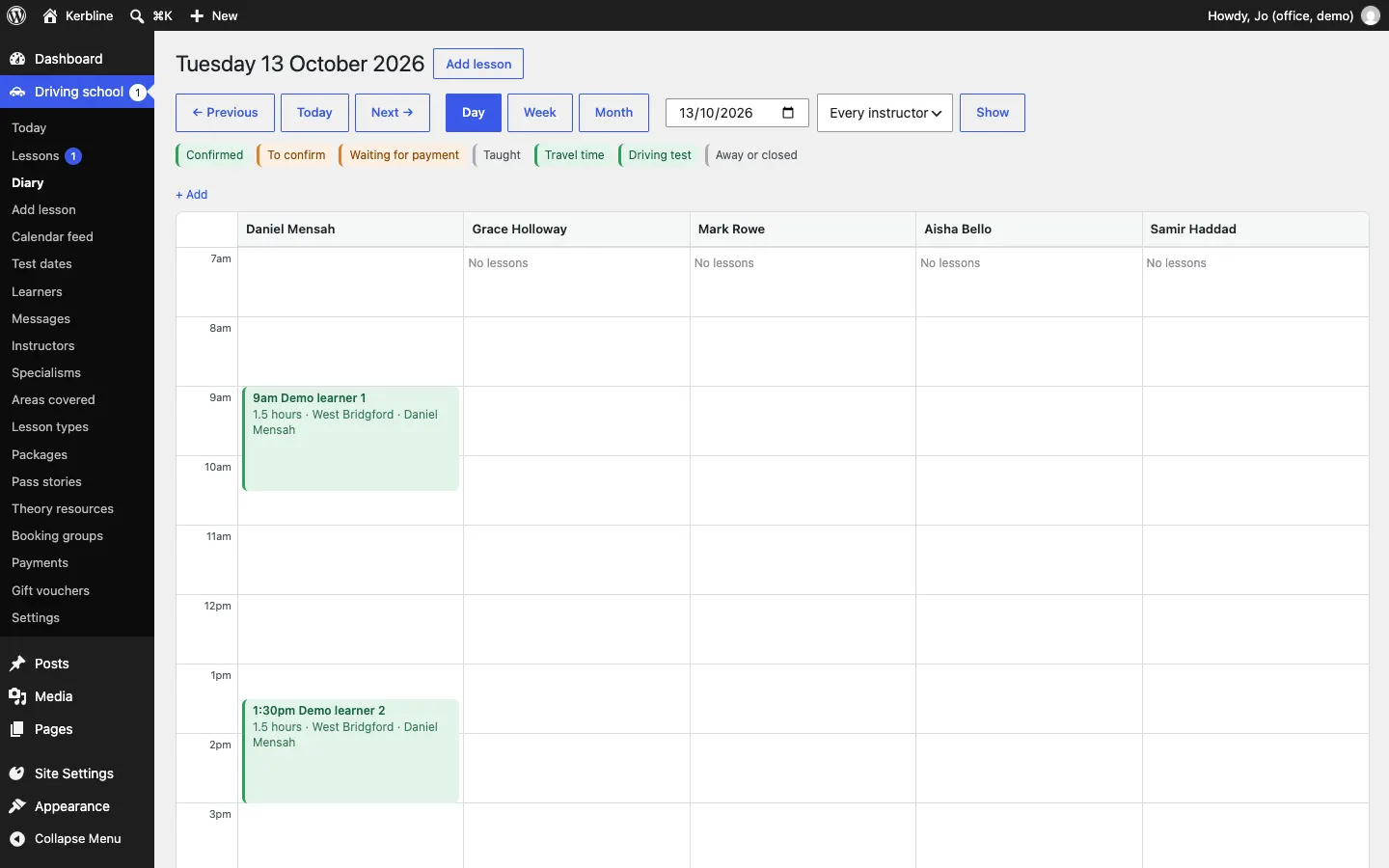
The colours are explained along the top: Confirmed, To confirm, Waiting for payment, Taught, Travel time, Driving test and Away or closed.
- Travel time (Pro) between lessons in different areas shows as a striped block. Set it under Settings → Lessons → Travel between areas.
- Driving tests show in the learner's instructor's column.
- Days away and closed days are shaded.
Booking groups
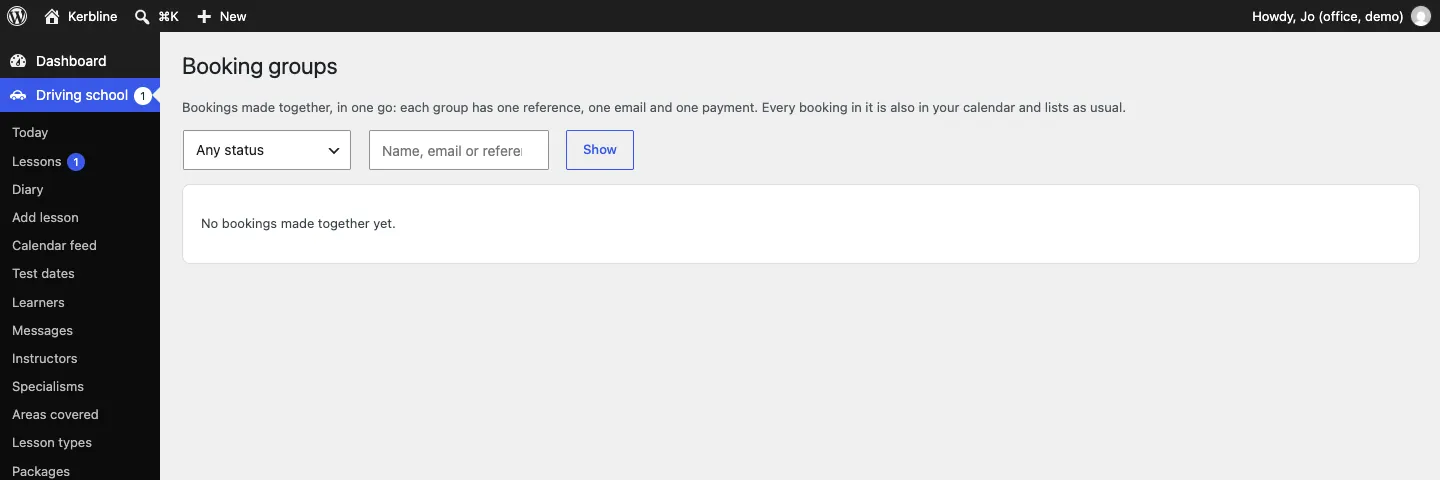
When a learner books several lessons at once, the set is kept together under Driving school → Booking groups: each group has one reference, one email and one payment. Every lesson in it is also in the diary and the lessons list as usual. You can filter groups by status (Waiting for payment, To confirm, Confirmed, Partly cancelled, Completed, Cancelled) and search them.
Reminders
The day before each confirmed lesson, from about 8am, the learner (and the parent of an under-18) gets a reminder with the pickup. Each lesson is reminded once. Switch reminders on or off under Settings → Email → Reminder the day before.