Running your website
How buying works, and connecting payments
Connecting Stripe, what the buyer sees step by step, the booking fee, the emails and the buyer's own page with their QR codes.
On this page
Connecting payments
Go to Events → Settings → Payments. Connect your Stripe account (or use WooCommerce if you already have a shop). The money from ticket sales goes straight into your own account: Gradespace never holds it and takes nothing from it. Card details are typed on Stripe's own page, never on your website.
Buy one cheap ticket with a real card and refund it, to check everything works.
What the buyer sees
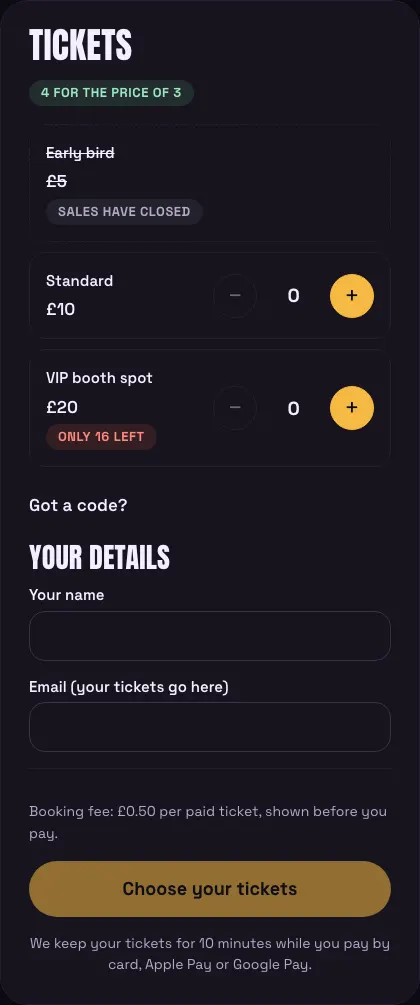
- On the event's page they choose how many of each ticket, and type a code if they have one. The total updates as they choose, with the group deal, the code's discount and the booking fee shown separately.
- They give their name and email and click Get tickets.
- Their tickets are kept for them for the minutes set under Settings → Tickets (10 at first) while they pay on Stripe's page by card, Apple Pay or Google Pay.
- Back on your website they see You're in! and their tickets, each with its own QR code. The same tickets come by email, with a calendar file.
Free tickets (an RSVP) skip the payment and are booked straight away.
If someone takes too long to pay, their tickets go back on sale. If their payment still arrives, they get the tickets as long as there are some left. If the event sold out meanwhile, they're refunded in full automatically and emailed.
The buyer's page
The link in the email opens the buyer's own page: every ticket with its QR code, name and ticket number, Add to my calendar and Print. Until a couple of hours before the start (Settings → Tickets), they can give a ticket to a friend: the friend gets a new QR code by email and the old one stops working.
Settings → Tickets
- Sell tickets online: off stops all online sales; tickets already sold still work.
- Tickets in one order (up to), order numbers, ask for a phone number, a name on every ticket.
- Booking fee per paid ticket, what it's called, and whether it's refunded with a ticket. It's always refunded when you cancel an event.
- A line under every order: what to bring, your refund promise.