Running your website
Orders, transfers and refunds
Finding an order, what's on one, sending tickets again, refunding one ticket or all, giving a ticket to someone else, undoing a check-in and downloading a spreadsheet.
On this page
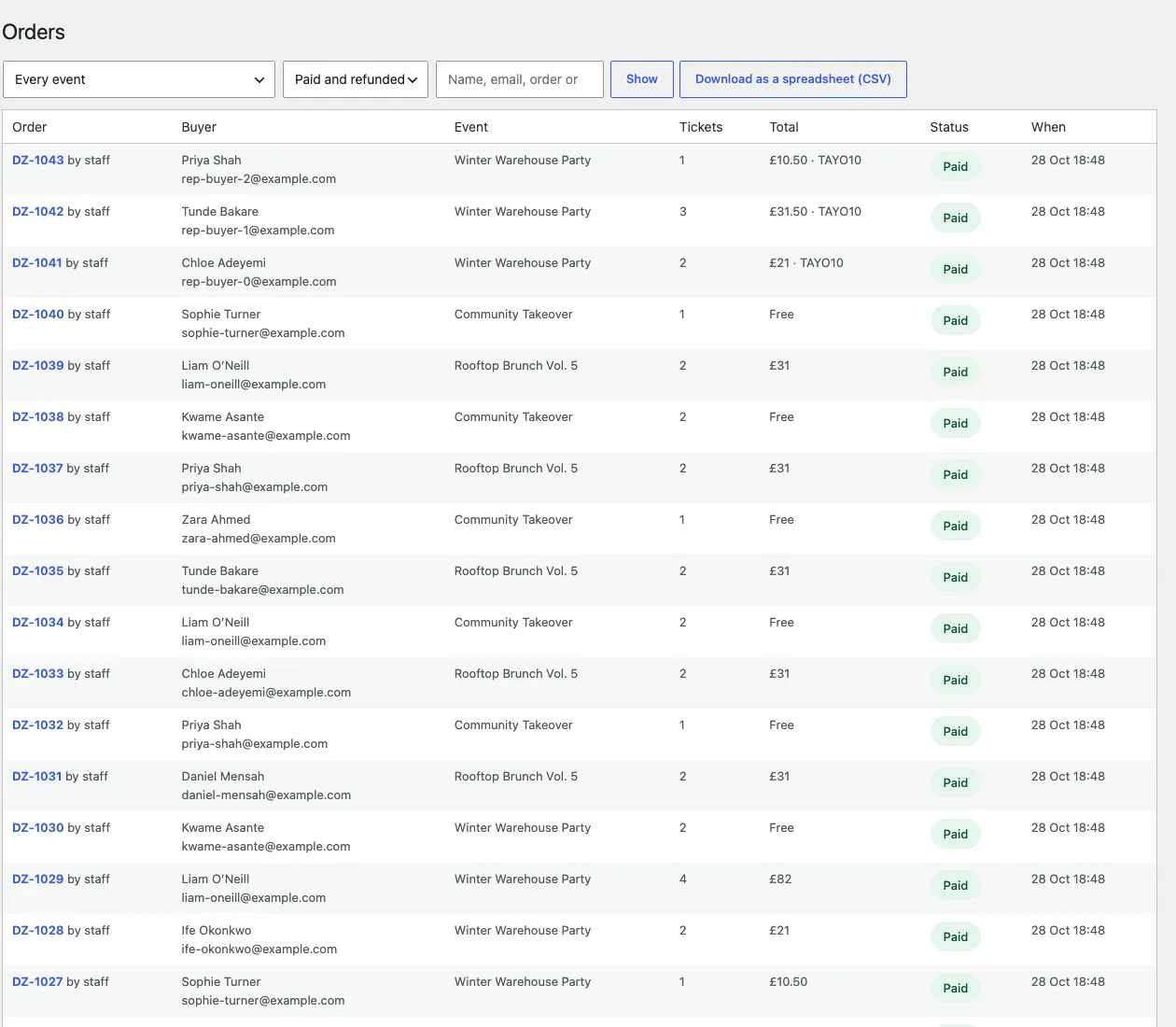
Go to Events → Orders. Show one event's orders, filter by status, or search by name, email, phone, order number or ticket number. Download as a spreadsheet (CSV) gives one row per ticket.
Open an order to see the buyer, the money, every ticket and the order's history.
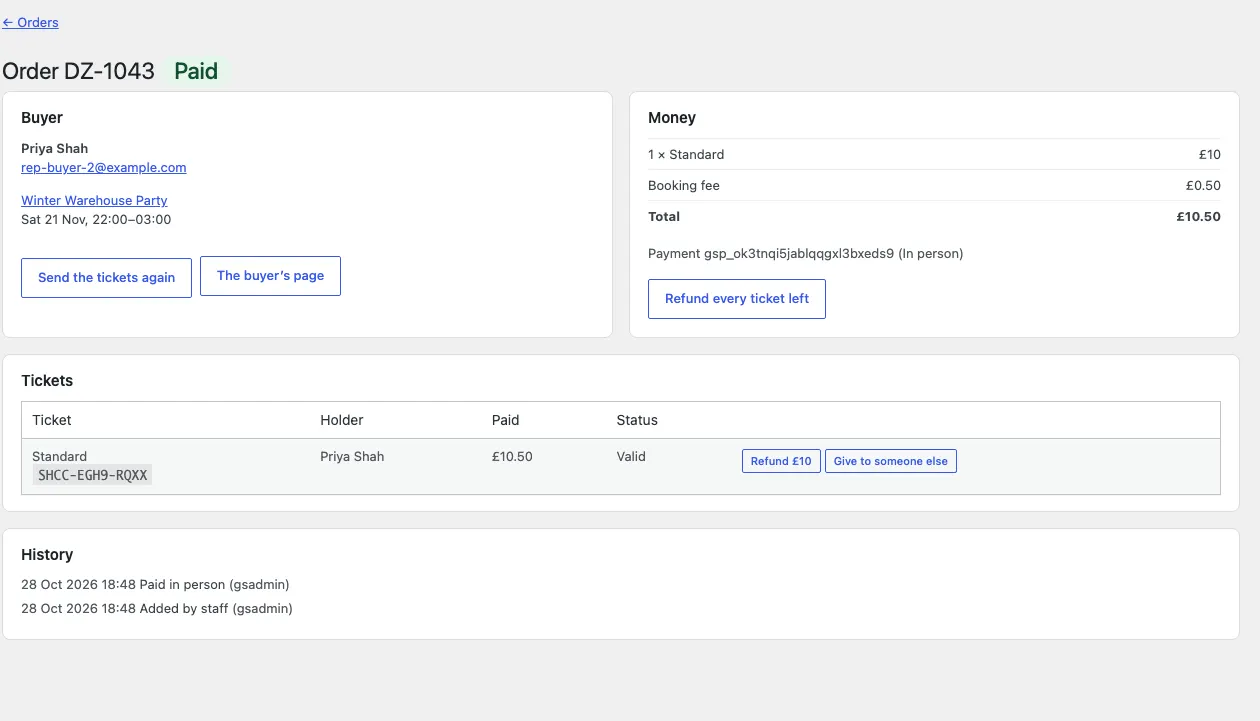
- Send the tickets again: the email with every valid ticket.
- The buyer's page: opens what the buyer sees.
- Refund £10 on a ticket: refunds what that ticket paid and stops it working. The booking fee stays with you unless you set it to be refunded (Settings → Tickets).
- Refund every ticket left: everything still valid on the order.
- Give to someone else: a new holder and a new QR code by email; the old code stops working.
- Undo the check-in: for a ticket let in by mistake.
Money goes back to the card it came from; banks usually take 5–10 working days to show it. A refund you make in Stripe's own dashboard is picked up too: the tickets it covers stop working.
Checked-in tickets can't be refunded from here. If you need to, undo the check-in first.
What the buyer can do on their page
The tickets email goes to the buyer by itself as soon as their payment is confirmed, with every ticket's QR code and a calendar file. The link in it opens the buyer's page. On it they can:
- Save QR code on each ticket, to keep it in their phone's photos;
- Didn't get the email? Send it again (up to three times an hour);
- Add to my calendar, Print, and Give this ticket to a friend.