Running your website
Events and ticket types
Adding an event (date, times, venue, age, line-up, state) and its ticket types: prices, how many, per-order limits, sales windows, hidden types and group deals.
On this page
Adding an event
Go to Events → Events → Add event.
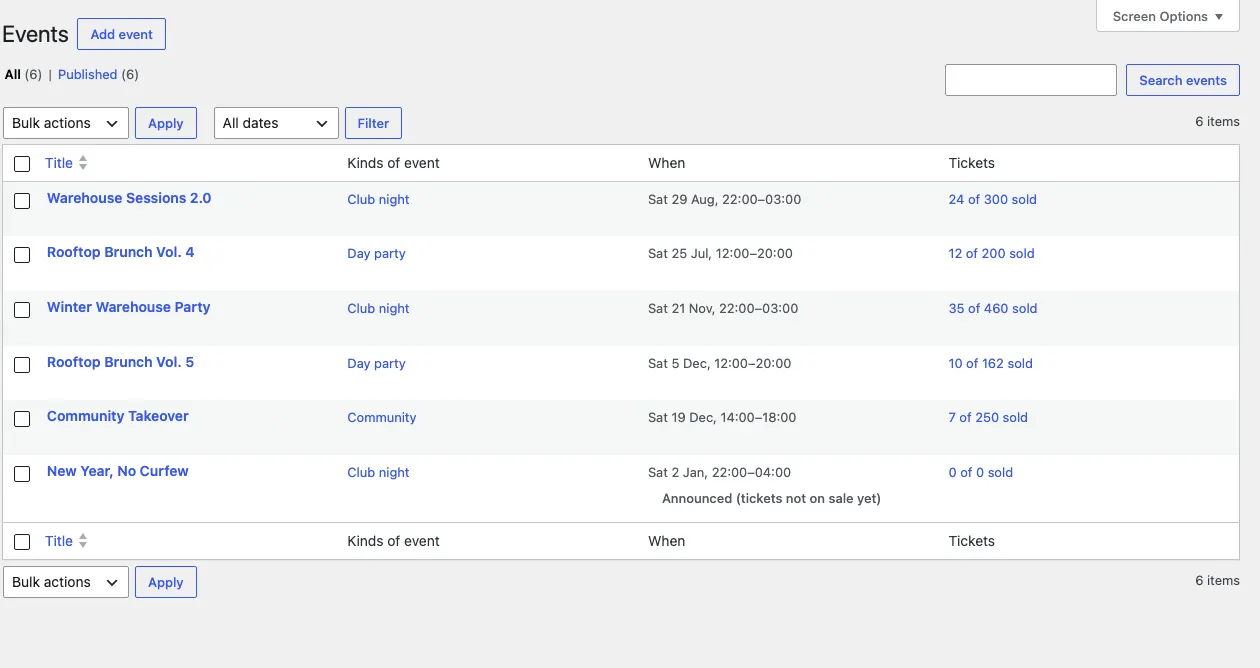
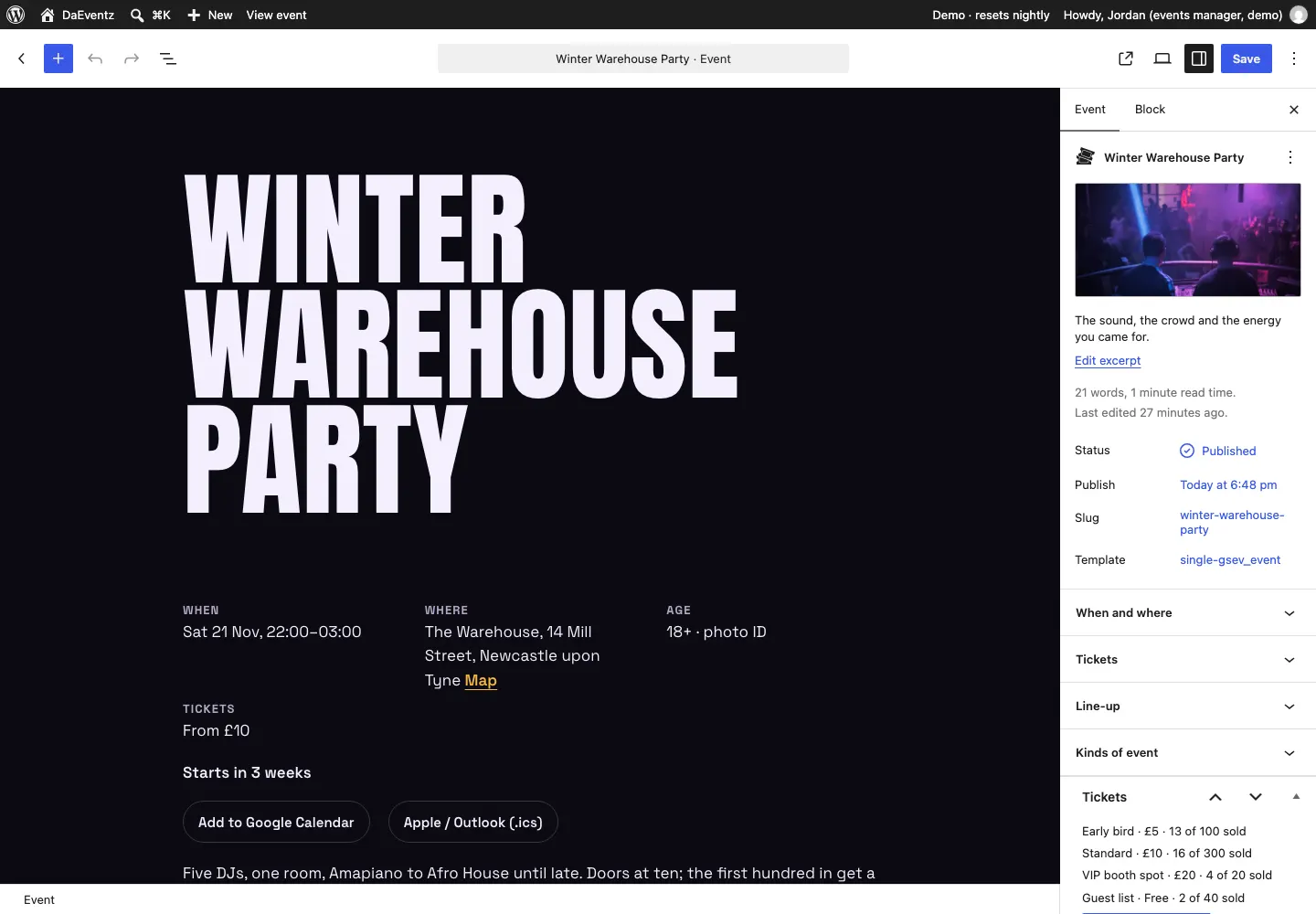
- Title, picture and description: the picture is the event's photo on lists and its page.
- When and where: the date, start and end times (an end earlier than the start is the next morning, so 22:00 to 03:00 works), the venue, address, town and postcode, and the age limit (18+ and 21+ remind people to bring photo ID).
- Tickets: the event's state and its capacity.
- On sale: tickets can be bought.
- Announced: the event shows, but tickets aren't on sale yet.
- Postponed: tickets already bought are kept for the new date; nothing new is sold.
- Cancelled: use Cancel the event on its Tickets screen instead, which also refunds everyone (see below).
- Capacity: the most tickets across every ticket type, guest list included. 0 means only each type's own number counts.
- Line-up: one act per line, as Name | time | note, for example
DJ Nova | 01:30–03:00 | headline. A name that matches someone in the crew links to their page. - Kinds of event: tick Club night, Day party and so on.
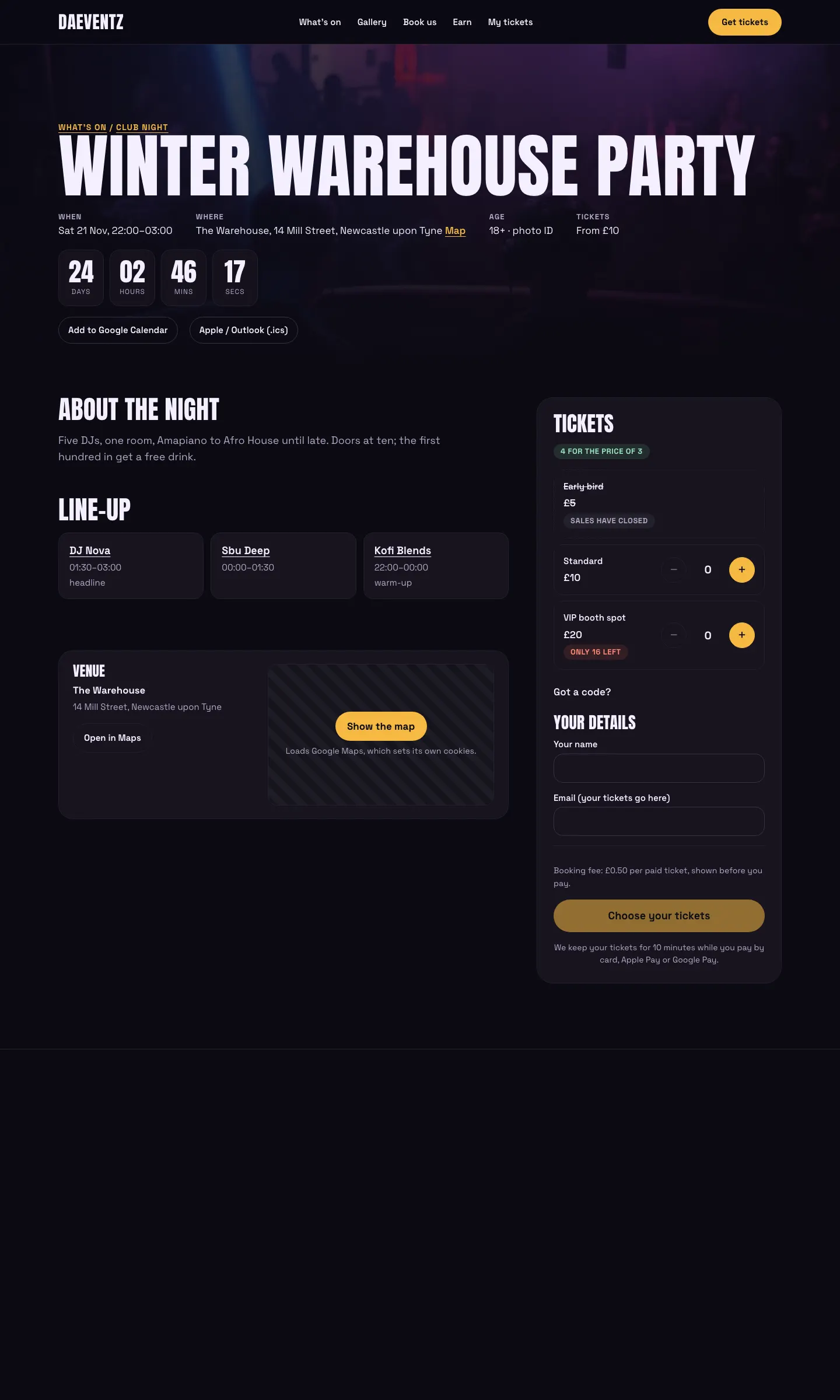
The event's page shows the facts, a countdown, the line-up and the ticket picker.

Ticket types
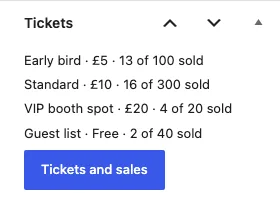
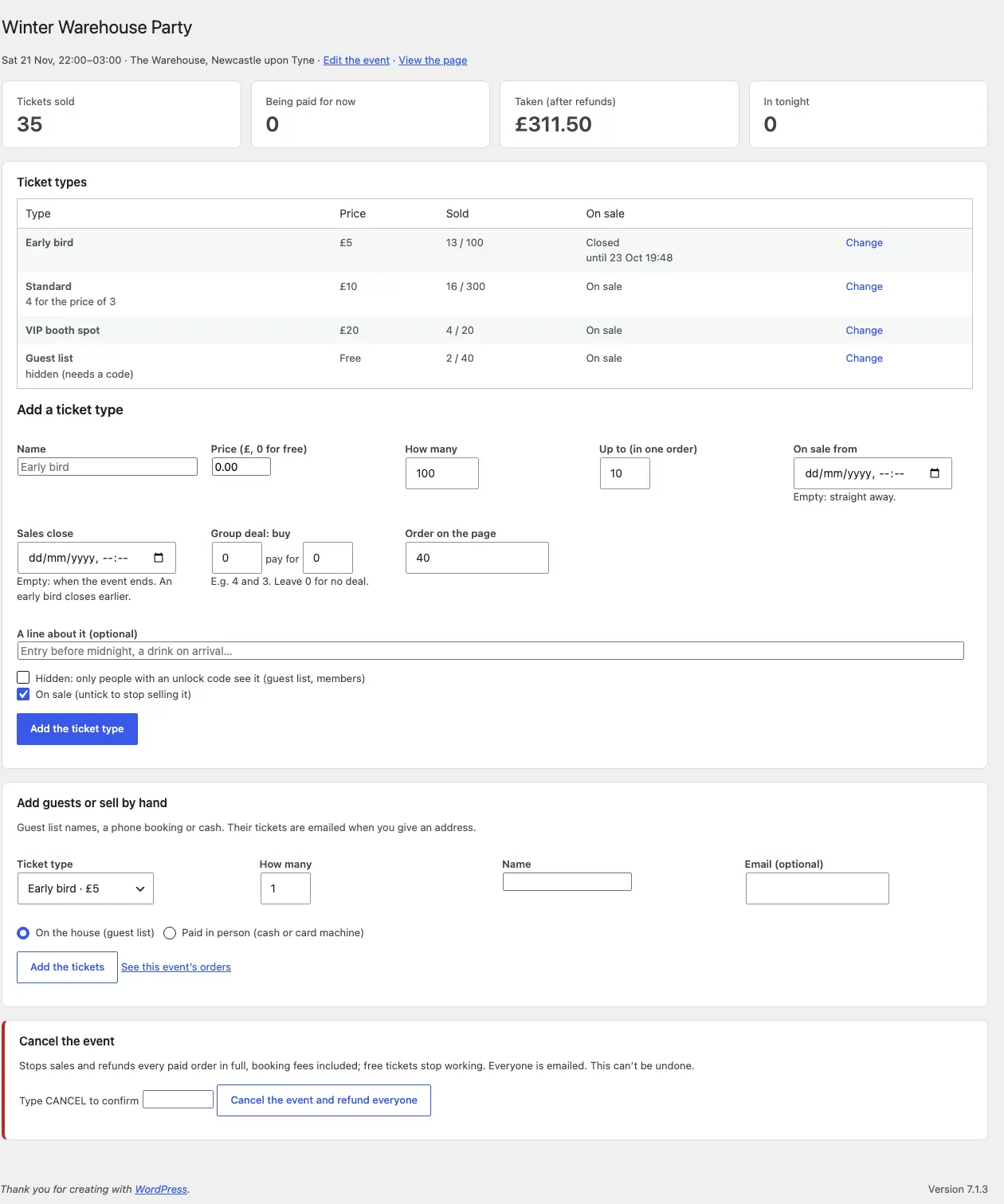
Save the event, then click Tickets and sales in its Tickets box. The screen shows what has sold, what's being paid for right now, the money taken after refunds, and how many are in.
Add a ticket type with:
- Name and price (0 for free tickets, like an RSVP).
- How many of this type there are.
- Up to (in one order): the most one buyer can take.
- On sale from and Sales close: leave both empty to sell straight away until the event ends. An early bird closes earlier; a final release opens later. Each type opens and closes by itself.
- Group deal: for example buy 4, pay for 3. The deal is worked out by itself when someone picks 4.
- Hidden: only people with an unlock code see it (a guest list price, a members' tier). See Codes and deals.
- On sale: untick to stop selling this type without deleting it.
A ticket type that has sold can't be deleted (it's switched off instead), and you can't set fewer tickets than are already sold.
Never sold twice
When two people try to buy the last ticket at the same moment, only one gets it; the other is told it has sold out. Tickets being paid for are kept for that buyer for a few minutes and then go back on sale.
Adding guests by hand
On the Tickets screen, Add guests or sell by hand adds tickets for someone:
- On the house (guest list): free, whatever the ticket's price.
- Paid in person: cash or a card machine, recorded under Payments.
Their tickets are emailed to them when you give an address.
Cancelling an event
At the bottom of the Tickets screen, type CANCEL and click Cancel the event and refund everyone. Sales stop, every paid order is refunded in full (booking fees included), free tickets stop working, and everyone is emailed. A very big event is done in batches: press the button again until it says nothing is left.
The venue and map on the event page
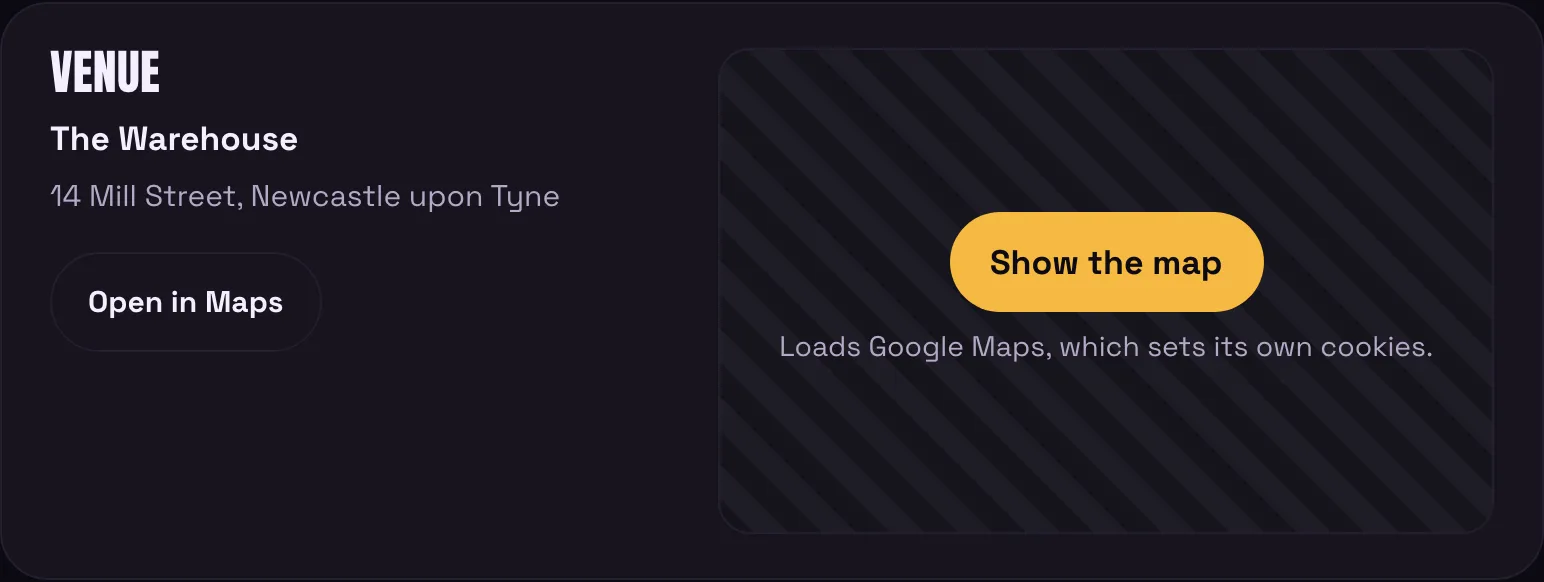
Under the line-up, the event page shows the venue, its address and Open in Maps (Google Maps in a new tab), from the event's venue, address, postcode and town. The map itself loads only when a visitor taps Show the map, because Google's map sets cookies. To leave the map out, untick Show the map in the Venue and map block's settings.