Running your website
Appointments and the diary
The staff side of bookings: the Today screen, the appointments list, the diary, adding phone and walk-in bookings, confirming requests, moving, cancelling and marking appointments done.
On this page
Every booking, whether it was made online, by phone or at the desk, is an appointment. You see them in three places: Salon → Today for today at a glance, Salon → Appointments as a list you can filter, and Salon → Diary as a day, week or month with a column for each person.
Features marked (Pro) need a Pro or Agency licence.
The Today screen
When you sign in you land on Salon → Today. It shows:
- Today's appointments, grouped by stylist, in time order, each with its status;
- Requests to confirm, with Confirm and Decline links (only if you confirm online bookings yourself);
- New messages from the contact form.
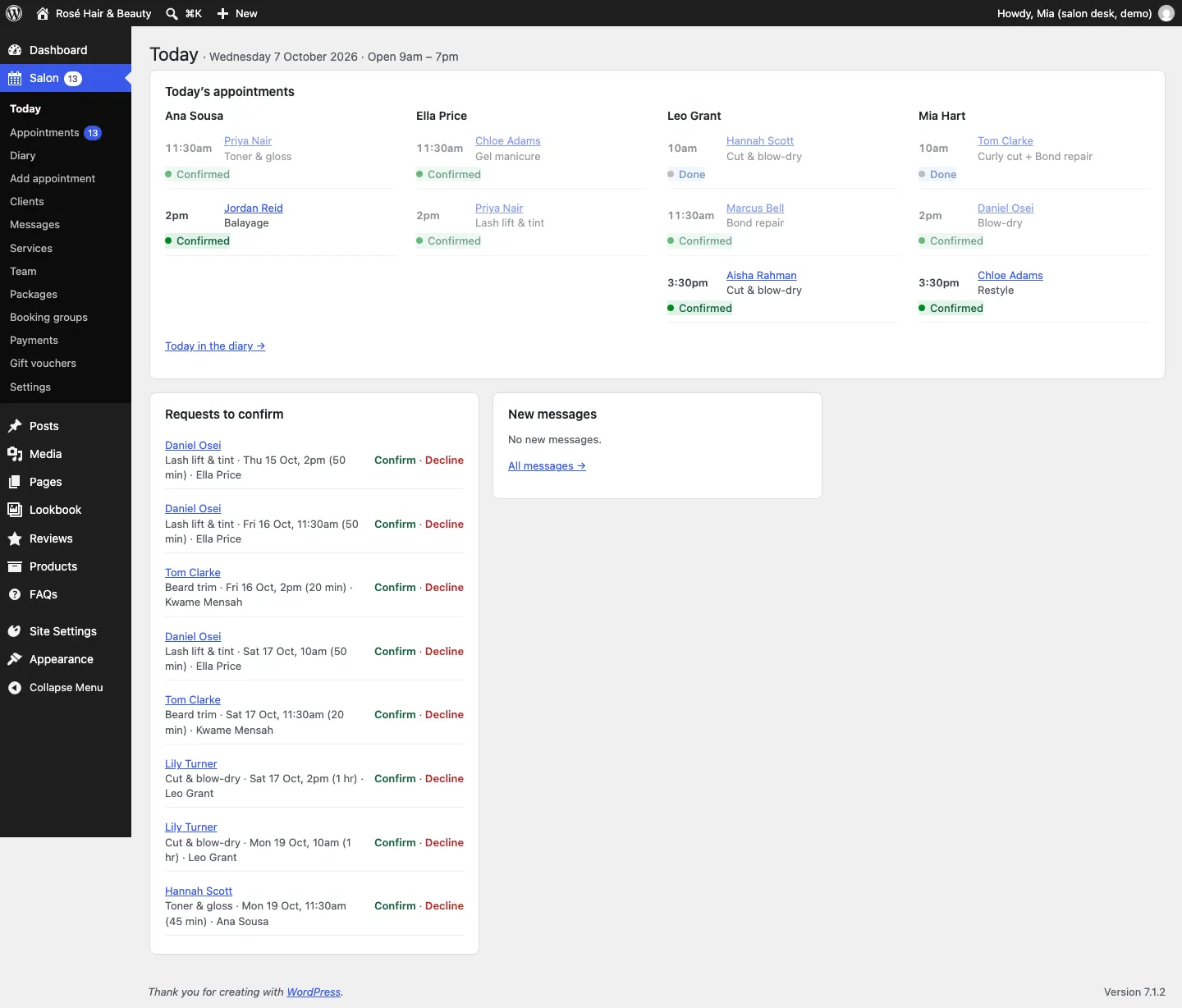
The red number next to Salon and Appointments in the left-hand menu is how many requests are waiting. Click Today in the diary → to open the diary on today.
The appointments list
Go to Salon → Appointments.
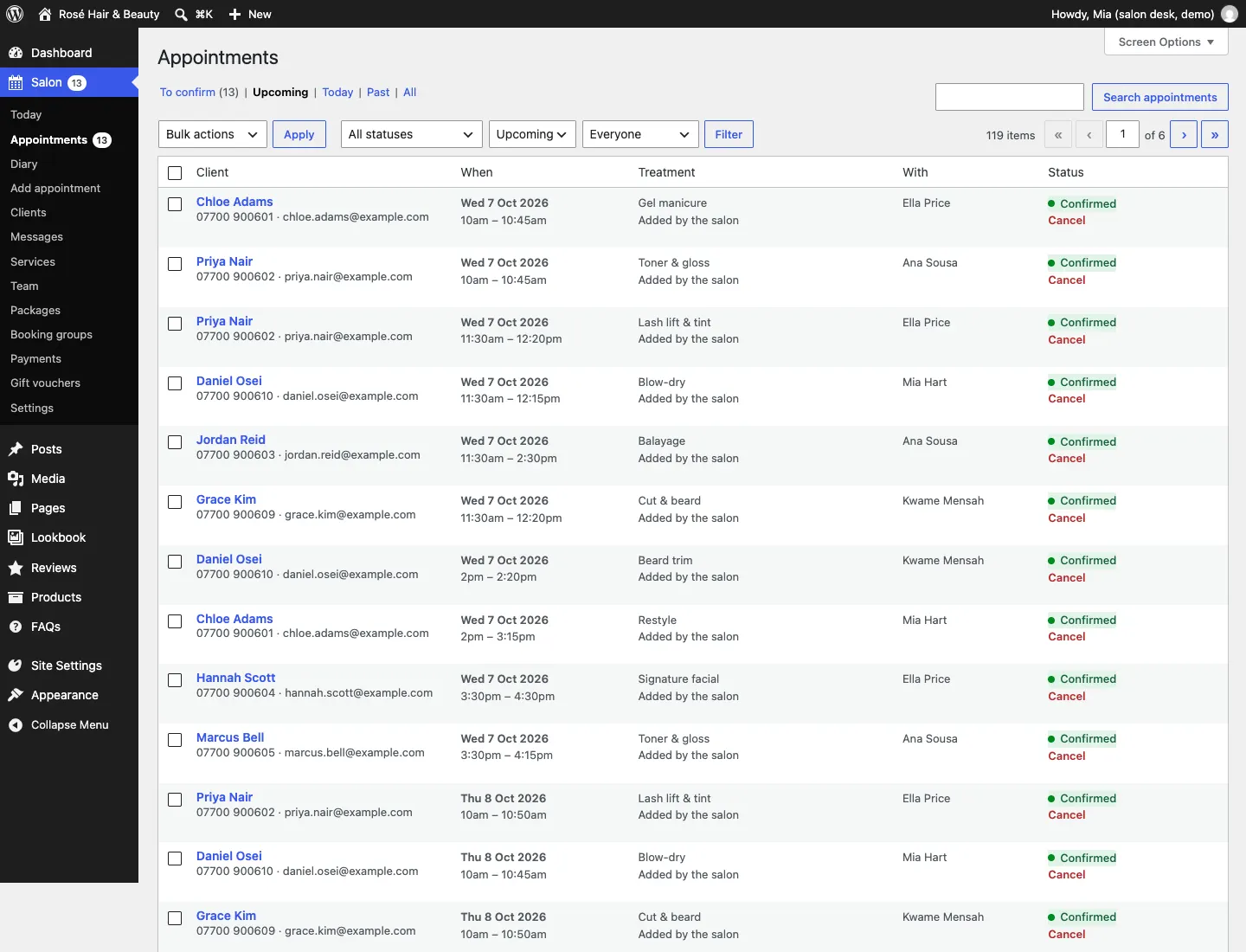
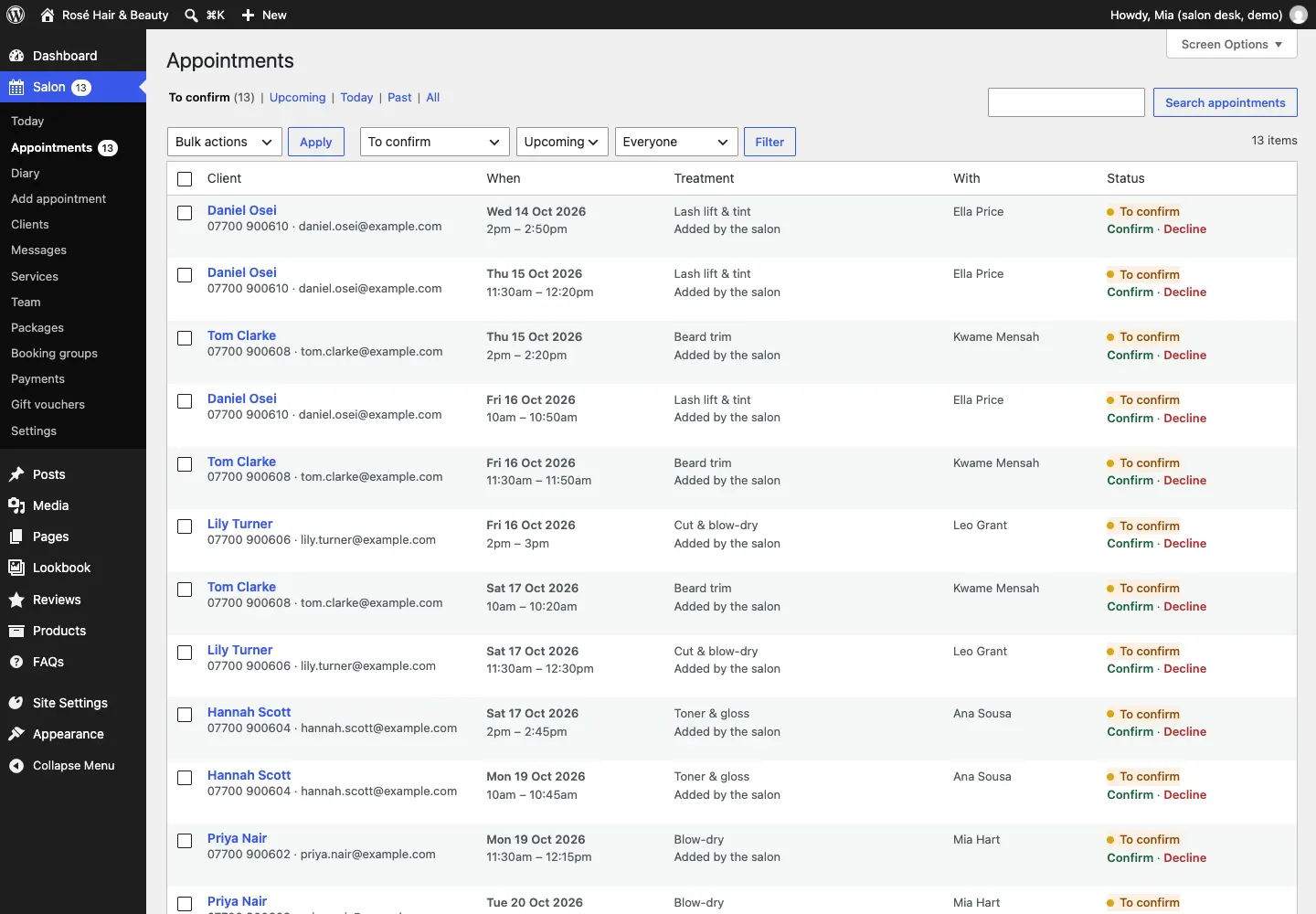
- Use To confirm, Upcoming, Today, Past and All across the top to switch views.
- Use the Status, When and Stylist boxes to narrow the list, or Search appointments for a client's name.
- Each row shows the client's phone and email, the time, the treatment, who it's with and the status. Open opens the appointment; Cancel cancels it.
- Under the treatment it says how it was booked, for example Added by the salon, and any money paid, for example Paid £30.00.
The statuses are:
| Status | Meaning |
|---|---|
| To confirm | Booked online, waiting for you to confirm or decline |
| Confirmed | Booked and in the diary |
| Waiting for payment | The client is paying a deposit (Pro); the time is held |
| Done | The client has been |
| Didn't come | A no-show |
| Declined | You couldn't offer the time they asked for |
| Cancelled | Cancelled by you or the client |
The diary
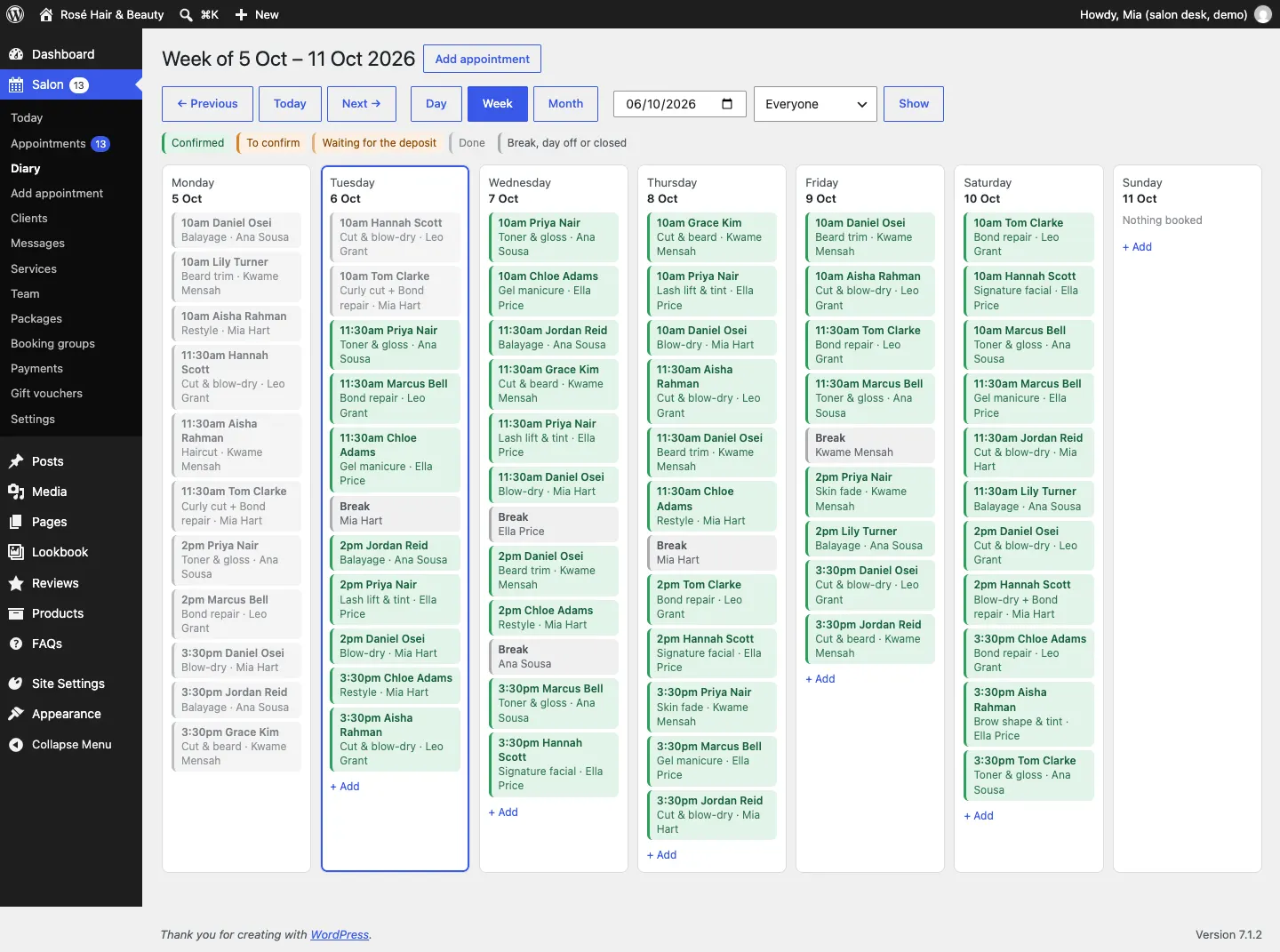
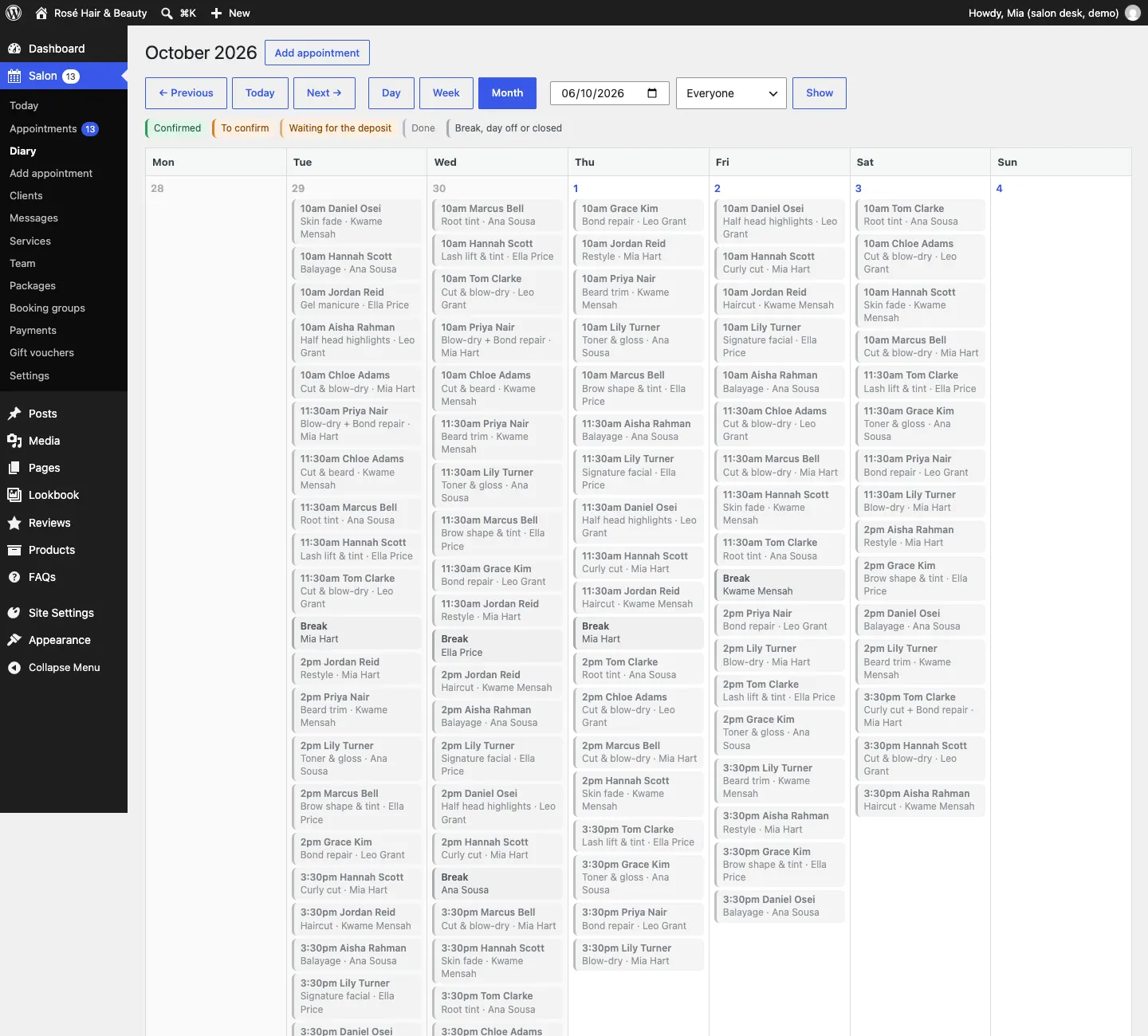
Go to Salon → Diary. The Day view has a column for each person, with their appointments in place. Breaks, days off and closed times are shaded.
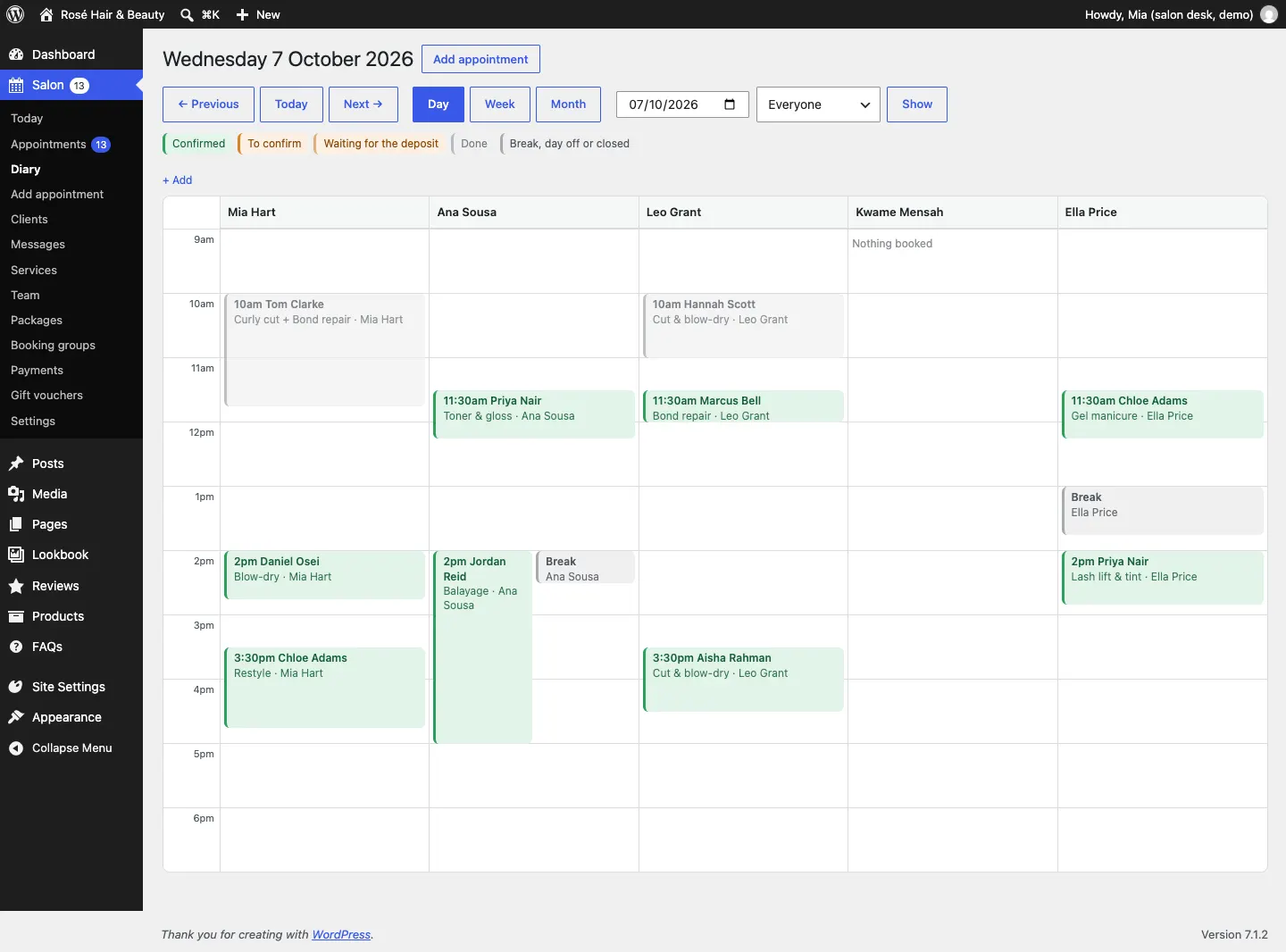
- ← Previous, Today and Next → move a day (or week, or month) at a time.
- Day, Week and Month change the view.
- Pick a date in the date box, or one person in the Everyone box, and click Show.
- The colour key above the diary shows Confirmed, To confirm, Waiting for the deposit, Done, and Break, day off or closed.
- Click an appointment to open it. Click + Add (or Add appointment at the top) to book someone in on that day.
How to add a phone or walk-in booking
- Go to Salon → Add appointment (or click + Add in the diary).
- Under The appointment, choose the Service. To book a second treatment straight after, choose it in Then (optional).
- Choose who it's With, the Date and the Time.
- Leave Status on Confirmed (or choose To confirm).
- Under Client, type their Name, Email and Phone. If the email (or the name and phone) matches a client you already have, the appointment goes on their record; otherwise a new client record is made.
- Add anything only staff should see in Salon notes.
- Leave Email them the details (with a calendar invite when confirmed) ticked to send them a confirmation, or untick it.
- Click Add the appointment.
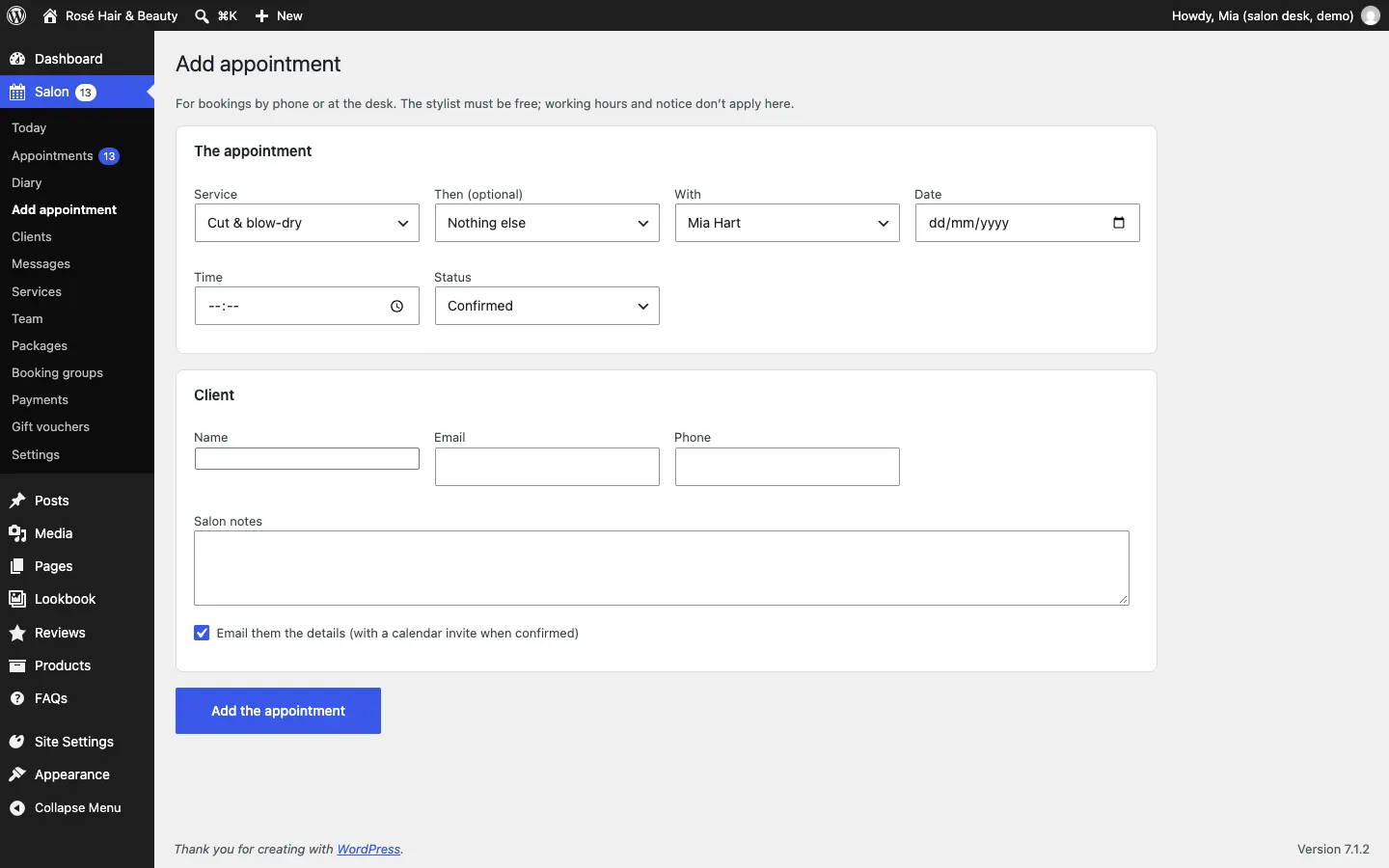
The person must be free at that time, but working hours and notice don't apply here, so you can book someone in early or late if they agree.
Appointments you add yourself never ask for a deposit, and don't email the salon.
How to open an appointment
Click Open in the list, or click it in the diary or on the Today screen.
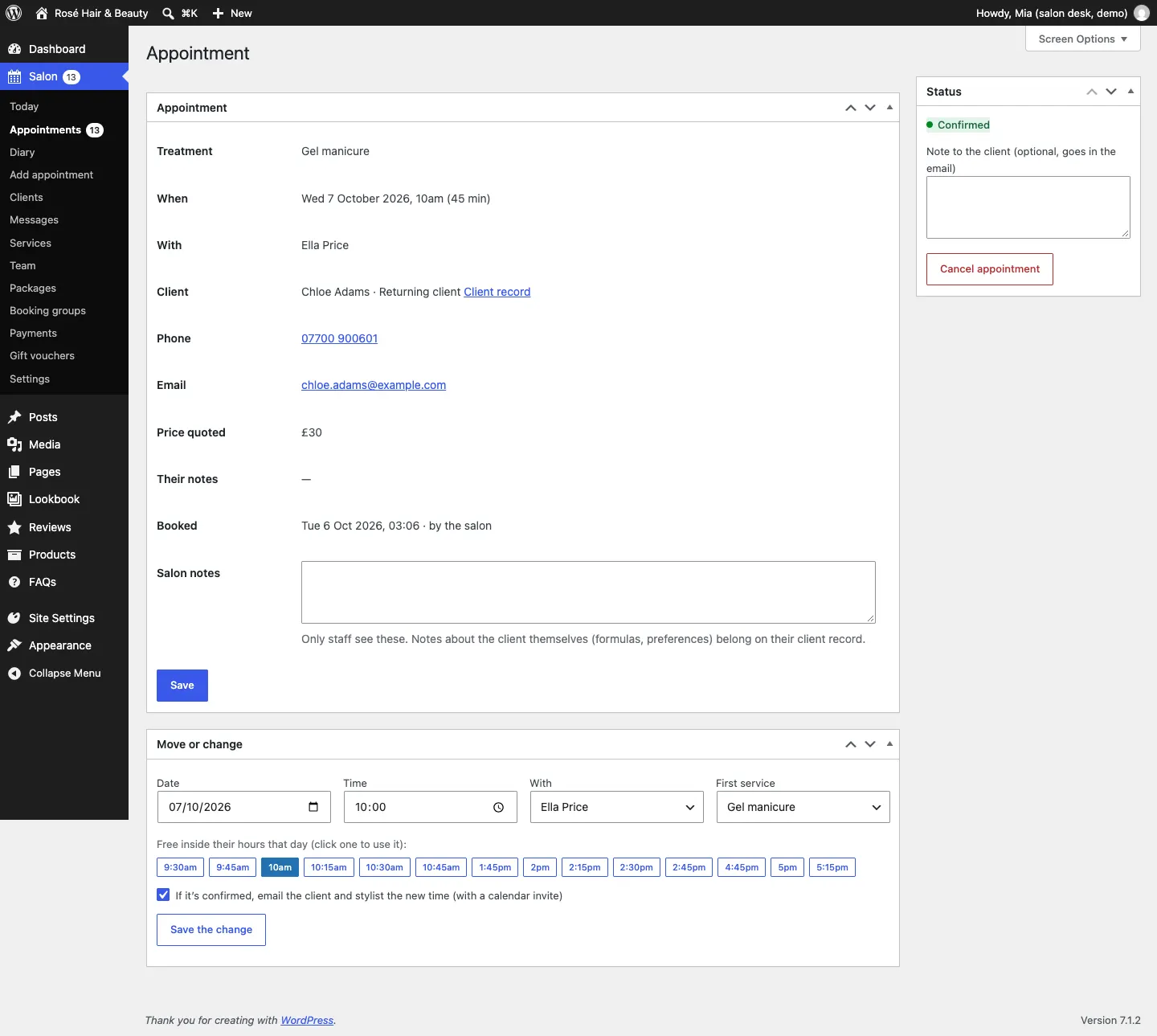
It shows the treatment, time, stylist, the client (with a Client record link), how much was quoted and paid, their own notes, and when and how it was booked. Type in Salon notes and click Save for notes only staff see.
How to confirm or decline a request
If you've switched off Confirm online bookings straight away (see Settings), online bookings arrive as To confirm and the time is held.
- Click Confirm or Decline on the Today screen, or go to Salon → Appointments → To confirm and open the request.
- In the Status box, you can type a Note to the client (optional, goes in the email).
- Click Confirm or Decline.
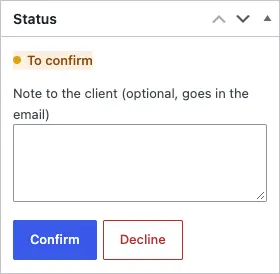
The client is emailed either way. A declined client gets a link to choose another time.
How to move an appointment
- Open the appointment.
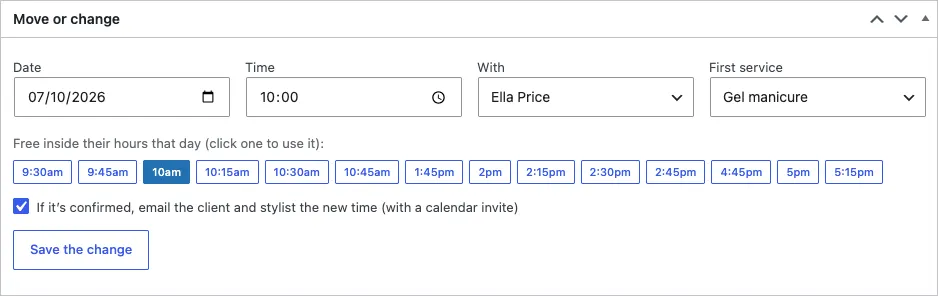
- In Move or change, pick the new Date. The free times for that person appear under Free inside their hours that day (click one to use it).
- Click a time, or type one in Time. You can also change who it's With or the First service.
- Leave If it's confirmed, email the client and stylist the new time (with a calendar invite) ticked.
- Click Save the change.
How to mark an appointment done or a no-show
Once an appointment's start time has passed, its Status box shows Done, Didn't come and Cancel.
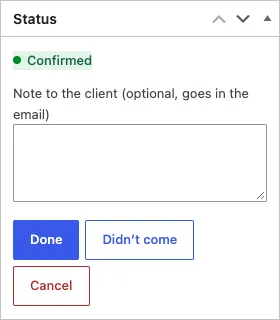
- Done: the client came. If you use the loyalty card (Pro), a stamp is added. A patch test marked Done writes the date on the client's record.
- Didn't come: a no-show.
If you click the wrong one, use Not done after all or They came after all.
How to cancel an appointment
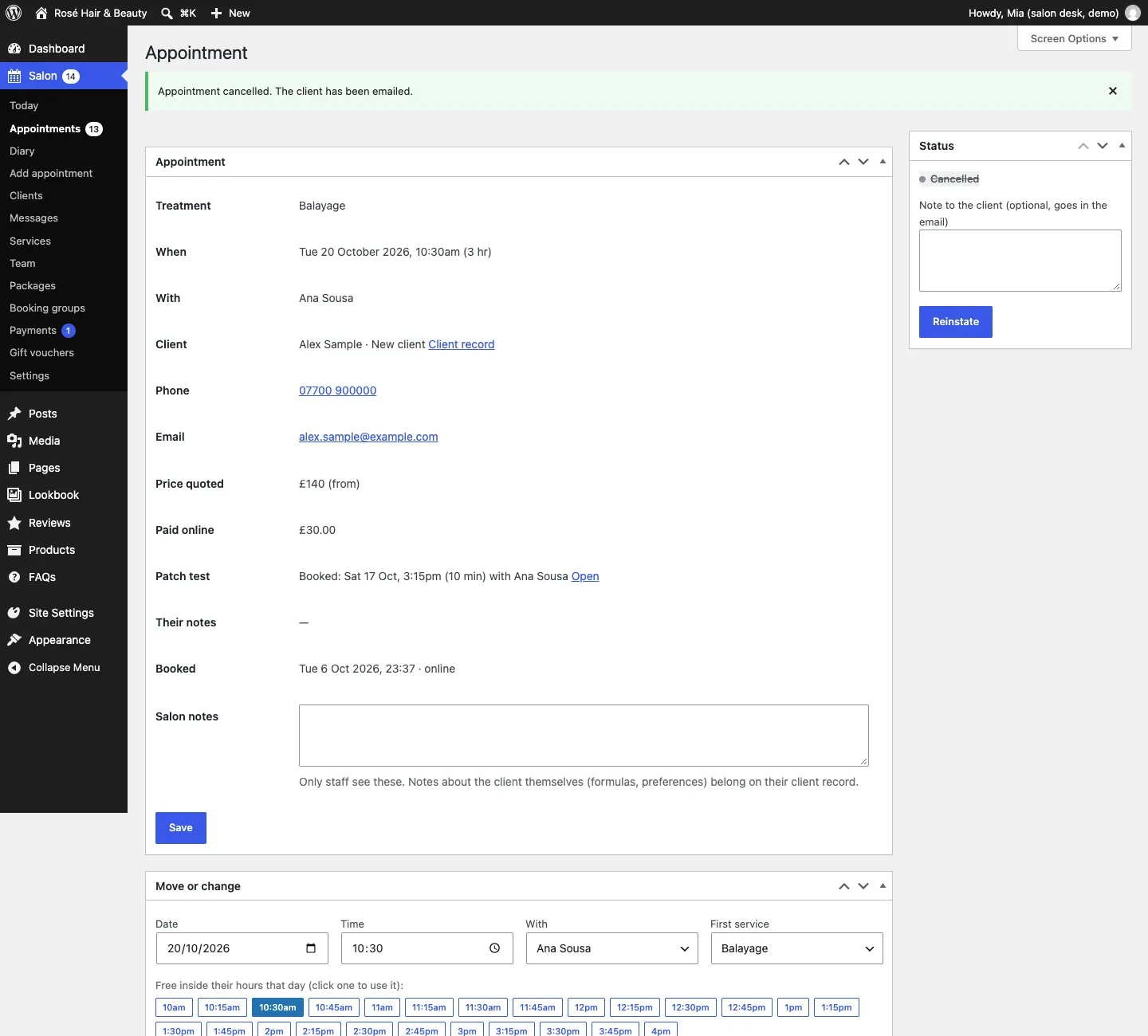
- Open the appointment and click Cancel appointment (or click Cancel in the list).
- Type a note to the client if you like.
- If a box asks "Cancel this appointment? We'll email the client and the stylist.", click Cancel appointment to confirm.
The client and the stylist are emailed and the time is free again. If you cancelled by mistake, open it and click Reinstate.
If the client paid a deposit (Pro), you're asked whether to refund it or keep it, because staff always decide when they cancel. See Deposits, payments and gift vouchers.
If a patch test was booked automatically for this appointment, it is cancelled with it automatically.
When the client paid at the desk
If a booking is Waiting for payment because the client is paying the deposit in the salon instead (Pro), open it and click Paid in the salon. The booking is confirmed and the payment is recorded.