Running your website
Your team, hours, breaks and days off
Add each stylist, barber or therapist with their photo and profile, set their working hours, weekly breaks and days off, and give them their own sign-in to see their diary.
On this page
Each person who takes appointments has a team member profile. The profile does two jobs. On the website it is their page: photo, a few words, what they're known for and a Book with … button. Behind the scenes it holds their working hours, breaks and days off, which decide the times clients can book with them.
Features marked (Pro) need a Pro or Agency licence.
How to see your team
Go to Salon → Team. Every team member is listed. Click a name to open their profile.
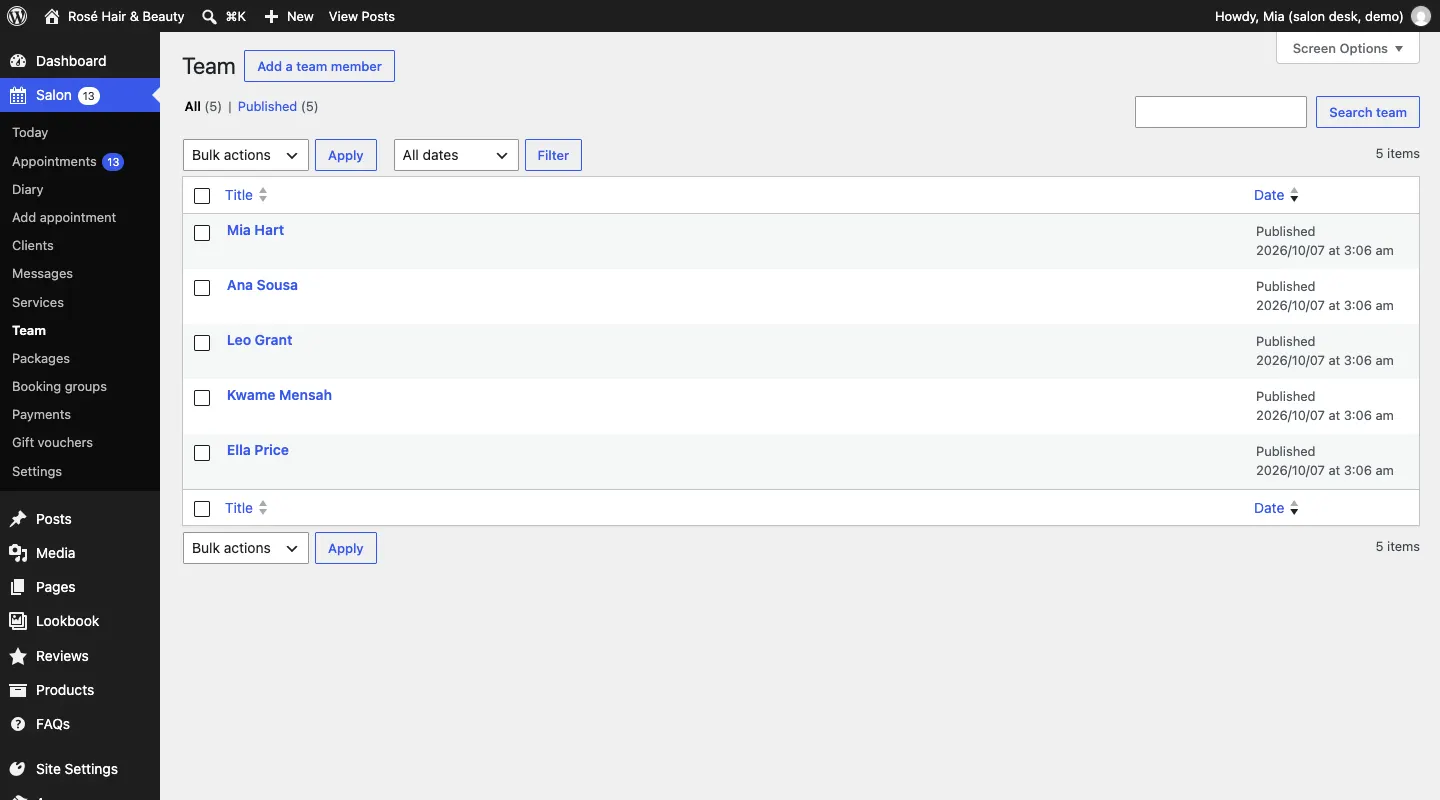
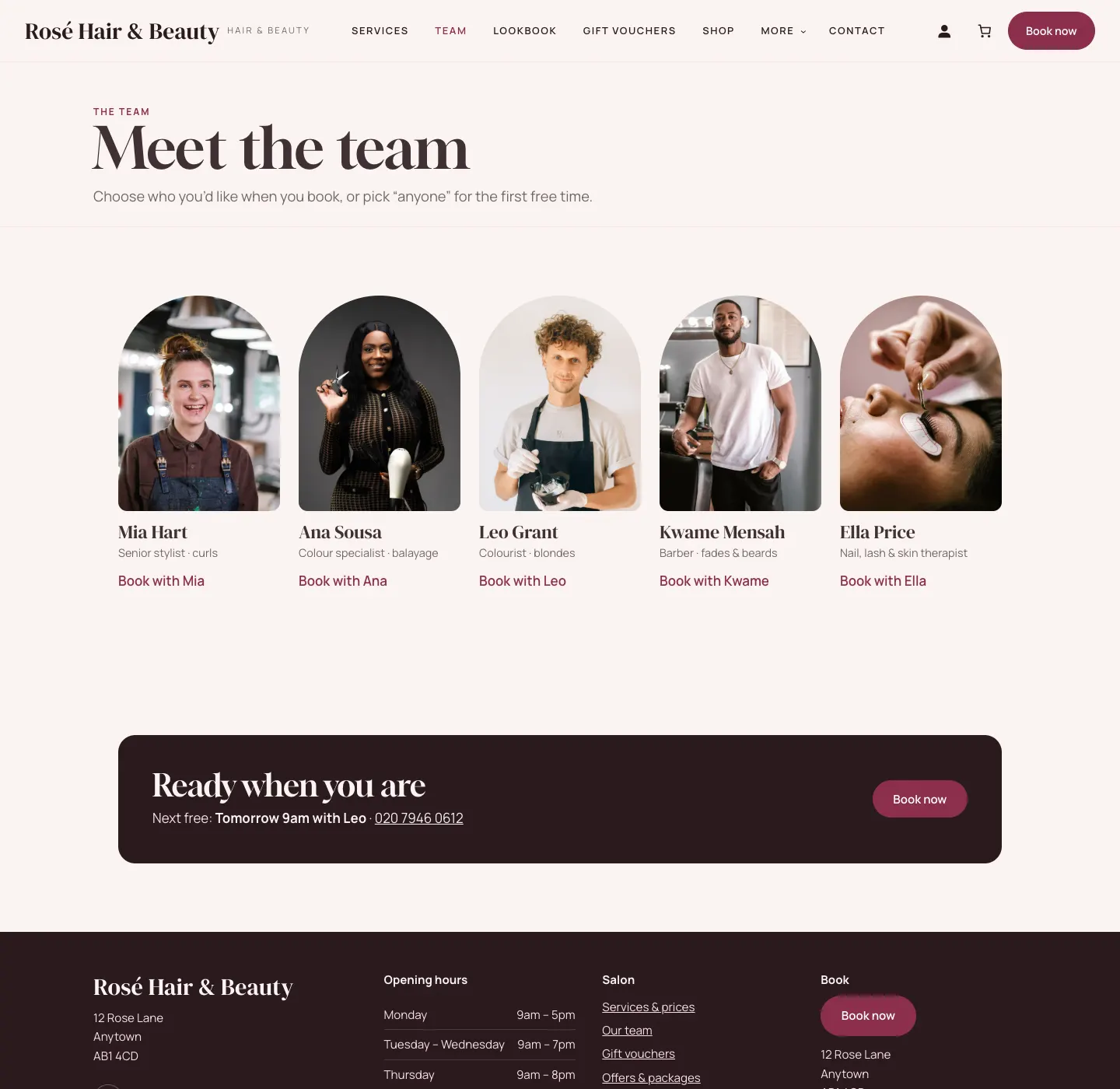
On the website, the Team page shows everyone with their photo and role, and each person has their own page.
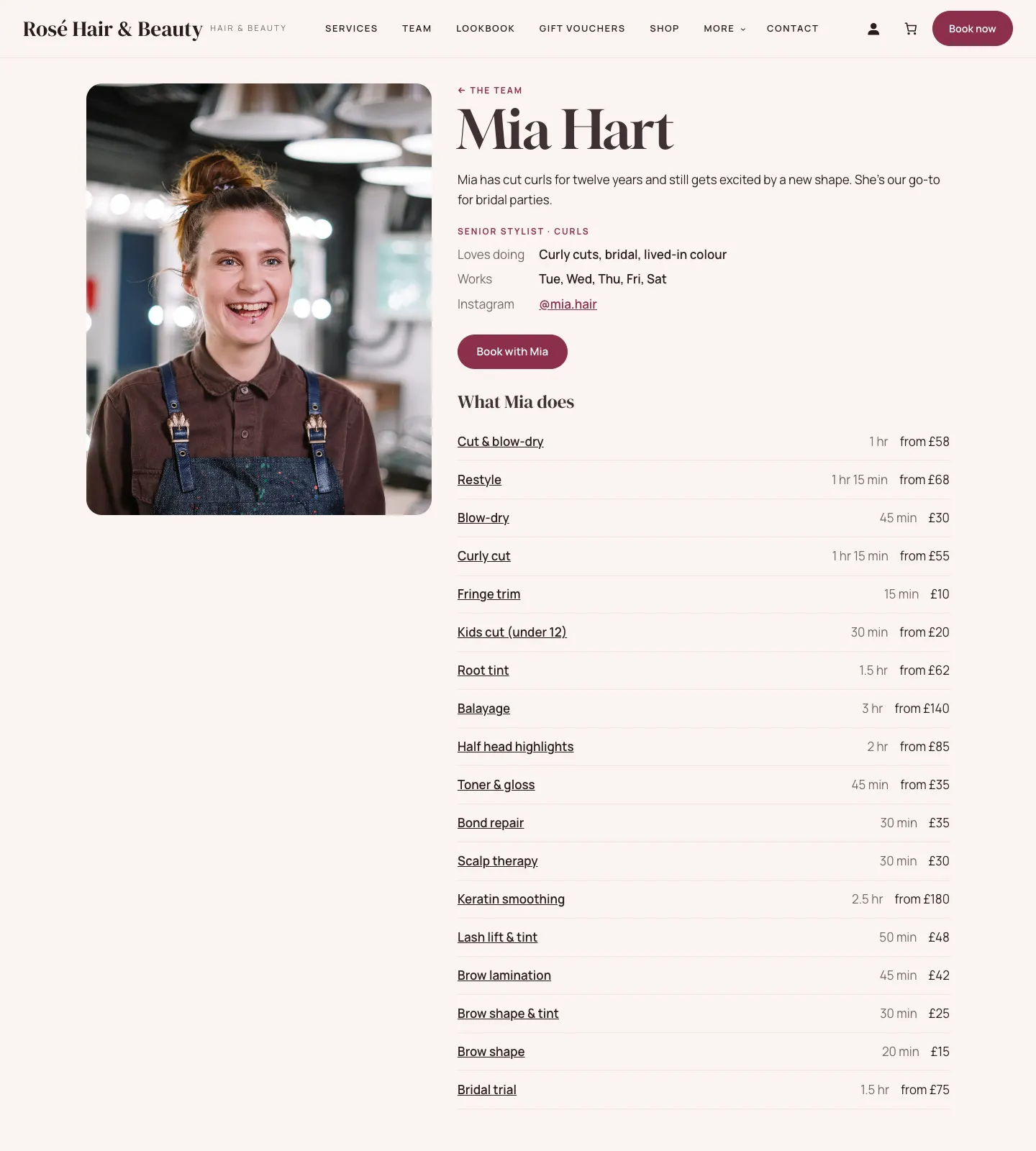
The days under Works and the list under What Mia does fill themselves in from her hours and from the services she's ticked on.
How to add a team member
- Go to Salon → Team and click Add a team member.
- Type their name at the top.
- Underneath, write a few words about them: what they love doing, their training, the looks they're known for.
- On the right, click Set featured image to add their photo. A portrait photo works best.
- Fill in the panels on the right: Profile, Working hours and Office: booking, email and sign-in (explained below).
- Click Save (or Publish for someone new).
- Open each service they do and tick them under Who does it (see Services and prices).
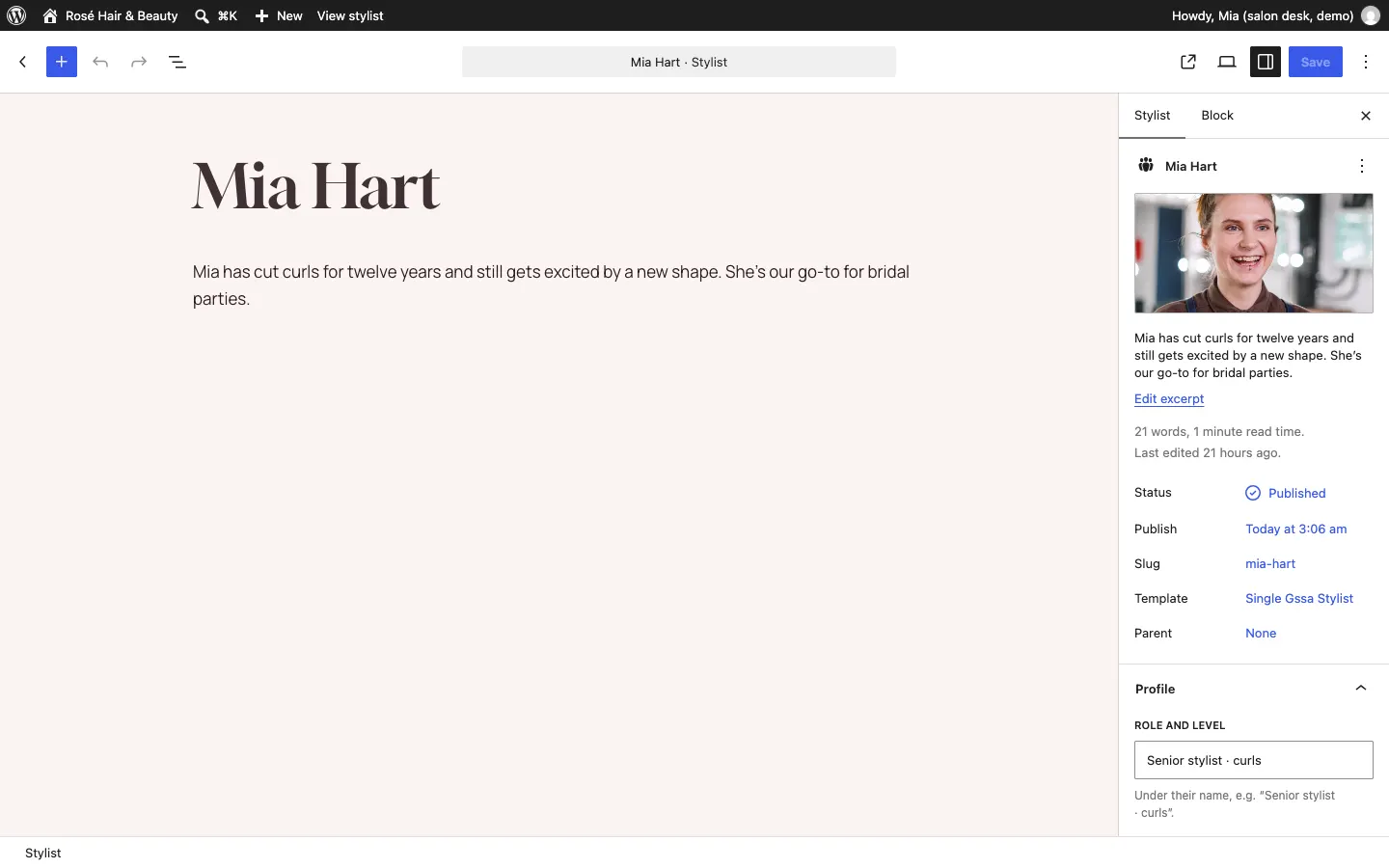
Profile
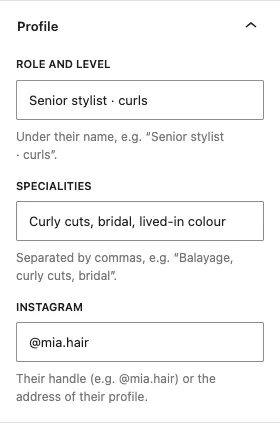
- Role and level: shown under their name, for example "Senior stylist · curls".
- Specialities: separated by commas, for example "Balayage, curly cuts, bridal".
- Instagram: their handle (for example @mia.hair) or the address of their profile.
How to set working hours, breaks and days off
All three are in the Working hours panel.

Weekly working hours
- For each day they work, click Add hours and set the start and finish times, for example 09:00 – 18:00.
- For a split day (for example 9 to 1, then 4 to 8), click Add another time and add the second part.
- To take a day off their weekly pattern, click the red cross next to its times. The day then says "not available".
If you leave every day empty, the person works the salon's opening hours. Clients can only book inside both their hours and the salon's opening hours.
Breaks every week
Under Breaks every week, add the same way the times they're not to be booked, for example lunch on Tuesday 13:00 – 13:30. Nothing is booked over a break, and breaks show shaded in the diary.
Days off and holidays
- Under Days off and holidays, click + Add a day off.
- Choose the date (or the first and last date for a holiday). For part of a day, for example training from 2pm to 4pm, add the times too.
- Add a short note if you like, for example "Holiday". Only staff see it.
No appointments can be booked with them at these times. Appointments already booked aren't moved, so check the diary and move any that clash (see Appointments and the diary).
Extra gap after each of their appointments
Some people like a few extra minutes between clients. Type the minutes in Extra gap after each of their appointments (minutes).
Booking, email and sign-in
The Office: booking, email and sign-in panel holds the details only staff see.
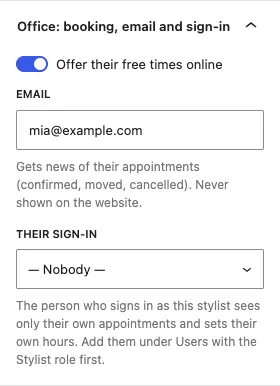
- Offer their free times online: untick it for someone who should only be booked by the front desk (for example a trainee).
- Email: gets news of their appointments (confirmed, moved, cancelled). It's never shown on the website.
- Their sign-in: links this profile to a staff sign-in, so they can see their own diary (see below).
Giving a stylist their own sign-in
Each person should have their own sign-in. Never share one.
- Add them under Users → Add User with the Stylist role (see Staff accounts and sign-in).
- Open their team profile, and choose them in Their sign-in in the Office panel. Click Save.
The salon kit adds two roles:
| Role | What they can do |
|---|---|
| Stylist | See only their own appointments and diary, and change their own hours under Salon → My hours |
| Front desk | Manage every appointment and client, the team and their hours, and messages |
Editors and other roles don't see appointments unless you allow it. Choosing exactly what each role can do, on Staff access, is a (Pro) feature.
My hours (for stylists)
A stylist who signs in sees Salon → My hours. It has the same three parts: Weekly hours, Breaks and Days off and holidays, and a Save my hours button. Online booking updates as soon as they save.
If it says "Your sign-in isn't linked to a stylist profile yet", ask the front desk to choose them under Their sign-in on their profile.
When someone leaves
- Move or cancel their future appointments (filter Salon → Appointments by Stylist).
- Open their profile and click Trash (or untick Offer their free times online if they're only away for a while).
- Remove or change their sign-in under Users.
Their past appointments stay in your records.