Setting up
Designs, colours and pages
The Salon kit's four designs (Blush, Barbershop, Studio and Luxe), their seven colour palettes each, and the pages and menus the kit sets up for you.
On this page
The Salon kit comes with four complete designs. Each has its own fonts, shapes and mood, and its own home page sections, so a barber's looks nothing like a spa. Each design has seven colour palettes. You can switch at any time: your services, team, prices and bookings stay exactly as they are.
How to choose a design and palette
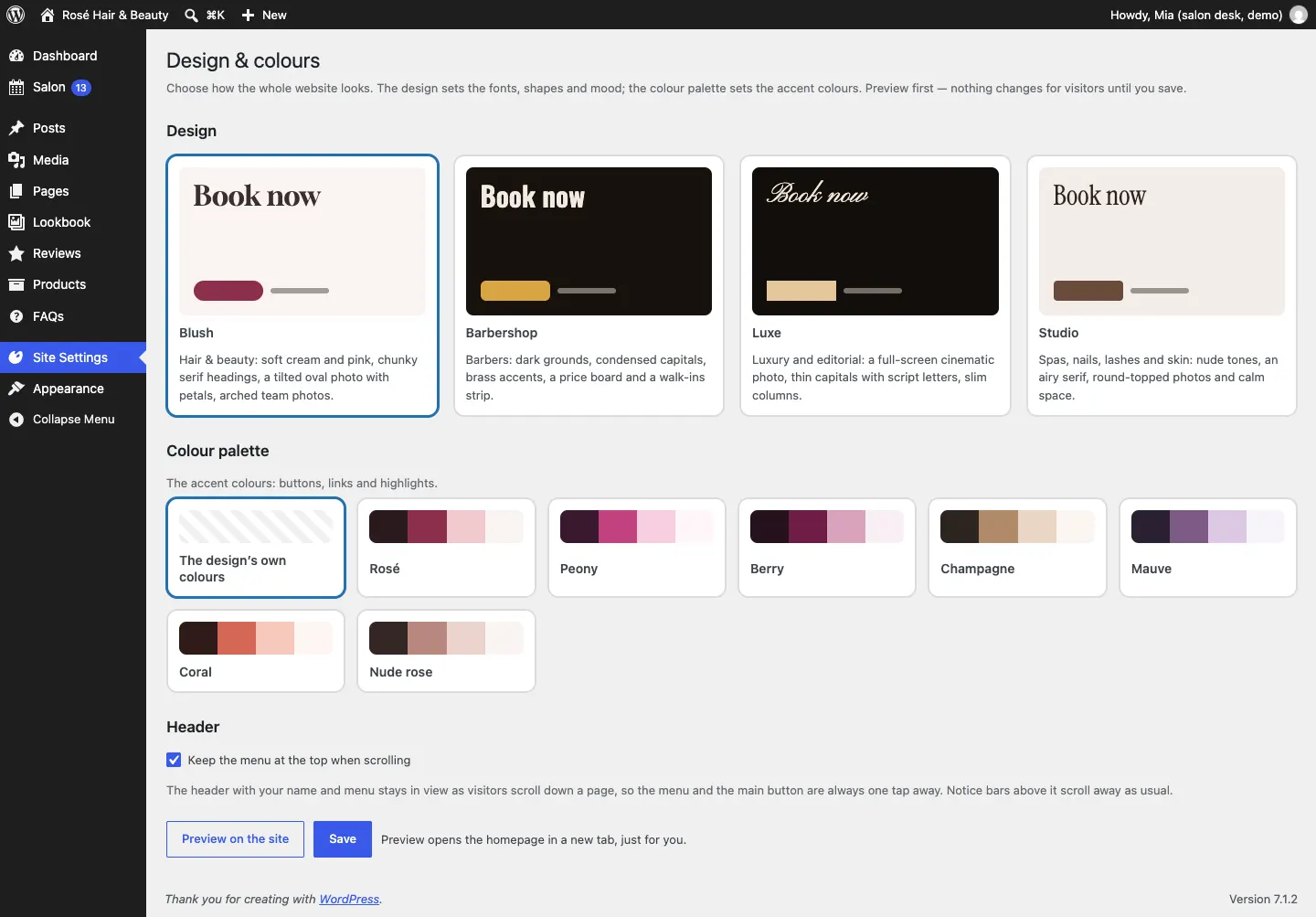
- Go to Site Settings → Design & colours.
- Under Design, click Blush, Barbershop, Luxe or Studio.
- Under Colour palette, click a palette, or The design's own colours.
- Under Header, tick or untick Keep the menu at the top when scrolling.
- Click Preview on the site to see it in a new tab, just for you. Nothing changes for visitors until you save.
- Click Save.
More about logos, menus and the footer is in Your look.
Blush
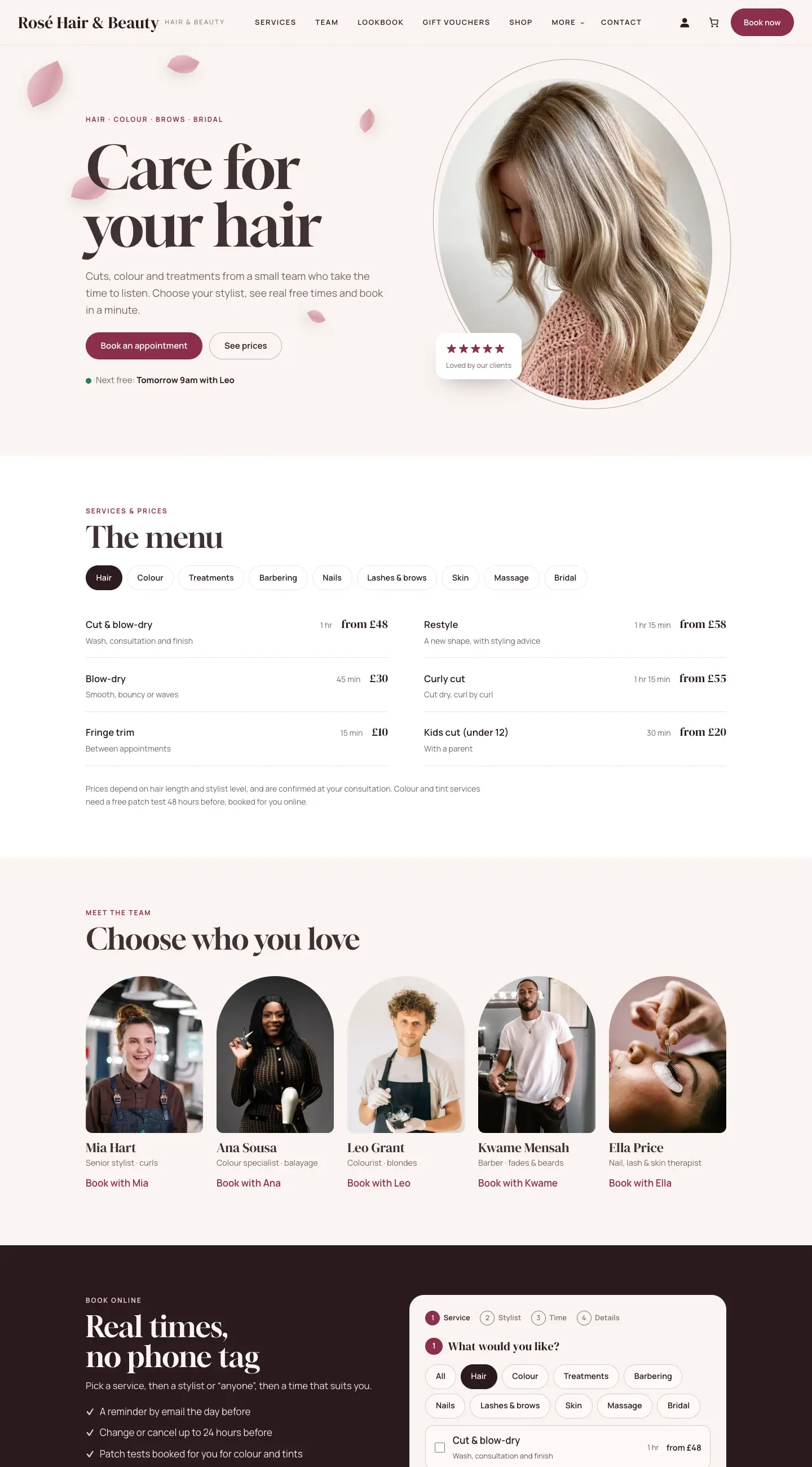
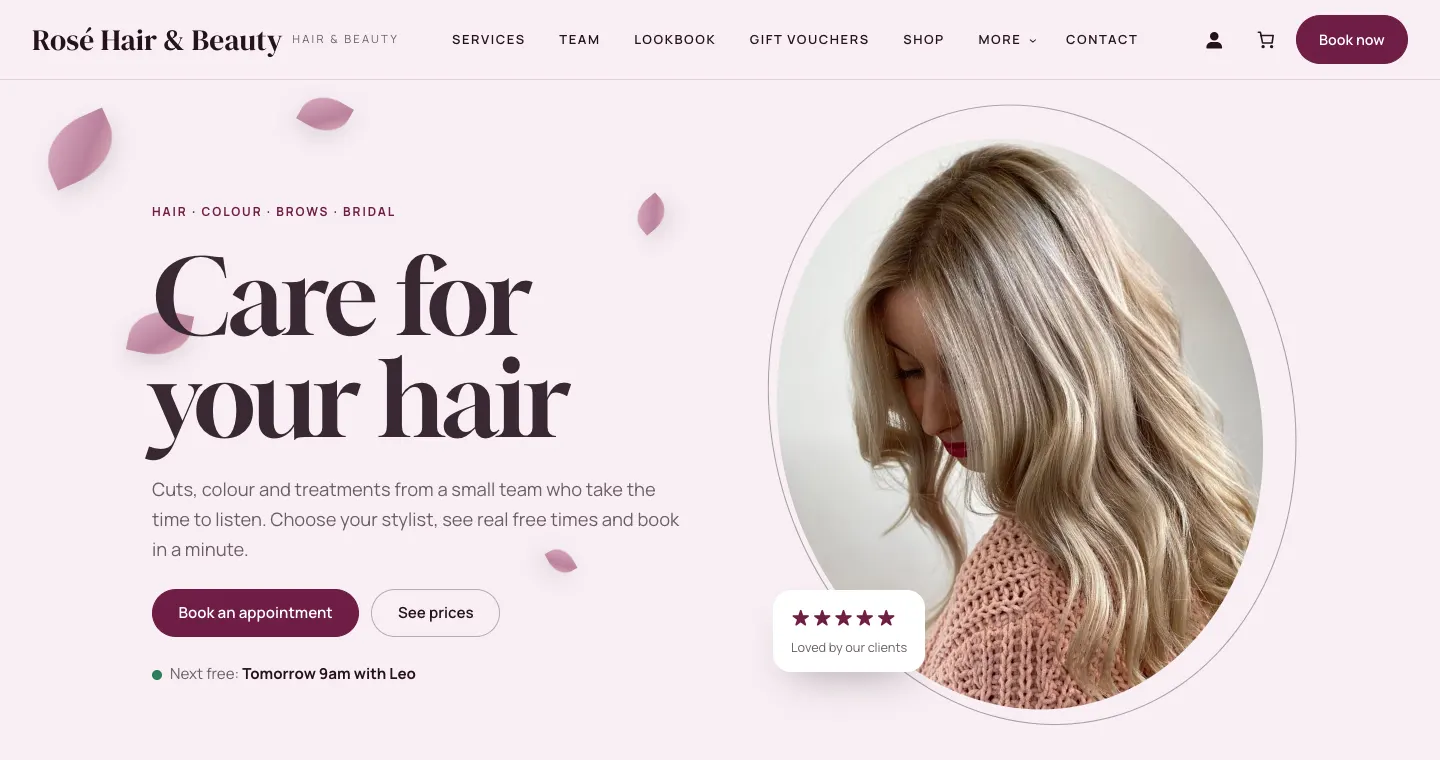
Hair and beauty: soft cream and pink, chunky serif headings, a tilted oval photo with petals, and arched team photos. The home page opens with "Care for your hair", then the price list with category tabs, the team, the booking form, the lookbook, gift vouchers and products.
Palettes: Rosé, Peony, Berry, Champagne, Mauve, Coral, Nude rose.

Barbershop
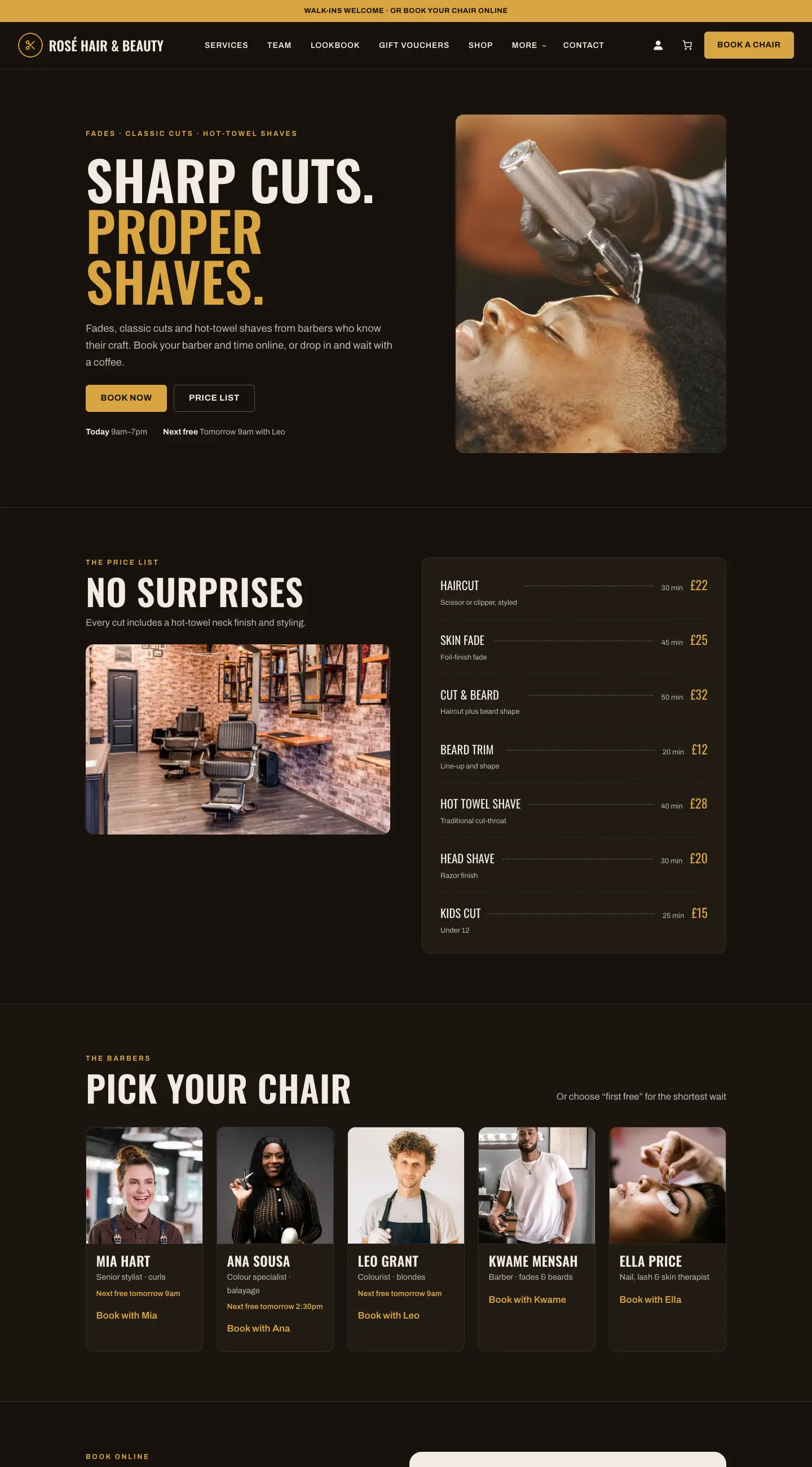
For barbers: dark backgrounds, tall condensed capitals, brass accents, a price board and a Walk-ins welcome strip across the top. The main button says Book a chair, and the home page shows "Sharp cuts. Proper shaves.", today's hours and the next free time, the price list as a board, and "Pick your chair" with each barber's next free time.
Palettes: Espresso & brass, Tobacco, Whisky, Slate, Oxblood, Olive, Charcoal & cream.

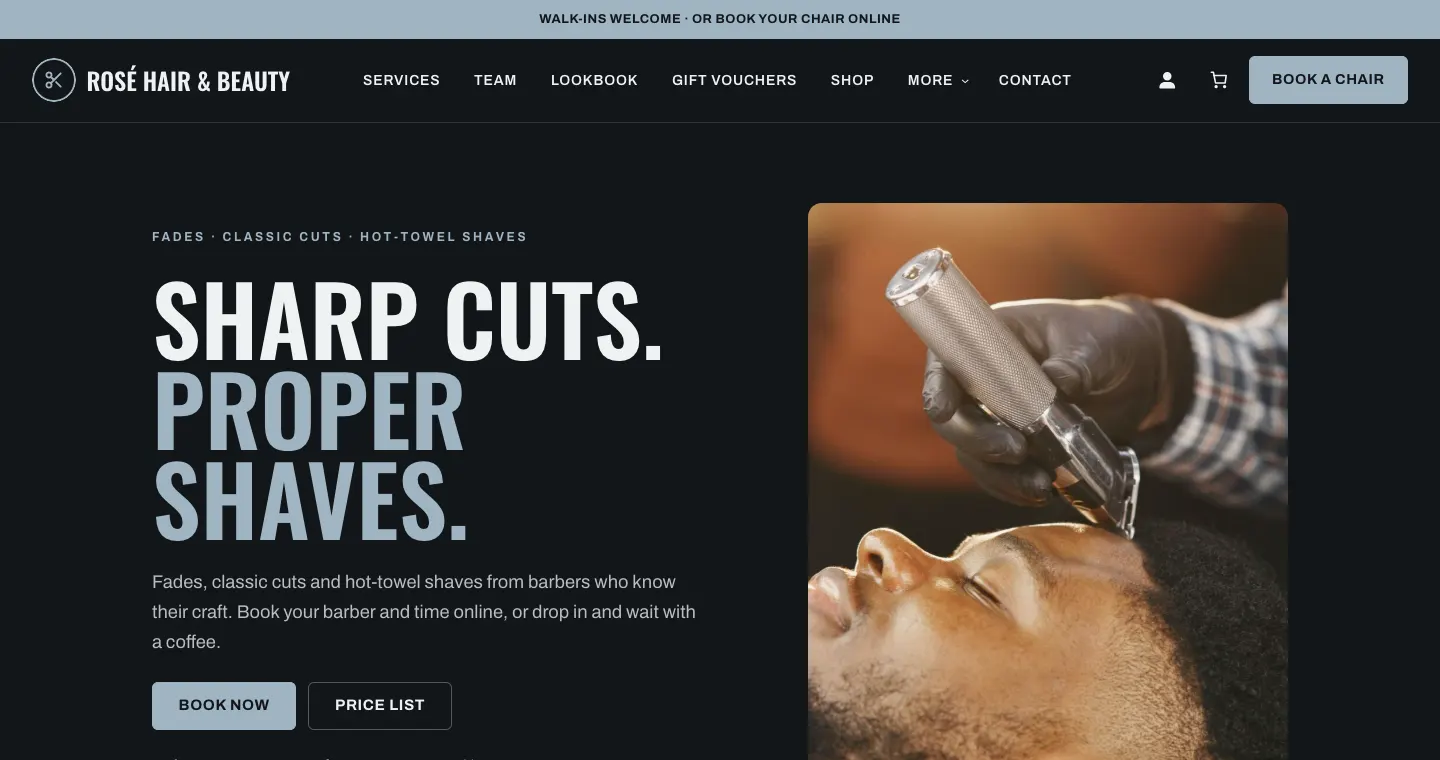
The walk-ins strip is set under Salon → Settings → Bookings → Walk-ins. To show the current wait, choose a service in Work out the wait for (usually your standard haircut).
Studio
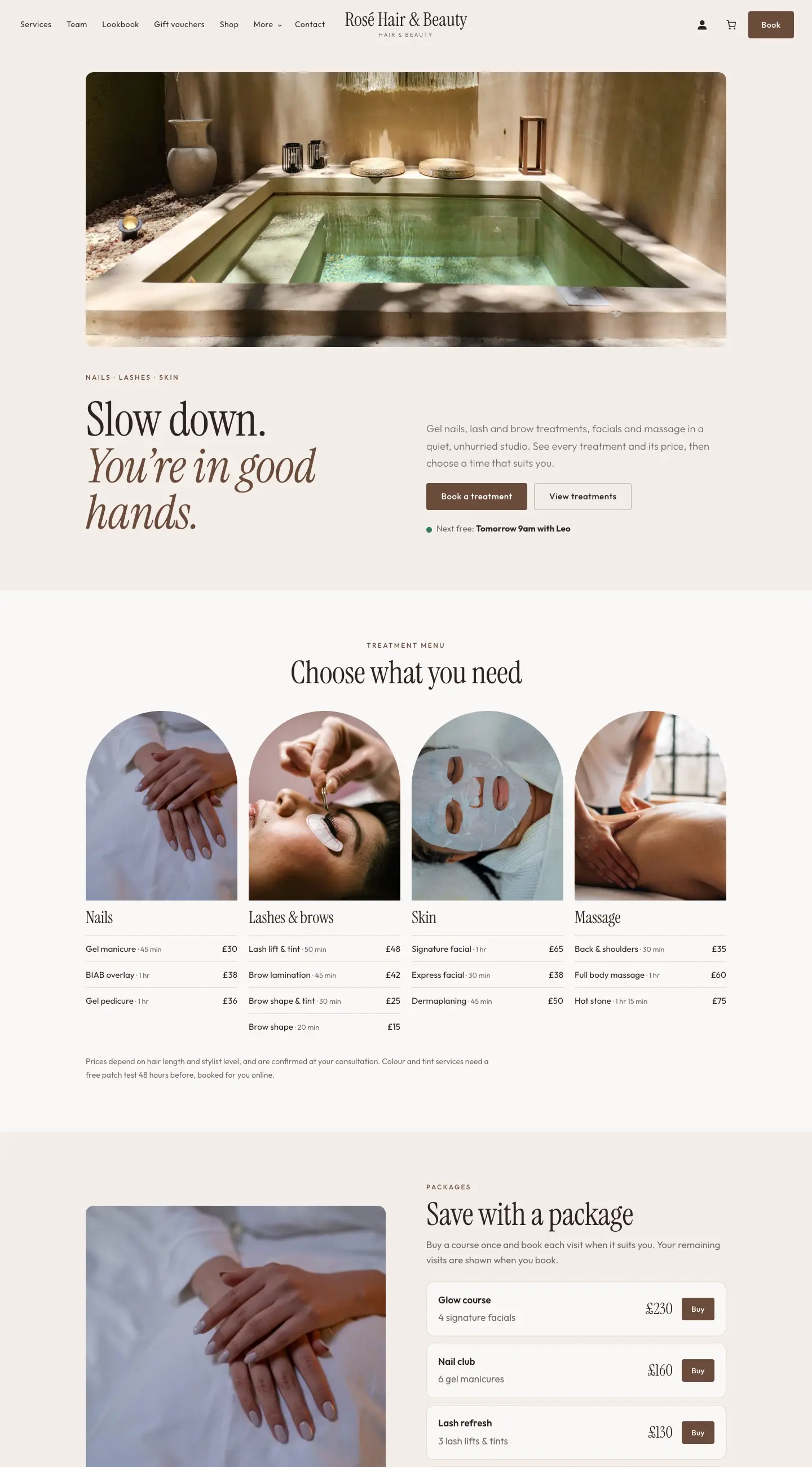
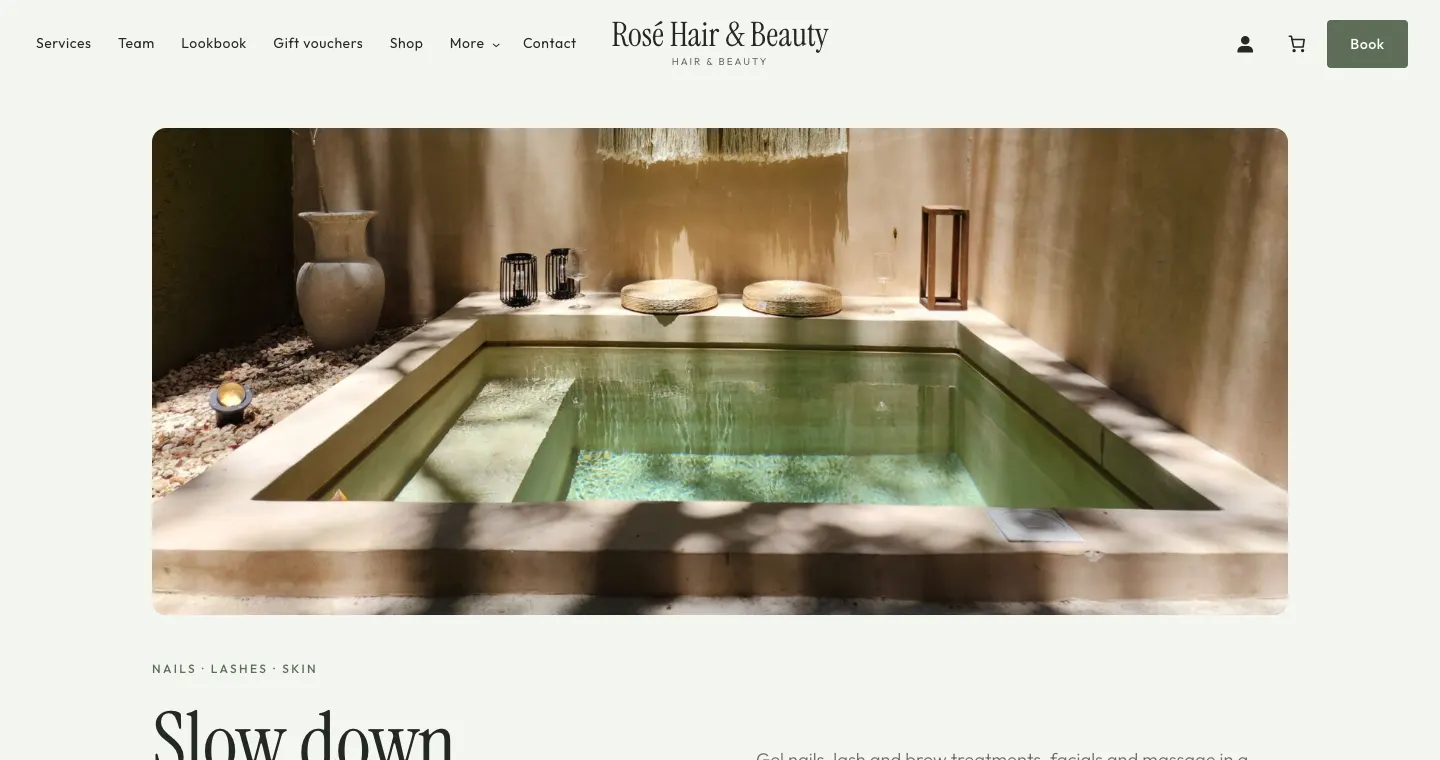
For spas, nails, lashes and skin: nude tones, an airy serif, round-topped photos and calm space. The menu sits either side of your name. The home page opens with a wide photo and "Slow down. You're in good hands.", then the treatment menu in columns (Nails, Lashes & brows, Skin, Massage) and packages.
Palettes: Nude, Sand, Sage, Clay, Linen, Mocha, Blush nude.

Luxe
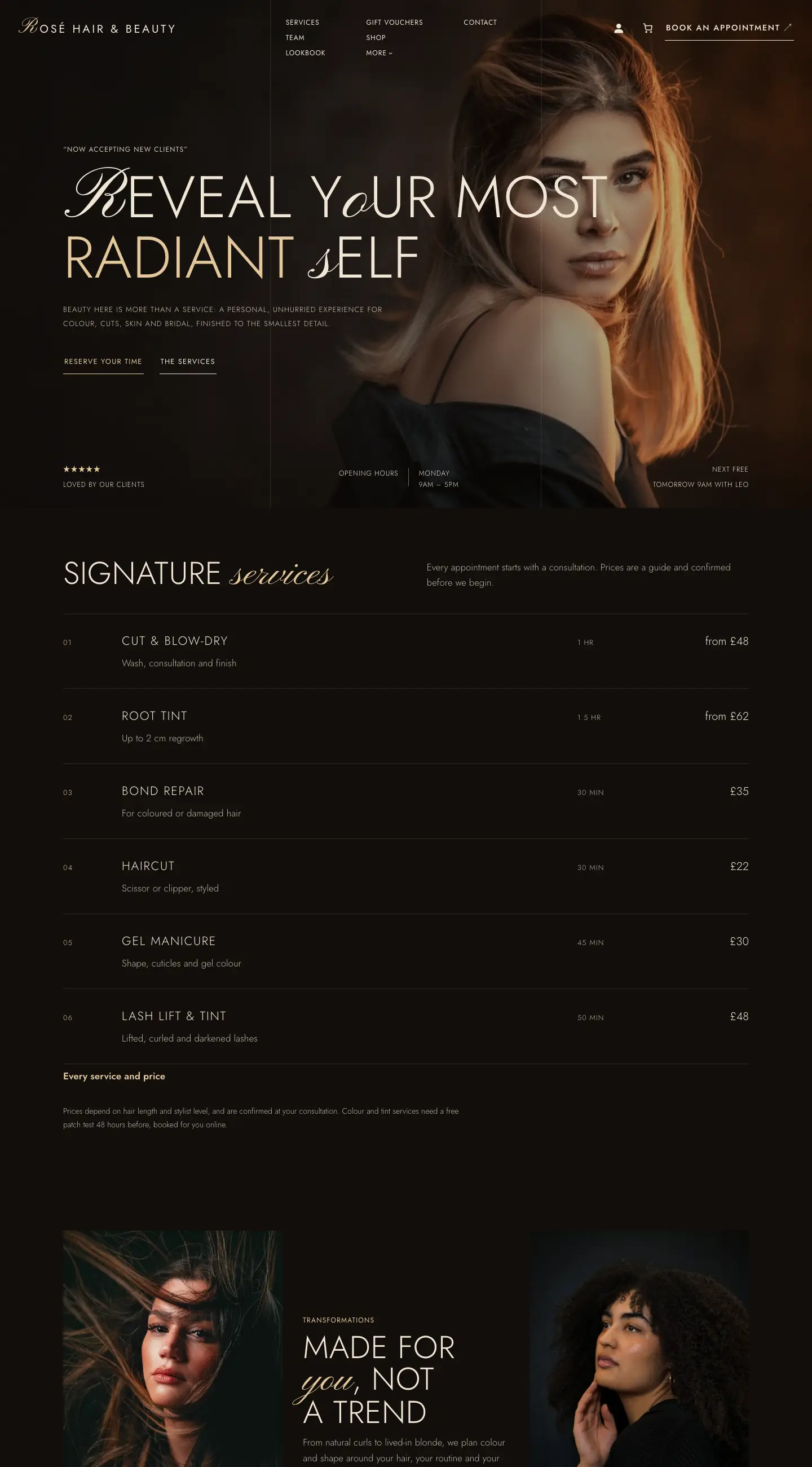
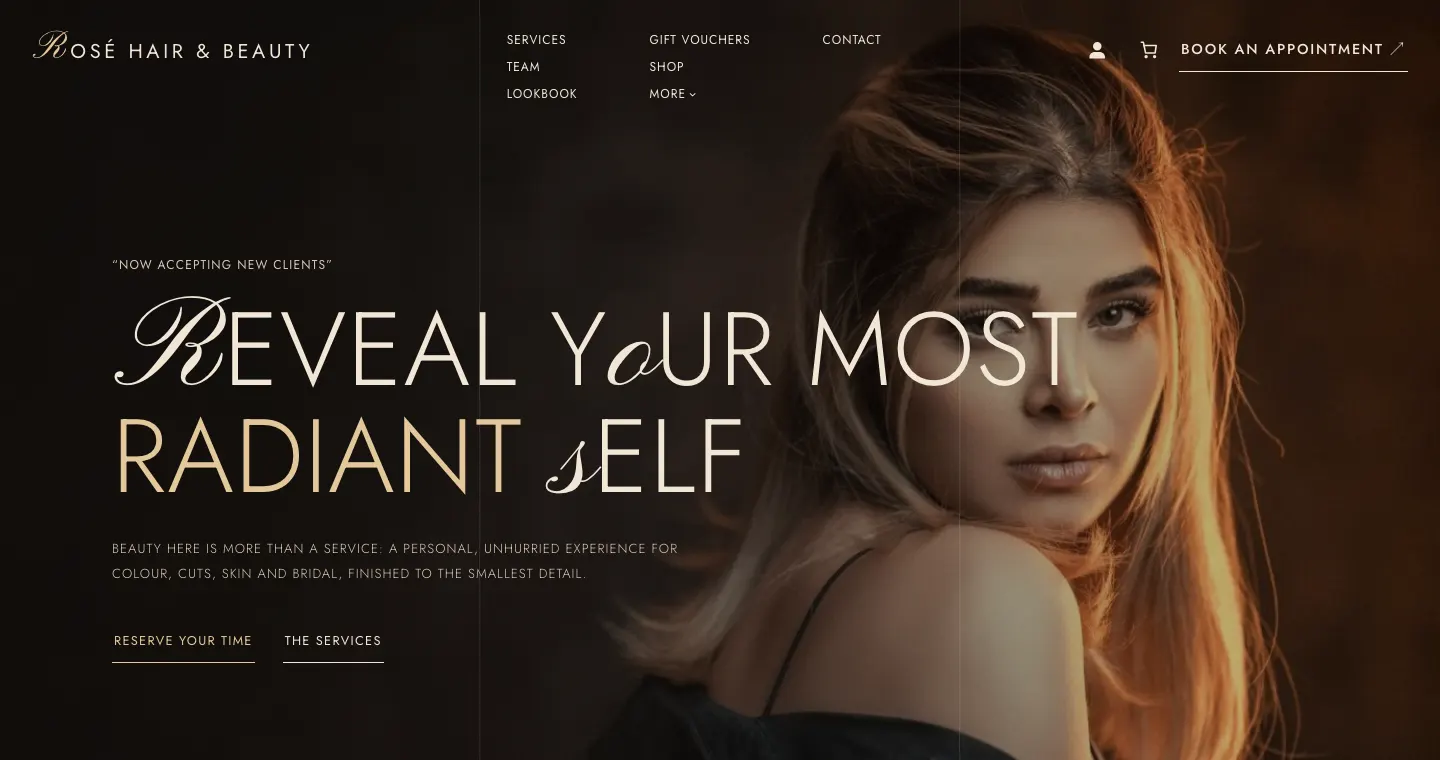
Luxury and editorial: a full-screen cinematic photo, thin capitals with script letters, slim columns. The main button says Book an appointment. The home page opens with "Reveal your most radiant self", the rating, opening hours and the next free time along the bottom, then "Signature services" as a numbered list and a transformations section.
Palettes: Champagne noir, Onyx & pearl, Rose gold, Bronze, Bordeaux, Ivory light, Emerald.

The pages and menus the kit makes
The setup wizard (see The setup wizard) adds these pages and a menu. You can rename, reorder or hide any of them under Pages and Appearance → Editor (see Pages and content).
| Page | What's on it |
|---|---|
| Home | The design's own sections: price list, team, booking form, lookbook, vouchers, products, reviews and more |
| Services | Every service by category, with times and prices; each has its own page |
| Team | Everyone in the team; each person has their own page with a Book with … button |
| Lookbook | Photos of your work (add them under Lookbook → Add look), with before-and-after sliders when you add a before photo |
| Gift vouchers | Buy a voucher and check a balance (Pro) |
| Shop | Your products, if you use WooCommerce |
| Offers & packages | Offers, packages (Pro) and the loyalty card (Pro) |
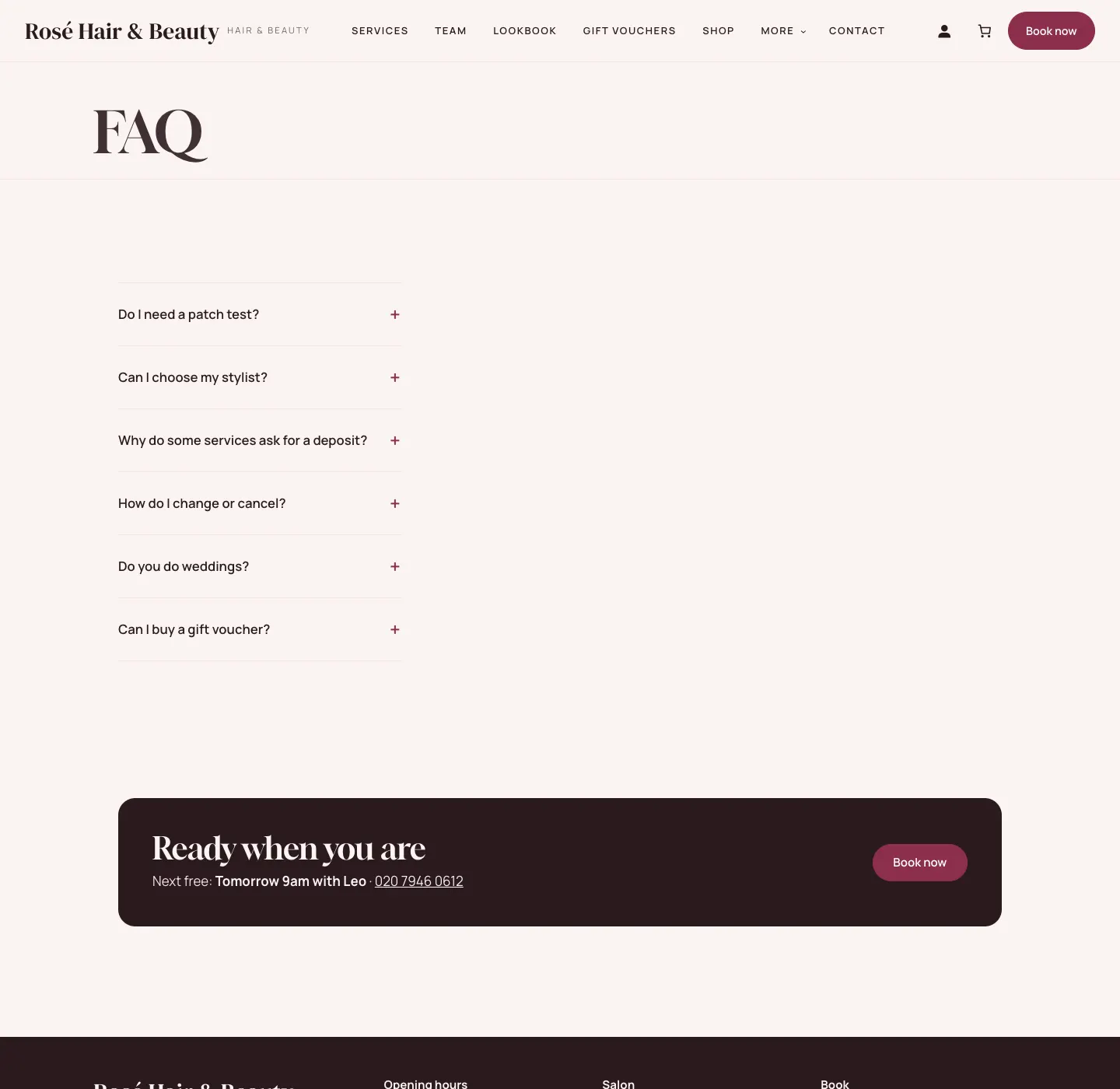
| FAQ | Your questions and answers (add them under FAQs → Add a question) |
| Contact | Opening hours, address, map and the message form |
| Book | The booking form (every Book now button leads here) |
| Terms and conditions, Privacy policy, Cookie policy, Returns and refunds | Starter legal pages, filled in from your settings |
| Photo credits | The photographers of the sample photos |
The main menu has Services, Team, Lookbook, Gift vouchers, Shop, More (with Offers & packages and FAQ), Contact and a Book now button. The footer has your opening hours, links, contact details, the legal pages, Cookie settings, Photo credits and Staff sign-in.
Reviews for the reviews section are added under Reviews → Add review (Their words, Where it's from, Stars).
The sample photos
The sample photos come from Pexels, with the photographers credited on the Photo credits page and in each photo's caption. Replace them with your own: open the service, team member, look or page and change the image. When you've replaced them all you can unpublish the Photo credits page.