Buying and installing · shared chapter
Before you install
What your website and hosting need for a Gradespace kit, how to check them, and why to take a backup and use a test copy first.
On this page
A Gradespace kit runs on an ordinary WordPress website on any ordinary host. Before you install it, take ten minutes to check that your website meets the requirements, that you can sign in as an administrator, and that you have a backup. If your website is already live, consider trying the kit on a test copy first.
What you need
| You need | Details |
|---|---|
| A WordPress website | WordPress 6.8 or later. The kits are tested up to WordPress 7.1. |
| PHP 8.0 or later | PHP is the language your host runs WordPress with. Your host sets the version. |
| An administrator account | Only an administrator can add plugins and themes, and enter the licence key. |
| Your licence key | From your receipt email, or your licences page. See Buying and your licence. |
| The three .zip files | Gradespace Core, your kit's plugin and your kit's theme, from your licences page. Leave them zipped. |
| Uploads of about 10 MB | The theme files are between about 4 and 10 MB, because they include sample photos. Your host must let you upload a file that size. |
A plugin is an add-on for WordPress. Your kit's plugin needs Gradespace Core, which is free, so Core is always installed first. WordPress won't switch on the kit's plugin until Core is active.
Optional: WooCommerce
WooCommerce is a free shop plugin for WordPress. You only need it if you want a shop, or if you want to take online payments through a WooCommerce checkout.
- Gradespace Clinic: the optical shop, pay-at-the-store, bank-transfer proofs, and the till and stock (Pro) need WooCommerce. Bookings, the calendar and patient records work without it.
- Kits that take deposits or sell gift vouchers: payments can go through Stripe directly (no shop needed) or through your WooCommerce checkout. Your kit's manual says which of its features take payments.
You can add WooCommerce later. You don't need it to install the kit.
How to check your WordPress and PHP versions
- Sign in to your WordPress admin (your website's address followed by /wp-admin).
- Go to Tools → Site Health.
- Click the Info tab.
- Open WordPress to see the WordPress version, and Server to see the PHP version and the Upload max filesize.
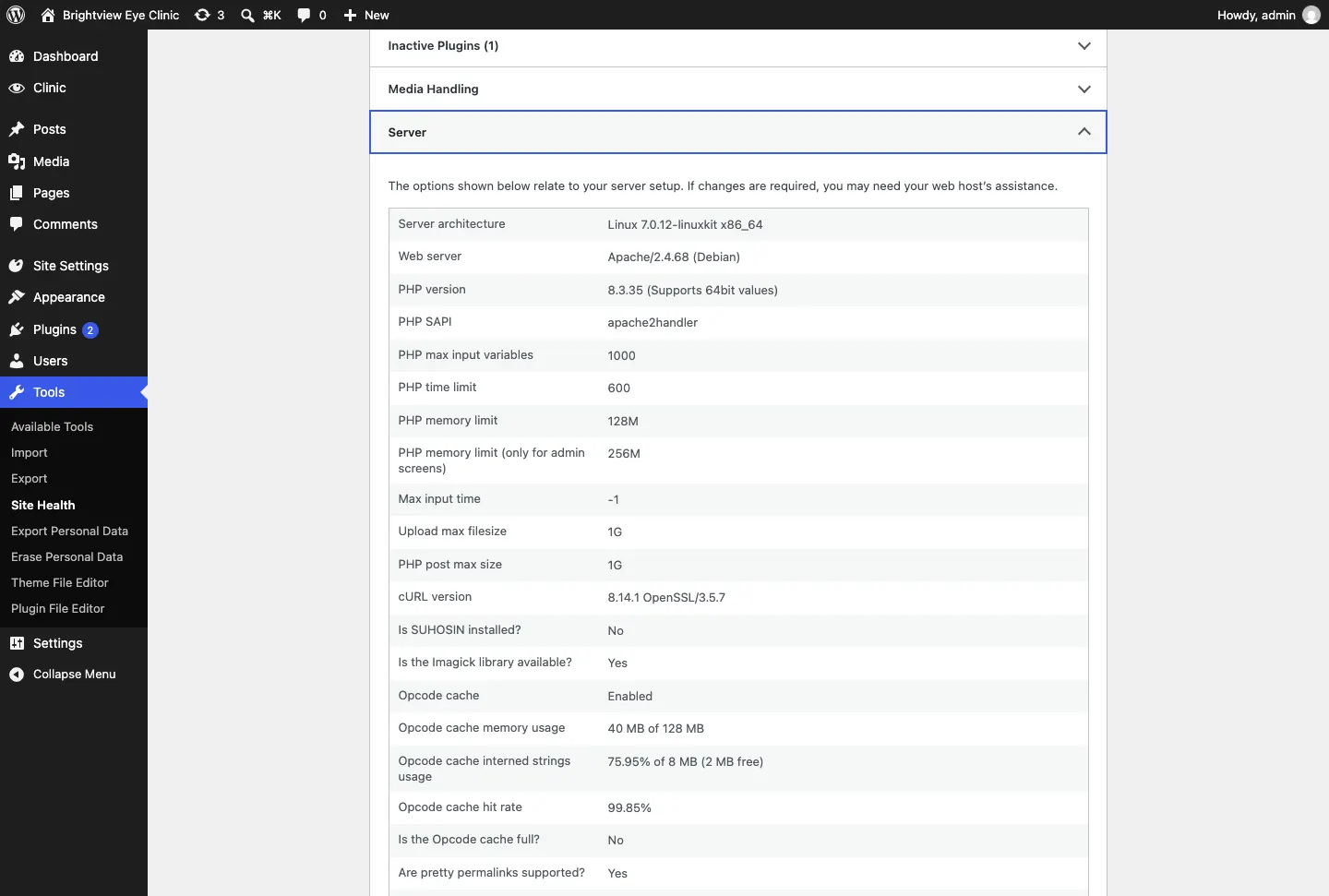
If the WordPress version is older than 6.8, update WordPress first in Dashboard → Updates. If the PHP version is older than 8.0, or the upload limit is smaller than about 10 MB, ask your host to change it. Most hosts let you choose the PHP version in their control panel.
Take a backup first
If your website already has content, take a full backup before you install anything. A backup is a copy of your website's files and database that you can go back to if something goes wrong.
- Most hosts make backups for you. Check your host's control panel for a Backups section, and make a fresh one now.
- If your host doesn't, use a backup plugin from the WordPress plugin directory and keep the backup somewhere other than your website.
Installing a Gradespace kit doesn't delete your existing pages or posts. The setup wizard leaves pages you already have alone. Switching theme does change how every page looks, though, so a backup lets you go back if you change your mind.
See Backups and updates for what to back up and how often.
Try it on a test copy first
A test copy (often called a staging site) is a private copy of your website where you can try things without visitors seeing. It's the safest way to set up a kit on a website that is already live.
Test copies are free with every licence. A test copy doesn't use up your licence's website, as long as its address is one of these:
- localhost, or an address ending in .local, .test or .localhost;
- an address starting with staging., stage. or dev. (for example staging.yourbusiness.co.uk).
On a test copy, your kit's Licence tab says Development site and the key gets its full tier.

Many hosts can make a staging copy for you with one click, and copy it back to your live website when you're happy. Ask your host if you're not sure.
Checklist
- WordPress 6.8 or later
- PHP 8.0 or later
- You can sign in as an administrator
- Your host allows uploads of about 10 MB
- A fresh backup (if the website already has content)
- Your licence key and the three .zip files
Next: Installing your kit.