Running your website
Loyalty card and packages
A digital stamp card that rewards regular clients, and packages (courses of visits sold up front) that are used up as clients book, plus the offers on your Offers & packages page.
On this page
Two ways to keep clients coming back. The loyalty card is a stamp card kept on each client's record: every so many visits, one is on you. Packages are courses of visits sold up front, for example four facials, which are used up as the client books.
Both are (Pro) features: they need a Pro or Agency licence. Selling packages online also needs online payments (see Deposits, payments and gift vouchers).
The loyalty card (Pro)
How to switch it on
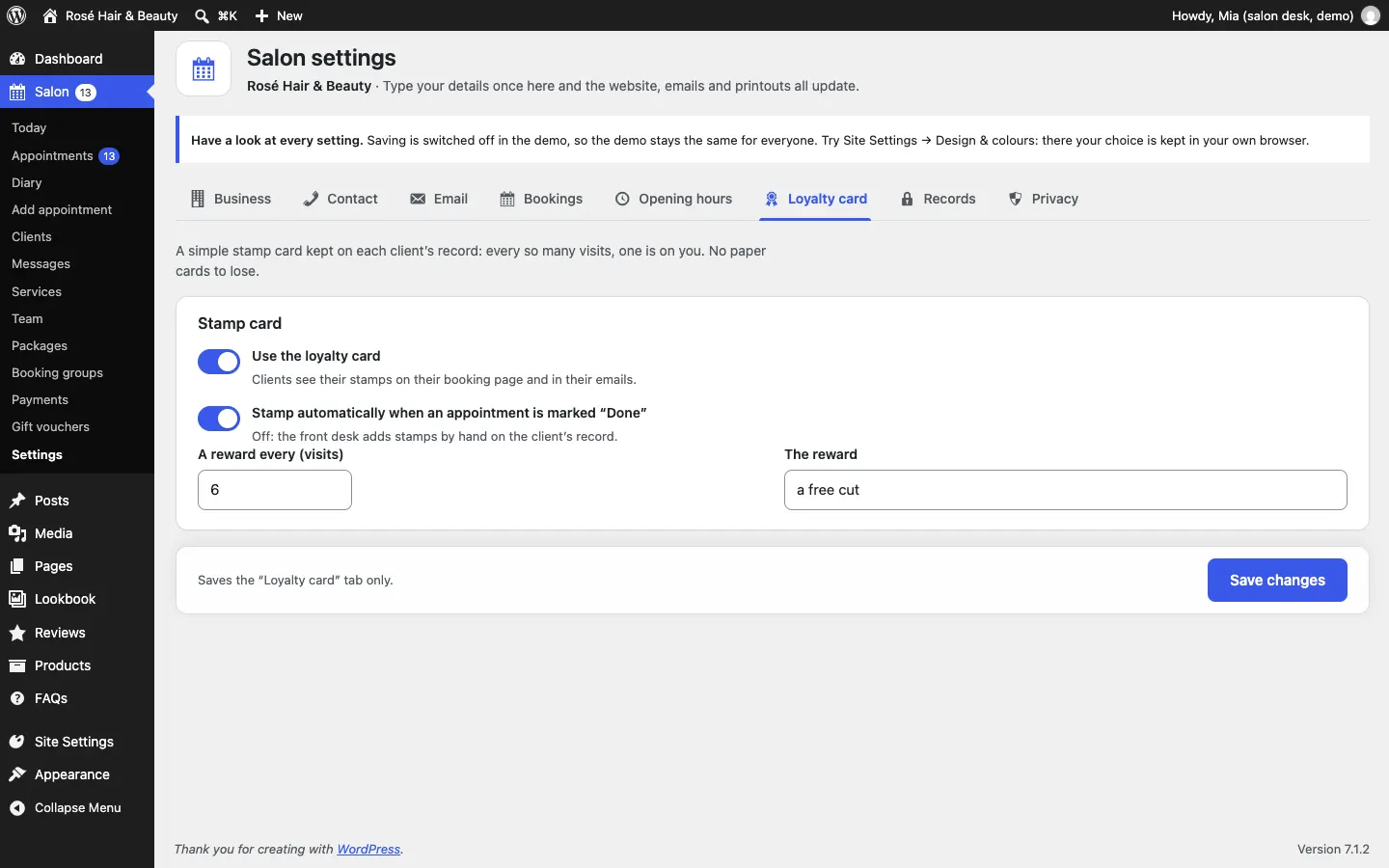
- Go to Salon → Settings → Loyalty card.
- Tick Use the loyalty card. Clients then see their stamps on their appointment page and in their emails.
- Leave Stamp automatically when an appointment is marked "Done" ticked, or untick it to add stamps by hand.
- Set A reward every (visits), for example 6.
- Describe The reward, for example "a free cut".
- Click Save changes.
Stamps on a client's record
Open the client under Salon → Clients. The Loyalty card box on the right shows their stamps, for example "1 of 6 · rewards given: 0".
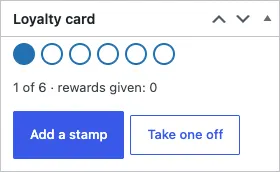
- Add a stamp: for a visit you want to count by hand.
- Take one off: if a stamp was added by mistake.
- Reward given: appears when the card is full. Click it when you give the reward, and the card starts again.
When the card is full, the client's emails tell them their next visit includes the reward, and to mention it when they come in.
On the website, the Offers & packages page explains the card to visitors.
Packages (Pro)
How to set up a package
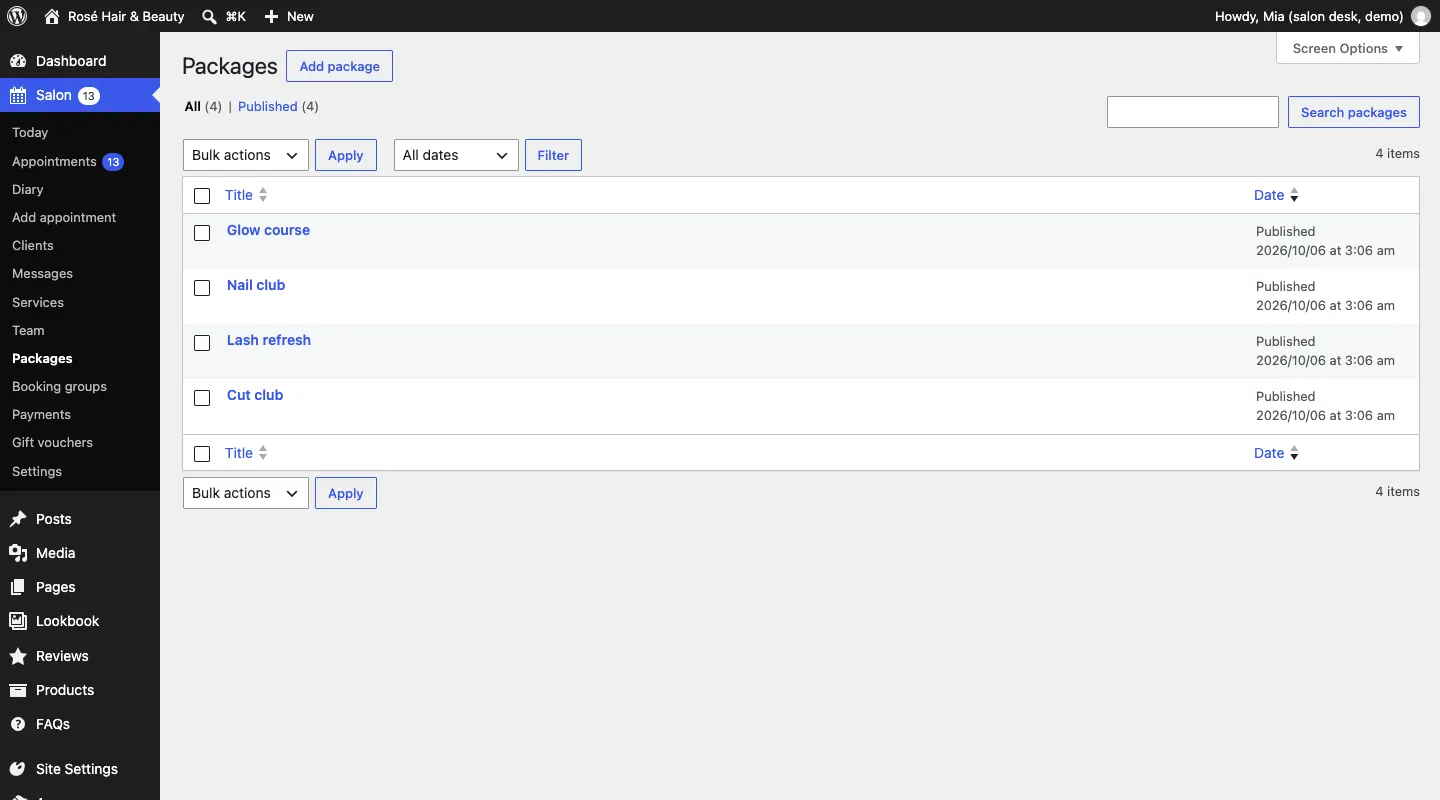
- Go to Salon → Packages and click Add package.
- Type the name at the top, for example "Glow course".
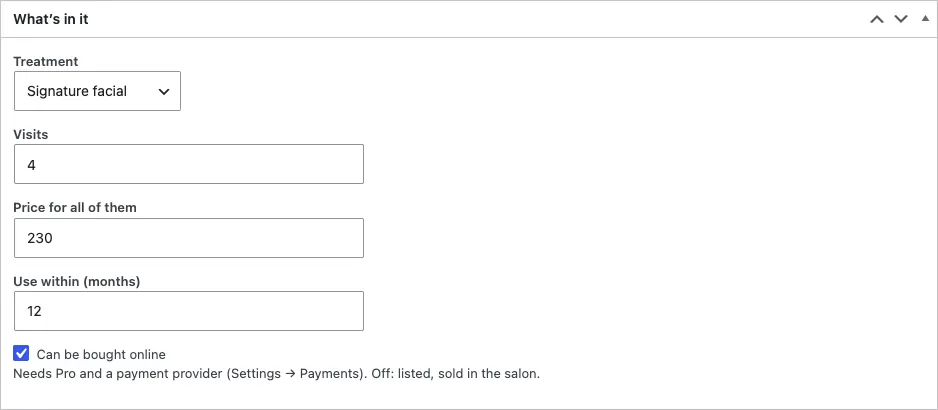
- In What's in it, choose the Treatment, the number of Visits, the Price for all of them and Use within (months).
- Tick Can be bought online to sell it on the website (this needs Pro and online payments). Untick it to list it on the website but sell it only in the salon.
- Click Publish.
What clients see
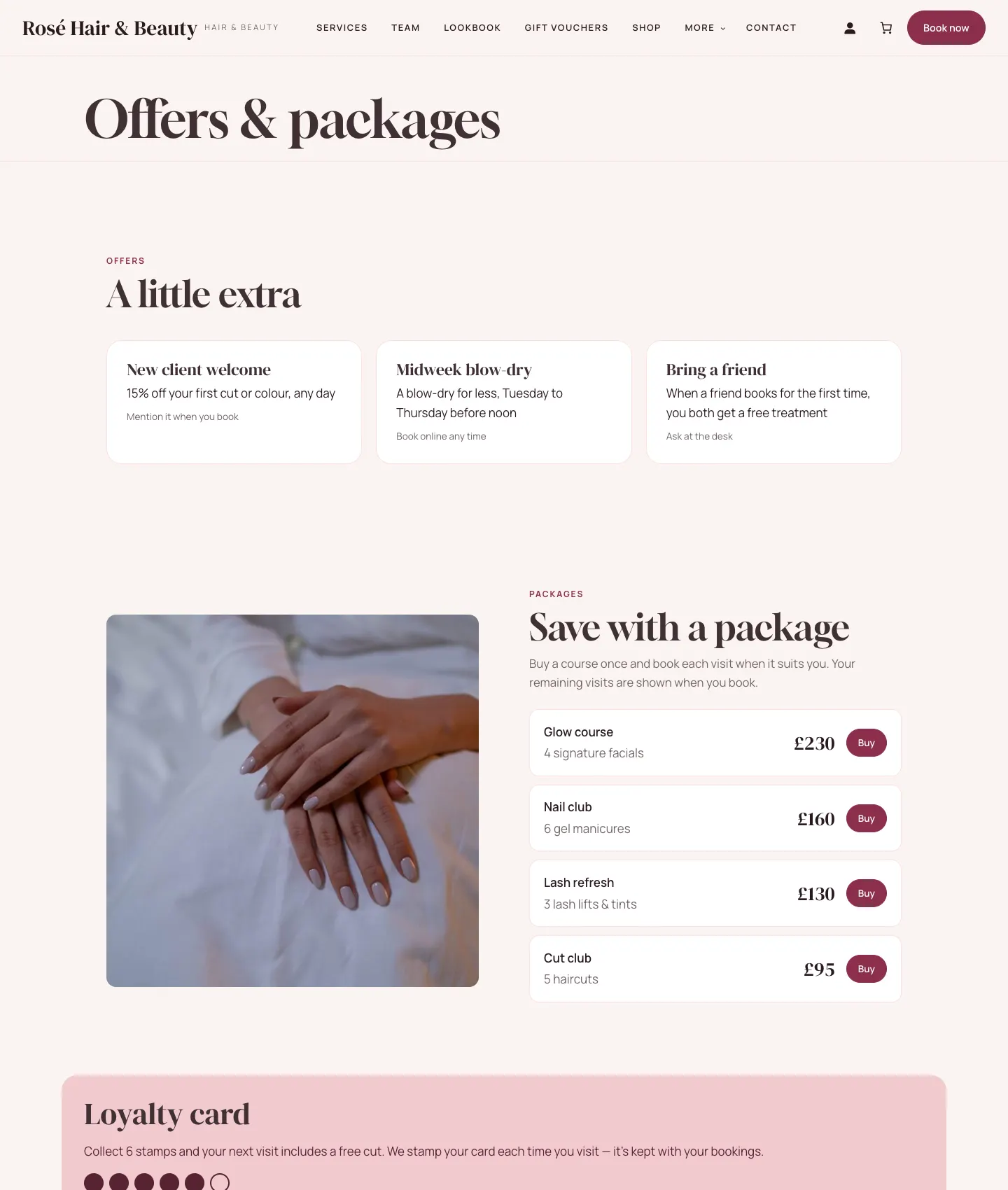
The Offers & packages page lists each package with its price and a Buy button. The client types their name and email and pays on the secure payment page. They get a "Your package is ready" email explaining how to book each visit.
How a package is used
- When the client books the package's treatment online with the same email address, one visit is taken off and no deposit is asked.
- If they cancel that appointment, the visit goes back on the package.
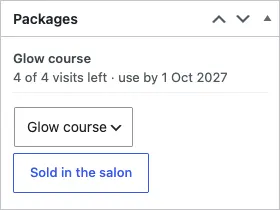
- The client record's Packages box shows what's left, for example "4 of 4 visits left · use by 1 Oct 2027".
How to record a package sold in the salon
- Open the client under Salon → Clients.
- In the Packages box on the right, choose the package.
- Click Sold in the salon.
The offers on the Offers & packages page
The three cards at the top of Offers & packages (for example "New client welcome") are written in the page itself, not in Salon settings.
- Go to Pages, open Offers & packages and click the offers section.
- In the settings on the right, type one offer per line in the form
title | text | small print. - Click Save.
See Pages and content for more on editing pages.