Running your website
Group bookings
Bookings for several people at the same visit, such as a bride and her bridesmaids: how clients book them, and how you see, move and cancel them under Booking groups.
On this page
Bridal parties, a mum and daughter, friends getting ready for a night out: a group booking books several people at the same time in one go. Each person chooses their own treatment and stylist (or anyone). Everyone is booked together, or not at all, so nobody ends up with a time and their friend without.
Each person's appointment is an ordinary appointment in the diary, named for that person. The group also has one reference, one email to the person who booked, one calendar file and, if there's a deposit, one payment.
Features marked (Pro) need a Pro or Agency licence.
How to switch group bookings on or off
- Go to Salon → Settings → Bookings.
- Tick (or untick) Group bookings: several people at the same visit. It is on unless you switch it off.
- Set People in one group booking (up to). The default is 6.
- Click Save changes.
How a client books for a group
- The client fills in the booking form for themselves as usual (see Booking on the website).
- In step 4, under Coming with others?, they click + Add someone.
- For each person they type Their name, choose a Treatment, and choose who it's With (or Anyone (the first free)).
- They click + Add someone again for each extra person, or Remove to take someone off.
- They finish and click Book now (or Continue to pay the deposit).
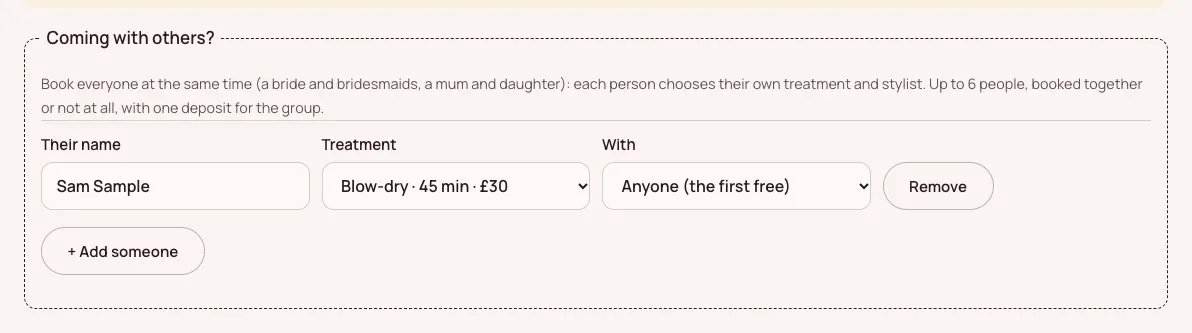
Everyone is booked at the same start time. If one person's stylist isn't free then, nothing is booked: the form says who isn't free and lists the times that are free that day, so the client can pick another.
When it works, the client sees "You're all booked in!" with the group's reference and a line for each person, and a See or change our appointments button.
Deposits for a group (Pro)
If any of the treatments has a deposit, the group pays one deposit covering everyone, on one payment page. The times are held while they pay.
How to see group bookings
Go to Salon → Booking groups. Each group shows its reference, the person who booked, how many bookings are in it, the total and the status.
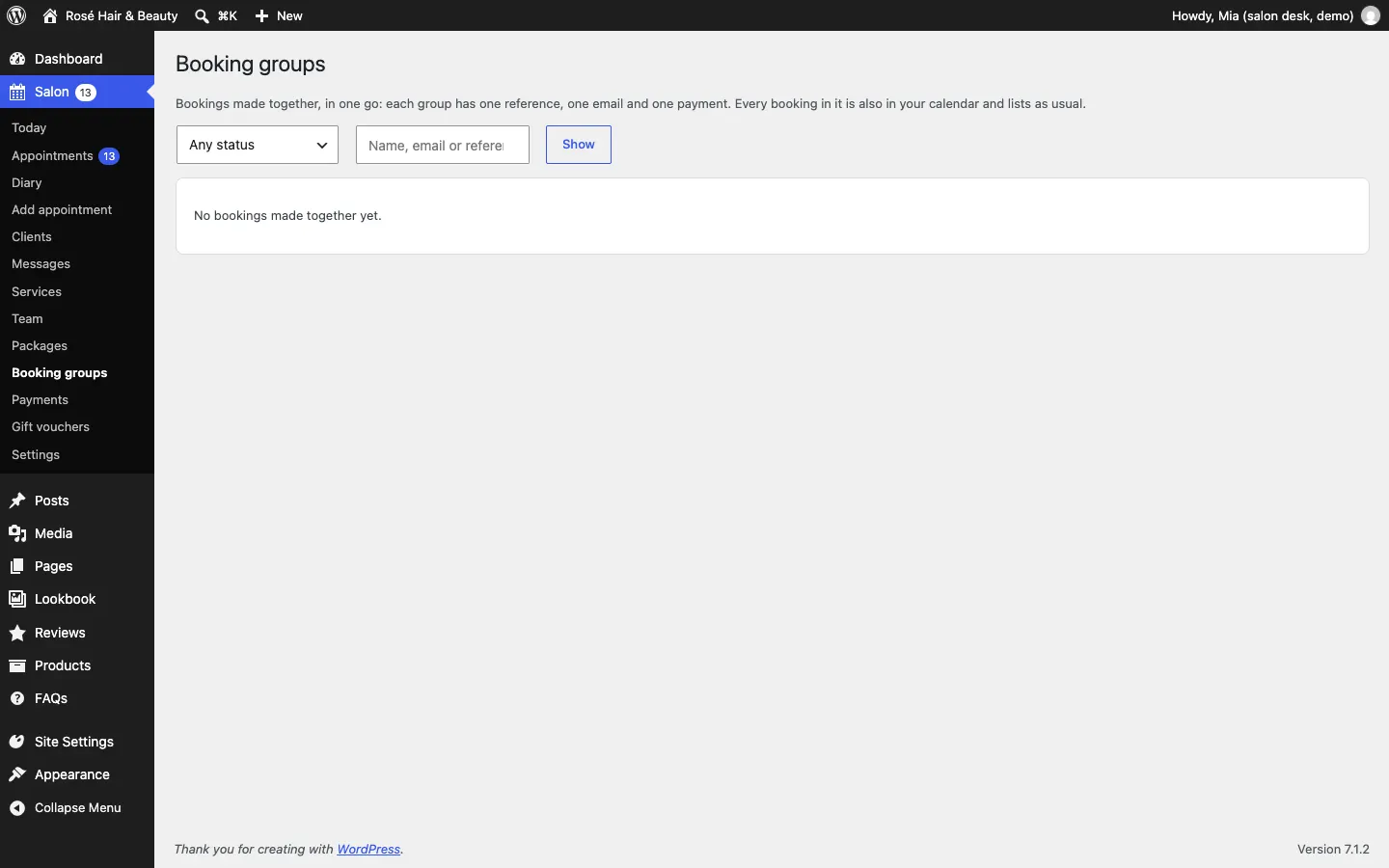
- Use Status to filter (Waiting for payment, To confirm, Confirmed, Partly cancelled, Completed, Cancelled) and search by Name, email or reference.
- See each one lists the appointments in the group. Each is also in the diary and the appointments list as usual.
How to move or cancel a group
From the group in Salon → Booking groups:
- Move all by a number of days, then Move, to move everyone together.
- Cancel this one to cancel one person's appointment. The group then shows as Partly cancelled. If a deposit was paid, you can refund its share.
- Cancel the whole group to cancel everyone. You can refund what was paid.
The person who booked is emailed each time.
You can also open any single appointment in the group and move or cancel it on its own, as in Appointments and the diary.