Running your website
Deposits, payments and gift vouchers
Taking deposits when clients book online, the Payments list, refunds, and selling, issuing and taking gift vouchers.
On this page
A deposit cuts no-shows on long treatments. Gift vouchers bring in new clients and are easy money at Christmas. Both go through a payment provider (Stripe, or your WooCommerce shop's checkout), so clients pay on the provider's own secure page and no card details ever reach your website.
Deposits, gift vouchers and selling packages online are (Pro) features: they need a Pro or Agency licence.
Setting up online payments (Pro)
An administrator does this once, under Salon → Settings → Payments. (The tab is only shown to administrators, because it holds the payment keys. On the public demo it is hidden.)
- Under How you take payments, choose Take payments through: Stripe, or your WooCommerce checkout if you have a shop. Stripe directly is simplest.
- For Stripe, paste your Publishable key, Secret key and Webhook signing secret from your Stripe account, then click Check the connection. While you test, use Stripe's test keys: the Payments screen then says Test mode — no real money moves.
- Under Deposits, set:
- Minutes to pay: how long a time is held while the client pays. Then it is freed for others.
- When a customer cancels in time: Refund the deposit automatically, Keep the deposit or Let staff decide. "In time" means before your cancellation cut-off (see Settings).
- Hours for a bank transfer: only for the shop checkout, if clients can pay by bank transfer.
- Under Gift vouchers, set the Amounts to offer, the Smallest amount and Largest amount people can type, how long vouchers are Valid for (months), when to Remind before expiry (days), and whether vouchers can be used towards deposits (Vouchers towards deposits).
- Click Save changes.
Then set each service's deposit in its Deposit panel (see Services and prices).
How deposits work (Pro)
- The client books a treatment that has a deposit. The last button on the form says Continue to pay the deposit.
- They pay on the secure page. Meanwhile the booking is Waiting for payment and the time is held.
- When they've paid, the booking is confirmed and they get a Payment received receipt.
- If they don't pay in time, the booking is dropped and the time is freed.
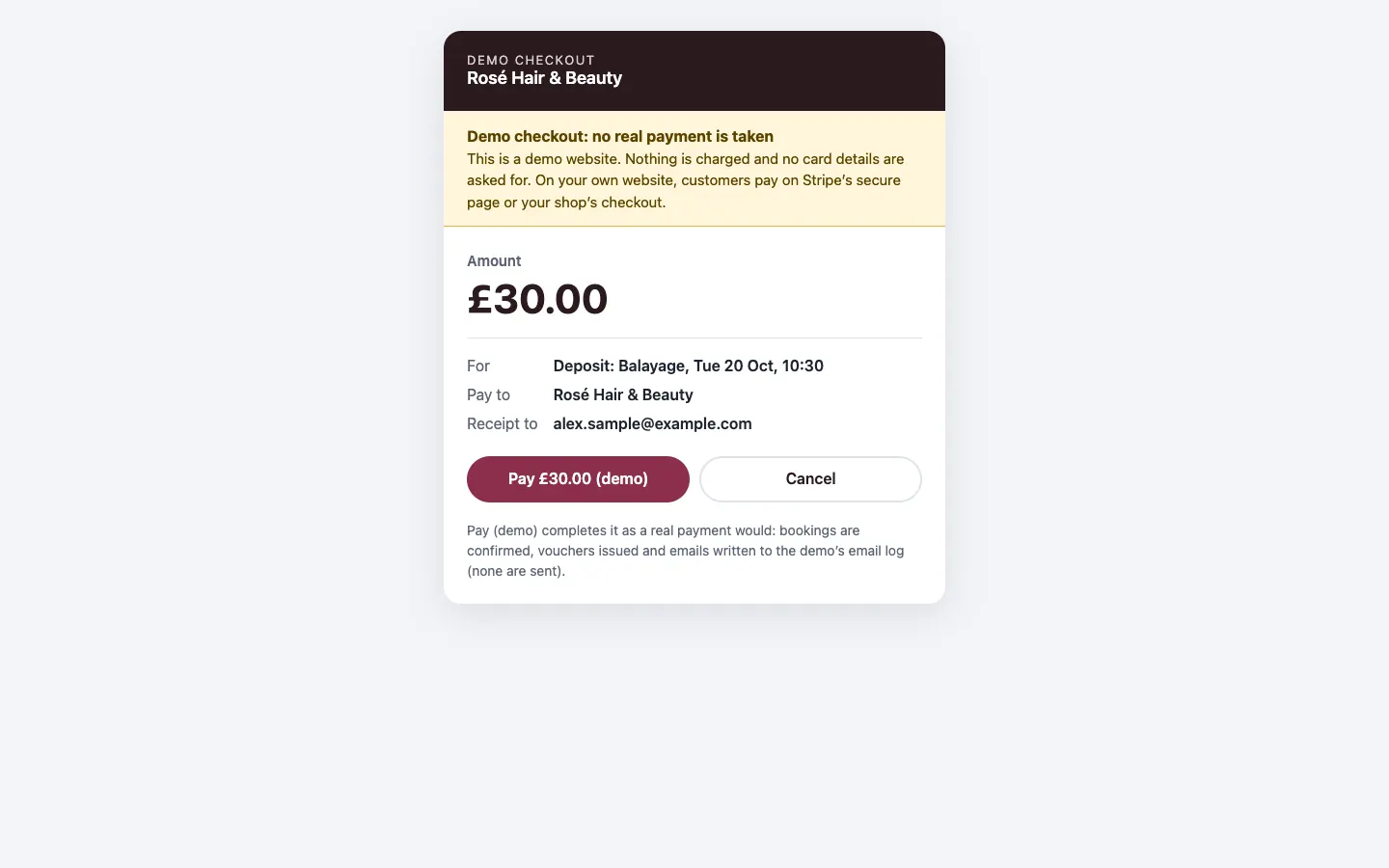
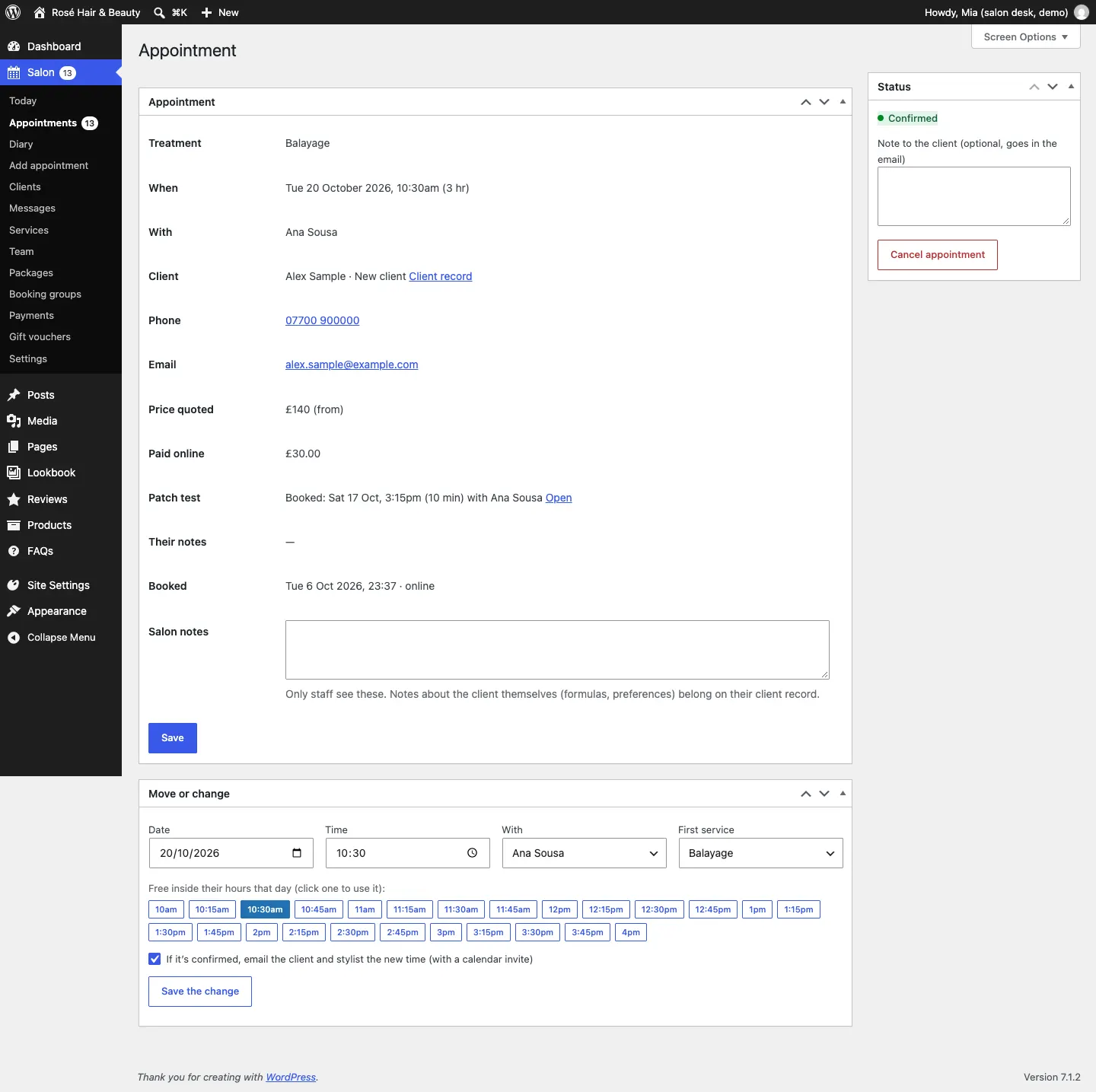
The deposit is taken off their bill. In the list and on the appointment it shows as, for example, Paid £30.00.
A client can type a gift voucher code on the booking form to pay the deposit with it.
Refunding or keeping a deposit
- The client cancels in time: what happens follows When a customer cancels in time (refund, keep, or let staff decide).
- The client cancels too late: they can't cancel online; they have to call you.
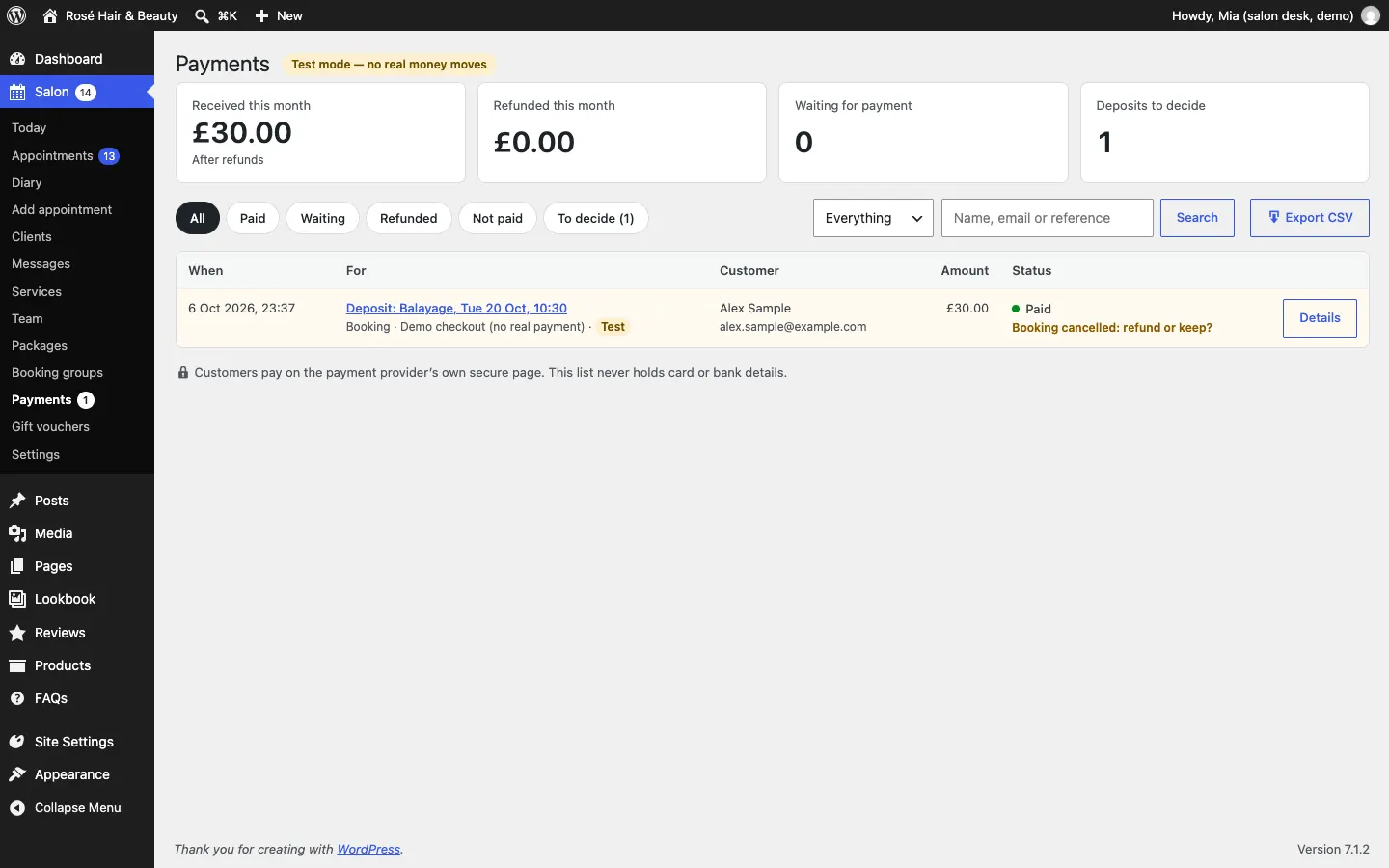
- You cancel: you always decide. The payment shows under Salon → Payments → To decide, marked "Booking cancelled: refund or keep?".
To decide:
- Go to Salon → Payments and click To decide.
- Click Details next to the payment.
- To give the money back, check the amount in Refund (you can refund part of it), add a Reason (in the customer's email) if you like, and click Refund…. Confirm with Refund.
- To keep it, click Keep the deposit.
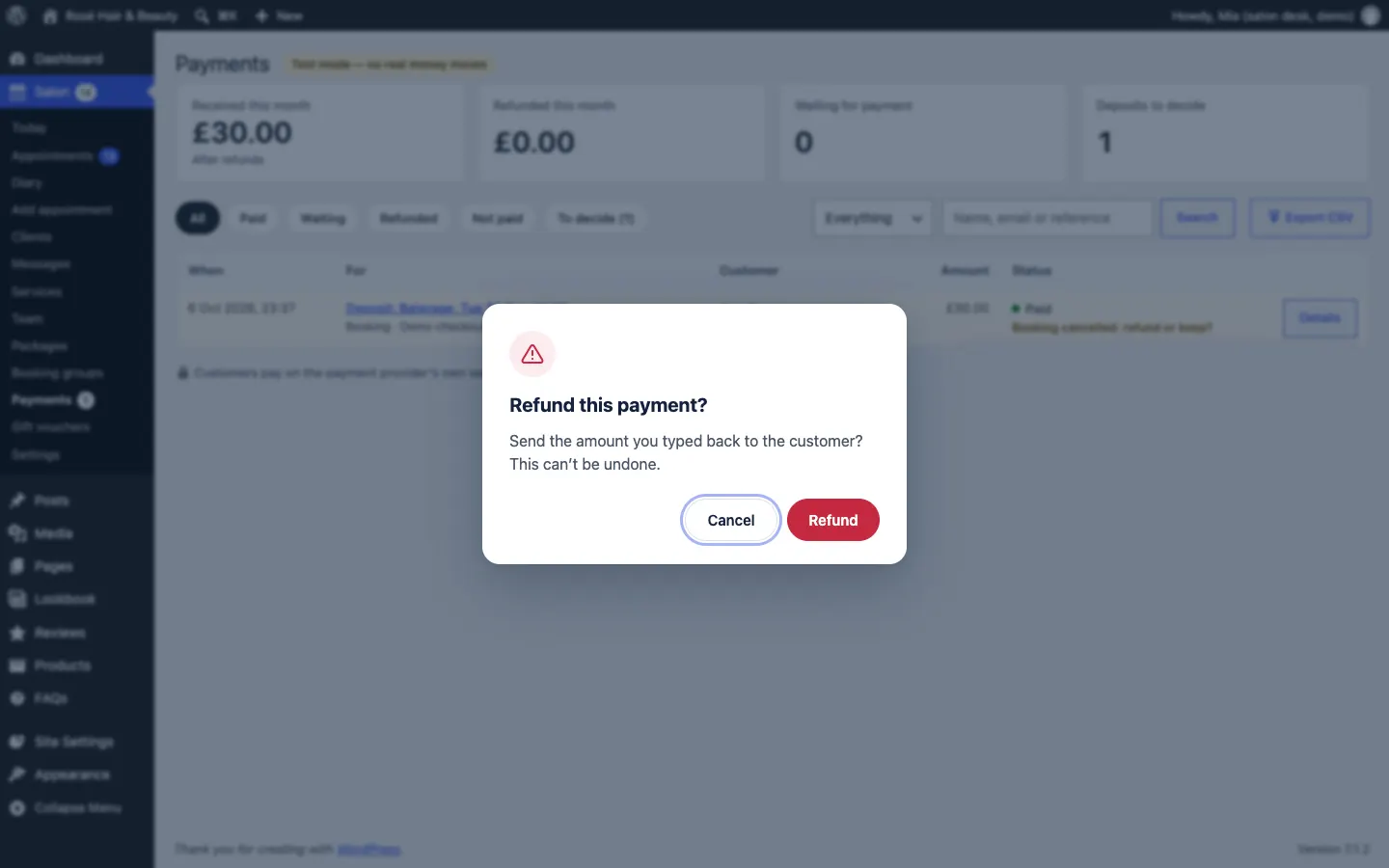
A refund through Stripe goes straight back to the client's card and they get a Refund sent email. For a payment taken in person, the website only records the refund: hand the money back yourself.
The Payments list
Go to Salon → Payments. At the top you see Received this month, Refunded this month, how many are Waiting for payment and how many Deposits to decide.
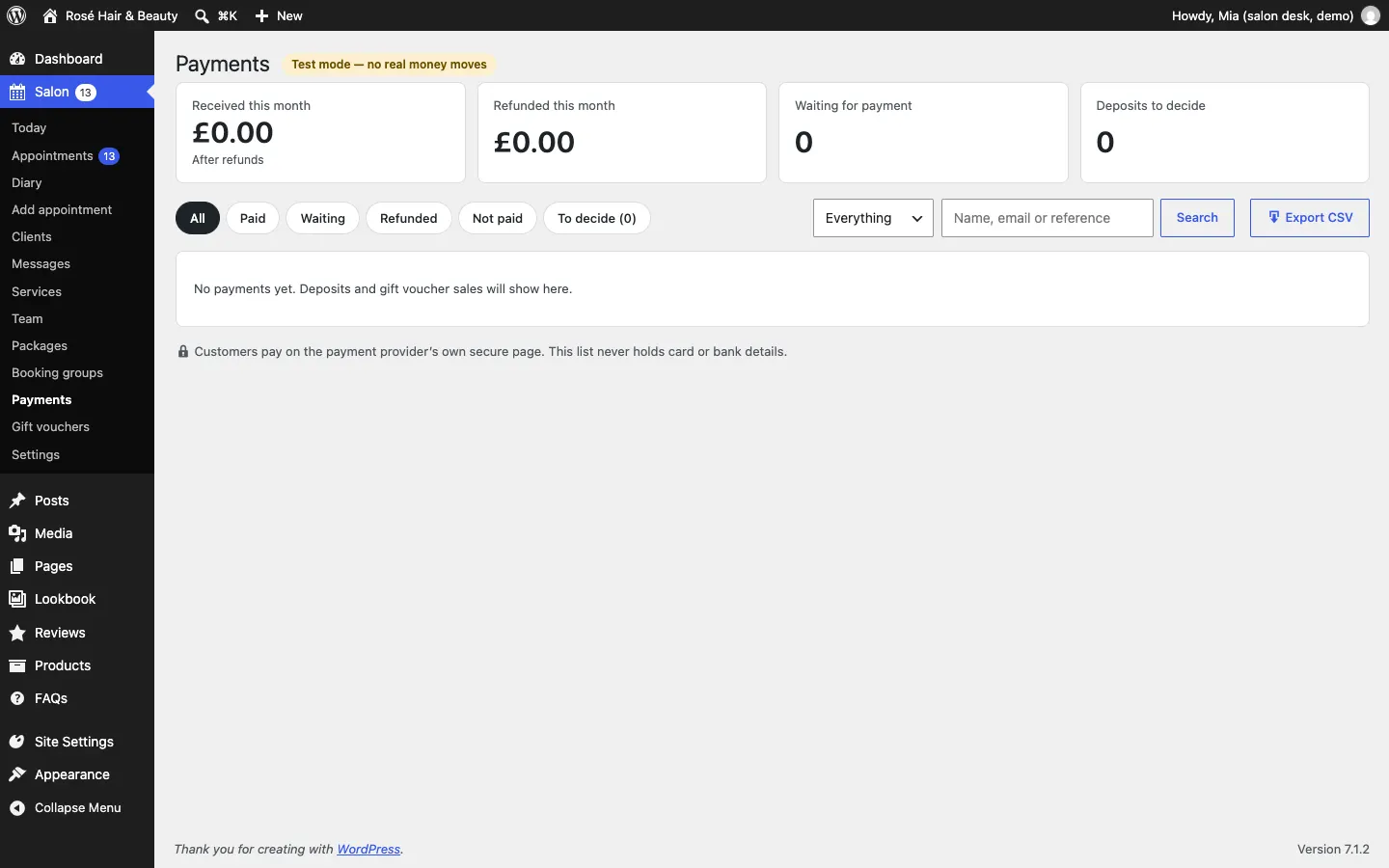
- Use All, Paid, Waiting, Refunded, Not paid and To decide to filter, and Everything, Bookings or Gift vouchers to choose what for.
- Search by Name, email or reference.
- Export CSV downloads the list for your bookkeeper.
Gift vouchers (Pro)
What clients see
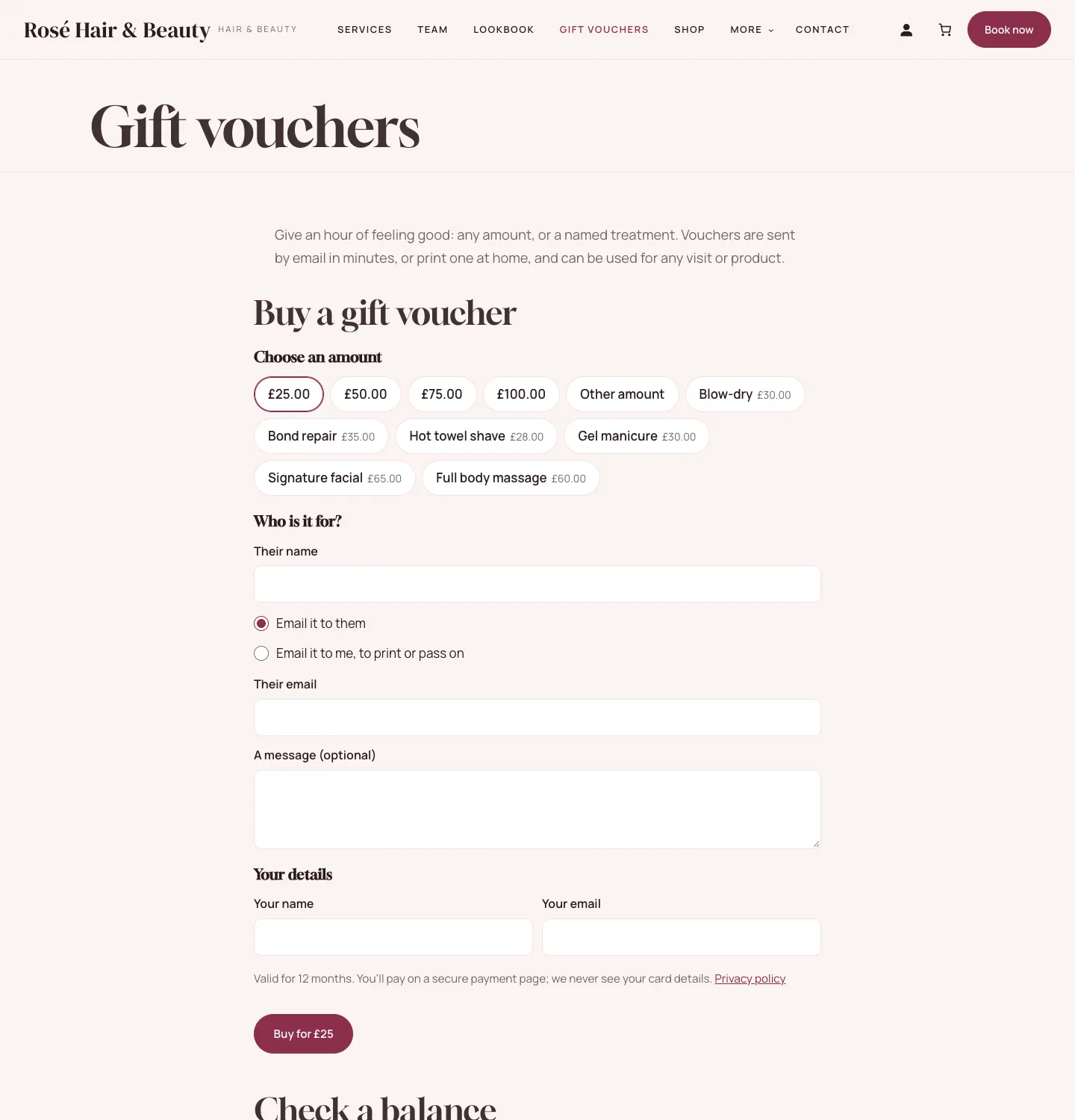
The Gift vouchers page lets people:
- Choose an amount (for example £25, £50, £75, £100 or Other amount), or a named treatment such as a Blow-dry.
- Say Who is it for?: their name, and whether to Email it to them or Email it to me, to print or pass on, with an optional message.
- Add Your details and click Buy for £…. They pay on the secure page and the voucher is emailed with its code in minutes.
There is also Check a balance, where anyone with a code can see what's left on it.
To offer a treatment by name, tick Offer as a gift voucher on the service (fixed prices only).
How to take a voucher at the till
- Go to Salon → Gift vouchers.
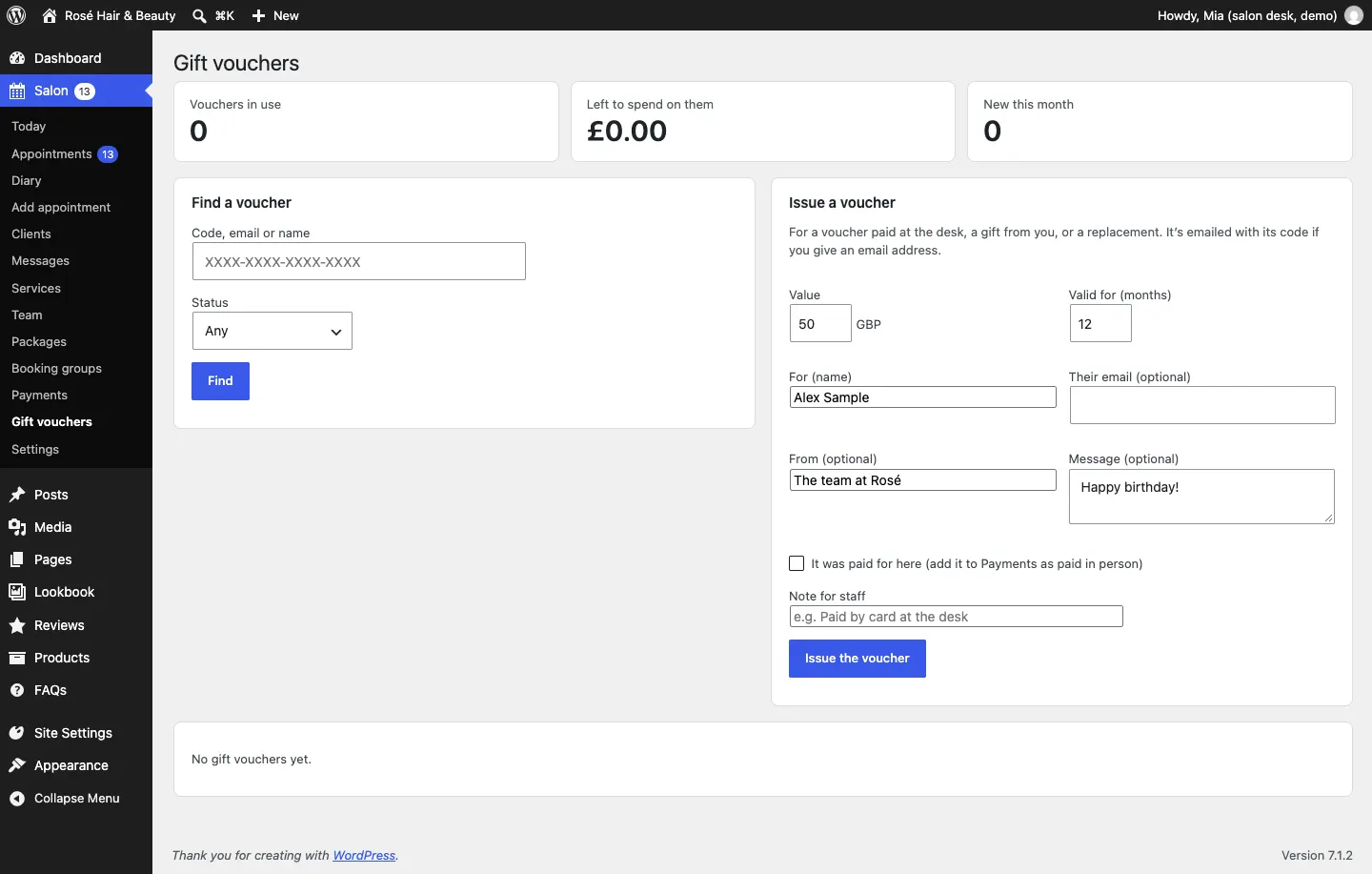
- Under Find a voucher, type the Code, email or name and click Find.
- Open the voucher. Under Take it at the till, type the Amount to take off and click Take it off.
What's left stays on the voucher until it's used up or expires. The buyer gets a reminder before a voucher with money left on it expires.
How to issue a voucher yourself
For a voucher paid at the desk, a gift from you, or a replacement:
- Go to Salon → Gift vouchers.
- Under Issue a voucher, type the Value and Valid for (months).
- Type who it's For (name), and Their email (optional) to email it with its code.
- Add From (optional) and a Message (optional) if you like.
- If they paid at the desk, tick It was paid for here (add it to Payments as paid in person) and add a Note for staff, for example "Paid by card at the desk".
- Click Issue the voucher.
Other things you can do with a voucher
Open it from the list to:
- Email it again, for example if they've lost the email;
- open the Print view to print it;
- Cancel voucher: what's left can no longer be spent. This doesn't refund the buyer; refund the payment under Payments if you need to.
The shop (optional)
If you install WooCommerce (a free shop plugin; a plugin is an add-on for WordPress), the Shop page sells your products, such as shampoo and aftercare, and the Products section on the home page shows the featured ones. Orders are set up for collection in the salon. See the WooCommerce help for adding products.