Running your website
Services and prices
Add your treatments with their times, prices, categories, who does them, patch tests and deposits, so the website's price list and booking form are always right.
On this page
Every treatment you offer, from a fringe trim to a full balayage, is a service. Each service has its own time, price and rules. The website uses them everywhere: the price list on the home page, the Services page, each treatment's own page, and the online booking form. Change a price once here and it changes everywhere.
Features marked (Pro) need a Pro or Agency licence.
How to see your services
- In the menu on the left, go to Salon → Services.
- You see every service with its Time, Price, whether it's Bookable online (or By phone) and its Categories. Colour services that need a patch test show Patch test next to Bookable.
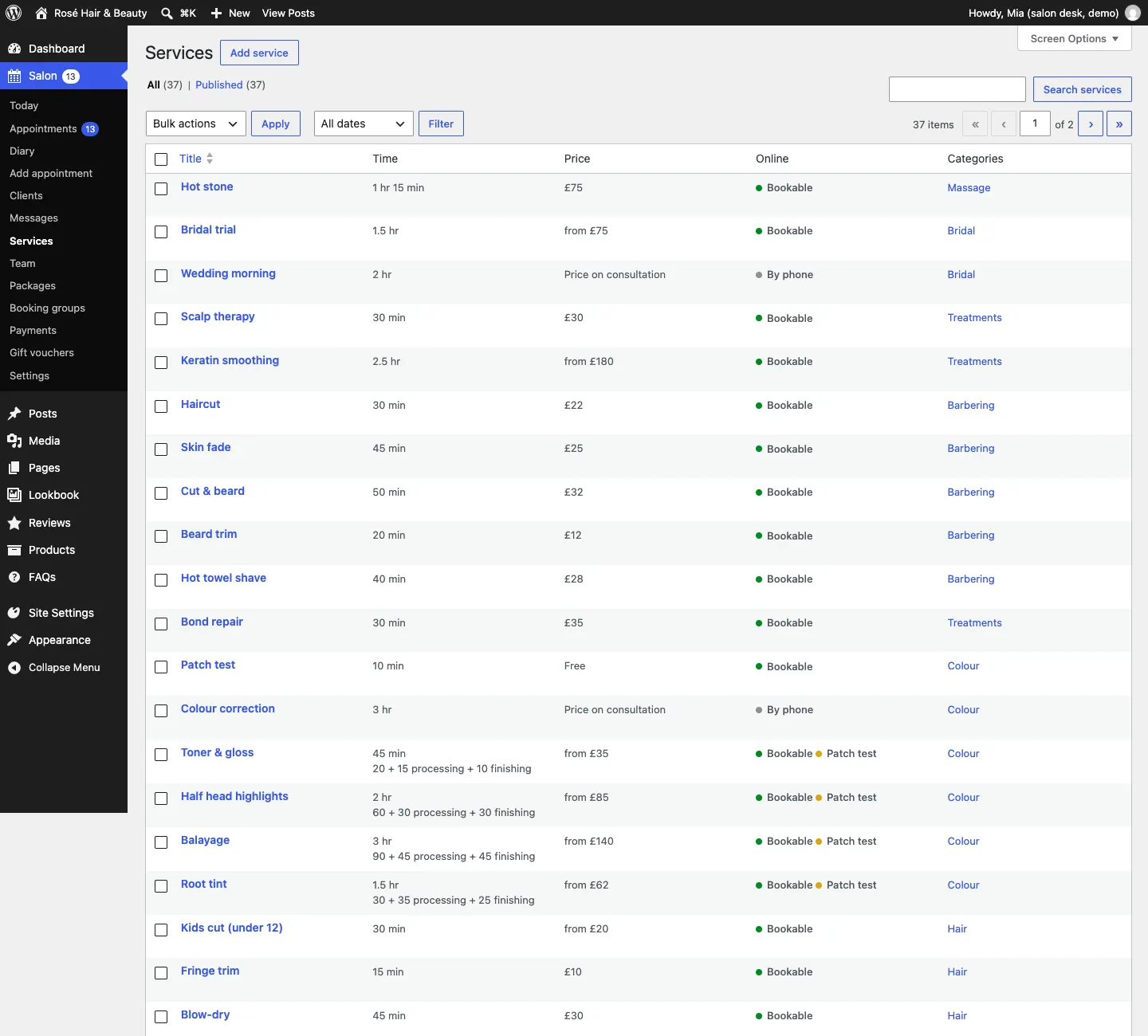
Colour services also show the time split, for example 90 + 45 processing + 45 finishing for Balayage.
How to add a service
- Go to Salon → Services and click Add service at the top.
- Type the name of the treatment at the top, for example "Root tint".
- Underneath, write a few words about it. This shows on the treatment's own page.
- On the right, click Set featured image to add a photo.
- Fill in the panels on the right (explained below): Time and price, Booking, Deposit and Service categories.
- Click Save (or Publish for a new service).
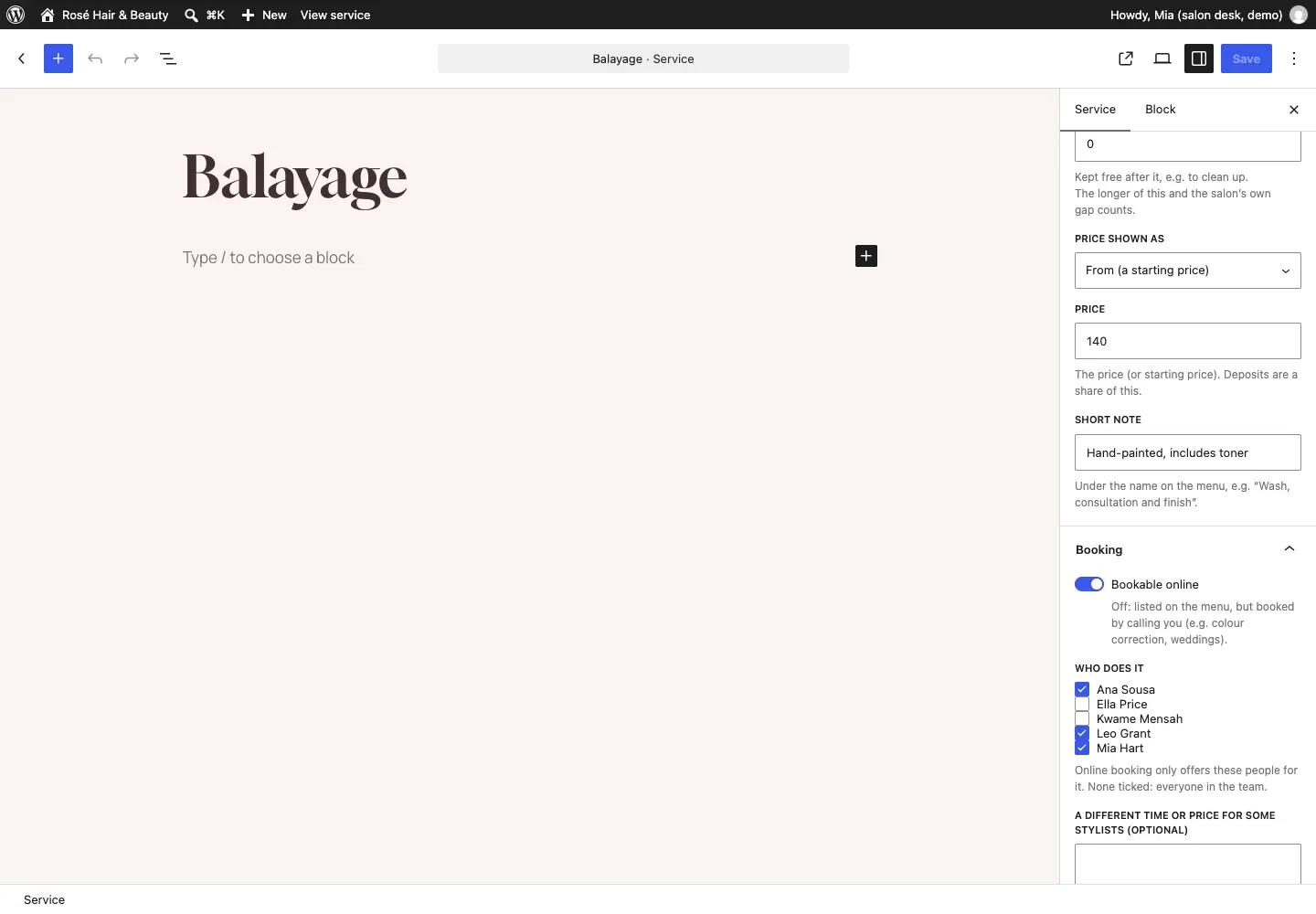
Time and price
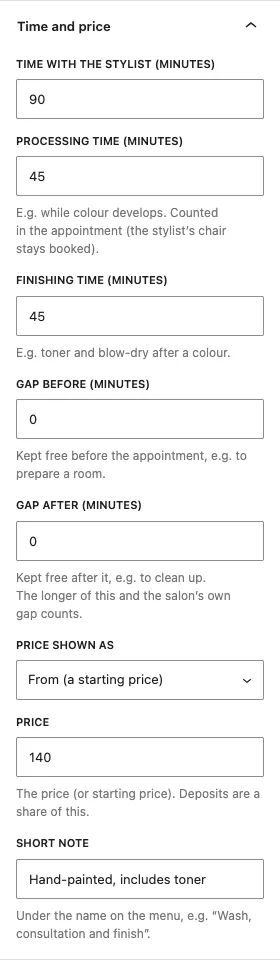
- Time with the stylist (minutes): how long the client is in the chair.
- Processing time (minutes): for example while colour develops. It is counted in the appointment, so the stylist's chair stays booked.
- Finishing time (minutes): for example toner and a blow-dry after colour.
- Gap before (minutes) and Gap after (minutes): time kept free around the appointment, for example to prepare a room or clean up. If the salon also has a gap after every appointment (see Settings), the longer of the two is used.
- Price shown as: A fixed price, From (a starting price), Price on consultation or Free.
- Price: the price, or the starting price. Deposits are worked out from this.
- Short note: a line under the name on the price list, for example "Wash, consultation and finish".
Booking
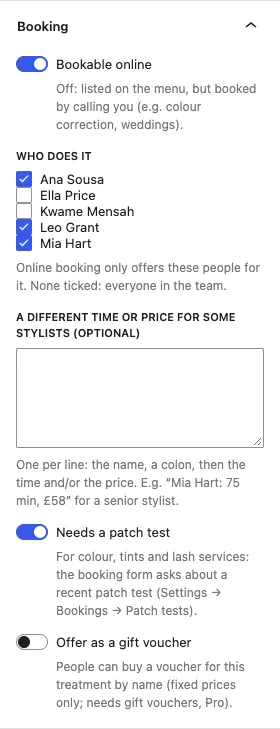
- Bookable online: switch it off for treatments you want people to phone about, such as colour correction or a wedding morning. They still show on the price list, marked "By phone".
- Who does it: tick the team members who do this treatment. Online booking only offers these people. If you tick nobody, everyone in the team can be booked for it.
- A different time or price for some stylists (optional): one line per person, the name, a colon, then the time and/or the price. For example
Mia Hart: 75 min, £58for a senior stylist. - Needs a patch test: tick this for colour, tints and lash services. The booking form then asks whether the client has had a patch test recently, and books one for them if not. See Booking on the website.
- Offer as a gift voucher (Pro): people can buy a voucher for this treatment by name. It only works for fixed prices.
Deposit (Pro)
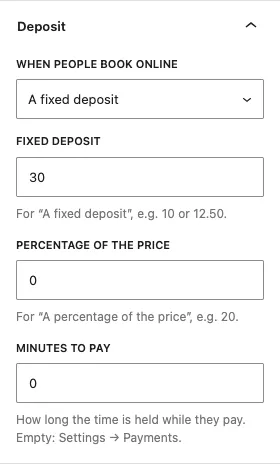
- Under When people book online, choose No deposit, A fixed deposit, A percentage of the price or The full price (prepay).
- For a fixed deposit, type the amount in Fixed deposit, for example 10 or 12.50.
- For a percentage, type it in Percentage of the price, for example 20.
- Minutes to pay is how long the time is held while the client pays. Leave it empty (or 0) to use the time set under Salon → Settings → Payments.
Deposits only work once online payments are set up. See Deposits, payments and gift vouchers. Bookings your staff add in the admin never ask for a deposit.
How to group services into categories
Categories are the tabs on the price list and booking form (Hair, Colour, Treatments, Barbering, Nails, Lashes & brows, Skin, Massage, Bridal…).
- Open a service and tick its category in the Service categories panel on the right. To make a new category there and then, use the add link at the bottom of the panel.
- To rename categories or change their order, go to Salon → Service categories. Click a category to rename it, and change its Order on the menu number to move it (smaller numbers come first). To add one, type its Name, leave Part of on None (or choose a broader category to put it under), add an optional Description and click Add category.
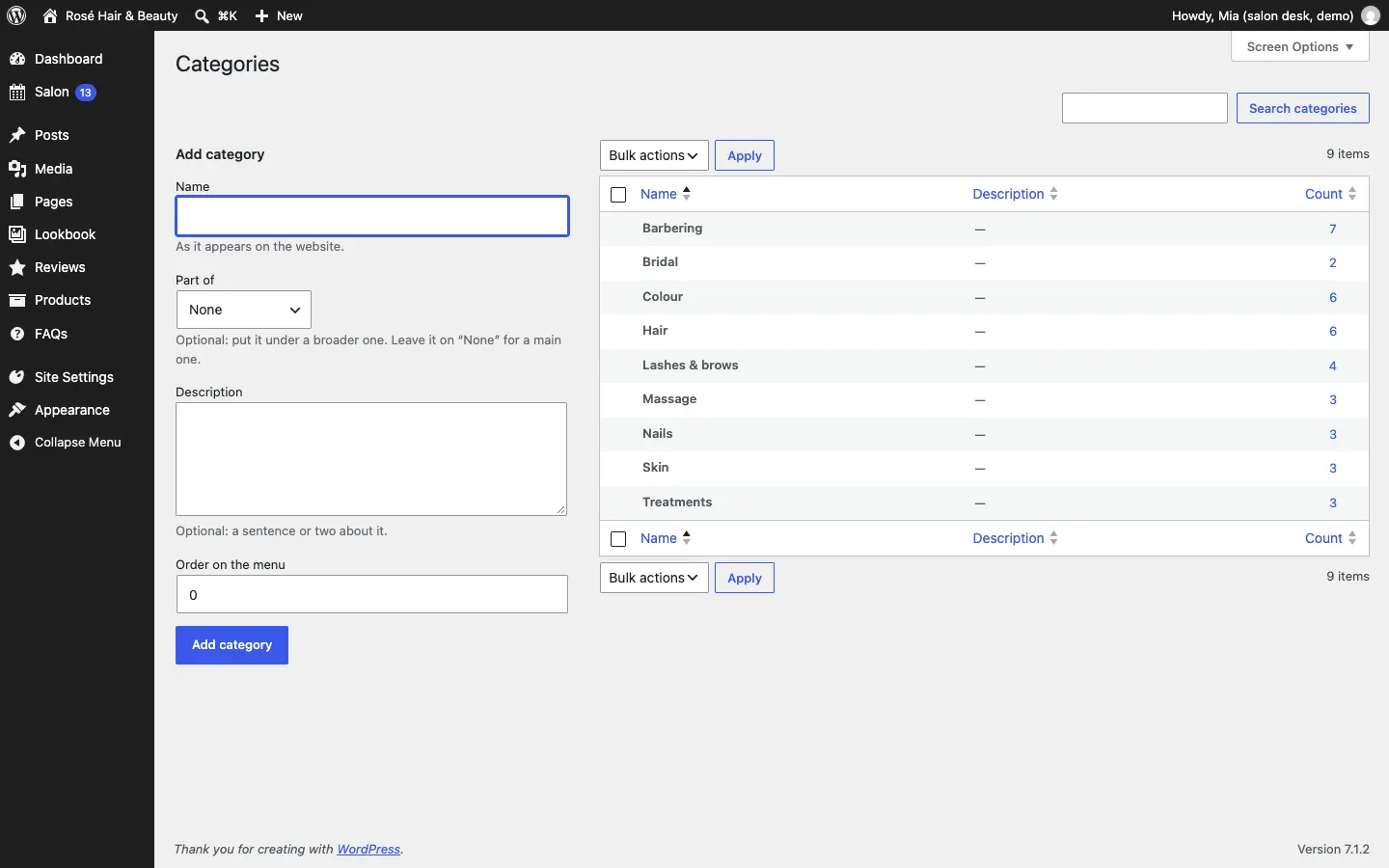
The order of the categories is the order on the website.
What clients see
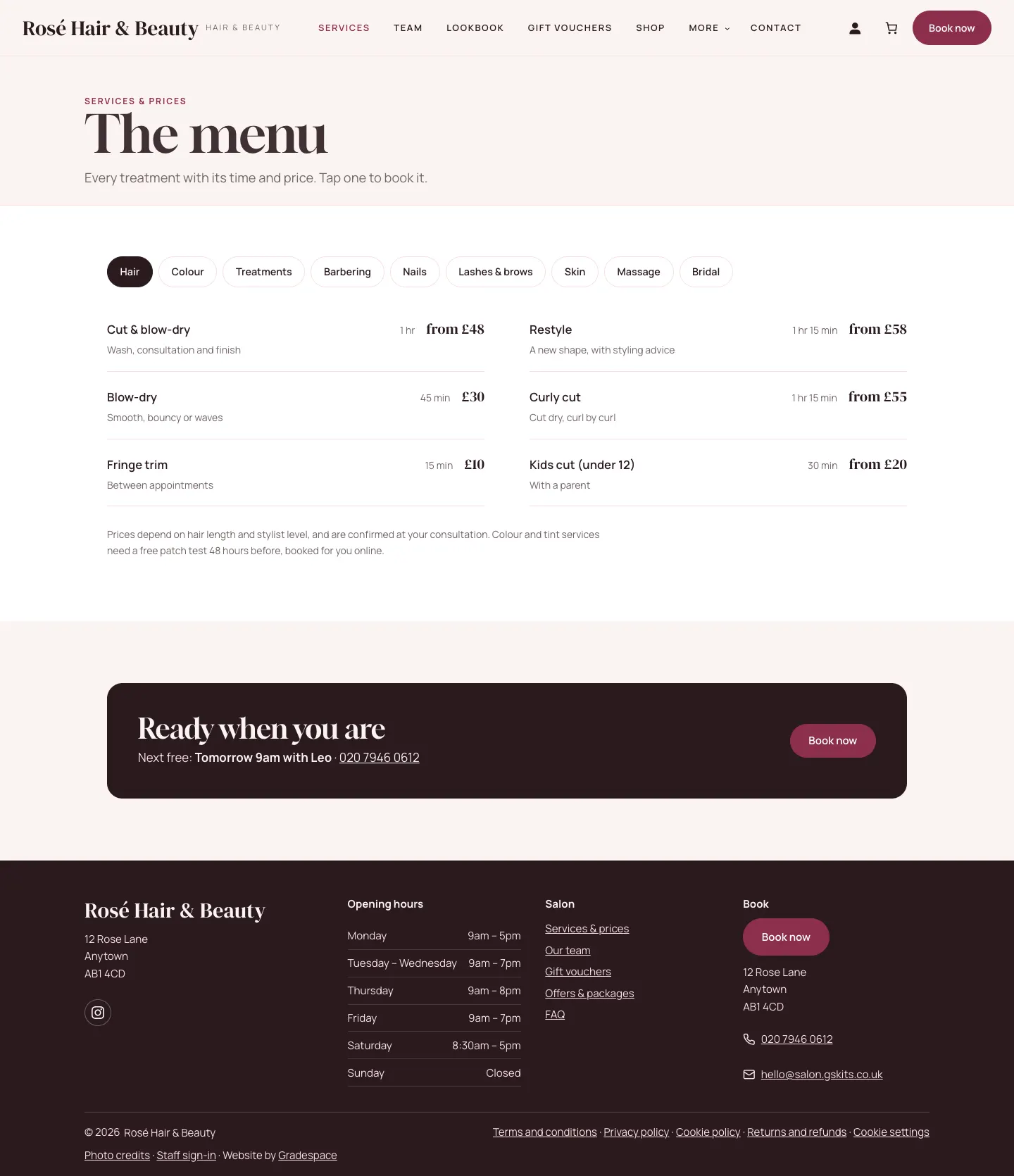
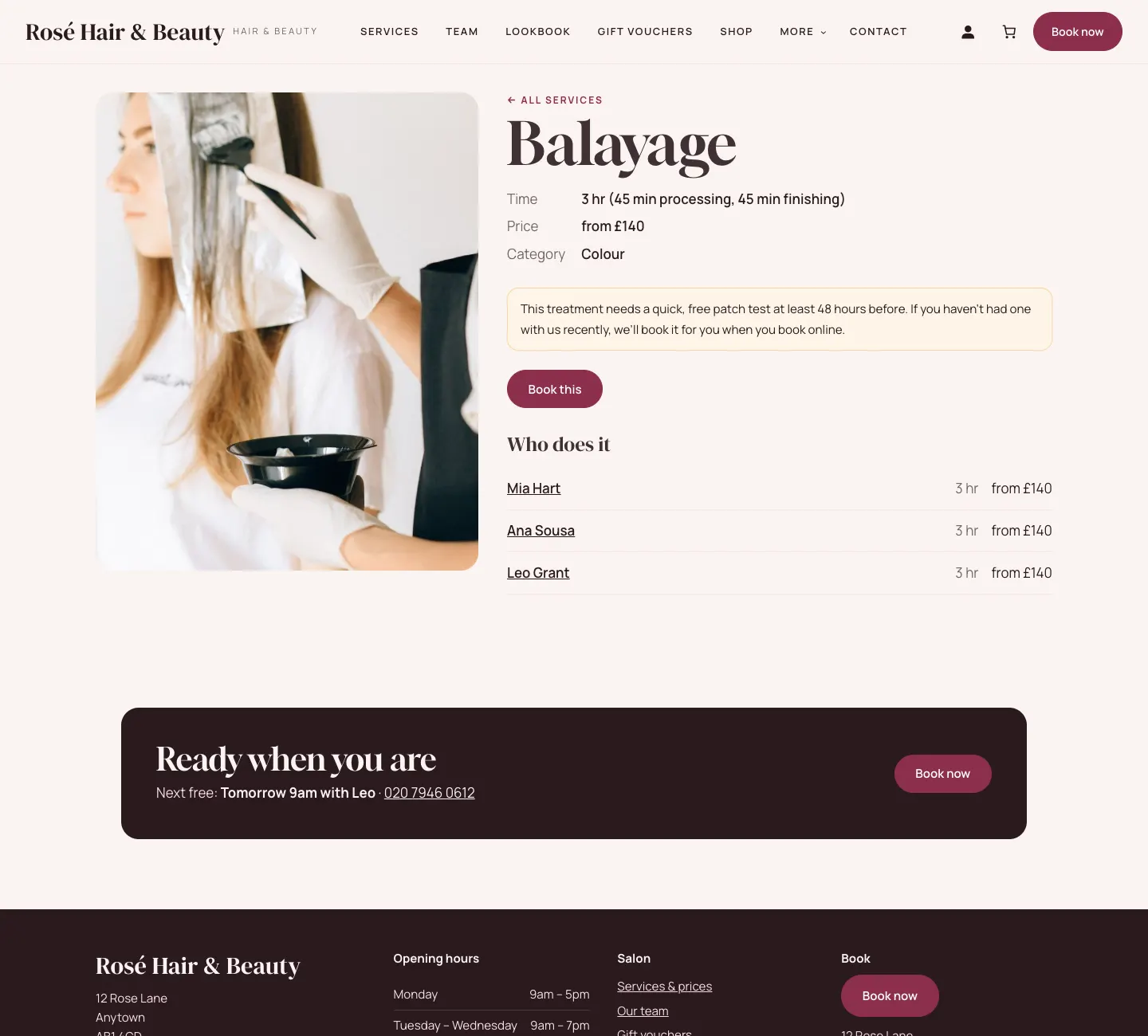
The Services page lists every service by category, with its time and price. Each line links to the treatment's own page, which shows the time (with processing and finishing), the price, a note about the patch test if it needs one, a Book this button and who does it.
How to change or remove a service
- Change it: open it from Salon → Services, change what you need and click Save.
- Stop taking online bookings for it: untick Bookable online in the Booking panel.
- Remove it: hover over it in the list and click Trash. Past appointments for it are kept.
Show or hide prices
To hide every price on the website (visitors see "Price on consultation"), untick Show prices on the website under Salon → Settings → Bookings. See Settings.