Running your website
Booking on the website
What your clients see when they book online: choosing services, a stylist and a free time, patch tests, deposits, and changing or cancelling with the link in their email.
On this page
Your clients book on the Book page (every Book now button leads there). The form only ever offers times that are really free: the salon is open, the stylist is working and not on a break or a day off, nothing else is booked, and every gap you've set is respected. Two people can never take the same time.
This chapter walks through the form as your client sees it, so you can answer their questions. The staff side is in Appointments and the diary.
Features marked (Pro) need a Pro or Agency licence.
How a client books
The form has four steps, shown as 1 Service, 2 Stylist, 3 Time and 4 Details at the top.
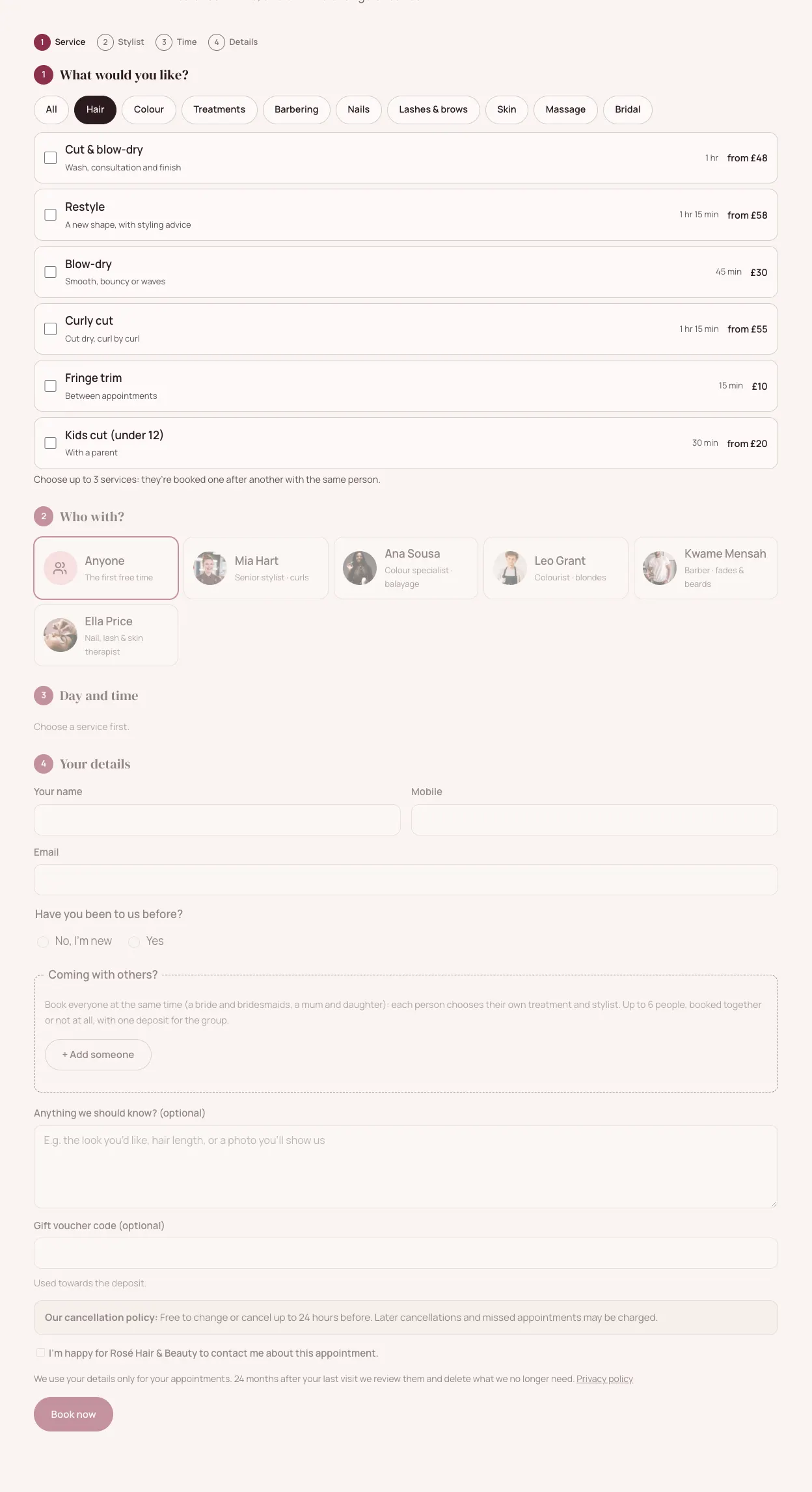
Step 1: What would you like?
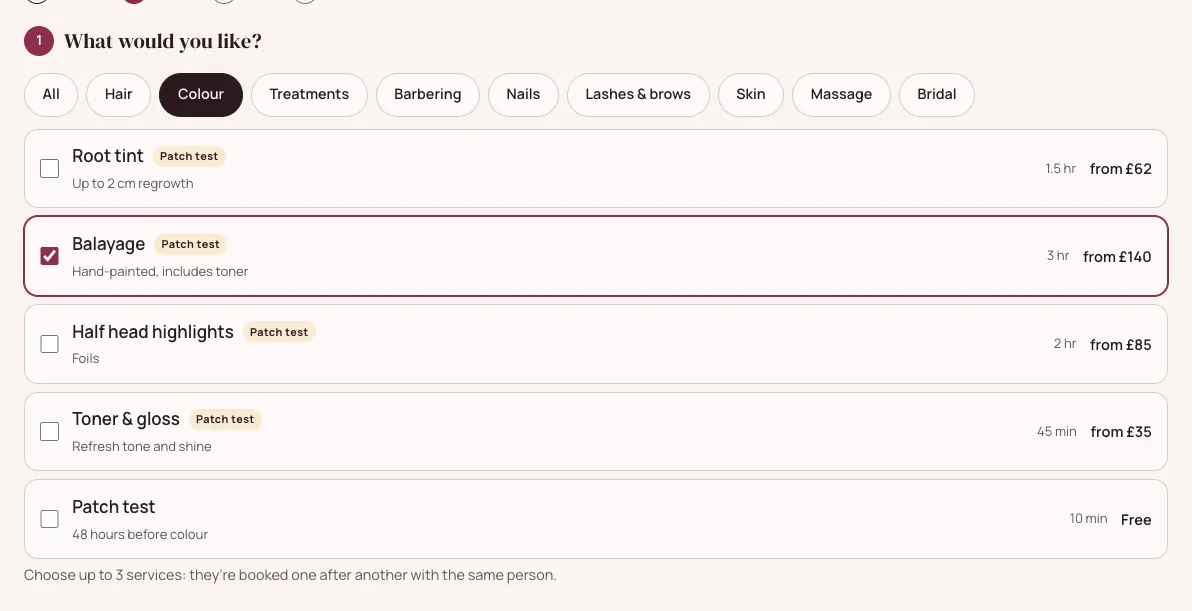
- The client picks a category tab (for example Colour) or All.
- They tick one or more treatments. They can choose up to three (you can change the number in Settings); they're booked one after another with the same person.
Treatments that need a patch test have a small Patch test label.
Step 2: Who with?
The client chooses a stylist, or Anyone for the first free time. Only the people who do the chosen treatments are shown. With Anyone, the website picks the least busy person who is free.

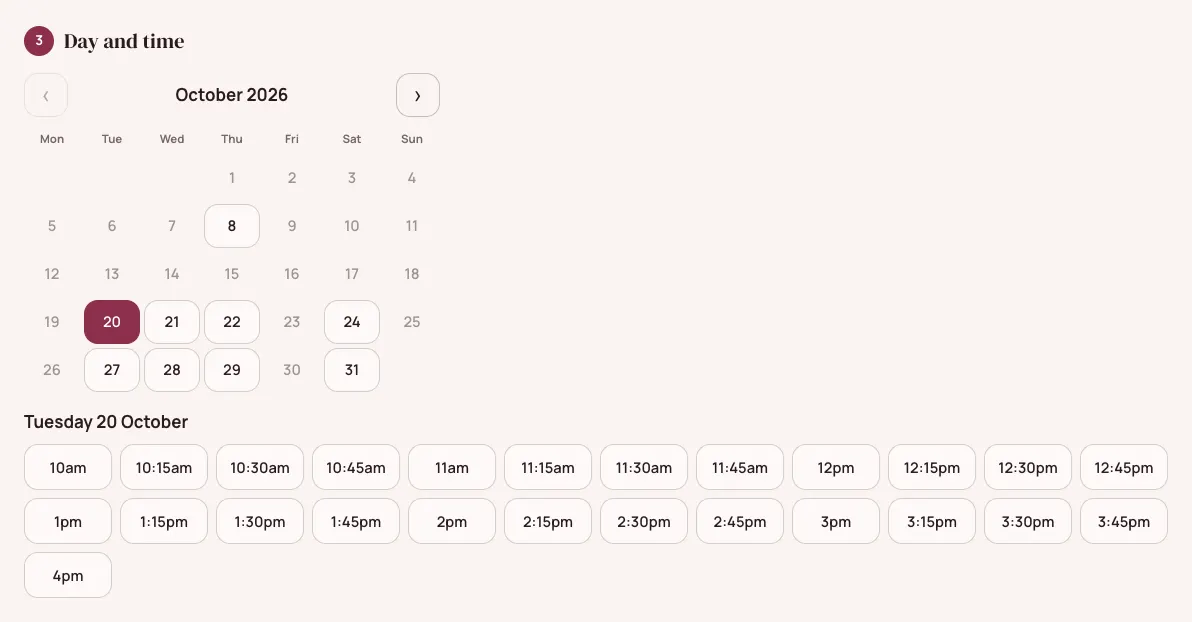
Step 3: Day and time
A calendar shows the days with free times. Days with nothing free are greyed out. When the client picks a day, the free start times for that day appear underneath.
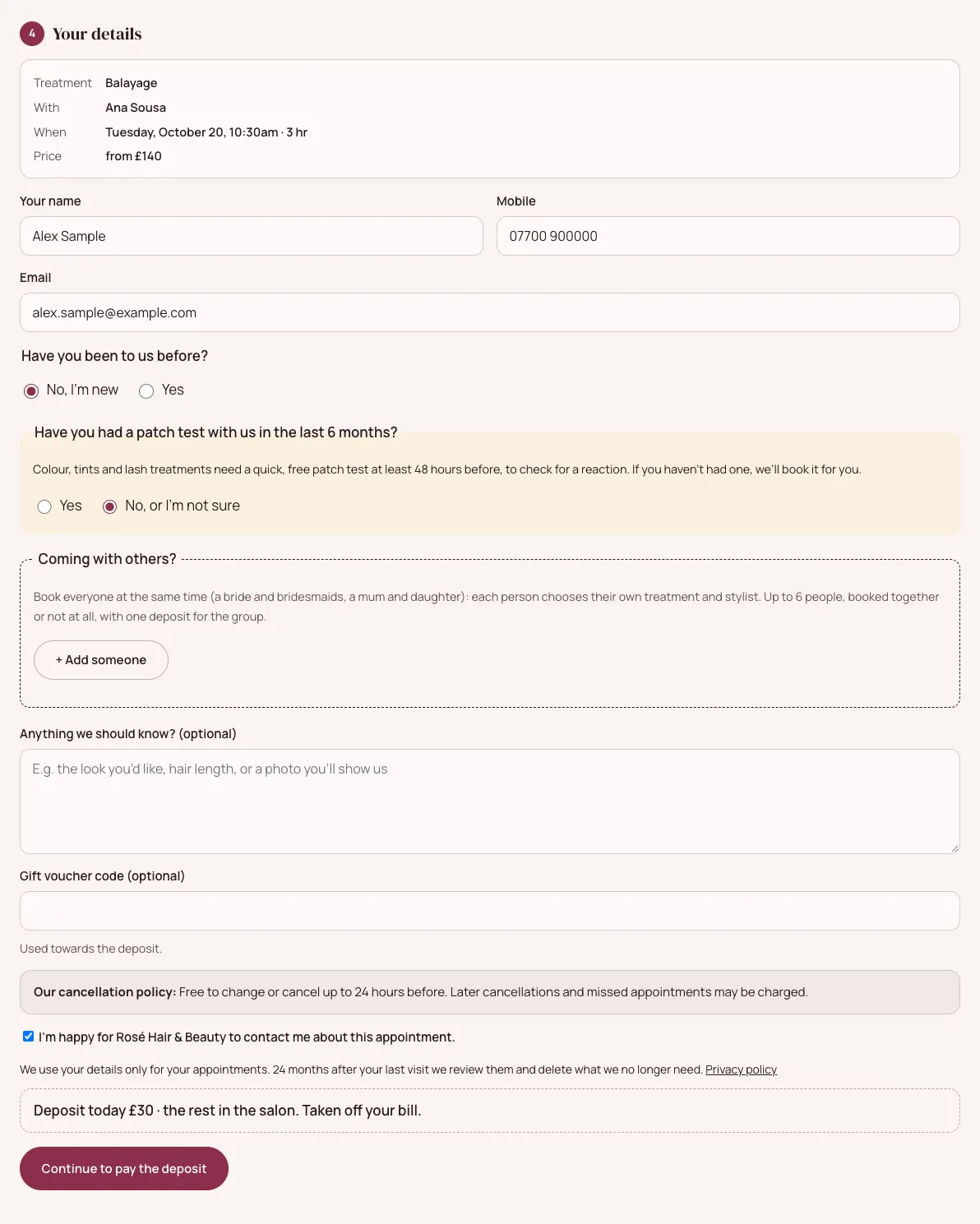
Step 4: Your details
- A summary at the top shows the treatment, the stylist, the time and the price.
- The client types their name, mobile and email.
- They answer Have you been to us before?.
- For treatments that need one, they answer the patch test question (see below).
- They can add a note in Anything we should know? (optional), and a Gift voucher code (optional) (Pro) to put towards the deposit.
- They read your cancellation policy, tick I'm happy for … to contact me about this appointment., and click Book now.
If the treatment has a deposit, the button says Continue to pay the deposit instead, and a line above it says how much is due today (for example "Deposit today £30 · the rest in the salon. Taken off your bill.").
If you've switched off Confirm online bookings straight away, the button says Request this time and the booking waits for you to confirm it (see Appointments and the diary).
Patch tests
Colour, tint and lash treatments can be marked Needs a patch test (see Services and prices). When a client books one:
- The form asks Have you had a patch test with us in the last 6 months? (the number of months is set in Settings).
- If they answer Yes, the booking goes ahead as normal and their email reminds them to tell you if anything has changed.
- If they answer No, or I'm not sure, the appointment must be at least 48 hours away. The website books a free patch test for them automatically, with the same stylist when they're free, and tells them the time.
- If no patch test time can be found, the booking still goes through and the salon is asked to arrange one.
About two days before the appointment the client gets a patch-test reminder email.
When a patch test appointment is marked Done, the date is written on the client's record. You can also note the Result there (see Clients).
Coming with others? (group bookings)
Clients can book for several people at the same visit, for example a bride and her bridesmaids. See Group bookings.
Deposits (Pro)
When a treatment has a deposit and online payments are set up:
- After Continue to pay the deposit, the client goes to a secure payment page (Stripe, or your shop's checkout).
- Their time is held while they pay (30 minutes unless you change it).
- When they've paid, they come back to the website and see their booking, confirmed.
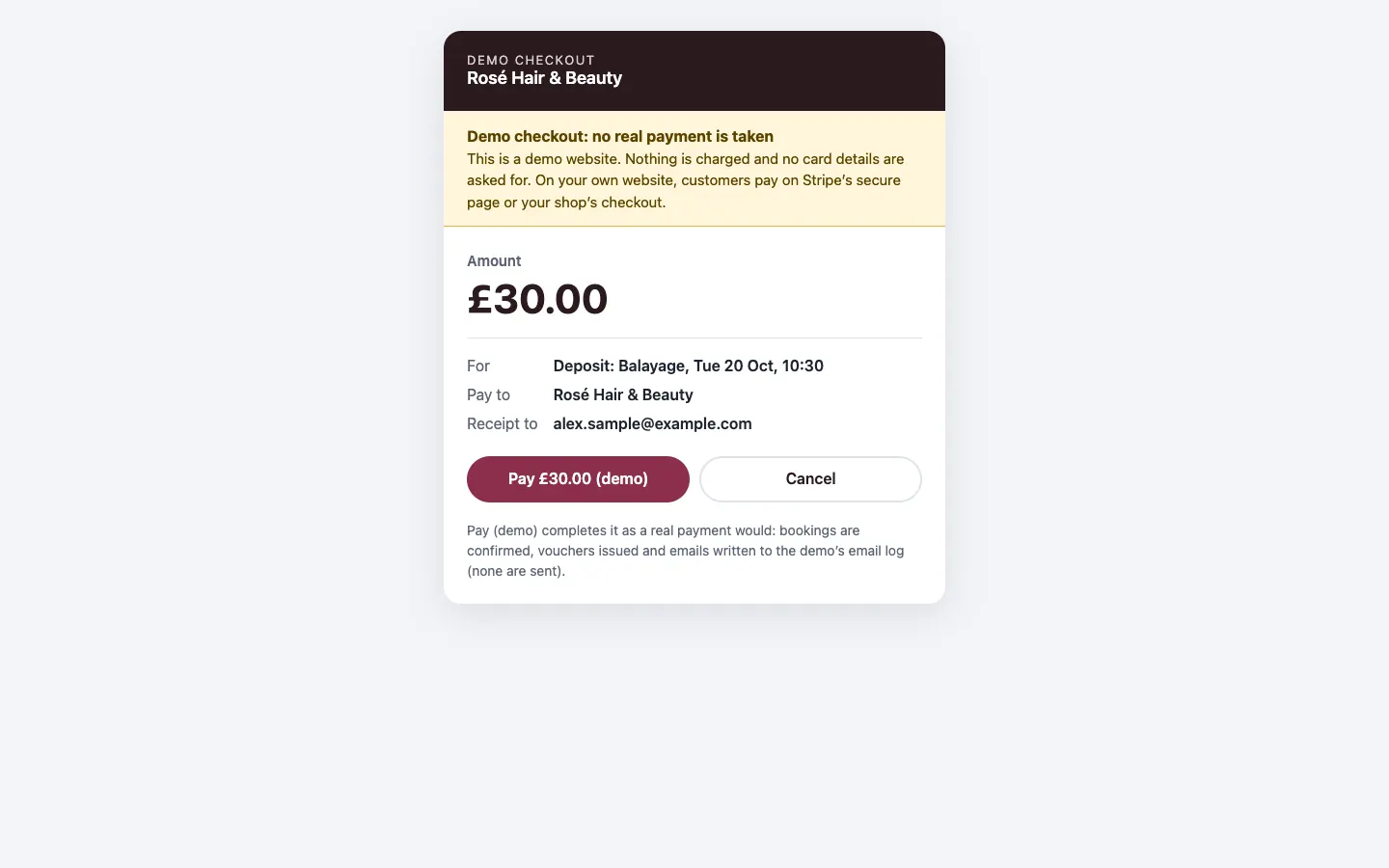
More about deposits and refunds is in Deposits, payments and gift vouchers.
After booking: the client's appointment page
Straight after booking (or paying), the client sees their appointment page. They get the same link in their confirmation email, under See, change or cancel.
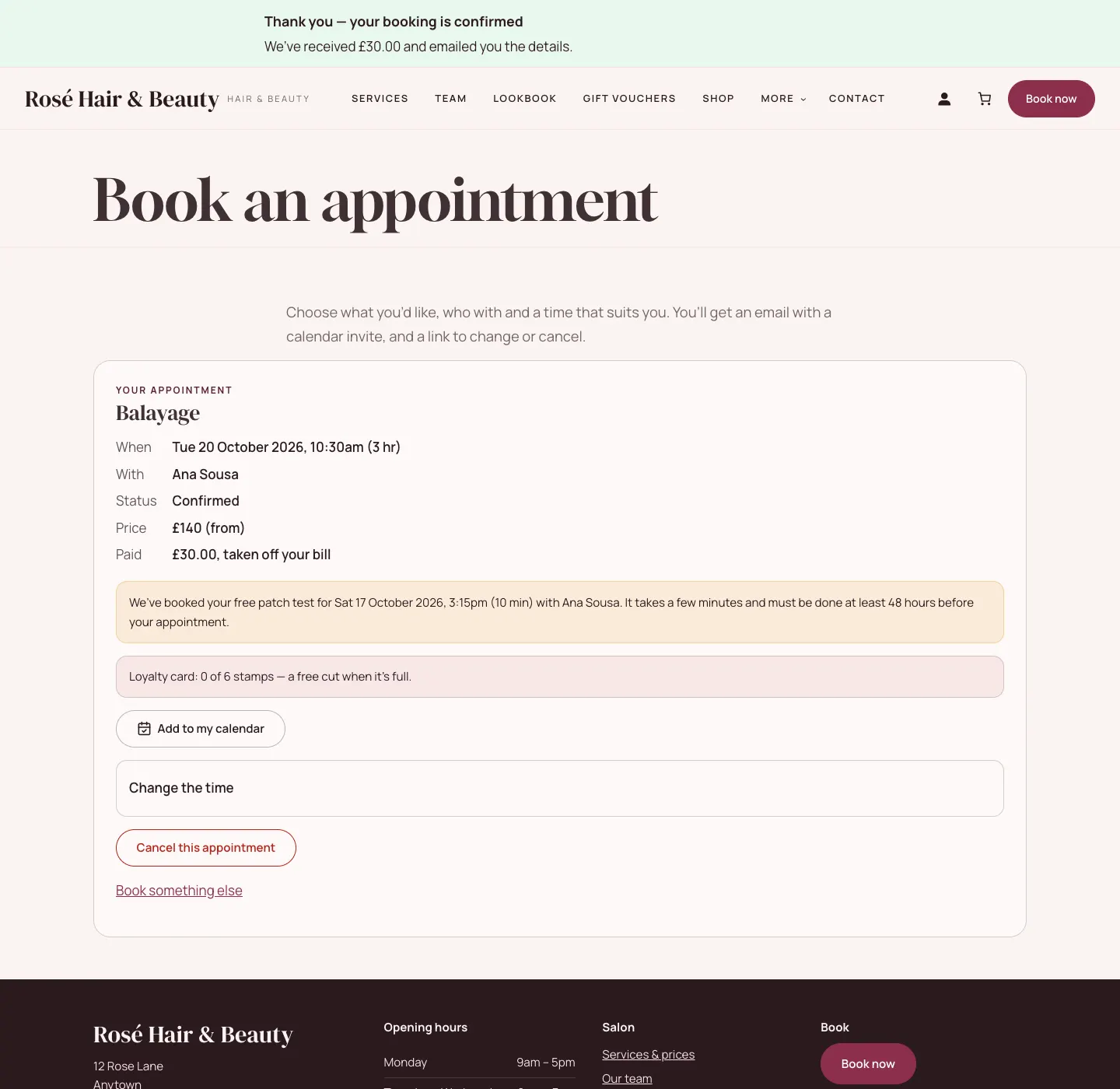
The page shows:
- the treatment, time, stylist, status, price and anything paid;
- the patch test, if one was booked;
- their loyalty card (Pro), if you use one;
- Add to my calendar, Change the time, Cancel this appointment and Book something else.
How a client moves their appointment
- They open Change the time.
- They pick a new date and one of the free times shown.
- They confirm. The website emails them the new time with a new calendar invite, and tells you and the stylist.
How a client cancels
- They click Cancel this appointment.
- They confirm with Cancel appointment.
- The time is freed for someone else, they get an email, and you get an email saying who cancelled.
Clients can only change or cancel online up to the cut-off you set (24 hours before, unless you change it under Salon → Settings → Bookings → Clients can change or cancel online until (hours before)). After that, the page asks them to call you.
What happens to a deposit when a client cancels in time depends on When a customer cancels in time under Salon → Settings → Payments (see Deposits, payments and gift vouchers).
The emails your client gets
| When | |
|---|---|
| They book (confirmed straight away) | Appointment confirmed, with a calendar invite and the See, change or cancel link |
| They book (you confirm first) | Booking request received, then Appointment confirmed or Booking request declined |
| They pay a deposit (Pro) | Payment received |
| The day before | Reminder the day before, sent from about 8am |
| About two days before a colour or lash treatment | Patch-test reminder |
| It is moved or cancelled | A new confirmation, or Appointment cancelled |
You can switch each email on or off, and change who they come from, under Salon → Settings → Email (see Settings and Privacy and emails).
When online booking is closed
If you untick Take bookings online under Salon → Settings → Bookings, the form tells visitors to call or message you instead. Your phone and walk-in bookings still work as normal.