Running your website
Classes (Pro)
Classes with a short code such as GCSE-001, a number of places, their tutors and their students: adding a class, adding, moving and removing students, linking a class to a weekly group, giving new enquiries and bookings a class automatically, and what tutors see.
On this page
A class is a standing group of students: for example GCSE-001, GCSE Maths · Higher, with six places and Kevin as its tutor. Students in a class can be invited to the student area, where they see their class, their next lessons and their details (see Student accounts and the student area).
Classes need a Pro or Agency licence. Features marked (Pro) need a Pro or Agency licence.
A class works alongside your group sessions:
- A group session is one lesson on one day, with its places and waiting list (see Group sessions).
- A class is the list of students who belong together, term after term. Link it to a group in the Weekly timetable and every student in the class gets a place in each session that group makes.
The Classes list
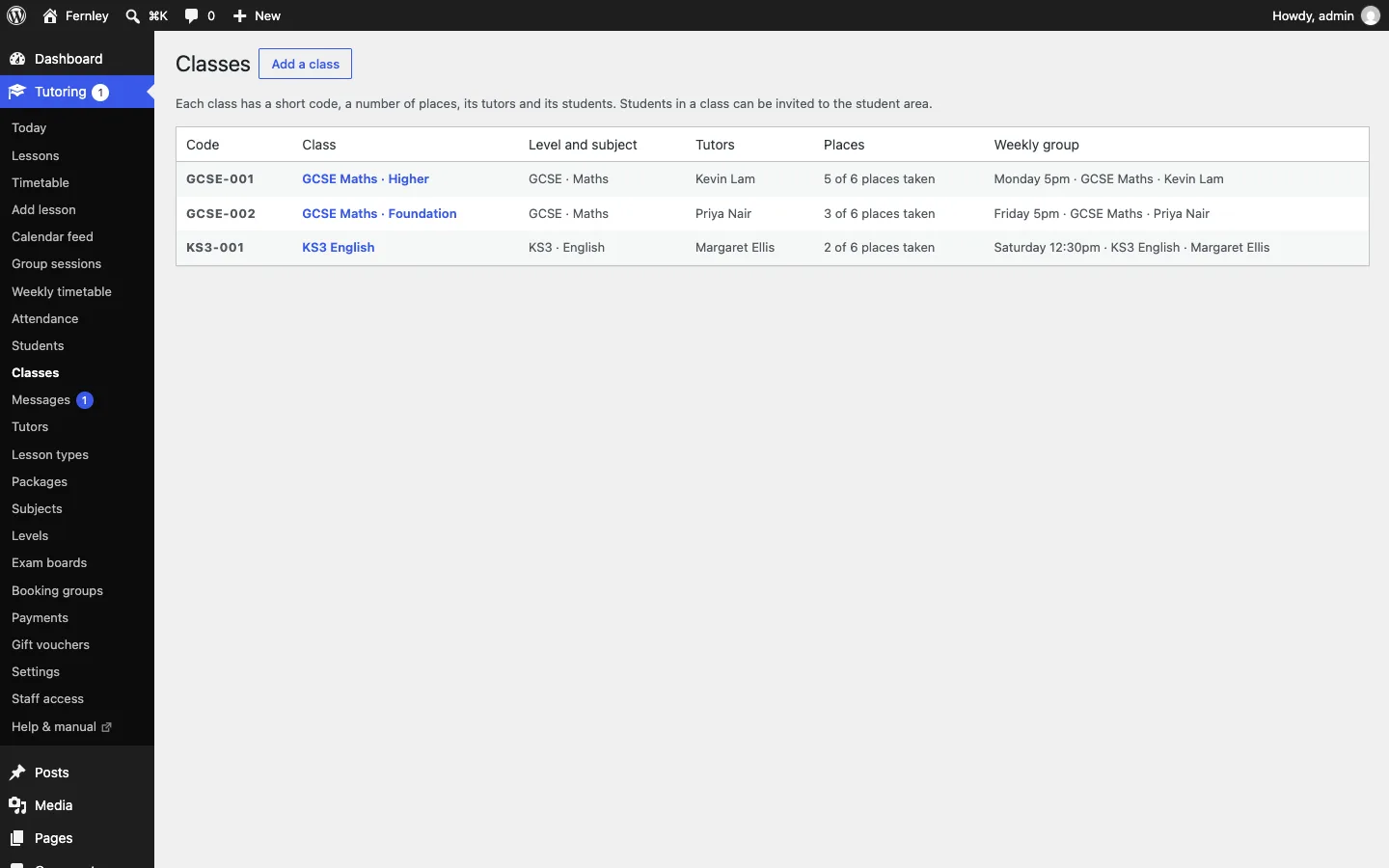
Go to Tutoring → Classes. Each class shows its Code, its name, its Level and subject, its Tutors, its Places (for example "5 of 6 places taken") and its Weekly group. A class that is full says, for example, Full (6 of 6).
How to add a class
- Go to Tutoring → Classes and click Add a class.
- Type the class's name, for example "GCSE Maths · Higher".
- Under Class:
- Class code: a short code such as GCSE-001. Leave it empty and the website numbers it from the level for you: GCSE-001, then GCSE-002. Codes use capitals, numbers and hyphens, and each code is used once on your website. If you type one that's taken, the class gets the next free number and the screen tells you.
- Level and Subject.
- Tutors: tick the tutors who teach it. They see the class and its students, and can invite them to the student area.
- Places: how many students the class takes. Leave it at 0 to use the places of its group lesson type, or else the number under Tutoring → Settings → Lessons → Places in a new class (5 to start with).
- Under Lessons and new students:
- Group lesson type (optional): the group lesson type the class is taught as.
- Weekly group (optional): the class's group in the weekly timetable (see below).
- Open for new students: untick it to keep new enquiries and bookings out of this class (you can still add students yourself).
- Click Publish.
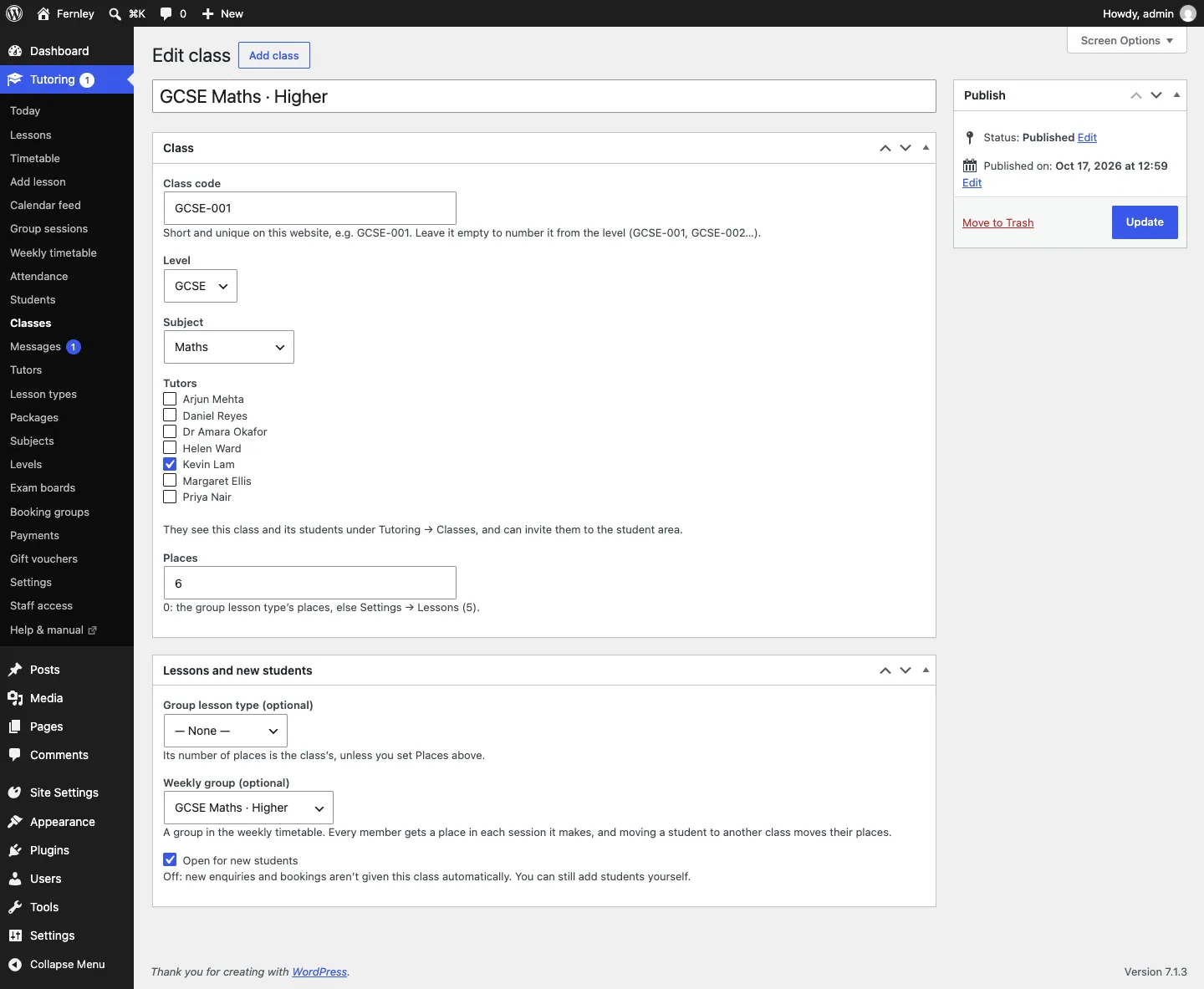
To change a class later, open it from Tutoring → Classes and click Edit the class.
A class and its students
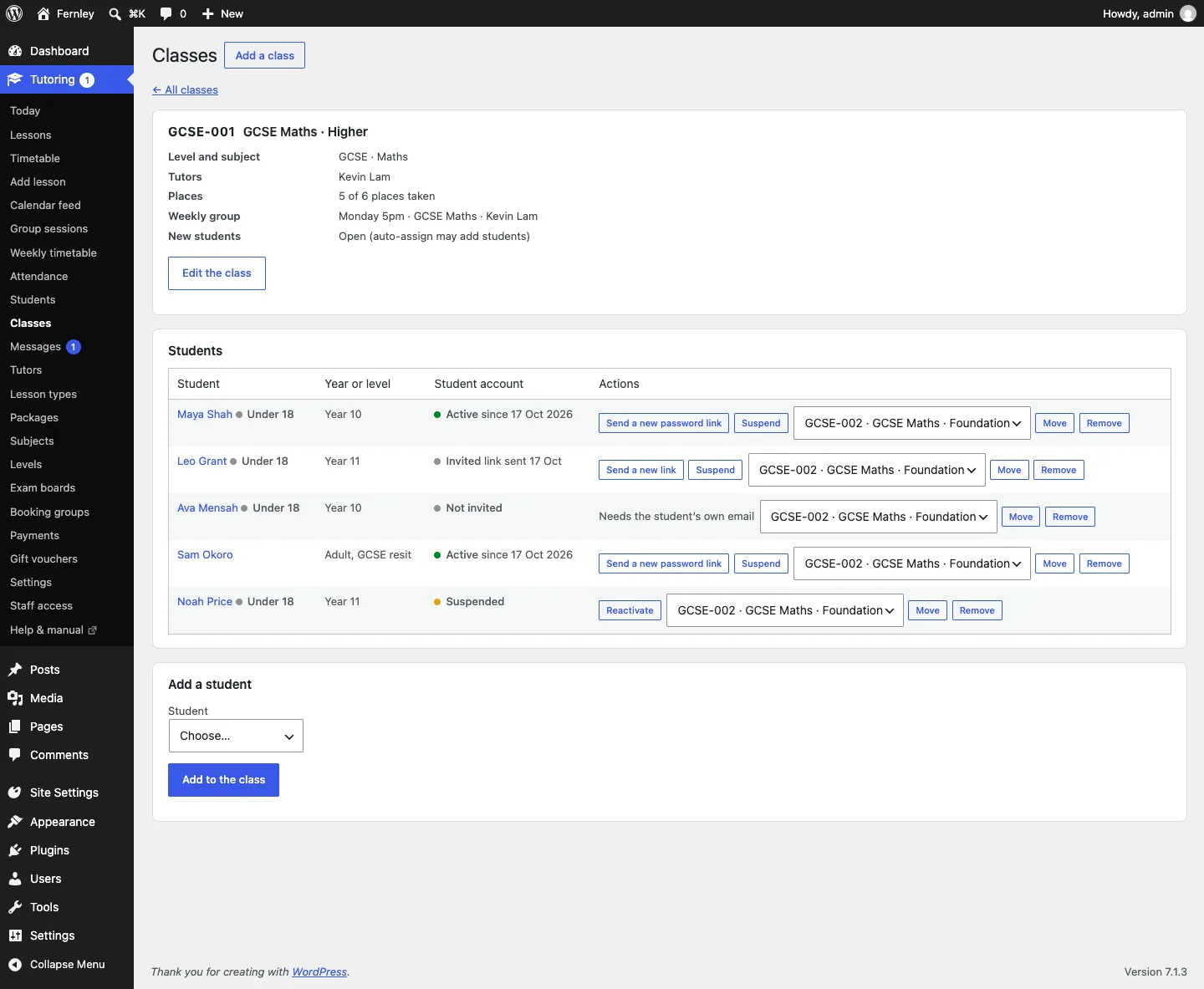
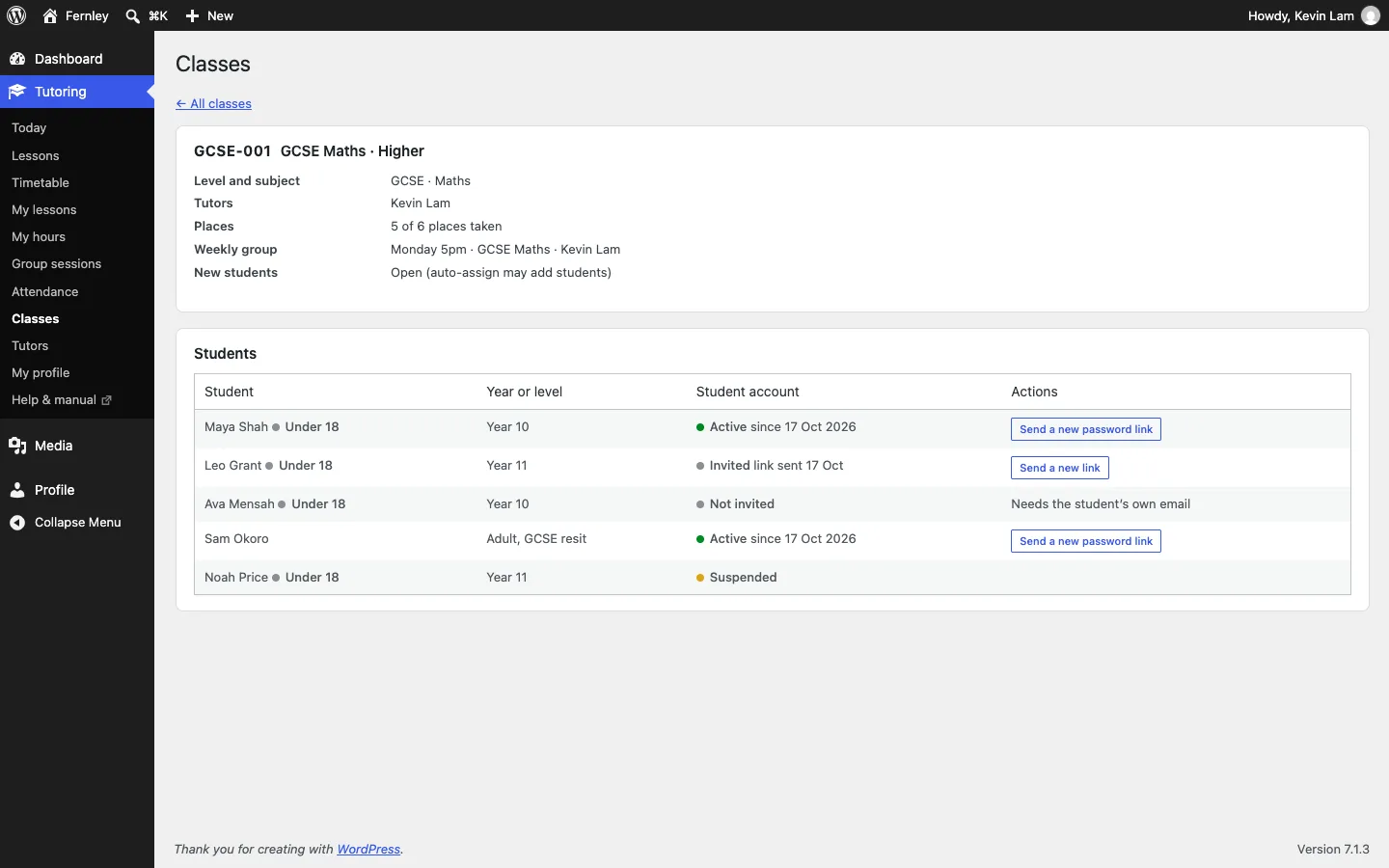
Click a class in the list. You see its details and its Students: each student's year, whether they're under 18, their Student account (Not invited, Invited, Active or Suspended) and what you can do.
How to add a student to a class
- Open the class.
- Under Add a student, choose the student.
- Click Add to the class.
If the class is full, tick The class is full: add them anyway to go over its places.
You can also add a student from their own record: open them under Tutoring → Students, choose the class in the Classes box on the right and click Add.
How to move a student to another class
- Open the class they're in.
- Next to the student, choose the new class in the list (a full class says "full").
- Click Move.
The move happens only if the new class has a free place; otherwise nothing changes and you're told why.
How to take a student out of a class
Click Remove next to them and confirm. Their record stays under Tutoring → Students.
Linking a class to a weekly group
If a class meets every week, link it to its group in the weekly timetable (see The weekly timetable and term dates):
- Open the class and click Edit the class.
- Choose the group under Weekly group (optional).
- Click Update.
From then on:
- every student in the class is one of the group's regular students and has a place in each session the timetable makes;
- a student who joins the class gets a place in the sessions still to come;
- a student who leaves or moves loses those places (without an email).
Giving new enquiries and bookings a class automatically
You can let the website give each new student a class, the way many centres give a class code as soon as someone enquires.
- Go to Tutoring → Settings → Lessons.
- Under Classes and student accounts, switch on Give new enquiries and bookings a class automatically.
- Leave When every matching class is full, start the next one on if you want a new class made when all the matching ones are full.
- Click Save changes.
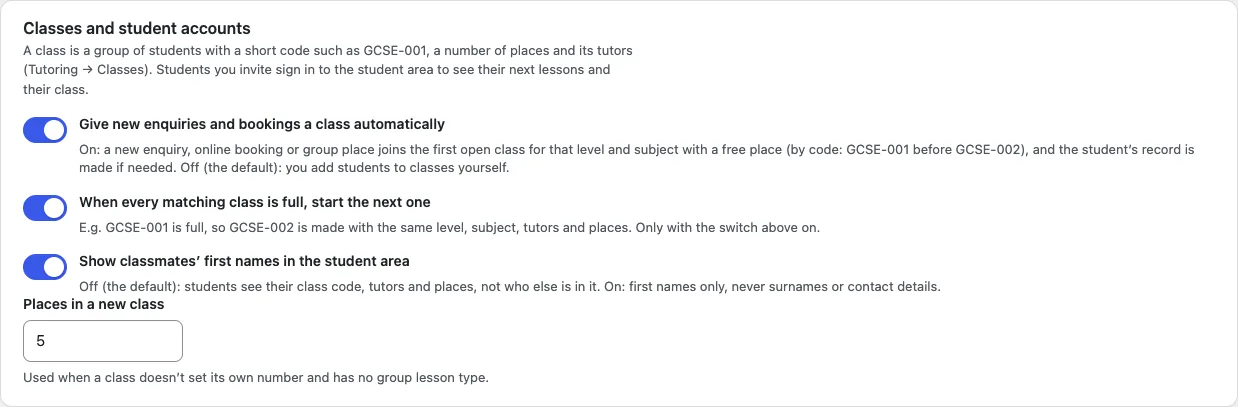
How it works:
- A new enquiry, online booking or place in a group session joins the first class that suits its level and subject, is Open for new students and has a free place. Classes are tried in code order: GCSE-001 before GCSE-002.
- The student's record is made if they don't have one yet, with the parent or guardian's details for a child.
- If every suitable class is full, the next one is started like the last of them, with the next code (GCSE-002 after GCSE-001), the same level, subject, tutors and places, and no weekly group yet. Find it in Tutoring → Classes and give it a group when you know when it meets.
- The office's email about a new enquiry says which class it was given.
Lessons you add yourself, and places from the weekly timetable, never change anyone's class.
What tutors see
A tutor sees Tutoring → Classes with only the classes they teach. They can open a class to see its students and their student accounts, and invite them to the student area (Invite or Send a new link). Only the office adds, moves and removes students, and suspends accounts.
A tutor can't open a class they don't teach, or the record of a student who isn't in one of their classes.
On a phone
The class screen fits a phone: each student is a card with their account and buttons underneath.
