Running your website
Student accounts and the student area (Pro)
Inviting students to their own sign-in, how they choose a password with a one-time link, what they see in the student area (next lessons, their class, their details), the parent or guardian's copies, suspending an account, and what is kept for privacy.
On this page
The student area is a page where your students sign in to see their next lessons, their class and their details. You invite each student; they choose their own password with a link that works once.
Student accounts need a Pro or Agency licence. Features marked (Pro) need a Pro or Agency licence.
Before you start
- The Student area page. The setup wizard's starter pages add it once you have Pro. If you don't have it, go to Tutoring → Settings → Run setup again, and on Starter content tick The student area page (Pro). The menu gets a Student sign-in link with the starter pages.
- The student's own email on their record (Tutoring → Students, open the student, Student's own email). They sign in with it. For a student under 18 it must be their own, not their parent's: the parent gets a copy of the account emails instead.
- Students are usually in a class first (see Classes). A tutor can only invite the students in their own classes; the office can invite anyone.
How to invite a student
From the student's class:
- Go to Tutoring → Classes and open the class.
- Click Invite next to the student and confirm.
Or from the student's record:
- Go to Tutoring → Students and open the student.
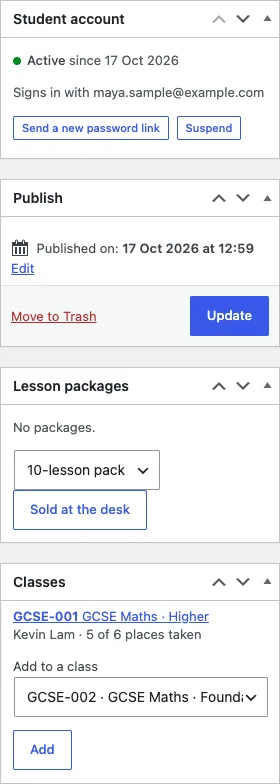
- In the Student account box on the right, click Invite and confirm.
The student gets an email, Your student account, with a Choose my password button.
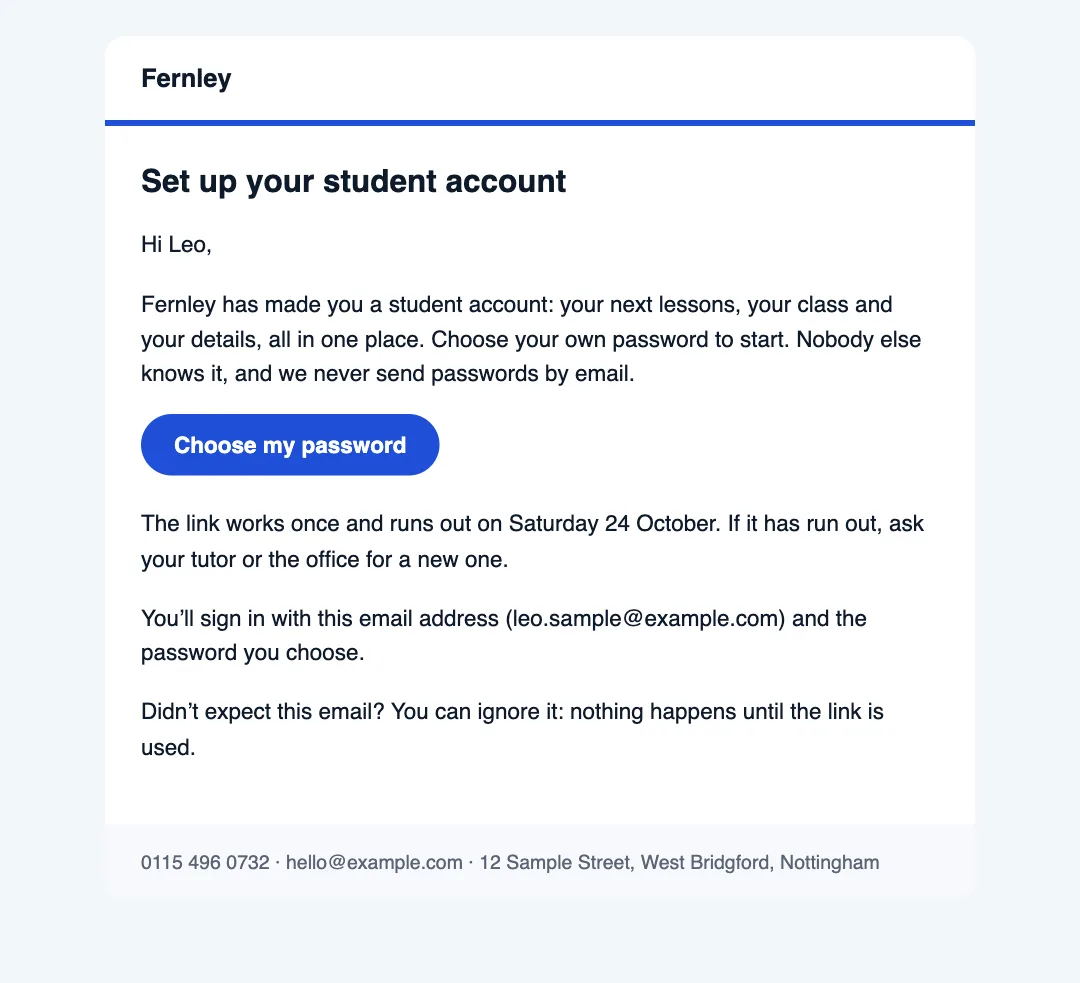
- The link works once, for 7 days.
- No password is ever emailed, and the website keeps only a fingerprint of the link, never the link itself.
- Sending a new link stops the old one working.
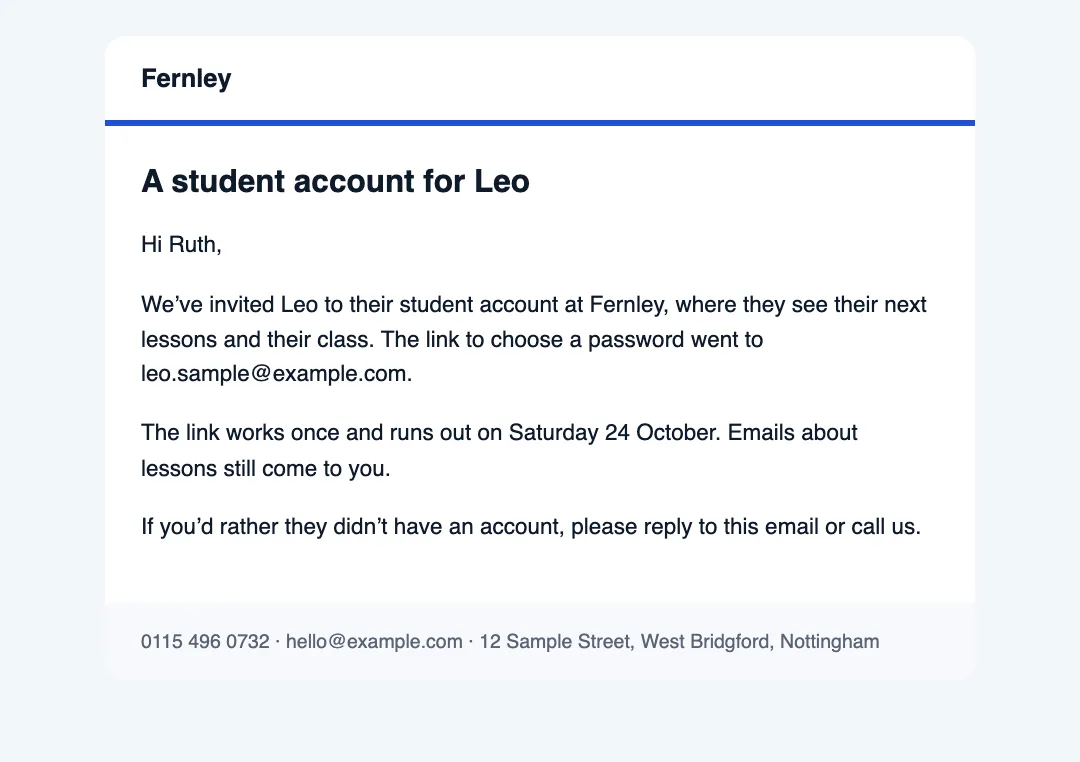
For a student under 18, the parent or guardian gets a copy that says the student was invited and where the link went. The copy has no link in it, so only the student can choose the password.
What the student does
- They click Choose my password in the email.
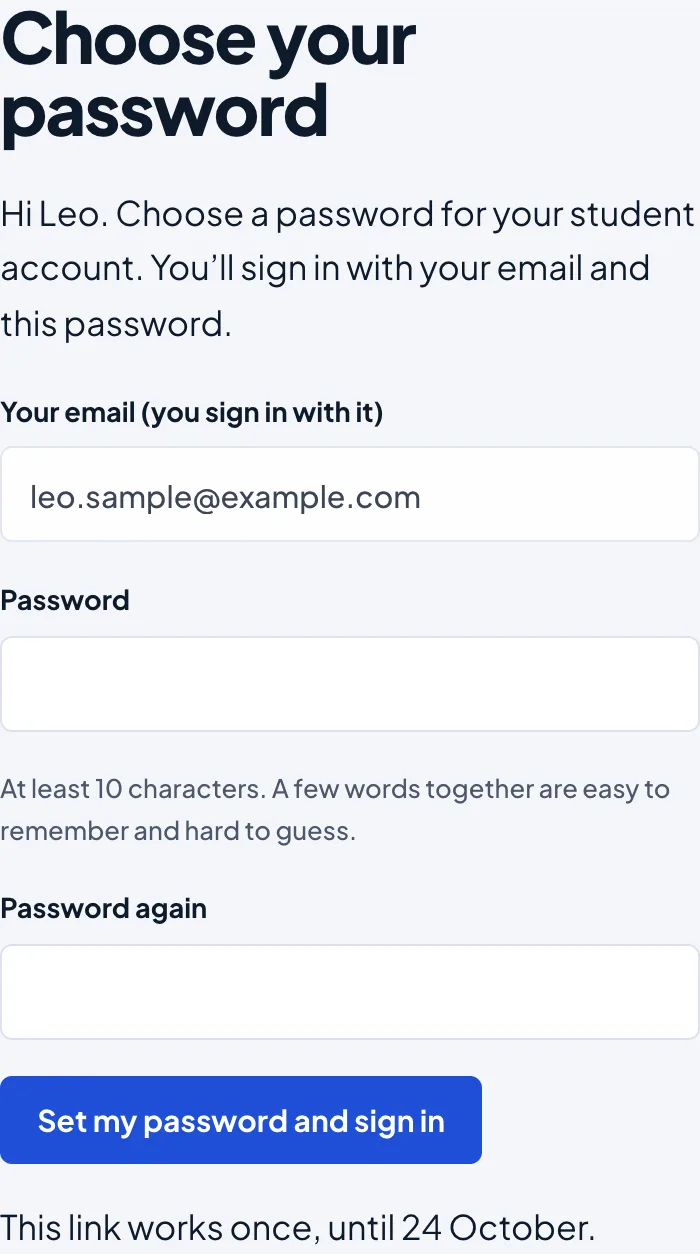
- On the Choose your password page they type a password of at least 10 characters twice.
- They click Set my password and sign in. They're signed in and see the student area.
Both the student and (for a student under 18) the parent get a short Your student account is ready email, which says to contact you if it wasn't them.
If the link has run out or was already used, the page says so. Send them a new link: Send a new link next to them.
Signing in
Students sign in on the same sign-in page as staff, with a Staff | Students switch at the top. The Sign in button on the Student area page opens it on Students. They use their email and their password.
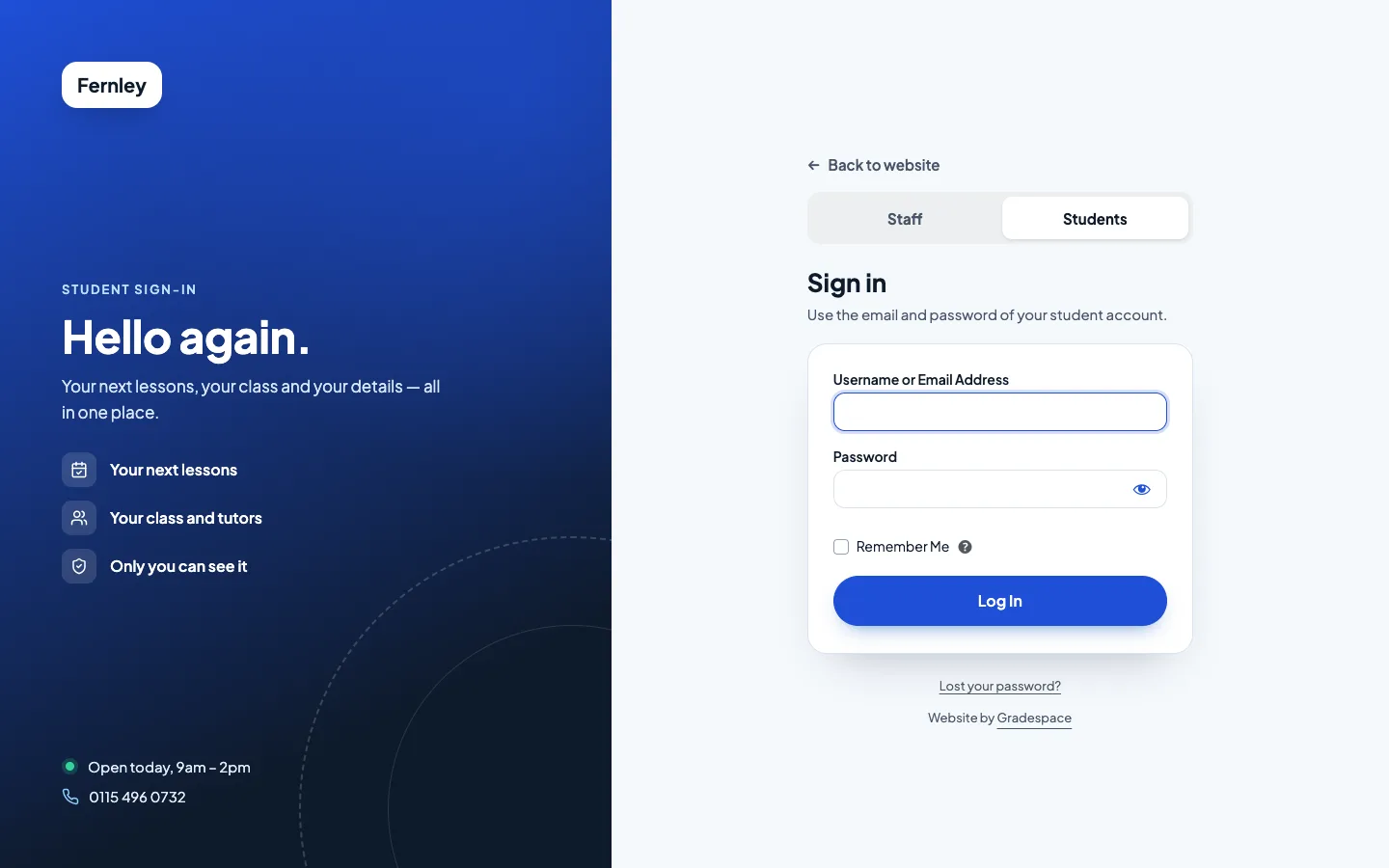
- Signing in always takes a student to the student area. They never see the WordPress dashboard, even if they type its address.
- A student who has forgotten their password clicks Lost your password? and gets a reset email. The parent of a student under 18 is told when the password changes.
- Too many wrong tries lock the sign-in for a while, as for staff.
What students see
Next lessons
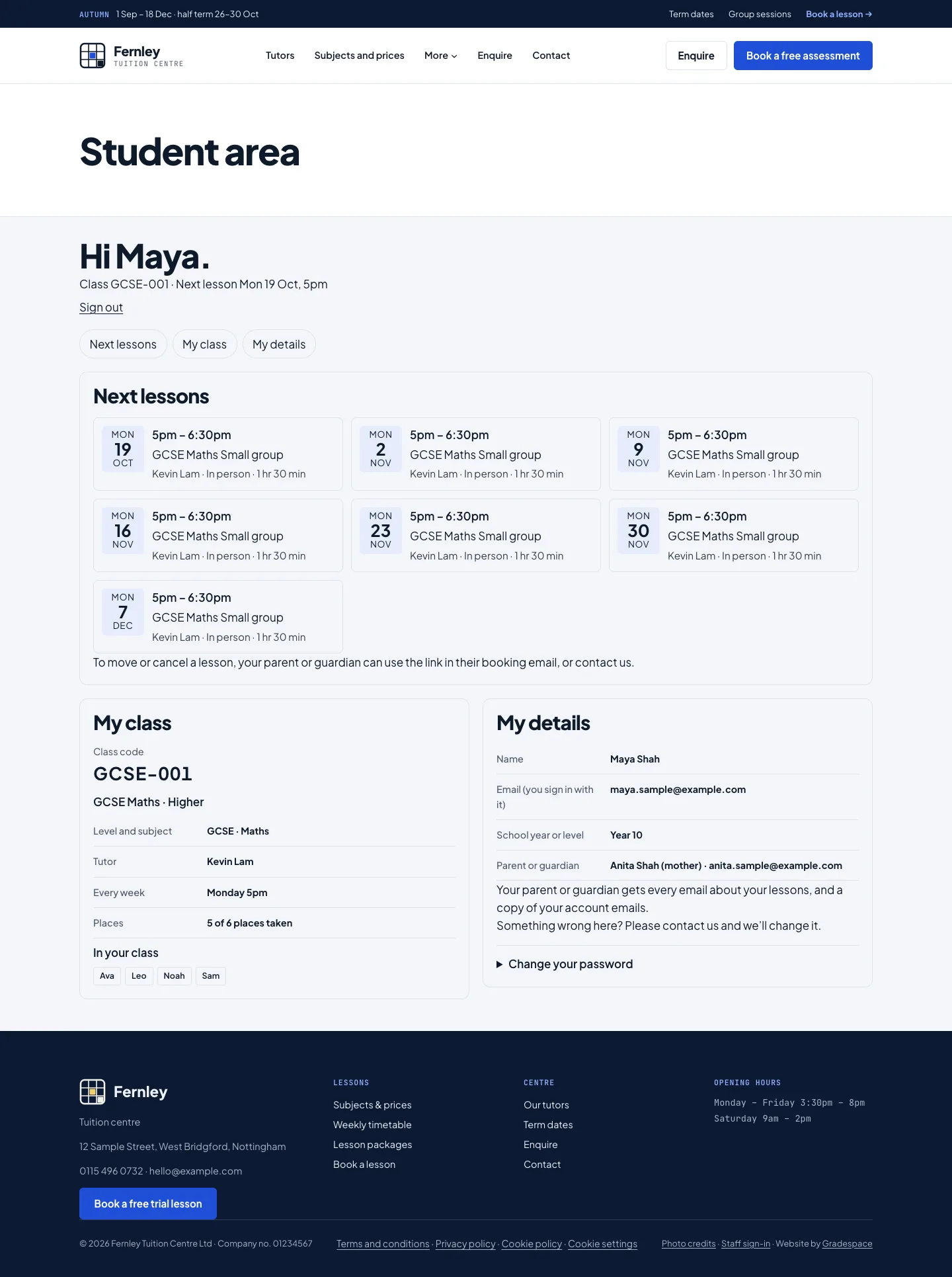
Their one-to-one lessons and places in group sessions still to come, with the day, time, what, tutor, where and how long. A place on a waiting list, or a lesson waiting for you to confirm it, is marked. An online lesson that's confirmed has a Join the online lesson button when it has a link.
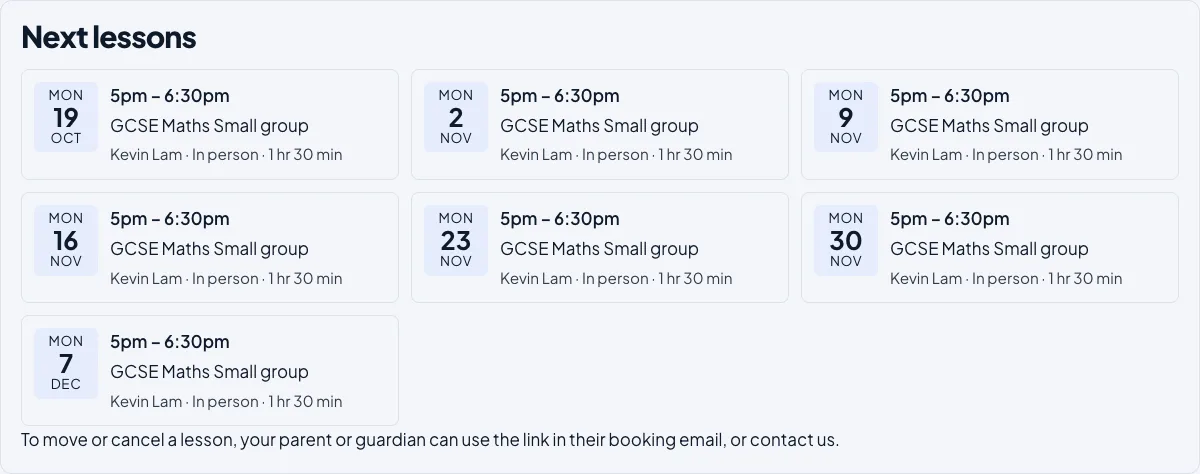
Students can't move or cancel lessons here: the page says to use the link in the booking email (sent to the parent for a child), or to contact you.
My class
Each class they're in: the Class code, the class's name, the level and subject, the tutors, when it meets every week and the places.
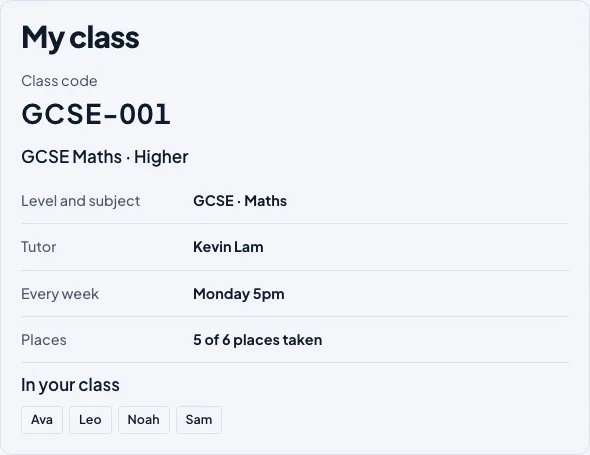
Classmates are hidden unless you switch on Tutoring → Settings → Lessons → Show classmates' first names in the student area. Even then, students see first names only, never surnames or contact details.
My details
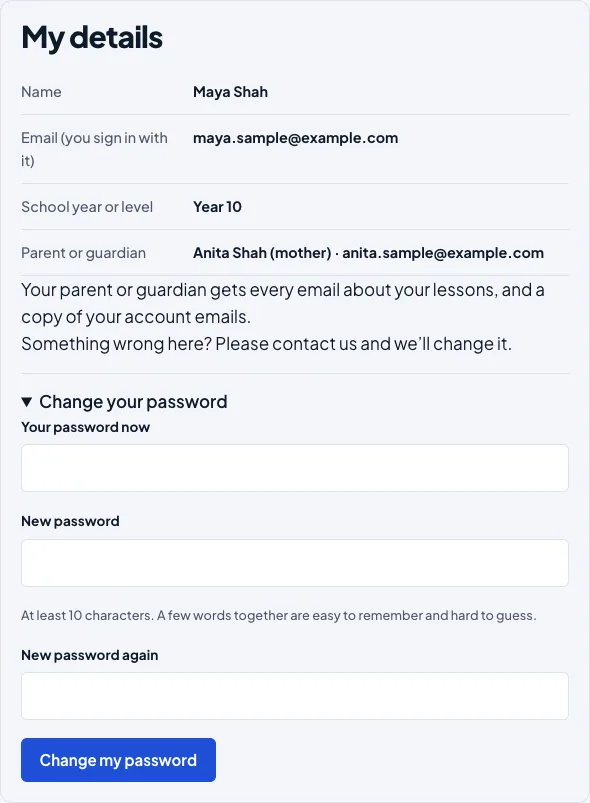
Their name, the email they sign in with, their school year and, for a child, the parent or guardian on file. To change any of these, the student contacts you and you change their record.
Change your password opens a small form: their password now, then the new one twice.
On a phone
Everything fits a phone, one section under another.

Signed out
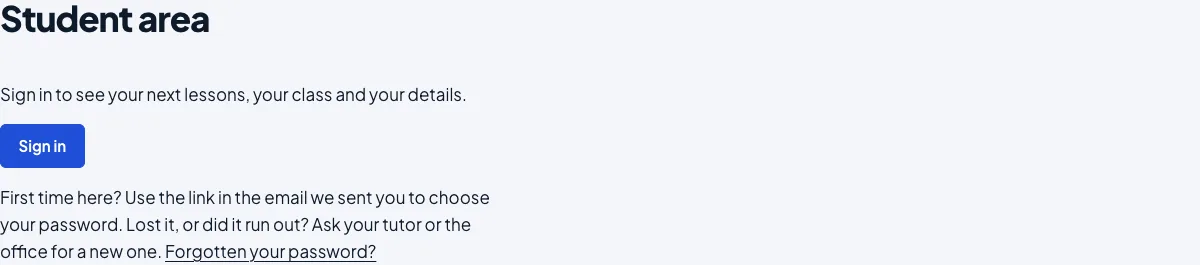
Anyone else visiting the page sees a Sign in button and a short note for students who haven't chosen a password yet. Nobody's details are shown.
Student accounts in the lists
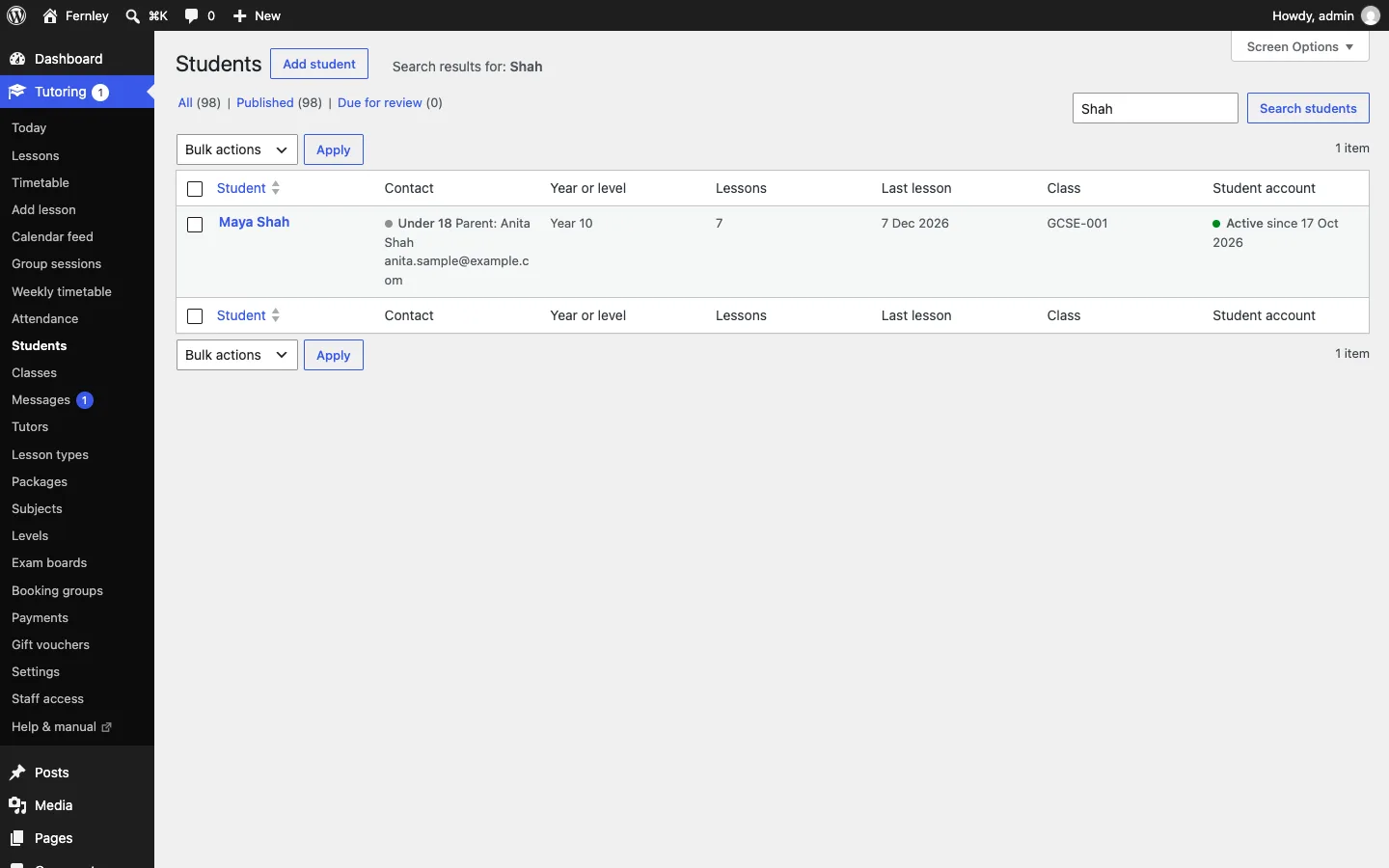
Tutoring → Students has Class and Student account columns, so you can see at a glance who is in which class and who has signed in.
The student account statuses:
| Status | What it means |
|---|---|
| Not invited | No sign-in yet. "Needs the student's own email" if their record has none. |
| Invited | A link was sent and hasn't been used. "Link run out: send a new one" after 7 days. |
| Active | They chose a password and can sign in. |
| Suspended | They can't sign in until you reactivate the account. |
How to suspend or reactivate an account (office)
- Open the student's class (or their record).
- Click Suspend and confirm. They're signed out at once, on every device, and can't sign in. Their record and classes stay.
- To let them back in, click Reactivate. If they had chosen a password, it works again; if not, send them a new link.
Only the office (and administrators) can suspend and reactivate. Tutors can invite and send new links.
Emails
The account emails are under Tutoring → Settings → Email, as Student account: invitation. It covers the invitation, "your account is ready" and "your password was changed". Keep it on: without it no one can be invited.
Privacy
- Each student sees only their own lessons, class and details. The page never shows anything from the web address or a form, and it isn't cached or listed by search engines.
- A copy of someone's data (Tools → Export Personal Data) includes the student account (its status, email and dates) and their classes.
- Erasing someone's data, or deleting a student's record (for example from Due for review), also deletes their sign-in, any links and their places in classes.
- Old used or expired links are deleted after 30 days.
- The privacy policy starter page mentions student accounts once you have Pro.
For the website's developer
The page is built from blocks that work on any theme: Student area (gstu/student-area) and the one-section blocks Student: next lessons, Student: my class and Student: my details. Other plugins (for example class messages, assignments or online tests) can add their own sections to the student area.