Running your website
Availability and the diary
How free, held, booked and closed dates work; what visitors see in the date checker, the calendar and the date finder; and how staff use Venue → Diary to hold, book, close and release dates.
On this page
The diary is the heart of the Venue kit. It knows, for every space and every day, whether the morning, afternoon and evening are free, held, booked or closed. Your website shows visitors the same diary, without names, so couples and organisers can see straight away whether their date might work. Your team uses Venue → Diary to see who has each date and to change it.
Features marked (Pro) need a Pro or Agency licence.
The four states
| State | On the website | What it means |
|---|---|---|
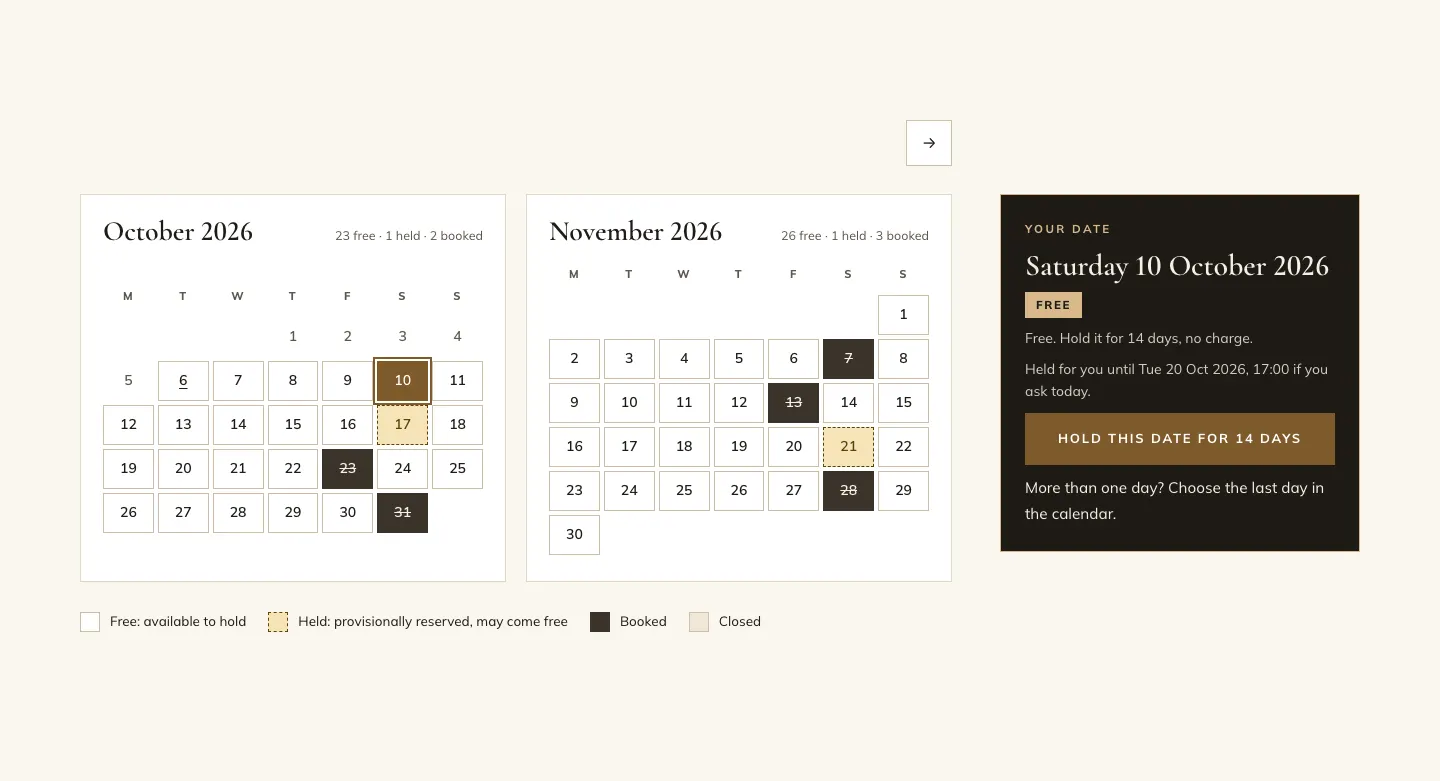
| Free | Plain box | Nobody has it. Anyone can ask about it or hold it. |
| Held | Dashed amber box | Kept for someone while they decide. It may come free again. |
| Booked | Dark box, the number struck through | Taken. |
| Closed | Pale striped box | You're closed that day, or the space is out of season (a lawn in winter). |
Held dates are always dashed and labelled, and booked dates struck through, so nobody has to rely on colour alone.
Two people can never hold or book the same date. Every hold and booking is checked and saved one at a time. If two people ask for the same free date at the same moment, one gets it and the other is told straight away that it has just gone, and offered the waiting list.
Parts of the day
A date can be held or booked for the whole day, or just the morning, afternoon or evening. You set the times of each part under Venue → Settings → Your venue (the demo uses 08:00–12:30, 12:30–17:30 and 17:30–24:00). A meeting in the morning and a dinner in the evening can share a day; a wedding usually takes the whole day.
One event a day, or each space on its own
Under Venue → Settings → Your venue, One event at a time (exclusive use) decides how spaces share a day:
- On (the usual choice for wedding venues): a hold or booking takes the whole venue, so a booked day is booked for every space.
- Off (for meeting rooms and venues with several events a day): each space is held and booked on its own. A booking of The whole venue still clashes with every space.
What visitors see
The date checker
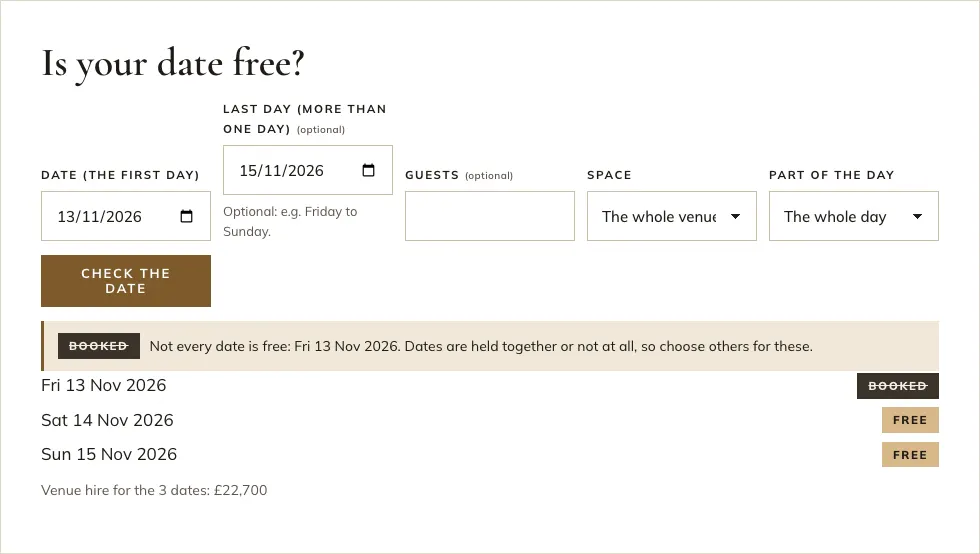
The Is your date free? panel is on the home page, the Dates page and each space's page. People choose a date (and, for more than one day, a Last day), the number of guests, the space and the part of the day, then click Check the date. The answer appears straight away, with the venue hire estimate from your price guide.
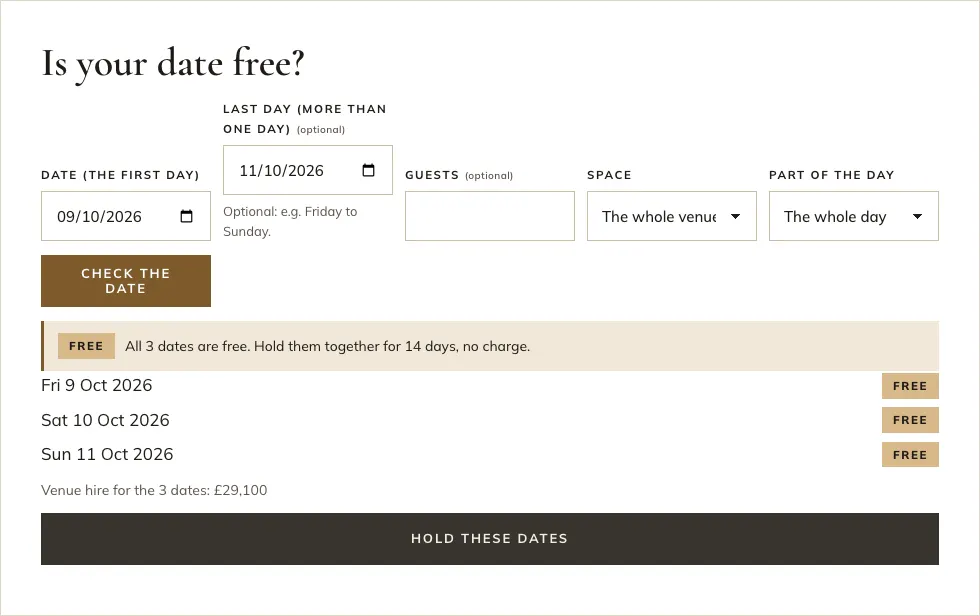
If any day in the run is taken, it says which one. Dates are held together or not at all, so they need to choose different dates.
The calendar
The Dates page shows the diary two months at a time, with a count of free, held and booked days for each month. Clicking a free day opens Your date beside the calendar, with what holding it means and a button to hold it.
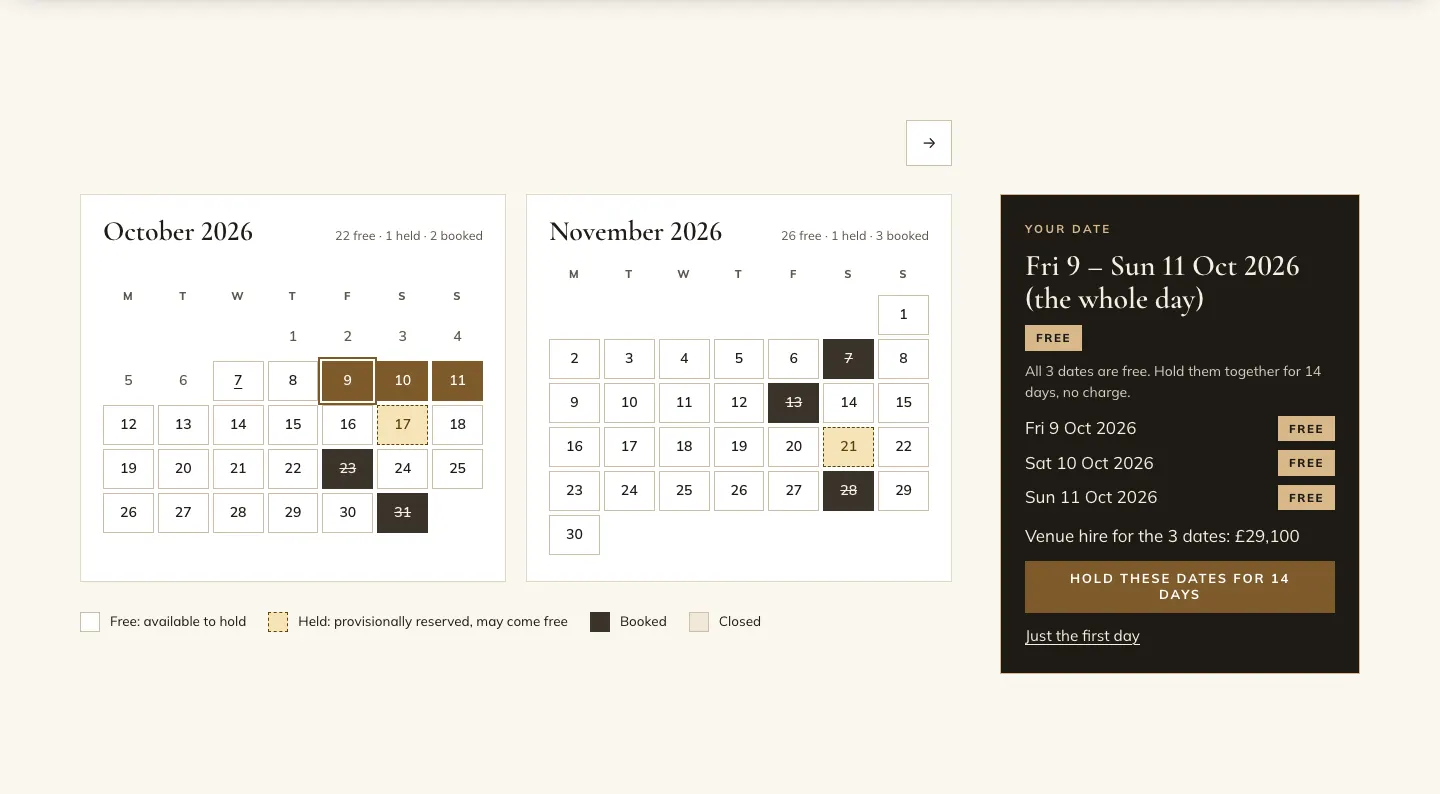
To choose several days in a row, click the first day, then the last day. The panel lists each day and the estimate for all of them.
The date finder
The date finder answers "which Saturdays are still free in June?". People pick a month and a kind of day (Saturday, Friday or Sunday, Weekday or Any day) and see the matching dates with a Hold button, or a Waiting list button for a held date.
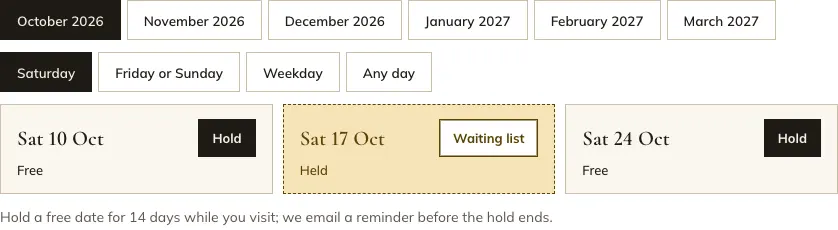
The website never shows who has a date. Names, references and notes are for your staff only.
The staff diary
How to read the diary
- Go to Venue → Diary.
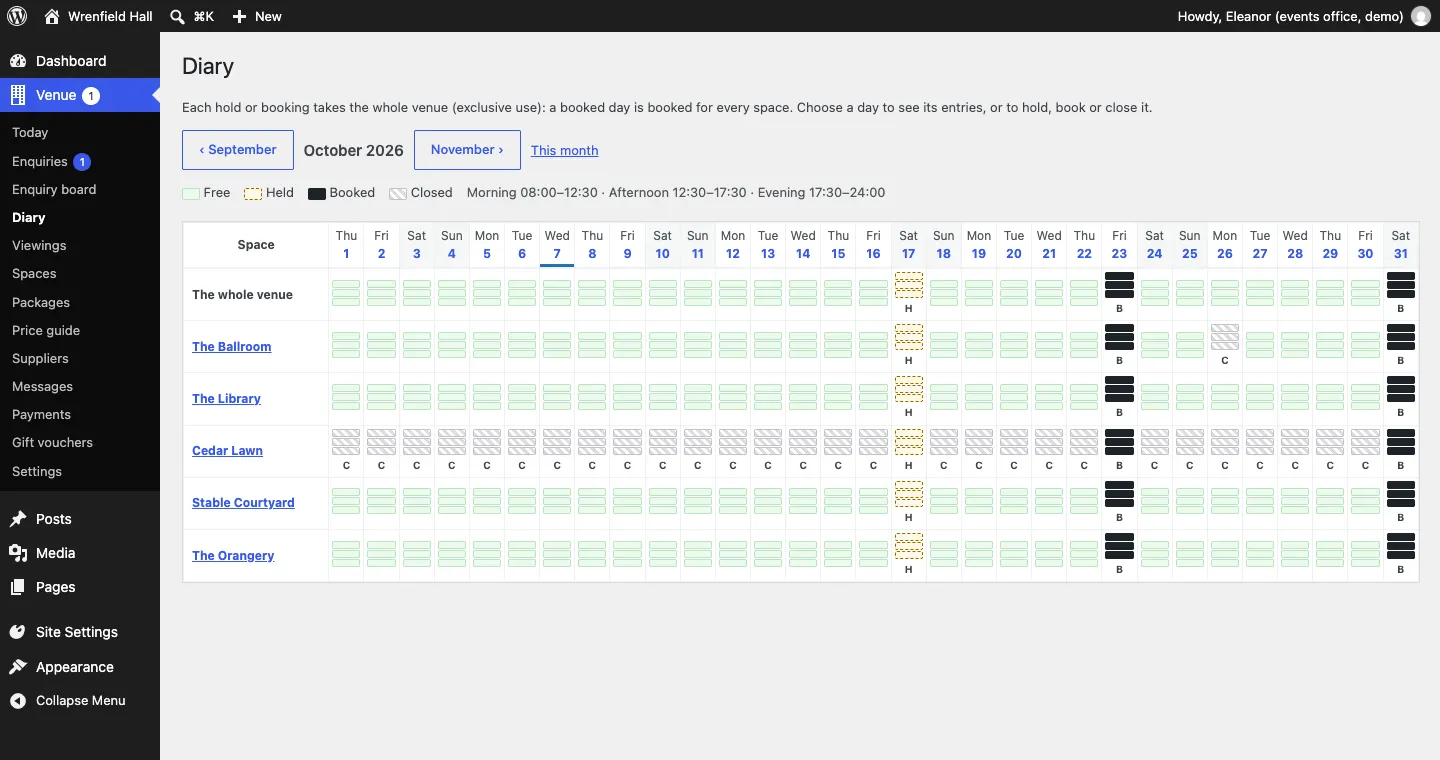
- You see a month, with a row for The whole venue and a row for each space. Each day has three small bars: morning, afternoon and evening.
- Use ‹ September and November › to move between months, and This month to come back.
How to see who has a day
- In Venue → Diary, click the day (its number at the top, or any of its bars).
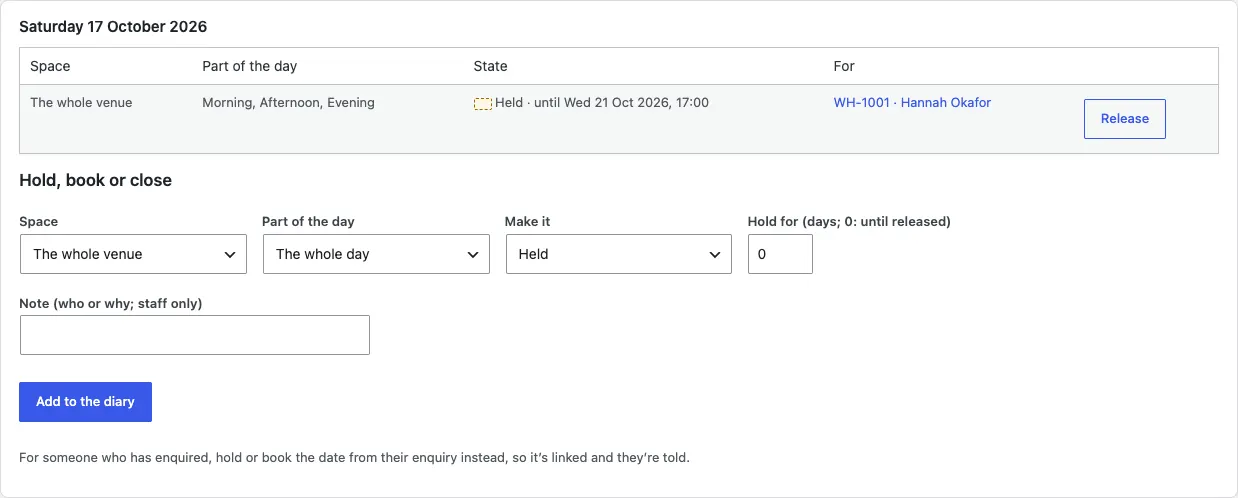
- Below the month, the day's entries are listed: the space, the part of the day, the state (with when a hold ends) and who it's for. Click the reference to open their enquiry.
How to hold, book or close a day
Use this for things that aren't an enquiry: a private event you took on the phone, a day you're painting, a staff party.
- Click the day in Venue → Diary.
- Under Hold, book or close, choose the Space and the Part of the day.
- Under Make it, choose Held, Booked or Closed.
- For a hold, type how many days in Hold for (days; 0: until released).
- Add a Note (who or why; staff only) so the team knows why.
- Click Add to the diary.
How to release a date
- Click the day in Venue → Diary.
- Click Release next to the entry and confirm. Those parts of the day become free.
Days you're closed
- The whole venue: under Venue → Settings → Your venue → Days the venue is closed, add one date per line, then a note. For example
2026-12-25 Christmas Day. - One space out of season: open the space under Venue → Spaces and set Open from and Open until (see Spaces).
- A one-off day for one space: close it in the diary as above.
How far ahead the diary goes
Venue → Settings → Your venue → The diary goes ahead (years) sets how far ahead people can ask about dates (3 years to start with, up to 5).
Your own calendar (Pro)
To mark dates busy from Google Calendar, Outlook or another booking system, or to see the website's holds and bookings in your own calendar, see Diary feeds.