Running your website
Viewings and open days
How people book a time to look round, how to set your viewing hours and open days, how to book a viewing for someone from their enquiry, and where to see every viewing.
On this page
Most couples and organisers want to see a venue before they book. The Venue kit lets people choose a day and a free time on your Viewings page. Each viewing joins the person's enquiry (or starts one), and they get a calendar invite, a reminder the day before and a link to cancel. Two people can never get the same time.
What visitors see
The Viewings page shows the days and times you're free to show people round, with your open days beside them. Days when you're setting up for an event the next day are marked Set for an event: a good time to see the rooms at their best.
They pick a day, then a time, give their details and send it.
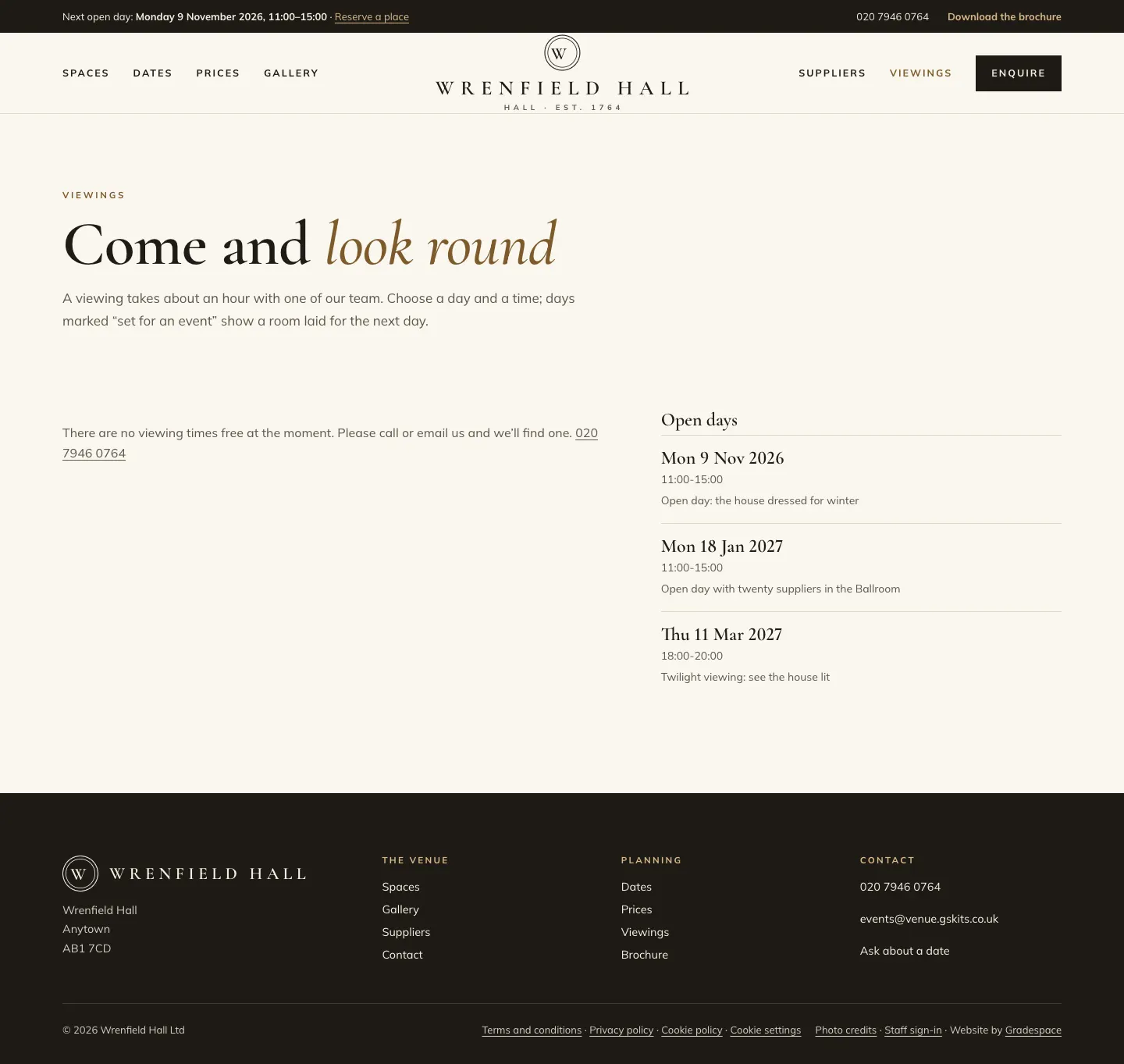
Each space's page also has a Book a viewing button, and the customer's own enquiry page has one too.
How to set your viewing hours
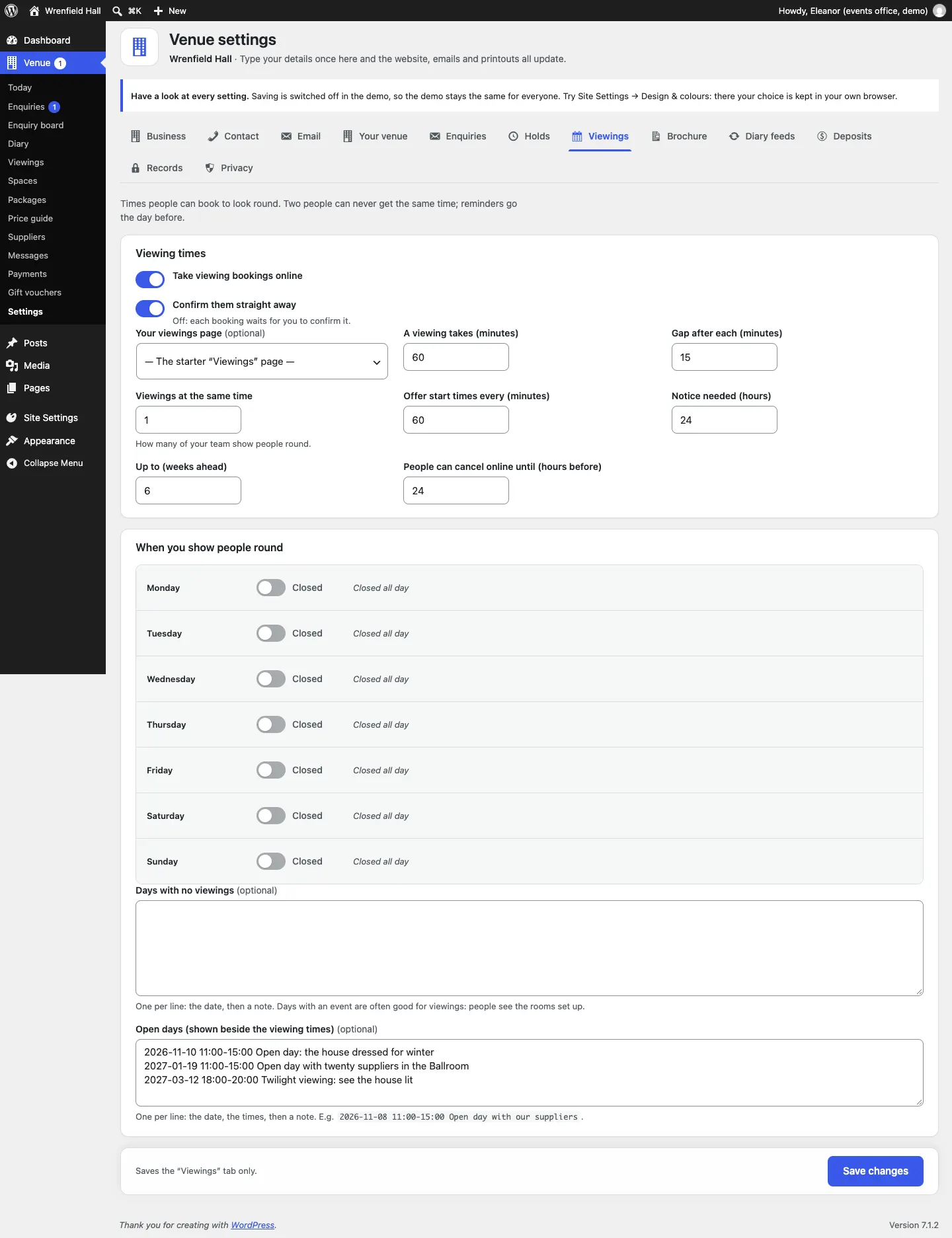
- Go to Venue → Settings → Viewings.
- Under Viewing times:
- Take viewing bookings online: on.
- Confirm them straight away: on, or off if you'd like to confirm each one yourself.
- Your viewings page: leave on the starter Viewings page.
- A viewing takes (minutes): 60 to start with.
- Gap after each (minutes): time to reset between viewings (15 to start with).
- Viewings at the same time: how many of your team show people round.
- Offer start times every (minutes): such as every 60 minutes.
- Notice needed (hours): how soon someone can book (24 to start with).
- Up to (weeks ahead): how far ahead people can book (6 to start with).
- People can cancel online until (hours before).
- Under When you show people round, switch on each day you do viewings and set the times.
- Under Days with no viewings, add one date per line, then a note.
- Click Save changes.
How to add an open day
- Go to Venue → Settings → Viewings.
- In Open days (shown beside the viewing times), add one per line: the date, the times, then a note. For example
2026-11-08 11:00-15:00 Open day with our suppliers. - Click Save changes.
The next open day also appears in the bar at the top of the Estate design ("Next open day: ... · Reserve a place").
How to book a viewing for someone
When you've agreed a time on the phone or by email:
- Open their enquiry from Venue → Enquiries.
- In the Viewings card, under Book a time you agreed with them, choose the Day and Time.
- Click Book the viewing. They get the confirmation with a calendar invite.
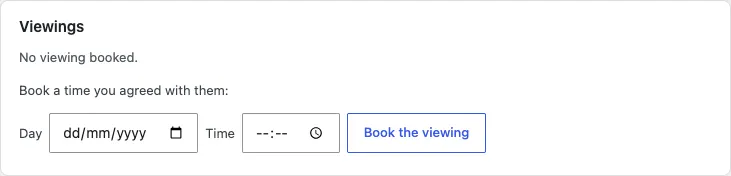
From the same card you can confirm or cancel a viewing that's already booked.
How to see every viewing
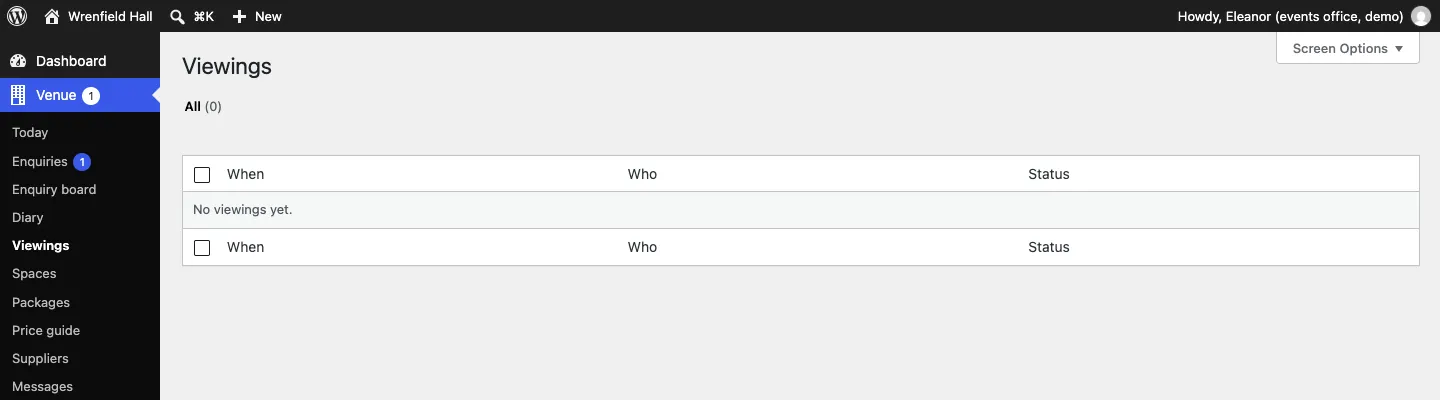
Venue → Viewings lists every viewing with When, Who and Status. Venue → Today shows Viewings today and tomorrow.
What the person gets
- An email when the viewing is booked, moved or cancelled, with a calendar invite.
- A reminder the day before.
- A link to cancel, up to the hours you set.
You get an email (Viewing booked or cancelled) when someone books or cancels online. These emails can be switched off under Venue → Settings → Email.