Running your website
Deposits and payments (Pro)
How to take a deposit online that turns a held date into a booking, record a deposit paid in person, what happens if a payment arrives too late, and the Payments screen.
On this page
With deposits switched on, you can email someone a link to pay their deposit online from their enquiry. When they pay, their held date turns into a booking by itself, they get a receipt, and you're told. You never see their card details: they pay on the payment provider's own secure page.
Features marked (Pro) need a Pro or Agency licence. Online deposits are Pro. Recording a deposit paid in person works in every licence.
Before you start: payments
Online deposits need payments set up first. An administrator does this once:
- Go to Venue → Payments and click Payment settings (only administrators see this button), or go to Venue → Settings → Payments.
- Under Take payments through, choose Stripe or WooCommerce checkout, choose your Currency, and fill in the details your provider gives you.
- Click Save changes.
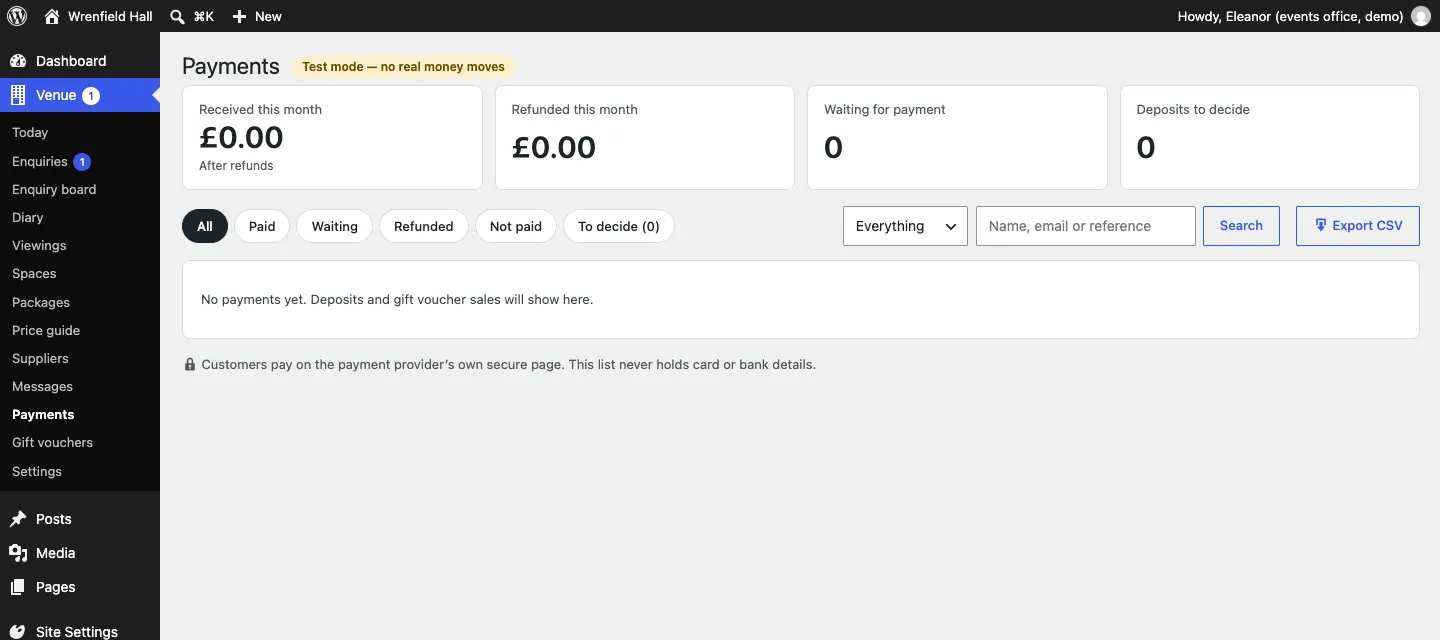
Until payments are switched on for real, the Payments screen says Test mode — no real money moves.
How to switch on deposits
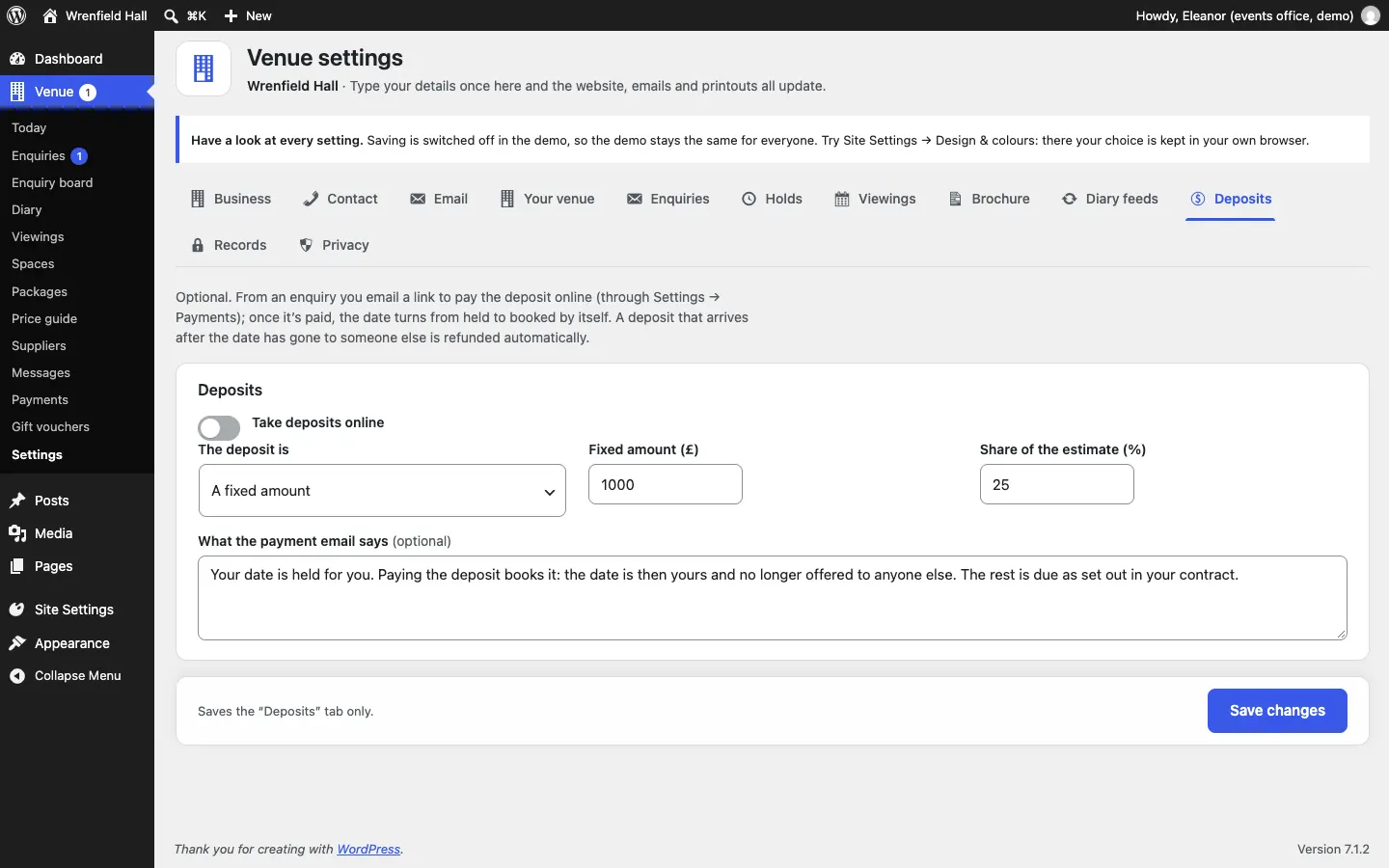
- Go to Venue → Settings → Deposits.
- Switch on Take deposits online.
- Under The deposit is, choose A fixed amount or A share of the venue hire estimate.
- Fill in Fixed amount (£) (1,000 to start with) or Share of the estimate (%) (25 to start with).
- Check What the payment email says. To start with it says: Your date is held for you. Paying the deposit books it: the date is then yours and no longer offered to anyone else. The rest is due as set out in your contract.
- Click Save changes.
For an enquiry covering several dates, one deposit covers them all, and a percentage is of the estimate for every date.
How to ask for a deposit
- Make sure the date is held for them (see Holds). The Deposit card says Hold the date first: the deposit turns the hold into a booking until it is.
- Open the enquiry and go to the Deposit card.
- Check the Amount (£).
- Click Email a link to pay it. They get the Pay your deposit email with a Pay the deposit button.
The card then says when you asked and for how much, with Email the link again if they need it.
What the customer sees
They click the link in the email and see their date, the deposit and until when the date is held, with a Pay the deposit button. They pay on the provider's secure page and come back to Your deposit is paid and your date is booked. Thank you!
What happens when they pay
- The date turns from held to booked in the diary and on the website.
- The enquiry moves to Booked, and the payment is written in its history (Deposit of £... paid online).
- They get a Payment received receipt and a Date booked email.
- You get a Deposit paid email.
If the payment arrives too late
If the hold ran out and the date went to someone else before the money arrived, the deposit is refunded in full automatically, and you're emailed so you can offer them another date. If the refund fails for any reason, the email says so: refund it yourself under Venue → Payments.
How to record a deposit paid in person
Paid by bank transfer, in person or by cheque?
- Open the enquiry.
- In the Deposit card, click Paid in person: book the date.
The date is booked and the enquiry history says Deposit of £... paid in person.

The Payments screen
Venue → Payments lists every deposit and gift voucher sale. At the top: Received this month (after refunds), Refunded this month, Waiting for payment and Deposits to decide. Filter by All, Paid, Waiting, Refunded, Not paid or To decide, search by name, email or reference, and Export CSV for your accounts.