Setting up
Designs, pages and menus
The three Venue designs (Estate, Loft and Garden) and their colour palettes, how to choose and preview one, and the pages and menu the setup wizard makes.
On this page
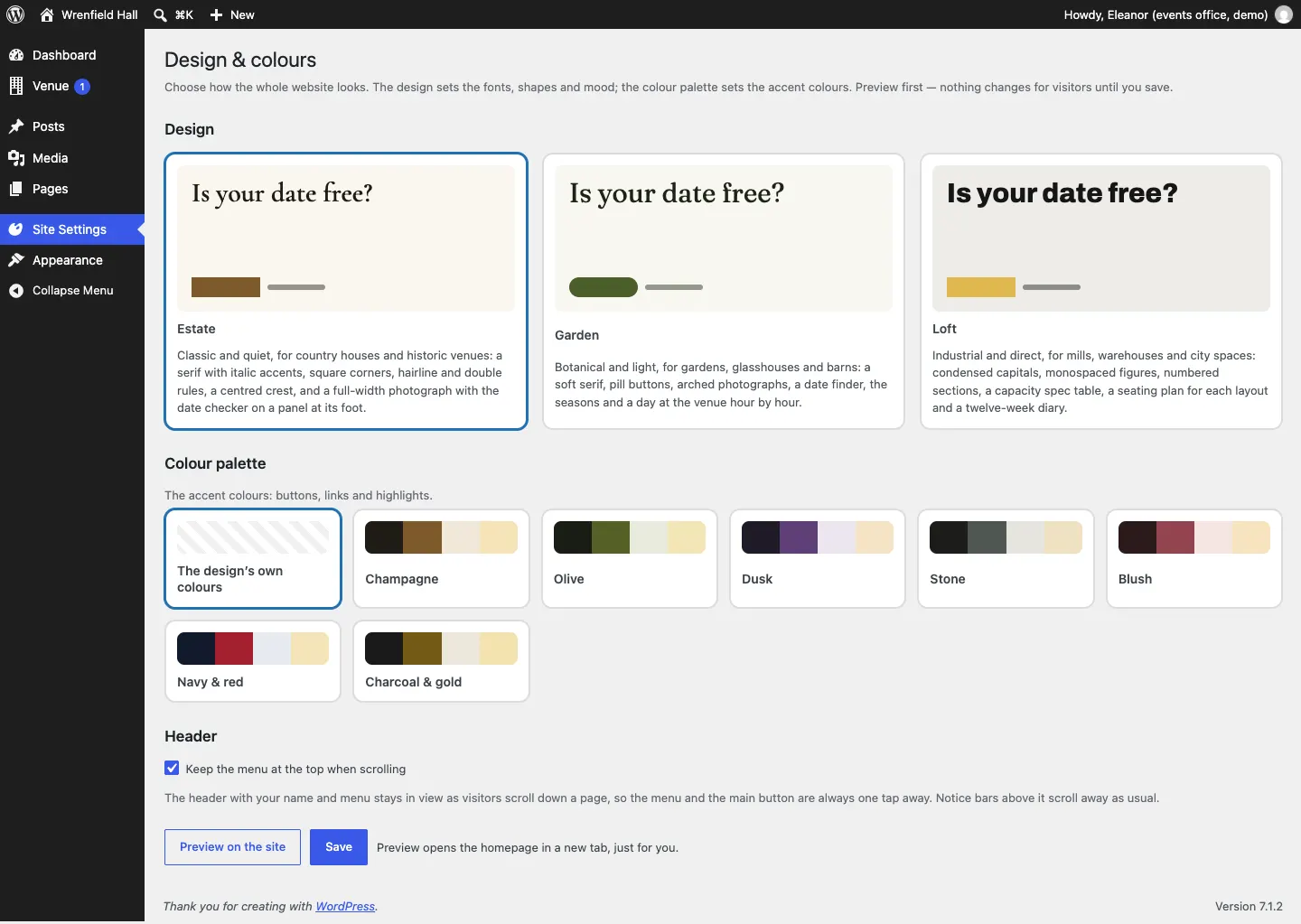
The Venue theme comes with three designs. A design sets the fonts, the shapes and the way each page is laid out; a colour palette sets the accent colours. Your spaces, dates, enquiries and prices stay the same whichever you choose, so you can change the look at any time without losing anything.
For the logo, footer, menus in general and the sticky header, see the shared chapter Your look.
The three designs
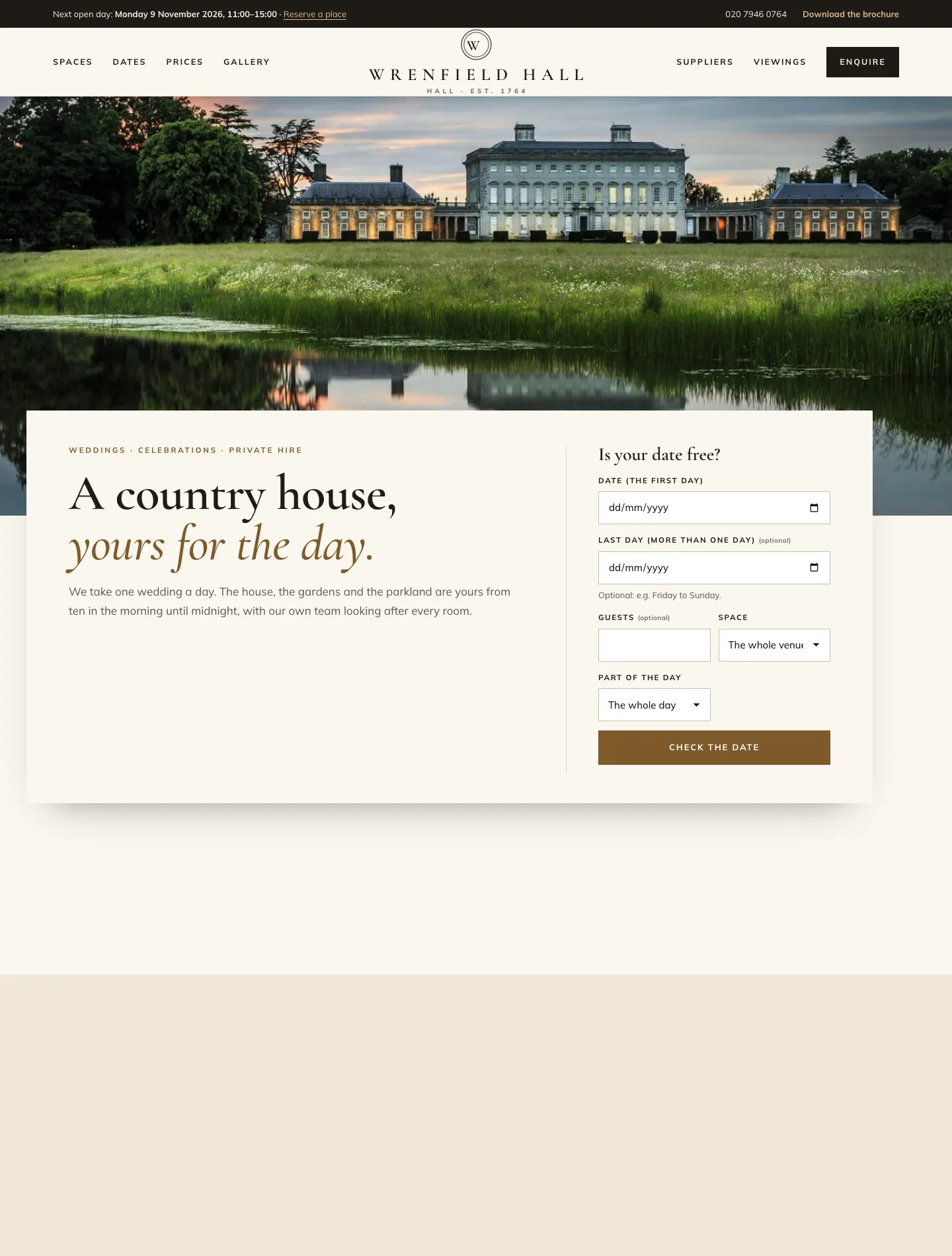
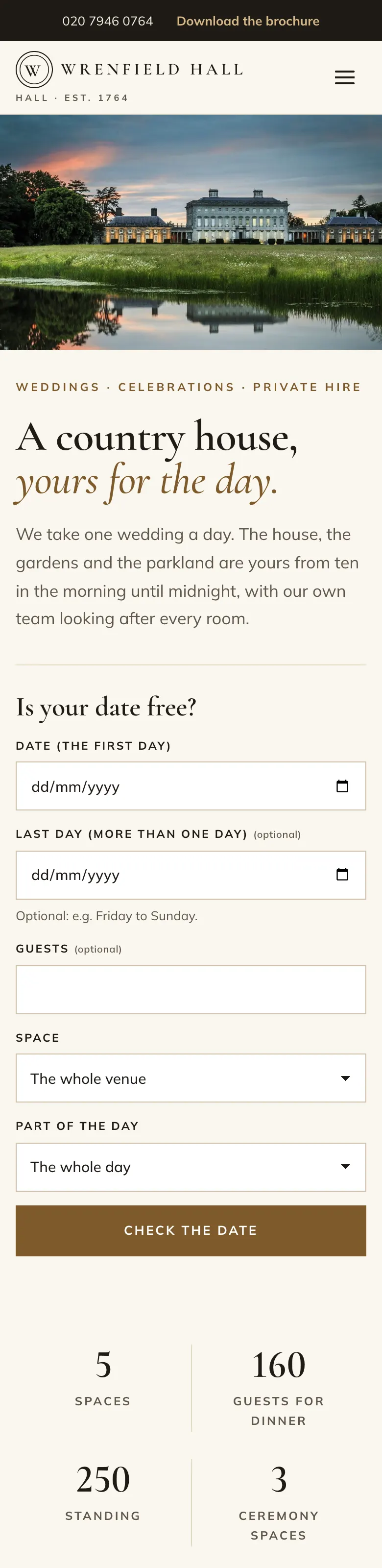
Estate
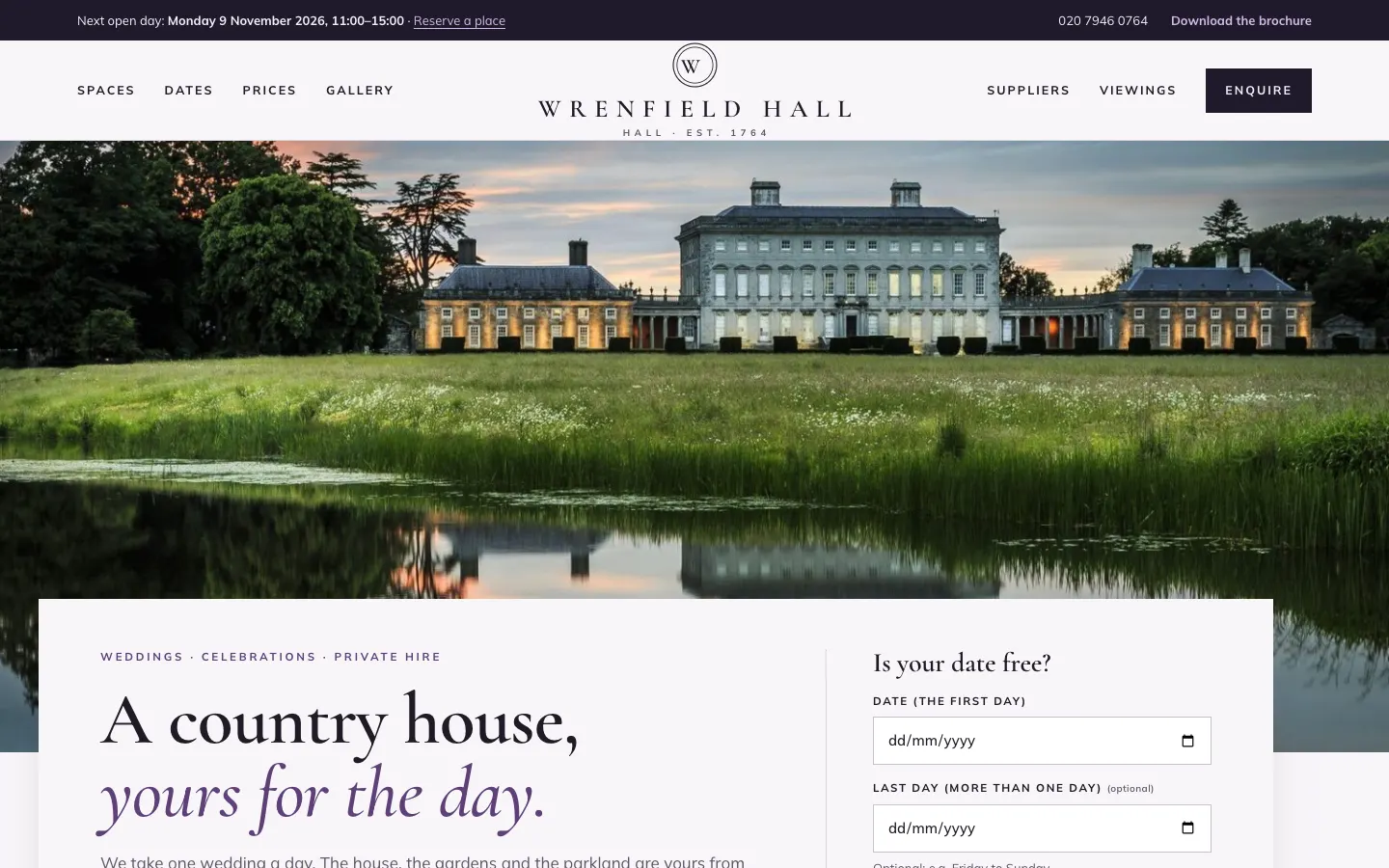
Classic and quiet, for country houses and historic venues. A serif typeface with italic accents, square corners and fine lines, a centred crest with the menu split either side, and a full-width photograph with the date checker on a panel at its foot. This is the design the theme starts with.
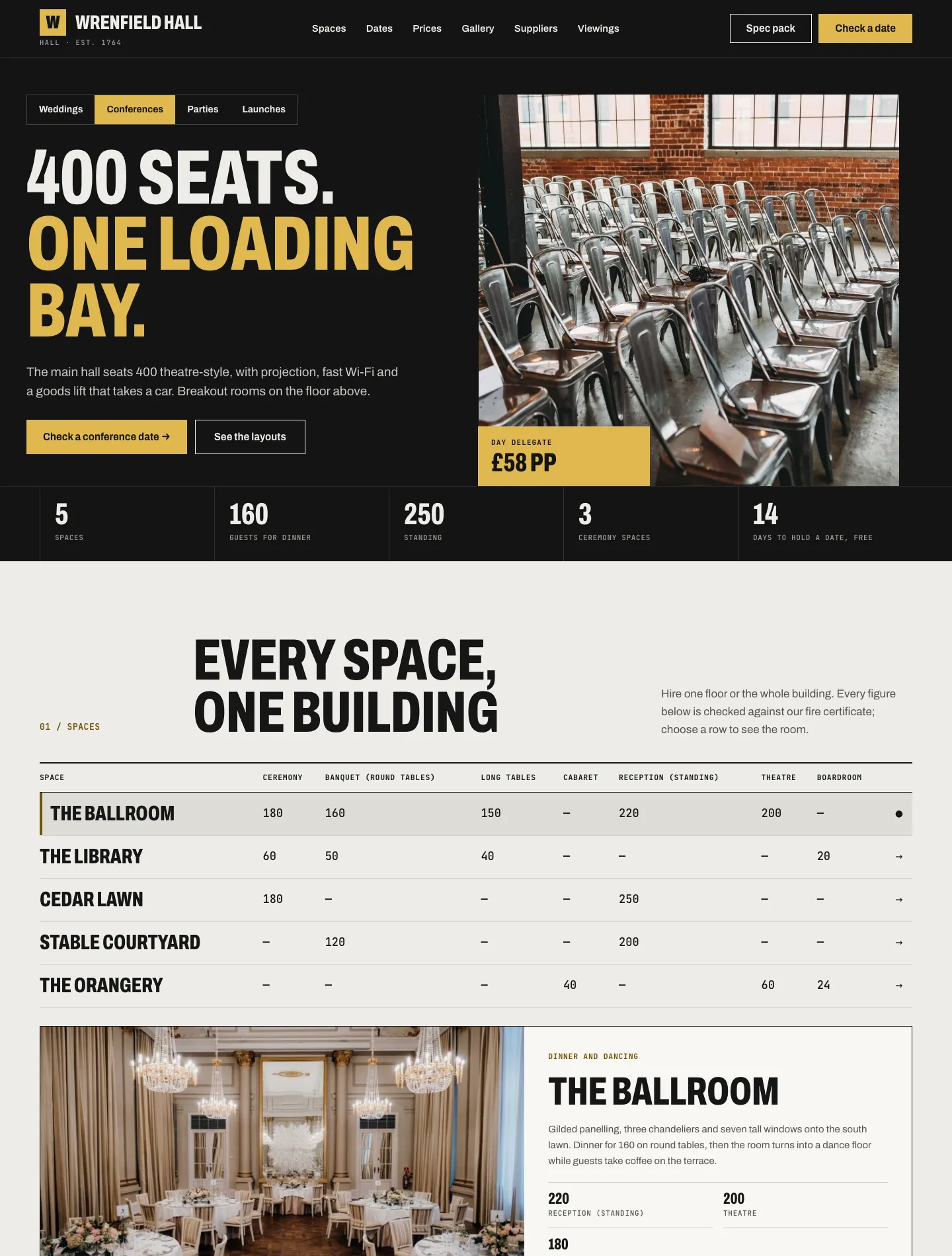
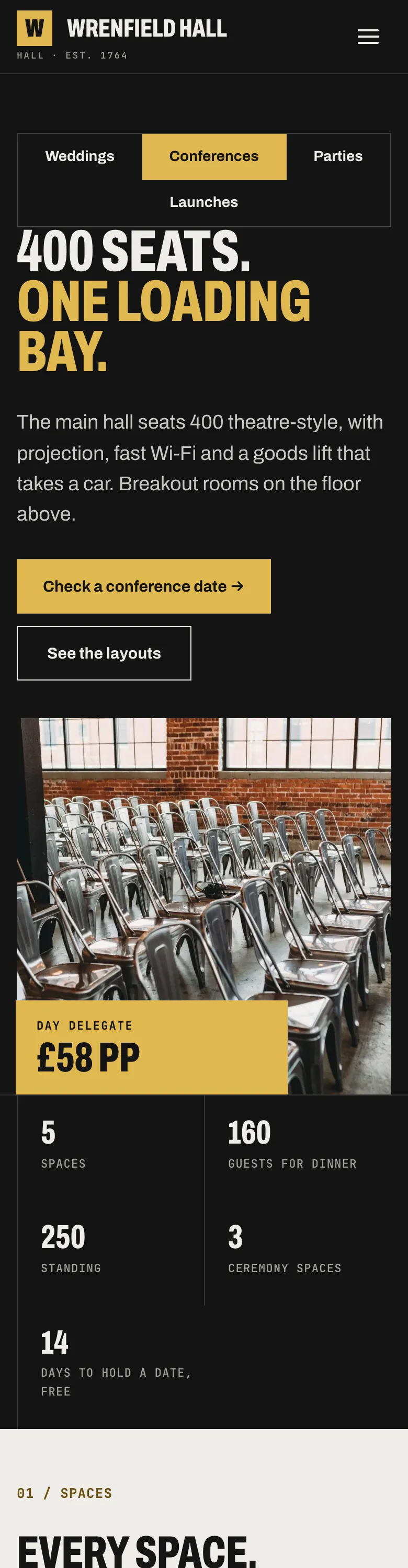
Loft
Industrial and direct, for mills, warehouses and city spaces. Condensed capital letters, figures in a typewriter-style font, numbered sections, a capacity table where you choose a row to see the room, a seating plan for each layout and a twelve-week diary.
Garden
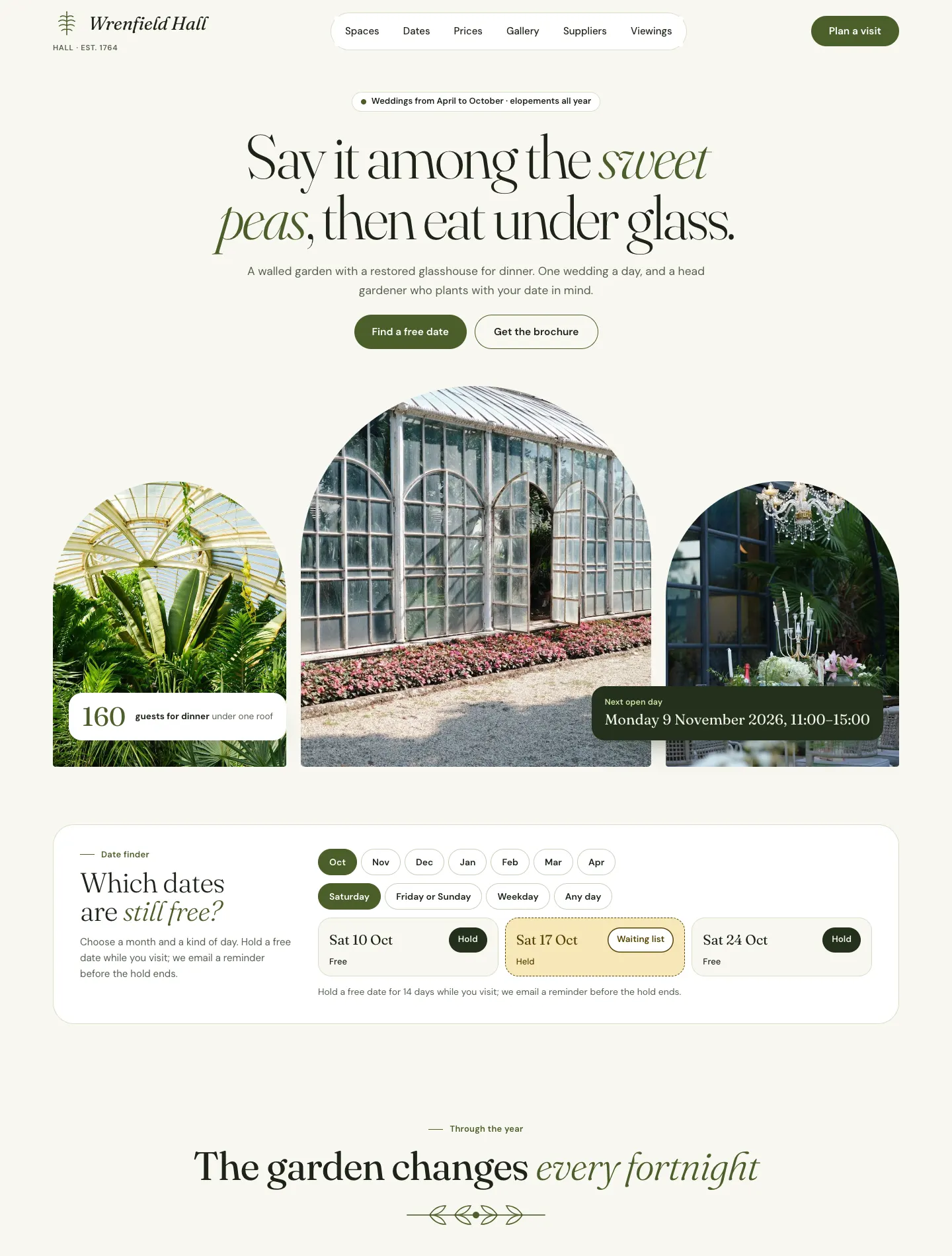
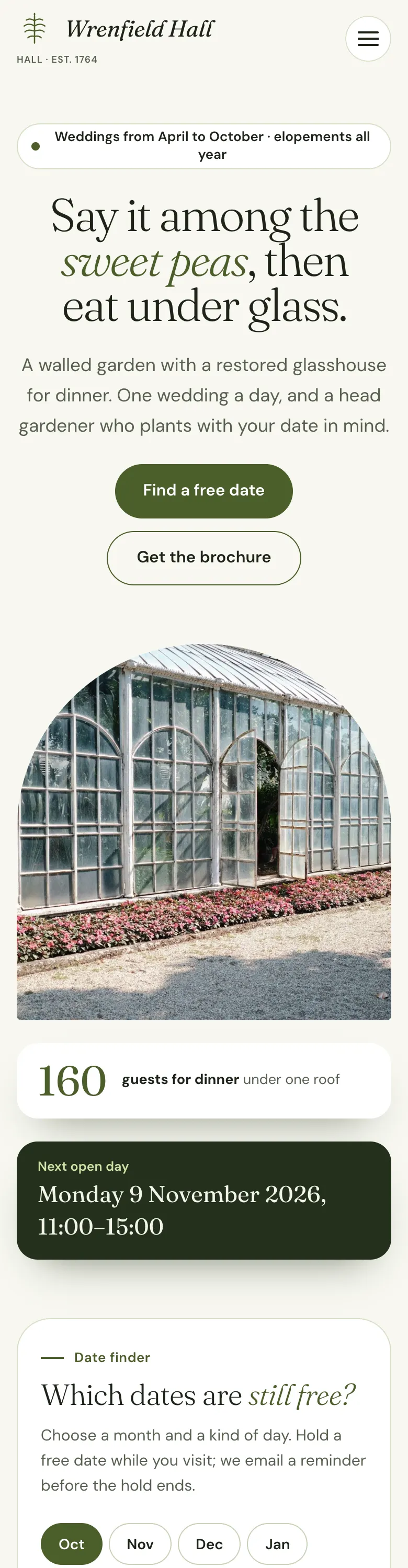
Botanical and light, for gardens, glasshouses and barns. A soft serif, rounded pill buttons, three arched photographs, a date finder where people pick a month and a kind of day, the seasons as tabs and a day at the venue hour by hour.
Colour palettes
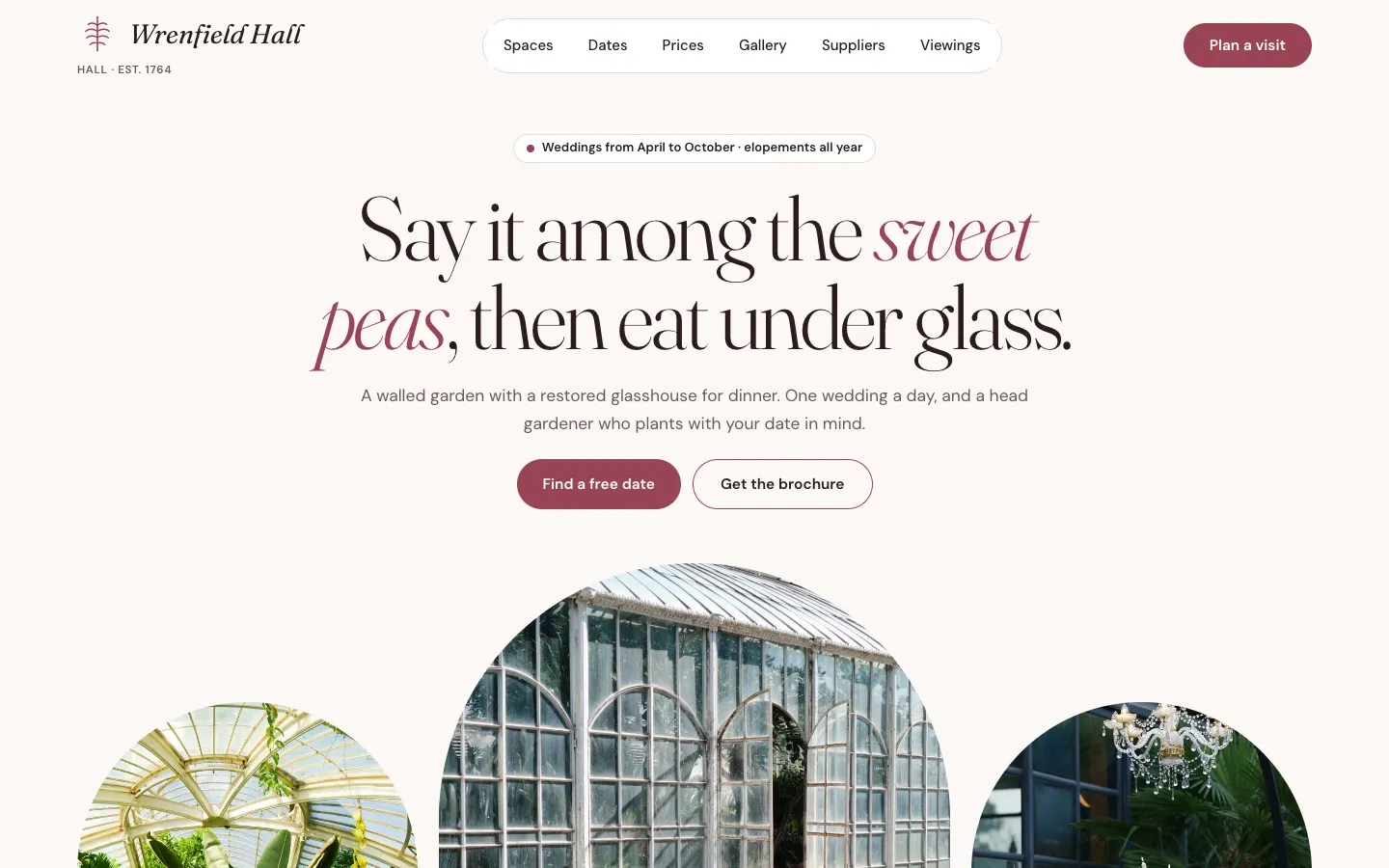
Each design has seven palettes: Champagne, Olive, Dusk, Stone, Blush, Navy & red and Charcoal & gold, plus The design's own colours. Every palette has been checked so text stays easy to read against its background.
How to choose a design and palette
- Go to Site Settings → Design & colours.
- Under Design, click Estate, Garden or Loft.
- Under Colour palette, click a palette.
- Click Preview on the site. The home page opens in a new tab with your choice, just for you. Visitors still see the old look.
- Happy with it? Go back and click Save.
The pages the setup wizard makes
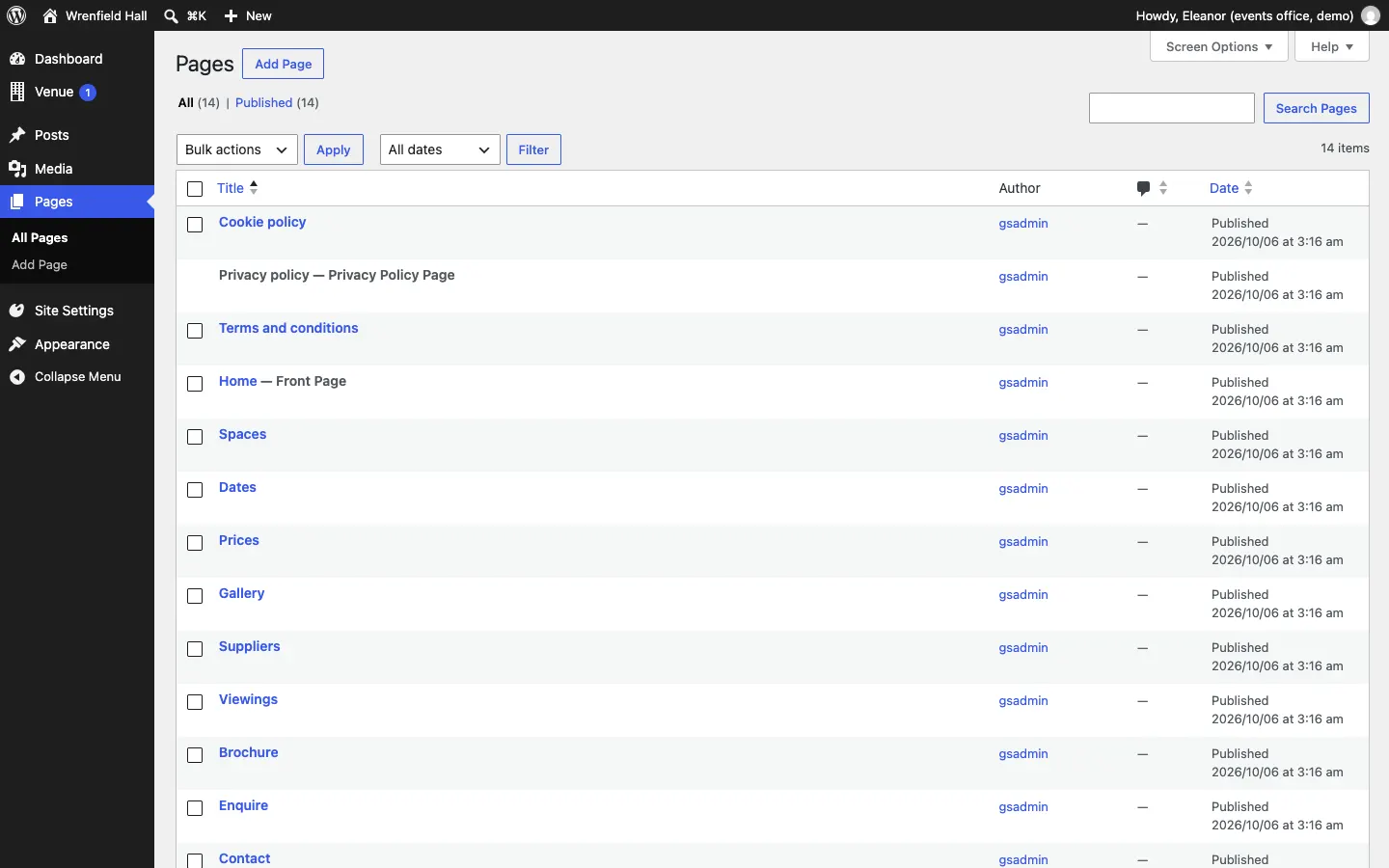
If you tick Starter pages and menu in the setup wizard, it adds these pages, already laid out in your design. Pages you already have are left alone.
| Page | What's on it |
|---|---|
| Home | Your headline, the date checker, the venue at a glance, the spaces, the diary, packages and prices, gallery, reviews and the brochure. |
| Spaces | Every space with its capacities for each layout. Each space also has its own page. |
| Dates | The date checker, the diary month by month, and the date finder. |
| Prices | Your packages and the price guide by season. |
| Gallery | Your tagged photos, with filters. |
| Suppliers | The supplier directory. |
| Viewings | Viewing times to book and your open days. |
| Brochure | The form people fill in to get your brochure. |
| Enquire | The four-step enquiry form. |
| Contact | Your address, phone, email and a contact form. |
The wizard also adds legal pages (terms, privacy and cookies) and, if you added the sample photos, a Photo credits page. To change what's on a page, see Pages and content.
The main menu
The wizard makes a main menu with Spaces, Dates, Prices, Gallery, Suppliers, Viewings and Enquire. Enquire is shown as a button. The footer adds Contact, Brochure and your legal pages, and a Staff sign-in link.
Each design places the menu its own way: Estate splits it either side of your crest, Loft puts it in a black bar, and Garden puts it in a rounded bar with a Plan a visit button. On phones and tablets every design folds the menu into a button that opens a full-screen menu.
To change the menu, see Your look.