Running your website
Messages
Messages sent through the contact form on your Contact page: where they arrive, how to answer them, and when to point people to the enquiry form instead.
On this page
Not everyone is ready to enquire about a date. The Contact page has a simple form for questions: about a date, about an event that's booked, about suppliers, or anything else. Each message arrives in Venue → Messages and by email, and the person gets an automatic Thanks for your message reply.
What visitors see
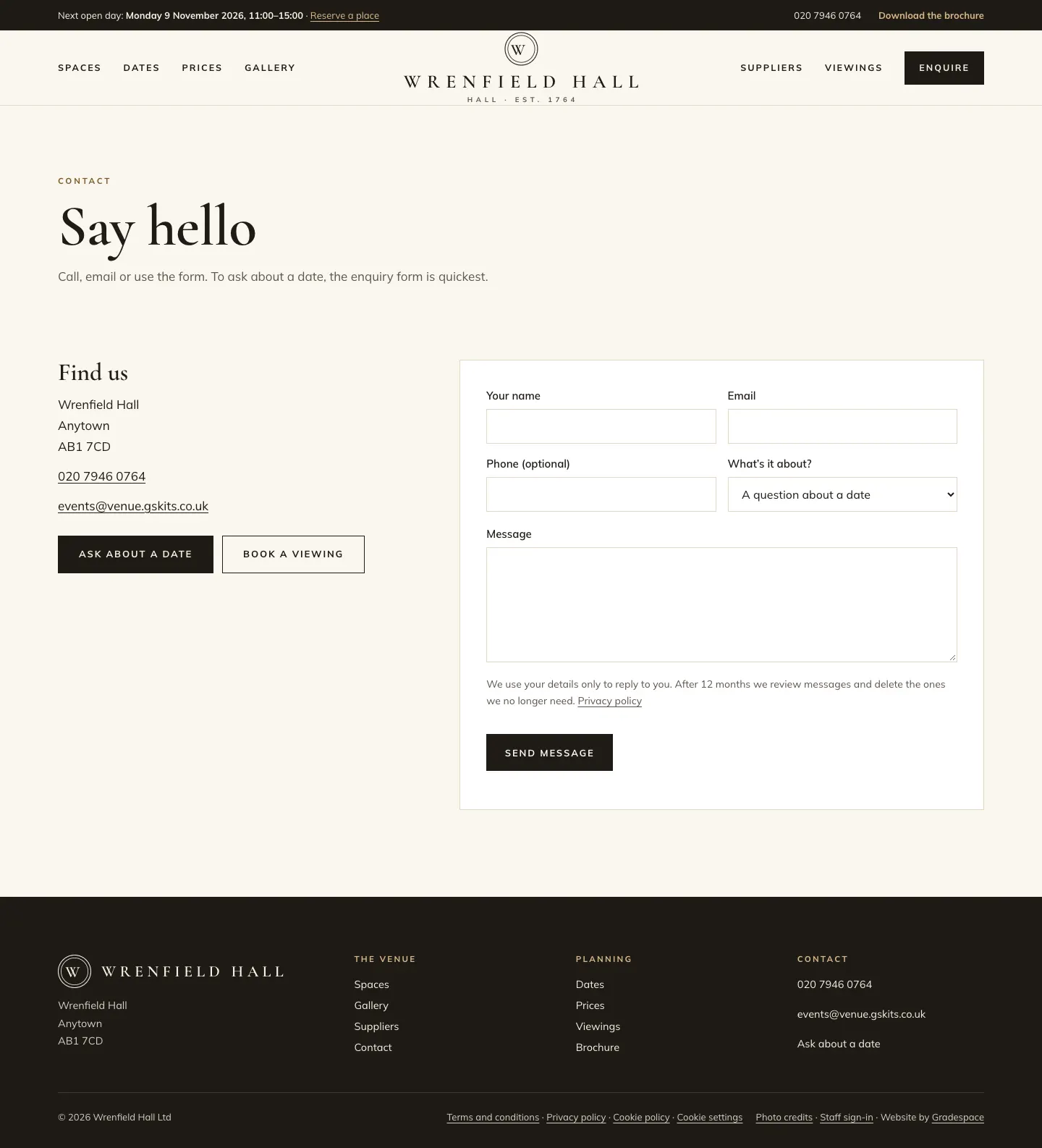
The Contact page shows your address, phone and email, Ask about a date and Book a viewing buttons, and the form: Your name, Email, Phone (optional), What's it about? (A question about a date, An event that's booked, Suppliers, Something else) and Message, with a Send message button.
How to read and answer messages
- Go to Venue → Messages. The New messages panel on Venue → Today shows the latest ones too.
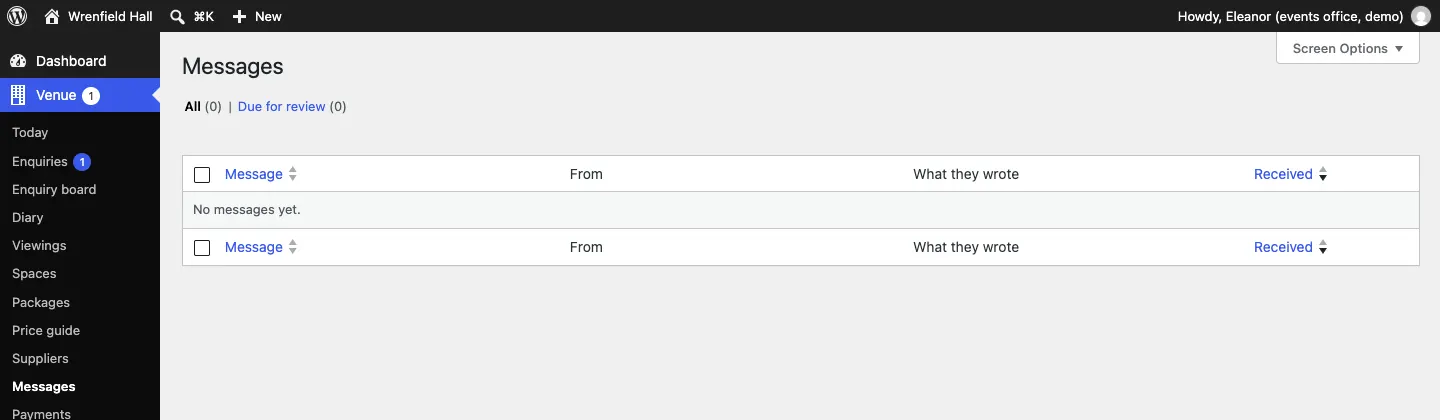
- The list shows each Message, who it's From, What they wrote and when it was Received.
- To answer, reply to the email the website sent you: your reply goes straight to them.
If a message is really an enquiry about a date, add it as one with Venue → Enquiries → Add an enquiry so the date can be held and tracked. See Enquiries.
Where the emails go
New messages are emailed to the addresses in Send notifications to under Venue → Settings → Email. The New message from the website email to you and the Thanks for your message reply can each be switched off there. See Privacy and emails.
Keeping messages tidy
Messages come up under Due for review after 12 months, as the Contact page tells visitors. Look through them and delete the ones you no longer need. See Privacy and emails.