Running your website
Enquiries
How people enquire on your website, what they see, and how your team works through enquiries in Venue → Enquiries: the stages, owners, notes, replies, the history, adding an enquiry yourself and the enquiry board.
On this page
An enquiry is someone asking about a date. On your website it takes four short steps, with a running summary and an estimate of the venue hire as they go. In the back office every enquiry gets a reference number (such as WH-1007) and moves through stages from New to Booked, with an owner, notes, emails and its full history on one screen.
Brochure requests and viewings booked online also appear in the enquiry list, so every lead is in one place.
Features marked (Pro) need a Pro or Agency licence.
The customer's side: making an enquiry
Step 1: Date and space
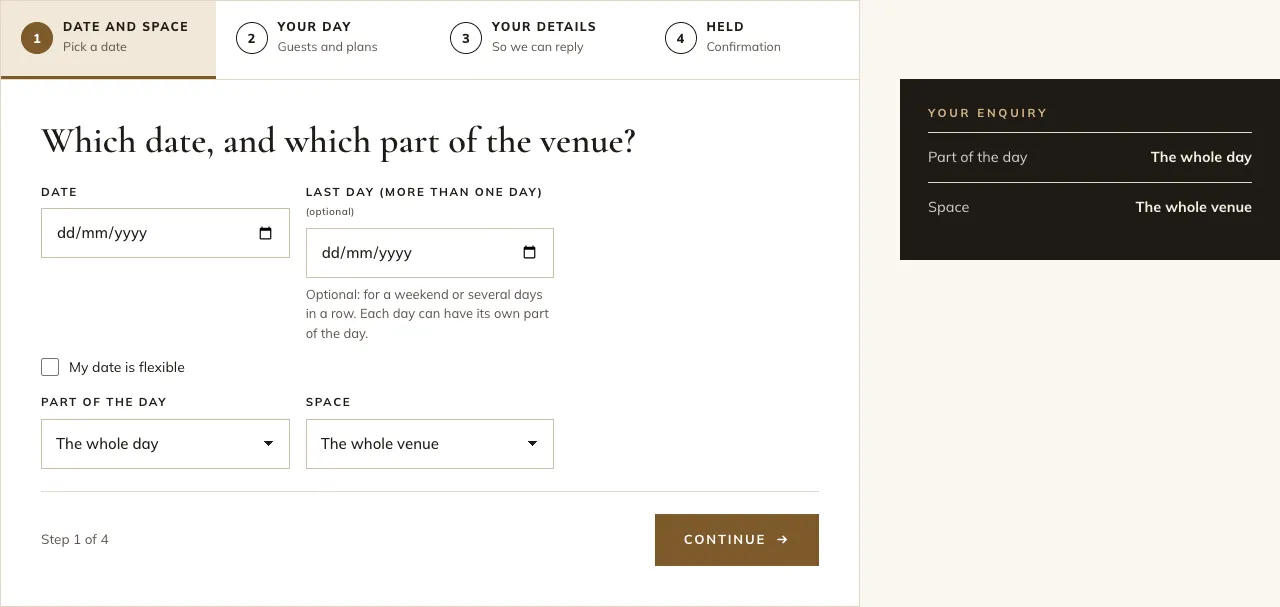
On the Enquire page, people answer Which date, and which part of the venue?
- Date: the day of the event.
- Last day (more than one day): optional, for a weekend or several days in a row.
- My date is flexible: tick this and a box appears for Which dates would suit you? (for example any Saturday in June 2027).
- Part of the day: the whole day, morning, afternoon or evening.
- Space: the whole venue or one space.
The dark Your enquiry panel on the right fills in as they go.
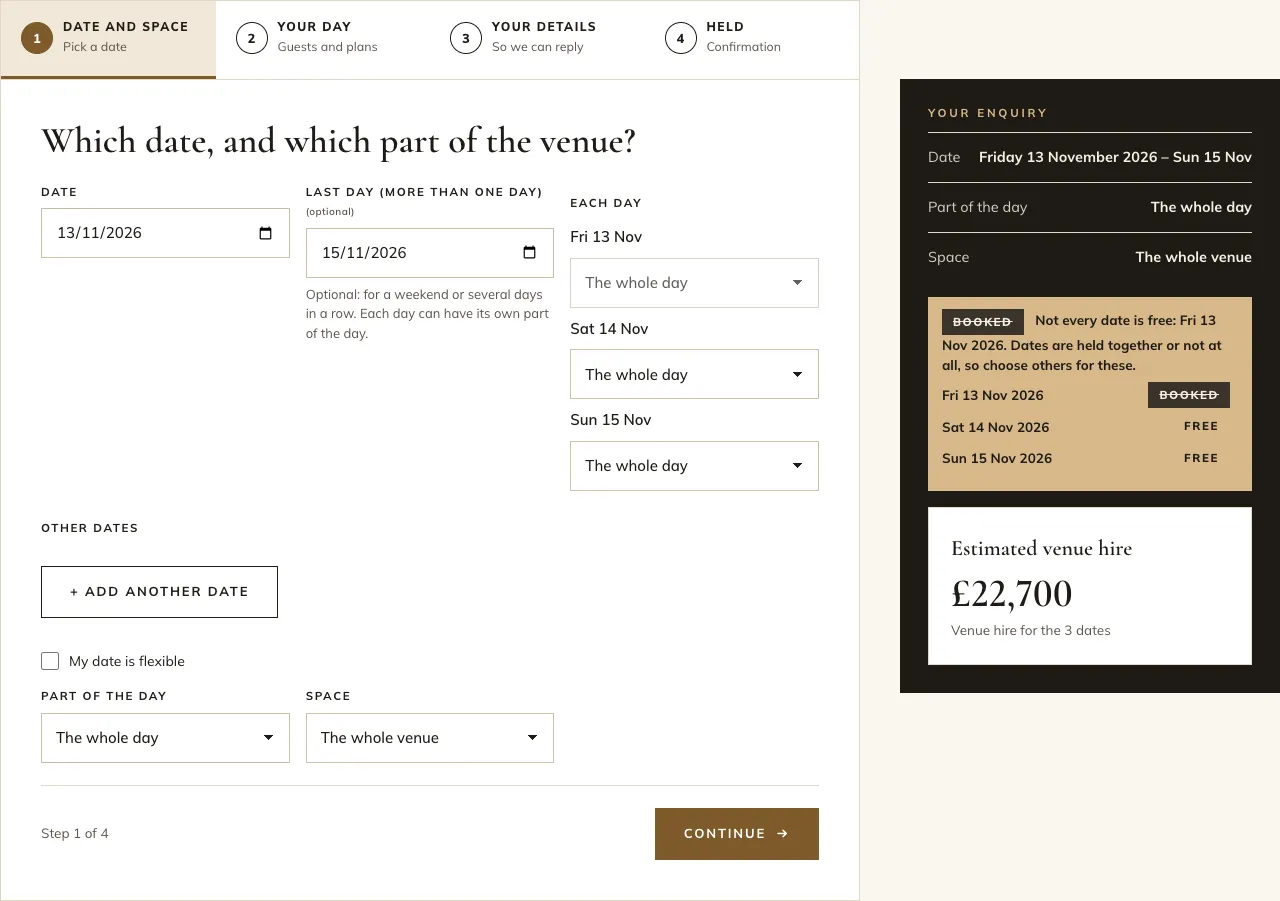
When they choose a last day, an Each day list appears so each day can have its own part of the day (for example the evening on Friday and the whole day on Saturday). + Add another date adds dates that aren't in a row. A day that's already taken is greyed out. See Bookings, including several days.
Step 2: Your day
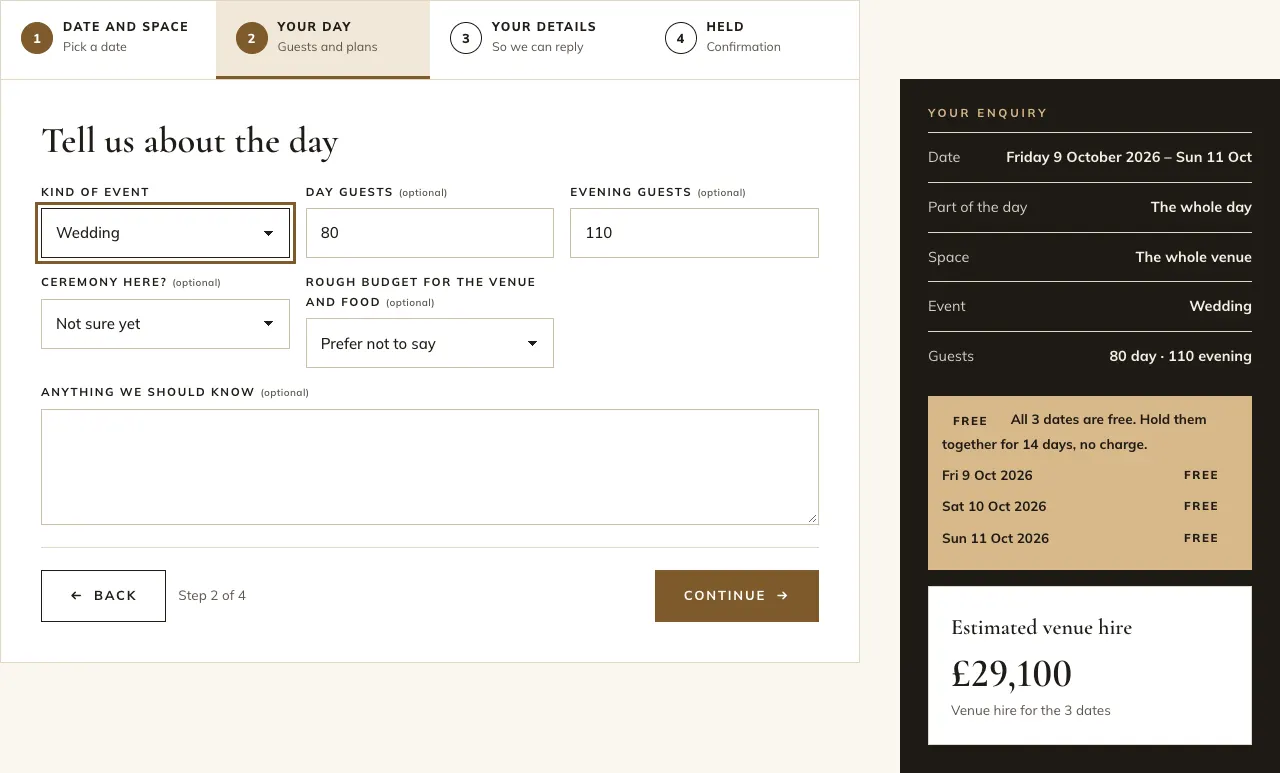
Tell us about the day: the Kind of event (the only box they must fill in), Day guests, Evening guests, Ceremony here?, Rough budget for the venue and food and Anything we should know.
Step 3: Your details
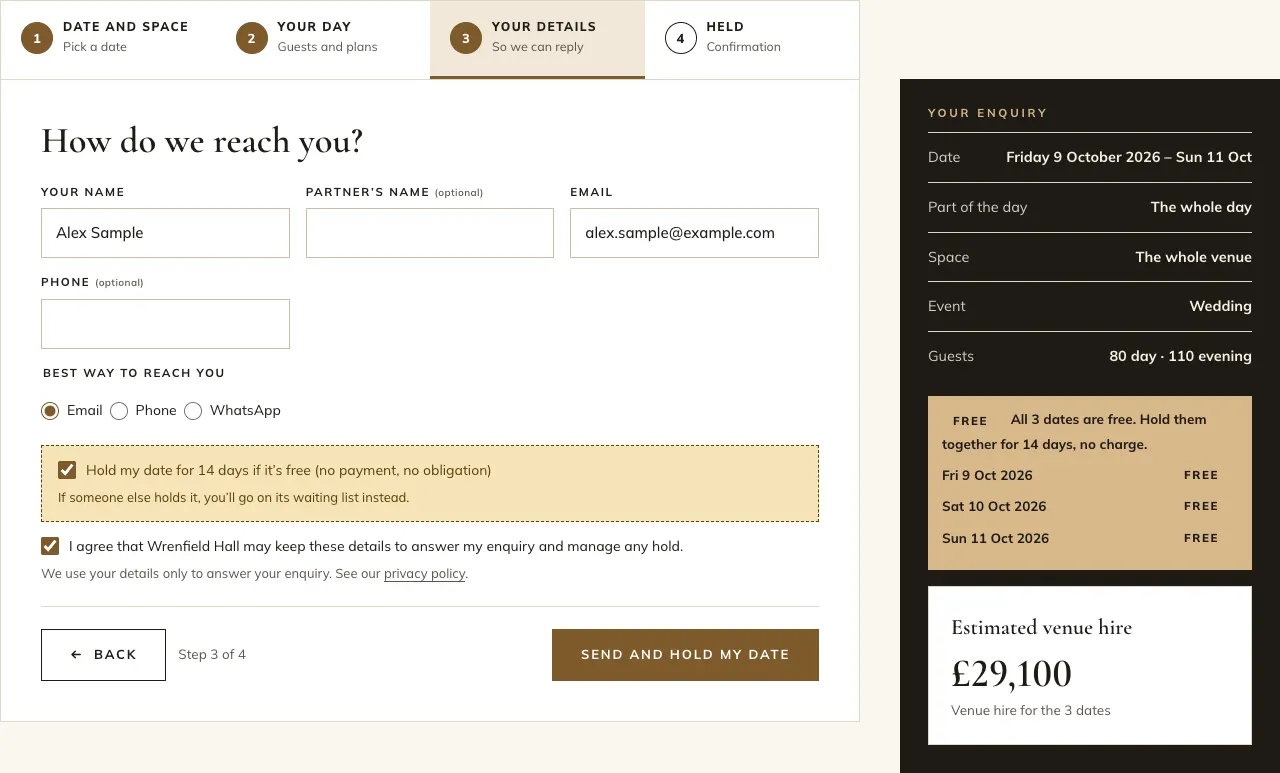
How do we reach you?: Your name, Partner's name (optional), Email, Phone (optional) and the Best way to reach you (Email, Phone or WhatsApp). Then two tick boxes:
- Hold my date for 14 days if it's free (no payment, no obligation) (Pro), ticked to start with. If someone else holds the date, they go on its waiting list instead.
- I agree that [your venue] may keep these details..., which they must tick.
They click Send and hold my date. The summary on the right now shows each date as free, held or booked, and the Estimated venue hire.
Step 4: Held
The form is replaced by a confirmation: Enquiry [reference] sent: your date is held (or Enquiry ... sent if no date was held), with See your enquiry and Add the hold to my calendar (.ics). They also get an email with the reference, the details, until when the date is held and a calendar file.
Their own page
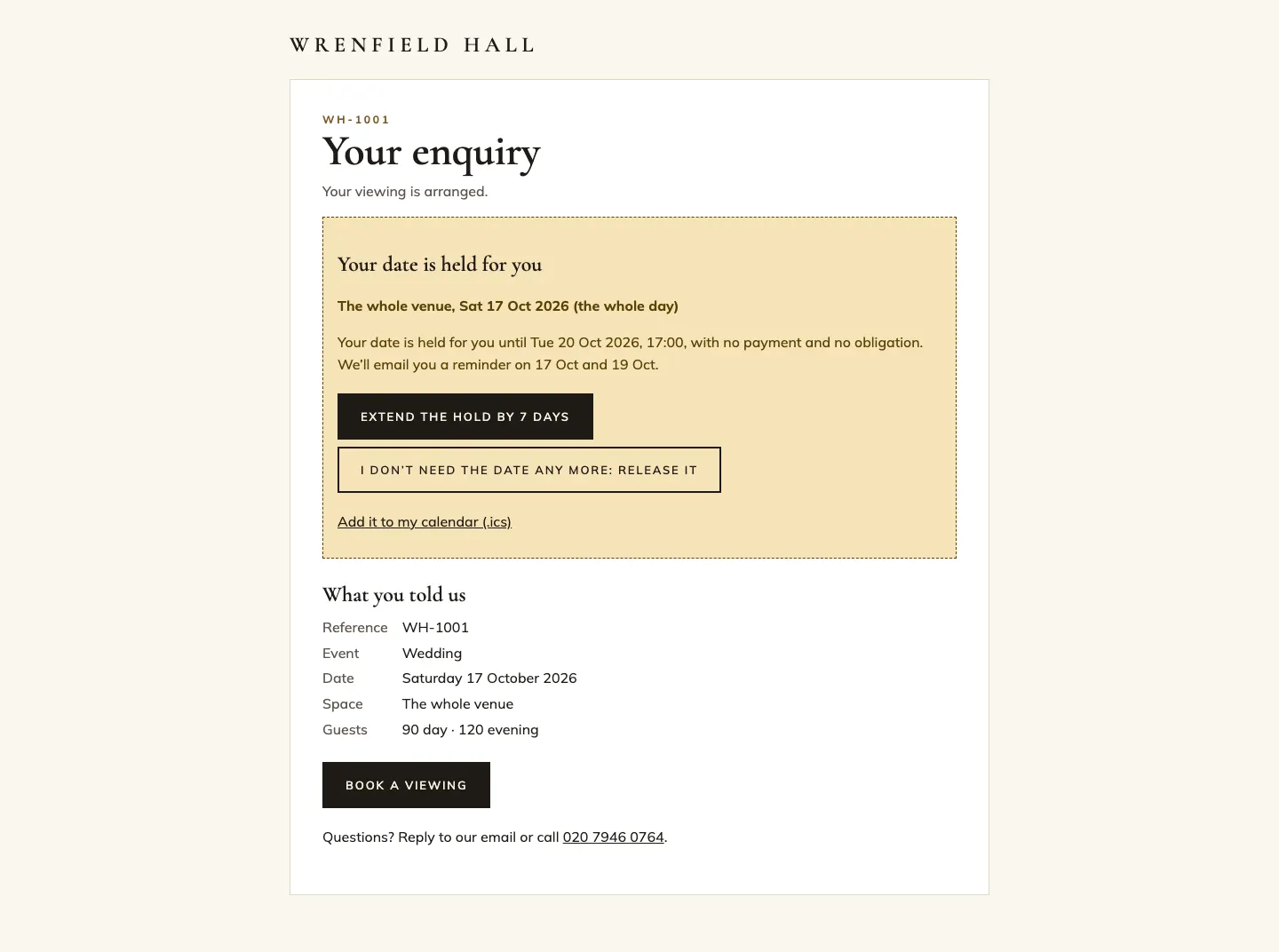
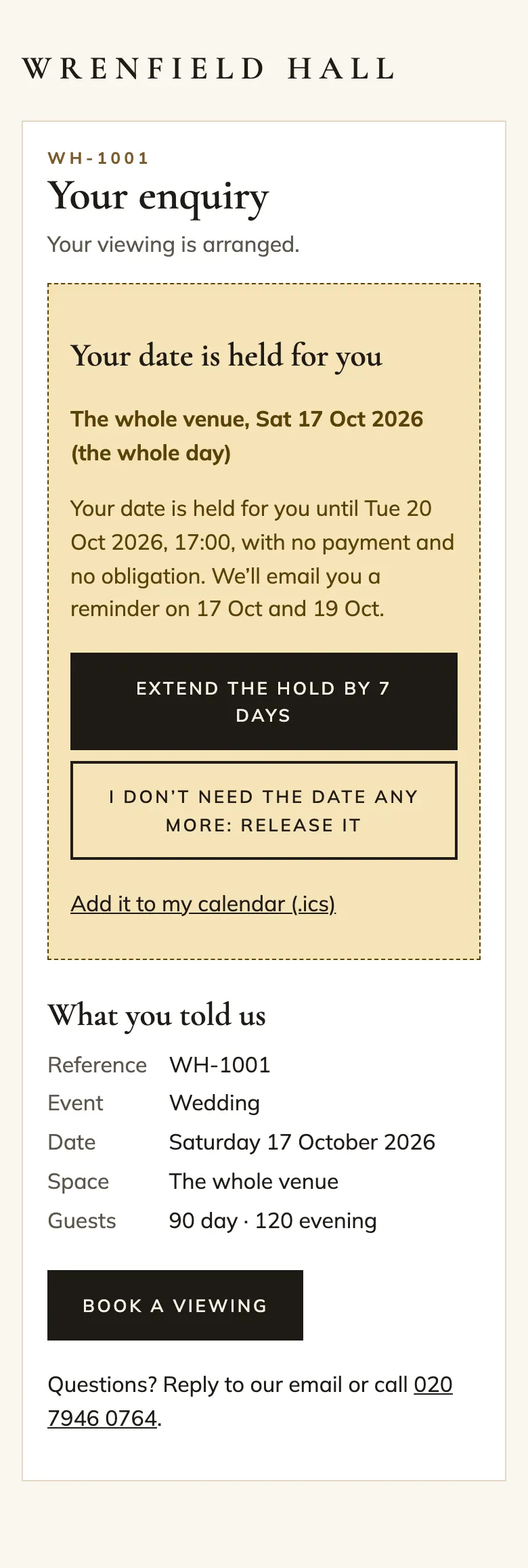
Every enquiry has a private page for the person, linked from their email. There they can see their details and the hold, extend the hold once (Pro), release it if they no longer need it, add it to their calendar and book a viewing.
The staff side: the enquiry list
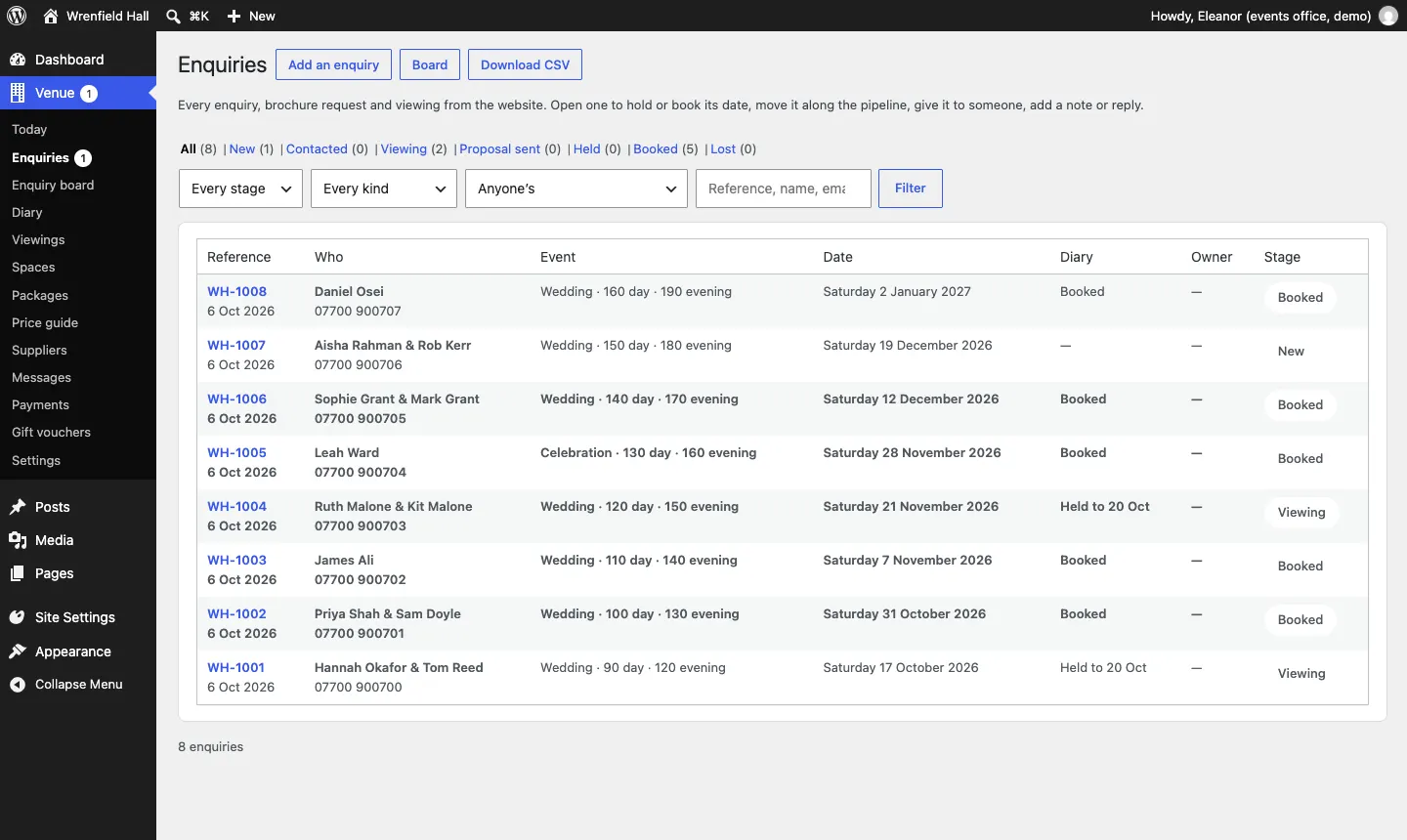
- Go to Venue → Enquiries. The number beside Enquiries in the menu shows how many are at the New stage.
- The list shows each enquiry's Reference, Who, Event, Date, Diary (free, held to a date, or booked), Owner and Stage.
- Use the links along the top (All, New, Contacted, Viewing, Proposal sent, Held, Booked, Lost) or the Every stage, Every kind (enquiry, brochure request, viewing) and Anyone's menus, then Filter. Search by reference, name or email.
How to work on an enquiry
Click a reference or name to open it. The stage bar at the top shows where it is. On the left are What they sent, The date, Viewings and Deposit; on the right Looking after it and History.
What they sent
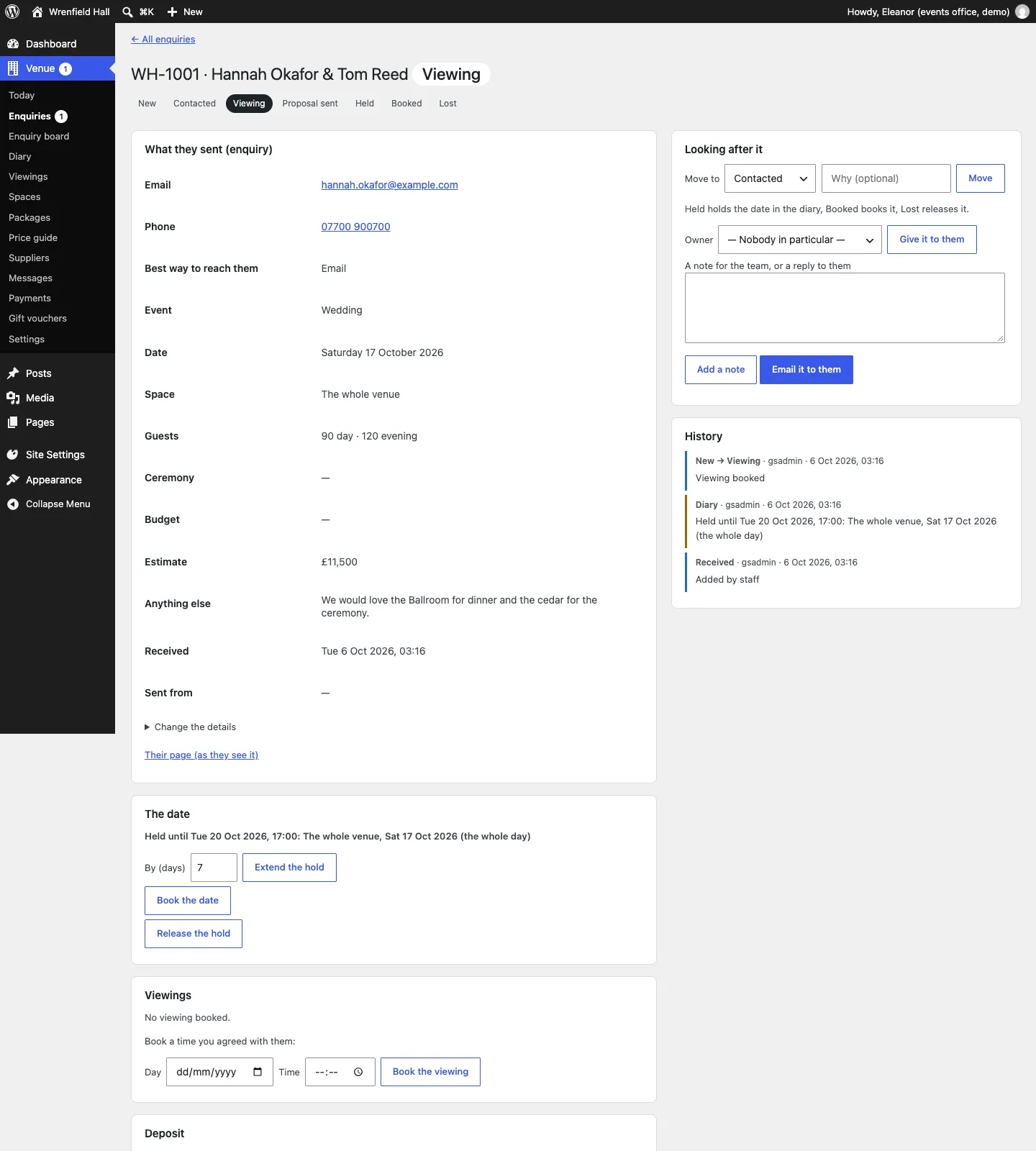
Everything they entered, plus the Estimate from your price guide and when it was Received. Their page (as they see it) opens the person's own page.
If the date, space or guests change, click Change the details, edit the boxes (you can also set the Value (£) of the event) and click Save the details.
The date, viewings and deposit
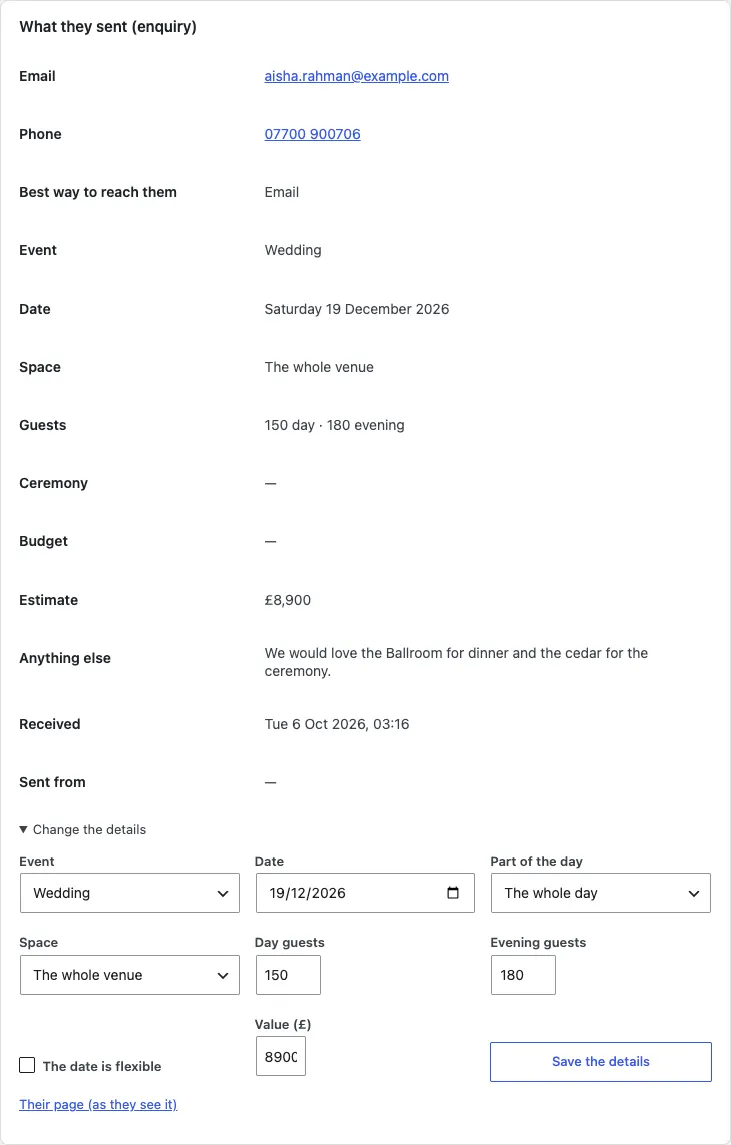
These cards let you hold, book or release the date, book a viewing and ask for a deposit. See Bookings, Holds, Viewings and Deposits and payments.
Looking after it
How to move an enquiry to the next stage
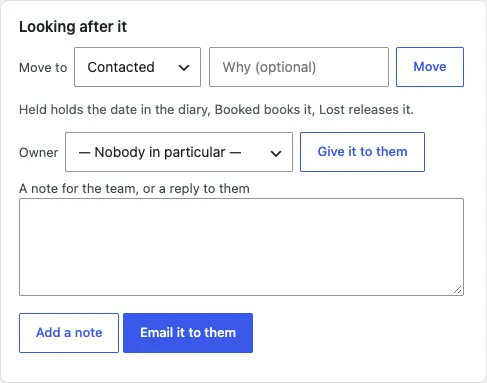
- Under Looking after it, choose a stage in Move to.
- Type a reason in Why (optional) if it helps, such as Proposal emailed.
- Click Move.
How to give an enquiry to someone
- Choose the person in Owner.
- Click Give it to them. They're emailed.
Event coordinators only see the enquiries given to them.
How to add a note or email them
- Type in A note for the team, or a reply to them.
- Click Add a note to keep it for the team only, or Email it to them to send it to the person (you're asked to confirm). A New enquiry becomes Contacted by itself when you email them.
History
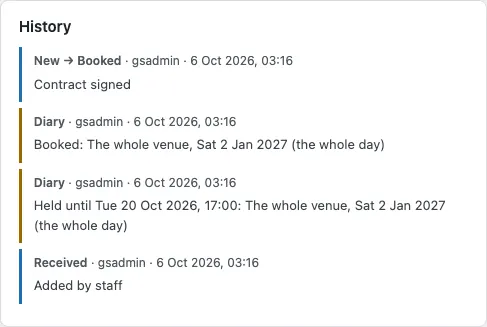
Everything that has happened: when it was received, every stage change with the reason, holds and bookings, viewings, notes, emails and deposits, with who did it and when. The website means it happened by itself (for example a hold running out).
The stages
New → Contacted → Viewing → Proposal sent → Held → Booked, or Lost.
- Moving to Held holds the date in the diary. If someone else already has it, you're told and nothing changes.
- Moving to Booked books the date and emails them.
- Moving to Lost releases the date.
You can move forward to any later stage, back one step, or to Lost at any time. A lost enquiry can be reopened as Contacted. A booked enquiry can only go back to Held, or to Lost.
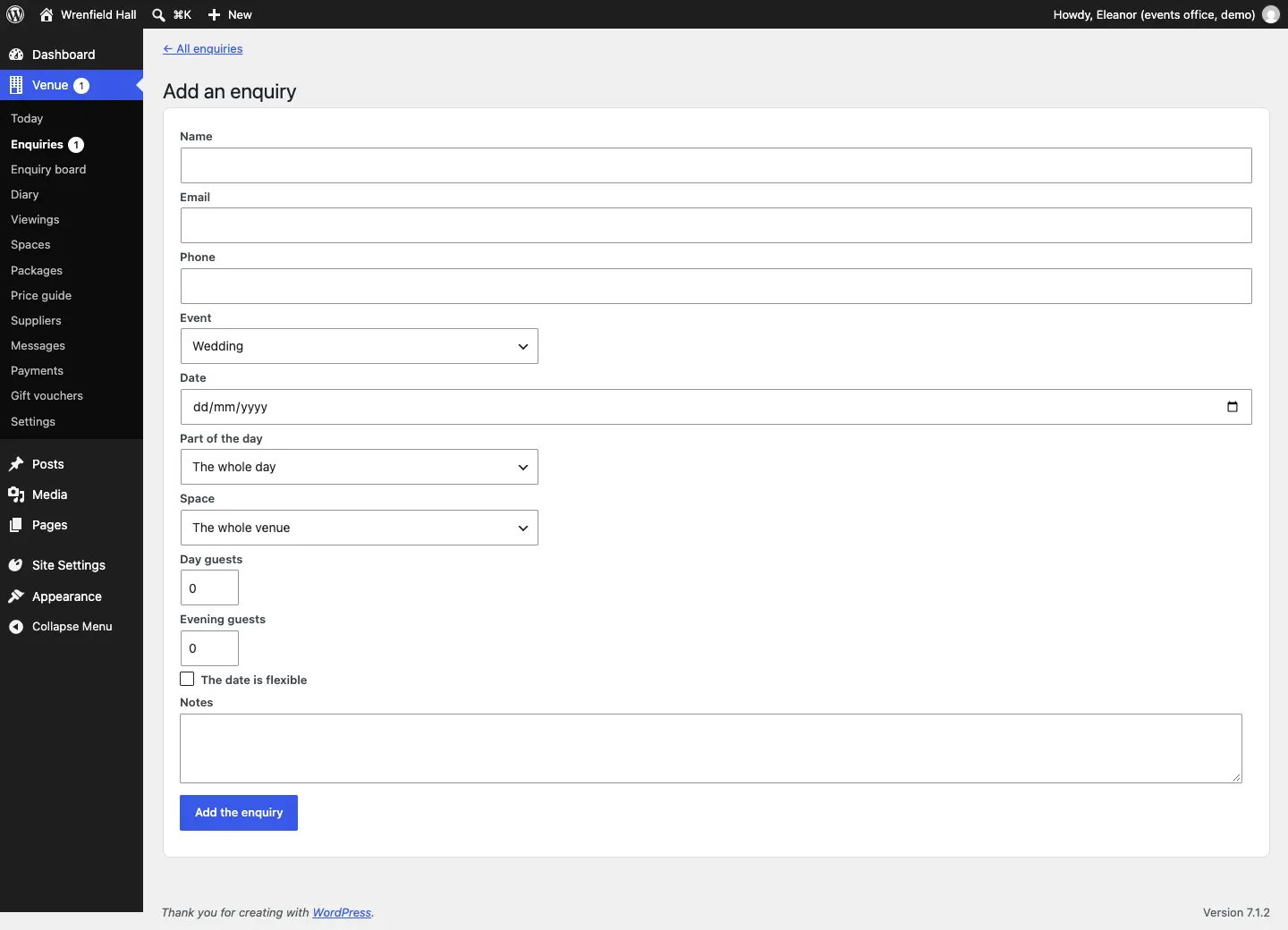
How to add an enquiry yourself
Took an enquiry on the phone or at an open day?
- Go to Venue → Enquiries and click Add an enquiry.
- Fill in the Name, Email, Phone, Event, Date, Part of the day, Space, Day guests, Evening guests, The date is flexible and Notes.
- Click Add the enquiry. It opens, ready for you to hold the date.
Who gets new enquiries
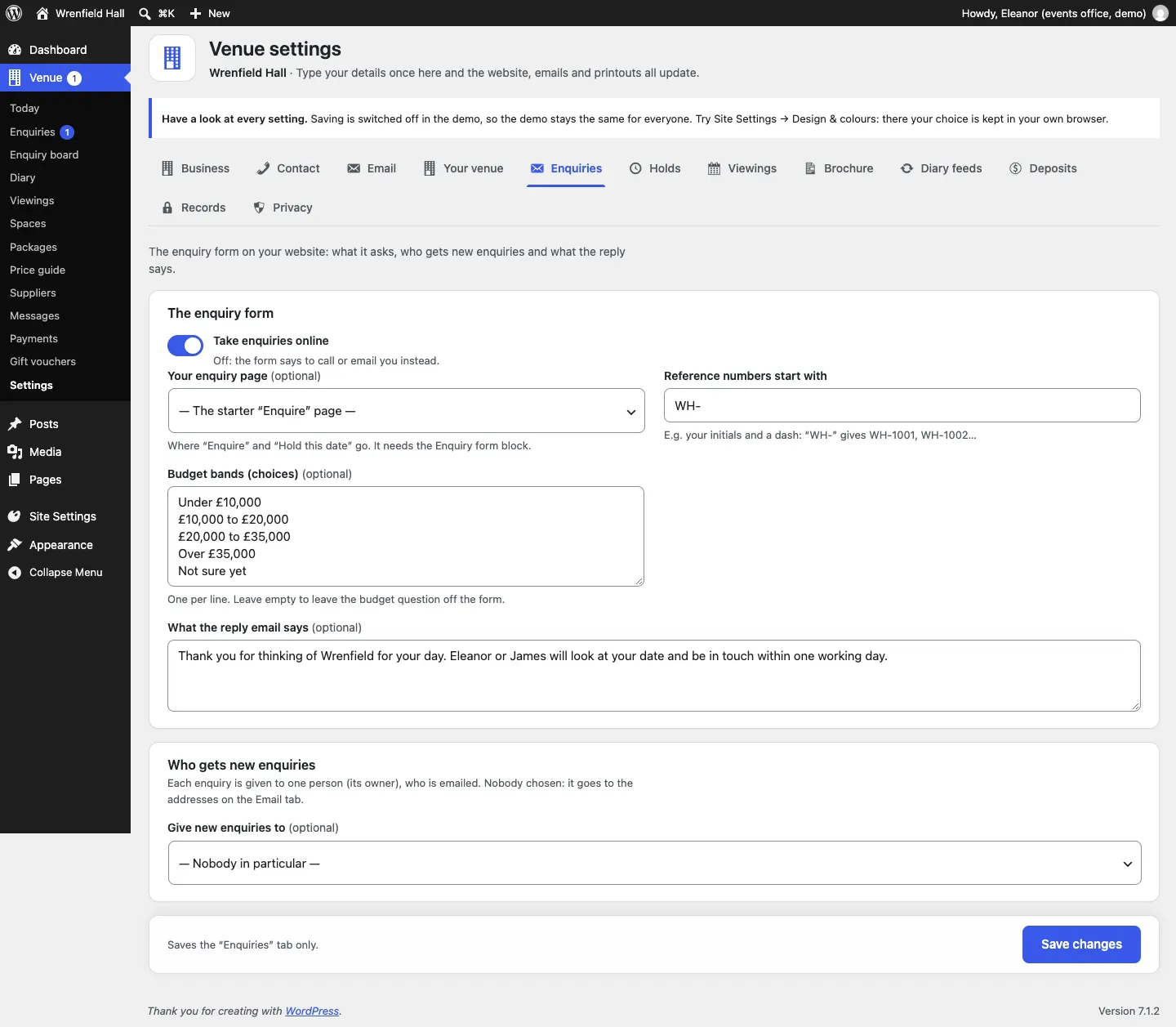
Under Venue → Settings → Enquiries → Who gets new enquiries, choose a person in Give new enquiries to. They own each new enquiry and are emailed. Leave it on — Nobody in particular — and new enquiries go to the addresses on the Email tab.
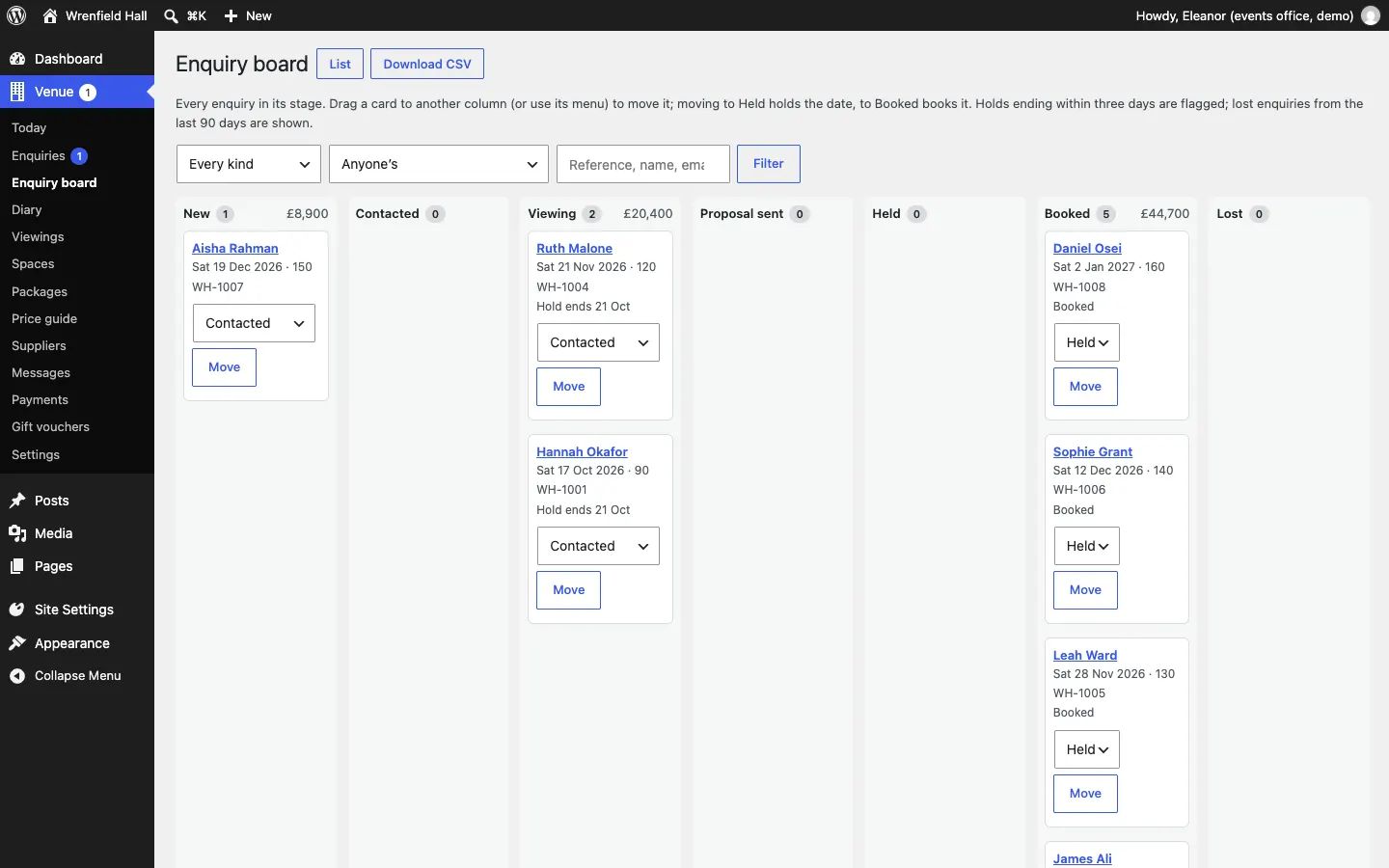
The enquiry board (Pro)
Venue → Enquiry board shows every enquiry as a card in a column for its stage, from New to Booked and Lost, with the total value of each column. Each card shows the name, the date, the number of guests, the reference and when its hold ends.
- Drag a card to another column to move it, or choose a stage in the card's menu and click Move.
- Holds ending within three days are marked in red. Lost enquiries from the last 90 days are shown.
- Download CSV gives you the whole pipeline as a spreadsheet. List goes back to the enquiry list.
Enquiry settings
Venue → Settings → Enquiries:
- Take enquiries online: off, and the form says to call or email you.
- Your enquiry page: where Enquire and Hold this date buttons go. It needs the Enquiry form block. Leave it on the starter Enquire page.
- Reference numbers start with: for example WH- gives WH-1001, WH-1002...
- Budget bands (choices): one per line. Leave it empty to leave the budget question off the form.
- What the reply email says: the words in the automatic reply.
- Give new enquiries to: see above.
The kinds of event on the form come from Venue → Settings → Your venue → Kinds of event (choices).