Running your website
Diary feeds (Pro)
Mark dates busy on your website from Google Calendar, Outlook or another booking system, and add the website's holds and bookings to your own calendar.
On this page
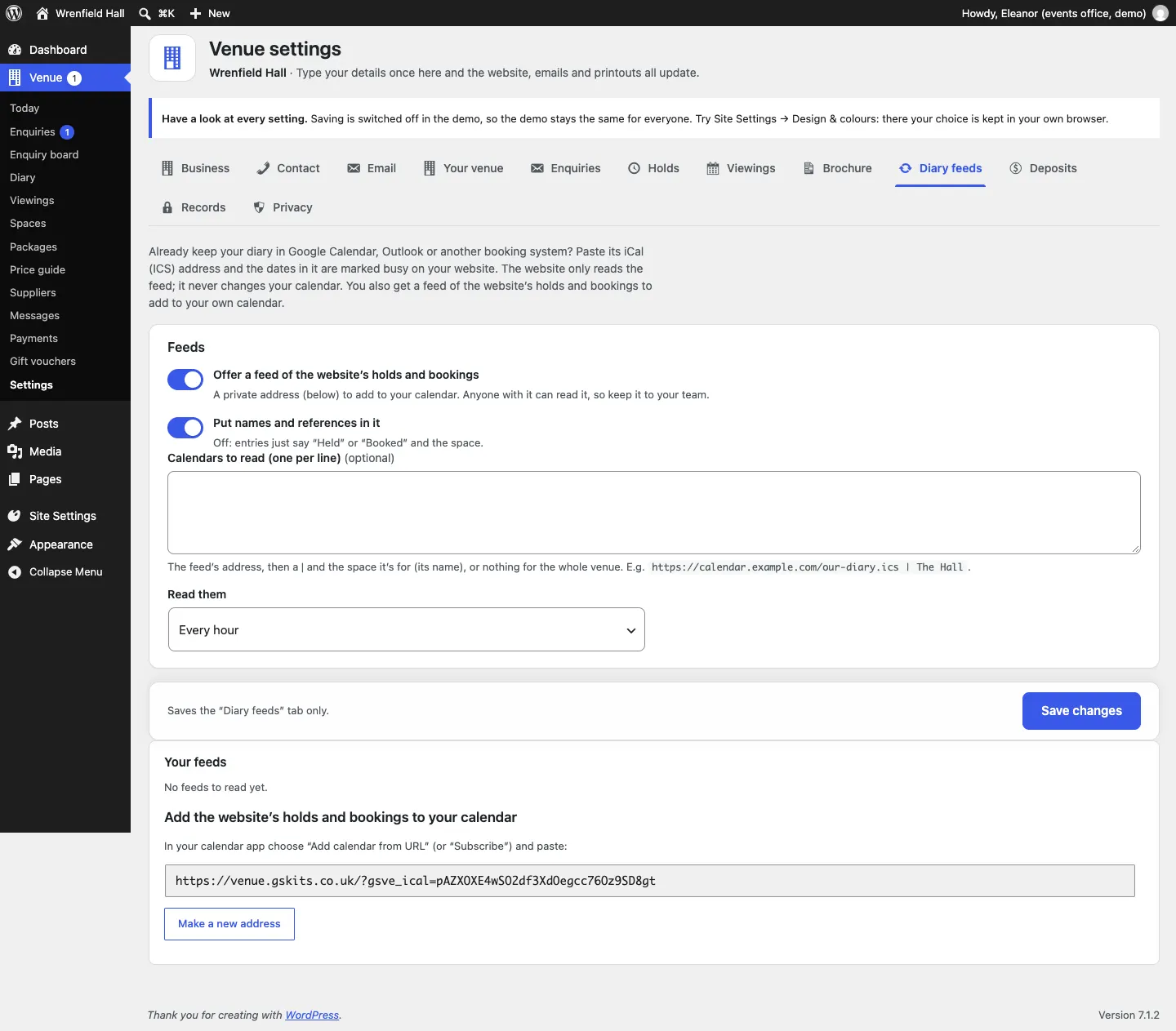
Already keep your diary in Google Calendar, Outlook or a booking system? A diary feed lets the website read it, so every event in it marks those dates busy on your website. The website only reads the calendar; it never changes it.
It works the other way too: the website gives you a private address to add its holds and bookings to your own calendar app.
Features marked (Pro) need a Pro or Agency licence. Everything on this page is Pro.
How to read your calendar
- In your calendar app, find the calendar's iCal or ICS address (in Google Calendar it's under the calendar's settings, "Secret address in iCal format"; in Outlook, "Publish a calendar").
- Go to Venue → Settings → Diary feeds.
- In Calendars to read (one per line), paste the address. To mark only one space busy, add a | and the space's name after it. Leave it off for the whole venue. For example:
https://calendar.example.com/our-diary.ics | The Hall - Under Read them, choose Every hour, Every six hours or Once a day.
- Click Save changes.
Each event in the calendar marks the parts of the day it overlaps (morning, afternoon or evening) as busy. Under Your feeds you see each feed, the space it's for and when it was Last read (for example 2 hours ago: 14 events, 9 parts of days marked busy). Click Read them now to read them straight away. If a feed can't be read, the last good dates are kept and you're told why.
When feeds are set up, Venue → Diary says when the dates from your calendar feeds were last read, and warns you if a feed couldn't be read.
How to add the website's diary to your calendar
- Go to Venue → Settings → Diary feeds and check Offer a feed of the website's holds and bookings is on.
- Under Add the website's holds and bookings to your calendar, copy the address.
- In your calendar app choose Add calendar from URL (or Subscribe) and paste it.
With Put names and references in it on, each entry shows who it's for. Off, entries just say "Held" or "Booked" and the space.