Running your website
Daily running and settings
The daily and weekly routine for your events team: the Today screen and the numbers in the menu, who sees what, reviewing old records, privacy requests, and every Venue setting at a glance.
On this page
This chapter is the routine: what to look at each morning, what to check each week, and where every setting lives. Features marked (Pro) need a Pro or Agency licence.
Signing in
Go to your website's address followed by /wp-admin (for example yourvenue.co.uk/wp-admin) and sign in with your own username and password. Please don't share accounts: the website records who did what in each enquiry's history. After signing in you go straight to Venue → Today. See Staff and signing in.
Every morning: Venue → Today
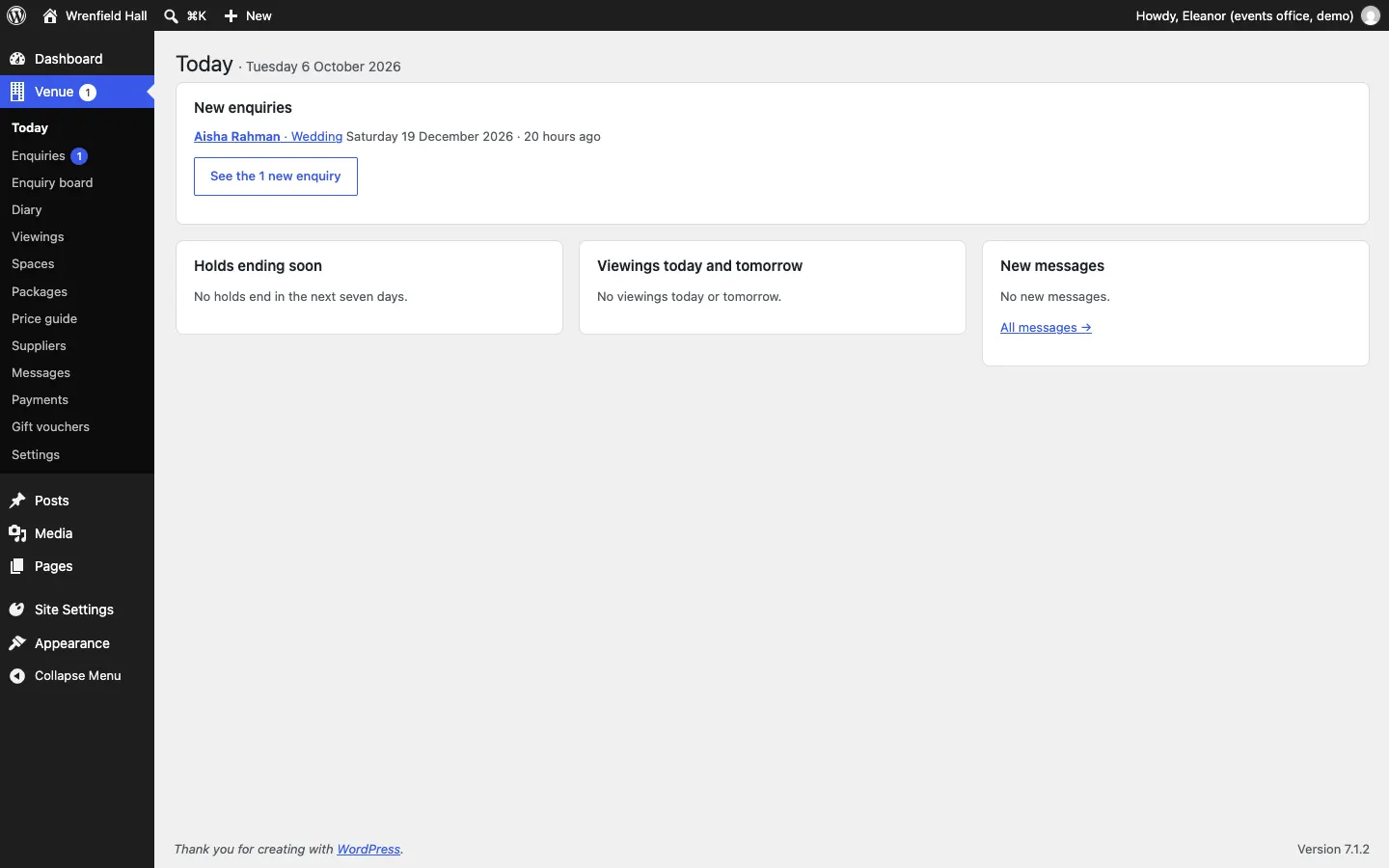
Work down the panels:
- New enquiries, newest first. Open each one, give it to someone if needed, and reply or hold the date. See Enquiries.
- Holds ending soon (Pro): holds that end in the next seven days. Chase them: do they want to book, extend or let it go? See Holds.
- Viewings today and tomorrow: who's coming to look round. See Viewings.
- New messages from the contact form. See Messages.
- For administrators, enquiries due for review (see below).
The numbers in the menu
The number beside Venue and Enquiries in the left-hand menu shows how many enquiries are still at the New stage. It goes down as you move each one on (emailing them moves it to Contacted by itself). Administrators also get a count of finished enquiries due for review.
Every week
- Venue → Enquiry board (Pro): look along the columns. Is anything stuck in Contacted or Proposal sent? Holds ending within three days are marked.
- Venue → Diary: look at the coming month. Are closures and private events in?
- Venue → Payments (Pro): check deposits have arrived, and anything under To decide.
- Venue → Settings → Viewings: add new open days, and days with no viewings.
Who sees what
| Role | Sees |
|---|---|
| Administrator | Everything, including settings, payments and records due for review. |
| Events manager | Every enquiry with the customer's details, the pipeline, notes, owners, holds, the diary, viewings and deposits. |
| Event coordinator | Only the enquiries given to them, and the diary without other people's names. |
| Editor | Spaces, packages, the price guide, suppliers and the gallery. |
The abilities behind these are Manage every enquiry and the diary, Their own enquiries and Spaces, packages and suppliers. You can give them to other roles. See Staff and signing in.
Records and privacy
Data protection law asks you to keep personal data only as long as you need it.
How to review old records
- Lost enquiries and brochure requests come up under Venue → Enquiries → Due for review 12 months after their last change. Booked events are never listed.
- An administrator opens the list, ticks the ones there's no reason to keep, and deletes them, typing DELETE to confirm.
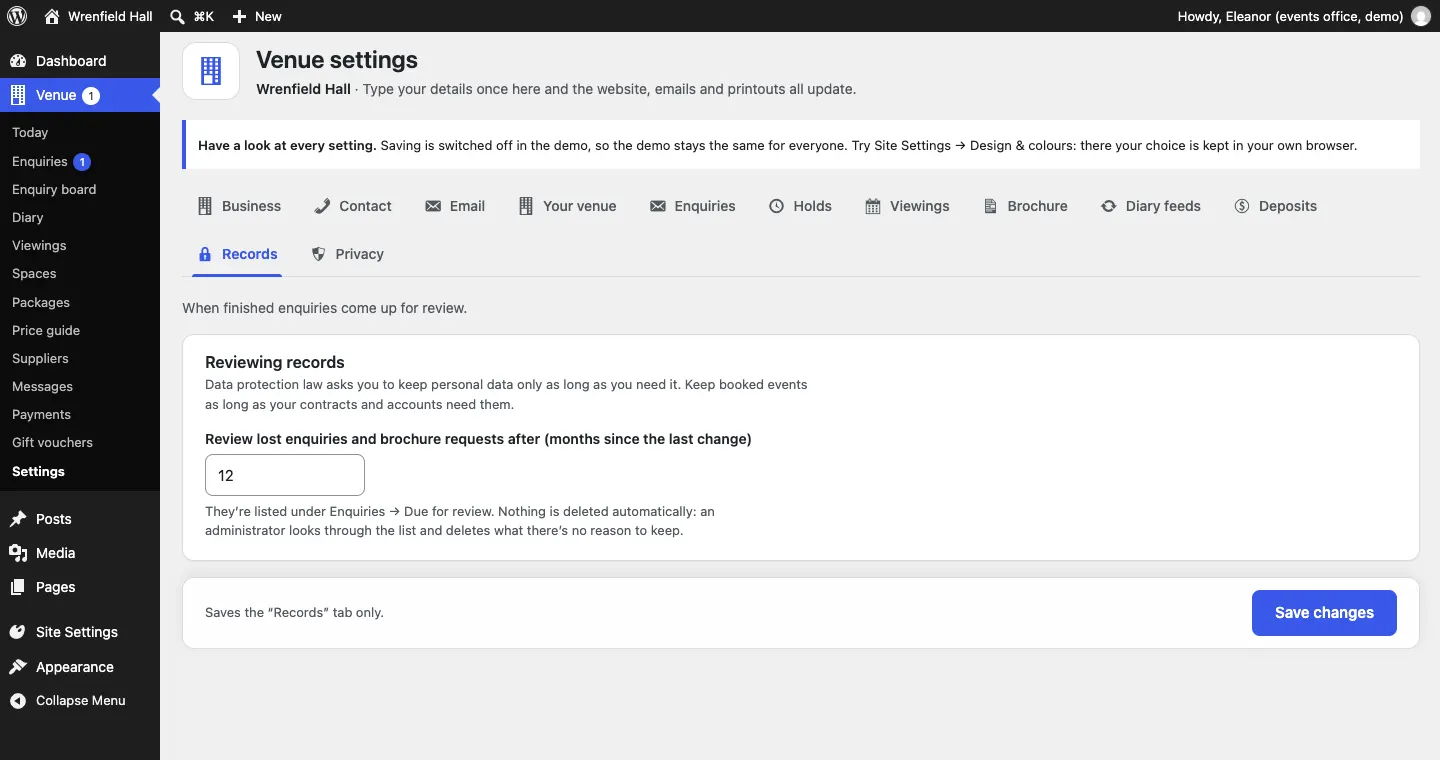
Nothing is deleted automatically. Change the months under Venue → Settings → Records → Review lost enquiries and brochure requests after (months since the last change).
When someone asks for their data
Use WordPress's Tools → Export Personal Data and Tools → Erase Personal Data with their email address. Their enquiries, holds, viewings and brochure requests are included. Erasing frees their dates in the diary. See Privacy and emails.
Emails
Every email the website sends can be switched off under Venue → Settings → Email.
At the top, Send notifications to is where new requests and messages go. Two optional boxes send some of them elsewhere: Send new enquiries to (enquiries that aren't given to anyone in particular, holds that end and deposits paid) and Send contact form messages to. Leave them blank to use Send notifications to.
To couples and organisers: Enquiry received, Hold ending soon (Pro), Hold ended (Pro), Date booked, Pay your deposit (Pro), Your brochure, Payment received, Viewing booked, moved or cancelled, Refund sent, Thanks for your message (and the gift voucher emails).
To you and your team: New enquiry, New message from the website, An enquiry was given to you, A hold ended (Pro), Viewing booked or cancelled, Deposit paid (Pro), Brochure requested (off at first), Gift voucher sold.
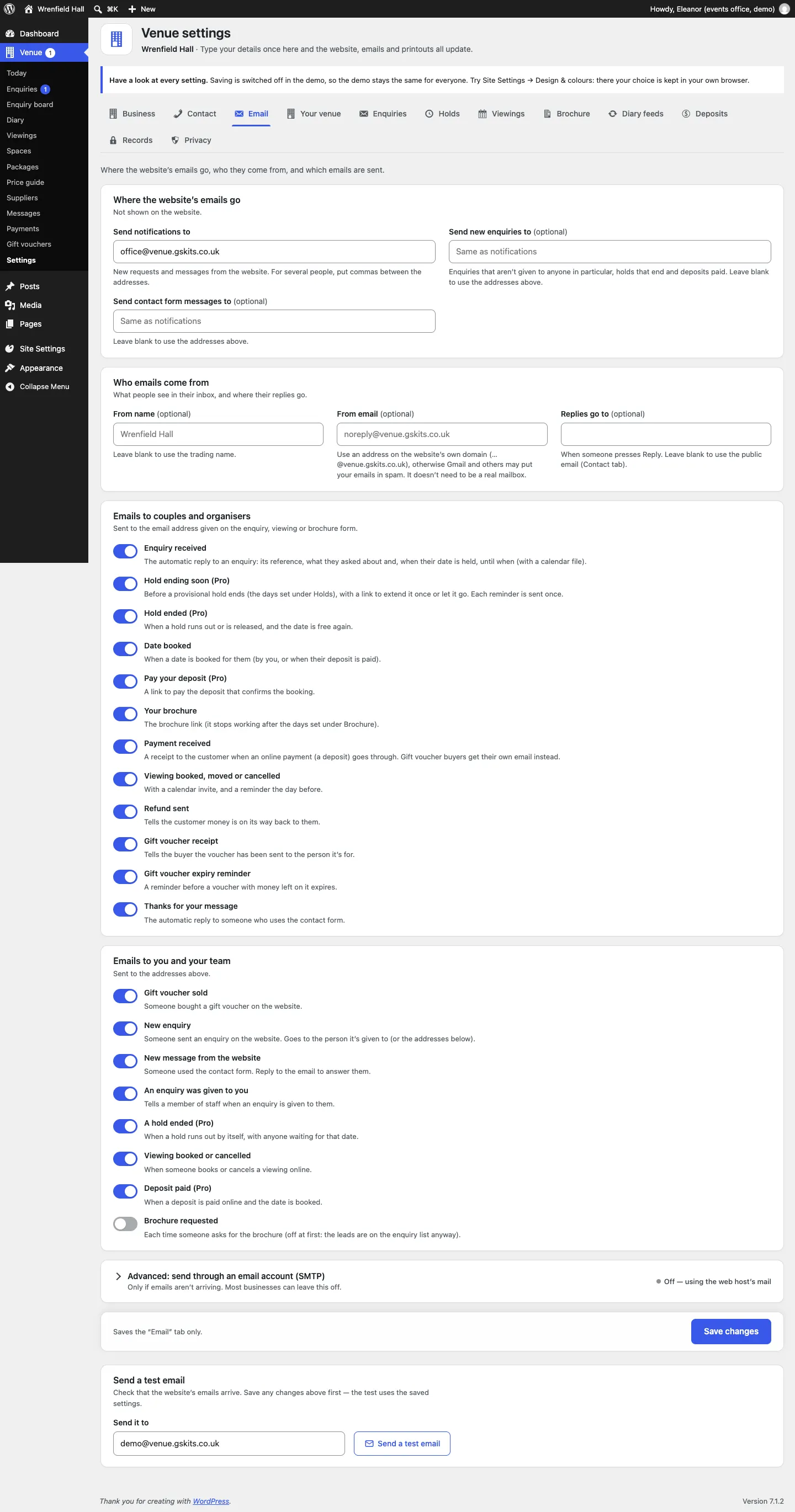
Send yourself a test with Send a test email at the bottom of the tab.
Settings at a glance
All under Venue → Settings. Each tab saves on its own with Save changes.
| Tab | What's there | Chapter |
|---|---|---|
| Business | Trading and company names, tagline, logo, sign-in page, search and sharing, social media | Your look |
| Contact | Address, phone, public email | Your look |
| Where emails go, who they come from, each email on or off, test email | Privacy and emails | |
| Your venue | Exclusive use, kinds of event, dates in one enquiry, what to call the whole venue, how far ahead the diary goes, parts of the day, closed days | Availability and the diary |
| Enquiries | Take enquiries online, your enquiry page, reference letters, budget bands, reply email, who gets new enquiries | Enquiries |
| Holds (Pro) | The form can hold a free date, waiting list, how long, reminders, extending | Holds |
| Viewings | Online booking, confirming, length, gaps, notice, weekly hours, days off, open days | Viewings |
| Brochure | Offer it, how long the link works, its name, the news tick box, the PDF | Gallery, suppliers and the brochure |
| Diary feeds (Pro) | Calendars to read, how often, the feed to your calendar | Diary feeds |
| Deposits (Pro) | Take deposits online, fixed or a share, the payment email | Deposits and payments |
| Records | When lost enquiries and brochure requests come up for review | This chapter |
| Privacy | Cookie banner and privacy | Privacy and emails |
| Payments (administrators) | Payment provider and currency | Deposits and payments |
Your licence key is under Settings → Gradespace licence. See Buying and your licence.
Run setup again reopens the setup wizard. It never adds anything twice. See The Venue setup wizard.
Getting help
Email support@thegradespace.com with what you were doing, what you expected and a screenshot. See Troubleshooting and support.